

eCommerce plays a crucial role in digital marketing. If you want to boost your sales with high-quality videos, this post showcases six top eCommerce video maker tools: MiniTool MovieMaker, Microsoft Clipchamp, Lumen5, Vimeo, Animoto, and VEED.io, to help you create professional product videos.
eCommerce video has become a powerful digital marketing tool to showcase products and services. It typically includes product demonstrations, customer testimonials, behind-the-scenes footage, how-to guides, and more. Designed to increase conversion rates and enhance customer engagement, eCommerce videos are widely used across websites, social media, and ad platforms to reach potential audiences effectively.
Wonder how to create an engaging eCommerce video? This post presents 6 reliable eCommerce video makers to elevate your sales.
6 Best eCommerce Video Makers at a Glance
Picking the right eCommerce video maker depends on several key factors, such as how easy it is to use, available customizable options, accessible templates and resources, and more. Based on this criterion, this post compiles a list of eCommerce video creators that are worth trying:
- MiniTool MovieMaker
- Microsoft Clipchamp
- Lumen5
- Vimeo
- Animoto
- VEED.io
Here is a concise comparison table of these e-commerce video makers.
| Tool | Platform | Pricing | Watermark | E-commerce Templates | Branding Support | AI Features | Suitable For |
| MiniTool MovieMaker | Windows | Free + Paid | No | No | Manual | No | Users who want fine control and a free desktop editor |
| Clipchamp | Win / Web | Free + Paid | No | Yes | Manual | Yes | Windows 11 users |
| Lumen5 | Web | Free + Paid | The free plan has a watermark. | Yes | Yes (paid version) | Yes | Users who need fast AI-powered video generation |
| Vimeo | Web | Free + Paid | Yes, the free plan | Yes | Yes | No | Users who need online templates and branding tools |
| Animoto | Web | Free + Paid | Yes, the free plan | Yes | Yes (paid version) | Yes | Users who prefer template-driven video creation |
| VEED.io | Web | Free + Paid | Yes, the free plan | Yes | Yes | Yes | Users who need online AI subtitle and voiceover tools |
1. MiniTool MovieMaker
MiniTool MovieMaker is the first video editor that springs to my mind for creating eCommerce videos on Windows. When I first used this application, its intuitive interface and robust features immediately grabbed my attention. Whether it’s cropping, splitting, trimming, or rotating videos, the software makes the process simple and efficient, meeting all my editing needs.
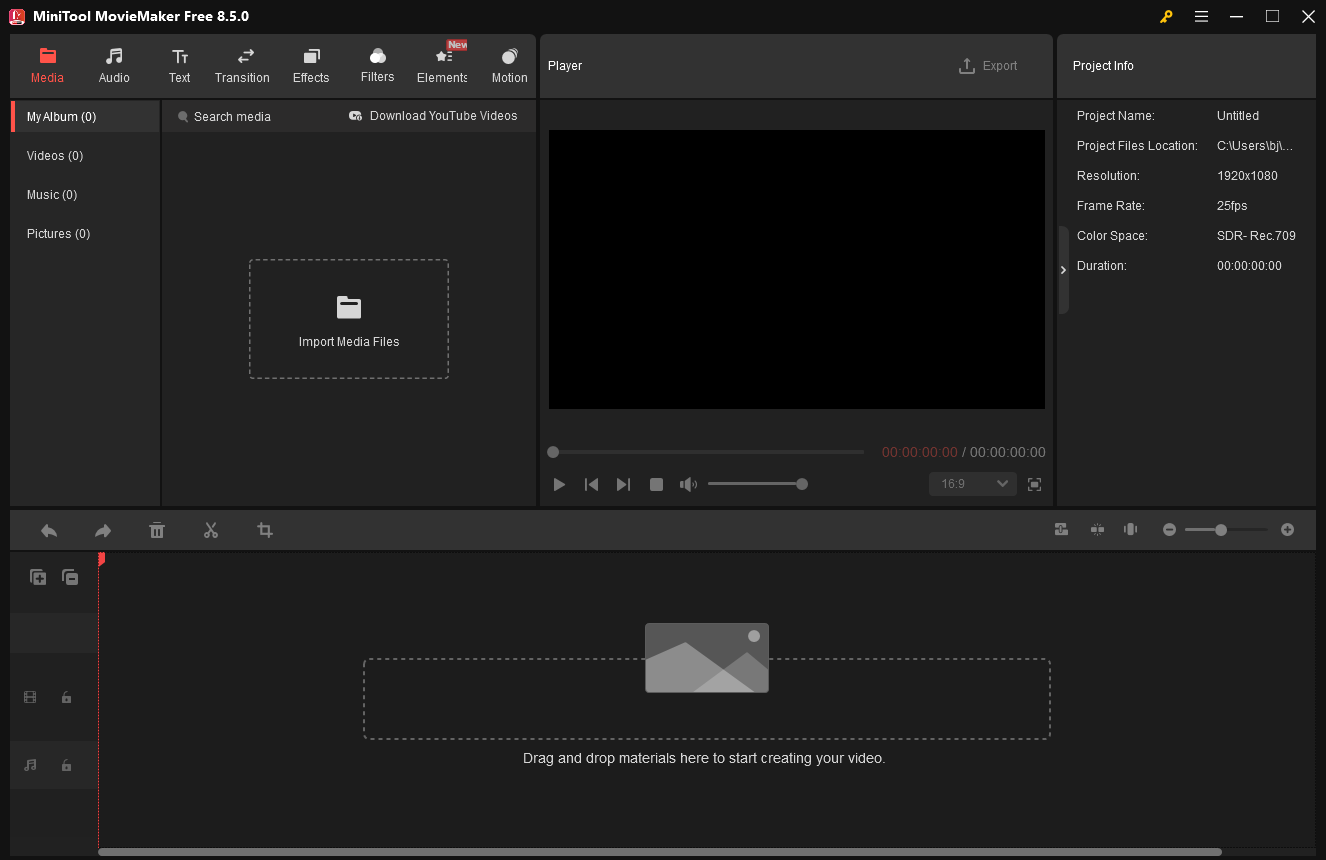
In addition to basic editing functions, this video editor allows users to add overlays to eCommerce videos thanks to its multi-track editing feature. It also offers a wide range of content to enrich the video, including audio, text templates, transitions, effects, filters, elements, and motions, which helps make videos more engaging and visually appealing.
Moreover, this application supports a wide range of video, audio, and image formats, such as MP4, AVI, MOV, GIF, and MP3, making it easy to create videos from images or extract audio from video clips. As a video editor without watermark, the application also provides flexibility and control over video resolution, frame rate, bitrate, and other settings, and it is capable of exporting 4K videos.
Overall, MiniTool MovieMaker is a versatile eCommerce video maker suitable for both beginners and experienced Windows users.
Pros:
- Straightforward interface and ease of use.
- Covers both basic and advanced editing requirements.
- Includes various resources.
- Supports multiple formats and customizable settings.
- Exports videos without watermarks.
Cons:
- Only available on Windows.
You can use MiniTool MovieMaker for free with all its editing, effects, and elements, and even without watermarking, but after your first three video exports, movie length is limited to two minutes.https://www.pcmag.com/reviews/minitool-moviemaker
2. Microsoft Clipchamp
Microsoft Clipchamp is an all-in-one video editor as well as a screen recorder that comes pre-installed on Windows 11. If this software is not installed on your computer, you can download it from the Microsoft Store or use the web-based version.
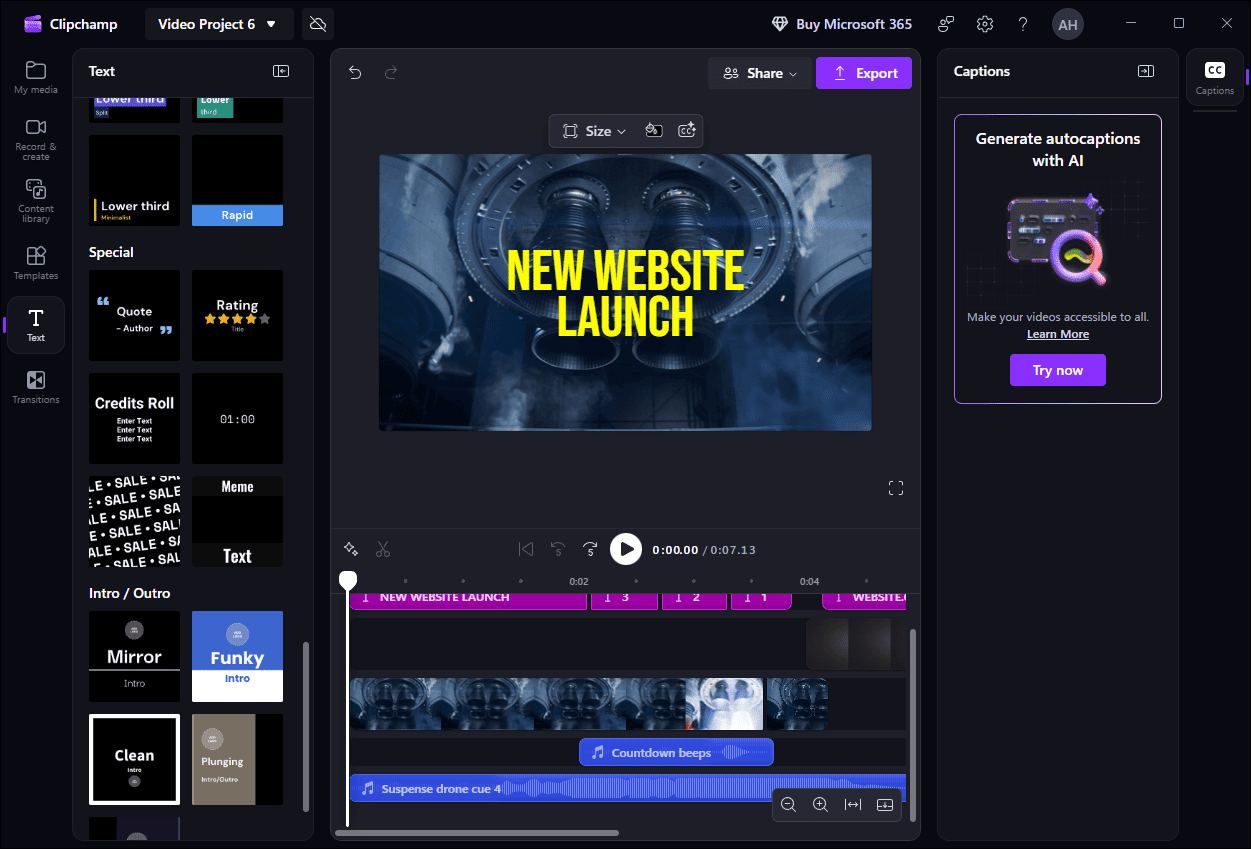
When it comes to creating eCommerce videos, Microsoft Clipchamp offers a collection of ready-to-use templates. With an extensive content library, including videos, audio, images, stickers, overlays, and more, you can enrich your eCommerce video with ease.
What’s more, this application enables you to add captivating text and advanced transitions to add a professional touch to the eCommerce video. When I was using this video editor, I was particularly impressed by the AI-powered auto-caption tool, which makes generating captions fast and effortless.
Pros:
- Includes multiple ready-to-use templates and a content library.
- Allows adding text, transitions, and auto-caption.
Cons:
- Limited features in the free version, such as exporting 4K video.
Clipchamp, the default video editing software for Windows 10 and Windows 11, is surprisingly capable for both personal and professional use. It includes all the basic tools you need to produce video projects, some fun effects, and helpful templates for social media posts.https://www.pcmag.com/reviews/clipchamp
3. Lumen5
Lumen5 is a popular AI-powered video creation platform that helps businesses produce engaging eCommerce videos quickly. It can transform content such as blog posts or product descriptions into professional-looking videos, making it ideal for beginners who want to create high-quality videos without advanced editing skills.
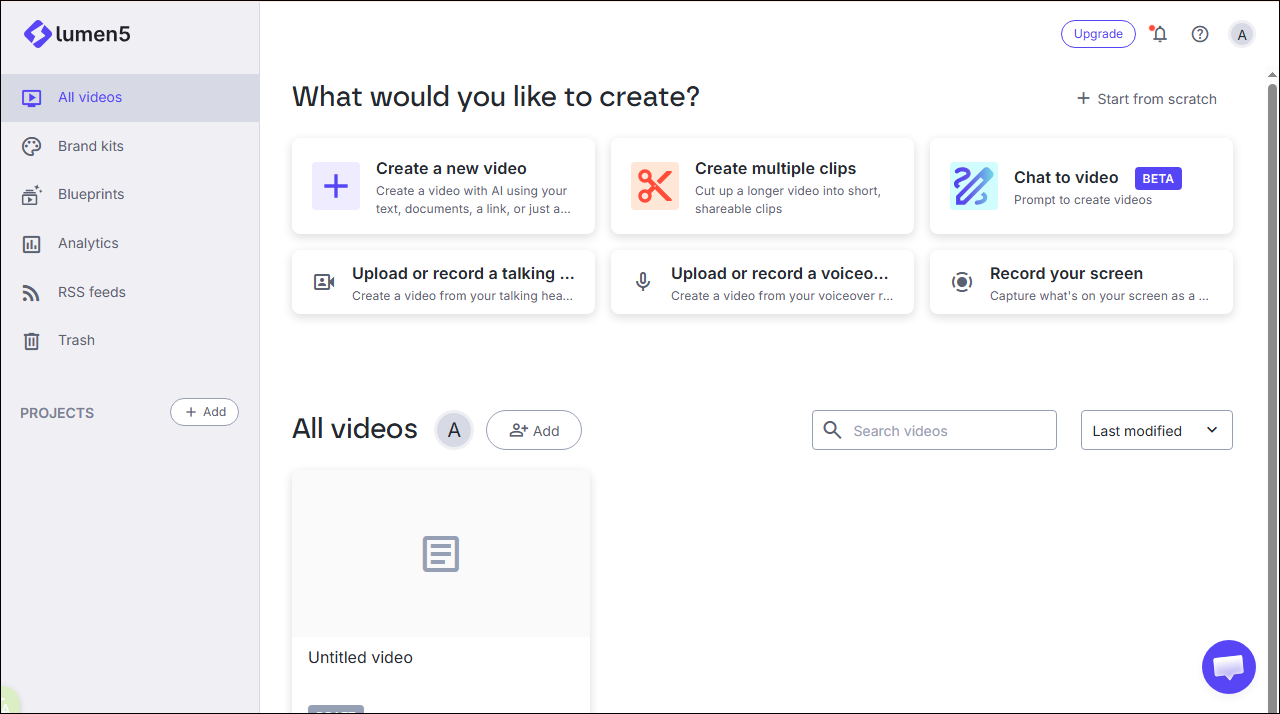
Moreover, Lumen5 can automatically convert long footage into a polished short video. You can select the desired video format, length, caption style, and specify which section to include. Once these selections are made, Lumen5 automatically arranges clips and inserts text overlays to create a polished eCommerce video. The platform also offers a library of templates, stock footage, music, and customizable elements to enhance videos.
Pros:
- Converts content into videos automatically using AI.
- Provides access to a wide range of stock resources.
Cons:
- Free version allows up to 5 videos per month, each with a maximum length of two minutes.
- Limited customization for complex video projects.
4. Vimeo
Vimeo is a professional eCommerce product video maker that offers a comprehensive suite of editing tools. Its intuitive drag-and-drop editor and customizable overlays allow users to quickly create polished and visually engaging eCommerce videos.
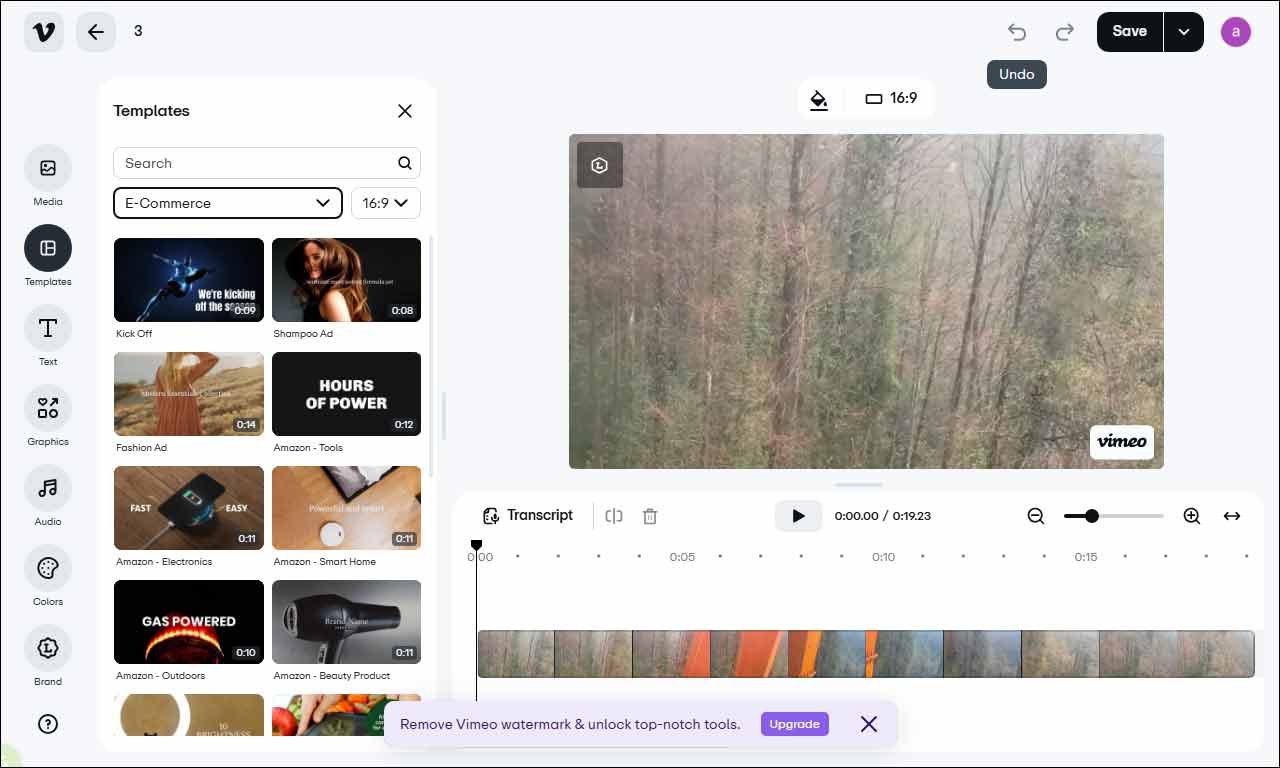
Additionally, Vimeo provides a variety of ready-made templates for social media marketing videos, including Amazon product videos, teasers, and Facebook ads. The platform supports video branding, allowing businesses to add logos, color schemes, and fonts to maintain a consistent brand identity across all videos.
Pros:
- Intuitive drag-and-drop interface and overlays.
- Offers plenty of eCommerce video templates for social media platforms.
- Supports branding with logos, colors, and fonts.
Cons:
- Free version includes a watermark.
- Editing capabilities are less advanced compared to desktop software.

5. Animoto
Animoto is a drag-and-drop eCommerce product video maker that is especially popular with small and medium-sized brands. It enables users to quickly create professional-looking eCommerce videos using a wide range of customizable templates. The platform also provides a rich library of graphics, animations, and effects, making it easy to enhance videos and engage audiences.
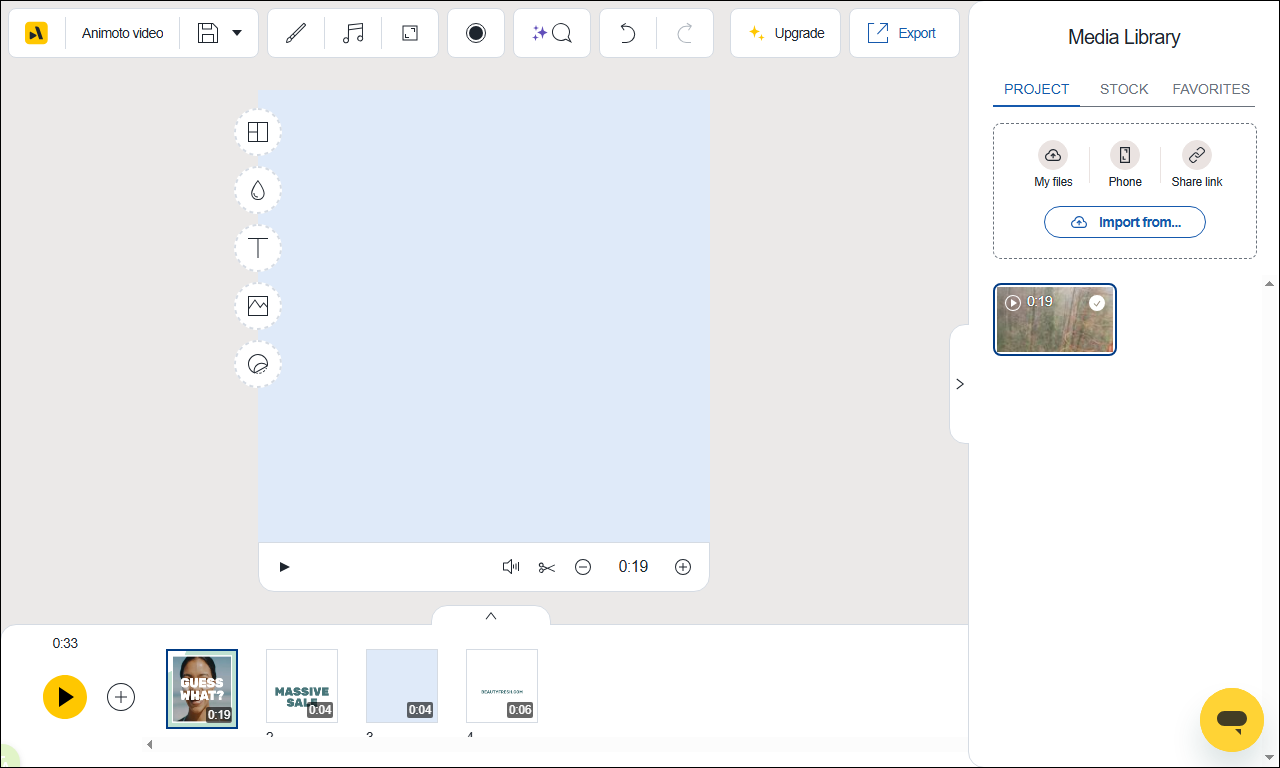
In addition, Animoto supports AI-assisted video creation, helping users turn text content into visually appealing videos in minutes. It can even convert webpages into video, which is particularly useful for eCommerce businesses looking to quickly repurpose existing content.
Pros:
- Provides rich marketing templates and a large library of resources.
- Turns text or a URL into a video with the help of AI.
Cons:
- Limited advanced customization options for complex videos.
Animoto is a simple online video maker with an interface that could do with some modernizing, and tools on offer ranging from basic to interesting.https://www.techradar.com/reviews/animoto-review
6. VEED.io
VEED.io is an easy-to-use online eCommerce video ads maker, eliminating the need to download software. It allows users to create high-quality videos efficiently.
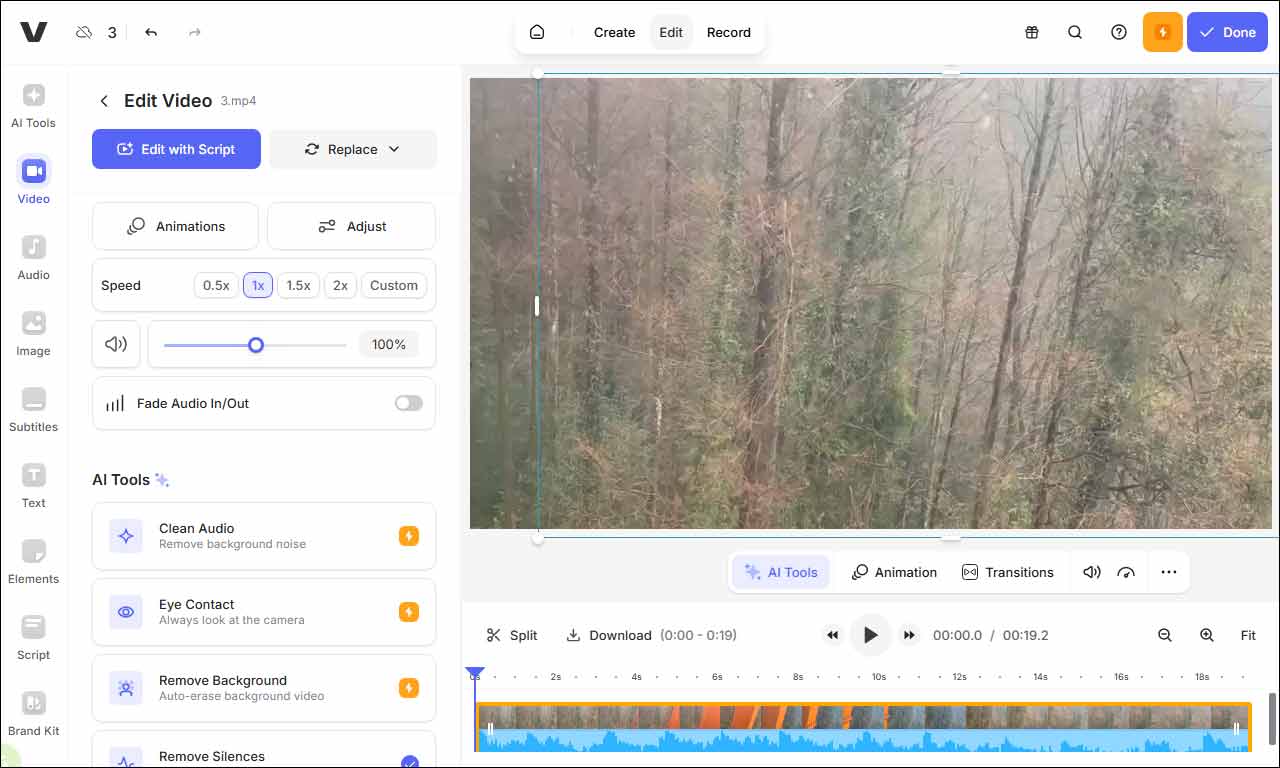
In addition to basic editing features, VEED.io provides a variety of AI-powered tools that are especially useful for eCommerce video production. Features like auto-captions, auto-transcripts, and voiceover generation help streamline the creation process.
Moreover, the platform offers a wide range of effects, music, and text templates, making it easy to highlight product features and create visually engaging videos to capture customers’ attention and boost sales.
Pros:
- User-friendly with extensive creative resources.
- AI-powered auto-subtitles and voiceover tools.
Cons:
- Limited export quality on the free plan.
Getting started with Veed is pretty easy. Once you create your account, you are taken to the dashboard, where you'll need to enter your first prompt to generate an image or video.https://www.techradar.com/reviews/veed-review
How to Create an eCommerce Video
Fast Track Steps:
- Download and install an ecommerce video maker.
- Import your video and image clips.
- Adjust the video length by trimming and cutting.
- Adjust the clip’s color and change playback speed.
- Enhance the final result with transitions, filters, text, and music.
- Save and export the ecommerce video.
1: Download and Install the e-Commerce Video Maker
Click the button below to download the software and follow the instructions to install it on your computer.
MiniTool MovieMakerClick to Download100%Clean & Safe
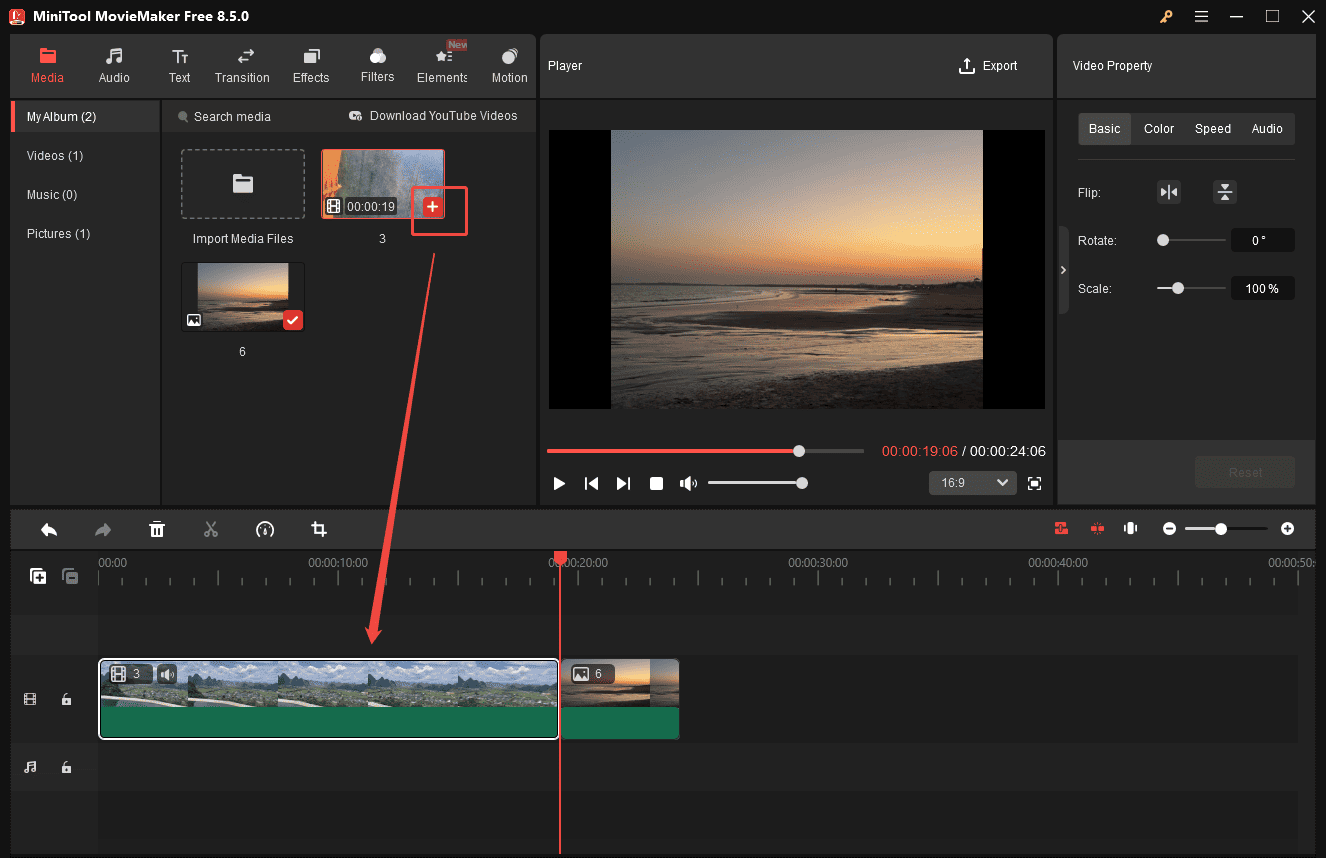
2: Import Your Media
Launch the software and click New Project in the pop-up project library window. Click Import Media Files in the main editing interface to upload your videos, images, and audio. Then, click the Plus icon to add the uploaded files to the timeline.
3: Trim and Split Media
Trimming and splitting clips helps keep your video concise and focused. To remove unnecessary parts at the beginning or end of the video, hover your mouse cursor over the edge of the clip until the Trim icon appears. Then, drag it inwards to remove the unwanted section.
If you want to remove a section in the middle of a clip, place the playhead at the start of the section and click Split. Move to the end of the unwanted section and click Split again. Select the separated part and click Delete on the timeline toolbar to remove it from the video.
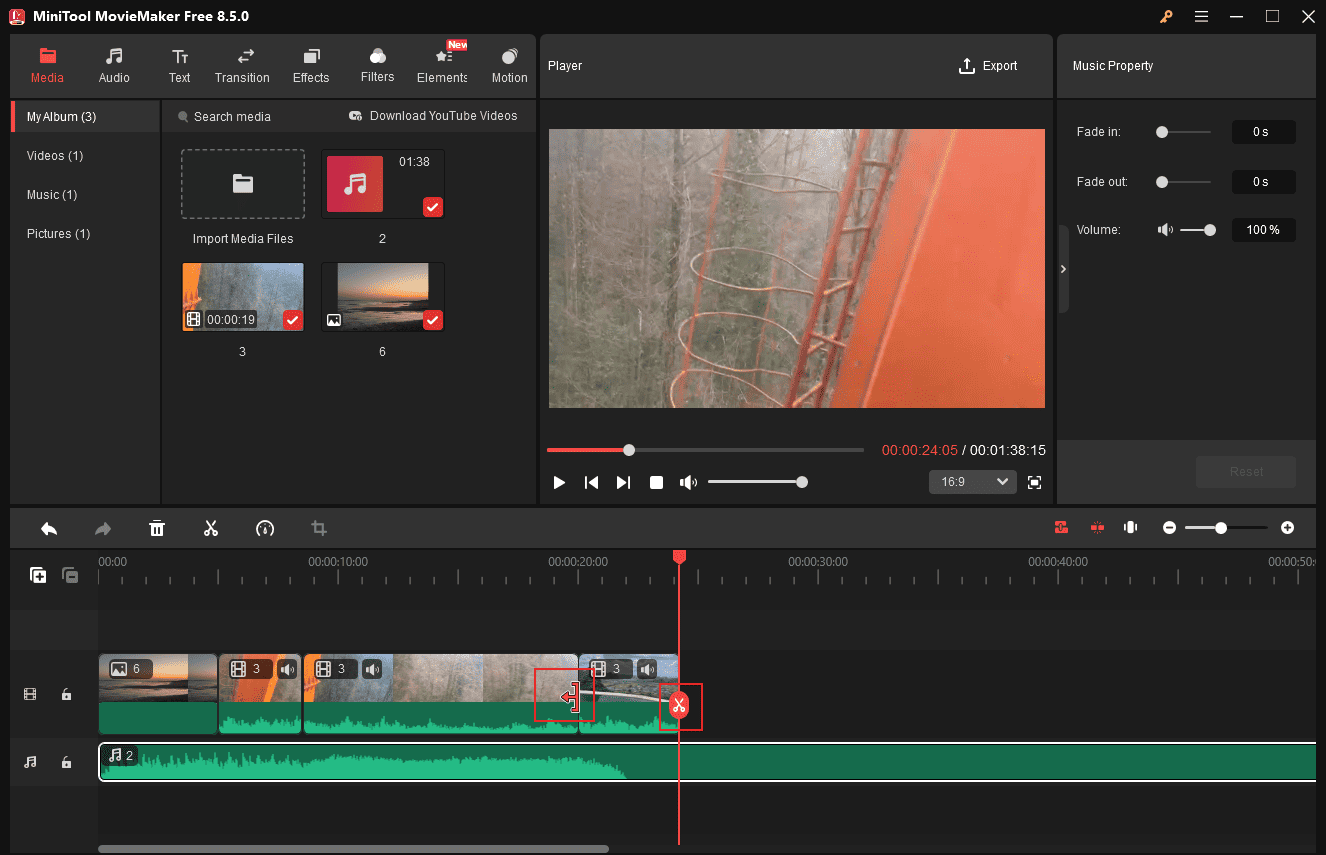
After trimming and splitting, you can drag clips on the timeline to rearrange them and adjust the sequence, improving the overall flow of your video.
4: Adjust the Media Properties
Adjusting media properties helps refine the video and achieve the desired visual effect.
Images
To adjust images, select the image track in the timeline. You can drag the sliders under the Basic tab in the right Image Property panel to change the duration, resize, and rotate the image. Switch to the Color tab to modify contrast, saturation, and brightness using the sliders.
Videos
Video clips can also be resized or rotated. What’s more, you can adjust the video playback speed. Go to the Speed tab and drag the speed slider to speed up or slow down the video. The Reverse speed option can be enabled to create a reverse playback effect.
Audio
For all audio, including that in video clips, fade-in and fade-out effects can be applied, and volume can be adjusted as needed.
5: Add Transitions to Video
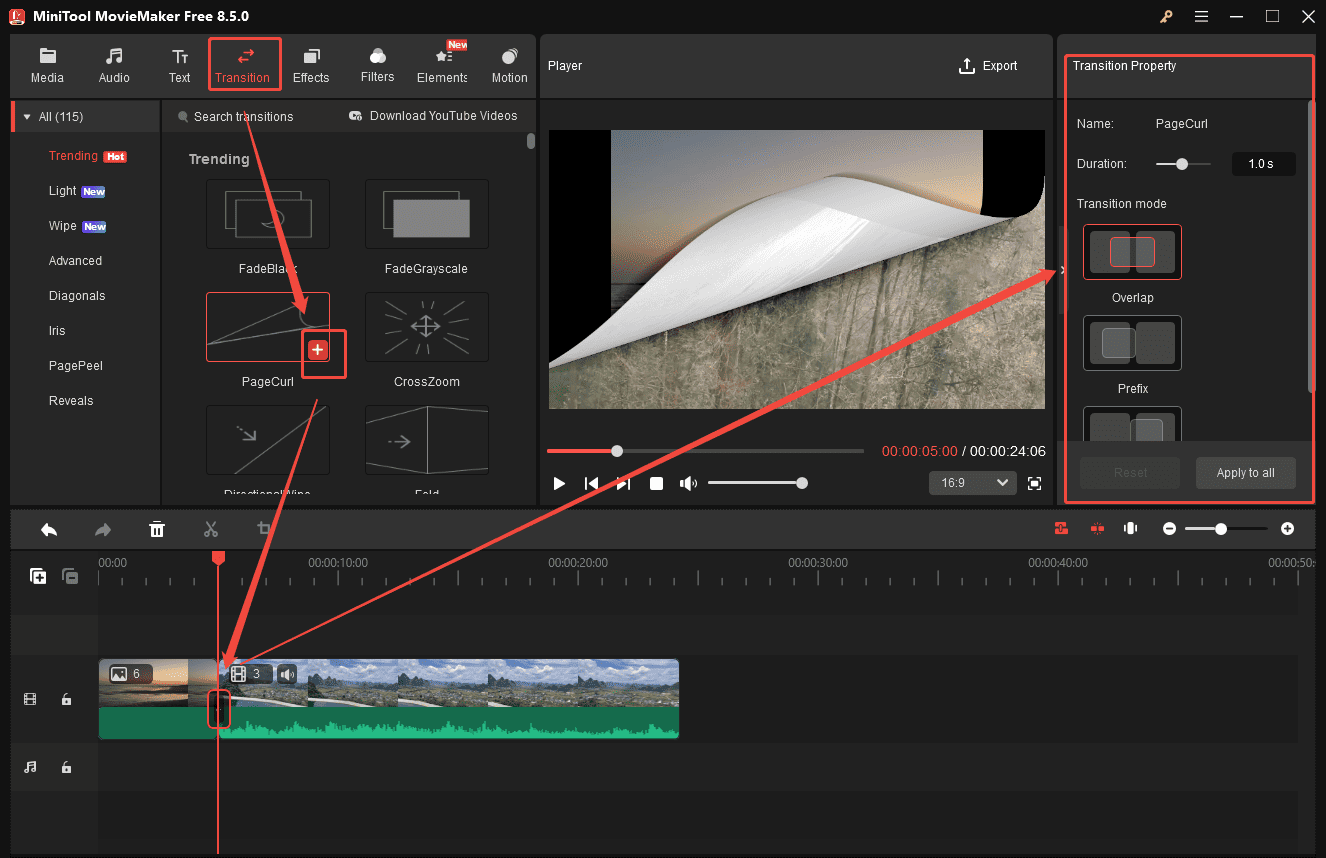
Transitions help create smooth shifts between clips and enhance storytelling. Click the Transitions tab at the top of the menu and drag a transition effect between videos or images. To save time, right-click the desired template and select Apply to All.
Then, click the transition in the timeline and adjust its duration using the slider in the right Transition Property panel. It does not change the total length of the video. Choose a transition mode, such as overlap, prefix, or postfix, to connect clips smoothly.
6: Add Filters to Video
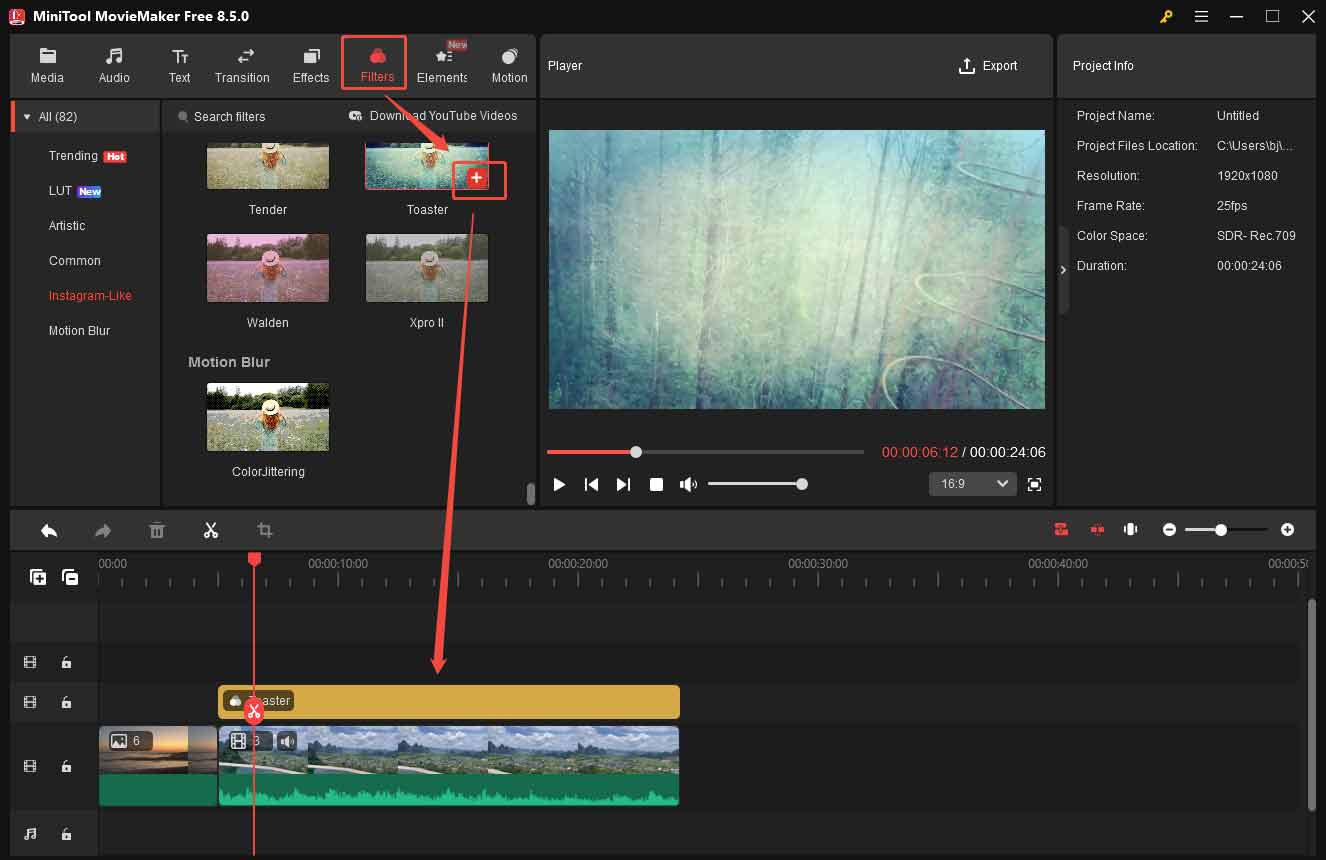
Applying filters to a video helps create a specific mood or visual style. Click Filters and scroll to find a filter you like. Hover over its thumbnail to preview the effect. If satisfied, drag the filter to the timeline and preview it in the player window. Then, adjust its duration on the timeline so it covers the desired portion of the video.
7: Add Text to Video
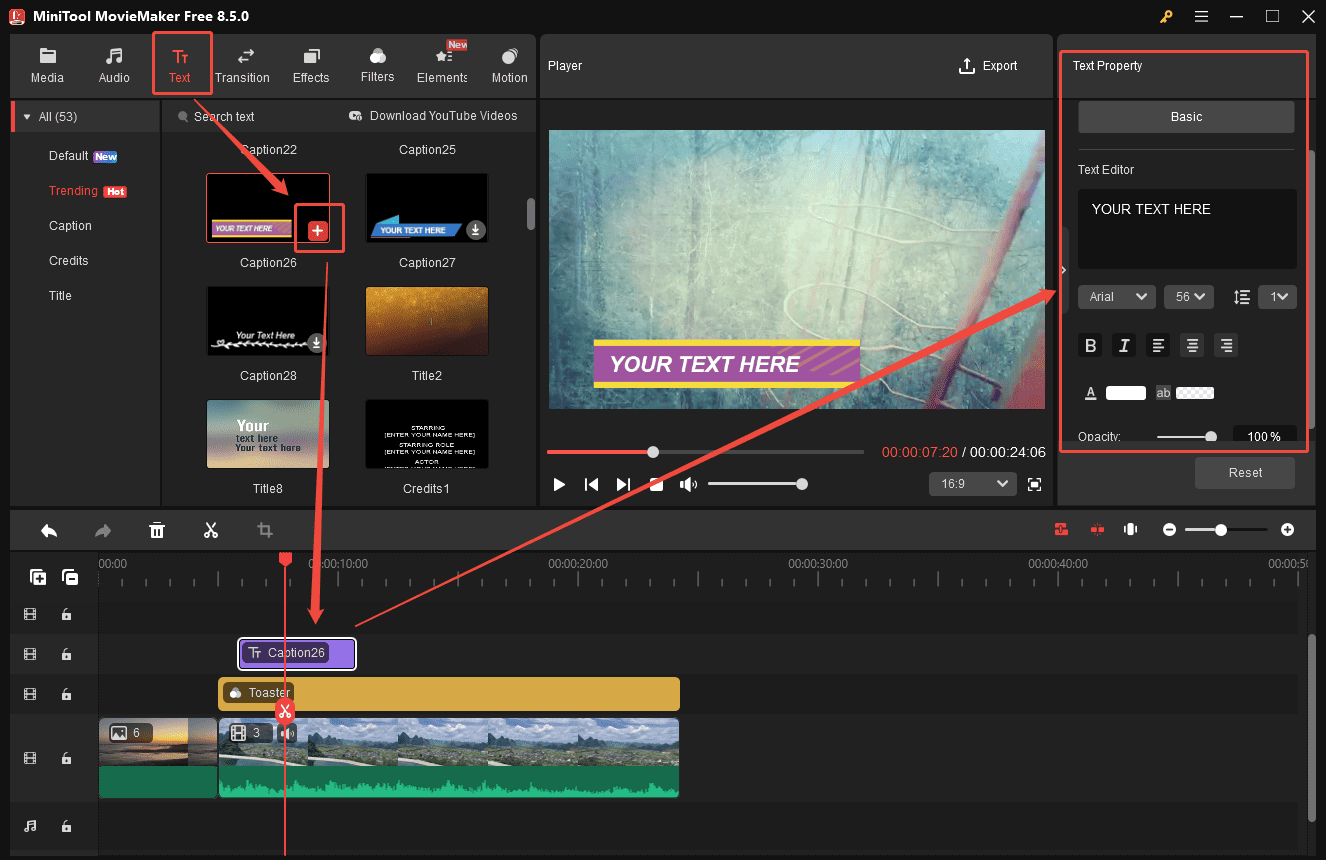
Adding text helps emphasize key information and makes the video more memorable. Go to the Text tab and click the Plus icon to add a text template to the timeline. Drag the edge of the text track on the timeline to adjust its duration. Then, type your text and customize its font, size, line spacing, bold, and other formatting options in the right Text Property panel.
8: Add Music to Video
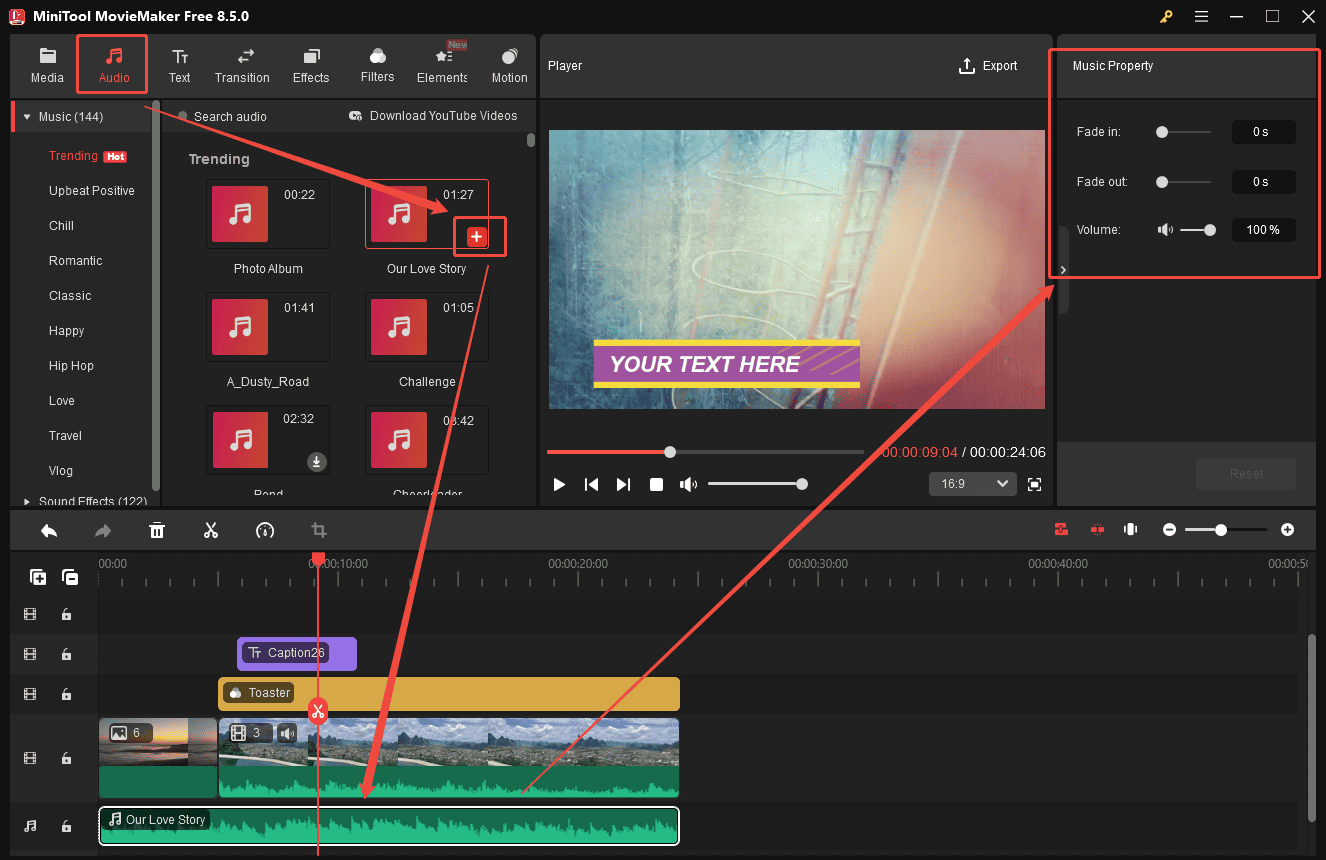
Adding music to an eCommerce video can enhance viewer engagement.
Click the Audio tab at the top menu and browse music by category. Click the Download icon of your desired music, then drag it to the timeline. Drag the edge of the music layer to match the video length. Select the audio track to open the Music Property panel on the right. Here, fade-in and fade-out effects can be applied, and the volume can be adjusted.
9: Export the eCommerce Video
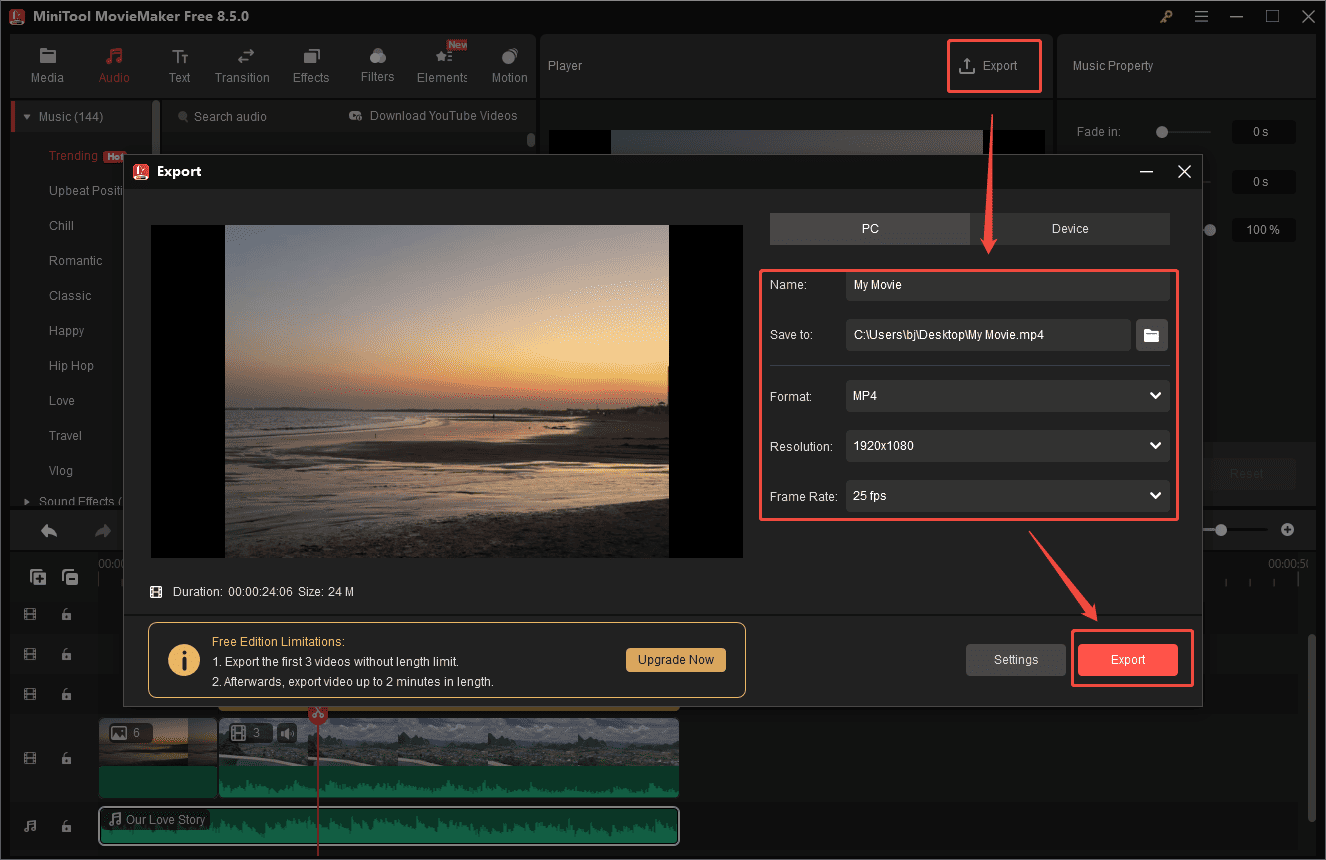
When editing is complete, click the Export option above the player window. In the export window, adjust the video format, resolution, frame rate, and other settings as needed. Click Export at the bottom of the window to save the eCommerce video to your computer.

Conclusion
Creating high-quality eCommerce videos is essential for promoting products and boosting sales. This post recommends six user-friendly eCommerce video makers and tips to make your video more engaging. Desktop editors like MiniTool MovieMaker and Clipchamp provide powerful editing features, while online editors are more convenient.
Choose the eCommerce video creator that best fits your needs and preferences. If you have any suggestions or encounter any problems when using MiniTool MovieMaker, please don’t hesitate to contact us via [email protected].
People Also Ask
2. Showcase the product clearly: use close-ups or demonstrations.
3. Highlight key selling points: emphasize price, features, or special offers.
4. Include a clear call-to-action (CTA): guide viewers to purchase or visit your site.
5. Optimize for each platform: adjust aspect ratio and video length accordingly.
YouTube / Facebook: 16:9 horizontal
Amazon / Official websites: 16:9 horizontal
About The Author

Position: Columnist
Cora is a tech writer specializing in digital media workflows, with over six years of hands-on experience in video post-production, media transcoding, and screen capture. Her writing is always clear and practical. Cora also produces in-depth software reviews for users across skill levels to help them find the right tool and enjoy video editing.
User Comments :