

Teaser videos help you build buzz and gather feedback before officially launching a movie, a new brand, or other events, effectively laying the groundwork for your business. This post recommends 5 professional and reliable teaser video makers to help you create trailers with ease, including MiniTool MovieMaker (best video editing software), Clipchamp, CapCut, FlexClip, and Whatmore AI.
What Is a Teaser Video
A teaser video is a concise promotional video typically lasting between 5 and 60 seconds, designed to pique audience curiosity for a product, film, event, brand, or creative project. Unlike full trailers or detailed advertisements, teaser videos employ minimalist visuals, enigmatic imagery, catchy audio, and vague hints to foreshadow upcoming content.
In addition, teaser videos emphasize mystery over information, leaving audiences eager to learn more. Their brevity makes them highly shareable and popular on social media platforms like Instagram, TikTok, YouTube Shorts, and X.
The primary purpose of teaser videos is to generate buzz and build anticipation among audiences ahead of the official release of films, TV series, or new products. Moreover, well-crafted teaser videos can leave a lasting impression, helping brands or projects stand out in a fiercely competitive market. Furthermore, the mysterious and concise style of teaser videos encourages viewers to share, comment, and engage, effectively expanding their reach.

5 Best Teaser Video Makers at a Glance
- MiniTool MovieMaker
- Clipchamp
- CapCut
- FlexClip
- Whatmore AI
Here is a concise comparison table of these video maker tools.
| Tool | Platform | Pricing | Watermark | Trailer Templates | AI-Generated | Suitable For |
| MiniTool MovieMaker | Windows | Free | No | No | No | Users who prefer fine manual control |
| Clipchamp | Win / Web | Free + Paid | No | Yes | No | Windows 11 users |
| CapCut | Cross-platform | Free + Pro | No | Yes | Yes | Cross-platform users, those with special effects needs |
| FlexClip | Web | Free + Paid | The free plan has a watermark. | Yes | Yes | Online editing, quick video creation |
| Whatmore AI | Web | Paid | No | No | Yes | Users who need fast AI-automated generation |
When I tried to make a teaser video for my project, in fact, I used many video editors. Some of them are either difficult to use or lack essential features, failing to achieve the video effects I desire. After extensive exploring, testing, and hands-on use, I have finally selected 5 video editing software programs. Each has its own unique features, all capable of meeting your teaser video creation needs.
1. MiniTool MovieMaker
MiniTool MovieMaker is a professional video editing tool designed for Windows users. It has a straightforward user interface. Even if it’s my first time using this software, I can always navigate to the menu or tool I need. Therefore, whether you’re a beginner or an experienced user, you can create teaser videos in this application with no effort.
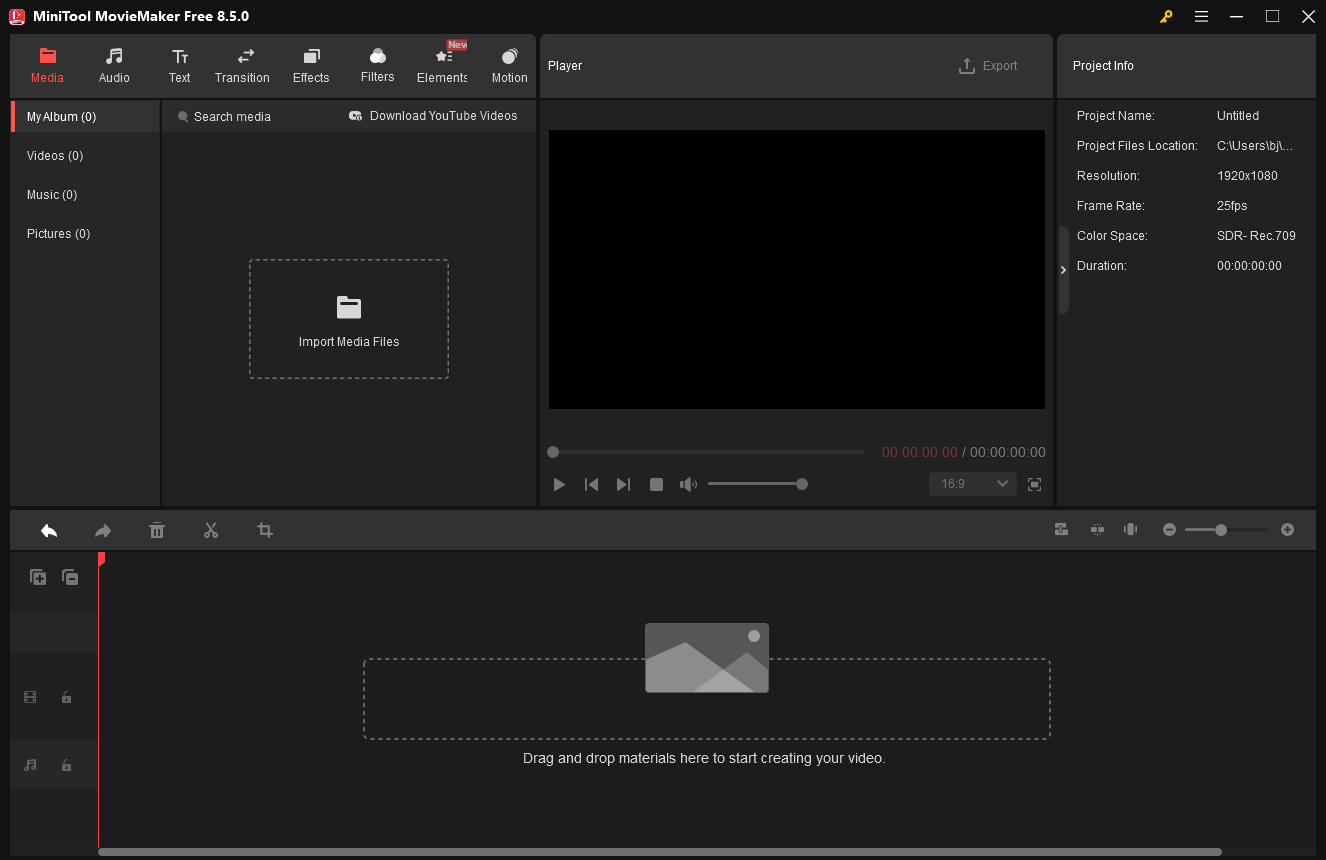
In addition, the software offers a wide range of editing features. For basic editing, it can trim, split, crop, reverse, speed up, slow down, and rotate video. For advanced editing, this video editor supports multi-track editing, high-resolution editing, GIF editing, creating photo collages, copy and paste on the timeline, video text overlay, and more, to maximize your teaser video production needs.
More than that, this video editor features an extensive resource library that includes various music, filters, transitions, stickers, effects, and motions. Add them to your teaser video for free to make it more engaging!
After completing my teaser video creation, I surprisingly found that MiniTool MovieMaker provides multiple custom options. It empowers me to change video aspect ratio, video format, frame rate, quality, bitrate, encoder, and resolution (4K, 1080P, etc.). This makes me customize video parameters based on my needs, sharing them on different social media platforms with no hassle.
MiniTool MovieMakerClick to Download100%Clean & Safe
Pros:
- Ease of use.
- Great performance.
- Extensive resource library.
- Various advanced features.
- High resolution/quality results.
Cons:
- Only for Windows users.
MovieMaker by MiniTool is an inexpensive, easy-to-use video editing program. It includes a fair number of effects and gives you easy ways to join your clips, add transitions, and overlay objects and text.https://www.pcmag.com/reviews/minitool-moviemaker
2. Microsoft Clipchamp
Microsoft Clipchamp is an intuitive, all-in-one video editor that simplifies complex video creation into straightforward steps, requiring no advanced skills. One feature I particularly appreciate is its accessibility via browser and Windows app, along with seamless integration with Microsoft 365, OneDrive, and Teams, making it effortless to incorporate into daily workflows.
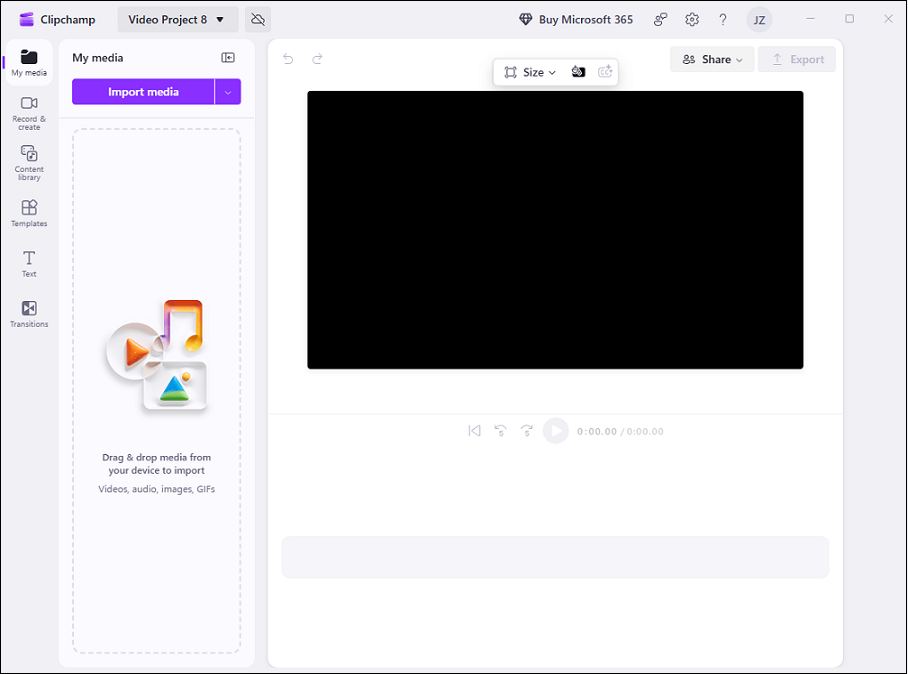
Additionally, Microsoft Clipchamp offers easy-to-use basic editing tools. You can trim, cut, and crop videos, and effortlessly arrange video, image, and audio tracks on a timeline. Moreover, Clipchamp features a vast library of royalty-free videos, images, music, and sound effects, ensuring you have an endless supply of teaser video creation or other projects. Visual effects, transitions, filters, text overlays, and more add a professional touch to your teaser videos without requiring additional software.
Pros:
- User-friendly.
- Versatile editing functions.
- Generous built-in assets.
- Leave no watermarks.
Cons:
- Outputs with 4K resolution need payment.
Clipchamp targets marketers who want to make quick hits on social media using meme-like, template-based designs. But it's fine for basic clip joining, splitting, and trimming, too. You can even add some panache to your productions via some eye-catching effects.https://www.pcmag.com/reviews/clipchamp
3. CapCut
CapCut is a professional and feature-rich video editing tool designed for creators of all skill levels. It is available on mobile, desktop, and web platforms, blending simplicity with professional features and allowing users to easily make stunning videos without specialized training.
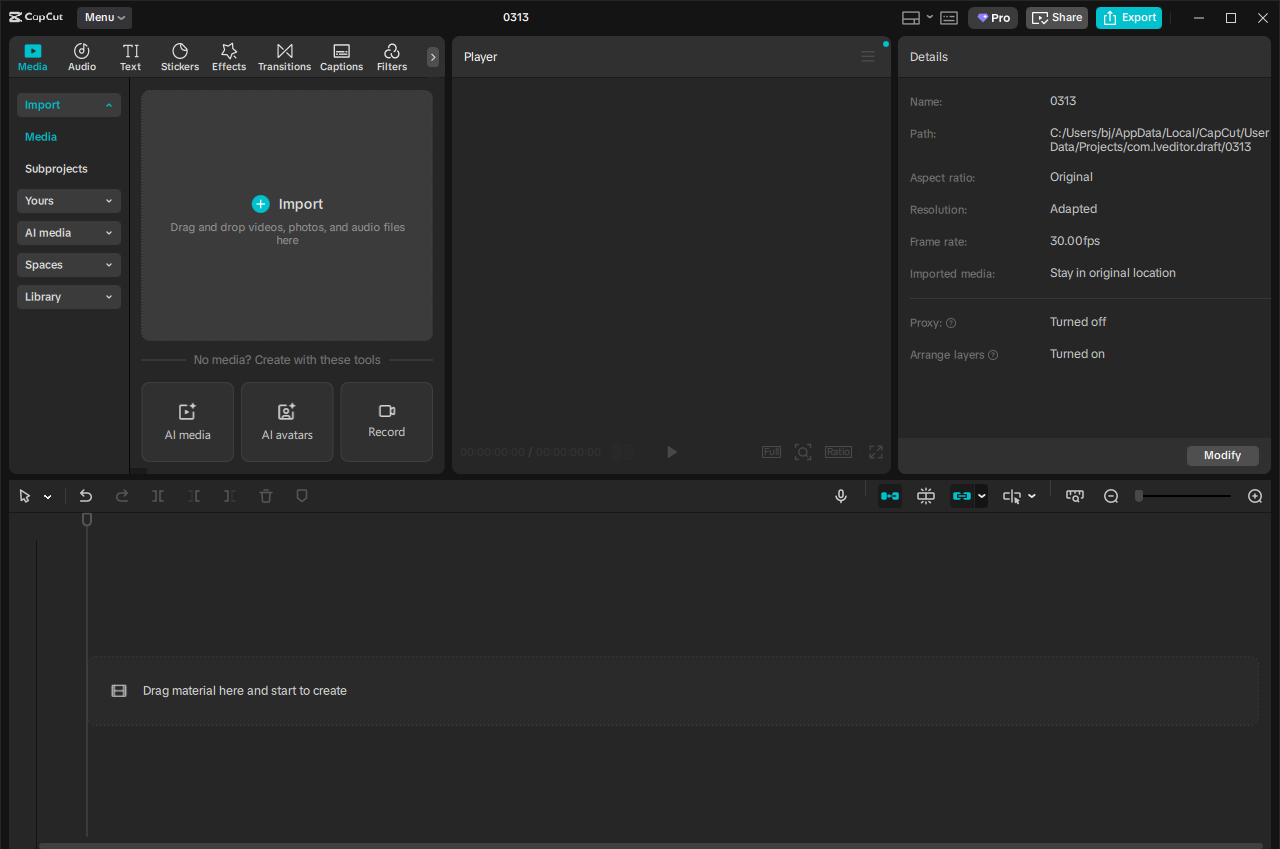
During use, I found the platform’s editing tools exceptionally convenient. With just a few taps and drags, I can trim, split, or merge video clips efficiently. Smooth speed adjustments enable silky slow motion and time-lapse effects. Transition effects, filters, text, animations, and stickers can be added to videos to make them more dynamic. The multi-track timeline design helps you to manage video, image, and audio layers clearly. Advanced editing tools, like quality enhancer, image noise remover, mask & track, etc., enable you to create professional teaser videos easily.
Pros:
- No watermark.
- Generous free plan.
- Powerful editing functions.
- Multi-platform support.
- Advanced AI features.
Cons:
- Compound clips may result in blurred footage.
CapCut’s full editing suite has expected tools for cropping and trimming clips, adding text, and adjusting brightness and saturation. All the features from AutoCut, including templates and imported sounds, also carry over.https://www.pcmag.com/reviews/capcut
4. FlexClip
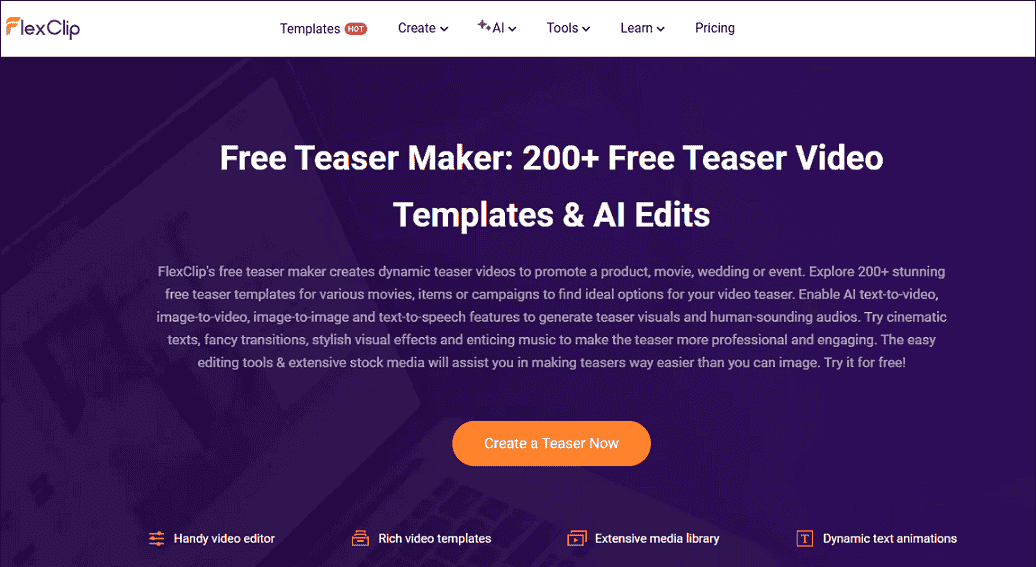
FlexClip is a browser-based and user-friendly video editing tool suitable for both beginners and professionals. One feature I find particularly useful is that this tool offers multiple stunning free teaser templates covering various movies, products, or events. It also provides cinematic text, cool transitions, stylish visual effects, and captivating music to make your teaser videos more professional and engaging.
Pros:
- Ease of use.
- Provide rich templates.
- No installation needed.
- Offer AI-powered tools.
- Basic editing tools like trimming, cropping, etc.
Cons:
- The free version leaves watermarks.
- The free version offers low export resolution.
5. Whatmore AI
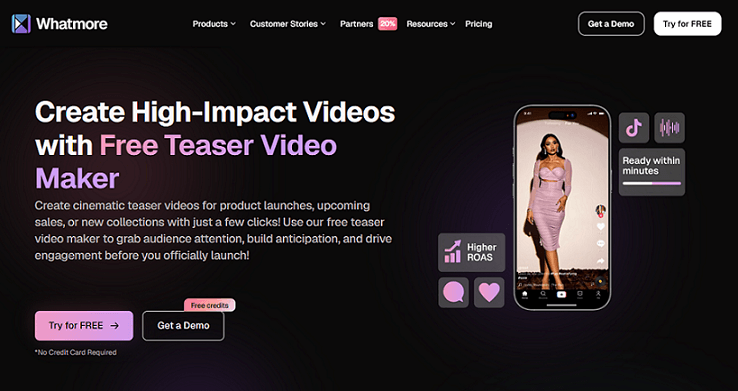
Whatmore AI, as its name suggests, is an AI-powered online teaser video maker that offers quick teaser video creation. It utilizes AI technology to automatically generate teaser videos based on product images or URLs, complete with special effects, voiceovers, and background music. With just a few clicks, you can create a cinematic teaser video for your upcoming event in a flash.
Pros:
- User-friendly.
- High speed and efficiency.
Cons:
- Limited editing features.
How to Make a Teaser Video
Fast Track Steps:
- Install a teaser video maker.
- Import your media files.
- Edit the video by trimming, cropping, and splitting.
- Enhance the video with music, stickers, and text.
- Save and export the teaser video.
1. Download and Install the Teaser Video Maker
Click the download button below to download this program. Then, follow the setup instructions to install it on your PC.
MiniTool MovieMakerClick to Download100%Clean & Safe
2. Import Your Video
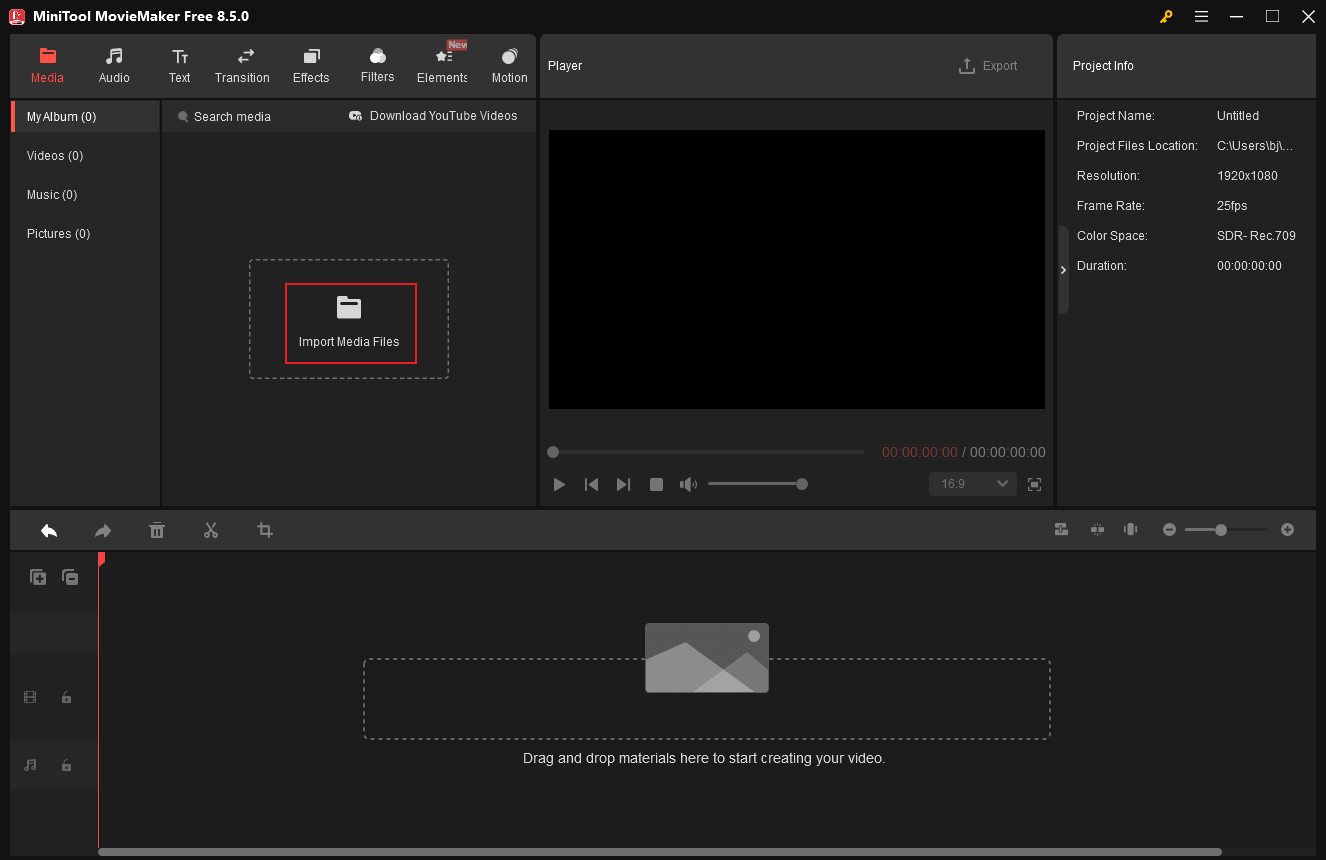
Launch the program and click the New Project option to access the main editing page. Then, click the Import Media Files option to add all the raw material you prepared for making a teaser video.
3. Complete Video/Image Editing
Drag the added video/image to the timeline first.
Split Video
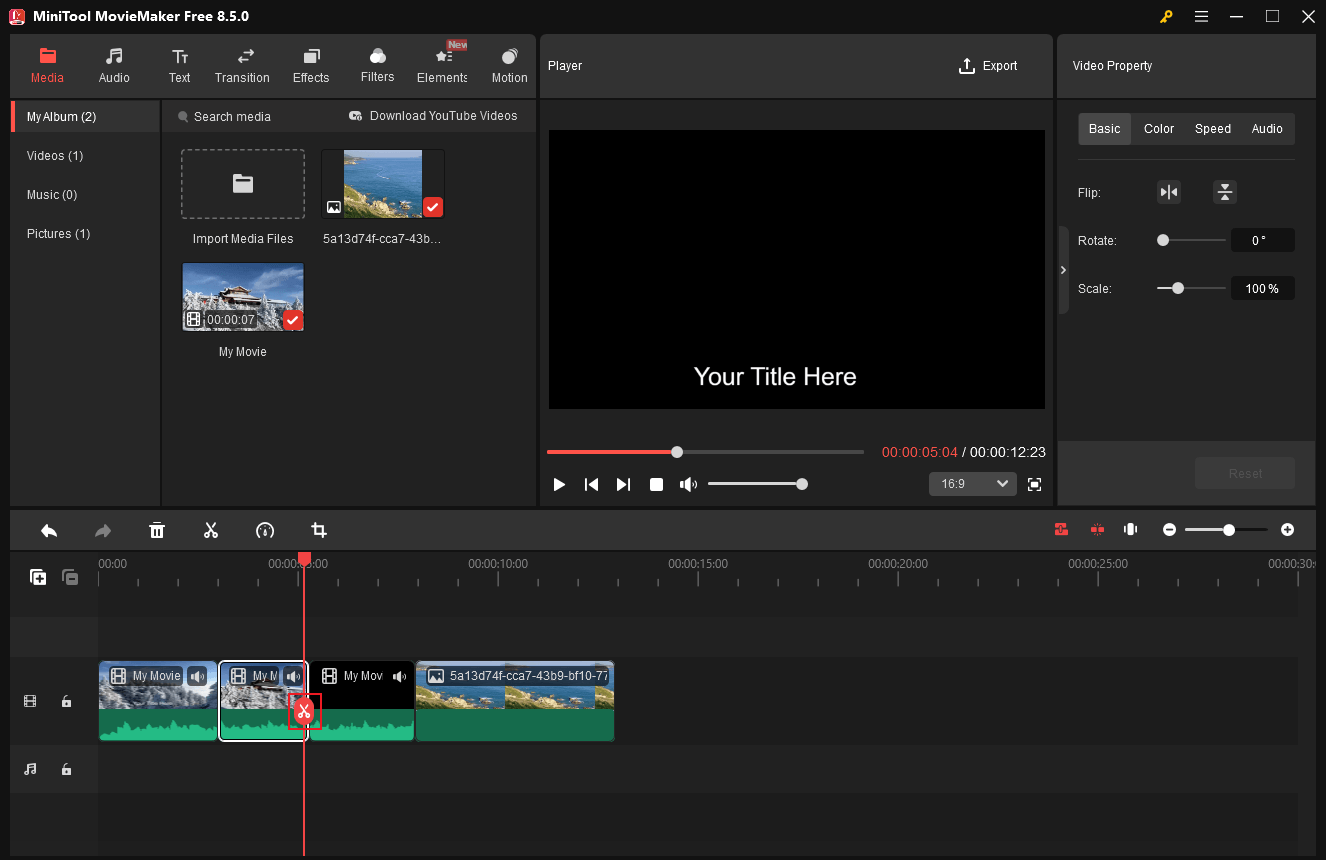
To remove the unwanted middle part of the video clip, drag the red playhead to the start of the unwanted place and click the Scissors icon to split the clip into two parts. Next, move the red playhead again to the end of the unwanted part and click the Scissors icon. Next, right-click on the undesirable clip and click Delete to extract and delete it. Repeat this operation until all of the unwanted clips are removed.
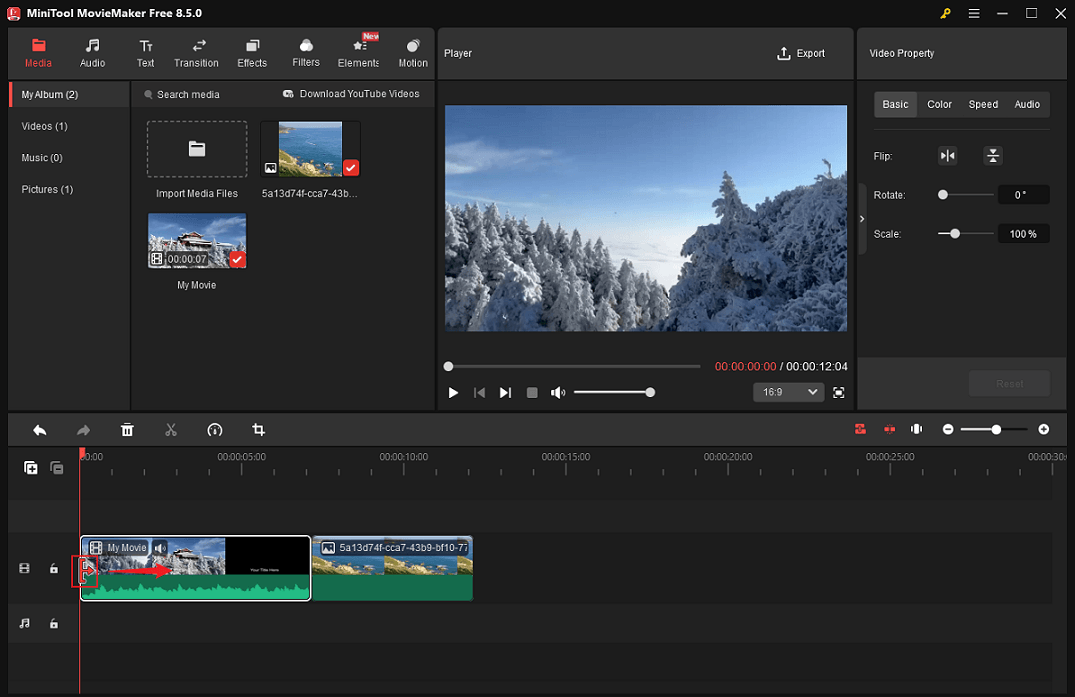
Move the mouse cursor to either edge of the video layer on the timeline until the Trim icon appears, then drag it inward to delete the beginning or end part of the video clip.
After removing all unwanted video clips, drag and move them individually on the timeline to arrange them according to your needs.
Crop Video
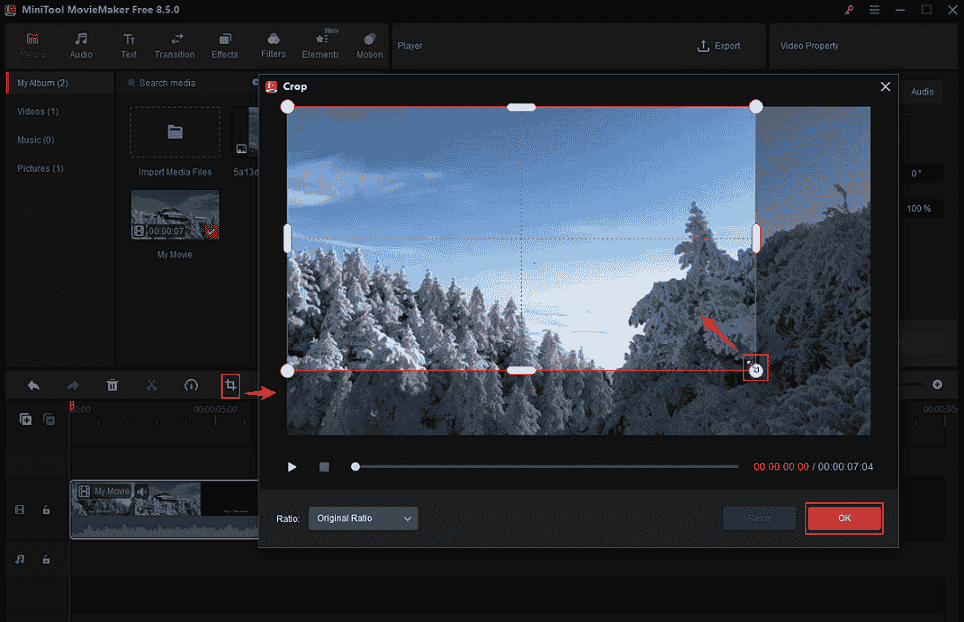
Click the target video clip on the timeline. Then, click the Crop icon in the toolbar above the timeline to enter the Crop window. There, drag the cropping handles inwards to crop the video. Then, click OK to save the changes.
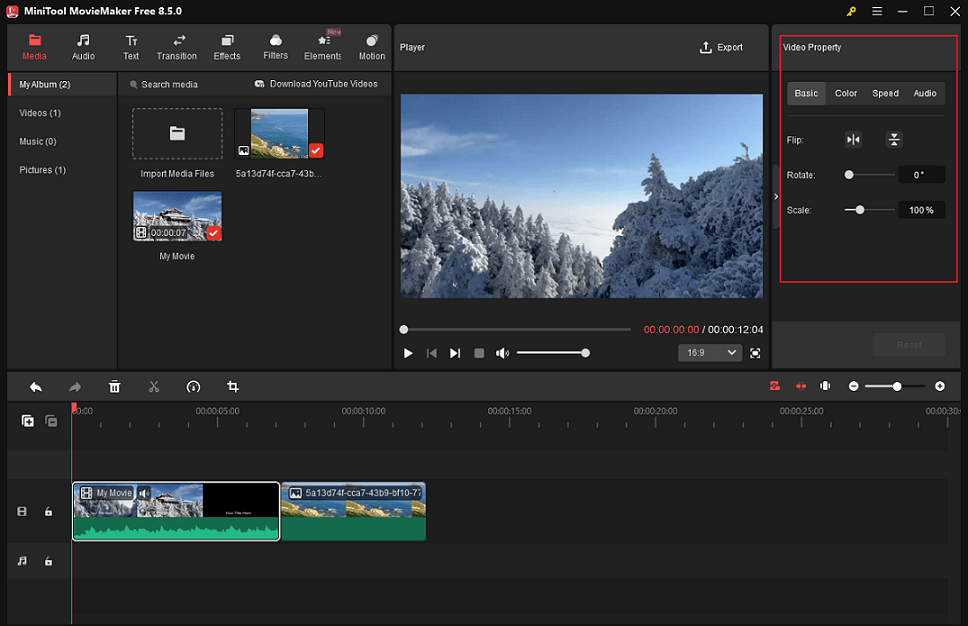
Adjust Video Property
Click the video on the timeline to access the Video Property window. In the top-right Video Property section, you can flip, scale, rotate, and change the video speed. Plus, color correct the video by changing its contrast, saturation, and brightness according to your requirements. Also, adjust the audio volume or fade the audio in/out as needed.
Adjust Photo Property
If you want to create video from images, it’s better to edit the images as well. In the top right Image Property section, you can adjust the image duration, flip, rotate, and scale the photo. You can also drag the picture layer to adjust its appearance time throughout the video.
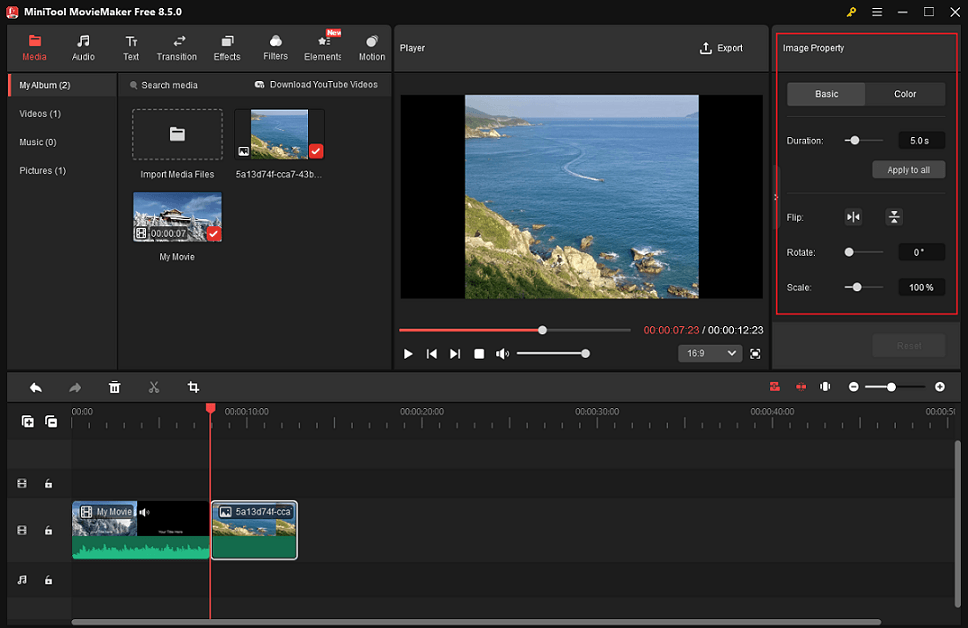
Click the photo layer on the timeline. In the top right Image Property section, you can flip, rotate, and scale the photo. Under the Color tab, adjust the photo contrast, saturation, and brightness as needed.
4. Polish Your Teaser Video
After completing basic editing of your teaser video, it’s time to spice it up! To make the teaser video more engaging, you can do more.
Add Background Music to the Video
Videos without music feel monotonous and dull, making viewers lose interest. Therefore, adding background music to your teaser video is highly recommended. MiniTool MovieMaker offers two methods to achieve this.
- Add music from your local folder: If you already have the desired music on your computer, click the Import Media Files option in the Media section to add music from your own collection, and drag it to the timeline.
- Add music from the Audio library: Go to the Audio section, download the music you think is suitable, and add it to the audio track on the timeline. Trim the audio based on your needs.
Add Stickers to the Video
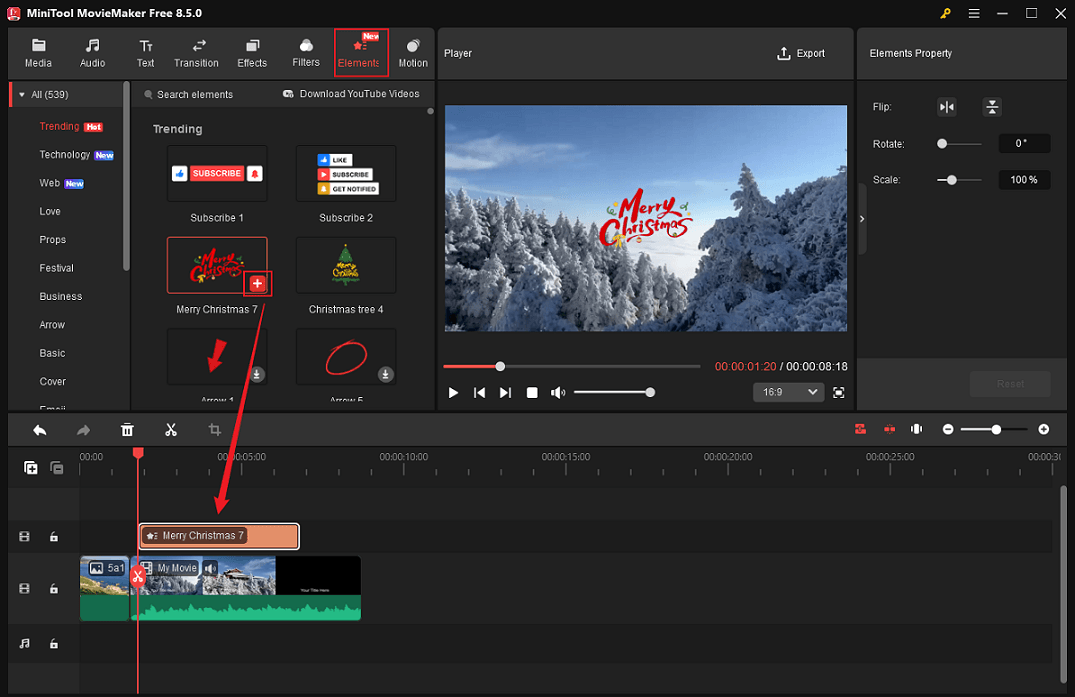
Stickers can make videos more fun. Go to the Elements section, download the stickers you like, and add them to your video. Drag the sticker layers on the timeline to adjust how long they appear.
Add Text to the Teaser Video
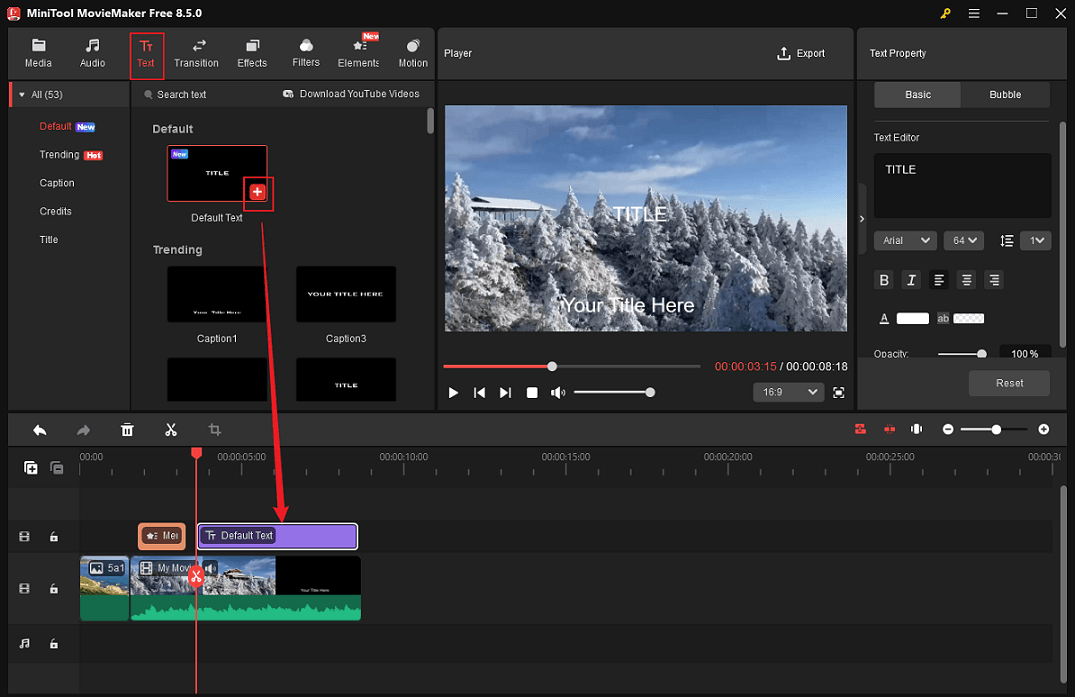
Navigate to the Text section, select the desired text style, and click the Plus icon to add it to the video. Next, drag the edges of the text layer on the timeline to adjust its playback duration within the video. In the text properties window at the top right, enter your target text and customize settings such as font, color, and size.
5. Export the Teaser Video
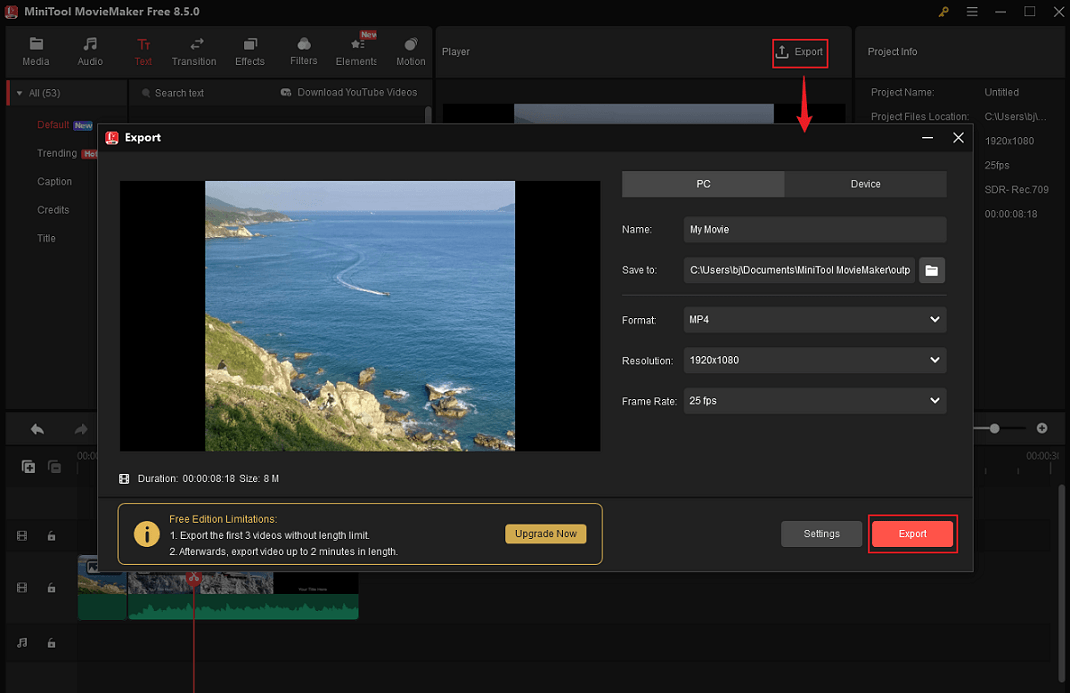
Click the Export icon in the upper-right corner of the player window to open the export window. Next, you can rename the teaser video, select the save location, and adjust the output format, resolution, and frame rate. After completing the settings, click the Export button to export the video.
MiniTool MovieMaker is more than just a teaser video creator; it also serves as a video compressor, GIF editor, file converter, media player, video/audio merger, and more. Click the download button below to explore more!
MiniTool MovieMakerClick to Download100%Clean & Safe
![How to Repurpose Video Content [Useful Tips and Guides]](https://images.minitool.com/moviemaker.minitool.com/images/uploads/2026/01/how-to-repurpose-video-content-thumbnail.png)
Final Words
To create a teaser video with ease, I recommend 5 robust and professional teaser video makers in this post. Those are the options I’ve carefully selected after testing numerous software programs.
You can contact us via [email protected] if you have any questions about using MiniTool MovieMaker.
People Also Ask
2. Choose an AI video generator.
3. Write effective prompts.
4. Generate multiple short clips and edit them as a single video.
About The Author

Position: Columnist
Cora is a tech writer specializing in digital media workflows, with over six years of hands-on experience in video post-production, media transcoding, and screen capture. Her writing is always clear and practical. Cora also produces in-depth software reviews for users across skill levels to help them find the right tool and enjoy video editing.
User Comments :