

Creating high-quality video content demands time, energy, and significant effort. Video repurposing offers a simple and smart way to maximize the value of your content and hard work. It saves time, expands reach, boosts engagement rates, and maintains a steady pace of content creation. Content repurposing is the secret to boosting social media marketing efficiency. In this post, we’ll discuss what video content purposing is, why doing that, how to choose videos for purposing, and how to repurpose video content. Keep reading.
What Is Video Content Repurposing
Video repurposing refers to adapting existing video content into video, audio, or text formats to extend its lifespan and reach new audiences without starting production from scratch. For example, you can repurpose a 10-minute TikTok video into a 90-second Instagram Reels clip, transform a webinar into an instructional video, and more other forms. The core principle lies in “recycling” high-quality content to boost user engagement, save time, and maximize the return on investment for content marketing.

Why Repurpose Video Content
Repurposing existing content is not only practical but also a winning strategy for your social media marketing. Here’s a breakdown on why you repurpose video content.
Efficient Content Creation
Content repurposing saves you from starting from scratch every time. You can reuse the same assets an unlimited number of times or in various formats, transforming existing content into videos, podcasts, or social media posts. Based on your original video footage, you can consistently produce fresh, creative, and valuable content, avoiding creative burnout. This helps you maintain a well-planned and active social media presence.
Cost Savings
Reuse existing content by updating it, eliminating the need to spend extra time and money creating entirely new content. Through video content repurposing, a webinar can be repackaged into a blog post, long-form videos can be transformed into polished short-form videos, and so on. This approach significantly reduces production costs, enabling impactful content creation without requiring a large content team.
Expand Content Reach
Content repurposing can help you reach new audiences by transforming existing content into different formats—such as blog posts, Instagram Reels, LinkedIn quotes, YouTube Shorts, and more—to expand your online influence. Repurposing video content makes it possible for your content to work on any platform or format. By doing this, you may increase your audience and make sure that everyone can receive your ideas.
Maintain Consistent Content Publishing Frequency
Regularly publishing fresh content boosts fan engagement. Repurposing old content into new, compelling material allows you to consistently deliver high-quality assets across different channels without the constant pressure of creating entirely new content.
Improve SEO Rankings
Your search engine rankings may improve by publishing several articles centered around the same keyword. By linking back to your website with repurposed content, you can also help improve the rankings of content targeting other keywords. In addition, video content repurposing can increase the crawl frequency of previously stagnant content, improve Google search rankings, and drive more organic traffic—all without the need to constantly come up with brand-new content.
Tips for Repurposing Video Content
When choosing video content for repurposing, keep these things in mind:
Identify High-Performing Videos
Review your video library to identify those that have received positive feedback, high engagement rates, and significant view counts. These videos have proven their effectiveness and can be refined and repurposed to achieve similar results across different platforms.
Learn About Sharing Platforms
Select a platform where you want to publish content, then conduct some necessary research. Understand what types of content are popular on that platform and more likely to gain attention. Once you have this information, you can tailor your content to suit the audience of each platform.
Focus on Content Quality
Don’t rush the process of repurposing videos; instead, put quality above quantity. Spend some time honing this ability and aim for excellence in each piece of content you produce.
Promote Repurposed Content
Repurposed videos are just as important as the original content. You should promote and amplify your repurposed content with the same effort as you would for original videos. This will help attract attention and drive user action, while also generating more visibility for the original video.
How to Repurpose Video Content
Here are five effective methods to repurpose video content. Read on for more.
#1. Video Content into Short Clip
In this fast-paced era, short videos have gradually become an indispensable form of entertainment for passing the time in people’s lives. Videos that are too long may bore viewers and cause them to lose interest easily. Consider extracting the most compelling parts of longer videos and editing them into short clips, segments, or carousel videos. This allows viewers to access the information they need without having to watch the entire video.
To cut a long video into multiple clips and merge them into one, you need a reliable video editor. MiniTool MovieMaker is highly recommended here. It is a powerful, user-friendly, and free video editor that features various editing functions, such as trimming, cropping, splitting, reversing, rotating, flipping, and more. Plus, this application supports even more advanced functions, like multi-track editing, photo collage, high-resolution editing, copy and paste on the timeline, audio overlap, and more.
Moreover, this free download video editor supports a wide range of video formats, including MP4, MOV, MKV, AVI, FLV, MPG, and more. You can select different video formats to suit different social media platforms. The output videos will have no watermarks and come with a high resolution. Furthermore, MiniTool MovieMaker offers multiple aspect ratio options, allowing you to choose based on different social media platforms.
Here’s a step-by-step guide on how to turn video content into a short clip with MiniTool MovieMaker.
1. Download and Install MiniTool MovieMaker
Click the download button below to download this program. Then, follow the on-screen setup instructions to install it.
MiniTool MovieMakerClick to Download100%Clean & Safe
2. Import Your Long Video
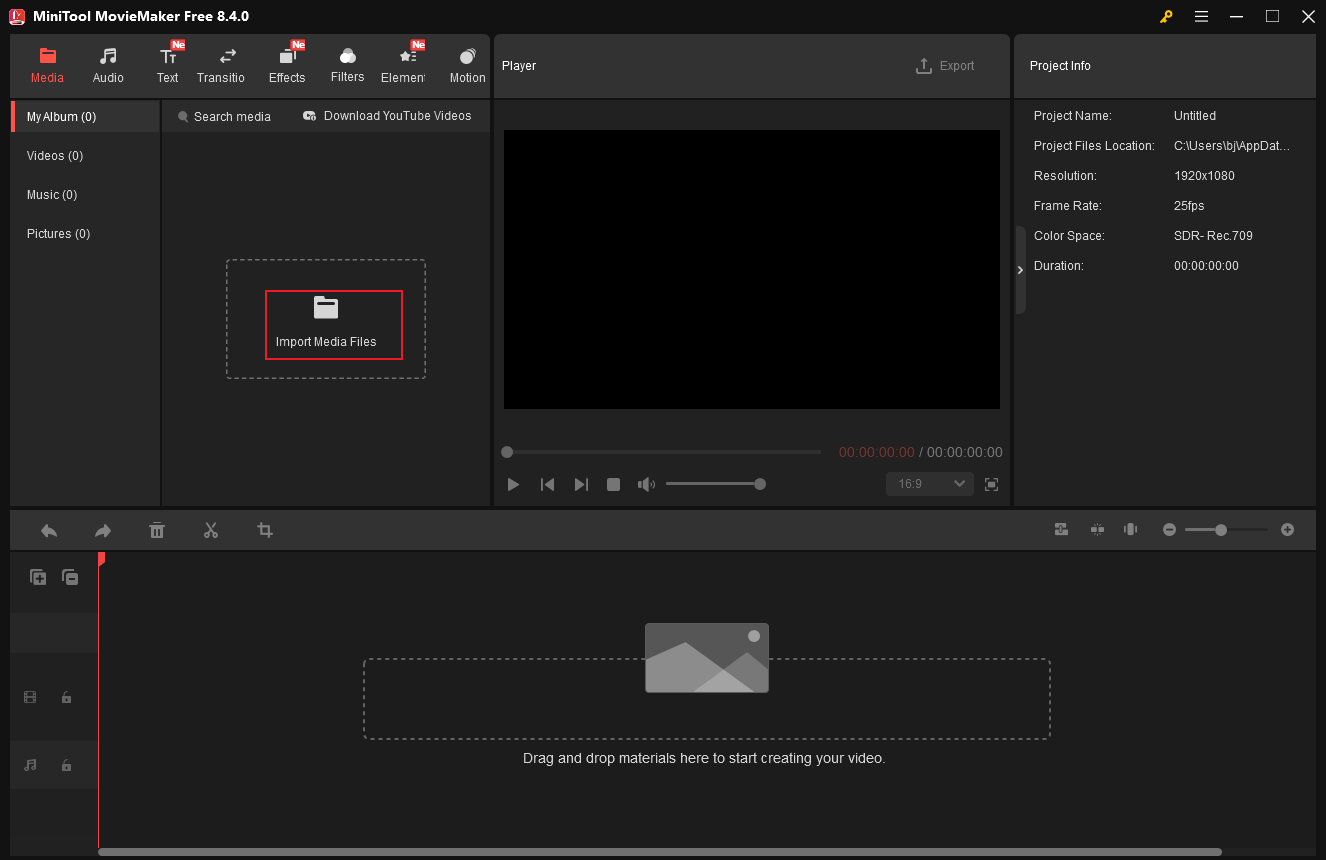
Launch MiniTool MovieMaker and click the New Project option to enter the editing page. Then, click the Import Media Files option to add your video.
3. Shorten the Video
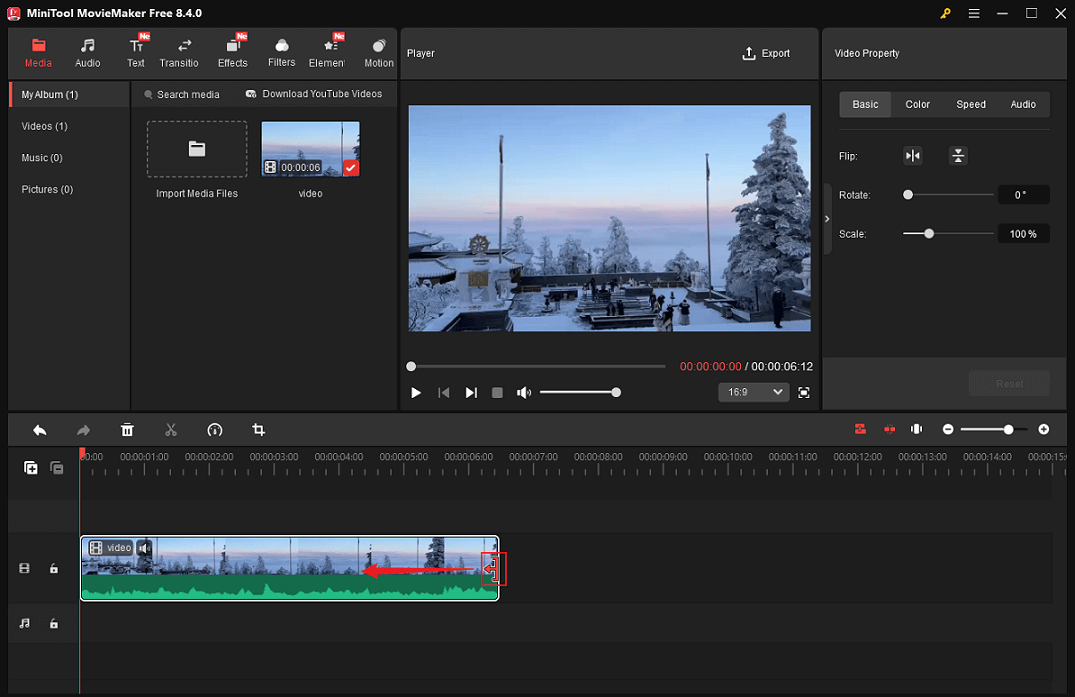
Drag the video to the timeline. According to the video content, remove the unwanted parts by trimming and splitting.
Trimming is a quick way to remove the beginning or the end of the video. Hover the mouse cursor on the edges of the video layer until the Trim icon shows up; drag it inward to remove the unwanted part.
Split Video
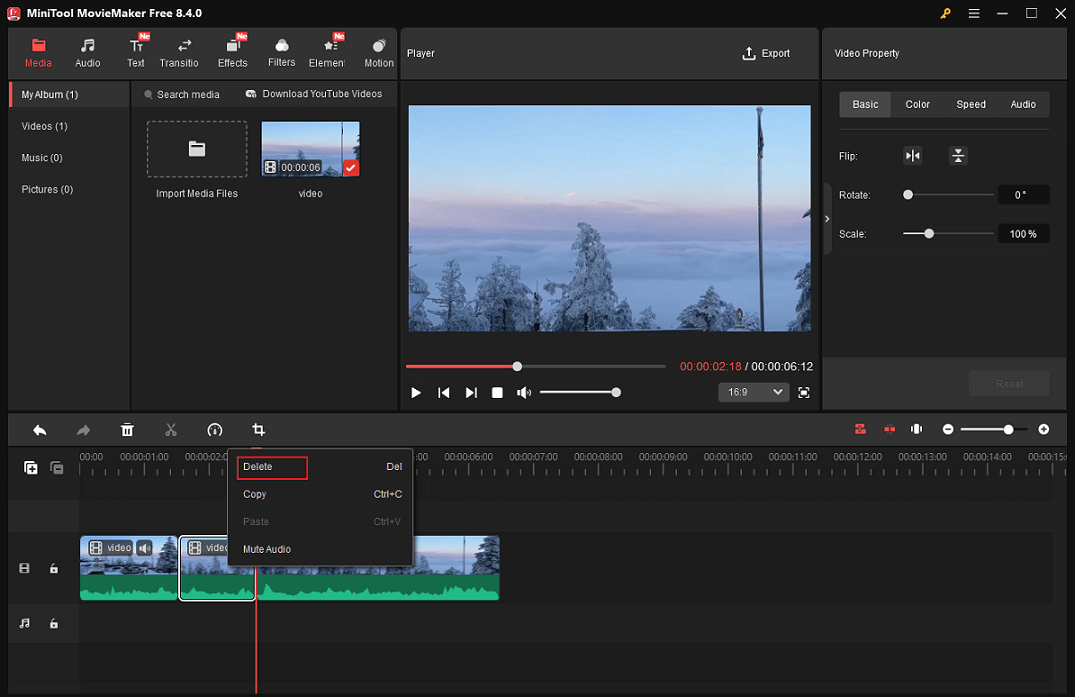
To delete the middle part of the video, move the mouse cursor to the beginning of the unwanted part and click the Scissors icon. Then, move the mouse cursor to the end of the unwanted part and click the Scissors icon again. Right-click the extracted clip and choose Delete.
4. Export the Short Clip
Click the Export button at the top right of the Player window to access the Export window. There, you can set the output format, video resolution, and frame rate. Click Export again to save the video.
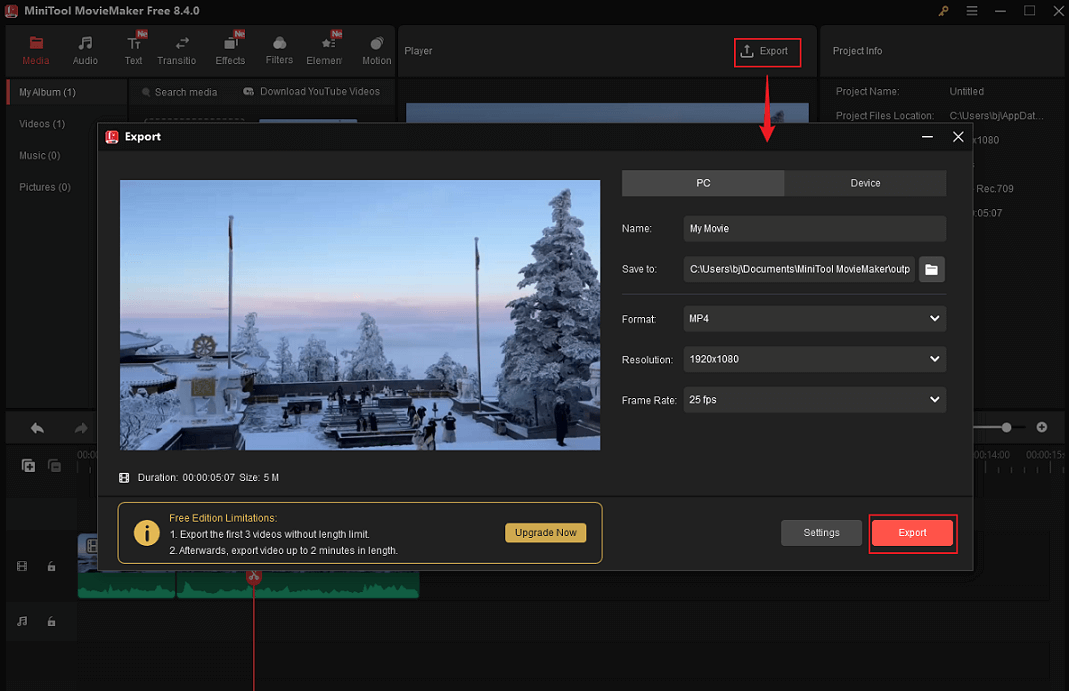
When the exporting process completes, click the Find Target button to locate the video.
#2. Video Content into GIFs
For business promotion, animated GIFs can serve as marketing assets, making email campaigns and website content more dynamic and engaging. Additionally, create GIFs from trending video content to participate in online culture. This makes content more engaging and easier to share. GIFs are especially useful when you want to showcase specific features or angles of your products. Instead of embedding an entire product demo video in your email, you can focus solely on the product’s specific functionality.
To turn video content into a GIF, the best GIF editor, MiniTool MovieMaker, can help you as well. Just follow the details below.
1. Import Your Video
Click the Import Media Files option to add the target video. Then, drag it to the timeline.
2. Cut the Video
GIFs are typically very short in duration. Therefore, it’s best to remove all unnecessary parts of the video and keep only the most important sections.
To do so, move the mouse cursor to the beginning of the important part and click the Scissors icon. Then, move the mouse cursor to the end of the essential part and click the Scissors icon. This way, the important video part will be extracted. Right-click on unnecessary parts and click Delete to move them.
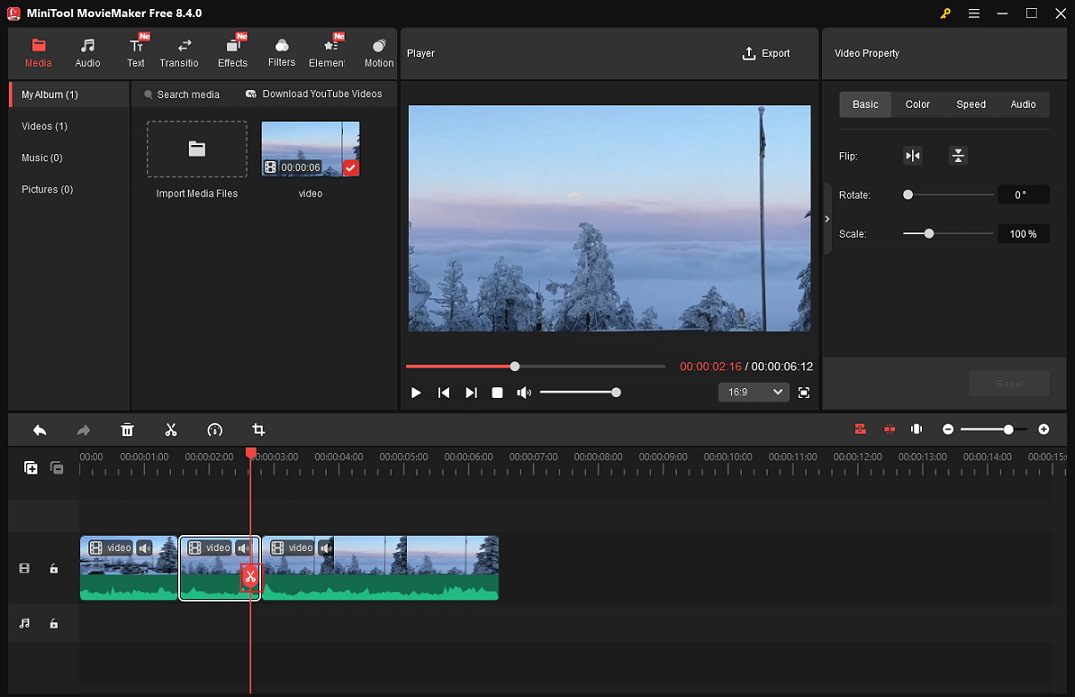
3. Turn the Video into a GIF
Click the Export icon in the top right of the Player window to open the Export window. There, expand the Format option and choose GIF. Then, click Export to export the GIF.
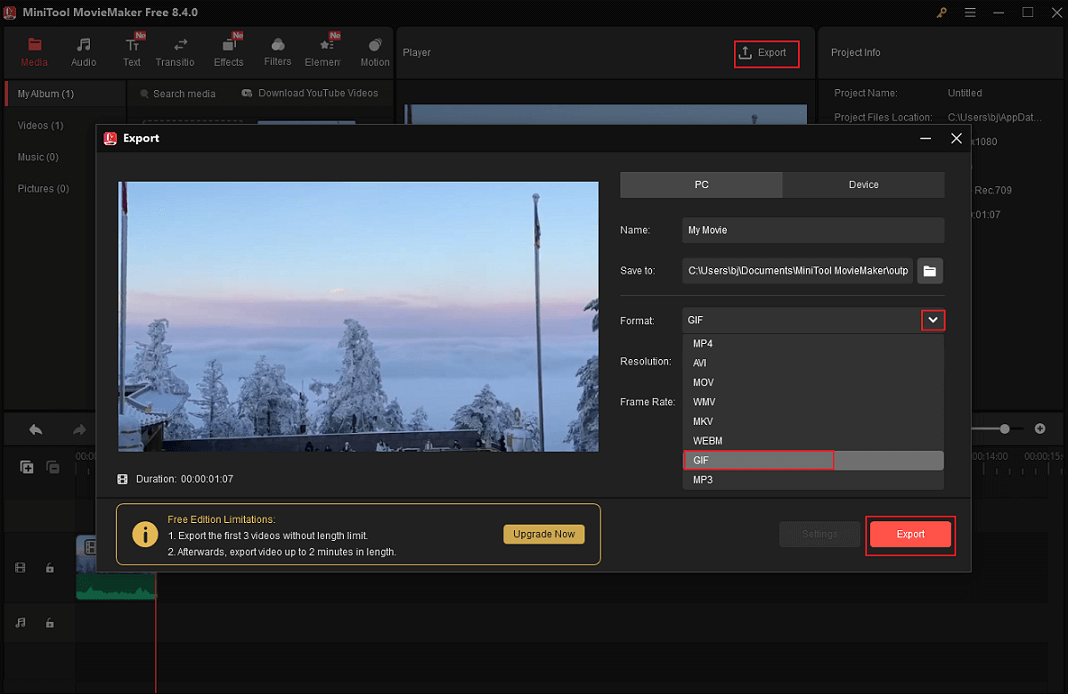
When the exporting process completes, click the Find Target button to locate the GIF.
Furthermore, MiniTool MovieMaker can serve as a media player, video compressor, audio editor, and more. Click the download button below to explore more!
MiniTool MovieMakerClick to Download100%Clean & Safe
#3. Influencer Collaborations into Ads
Influencer collaboration is an advertising strategy employed by companies to promote their products and services by collaborating with social media influencers or content creators in specific sectors or niche markets. These influencers create text or video content for the brand, leveraging the trust and reputation they’ve built with their followers to influence consumer perceptions, thereby enhancing the brand’s credibility.
Short on time and budget for advertising? Don’t worry. By cleverly repurposing video content, you can turn any video into appealing ads. This way, you won’t have to spend time and money collaborating with influencers every time—just build upon content from previous collaborations. Use MiniTool MovieMaker to complete the work.
MiniTool MovieMakerClick to Download100%Clean & Safe
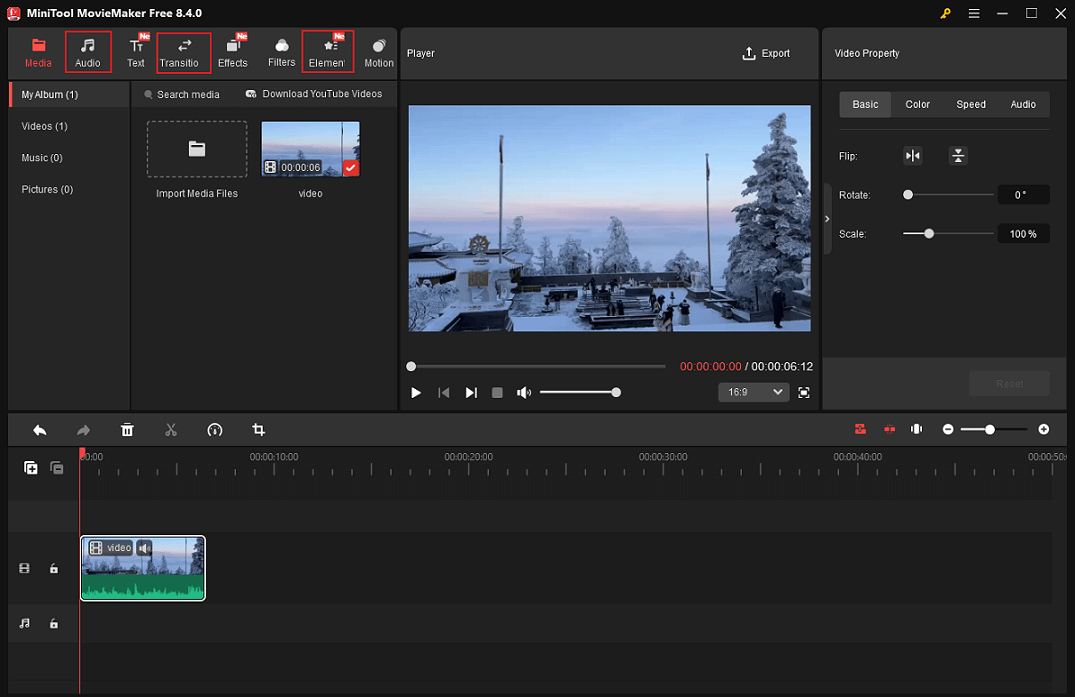
After importing the collaboration video to the program, drag it to the timeline and do some basic editing, cutting the video to the desired results based on your needs. Then, it’s time to polish the video to make it more engaging:
- Add background music to the ad video: Go to the Audio section, download and add the desired music to the video.
- Add transitions to the video: A proper transition enhances the viewing experience of videos. Go to the Transition section, download and add the preferred one to the video.
- Add stickers to the video: Stickers can add fun to advertising videos, making them more engaging for viewers. Head to the Elements section to add stickers to the video.
#4. Make Audio Podcast
Repurposing video content into podcasts is an excellent way to reach new audiences. Converting videos into podcast episodes provides busy individuals with valuable, easily digestible information. People who like to listen while working out or commuting frequently choose podcasts. This conversion of video content into audio expands the reach of your original video material, making your content more accessible.
To convert a video to an audio podcast, I’d like to recommend a professional and free file converter – MiniTool Video Converter. It supports a wide range of video/audio formats, such as MP4, MOV, MKV, AVI, FLV, MP3, AAC, AIFF, AC3, OGG, etc., and offers an efficient conversion. With this tool, you can convert video to audio in no time. Just follow the instructions below.
1. Download and Install MiniTool Video Converter
Click the download button below to download and install this program on your computer.
MiniTool Video ConverterClick to Download100%Clean & Safe
2. Import the Target Video
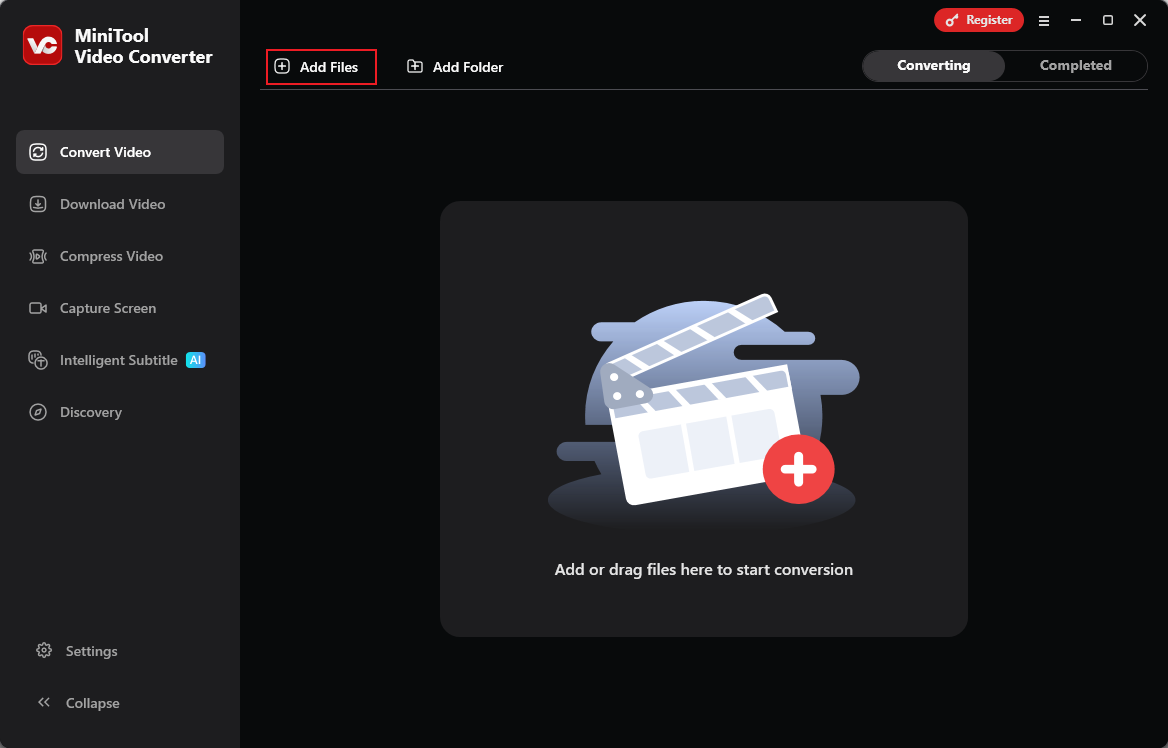
Launch this program and click the Add Files option to add your video.
3. Choose an Audio Format
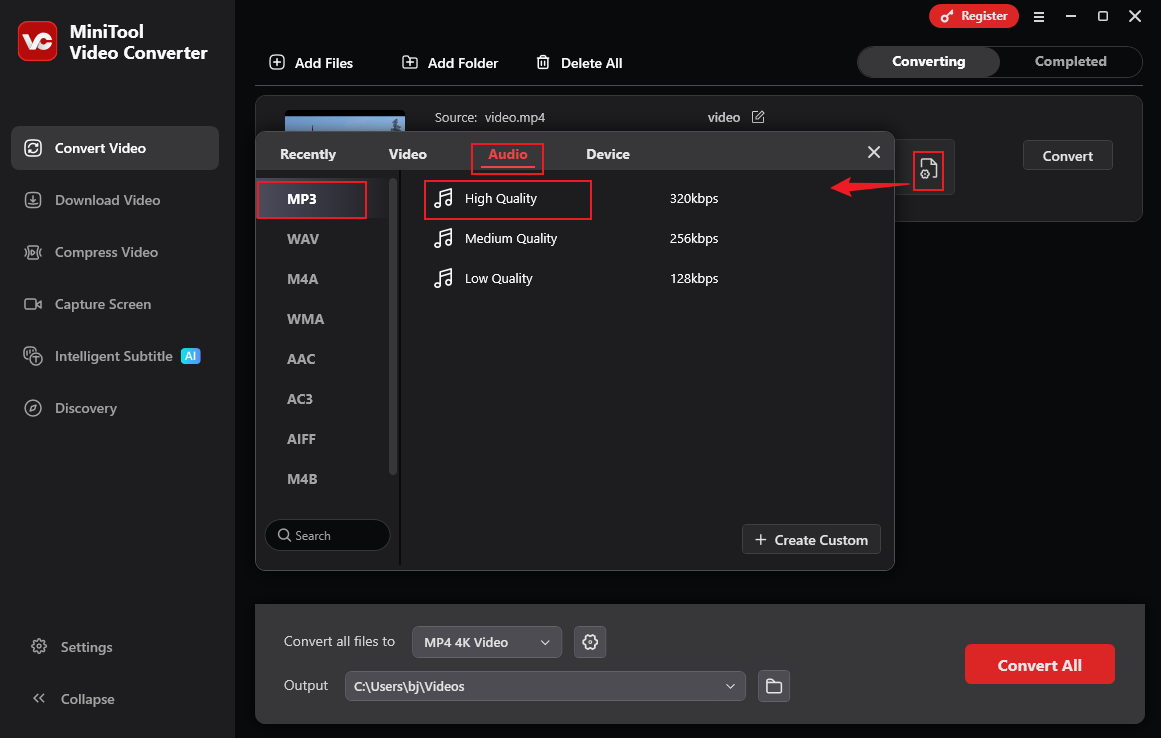
Click the Settings icon on the added video to open the format library. Next, choose the Audio tab and choose the desired audio format and quality (here, I recommend MP3, High Quality).
4. Convert Video to Audio
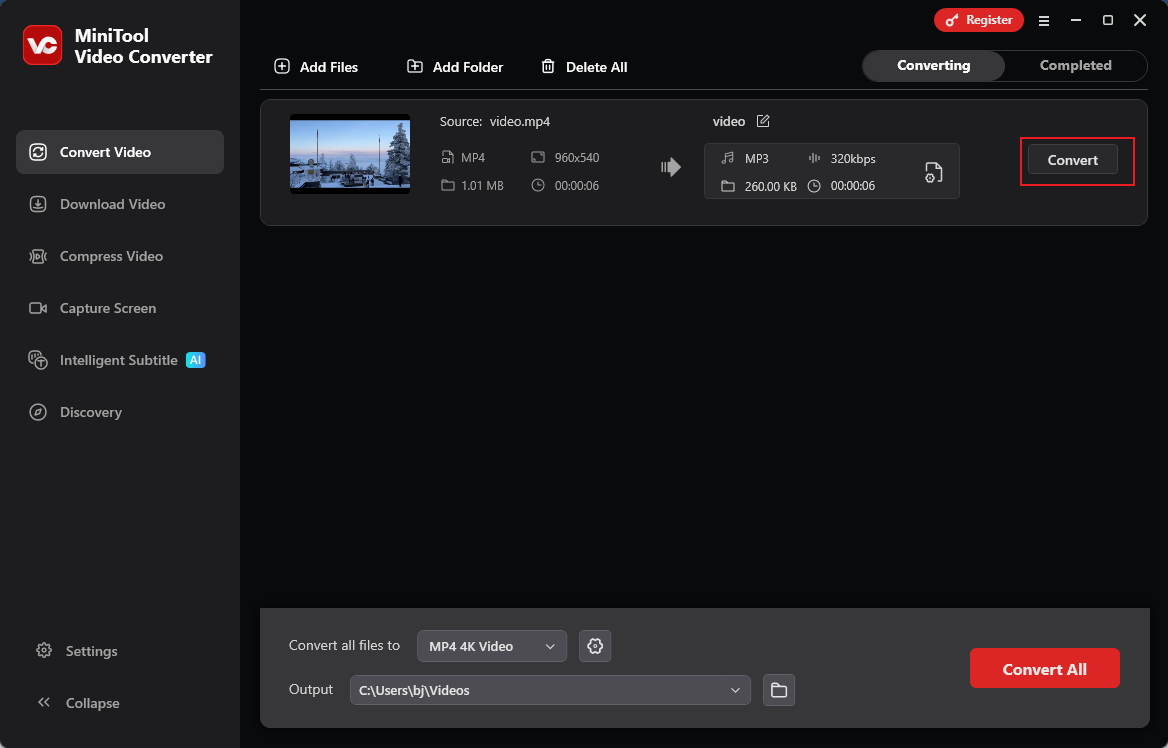
Click the Convert button to start the conversion.
#5. Webinar to How-to Videos
You can give your audience useful advice and an opportunity for hands-on learning by simplifying difficult subjects discussed in webinars into step-by-step tutorial videos. This approach ensures your audience can easily put the knowledge gained from the webinar into practice. Repurposing webinar content into tutorial videos helps you gain industry experience and reputation.

In Summary
This post discusses what video content repurposing is, why repurpose video content, tips on doing it, and how to repurpose video content. These effective approaches to repurpose video content will help you reduce production time while increasing reach and return on investment.
You can contact us via [email protected] if you have any questions about using MiniTool MovieMaker or MiniTool Video Converter. Also, you can send me messages directly on X, and I’ll help you as soon as I can.
User Comments :