

This post shows how to edit TikTok videos on PC using MiniTool MovieMaker (a free video editor with no watermark). Set the aspect ratio to 9:16 or 16:9, import the target video, edit it by trimming, cropping, and more, and finally, export the result as MP4.
TikTok is one of the most popular platforms for short-form videos. The mobile app offers a range of editing tools and effects to create stunning videos. Although you can upload videos to TikTok on a PC, the platform’s built-in editing tools are unavailable on the desktop version. Therefore, to upload polished videos from a computer, you’ll need to edit them first.
While many creators edit videos directly on their phones, using a PC provides more flexibility and better performance. So, how to edit TikTok videos on PC? This post will walk you through the best software and clear instructions for editing TikTok videos on your computer.

Why Edit TikTok Videos on PC
Here are some benefits of editing TikTok videos on your computer.
- Larger screen, better precision: Easier timeline navigation and frame‑by‑frame adjustments.
- Multi‑track editing: Layer videos, audio, text, and effects on multiple tracks for complex projects.
- Storage & backups: Expandable storage and reliable backup solutions beyond phone limits.
Editing your TikTok videos on a larger display has many benefits. Before you begin, it’s essential to understand TikTok video upload guidelines to ensure that you can export videos in the correct formats. Let’s continue.

TikTok Desktop Upload Requirements
Every social media platform and video-sharing website has its own unique upload requirements. Know these standards to ensure your videos look professional and upload successfully. Here’s the upload criteria for TikTok videos on PCs
- File Format: MP4 recommended, and MOV, WebM, AVI, and WMV also accepted.
- Video Resolution: 1080p, 1440p, and 4K.
- Size Limit: up to 30 GB.
- Length Limit: 60 minutes.
- Aspect Ratio: 16:9 for landscape videos and 9:16 for vertical formats.
![How to Watch TikTok without the App or Account [3 Solutions]](https://images.minitool.com/moviemaker.minitool.com/images/uploads/2022/04/watch-tiktok-without-app-thumbnail.png)
How to Edit TikTok Videos on PC
Fast Track:
- Open MiniTool MovieMaker.
- Set aspect ratio to 9:16 or 16:9.
- Import target videos.
- Trim, crop, change speed, and apply filters.
- Export the result.
MiniTool MovieMaker is one of the easiest video editing software programs designed to help users produce videos in minutes. Featuring a simple and user-friendly interface, this application is ideal for beginners, casual users, and hobbyists who want to edit videos for TikTok on PC. As a video editor without watermark, MiniTool MovieMaker doesn’t leave a branding logo on the exported videos, ensuring clean and professional-looking videos.
Step 1: Download and Install
Click the button below to download the PC video editor for TikTok and install it on your computer.
MiniTool MovieMakerClick to Download100%Clean & Safe
Step 2: Set the Project Aspect Ratio
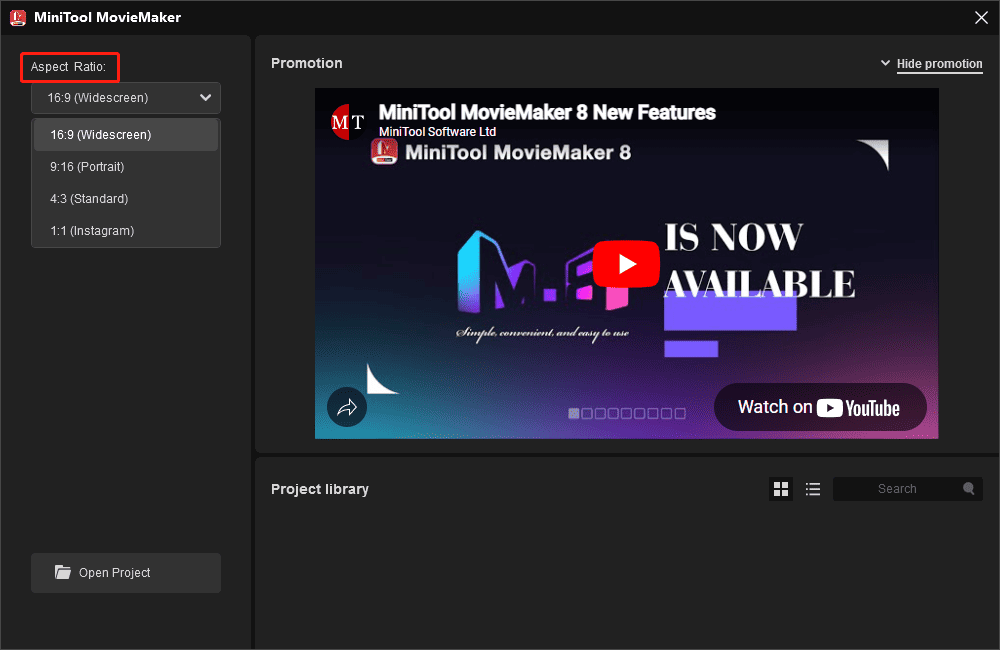
When you launch the software, open the Aspect Ratio dropdown list and select the desired ratio, 9:16 for vertical or 16:9 for landscape. Then, click the New Project button to access the editing interface.
Step 3: Import Your Videos
Under the Media tab, click the Import Media Files area in the upper left corner to add your videos. Then, drag and drop them to the timeline to start editing.
Step 4: Remove Unwanted Parts
You can trim a video to eliminate unnecessary sections at the beginning or end directly. To do so, hover your mouse cursor over the start or end of the clip until the Trim icon appears. Then, drag the icon inwards.
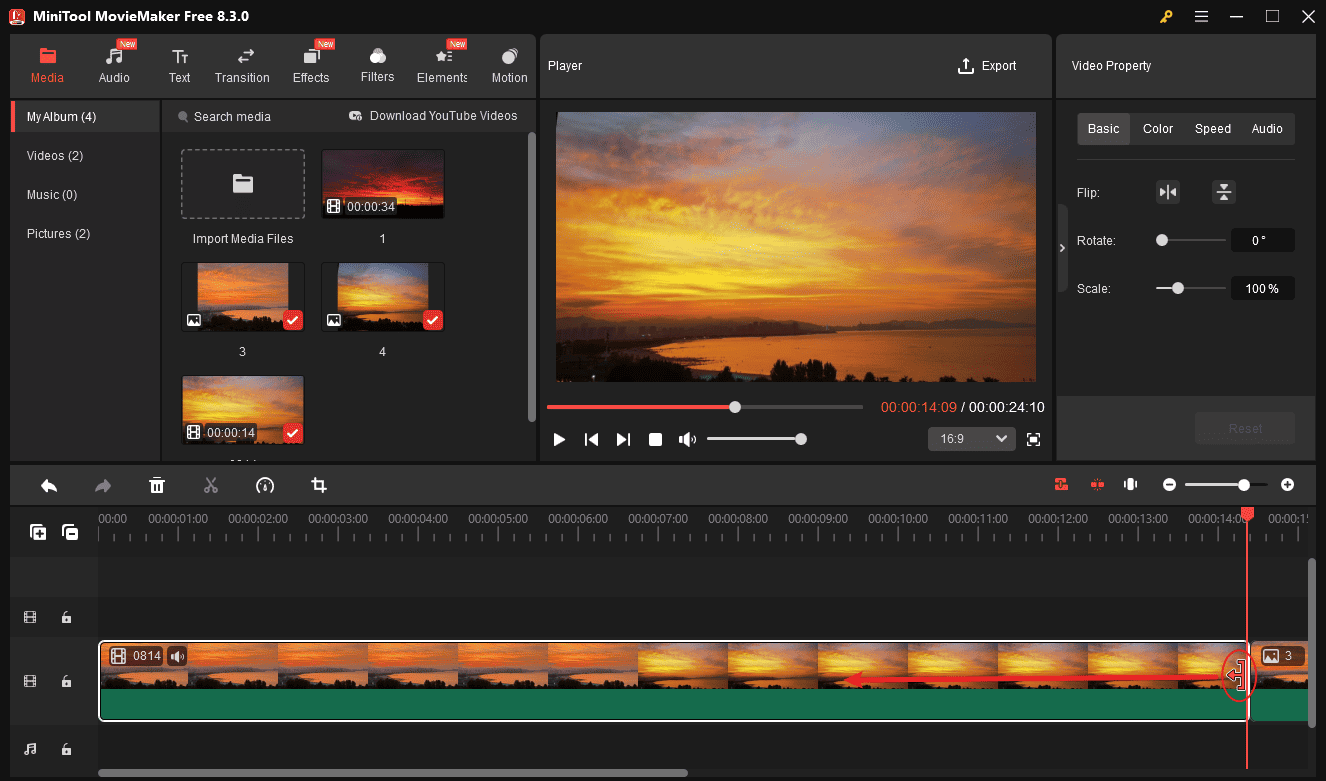
If you want to delete the middle part of the video, use the Split tool to separate it. Drag the playhead to the start point of the clip you don’t want, and click the Split icon. Drag the playhead to the end of the clip you don’t want, and click the Split icon again. Then, right-click on the unwanted clip and select Delete.
Step 5: Crop the Video
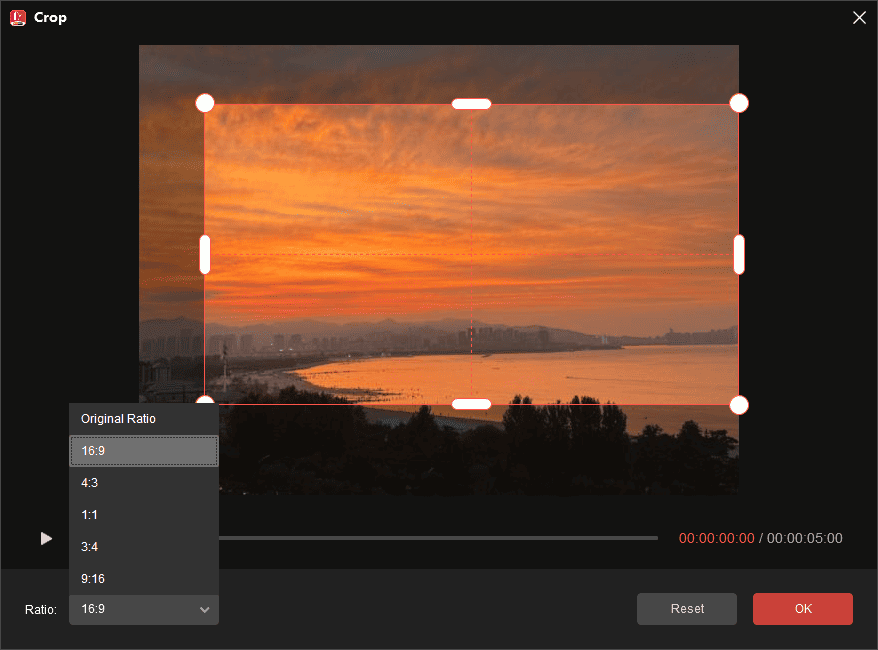
Select the clip on the timeline you want to crop and click the Crop icon on the timeline toolbar. In the Crop window, expand the Ratio menu and select the same ratio as the project to avoid black bars after cropping. That is to say, 9:16 or 16:9.
Then, move the handles to adjust the size and position of the red rectangle to choose the area you want to keep, and click OK to confirm your changes.
Step 6: Adjust the Video’s Color
Click the target clip on the timeline and switch to the Color tab in the upper right corner. You can then drag the sliders to adjust Contrast, Saturation, and Brightness. Experiment with different settings until you achieve the best result. You can also apply a 3D LUT effect.
Step 7: Adjust Playback Speed
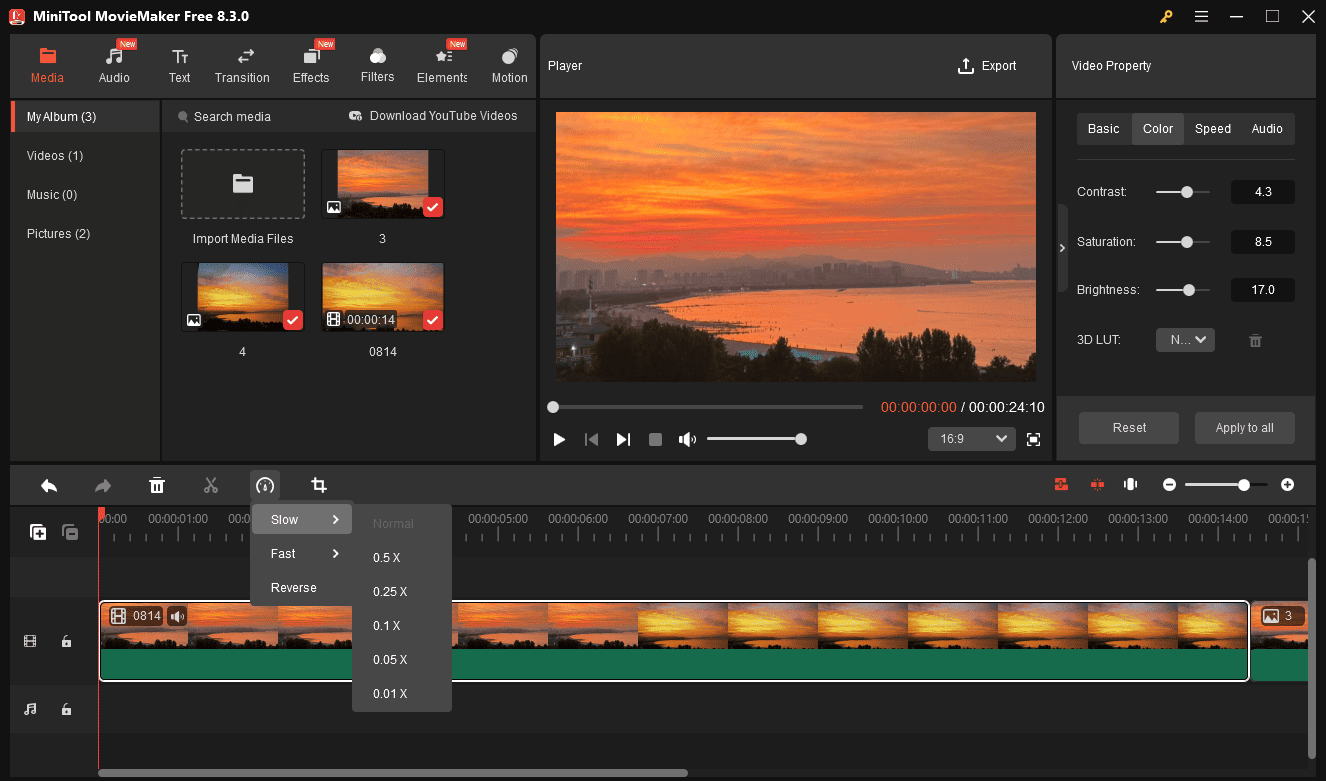
Select the video you want to edit and click the Speed icon. Then, choose Fast or Slow and click a speed to speed up or slow down your video. You can also click Reverse to play the video in reverse.
Step 8: Add Effects and Filters
Go to Effects on the top, browse these options, and download your favorite one. Then, click the + icon to add it to the timeline. You can then drag the edges of the effect on the timeline to adjust its duration.
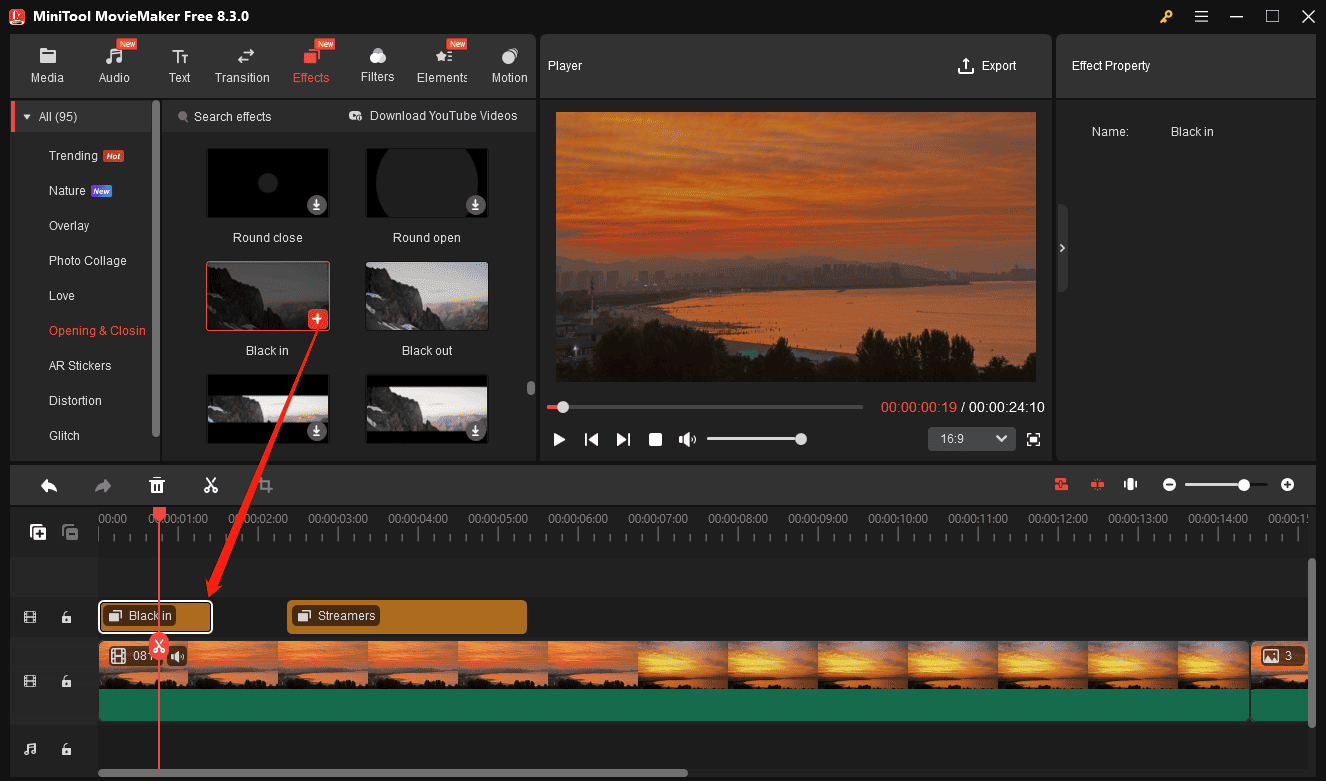
Then, go to the Filters tab and apply filters to the video.
Step 9: Apply Transitions
Navigate to Transitions in the top menu, browse the options, hover over thumbnails for a quick preview, and download your preferred one. Then, drag the transition between two clips on the timeline. Adjust duration and mode in the right property panel.
Step 10: Add Captions
Add captions to the video for better accessibility, as a large number of TikTok users watch videos without sound.
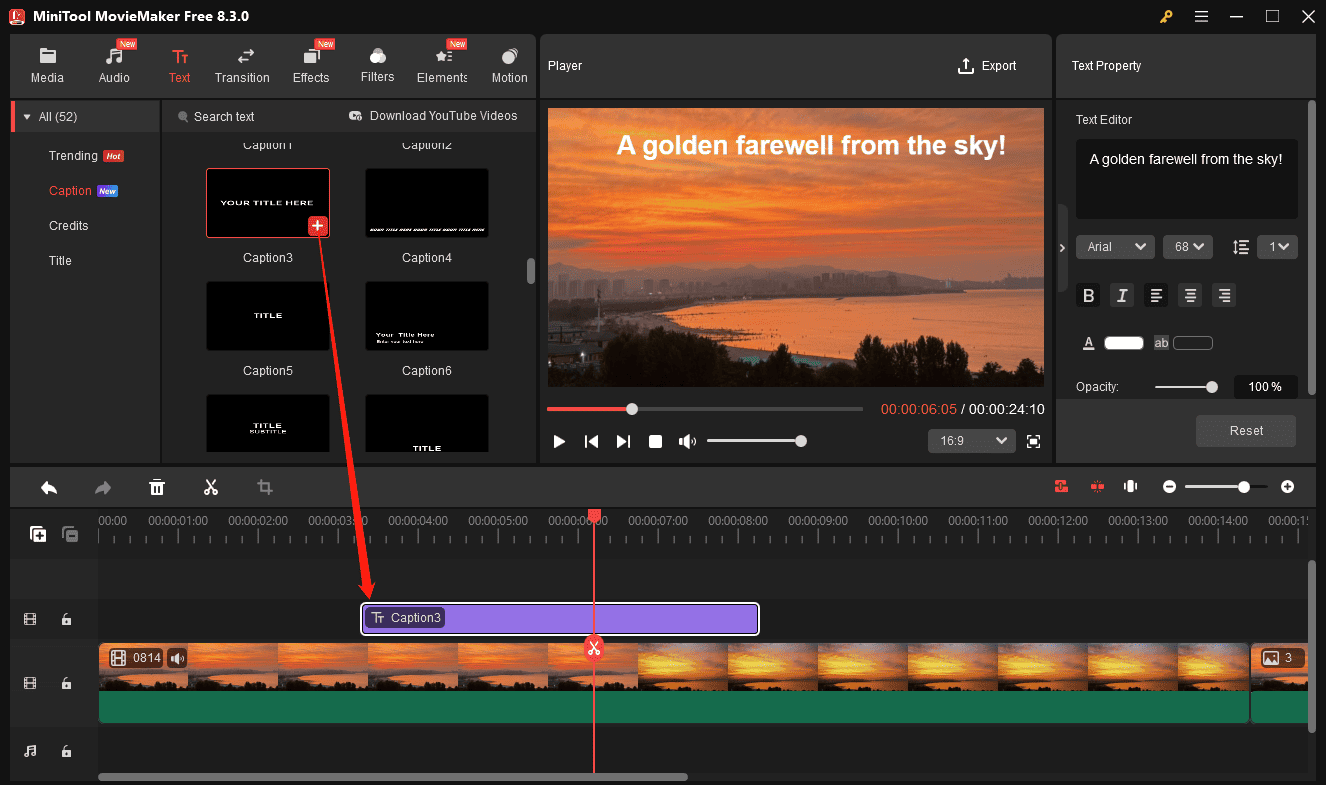
Go to Text and select Caption on the left sidebar. Choose a text template and click the + icon to add it to the timeline. Then, type and edit your text in the Text Editor.
Step 11: Spice Up Videos with Elements
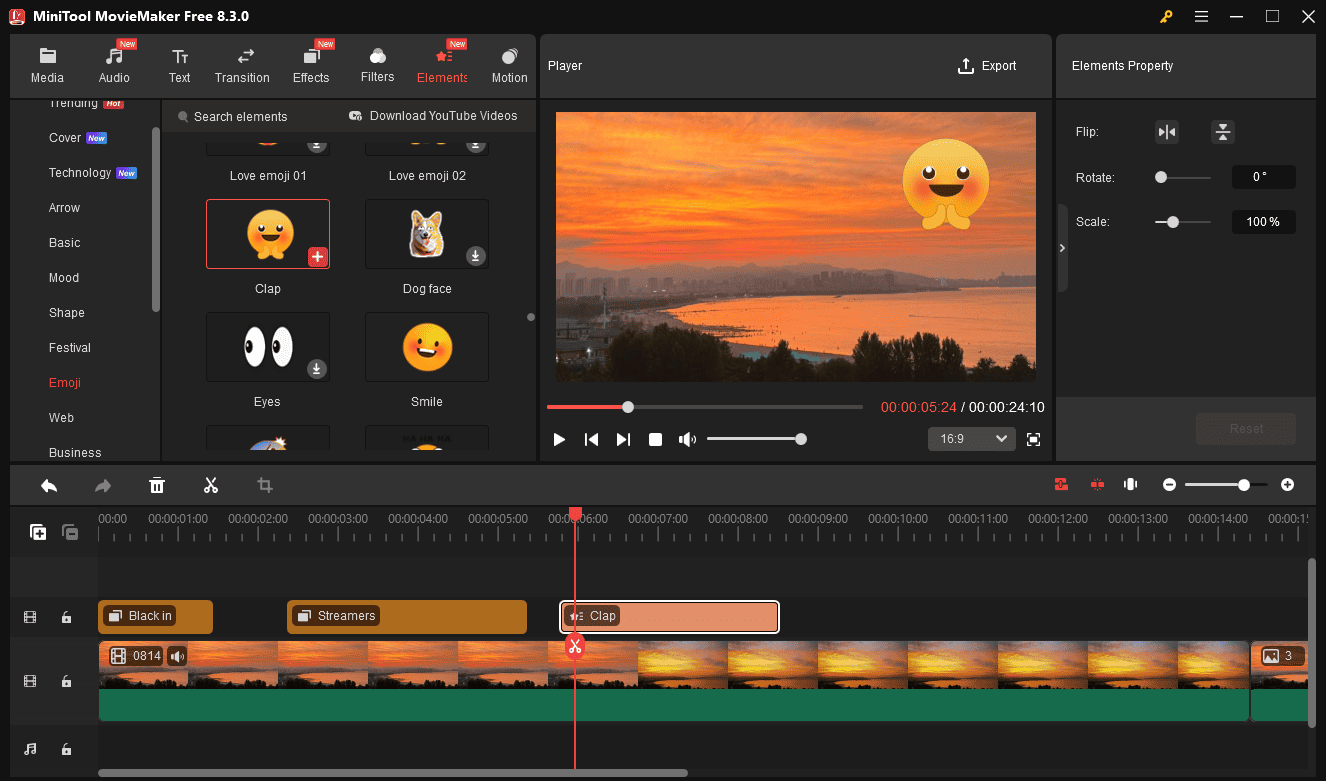
Go to the Elements tab, download the sticker you prefer, and click the + icon to add it. Then you can rotate, flip, and scale the sticker. Similarly, drag the edges of the element on the timeline to control its duration.
Step 12: Add Background Music
Switch to the Audio tab and download a song. Then, drag and drop it to the timeline. In the Music Property, you can apply the fade-in/out effects or adjust the volume.
Step 13: Export the Video
Once you’re satisfied with the result, click Export to save your video. In the Export window, you can rename your video and adjust the save location, resolution, frame rate, and bitrate.
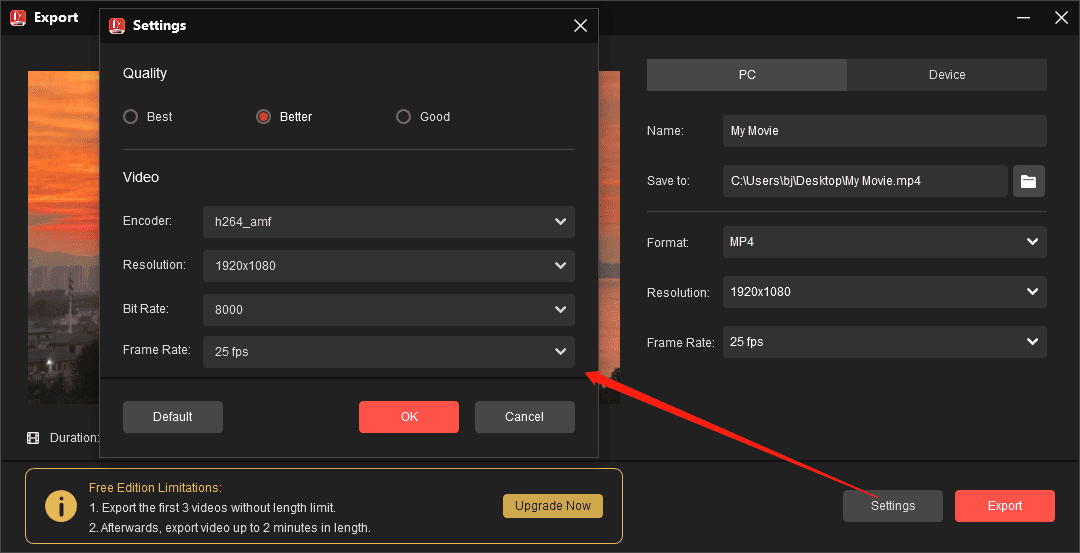
Finally, click the Export button to start rendering the video. After that, visit the TikTok website and upload the video you just created.
For anyone who wants a simple, clear way to join some video clips with transitions, place overlaid objects and text, add music, and bling it all up with some effects, MiniTool MovieMaker may be just the ticket.https://www.pcmag.com/reviews/minitool-moviemaker

How to Enhance Engagement on TikTok
Once you’ve created your video and posted it to TikTok, what else can you do to maximize engagement and get more views? Here are 4 proven strategies.
#1. Keep the Video Short
While TikTok supports uploading videos of up to 1 hour, it’s best to keep your video short if you’re not posting tutorials or series. The audience quickly lost interest in the long videos.
#2. Create Eye-Catching Thumbnails
The thumbnail is the first impression of your video, primarily used to attract viewers to click and watch. Therefore, you should create an eye-catching cover or use the key moment of your video as the thumbnail to grab viewers’ attention.
#3. Use Hashtags
Hashtags are a useful tool for categorizing videos and making them searchable on social media platforms. Audiences can also click these hashtags to discover related content. Generally speaking, 3-5 highly relevant hashtags are enough for each TikTok post. Besides, remember to write an attractive title for your video.
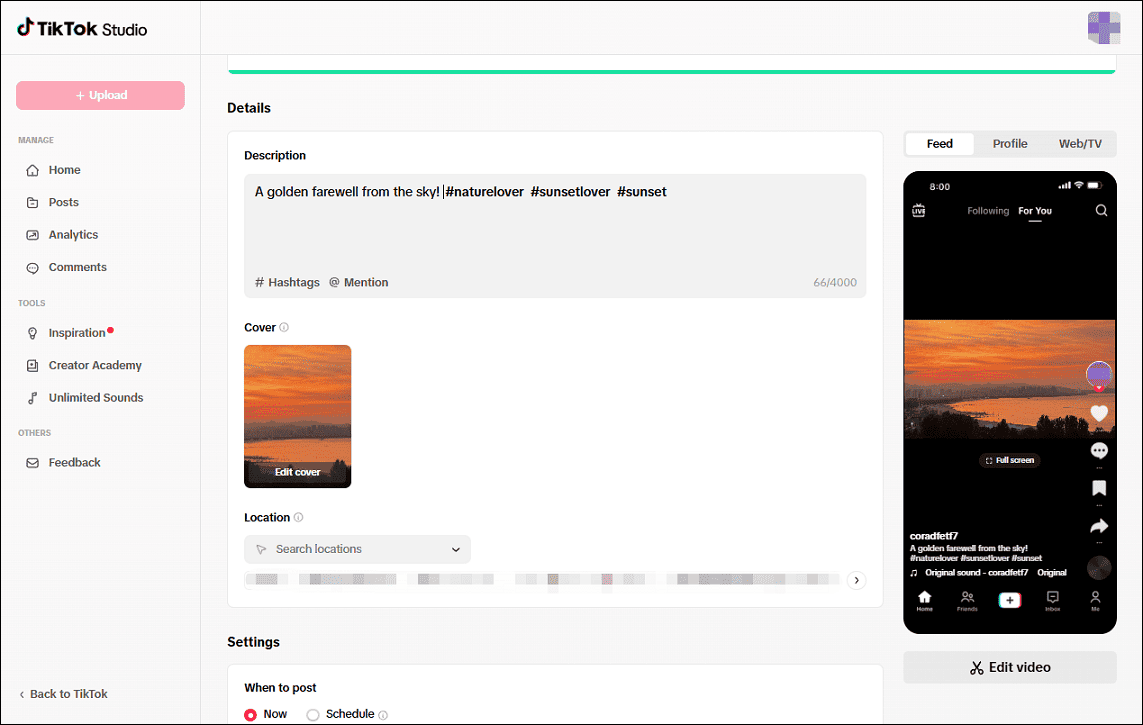
#4. Post at Peak Times
Additionally, consider publishing videos on TikTok during peak times to reach a wider audience. So, keep the best time to post on TikTok in mind. Furthermore, you can check TikTok Analytics (Pro Account required) to see when your followers are most active.
Final Thoughts
This post shows you how to edit TikTok videos on PC using MiniTool MovieMaker. Follow the steps above to get a faster workflow and greater editing possibilities.
Finally, if you have problems when editing videos with MiniTool MovieMaker, please contact us via [email protected] for help.
How to Edit TikTok Videos on PC FAQ
About The Author

Position: Columnist
Cora is a tech writer specializing in digital media workflows, with over six years of hands-on experience in video post-production, media transcoding, and screen capture. Her writing is always clear and practical. Cora also produces in-depth software reviews for users across skill levels to help them find the right tool and enjoy video editing.
User Comments :