

This post introduces 5 practical 3GP croppers for Windows and provides a detailed tutorial on how to crop 3GP videos using the best free video editor, MiniTool MovieMaker. Let’s dive in and get started.
3GP is a common video file format used for storing video and audio data. If you want to crop 3GP videos for personal use, this post has you covered. This article shares the best 5 3GP croppers to help you crop 3GP videos with ease.
What Is a 3GP Video
3GP, the Third Generation Partnership Project, is a universal format for storing multimedia content. It is available for storing audio, video, and text data. 3GP is primarily used on mobile devices because it was created to facilitate the conversion and transmission of video and audio between mobile devices. Although modern networks such as 4G and 5G have largely replaced 3G, the demand for editing 3GP videos still exists, especially when working with mobile footage or meme videos.
To help you crop 3GP videos without hassle, this post introduces 5 practical 3GP croppers to improve your editing workflow.
Best 5 3GP Croppers
This post compiles a list of 3GP croppers from desktop software to online tools. If you are looking for precise cropping and advanced editing features, desktop software programs, including MiniTool MovieMaker, Microsoft Clipchamp, and OpenShot, are the best options. For basic and quick edits, it is recommended to use online tools, including Clideo and Ezgif.
1. MiniTool MovieMaker
MiniTool MovieMaker is an all-in-one video editor designed for Windows users. It supports importing a variety of video formats, including MP4, 3GP, MPG, WMV, MOV, MKV, VOB, AVI, FLV, RMVB, and WEBM. It offers multiple preset crop ratios, including 16:9, 4:3, 1:1, 3:4, and 9:16, and allows for manual cropping, making it easy to tailor videos to suit your needs.
Besides being a 3GP video cropper, MiniTool MovieMaker also serves as a video trimmer that lets you cut unwanted clips and remove them from the video precisely. Furthermore, the multitrack feature enables you to create picture-in-picture and video collage effects. It also allows exporting video up to 4K resolution without cost. Moreover, it is completely free of ads, bundles, or watermarks, allowing you to edit videos with no hassle.
MiniTool MovieMakerClick to Download100%Clean & Safe
2. Microsoft Clipchamp
Microsoft Clipchamp is the recommended video editor without watermark for Windows 11. It allows you to import 3GP videos and crop them to 16:9, 9:16, 1:1, 4:3, 4:5, 21:9, and 2:3 ratios and customize their size freely.
With abundant built-in resources, Microsoft Clipchamp offers exclusive music and text templates to add an engaging touch to videos. Moreover, it excels in generating auto-captions from videos to improving editing efficiency.
3. OpenShot
OpenShot is a free, open-source, and cross-platform video editor for Windows, Mac, and Linux. It supports over 70 languages, making it an excellent choice for global users. This free video editing software features an easy-to-use and friendly interface, making it easy for beginners to create videos quickly without a steep learning curve.
When it comes to cropping 3GP videos, Openshot allows you to freely customize video dimensions by entering precise crop values or dragging the video rectangle in the preview window, making it an ideal option for accurate video cropping.
4. Clideo
Clideo is widely considered the best online video editor for its intuitive interface and easy-to-use tools. This platform strikes a balance between comprehensive tools and a quick editing process, which is suitable for beginners to edit videos.
Clideo supports multiple video formats, including 3GP, MP4, AVI, etc. So, it’s versatile enough to handle different types of media formats. Clideo provides preset crop ratios for popular social platforms, including 1:1, 16:9, 9:16, and 5:4, so you don’t need to spend time manually adjusting the dimensions.
5. Ezgif
Another powerful online 3GP cropper is Ezgif. While it is well-known for editing GIFs, it offers features like cropping videos, changing video resolution, merging videos, and so on. Moreover, it is also simple to use, supports a wide range of video formats, and requires no software installation, making it a convenient option for anyone looking for quick edits.
How to Crop 3GP on PC: Using MiniTool MovieMaker
To help you better grasp how to crop 3GP videos, the following section will present a step-by-step guide using MiniTool MovieMaker as an example.
Step 1: Download and Install
Click the button below to start downloading MiniTool MovieMaker. Complete the installation and open this software.
MiniTool MovieMakerClick to Download100%Clean & Safe
Step 2: Import Your 3GP Video
Close the project window to enter the main interface. Click Import Media Files on the left side to open File Explorer to browse for your 3GP file. Then, click the Plus icon on the video to add it to the timeline.
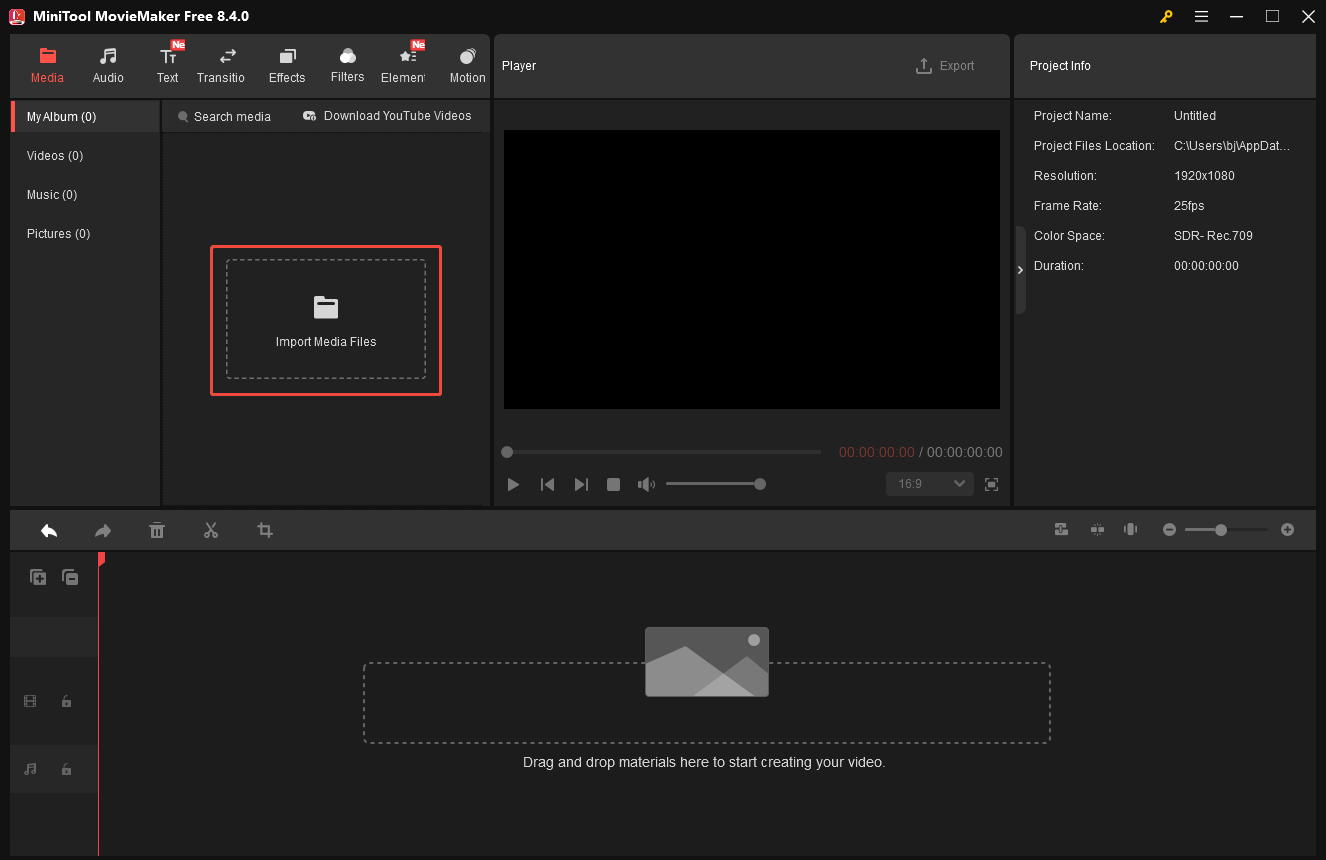
Step 3: Crop the 3GP Video
Click the Crop icon on the timeline toolbar to open the crop window. Here, you can resize the red rectangle and drag it to the desired portion to crop the video. Besides, to make a specialized ratio for social media platforms, you can click the Original Ratio in the left corner of the window to choose a preferred ratio from preset options to crop the video. If you are satisfied with the result, click OK in the right corner of the window to save it.
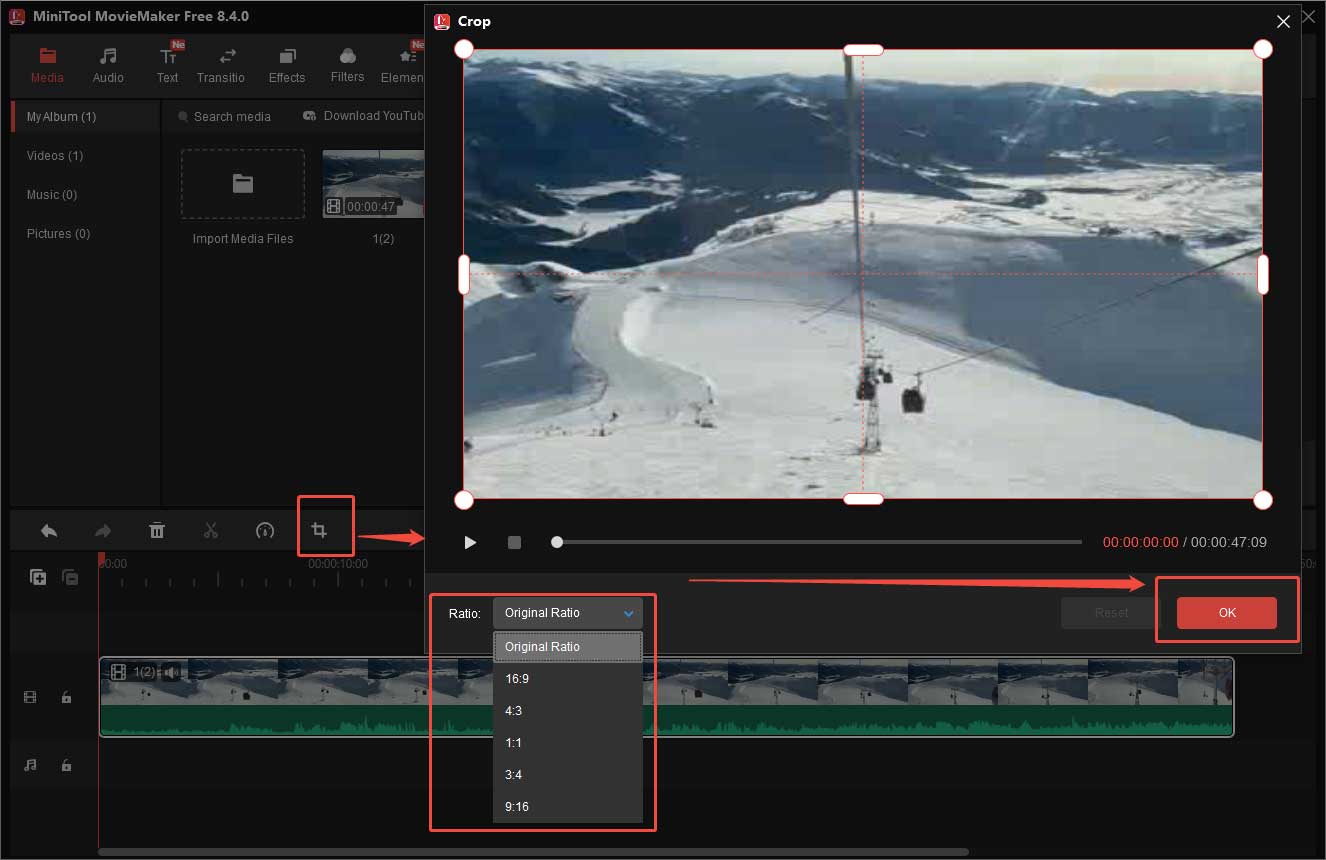
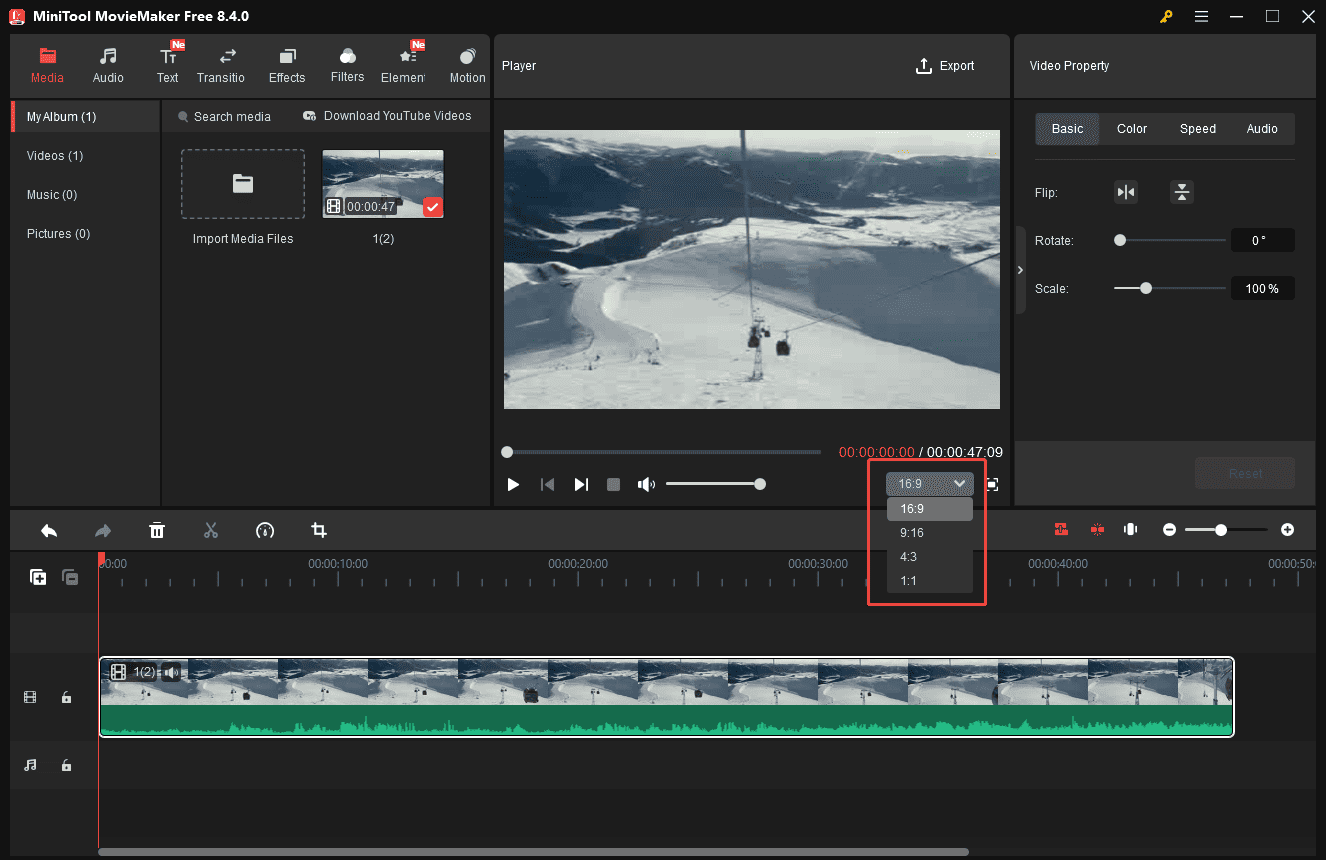
You can preview it from the Player window. If you find there are some black bars around the video, that is because the cropped size doesn’t exactly match the project aspect ratio. If you want to remove the black bars, you can make additional editing by changing the project aspect ratio. There are some additional edits you can make.
Step 4: Additional Editing
To remove the black bars, you can click the Aspect Ratio dropdown list in the right corner of the player section to choose a proper size.
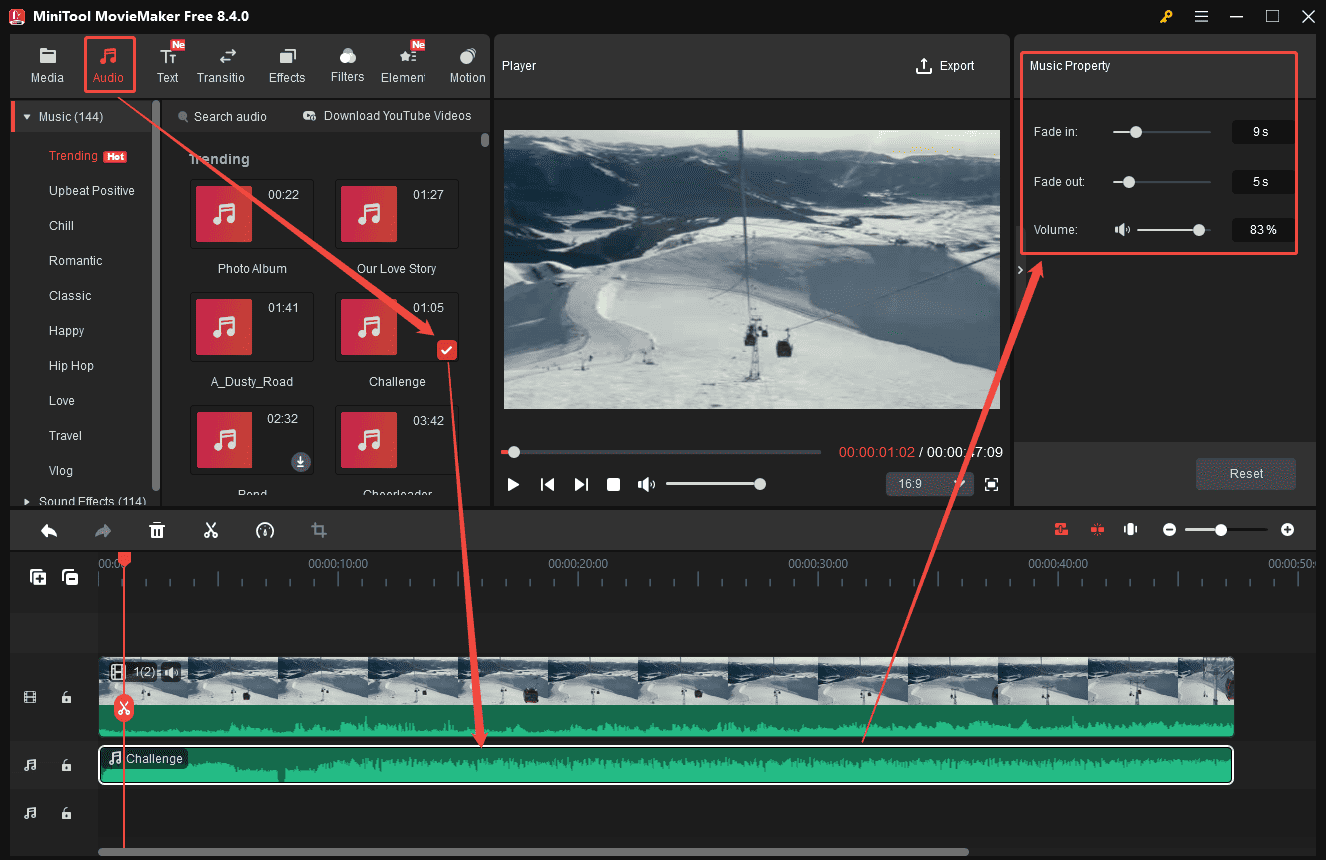
Music plays an integral part in videos. MiniTool MovieMaker offers plenty of music resources. Click Audio at the top of the menu. Scroll down to select the desired music and add it to the timeline. Select the music track in the timeline to adjust music volume and add fade-in/out effects to it.
Step 5: Export the Video
Once the editing is done, click Export at the top of the menu to enter the export window. Customize the video format and click Export at the bottom of the window to save it to your computer.
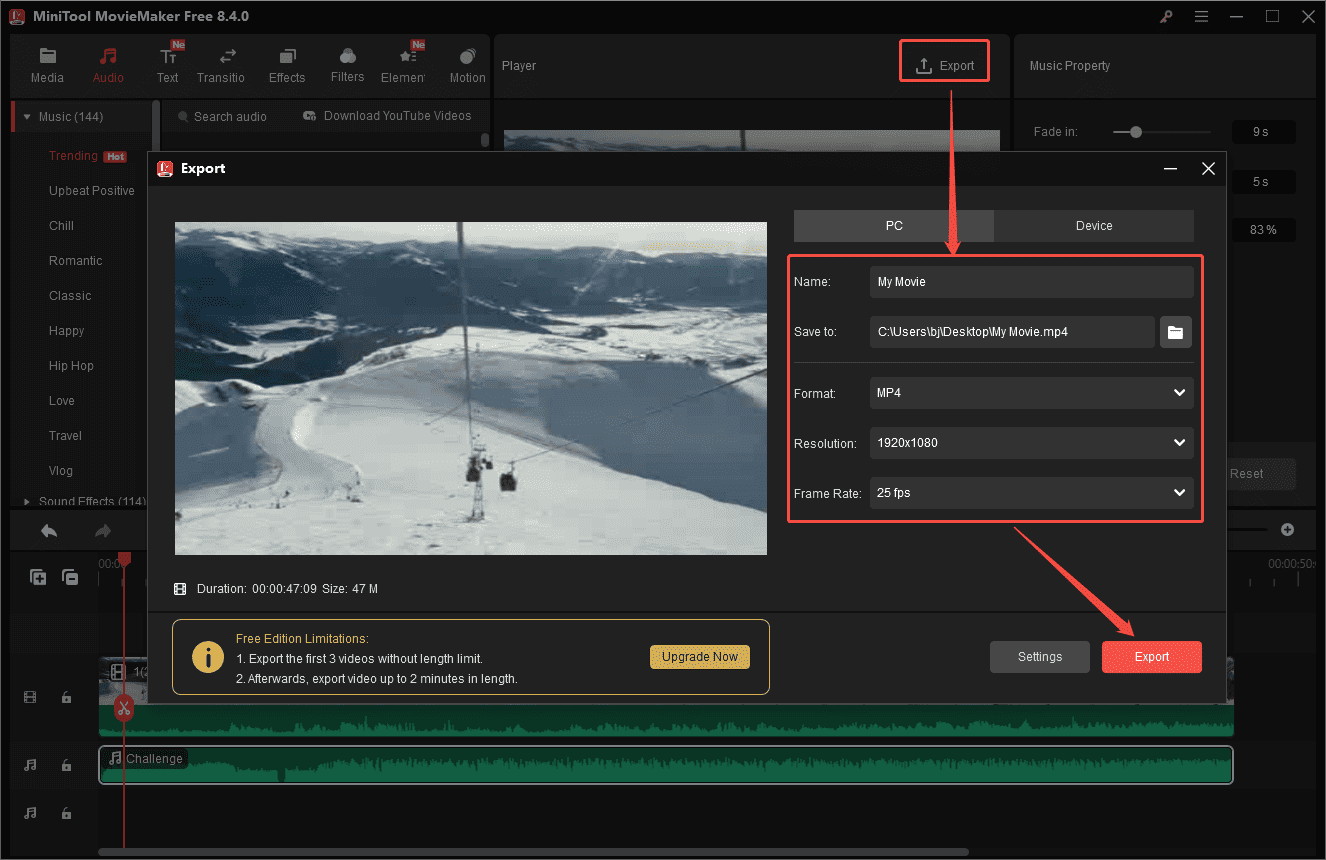
As MiniTool MovieMaker doesn’t support exporting 3GP videos, you can use MiniTool Video Converter to convert the video format to 3GP.
MiniTool Video ConverterClick to Download100%Clean & Safe
Conclusion
Cropping a video can improve the video’s focus and enhance viewer engagement. With the best 3GP croppers mentioned above, you are able to crop 3GP videos on your computer with just a few clicks.
If you have any problems or suggestions when using MiniTool MovieMaker, please do not hesitate to contact us via [email protected].
User Comments :