

This post recommends the 6 best video editing software for content creators at different levels to enhance their footage, including MiniTool MovieMaker, Microsoft Clipchamp, CapCut, Adobe Premiere, DaVinci Resolve, and Vegas Pro.
Today, video content creation has become an essential part of people’s lives. Some make money by creating videos, others use it to promote their businesses or products, while still others simply share their vibrant lives.
Video editing tools are essential for editing and producing eye-catching videos. With so many programs available on the market, what is the best video editing software for content creators? Considering this challenge and varying requirements, I’ve tested numerous video editors and ultimately narrowed down the 6 excellent ones.
Find Your Ideal Video Editor: A Quick Look for Creators
- MiniTool MovieMaker
- Microsoft Clipchamp
- CapCut
- Adobe Premiere
- DaVinci Resolve
- Vegas Pro
Check the table below to quickly find the video editor you need.
| Tool | Platform | Pricing | Watermark | Learning Curve | Template / Effect Richness | Best For |
| MiniTool MovieMaker | Windows | Free | No | Very Easy | Moderate | Beginners, zero-budget creators, short videos |
| Clipchamp | Win / Web | Free + Paid | No | Very Easy | Rich | Windows 11 users, basic editing needs |
| CapCut | Win / Mac / Mobile | Free + Pro | No | Easy | Very Rich | Social media creators, effects-focused users |
| Adobe Premiere | Win / Mac | Paid Subscription | No | Advanced | Professional | Professional/commercial creators |
| DaVinci Resolve | Win / Mac / Linux | Free + Studio | No | Expert | Professional | Professional color grading / VFX needs |
| Vegas Pro | Windows | Paid | No | Advanced | Professional | Advanced audio / multi-cam projects |
Select the right video editing tool for your content:
- For beginners who need to edit short videos, vlogs, or social media, try MiniTool MovieMaker. It offers a free, full-featured version without watermarks, making it perfect for quick content creation.
- For social media or short-to-medium videos (experienced creators), CapCut is your best bet. It offers a variety of templates and effects, and its free version is surprisingly robust.
- If you’re a Windows 11 user, Clipchamp is the most convenient choice, thanks to its seamless system integration.
- For professional or commercial work, Adobe Premiere remains the industry standard, offering a full suite of professional-grade tools.
- If you need professional color grading or VFX but want to stay on a budget, DaVinci Resolve is the best choice, but it has a steep learning curve.
Best Video Editing Software for Entry-Level Content Creators
This section is for those who are just starting in video production and still have limited experience. Here’s a quick look at these apps:
- MiniTool MovieMaker
- Microsoft Clipchamp
- CapCut
Now, let’s explore the best video editing software for content creators together.
1. MiniTool MovieMaker
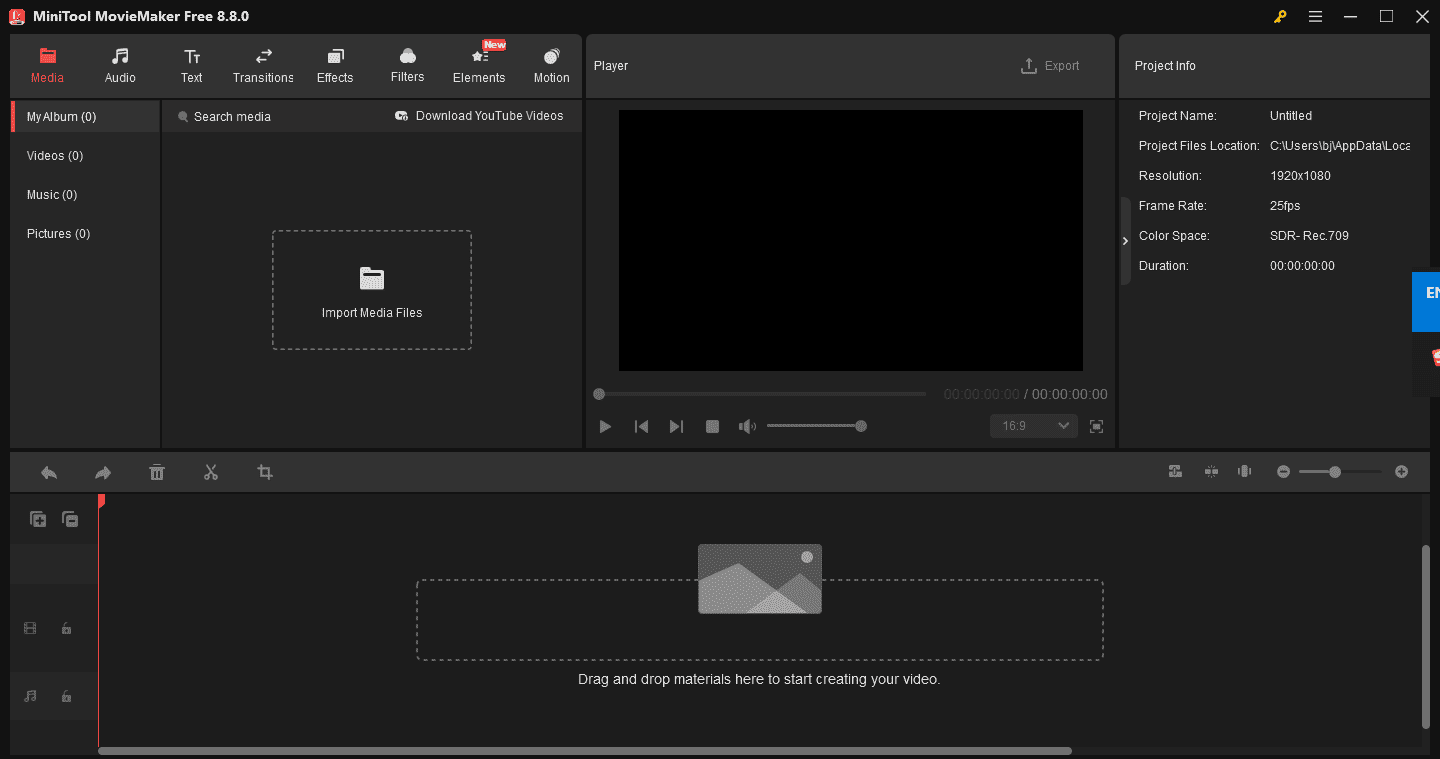
MiniTool MovieMaker is a user-friendly and all-in-one video editor without watermark that is perfect for beginners on a budget. It has a simple interface with clearly labeled options and has no ads or bundles. Whether you’re a budding video creator who has just started a self-media career or a social media enthusiast who loves sharing life moments, the software has got you covered.
User-Friendly
This Windows editing program comes with a straightforward interface. When using it, you can see all the options are clear, allowing everyone to easily navigate, especially for beginning-level content creators.
Full Editing Functions
For basic editing, this free video editor can split, trim, reverse, crop, flip, speed up, slow down, and rotate video. For advanced editing, the application supports 4K video editing, multi-track editing, video text overlay, photo collage, copy and paste on timeline, and more.
Additionally, the software offers a variety of transitions, effects, filters, stickers, text templates, music, and motions to enhance your footage. It also supports common aspect ratios, including 16:9, 9:16, 1:1, and 4:3, making your content fit every platform – TikTok, Instagram, YouTube, and more.
Free Full-Featured Version
This video editor provides a free full-function version, allowing you to use all the editing tools without payment. For new content creators without enough budget, this application can be a lifesaver.
The Elements panel is more useful, especially for those who make social videos. It includes emoji, arrows, and buttons every YouTuber needs: Like and Subscribe.https://www.pcmag.com/reviews/minitool-moviemaker
2. Microsoft Clipchamp
Microsoft Clipchamp is an ideal option for casual users who just want to delete some unwanted parts, add a bit of fun to their videos, or perform some other simple edits. This app is perfect for those who aren’t looking to go viral on social media but only want to share life’s little moments with friends. For that, Clipchamp offers quick edits.
Easy Accessibility
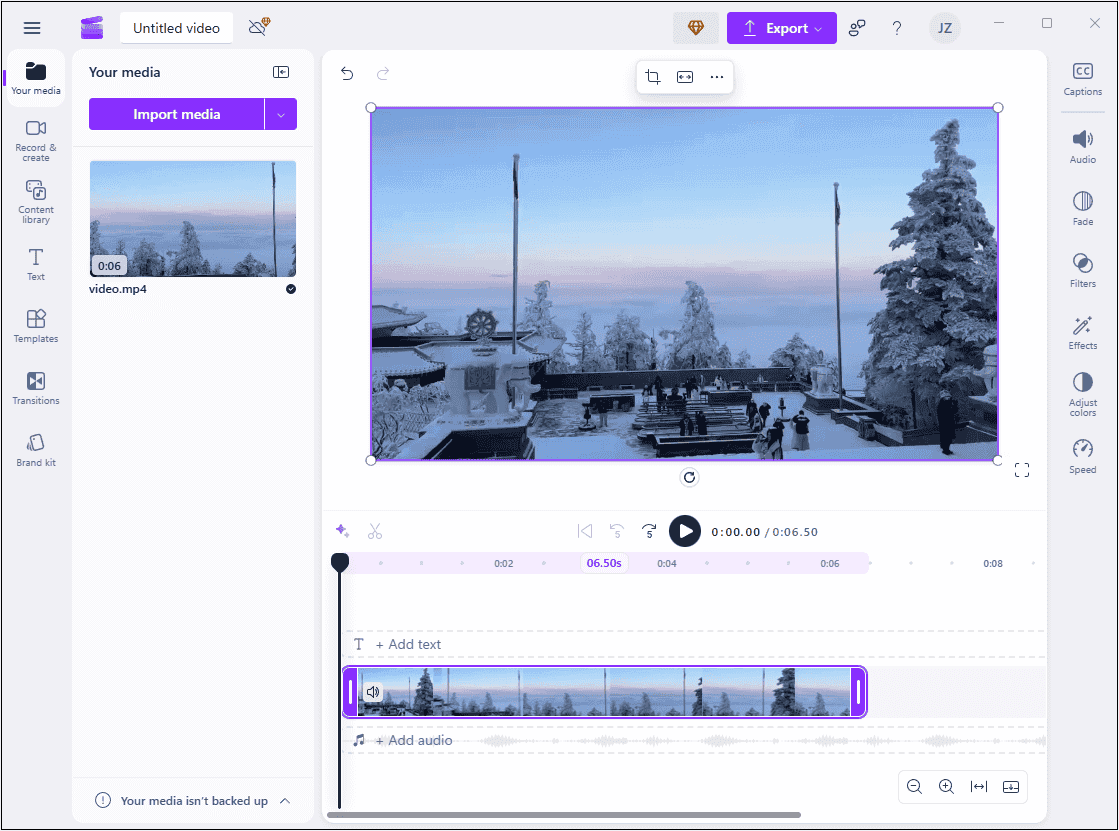
This program is installed on Windows 11 by default. Also, Clipchamp has a web version, which is very convenient to use. Without extra installation, you can start your editing task efficiently.
Straightforward Editing Page
Microsoft Clipchamp has a simple layout, allowing everyone to navigate without guessing. Especially when you’re a beginner and know little about this application and computer operation, Clipchamp is ideal for you.
Full Editing Functions
This video editor is equipped with a variety of editing features, allowing for effortless trim, split, crop, speed control, flip, and rotate. Also, Clipchamp offers a resource library that includes a bunch of filters, transitions, effects, text styles, and more.
High Resolution Supports
This program supports exporting videos in multiple resolutions, including 4K, 1080P, etc. Plus, you can export videos in GIFs.
Clipchamp targets marketers who want to make quick hits on social media using meme-like, template-based designs. But it's fine for basic clip joining, splitting, and trimming, too. You can even add some panache to your productions via some eye-catching effects.https://www.pcmag.com/reviews/clipchamp
3. CapCut
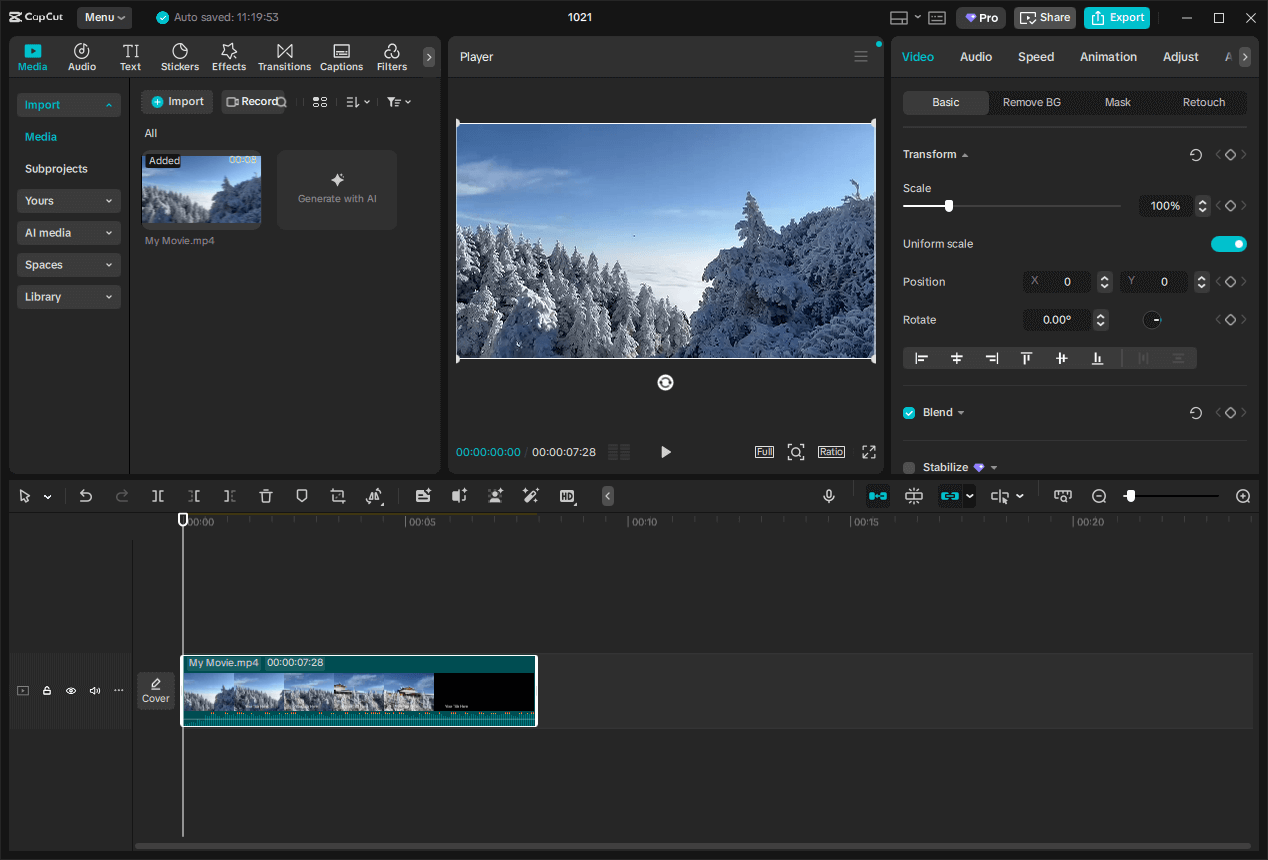
CapCut is a popular video editor for both entry-level and professional content creators. It comes with a wide range of powerful tools, and in the meantime, has an intuitive user interface.
Powerful and Multiple Functions
CapCut has a wide range of editing features that can meet almost all your requirements. Beyond basic editing functions (such as trimming, cropping, splitting, reversing, rotating, and merging clips), CapCut also supports adding keyframes, applying dynamic effects to text or stickers, automatically generating subtitles, and adding masks. For beginners, these features offer the most convenient way to elevate the quality of their videos.
Comprehensive Resource Library
CapCut offers a wide array of trendy transitions, filters, stickers, effects, music, etc., which you can apply to spice up videos. These resources can make your videos more interesting, catch people’s attention, and gain more likes.
Customizable Settings
This video editor provides many output settings to control your final video. You can adjust the output video resolution (1080p, 2k, 4k, etc.), frame rate, formats, codec, and bitrate. Moreover, after exporting, the video can be directly shared on TikTok and YouTube.
CapCut’s full editing suite has expected tools for cropping and trimming clips, adding text, and adjusting brightness and saturation. All the features from AutoCut, including templates and imported sounds, also carry over. You even get TikTok-style effects, filters, frames, and stickers.https://www.pcmag.com/reviews/capcut
Best Video Editing Software for Professional Content Creators
Here are three video editing software programs for expert content creators. They are more advanced and can meet professionals’ higher demands.
- Adobe Premiere
- DaVinci Resolve
- Vegas Pro
1. Adobe Premiere
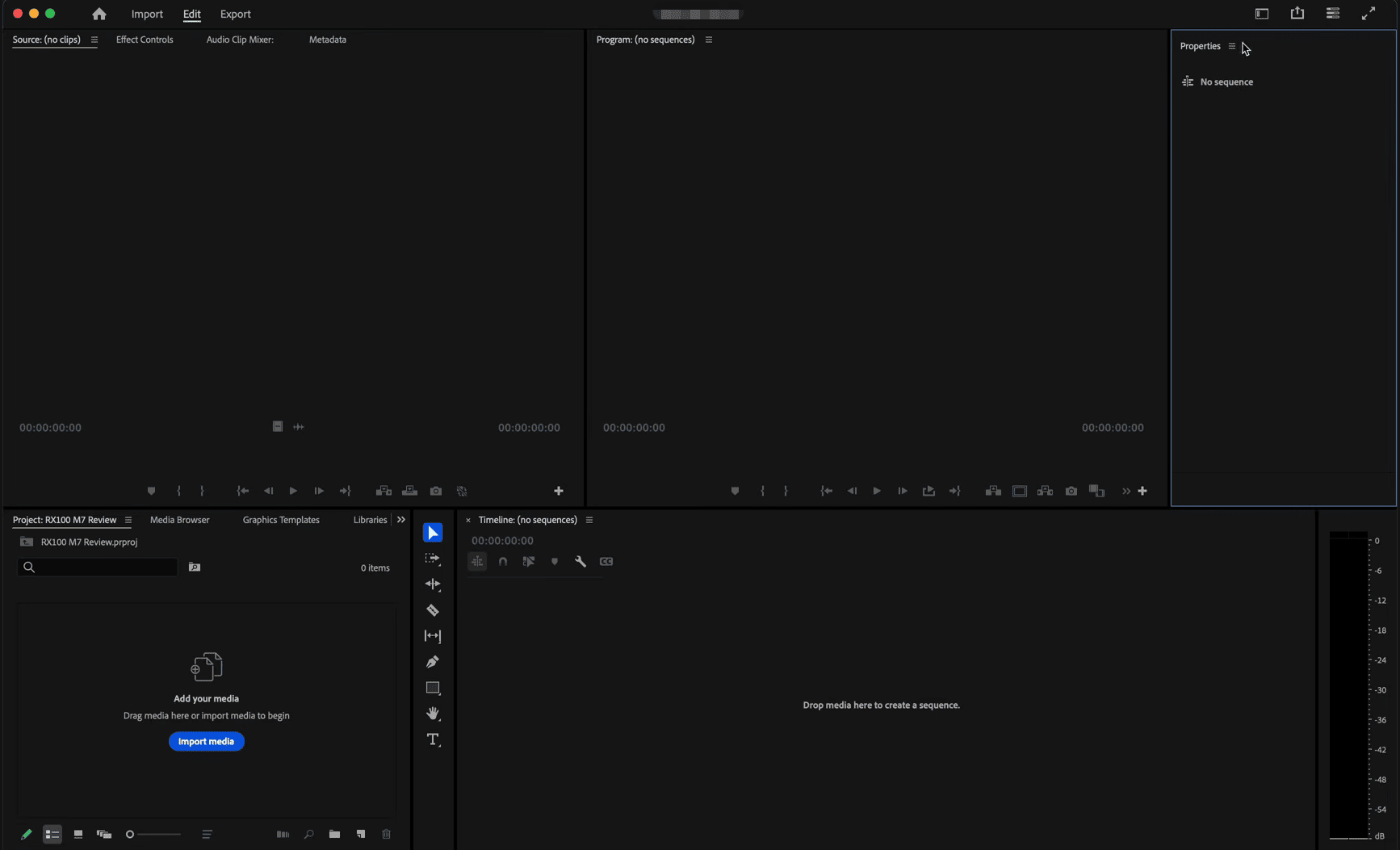
Adobe Premiere is a leading video editing application developed by Adobe Inc. For a professional content creator, this is undoubtedly a perfect tool.
Powerful and Extensive Editing Features
Premiere Pro enables high-resolution video editing with up to 10,240 × 8,192 pixels and 32-bit color depth in RGB and YUV color schemes. From simple editing to sophisticated color grading, this program offers almost all the tools and effects that you could require for projects.
Workflow Integration
Program files from Adobe Photoshop, Adobe Illustrator, and Adobe After Effects are supported by Adobe Premiere Pro. For intricate motion graphics and visual effects, you can submit your project to After Effects.
The massive application benefits from straightforward import and export experiences, while AI-powered auto-captioning, text-based video editing, and many other features keep it on the cutting edgehttps://www.pcmag.com/reviews/adobe-premiere-pro
2. DaVinci Resolve
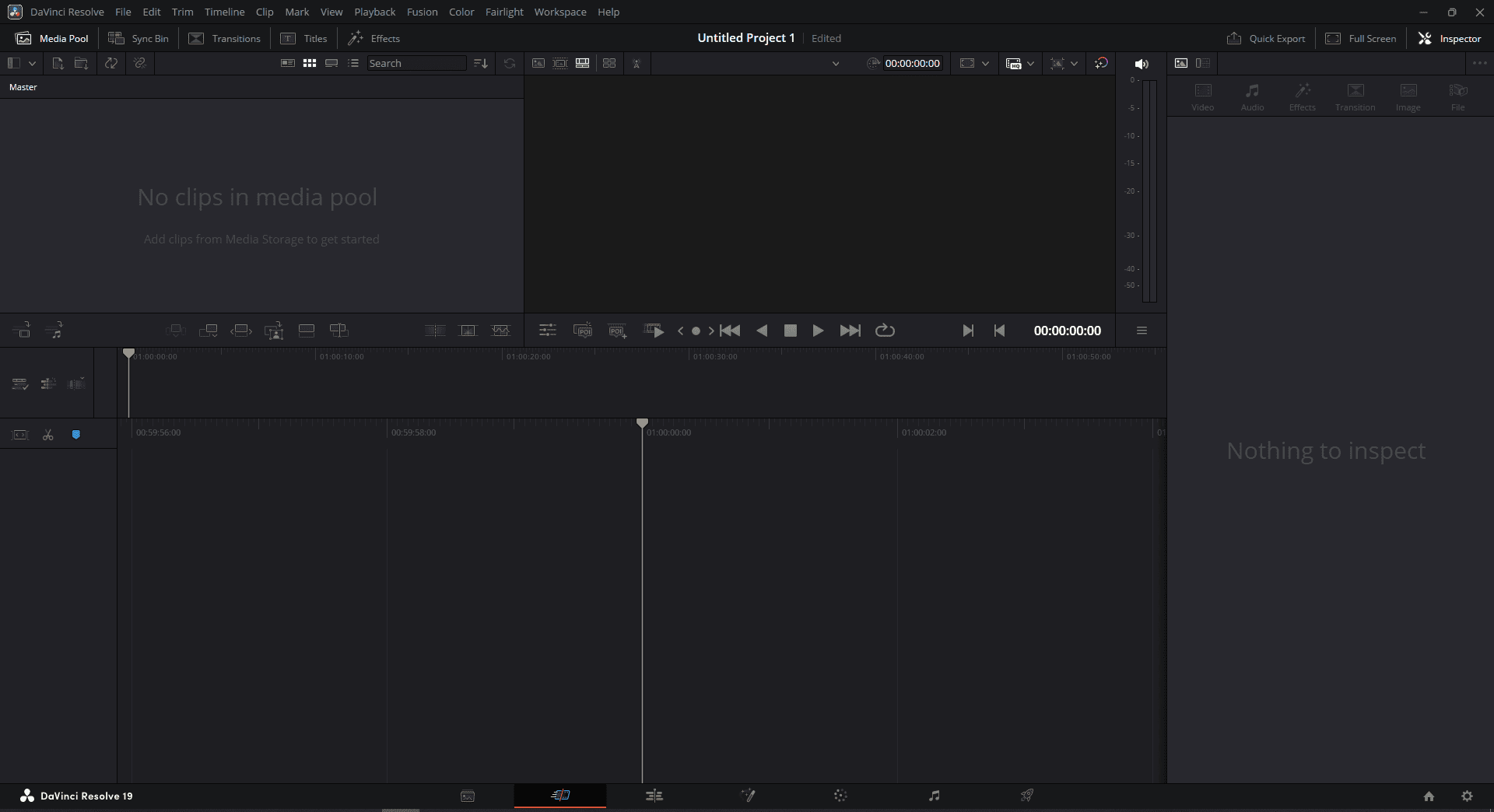
DaVinci Resolve is an advanced video editor that offers comprehensive editing tools. It has a well-organized layout and leaves no watermarks on videos.
Powerful Editing Tools
A wide range of editing options is available in DaVinci Resolve, ranging from simple tools like cutting and trimming to more complex ones like multi-track editing, AI-powered tools, and visual effects. Additionally, it combines motion graphics, audio post-production, visual effects (VFX), and sophisticated color grading into a single program.
Great Performance
This program is often praised for its stability. It offers a smooth editing process. Plus, it features real-time saving and can quickly recover from crashes.
DaVinci Resolve is an extremely capable professional video editing application with an impressive collection of adjustments and effects. New users should just expect a lengthy acclimation period, though, as its interface and methods differ from the norm.https://www.pcmag.com/reviews/davinci-resolve
3. Vegas Pro
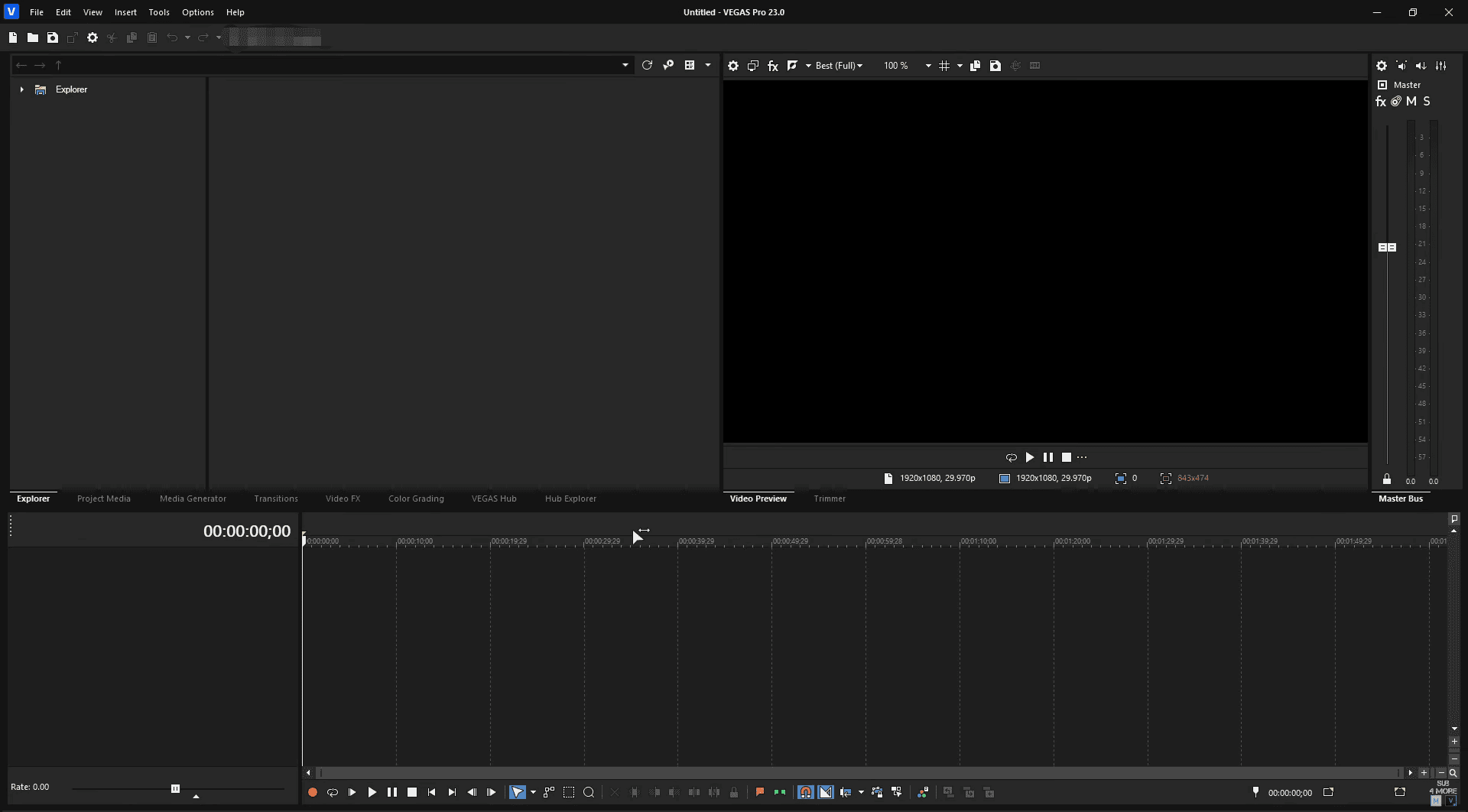
Vegas Pro, formerly called Sony Vegas, is reliable video editing software for video content creators. It provides robust editing tools for professional video editing, audio editing/recording/mixing, etc.
Top-level Editing Features
This video editor supports multi-cam editing, allowing you to edit footage from up to 32 cameras at the same time. The motion tracking tool empowers tracking and applying motion to videos, text, and effects, regardless of whether the tracked object changes shape or viewpoint.
Personalized Workplace
Vegas Pro supports customizing the interface according to your specific workflow. You can customize the layout, configure toolbars, etc.
In recent versions, the developers behind Vegas have started to overhaul the application to deliver a more user-friendly, high-level video editor. The latest Vegas Pro begins to see some fruits from those efforts, but it’s still one of the more complex options—enough so that amateur hobbyists may find it challenging. https://www.pcmag.com/reviews/vegas-pro
Step-by-Step Guides on How to Edit Videos
Fast Track Steps:
- Install the video editor on your computer.
- Open the software and import your video.
- Split, trim, and crop the video.
- Add music and stickers to enhance the content.
- Export the video.
I believe most experienced content creators can handle multiple video editing software. Therefore, this section is geared toward beginners. In subsequent content, I will take MiniTool MovieMaker as an example to demonstrate the editing process for your reference. Let’s get started!
1. Download and Install the Video Editor
Click the button below to download this video editor for content creators. Next, install it on your computer by following the setup instructions.
MiniTool MovieMakerClick to Download100%Clean & Safe
2. Import the Video
Launch this software and click on the New Project option to access the main editing page. Click on the Import Media Files option to add the video you want to edit.
3. Edit Video
Drag the added to the timeline.
Split the Video
If there is an undesired clip in the middle of the video, you need to split and remove it. To divide the video into multiple clips, click the Split icon after dragging the red playhead to the desired location. Continue doing this until the undesired footage is gone. Next, right-click the unwanted segment and click Delete.
Trim the Video
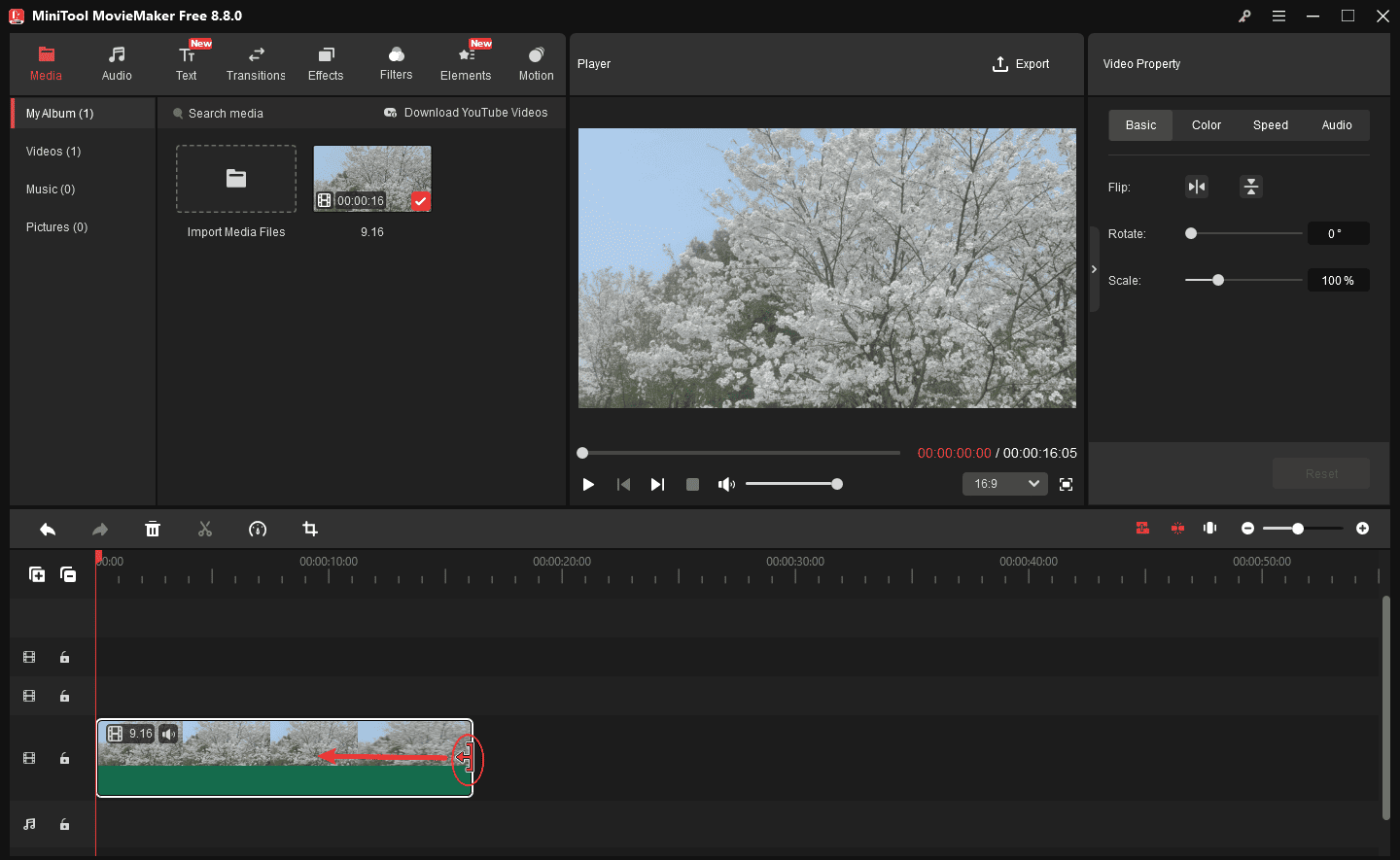
To trim video, place the mouse cursor over one of the two edges of the video until the Trim icon shows up; drag it inward to delete the unwanted part.
Crop the Video
Click the clip on the timeline you want to crop and click the Crop option in the toolbar above to open the Crop window. Then, drag the cropping handles inwards to crop the video to the desired condition. Once finished, click OK to save the changes.
4. Make the Video More Interesting
To make your video more eye-catching, add some transitions, effects, filters, stickers, and motions to it.
Add stickers to the video
Stickers can add fun to videos; otherwise, viewers are easily bored. Select the Elements option in the top menu, pick and download the desired sticker, and drag it to the timeline. Click on the sticker in the Player window and drag one of the four edges of it inward/outward to adjust the size.
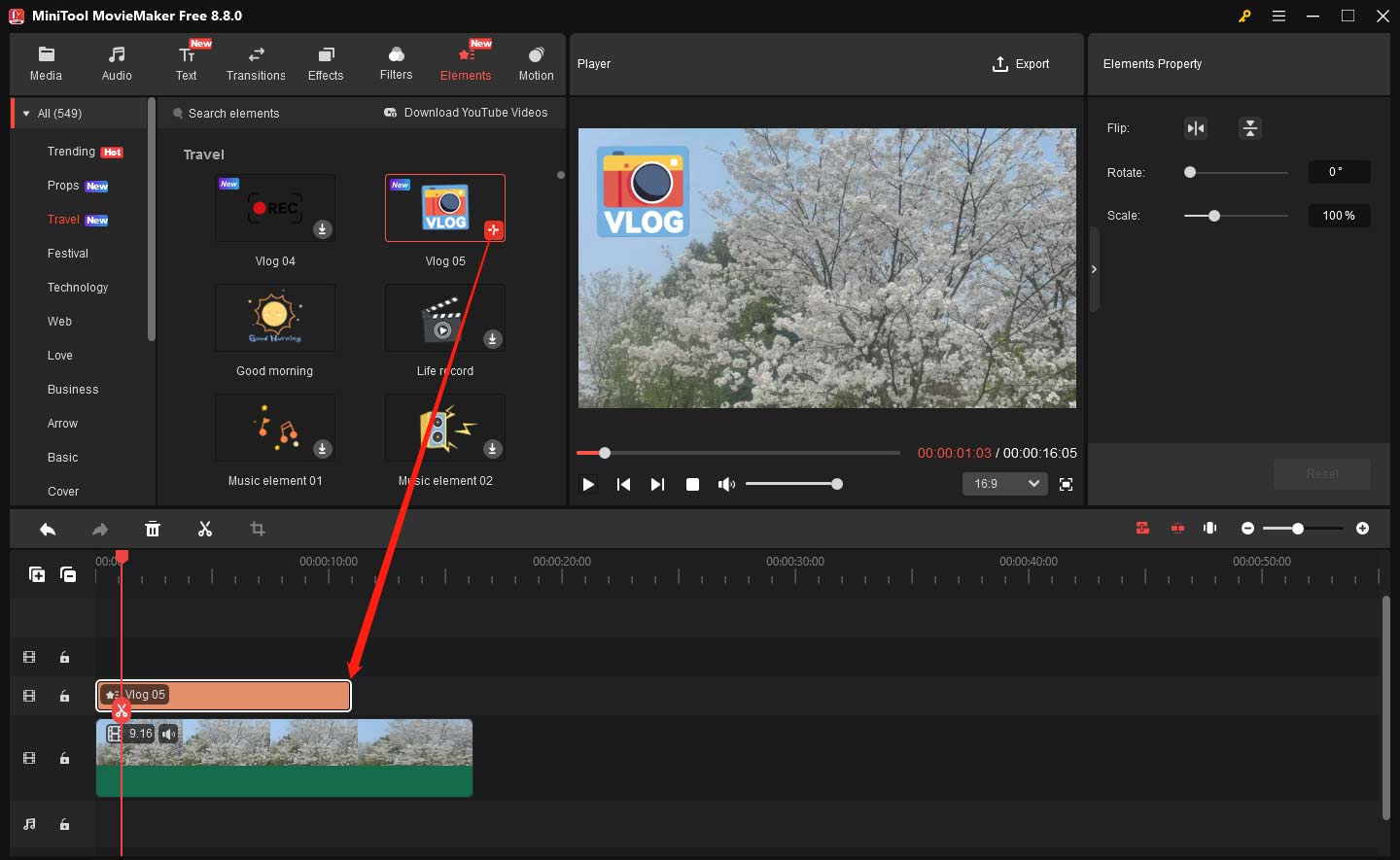
Next, hover the mouse over the middle of the sticker and drag the four-arrow icon to adjust its location.
Add music to the video
Adding suitable background music to your video is also important. You can add music to the video through the two methods below:
- Add music from the local folder: If you’ve already found your video music, which is saved in the local folder, simply click the Import Media Files option in the Media section to import the audio. Then, drag the audio to the timeline and trim it to match the video duration.
- Choose music from the Audio section: Download the desired music in MiniTool MovieMaker’s Audio section and drag it to the timeline and trim it to match the video duration.
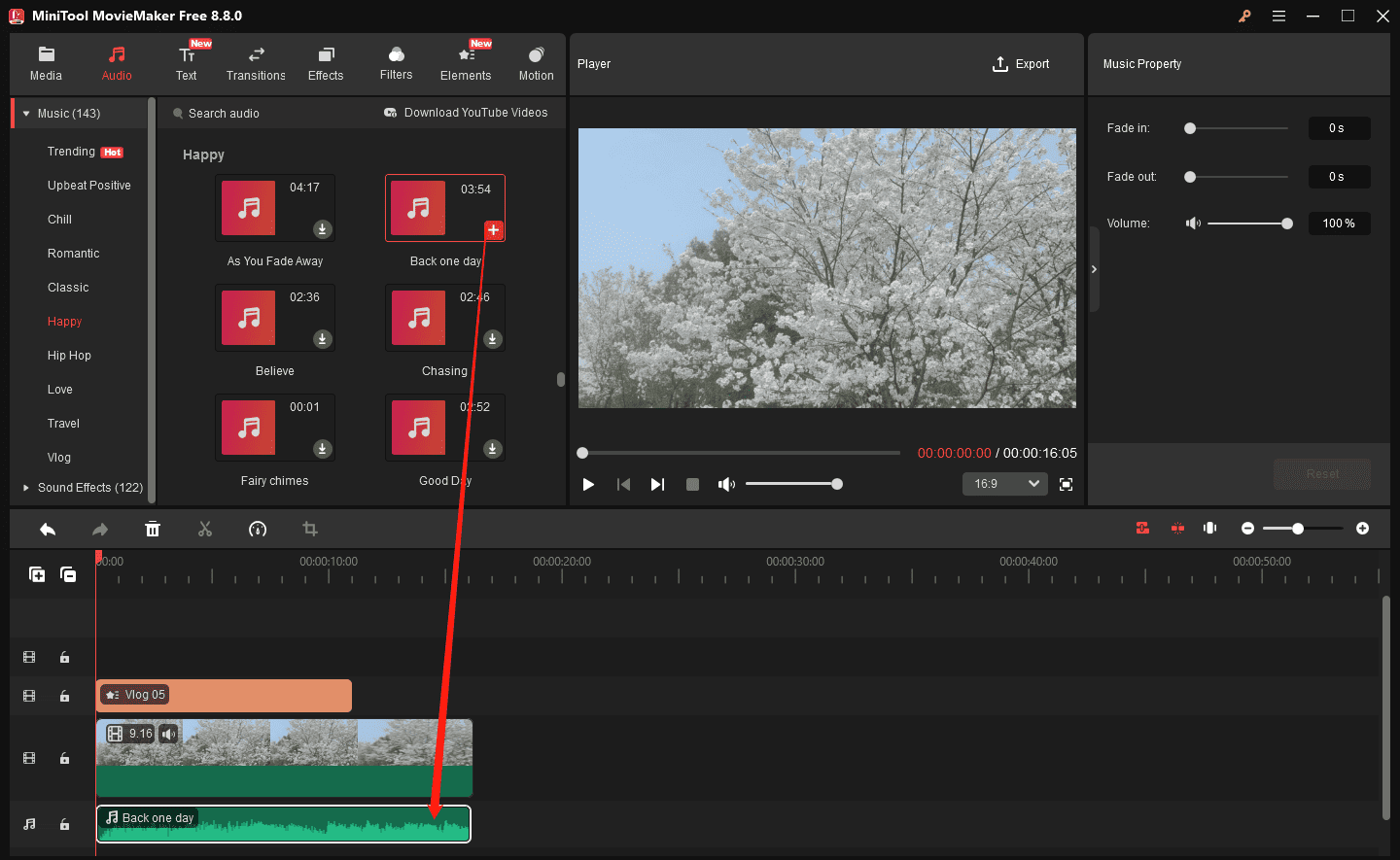
According to your requirements, you can add transitions, effects, filters, and captions to the video.
5. Export the Video
Click the Export icon at the top right of the Player window to open the Export window. Then, rename the video, choose an output destination, and customize the output format, resolution, and frame rate. After that, click the Export button to export the video.
In Summary
In this post, I recommend the 6 best video editing software for content creators based on multiple needs. With them, you can create high-quality video content easily and efficiently.
Finally, send an email to [email protected] if you have any questions about using MiniTool MovieMaker.
People Also Ask
1. Organize footage.
2. Import footage into the desired editing software.
3. Adjust the clip’s order on the timeline.
4. Remove unwanted parts, such as pause and silence, from the video.
5. Add text, sound effects, music, and other effects.
6. Correct the clip’s color.
7. Save and export the video.
About The Author

Position: Columnist
Cora is a tech writer specializing in digital media workflows, with over six years of hands-on experience in video post-production, media transcoding, and screen capture. Her writing is always clear and practical. Cora also produces in-depth software reviews for users across skill levels to help them find the right tool and enjoy video editing.
User Comments :