

Using copyrighted music on platforms like YouTube, TikTok, and Instagram can result in videos being taken down, losing monetization eligibility, and even facing legal risks. For creators, this could mean losing early momentum. Adding royalty-free music is a safe and convenient way to enhance the quality of your video.
This guide will outline what royalty-free music is, its importance in use, where to find reliable royalty-free music, and how to incorporate it into your videos, among other topics. First things first, let’s find out what royalty-free music is. Read on.
What Is Royalty-Free Music
Royalty-free music is a type of music license that allows users to add music to videos for a one-time cost or for free, with no ongoing royalty payments required, regardless of how many views, shares, or monetization opportunities the content receives.
Plus, royalty-free does not mean free of charge; it means you don’t have to make repeated payments. Moreover, royalty-free doesn’t mean that music creators do not earn royalties; it’s just that you do not pay them directly, but rather pass these payments on to others.
Royalty-free music has an incredibly wide range of uses, from YouTube to Instagram, from commercial advertisements to Hollywood blockbusters, TV shows, and more. Its musical styles are also diverse, encompassing uplifting, light and soothing, energetic and stirring, cinematic, and more.
Difference between Royalty-Free and Copyright-Free
- Royalty-free music: Pay a one-time fee to obtain a license to use copyrighted music without ongoing royalty payments.
- Copyright-free music: The copyright has expired, or the owner has released it, permitting free use without obtaining permission.
Why Is Royalty-Free Music Important for Your Videos
Using non-royalty-free music carries risks. Social media platforms such as YouTube, TikTok, and Instagram may ban, mute, or remove videos that use copyrighted music, rendering hours of creators’ hard work useless. Plus, using non-royalty-free music may also result in lawsuits or fines from record labels and artists, wasting time resolving copyright disputes, disrupting the viewing experience, and eroding audience trust, as well as missing out on monetization opportunities for eligible content. Royalty-free music ensures videos remain online long-term, which is crucial for building a stable audience or brand image.
Adding royalty-free music to a video is affordable and convenient. Using royalty-free music allows you to obtain the perfect soundtrack at an affordable price. Royalty-free music offers both flexible usage and pricing, enabling you to select the appropriate license based on the music’s intended use. Plus, you only need to purchase it once for permanent use.
Where to Find Royalty-Free Music
Nowadays, many music platforms not only offer a seamless browsing experience for their vast libraries but also feature advanced search engines that let you customize your search criteria with maximum precision, like genre, mood, instrument type, etc., saving you valuable time. Here are some places where you can obtain royalty-free music.
1. Free Download Websites
- YouTube Audio Library: All audio content is free to use (no attribution required). Support downloading audio in the MP3 format.
- Free Music Archive (FMA): Some works require attribution or restrict commercial use. Please check the license label before use. This platform collects music from independent artists.
- Pixabay Music: Features an extensive music library categorized by genre, style, and duration. Free for both commercial and non-commercial use without attribution.
- Incompetech: Includes over 2,000 CC-BY licensed tracks, available for free download and commercial use, with attribution required.
- Bensound: The platform features clearly categorized music with a fresh style, ideal for short video soundtracks. Free tracks require attribution; upgrading to Premium grants royalty-free licensing.
- Musopen: Specializes in classical music recordings, including symphonies, solo performances, and more—perfect for high-end product soundtracks. Free to download and commercially usable.
2. Paid Options
- Artlist: Offer premium subscription services featuring cinematic-quality, trending tracks; provide track-by-track downloads (vocals, drums, bass) for advanced audio mixing.
- Epidemic Sound: Subscription-based music library with unlimited downloads. Offer music for ads, vlogs, cinematic, travel, workout, etc.
- Audio Jungle: You can select the licensing type per project, suitable for scattered projects with limited budgets that require on-demand procurement.
- Soundstripe: Subscription-based service featuring music and sound effects, with AI-powered custom track length adjustment and seamless integration with Adobe editing tools – ideal for high-frequency creative teams.
- Pond5: Large multimedia library with music available for individual track purchase. Offers professional multitrack files suitable for commercial projects demanding high audio quality, such as films.
How to Add Royalty-Free Music to a Video
After getting royalty-free music from a website, it’s time to add it to your videos. To accomplish that quickly and easily, I recommend two free and professional video editors.
Method 1. Use MiniTool MovieMaker
MiniTool MovieMaker is an expert and free video editor, which is suitable for beginners, casual users, and professionals. Designed with simplicity in mind, this application features an intuitive user interface that allows you dive straight into video editing: trim, split, crop, rotate, reverse, speed up, slow down, and more basic editing.
In addition, MiniTool MovieMaker comes with advanced editing functions, such as multi-track editing, clip grouping, video text overlay, photo collage, high-resolution editing, copy and paste on the timeline, and more. Moreover, this application can enhance videos with royalty-free soundtrack, trend-updated stickers, transitions, filters, and more.
Furthermore, MiniTool MovieMaker provides high-quality and watermark-free outputs. You can set video resolution (1080p, 4k, etc.), formats (MP4, MOV, etc.), and frame rates based on your needs. To make the video compatible with different social media platforms, you can even adjust its aspect ratio.
Follow the instructions below to add royalty-free audio to a video with MiniTool MovieMaker.
1. Download and Install MiniTool MovieMaker
Click the download button below to download this program. Then, follow the setup instructions to install it on your computer.
MiniTool MovieMakerClick to Download100%Clean & Safe
2. Import Your Video
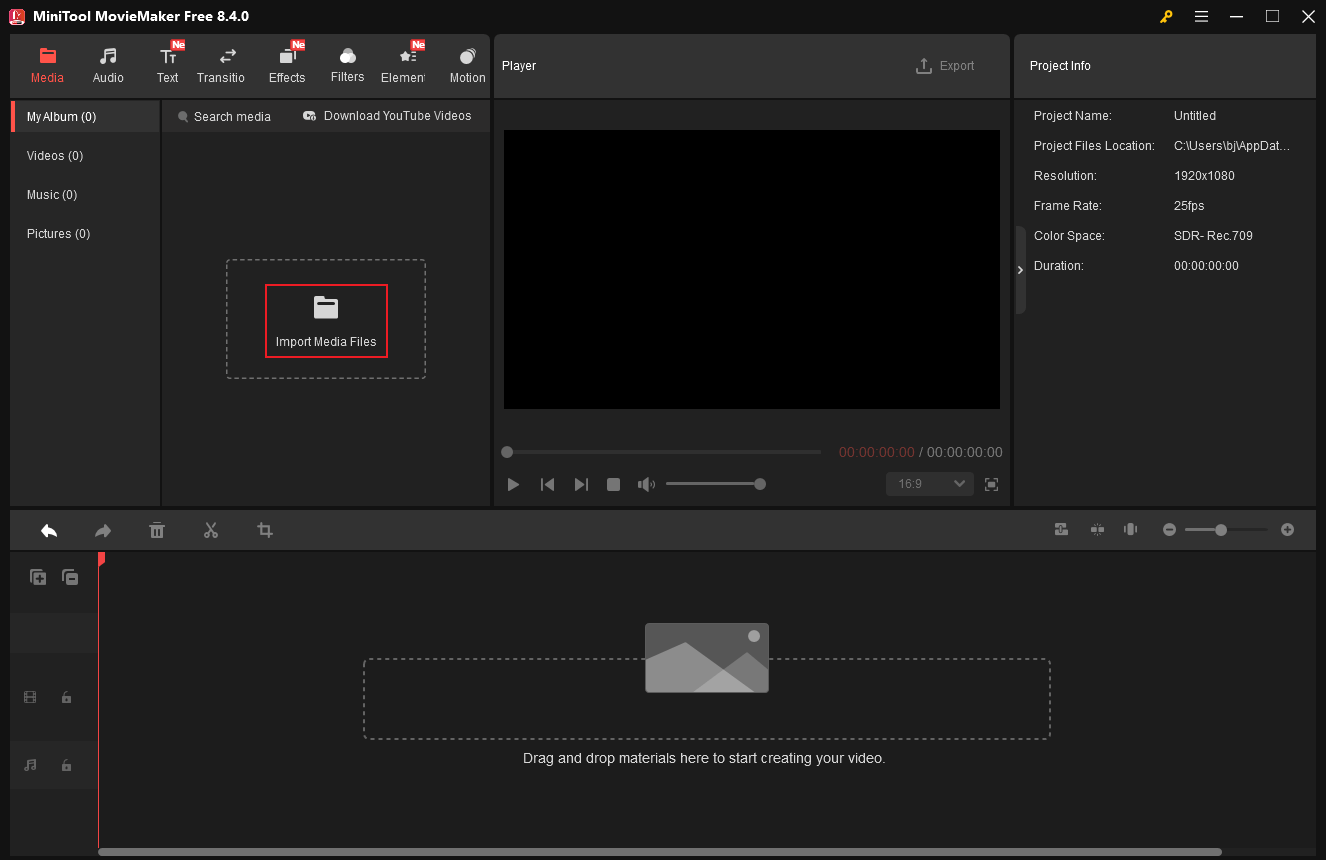
Launch the program and click the New Project option to enter the main editing page. Then, click the Import Media Files option to add your video.
3. Edit the Video (Optional)
Drag the added video to the timeline.
3.1 Split Video
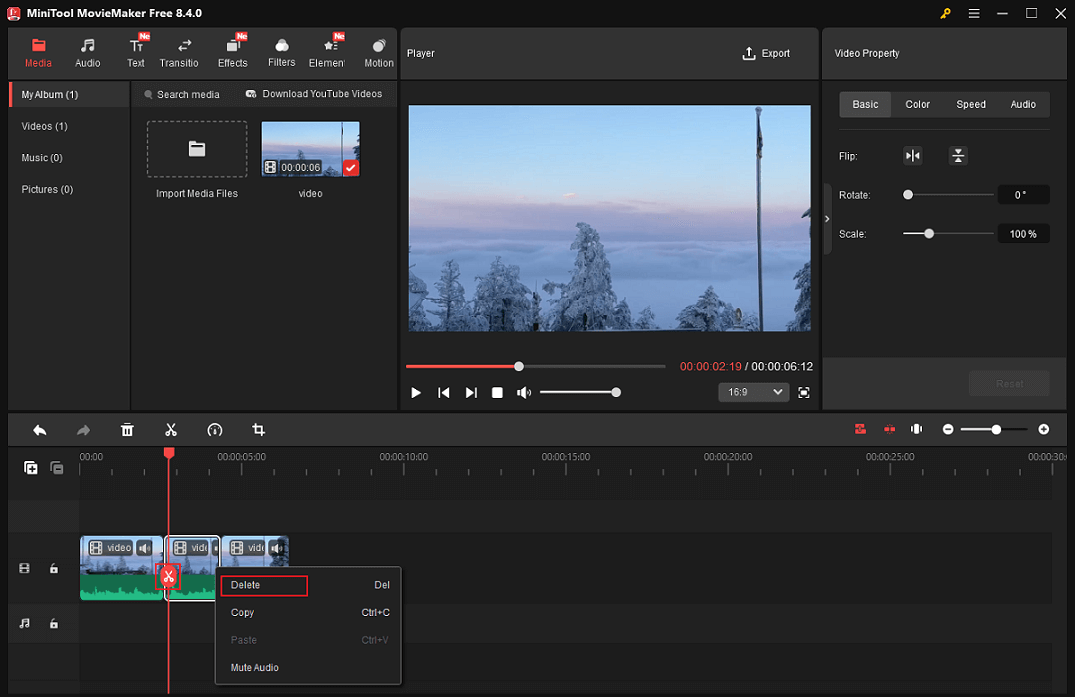
Drag the red playhead to the left of the unwanted center section of the video and click the Scissors icon to split the video into two clips. Then, move the red playhead to the right of the undesirable part and click the Scissors icon again to extract the unwanted clip. Next, right-click on the undesired clip and select Delete. Continue doing this until all of the undesirable video segments have been removed.
3.2 Trim Video
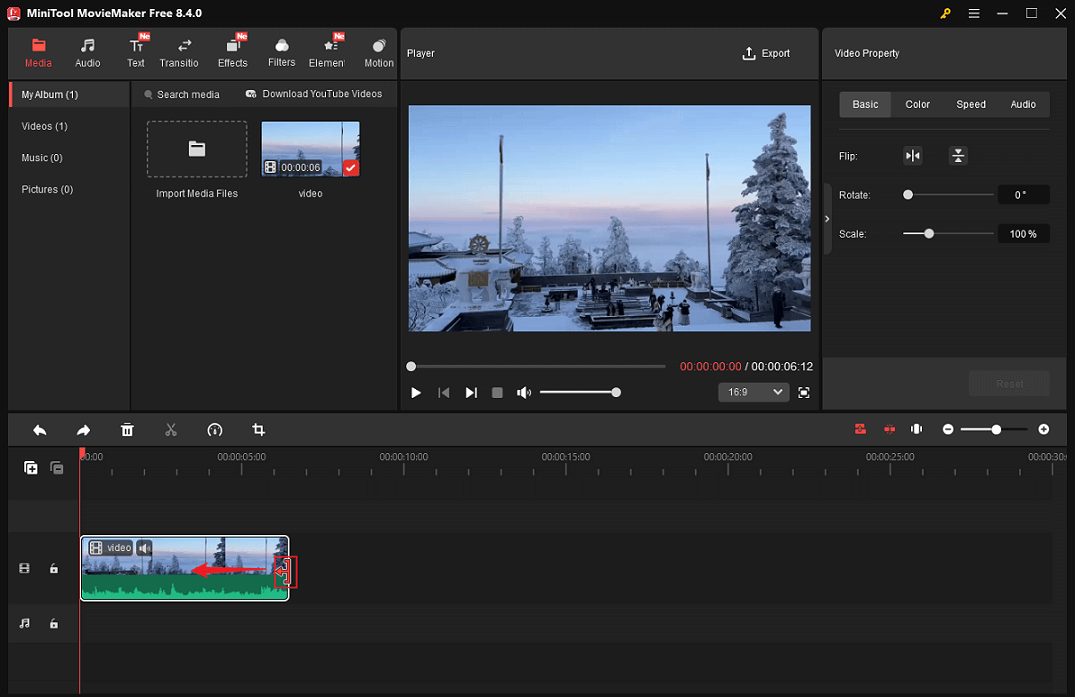
Hover your mouse cursor over one of the video layer’s two edges until the Trim icon appears, then drag it inward to delete the undesired video clip.
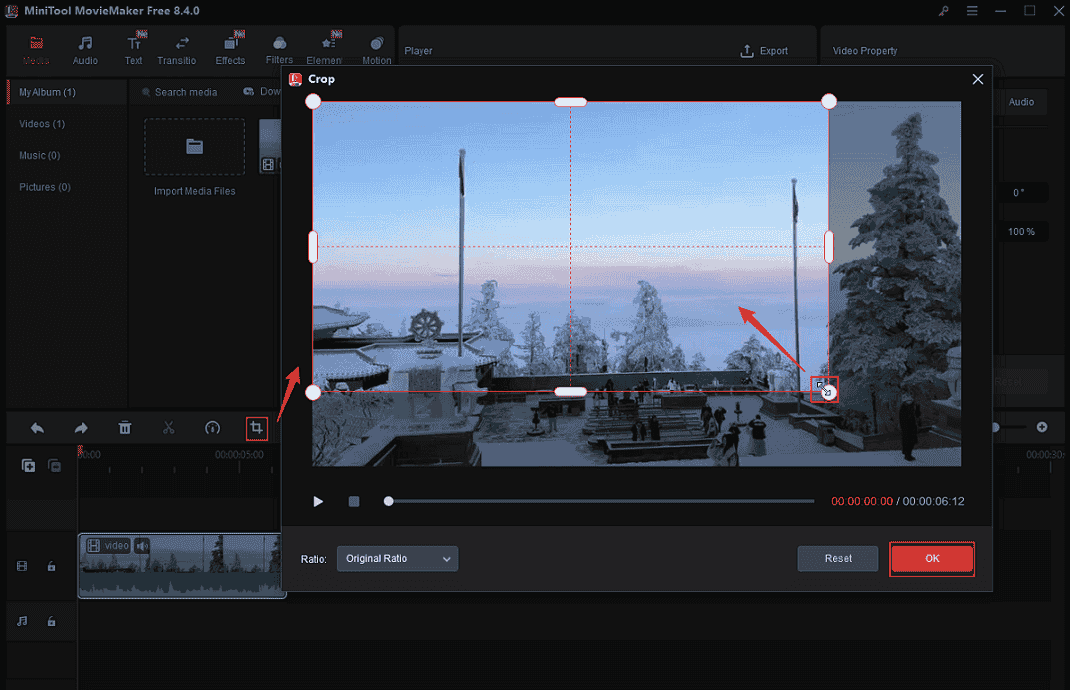
3.3 Crop Video
To open the Crop window, choose the target video clip on the timeline and then click the Crop icon in the toolbar above. Drag the cropping handles inside to crop the video. Finally, click OK to save the changes.
4. Add Royalty-Free Music to Video
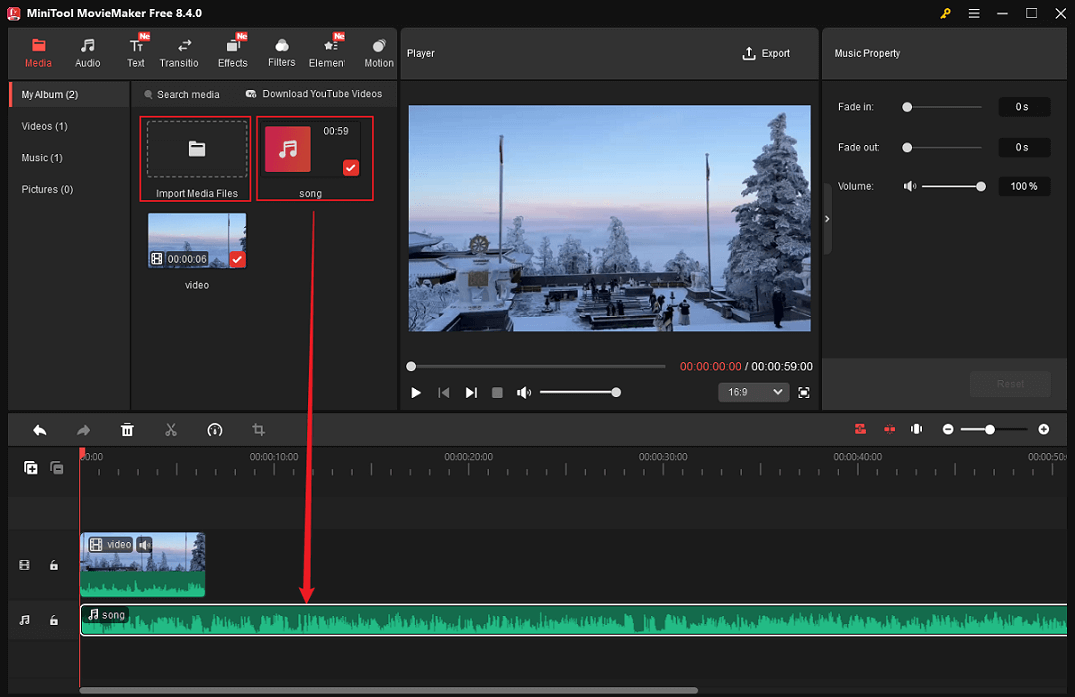
4.1 Add Royalty Music from Your Own Collection
To add music you downloaded from a website, click the Import Media Files option in the Media section to upload it. Then, drag it to the audio track and trim it based on your needs.
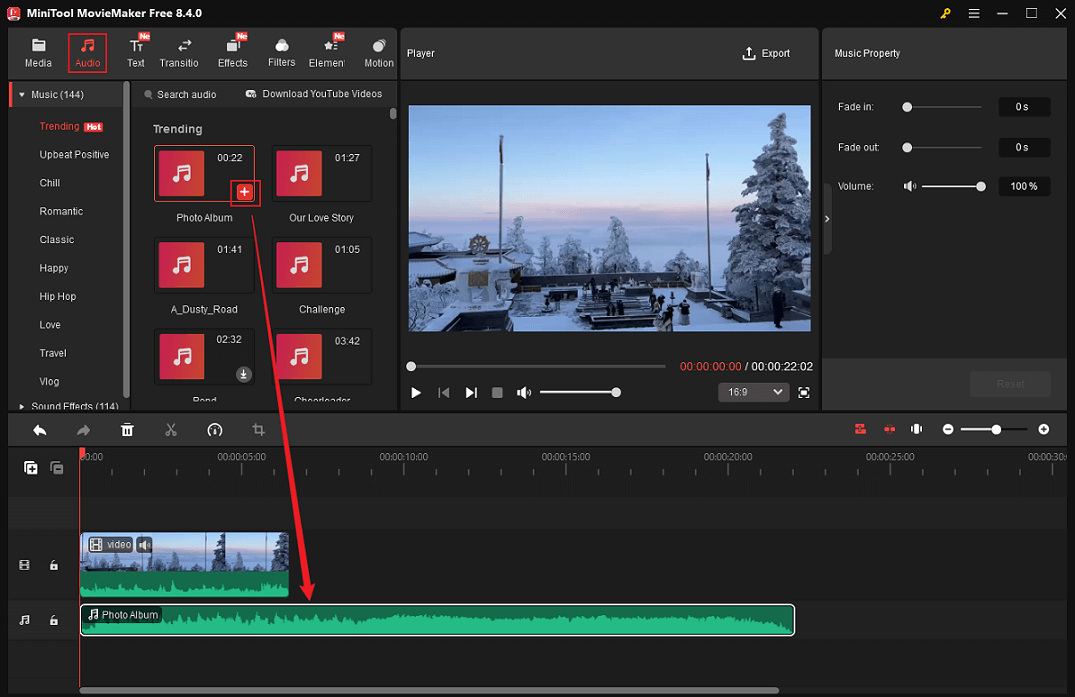
4.2 Add Royalty Music from the Audio List
Go to MiniTool MovieMaker’s Audio section, choose, download the desired music, and add it to the video.
5. Polish Your Video (Optional)
Want to make your video more unique? Polish it with trendy stickers, text layers, and more!
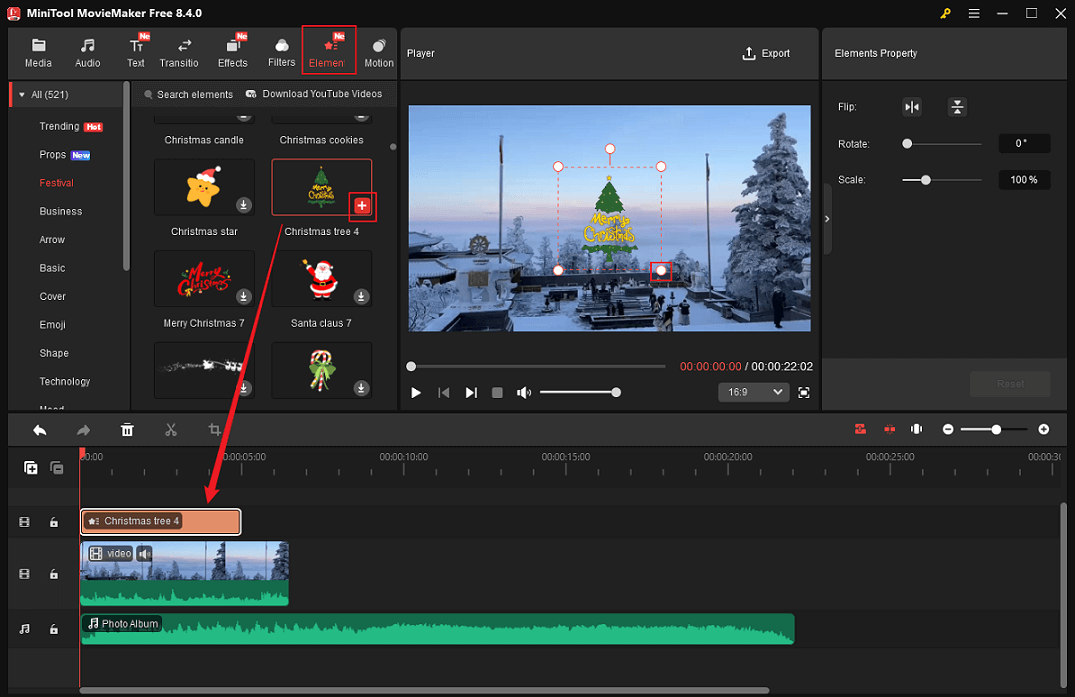
5.1 Add Stickers to the Video
Go to the Elements section, download your favorite stickers, and apply them to the video. Drag the sticker on the timeline to adjust its play time in the video. Additionally, you can highlight the sticker in the preview window and use the handles to scale it.
5.2 Add Text to the Video
Navigate to the Text section, select your preferred text style, then click the Plus icon to add it to the video. In the top right Text Property window, you can enter the text and change its parameters, such as font, color, and size. Then, drag the edges of the text layer on the timeline to change its playtime in the video.
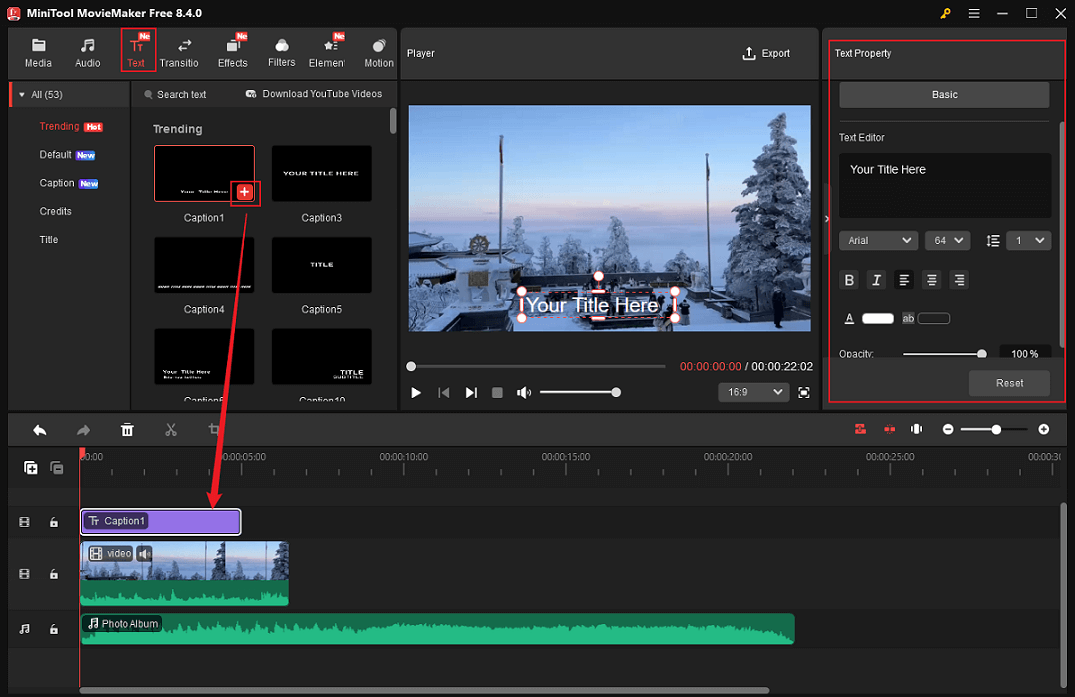
Moreover, you can add transitions, filters, effects, and motions to the video from the extensive resource library.
6. Export the Video
To open the Export window, click the Export icon in the upper-right corner of the Player window. Next, you can rename the video, choose a save path, and change the output format, resolution, and frame rate. After that, select the Export button again to save the video.
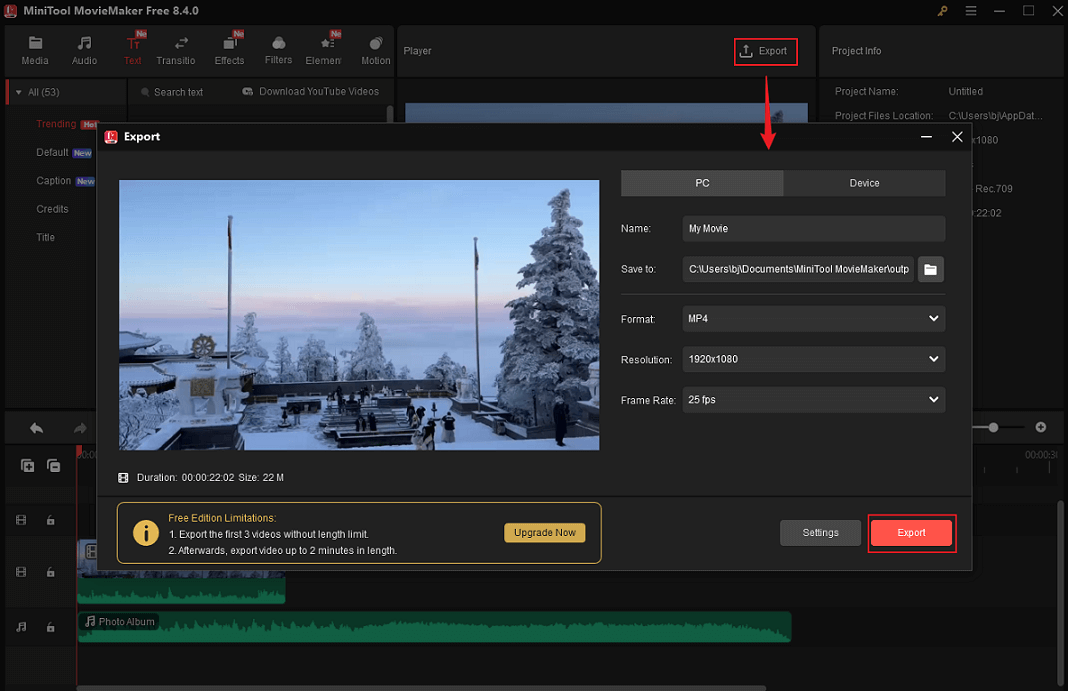
Once the video exporting process is complete, click the Find Target option to locate your video in the local folder.
In addition to being a free download video editor, MiniTool MovieMaker also functions as an audio extractor, video compressor, file converter, media player, GIF editor, and video/audio merger. To learn more, click the download button!
MiniTool MovieMakerClick to Download100%Clean & Safe
Method 2. Use Microsoft Clipchamp
Microsoft Clipchamp is a user-friendly video editor that delivers professional results without a learning curve. It simplifies editing tasks with a drag-and-drop timeline, quick trimming, cropping, splitting, and various soundtracks, effects, stickers, filters, and more. Plus, Clipchamp’s built-in library features a wide range of royalty-free stock videos, images, and music. Moreover, Clipchamp offers multiple export resolutions, like 1080p, 4K, etc.
Now, you can follow the step-by-step guide below to add royalty-free music to video with Microsoft Clipchamp.
1. Access Microsoft Clipchamp
Windows 11 has Clipchamp pre-installed. If your computer doesn’t have the program, go to the Microsoft Store to download and install it.
2. Import Your Video
Launch Clipchamp and click Create a new video to enter the main editing page. Then, click the Import media option to add your video.
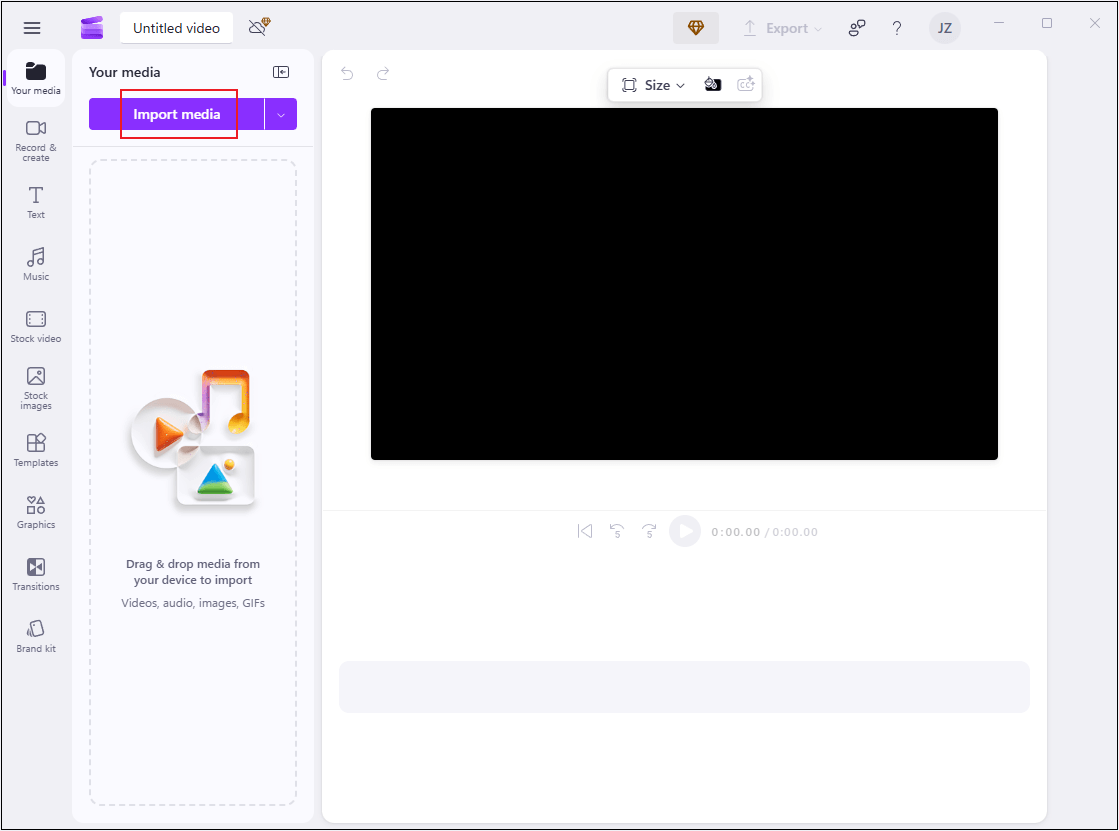
3. Add Royalty-Free Music to the Video
Drag the added video to the timeline. You have two options to add royalty-free music to the video.
3.1 Add Music from the Download Collection
Click Import media to add music from your own collection. Then, add it to the video.
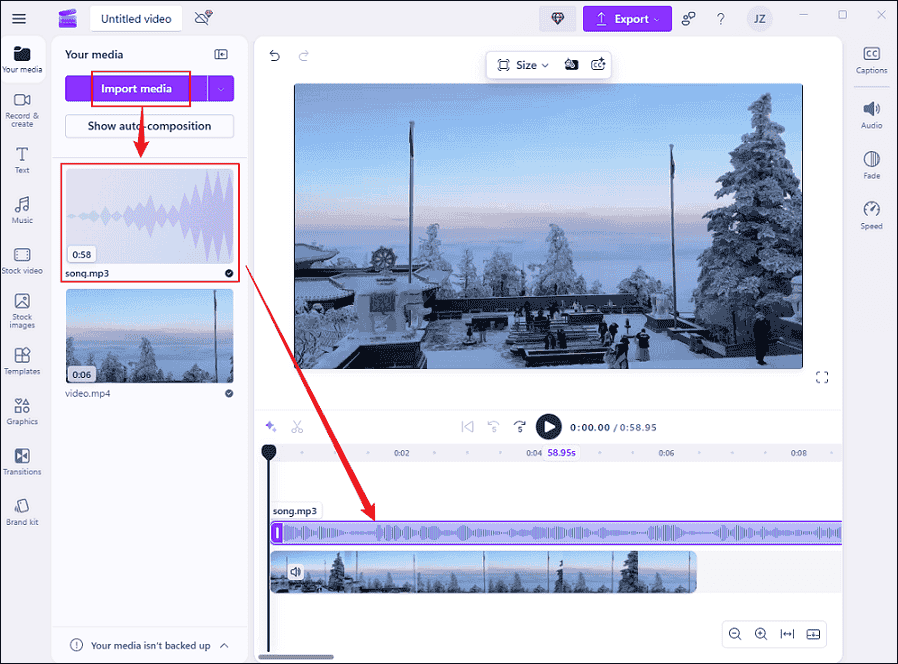
3.2 Add Music from the Music Section
Go to Clipchamp’s Music section, choose the music you want, and add it to the video.

4. Export the Video
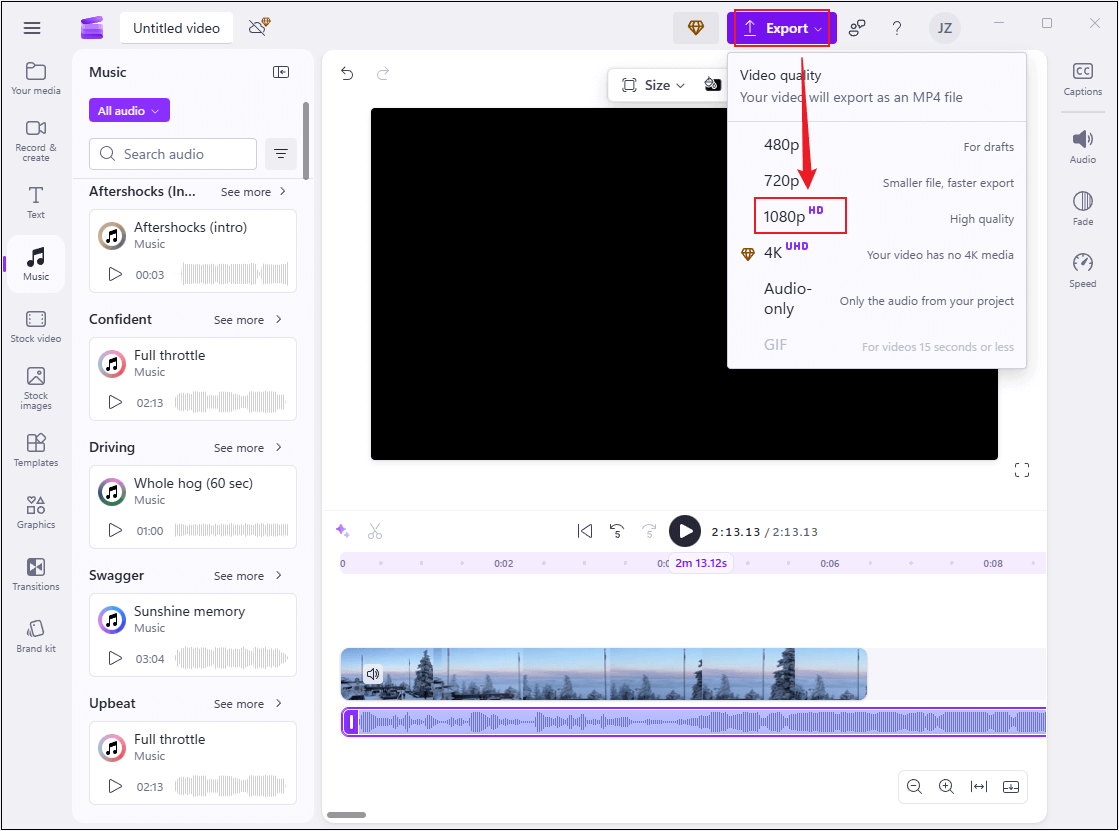
Click the Export button at the top right and choose the desired video resolution (1080p is recommended) to save the video.
Useful Tips to Avoid Copyright Issues
Here are some tips that may help you avoid copyright issues.
- Some royalty-free music requires attribution in the video description, so be sure to always read the full license agreement when downloading it. Skipping this step may expose you to copyright disputes.
- Royalty-free music license agreements typically prohibit remixing, looping, or modifying tracks. Unless explicitly permitted, stick to using the original version.
- It is best to confirm whether the license permits your specific project, such as commercial or non-commercial use, and platform usage.
- Stick to using music from reputable royalty-free music websites, such as YouTube Audio Library or Epidemic Sound.
![How to Add Text to MP4 Video [Ultimate Guide]](https://images.minitool.com/moviemaker.minitool.com/images/uploads/2025/02/add-text-to-mp4-thumbnail.jpg)
Conclusion
Royalty-free music can make your videos more engaging and professional, supporting your long-term growth. Also, it effectively avoids copyright disputes.
This post explains what royalty-free music is, why it matters to videos, recommends some reliable websites to download royalty-free music, and shows you how to add royalty-free music to videos step by step. Hope you find this article helpful!
You can contact us via [email protected] if you have any questions about using MiniTool MovieMaker. Alternatively, you can send me messages directly on X, and I’ll help you as quickly as I can.
User Comments :