

This post explains how to make things pop up on a video using MiniTool MovieMaker and CapCut. Select the video editing software, import your clips, place an image, logo, or text layer over the main footage, and add keyframes to create pop-up animation effects.
While scrolling through videos, a word, emoji, or image that suddenly pops up on the screen instantly grabs my attention. The pop-up effect is a simple yet effective way to make videos more engaging and eye-catching. How to make things pop up on a video? The question comes to mind when I want to add a fun reaction or draw attention to a product.
After my testing, I found it’s not hard to create pop-up animations in videos. MiniTool MovieMaker and CapCut are two easy-to-use tools for this task. Let’s get started!
How to Make Things Pop Up on a Video in MiniTool MovieMaker
Fast Track Steps:
- Install MiniTool MovieMaker.
- Import all the media clips.
- Arrange clips on the timeline.
- Change the position and scale of the target clip.
- Export the final result.
MiniTool MovieMaker is a user-friendly video editing application designed to help beginners create videos with ease. Its intuitive interface and drag-and-drop timeline make it accessible to those without editing experience.
The software offers essential editing features. For instance, I can quickly crop, reverse, and trim video clips, adjust playback speed, change the aspect ratio, and create video collages. I can also choose from the library of filters, effects, transitions, and stickers to enhance my footage.
Beyond that, the application lets me add keyframes to adjust the position, scale, and rotation of videos, images, and built-in elements, making it easy to create smooth pop-up animation effects.
 MiniTool MovieMaker
-
 Split and trim videos to remove redundance.
 - Change video aspect ratio to match screen sizes.
- Add bubble texts, bgm, transitions, and more effects.
- Create PiP or split-screen videos by multitrack editing.
1. Install the Video Editor
Download the editing software on the computer, then follow the on-screen prompts to install it.
2. Import Footage
Launch the application and close the pop-up window to access the main user interface. From the left panel, click Import Media Files to add the desired video, image, or logo.
3. Place Clips on the Timeline
First, drag the main video from the media pool to the timeline. Then, place the image, logo, or the second video clip over the main footage.
4. Create Pop-up Animation
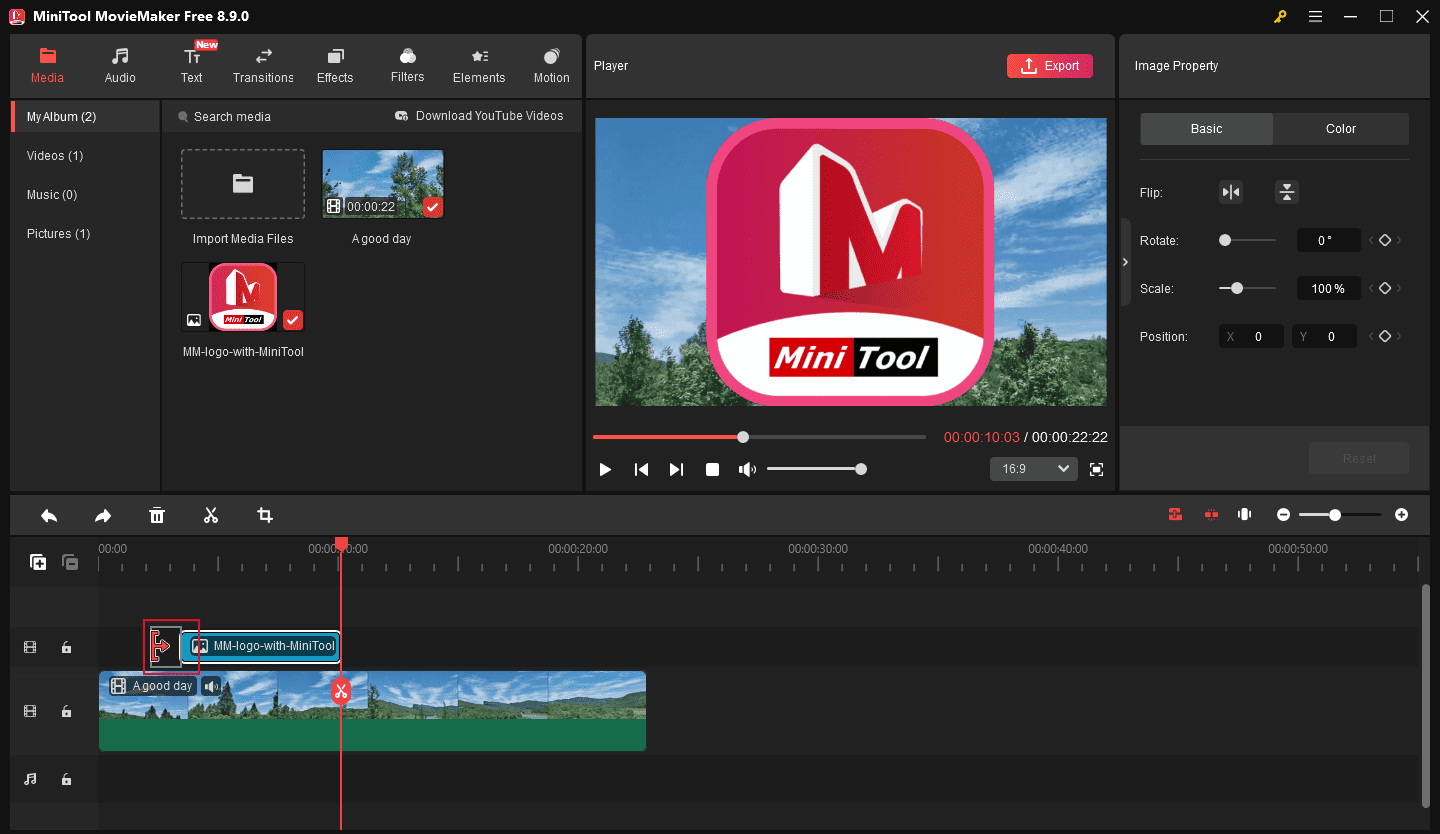
1) Set the start and end point of the image/logo/video: select the clip on the timeline, drag either edge of the layer to extend or shorten its duration.
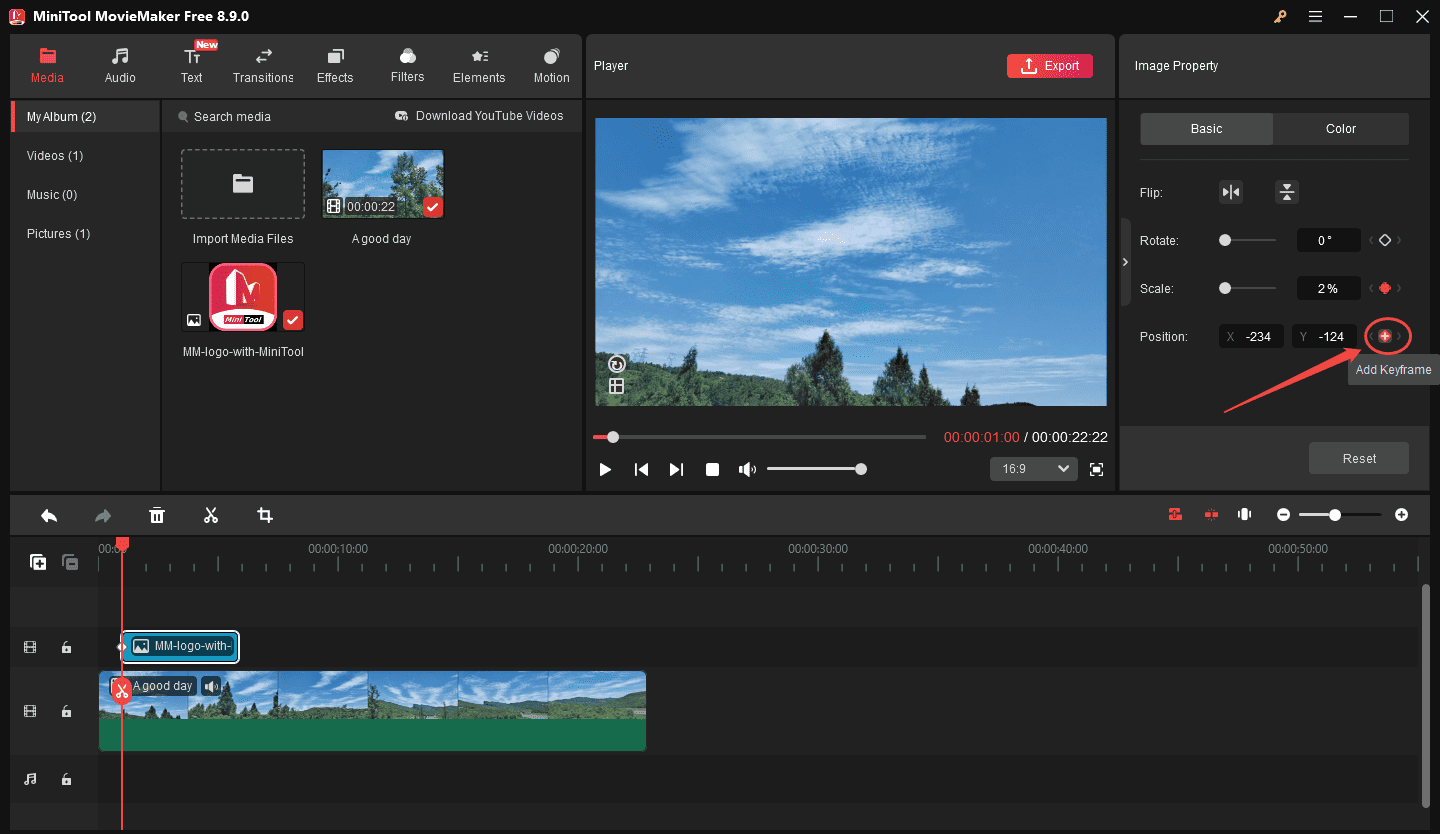
2) Add the first keyframe: drag the playhead to the start of the target clip, go to Image Property on the right panel, then drag the Scale slider to adjust its size. Here, I move the slider all the way to the left to minimize it.
Next, type the X and Y values in the Position to change the position of the clip. My routine is to click the clip in the preview window and drag it anywhere on the frame. After confirming the original position and size, click the Add keyframe icons next to Scale and Position.
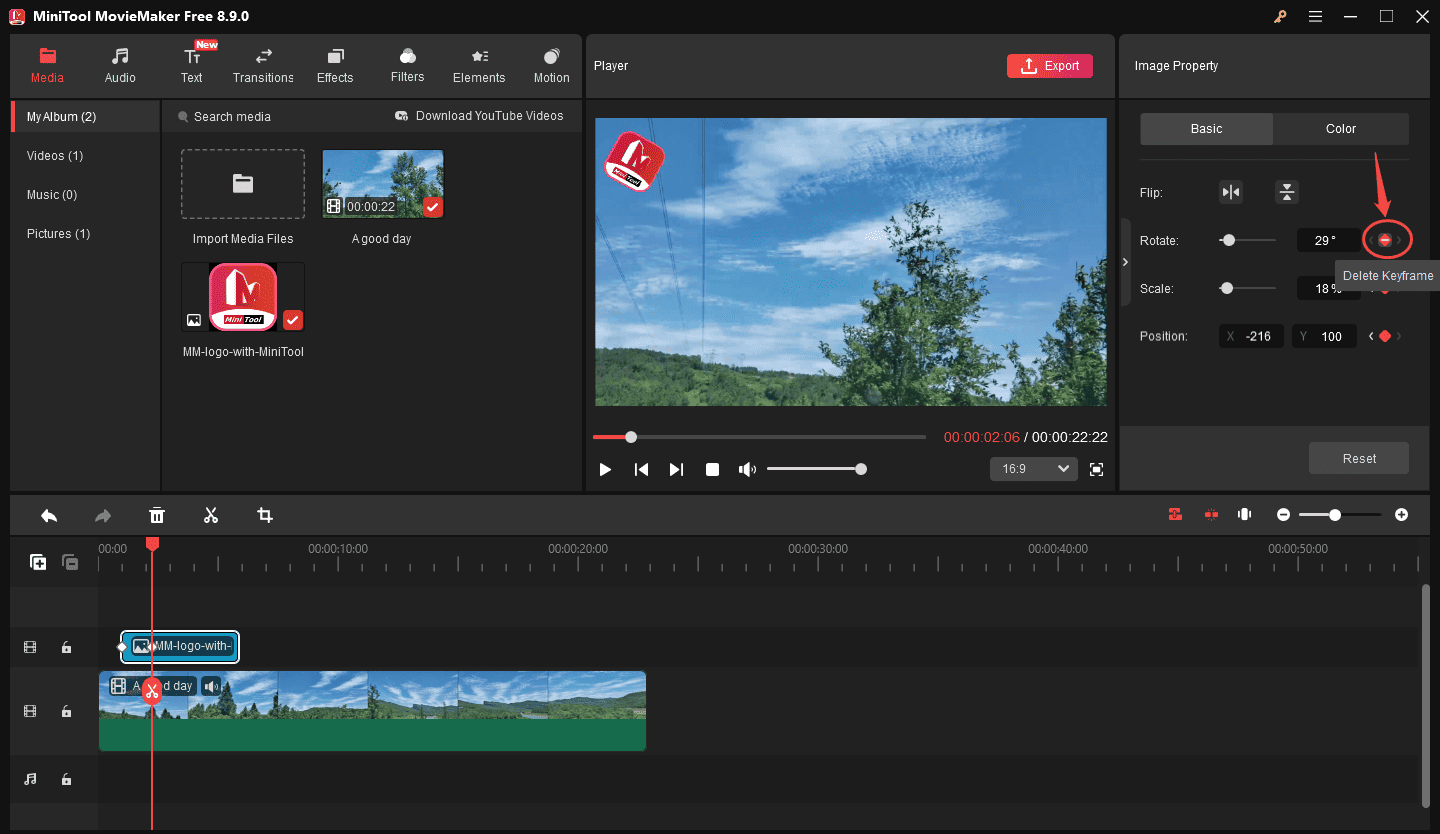
3) Add the second keyframe: drag the playhead to where I’d like the pop-up animation to start, select the clip, and drag the slider to the right. Then, drag the clip to where I’d like it to appear on the screen, and the Scale and Position keyframes will be added automatically. To add more fun, I also add a keyframe to adjust the rotation. To remove a keyframe, click the Delete keyframe icon.
Then, preview the video, and I can see the logo gradually scale up and pop from the bottom-left corner to the top-left corner of the video.
5. Export Video
Click Export at the top of the preview window, configure the output settings, and click Export again to save the video.
How to Make Things Pop Up on a Video in CapCut
Fast Track Steps:
- Install the CapCut video editor.
- Import the video clip.
- Add text to the video.
- Apply a pop-up animation preset.
- Or use keyframes for a text pop-up animation.
- Export the video.
CapCut is a beginner-friendly yet powerful video editing tool for creating social media videos, tutorials, and more. It provides both basic and advanced features for making high-quality content, such as trimming, splitting, chroma key, background removal, and video masks.
Similarly, CapCut offers a vast collection of audio clips, text templates, stickers, effects, transitions, and filters to enrich and enhance videos. It also includes multiple animation presets that make it easy to animate text, logos, emojis, stickers, and images on screen. Additionally, it lets me add manual animations with keyframes.
As a video editor without watermark, even the free version, CapCat produces clean outputs up to 8K.
Here is how to make text pop up in CapCut.
1. Download and Install
Go to the Microsoft Store or the official website to download the CapCut desktop app. Then, complete the installation.
2. Add a Video
Open the software and click Create Project at the top of the screen to enter the main interface. Then, click Import to add the target video and drag it onto the timeline.
3. Add Text to Video
Place the playhead where you want the text to appear, go to Text at the top, and add a text template or effect to the timeline. Here, I choose the default text. Then, add and edit the text under the Basic tab.
4. Make the Text Pop Up
Option 1: Add a pop-up animation effect
Click Animation in the right panel under the In tab, type “pop up” in the search bar, and the pop-up animation presets will appear. Download the desired effect, and it will be automatically applied to the text. Then, drag the Duration slider at the bottom of that panel to set the animation duration.
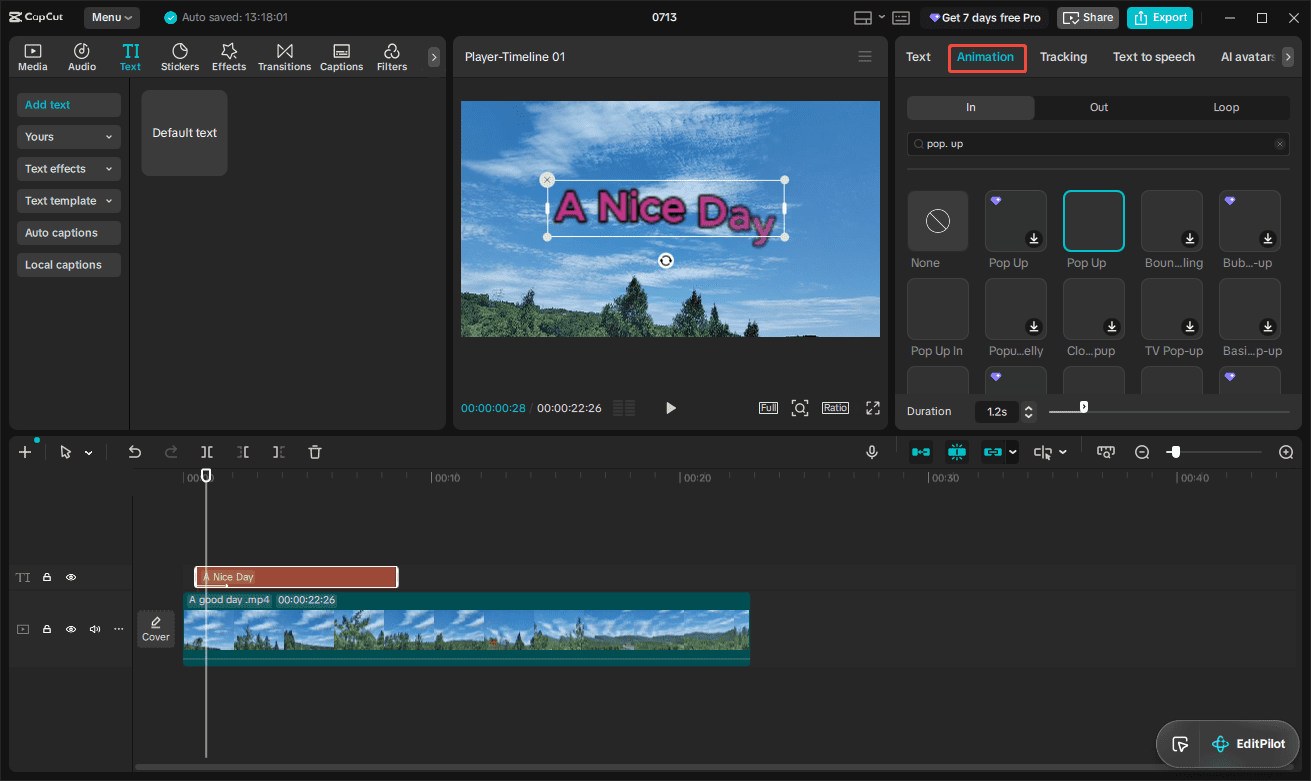
Option 2: Create a pop-up effect using keyframes
Move the playhead to the exact frame where I want the animation to end and tap the Add keyframe icon next to Scale. Then, go back a few frames earlier on the timeline, select the text, and scale it down until it is small or invisible. The second frame will be added automatically.
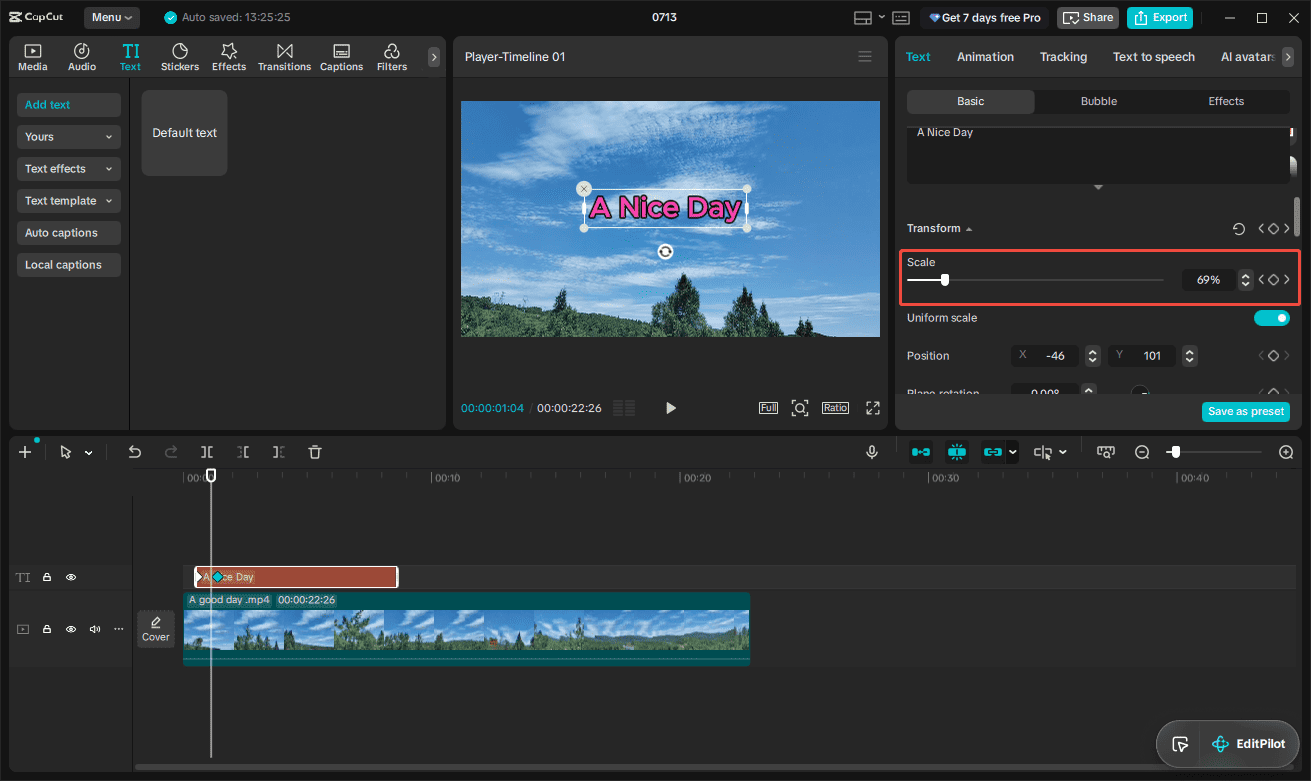
For complex pop-up animations, I can also add keyframes to adjust the text layer’s position.
5. Save the Video
Click Export in the upper-right corner, adjust the output settings as needed, then click Export again to export the video.
Conclusion
How to make things pop up on a video? It is not hard, right? You can follow the steps above to manually create pop-up animations for your images, logos, and text by adding keyframes, or just apply a preset. The pop-up elements can help your visual assets stand out and keep viewers watching.
People Also Ask
In CapCut: select the video on the timeline, go to the Animation tab, and download a preset to apply it.
About The Author

Position: Columnist
Cora is a tech writer specializing in digital media workflows, with over six years of hands-on experience in video post-production, media transcoding, and screen capture. Her writing is always clear and practical. Cora also produces in-depth software reviews for users across skill levels to help them find the right tool and enjoy video editing.
User Comments :