

Text is an important element in videos. As a powerful storytelling tool, text delivers key information, directs the audience’s attention, and enhances emotional resonance. When editing or creating a video, beautifully designed text can make your intro stand out, effectively emphasise key points, and make the closing memorable.
In other words, well-designed text can make your content more engaging and professional. For anyone like me who wants a video editor with rich text templates to elevate videos without a steep learning curve, I would say MiniTool MovieMaker is an ideal choice.
MiniTool MovieMakerClick to Download100%Clean & Safe
MiniTool MovieMaker Video Text Templates Overview
The software’s text library covers three main categories:
- Title Cards: Video openings and chapter separators
- Captions: Informational text throughout the video
- End Credits: Production credits and acknowledgments
Title Cards
A title card is a separate clip that comes with a beautiful background and text templates, and can be added to the timeline by dragging and dropping. Importantly, only the text in the template can be edited, and the background cannot.
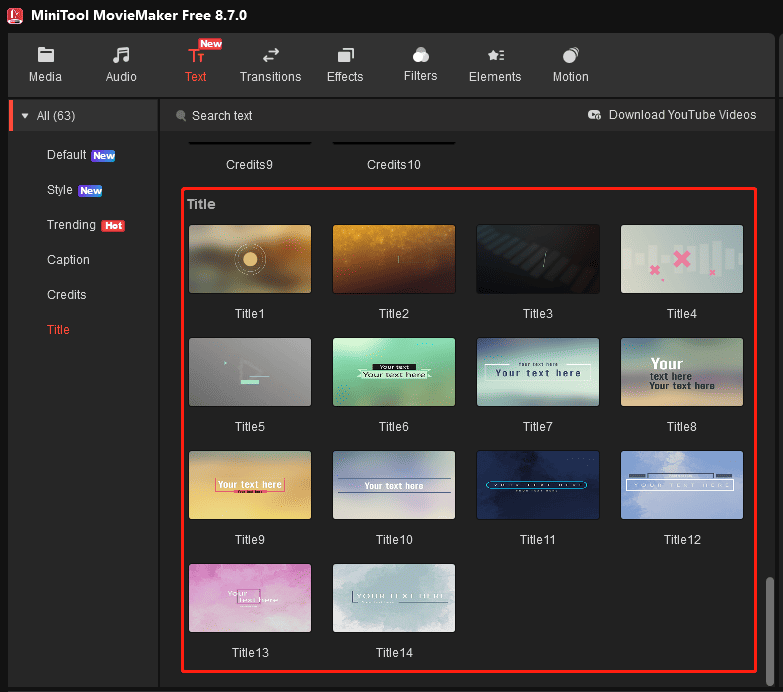
If there is a need to add an opening screen for introducing the topic of the video, a title card/intro text template is a great option. Alternatively, I would also insert a title card between two chapters, helping the viewers quickly grasp the main topic of the next part.
Overall, all templates feature soft-focus gradient backgrounds and emphasize low-saturation, gentle tones. It’s easy to find a suitable style to add title pages for vlogs, travel shorts, corporate videos, instructional videos, and recorded lectures.
End Credits
Similar to title cards, end credits are also independent clips. These templates all use a black background, with text displayed in different formats.
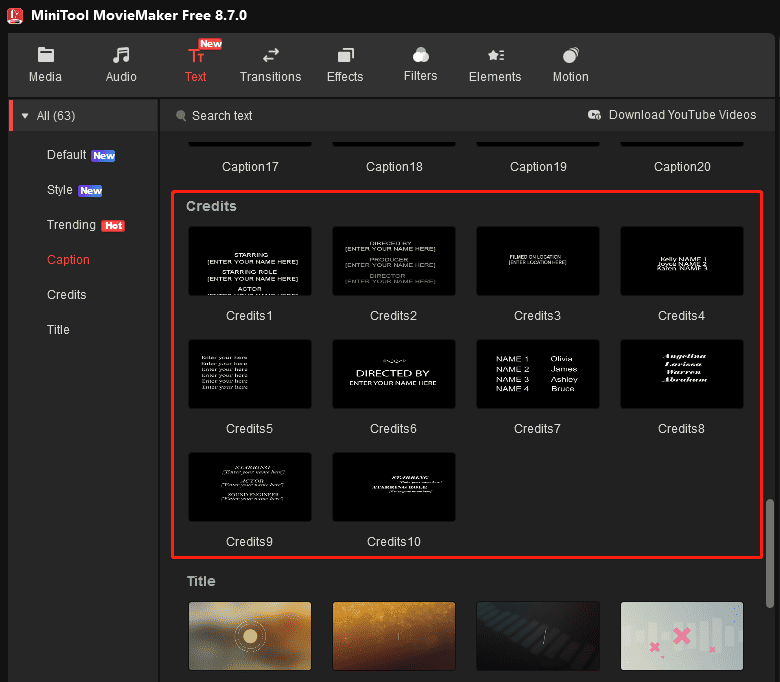
Generally speaking, credits are placed at the end of the video to add production information or express acknowledgments.
Captions
Typically, this type of text template is designed to add creative text overlays to a video. Unlike title pages or end credits, these overlays don’t extend the video’s duration, since they are placed directly on top of the existing footage. In this way, I can use these text overlays and my videos/images to create unique intros and outros.
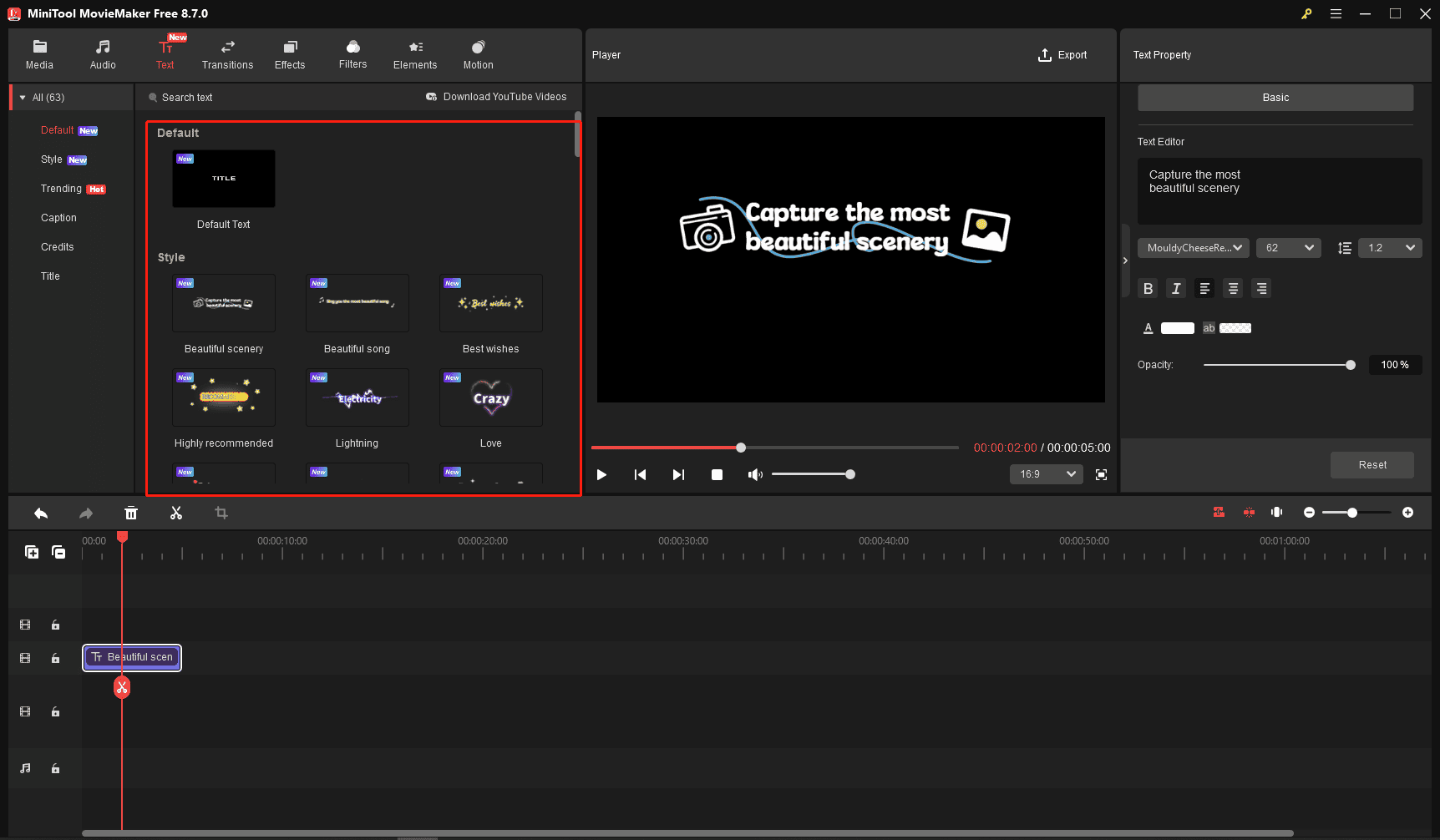
In MiniTool MovieMaker, there are three caption templates:
1. Default: Featuring static text templates and speech bubbles. I will choose the text bubble template when I want to create a face-to-face communication feel, highlight key information, or add visual interest to my plain text.
2. Style: All templates feature a transparent background with glowing, fascinating animated text overlays, accompanied by decorative elements and smooth animations (such as typewriter and floating effects). Personally, these templates are suitable for adding captions to short-form videos due to their unique atmosphere and excellent readability.
3. Caption: This tab also includes text animation templates, mainly covering color geometric side title bars, lower third templates, and pure text hierarchy layouts.
How to Use Video Text Templates in MiniTool MovieMaker
Fast Track Steps:
- Download and install the free video editing software.
- Open the application and import your video.
- Add the video to the timeline.
- Go to Text and add the desired template to the timeline.
- Type and customize the text.
- Adjust the duration of the text.
- Export the video.
During the editing process, video text templates help me a lot. They allow me to quickly add professional-looking titles, captions, and credits to my videos without having to design them from scratch.
MiniTool MovieMakerClick to Download100%Clean & Safe
How to use these templates to add and customize text? Here are detailed steps.
1. Import a Video
After launching the software, click the New Project button to access the main user interface. Click Import Media Files to open a video. Next, drag and drop the video or click the + icon to add it to the timeline to begin editing.
2. Choose a Text Template
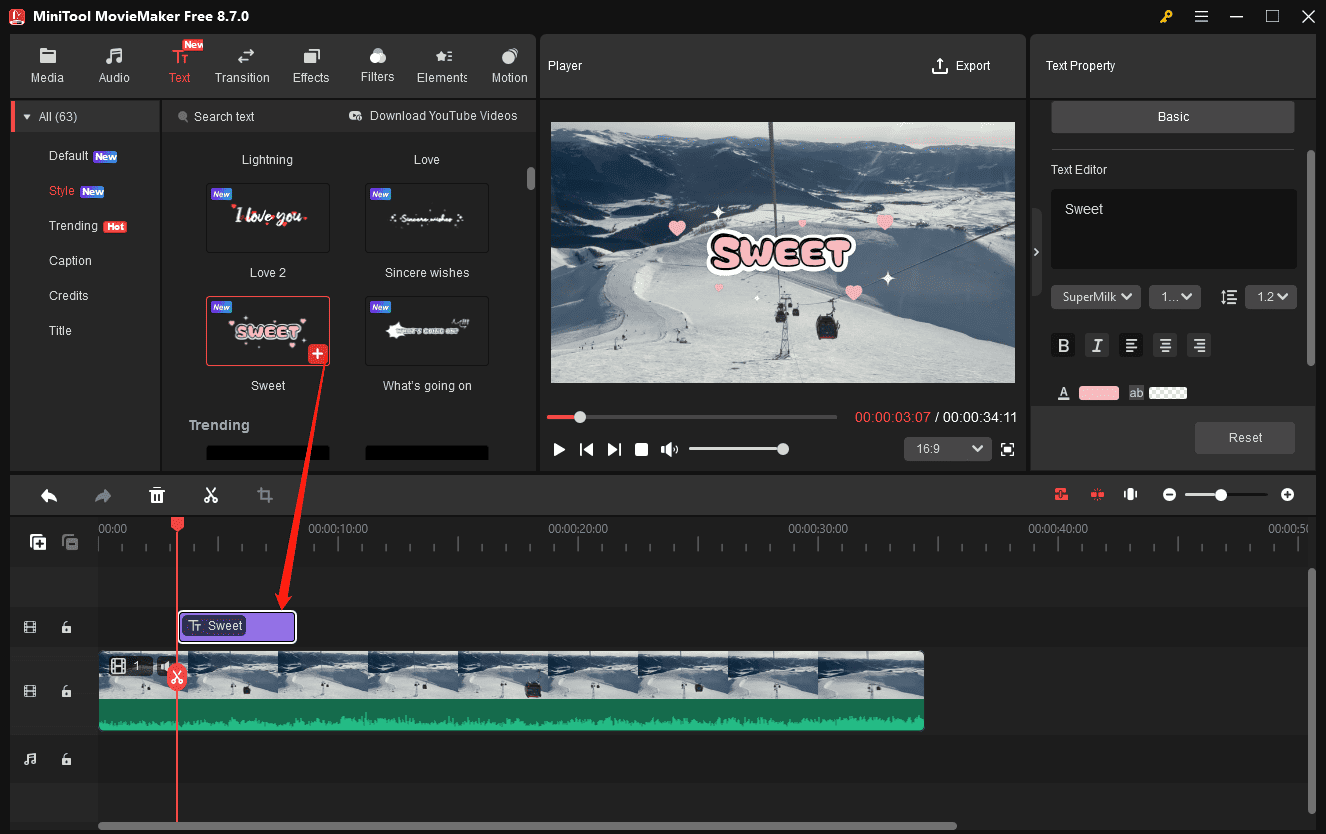
- Click Text at the top menu and find the template you need.
- Select Default > Default Text to add static captions or bubble text.
- Click Style or Caption, and choose a template to add animated, eye-catching captions.
- Select Credits for closing text and Title for opening screens.
3. Type and Customize Text
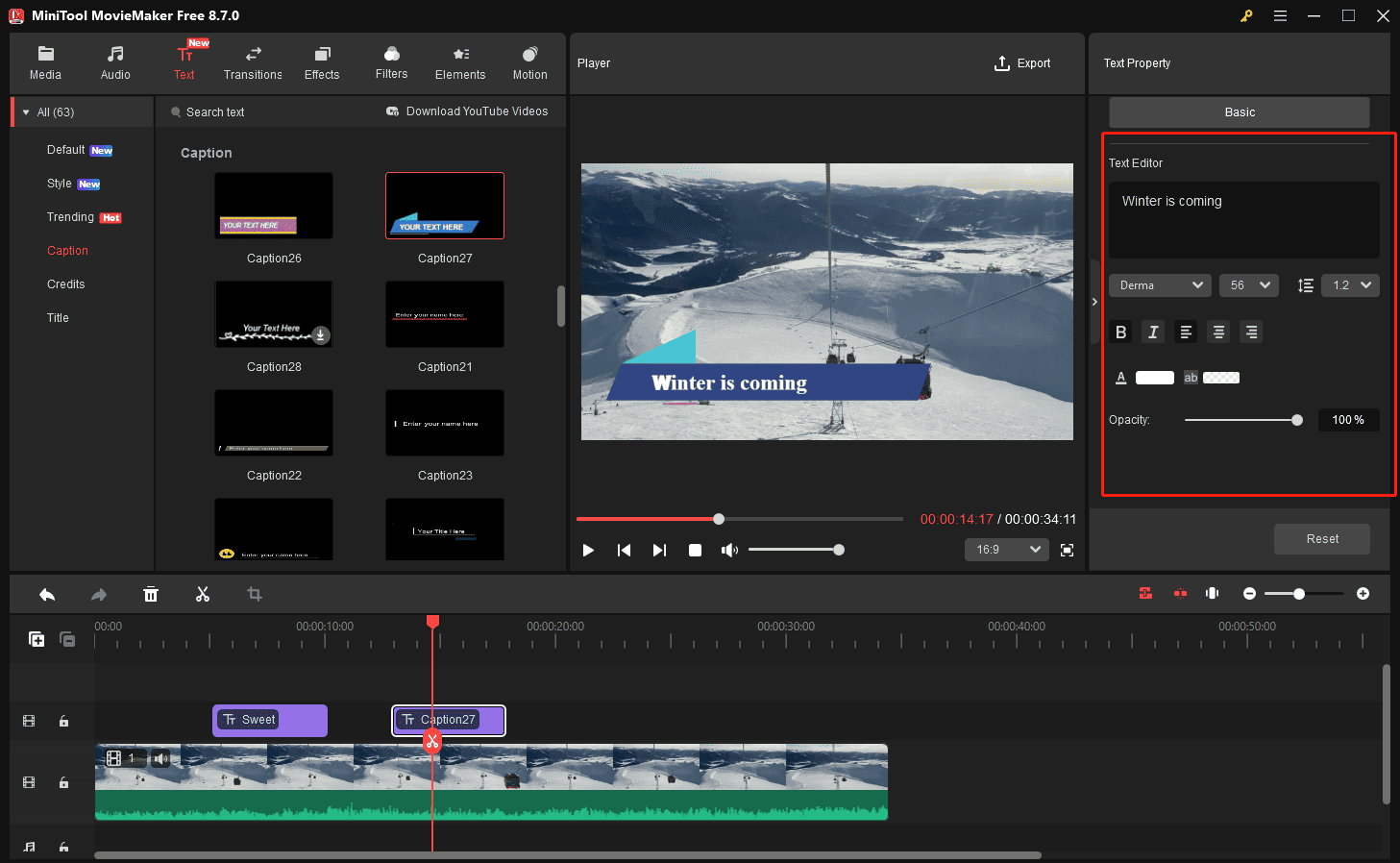
In the Text Editor section, replace the text sample with my text. Next, adjust the text font, size, color, and other settings. Based on my experience, it’s not recommended to make other changes while using a Style template. Replacing the text is enough. I’ve noticed that if I change the font or color of the text, it doesn’t look as polished as the original template, and it no longer matches the decorative elements alongside it.
4. Adjust the Duration of Text
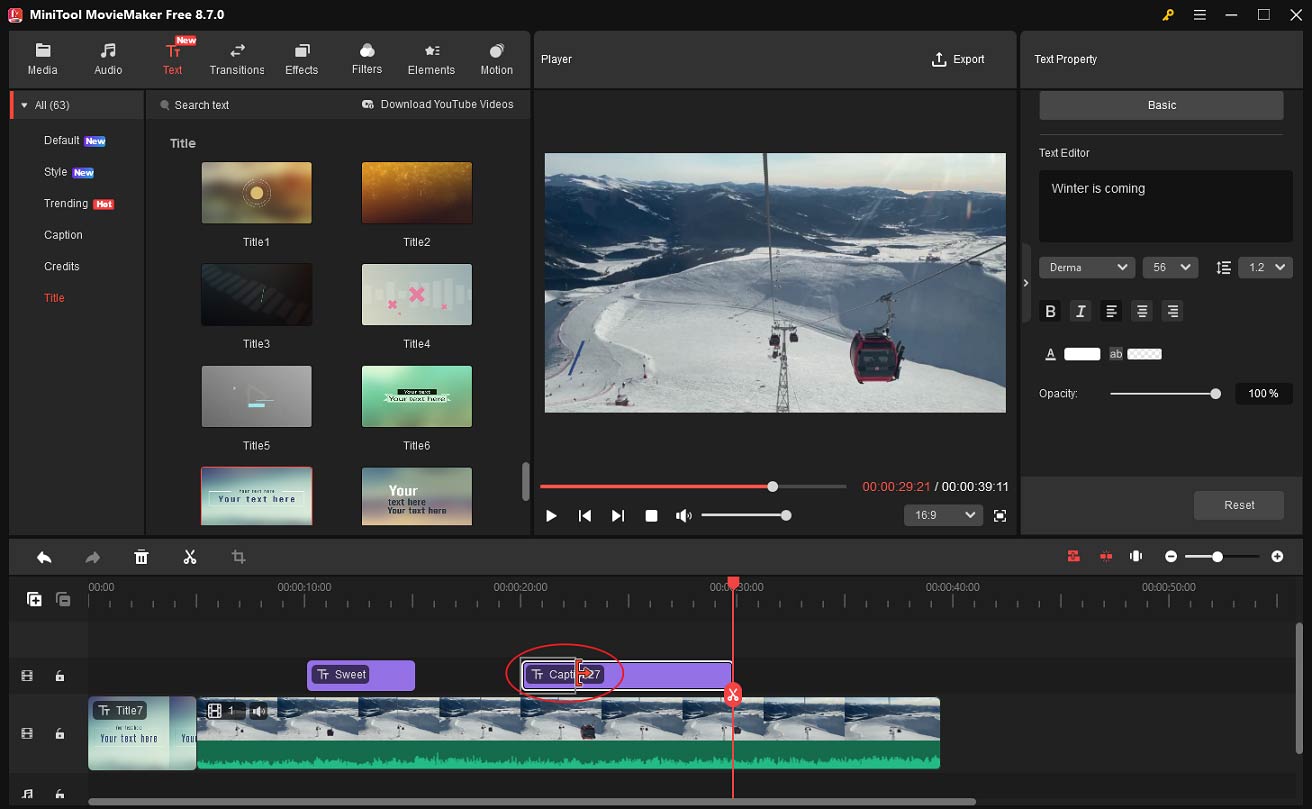
The display time of a title card, caption, and credits can be changed. Hover over the edge of the text track or the title card/credits clip until a red arrow appears. Drag the icon right or left to extend or shorten the duration.
5. Export the Video
Click Export in the upper-right corner. Next, select the video format, resolution, and frame rate. Finally, click Export again to start exporting the video.
Conclusion
Video text templates are incredibly helpful, allowing users to add fascinating titles, captions, and credits, making the video more professional and engaging. If you encounter problems while using MiniTool MovieMaker to add text or make other edits, send an email to [email protected] for help.
People Also Ask
1. Open the software, click Intelligent Subtitle, and choose an AI model.
2. Upload a video, and the transcription starts immediately.
3. Click Export to save the transcript to your computer.
2. Start a project and upload a video.
3. Click Text on the left-hand panel and select a template.
4. Double-click the text box to type your text.
5. Customize the text.
6. Download the video.
About The Author

Position: Columnist
Cora is a tech writer specializing in digital media workflows, with over six years of hands-on experience in video post-production, media transcoding, and screen capture. Her writing is always clear and practical. Cora also produces in-depth software reviews for users across skill levels to help them find the right tool and enjoy video editing.
User Comments :