

A skit video offers a creative and entertaining way to tell short stories. To help you create an engaging one, this post will walk you through 4 detailed steps on how to make a skit video: developing an idea, writing your script, filming your scenes, and editing your video using some of the best video editing software, including MiniTool MovieMaker, Microsoft Clipchamp, and CapCut.
What Is a Skit Video
A skit is a short comedic performance that tells a story through characters, dialogue, and simple scenes. Unlike drama or sketches, skit videos are brief, straightforward, and usually focus on a single joke or character, often under three minutes. They are widely used in comedy shows, social media challenges, school assignments, and so on.
Skit videos are popular because they are not only highly engaging but also simple to produce. Whatever your intention, learning the technique and detailed steps can help you better master how to make a skit video.
How to Make a Skit Video
In the following section, we will explore 4 detailed steps on how to make a skit video: developing an idea, writing your script, filming your scenes, and editing your video.
Step 1: Develop an Idea
Since a strong idea forms the foundation to create a skit video, it must be clear, simple, and concise enough to be turned into short scenes. Here are some tips to help you develop a great idea.
Choose a Relatable Topic
Think about a relatable topic that makes people think of their own lives, such as school life, office problems, family interactions, and more. You can also draw ideas from funny, surprising, or memorable moments in your daily routine.
Additionally, if you are out of ideas, watching other skit videos created by experienced creators can be a great way to spark inspiration. Make sure to take notes to understand what makes their content engaging—whether it’s the pacing, storytelling, or editing style. Then, apply these insights to start your own skit video creation from a unique perspective.
Develop Your Point of View
The point of view in a skit works like the thesis statement in a paper, which delivers the main idea or message behind your story. A clear point of view helps you focus the narrative and makes the humor more impactful. It can also help viewers grasp and understand the content of your skit in a few seconds, which is especially important for fast-paced online video platforms.
After brainstorming your ideas, it is time to write your script.
Step 2: Write Your Script
The script is the backbone of the skit video creation, shaping its flow, timing, and overall quality. Crafting a well-structured script is essential when learning how to make a skit video.
Structure Your Skit
Although the skits are short, they should still follow the basic principles of storytelling: A beginning, middle, and end. Since skits are usually comedic in nature, the opening should introduce normal life and the main characters to set the tone and capture the audience’s attention. The middle section should build humorous tension and momentum. The ending should wrap things up in an unexpected way.
Write Natural Dialogue
Since skit videos typically revolve around a single joke, conflict, or unexpected twist, there is limited room for deep character development. This makes natural, conversational dialogue especially important. Keep the lines short, realistic, and easy to deliver, avoiding long speeches that slow the pacing or dilute the humor.
Visualize Your Script for Editing
To improve the efficiency of your later editing process, it is helpful to visualize how each moment of the script will appear on screen. You can sketch out simple scene notes to map out the camera angles, reactions, and pace when filming. This preparation ensures that your final edit aligns seamlessly with the humor and energy you want to convey.
Step 3: Film Your Scenes
Once your script is ready, you can start filming your skit. Here are several key factors to keep in mind to ensure your video looks professional during the skit video creation.
Essential Items for Filming
With modern technology, many microphones now offer filming capabilities that rival some entry-level cameras. If you are on a budget or just getting started, a smartphone is sufficient to handle most filming tasks.
Clear audio is just as important as clear visuals. It is necessary to use a reliable microphone. Investing in a high-quality microphone can make a significant difference, helping you capture stable, clean dialogue without distracting background noise.
Use Good Lighting
Poor lighting can make it difficult for viewers to follow expressions, movements, or important details. Whenever possible, film near natural light sources such as windows or use a simple lighting setup to brighten the scene and ensure everything looks crisp and professional.
Rehearse Before Filming
As the old saying goes, practice makes perfect. It is best to rehearse at least once before filming. Make sure your camera setup is stable, your location is suitable, and your performers are confident. Additionally, it is also a good option to record several versions of each line so you can pick the best one when editing.
Step 4: Edit Your Video
Editing can spice up your video and make the original skit video more stunning and attractive. There is a wide range of skit video makers available for editing. In the following section, we will introduce 3 powerful video editors to help you learn how to make a skit video, including MiniTool MovieMaker, Microsoft Clipchamp, and CapCut.
Option 1: MiniTool MovieMaker
MiniTool MovieMaker is an all-in-one free video editor designed for Windows users. It comes equipped with a wide variety of editing tools suitable for skit video creation. Beyond the basic editing features like trimming, cropping, and splitting, it also offers advanced editing functionalities such as creating picture-in-picture effects, adding overlay text to videos, and more.
Moreover, MiniTool MovieMaker permits users without editing experience to enjoy its robust tools thanks to its ease of use and intuitive interface. Besides, it is completely free of ads, bundles, or watermarks, allowing you to edit videos with no hassle and ensuring clean and professional-looking videos.
To edit your skit video, MiniTool MovieMaker enables you to split and trim video, adjust video speed, reverse video, and add content to enrich your video. Here are the concrete steps on how to make a skit video using MiniTool MovieMaker.
Step 1: Download and Install
Click the button below to download MiniTool MovieMaker. Then, follow the on-screen setup instructions to complete the installation.
MiniTool MovieMakerClick to Download100%Clean & Safe
Step 2: Import Your Video
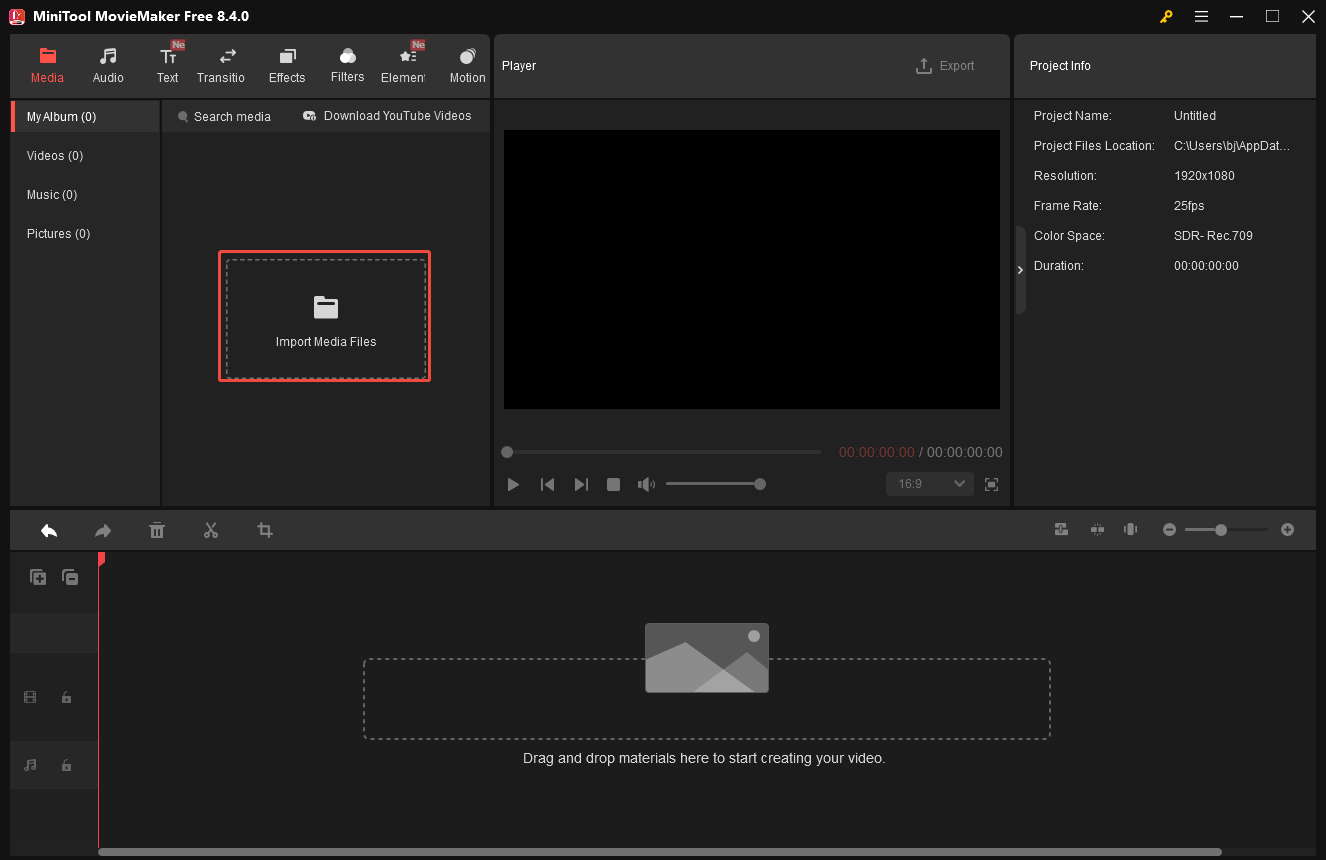
Open MiniTool MovieMaker and close the pop-up project window to enter the main editing interface. Next, click Import Media Files to upload your skit video from your local computer.
Step 3: Adjust the Video Properties
To change the video tone or make the video color more distinctive, click the Color tab on the right Video Property panel. Move the sliders of Contrast, Saturation, and Brightness to mediate the entire color tone. For accurate color adjustment, delete the number beside the slider and input a new precise number. All adjustments will be previewed on the Player window.

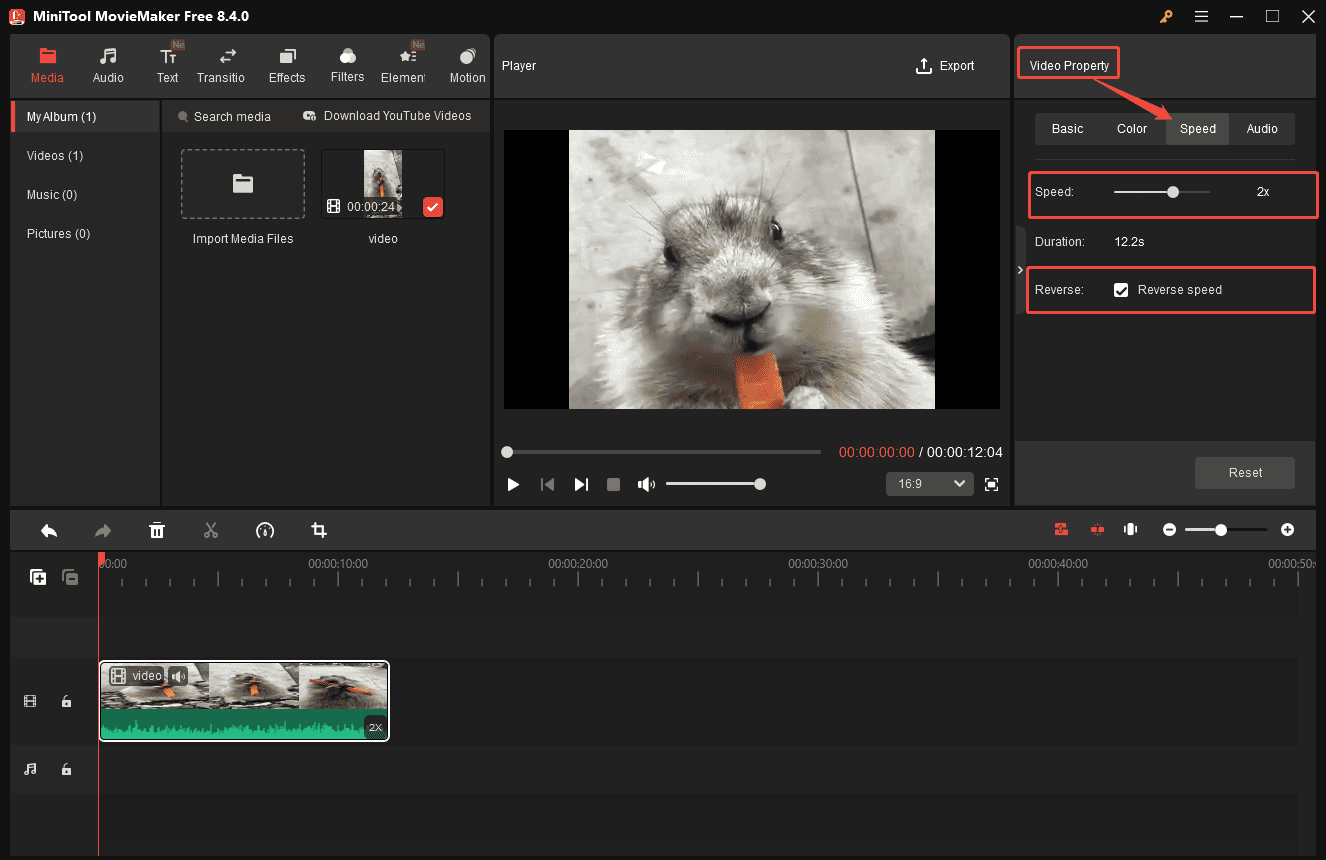
Click the Speed tab next to Color to adjust the video speed. To achieve a fast-paced effect, move the Speed slider right to accelerate the video. In the meantime, the video duration will be shortened. Also, if you want to add some comedic effects or draw viewers’ attention quickly, you can click Reverse speed to make the video play in reverse.
Step 4: Organize and Rearrange the Clips
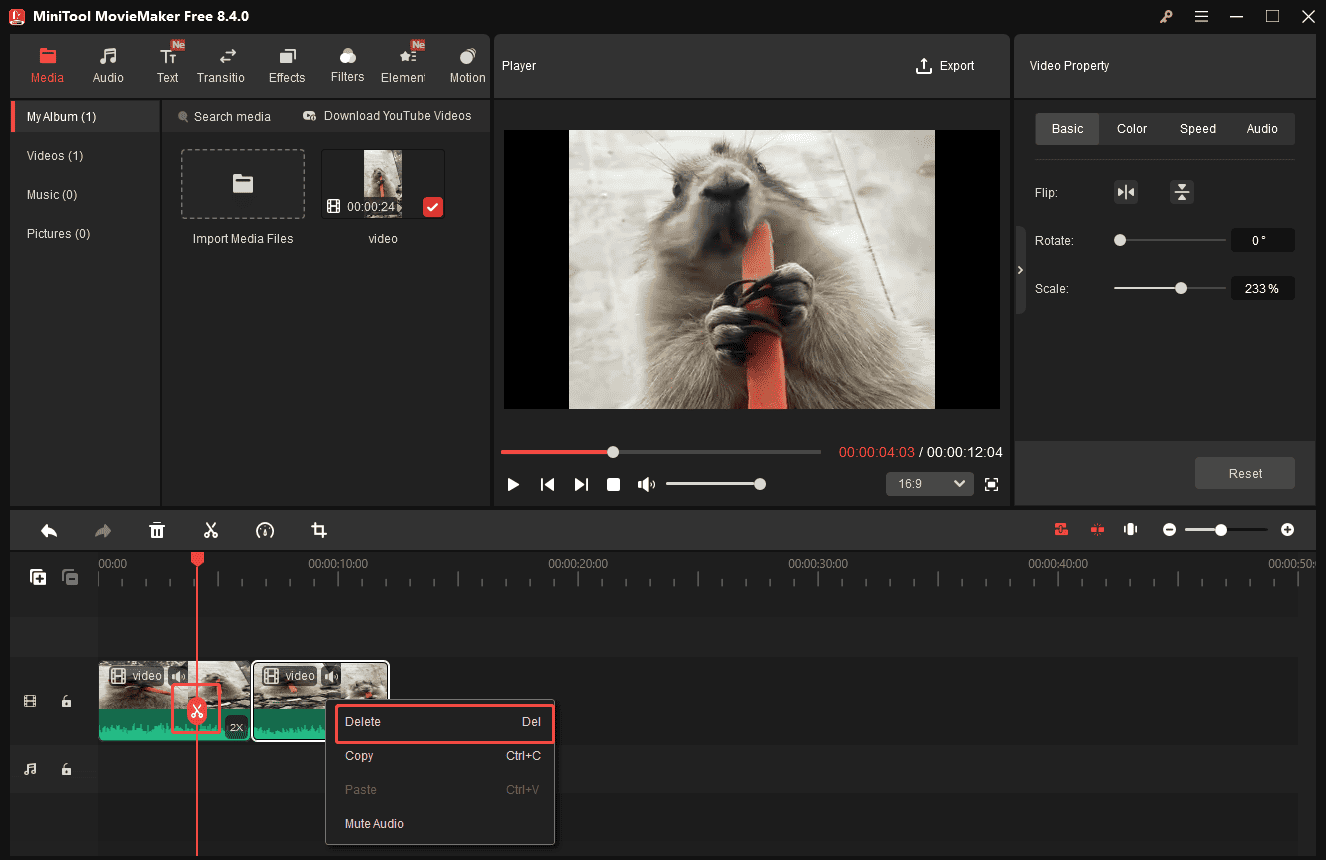
Drag the Playhead to the desired point and click the Scissors icon to separate the clip from the video. Then, you can rearrange the clips by dragging them on the timeline. To delete the unwanted clip, right-click it and select Delete to remove it from the timeline.
Step 5: Add Transitions to Clips
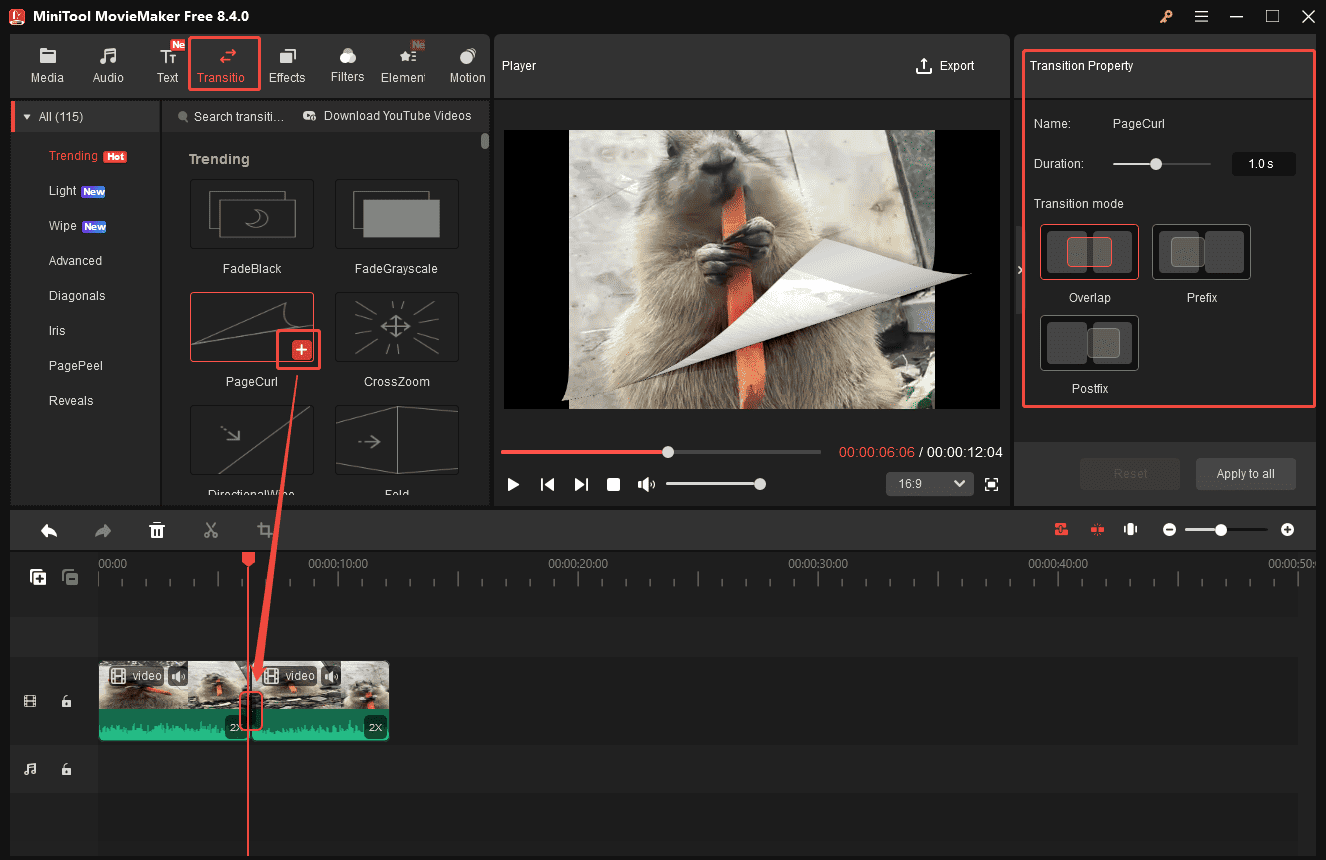
To make the separated clips harmonious or highlight the essential clip, adding transitions to the skit clips is a great choice. Select the Transitions tab at the top of the menu and scroll down to pick the desired one. Click the Plus icon at the corner of the transition or drag it to the timeline.
You can move the Duration slider on the right panel to adjust its time. Also, you can choose Overlap, Prefix, or Postfix mode to adjust the transition effect.
Step 6: Add Text to Video
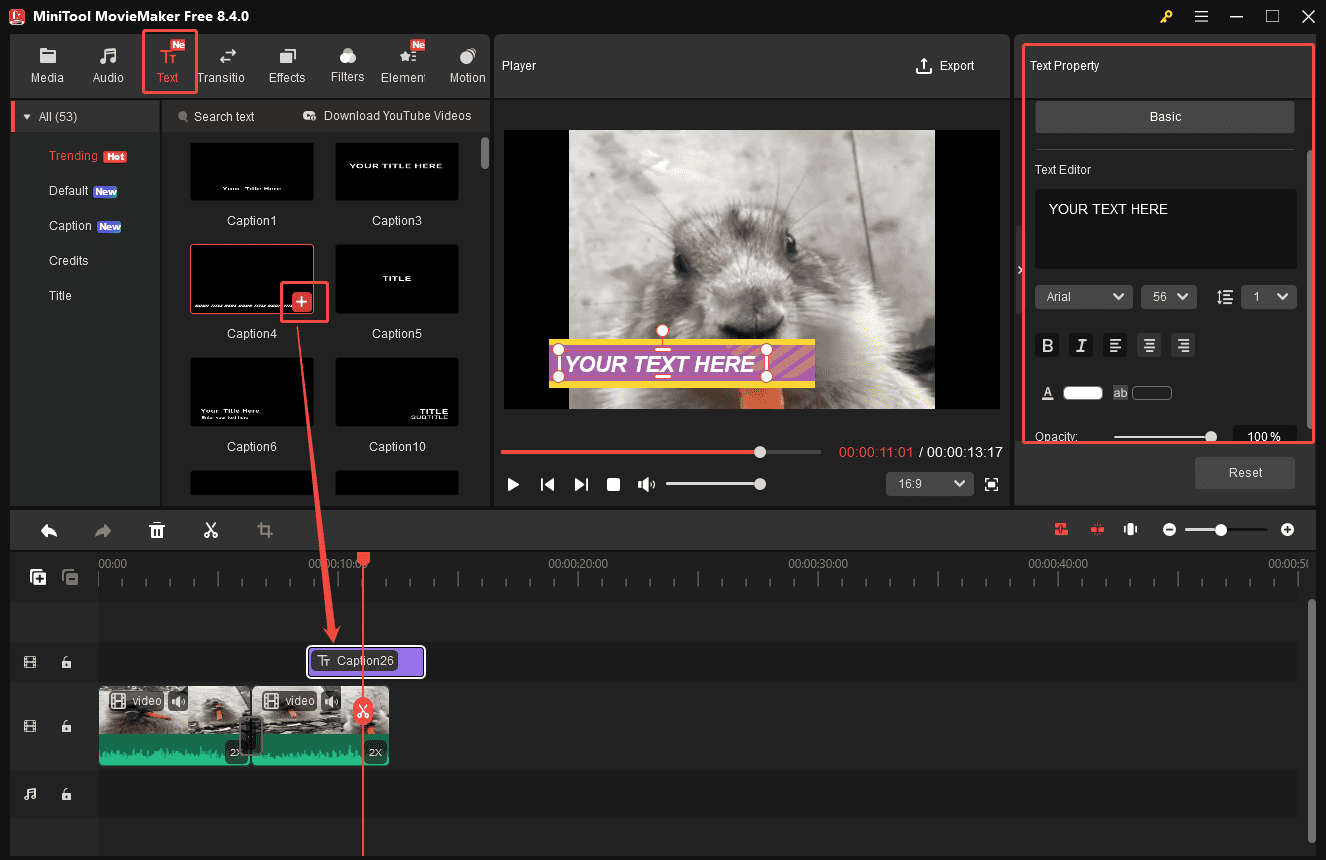
Adding text to your skit video can make the dialogue easier and clearer to understand. Click Text at the top of the menu and scroll down to see different kinds of text templates. To preview the text template, you need to click the Download icon in the corner. Then, hover your mouse cursor over the desired one to watch the text animation.
If you are satisfied with it, click the Plus icon to add it to the timeline. Then, input the dialogue in the right Text Editor and customize the text size, font, and more settings.
Step 7: Add Audio to Video
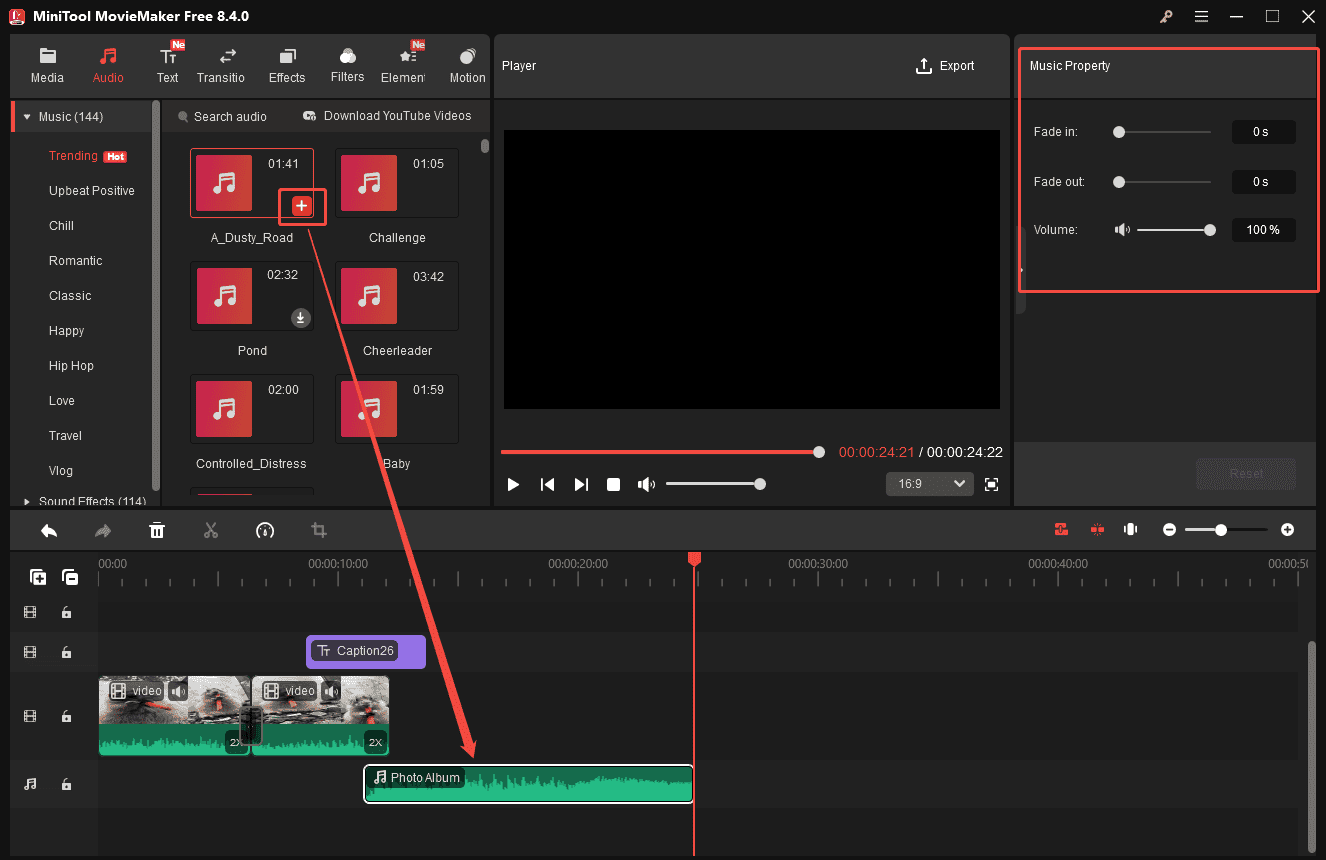
Background music and sound effects also play an indispensable role in skit videos. MiniTool MovieMaker offers two options for adding audio to your video.
One option is to import audio files directly into MiniTool MovieMaker. It supports MP3, M4A, M4R, WAV, FLAC, AAC, AMR, APE, MMF, and WV audio formats. After importing the audio, simply add it to the timeline.
In addition, MiniTool MovieMaker features a rich audio library that includes various types of music and sound effects. If you don’t have appropriate audio, open the Audio tab and scroll through the options to choose one you prefer. Click the Download icon first, then drag the audio to the timeline.
You can also use the trim tool to adjust the audio duration. Besides, drag the fade-in or fade-out sliders in the Music Property panel or type a precise value to modify the effect duration. Move the Volume slider to reduce the audio volume.
Step 8: Export the Final Video
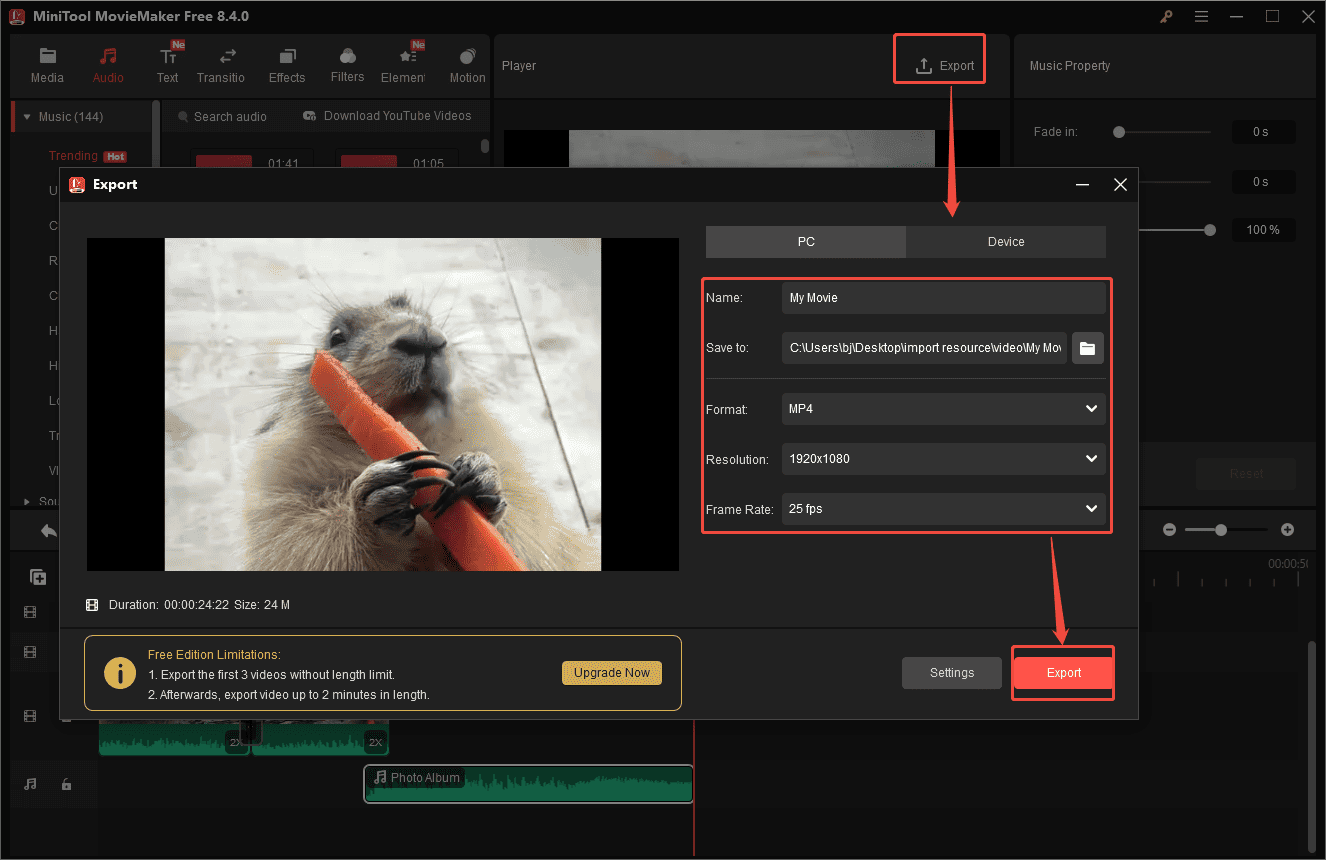
Once the skit video is edited, click the Export icon at the top of the menu and customize the video name, location, format, resolution, and frame rate. Then, click the Export button at the bottom of the Export settings window to save the video to your computer.
Option 2: Microsoft Clipchamp
Microsoft Clipchamp is another ideal option to create a skit video. It offers the website and desktop versions to meet the demands of various devices. The platform features a clean, simple, and straightforward interface, making it suitable for beginners and professionals to try.
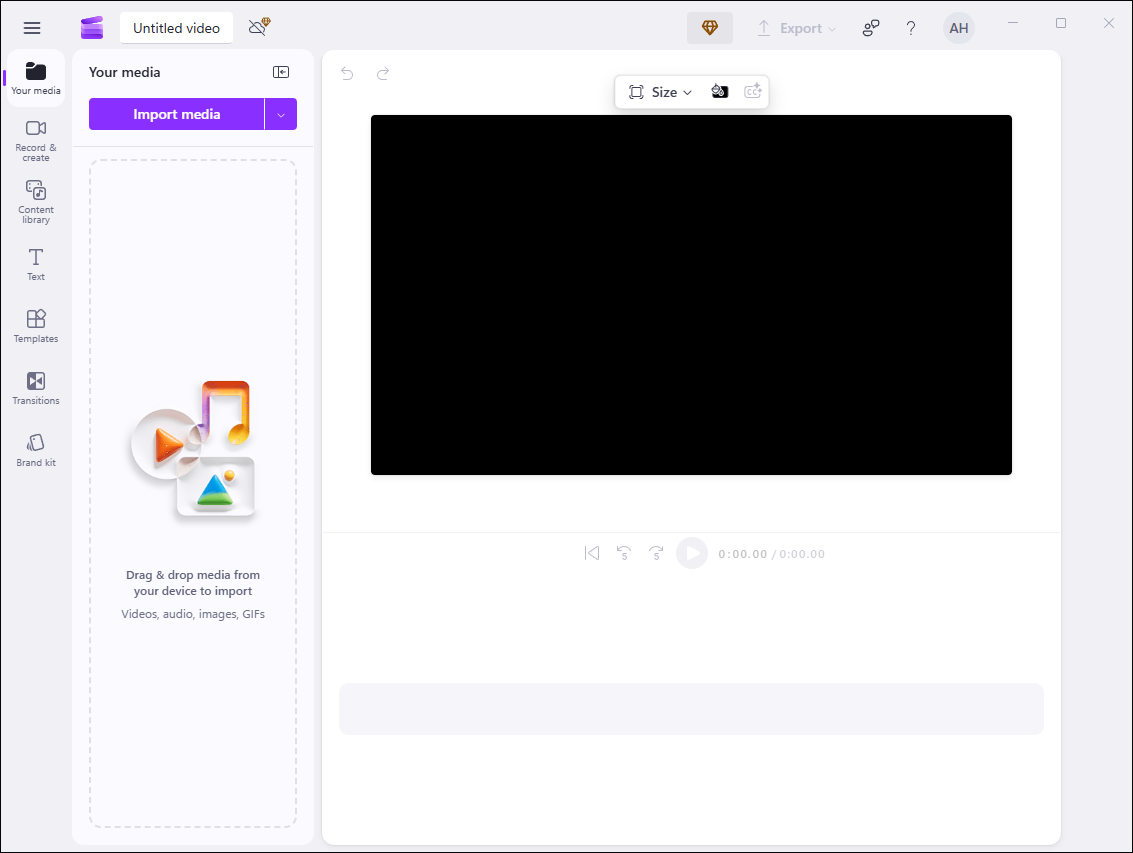
As a versatile tool, Microsoft Clipchamp can be utilized to edit videos, record screens, and enhance video quality. Powered by smart AI, it can automatically generate subtitles according to the audio track for your skit video, which helps you spend less time adding text to the video. Moreover, it also offers natural voiceover to turn the script into narration.
All in all, using Microsoft Clipchamp can make the editing process easier and simpler, helping create a skit video with ease and fun.
Option 3: CapCut
CapCut is a well-known and powerful free download video editor supported by Windows, Mac, iOS, and Android. It is widely considered to be the most popular video editor thanks to its ease of use and comprehensive editing tools, which can also meet the demand of skit video creation.
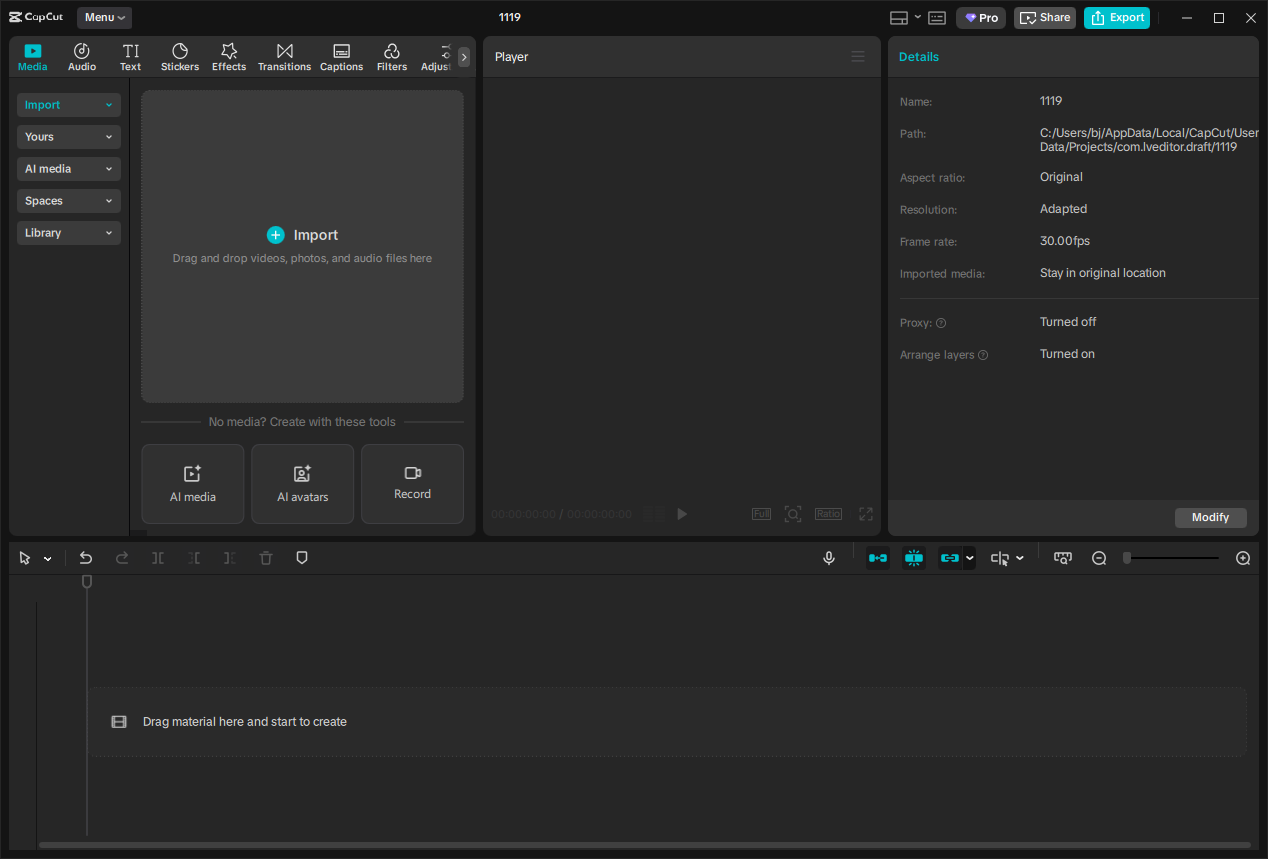
CapCut offers a rich resource library that is equipped with various fun and professional stickers, effects, transitions, and caption templates, which help you add content to your skit video effortlessly. In the meantime, it also allows you to use AI to generate new videos according to descriptions, convert speech to text, and perform more advanced functionalities. In addition, the intuitive and straightforward interface makes it suitable for both beginners and experienced users.
In conclusion, CapCut, as a versatile video editor, covers both basic and advanced needs for skit video creation. You can try it to make your skit video more popular.
Conclusion
This post demonstrates how to make a skit video with four steps, involving developing an idea, writing your script, filming your scenes, and editing your video. It might be an arduous process to complete all steps, but with the concrete tips above and the advanced editing software like MiniTool MovieMaker, the workflow becomes much more efficient and effective. In the end, you will find it worthwhile when you achieve the final results and share the finished skit video on social media platforms.
Hope this article can be helpful. Besides, if you have any suggestions or problems when using MiniTool MovieMaker, please do not hesitate to contact us at [email protected].
User Comments :