

Sometimes I find that black borders surround some of my uploaded videos on Facebook. This really frustrates me. That’s because Facebook uses different aspect ratios depending on the video types. Therefore, selecting the appropriate aspect ratio is important to ensure the visual appearance of videos on Facebook.
When it comes to this, most of you might think of resizing a video to make it fit a specific Facebook video format. While resizing videos preserves all the details by stretching or squeezing the entire frame to new dimensions, this can distort videos or add letterboxed edges. Therefore, I think cropping is a great alternative to create perfect videos for Facebook.
Cropping removes irrelevant content, such as the outer edges of the video, making the main object stand out more. How to crop a video for Facebook? In this post, I’ll offer a quick review of the Facebook video dimensions and two methods for this task.
Facebook’s Key Video Dimensions & Aspect Ratios
Facebook supports different types of videos, and the main types include Reels, Feed videos, Stories, video ads, and live videos. Here are the size requirements.
- Facebook Reels: recommends 1080 x 1920 pixels with a 9:16 aspect ratio.
- Facebook Feed video: supports 16:9 to 9:16, at least 1080 x 1080 pixels (1:1, working for both desktop and mobile) or 1080 x 1350 pixels (4:5, recommended for mobile-first).
- Facebook Storis: recommends 1080 x 1920 pixels with a 9:16 aspect ratio.
- Facebook video ads: recommends 1:1 (1440 x 1440 pixels) for desktop or mobile, or 4:5 (1440 x 1800 pixels) for mobile only.

How to Crop a Video for Facebook on Desktop
Here are two free methods to crop videos for Facebook.
Method 1: Use MiniTool MovieMaker
MiniTool MovieMaker is my favorite video editor because it has a simple interface and essential features. I can easily locate the desired tool on the main layout, which is very convenient. With the software, I’m able to trim the video precisely, adjust the playback speed, add captions/titles/credits to videos, correct the clip’s color, reverse videos, create video collages, and add stickers, overlays, frames, and shapes.
Additionally, MiniTool MovieMaker supports common aspect ratios, including 16:9, 9:16, 4:3, and 1:1. I also find the software can crop videos based on preset ratios, including 16:9, 4:3, 1:1, 3:4, and 9:16. Therefore, it’s a great choice for optimizing videos for social media platforms. Undoubtedly, it’s a reliable tool for cropping videos for Facebook. Best of all, MiniTool MovieMaker is a video editor without watermark.
How to crop a video for Facebook using MiniTool MovieMaker? Follow me.
Step 1: Get the Video Cropper for Facebook
Make sure the software is already installed on the computer.
MiniTool MovieMakerClick to Download100%Clean & Safe
Step 2: Import the Target Video
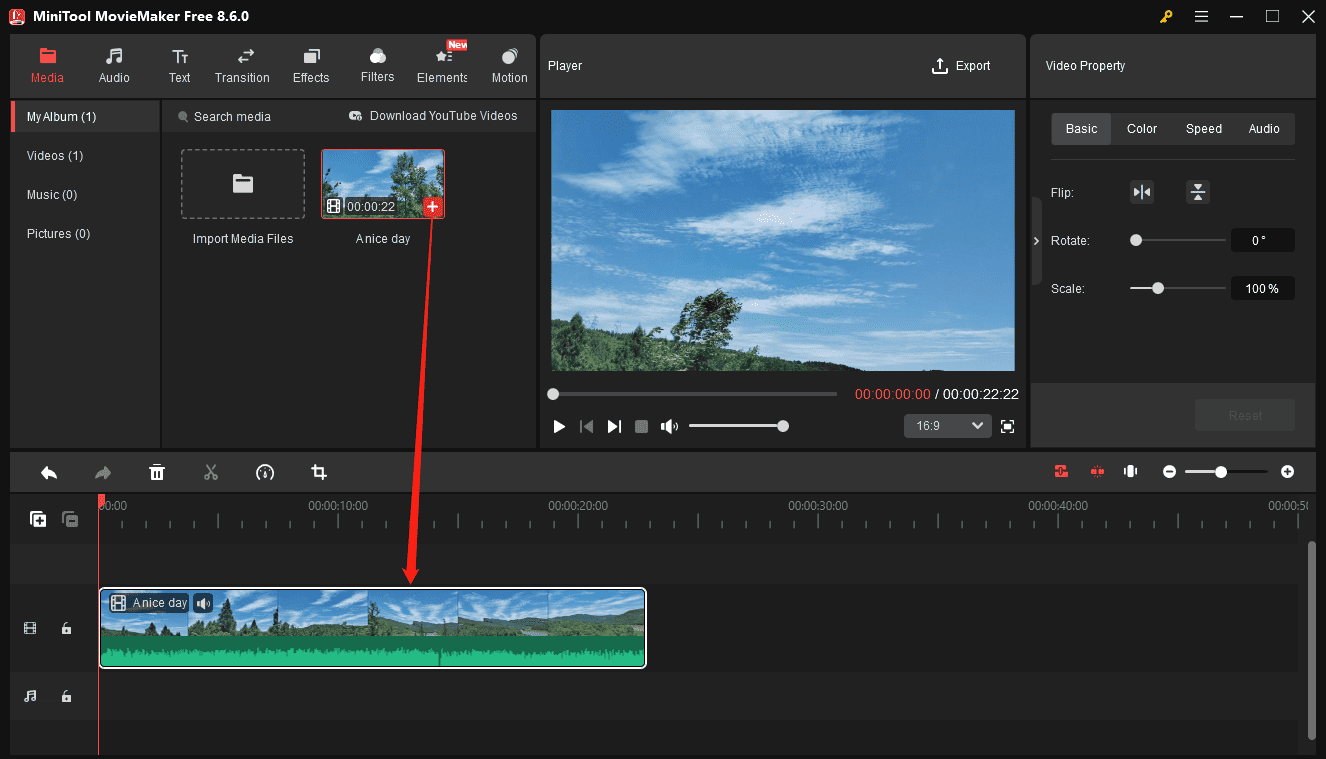
Launch MiniTool MovieMaker and click the New Project button to access the main interface. Click Import Media Files on the left side and add the desired video file. Then, drag and drop it to the timeline to begin editing.
Step 3: Crop the Video
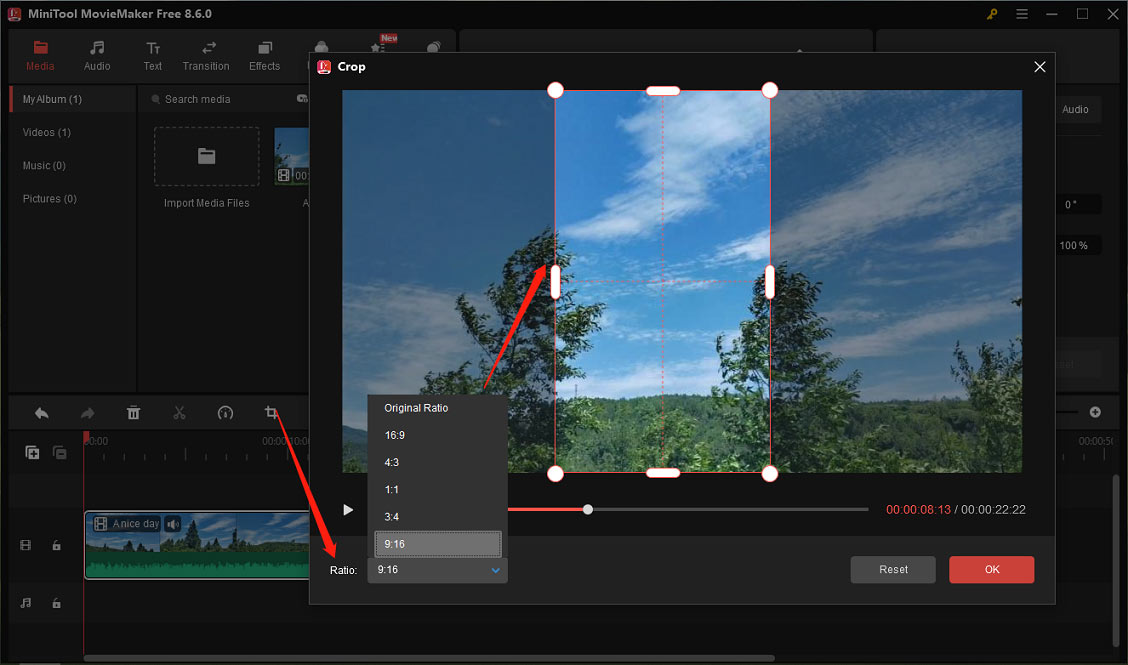
Highlight the video on the timeline and click the Crop icon on the timeline toolbar. In the Crop window, expand the Ratio dropdown list and select the desired ratio to crop the video. Then the cropping handle appears on the video preview. Resize the handle and change its position on the frame to choose the desired area. Then, click the Play icon to preview the cropped video. Finally, click OK to save changes.
Step 4: Change the Aspect Ratio
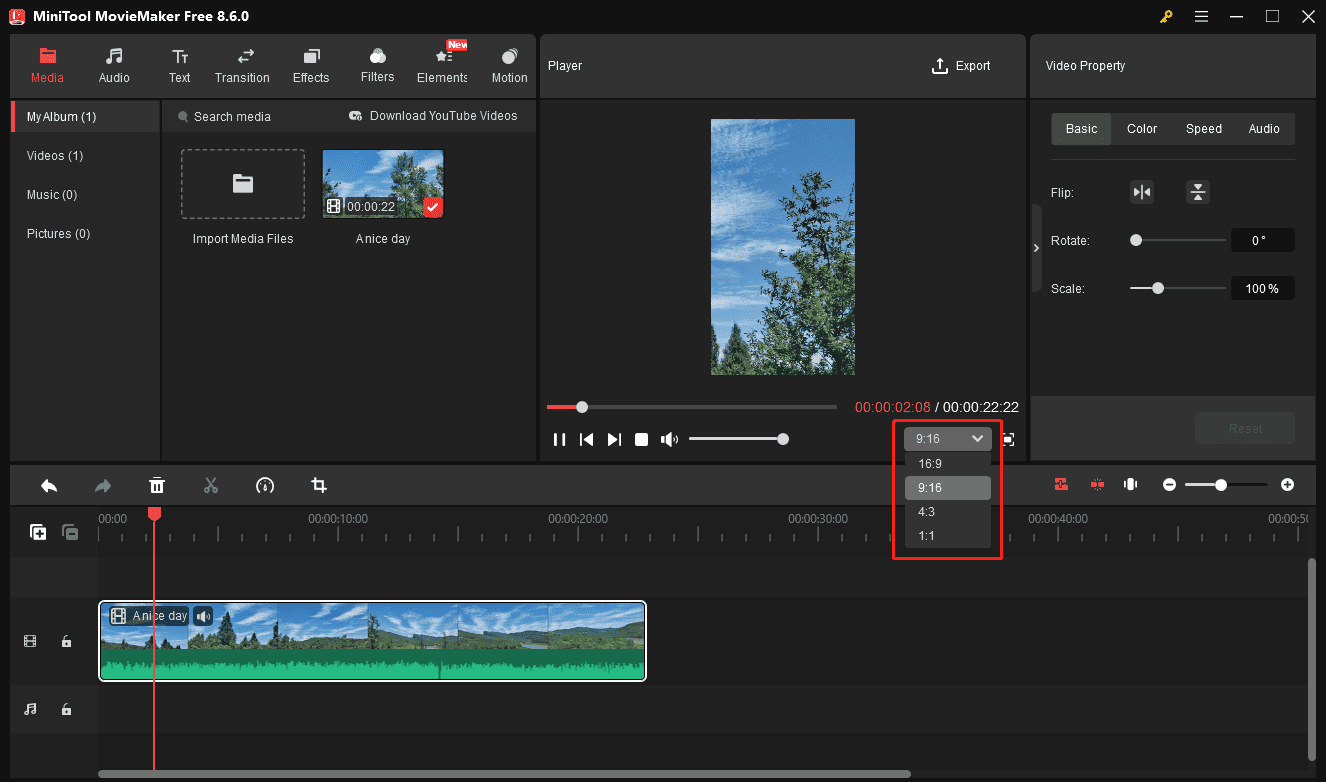
By default, MiniTool MovieMaker uses the 16:9 aspect ratio. Therefore, if the video is cropped based on a different ratio, it will be letterboxed. To remove the black borders, match the timeline’s aspect ratio to the same ratio I cropped the video to. Click the 16:9 option below the video player, and select the target ratio from the list.
Step 5: Export the Video
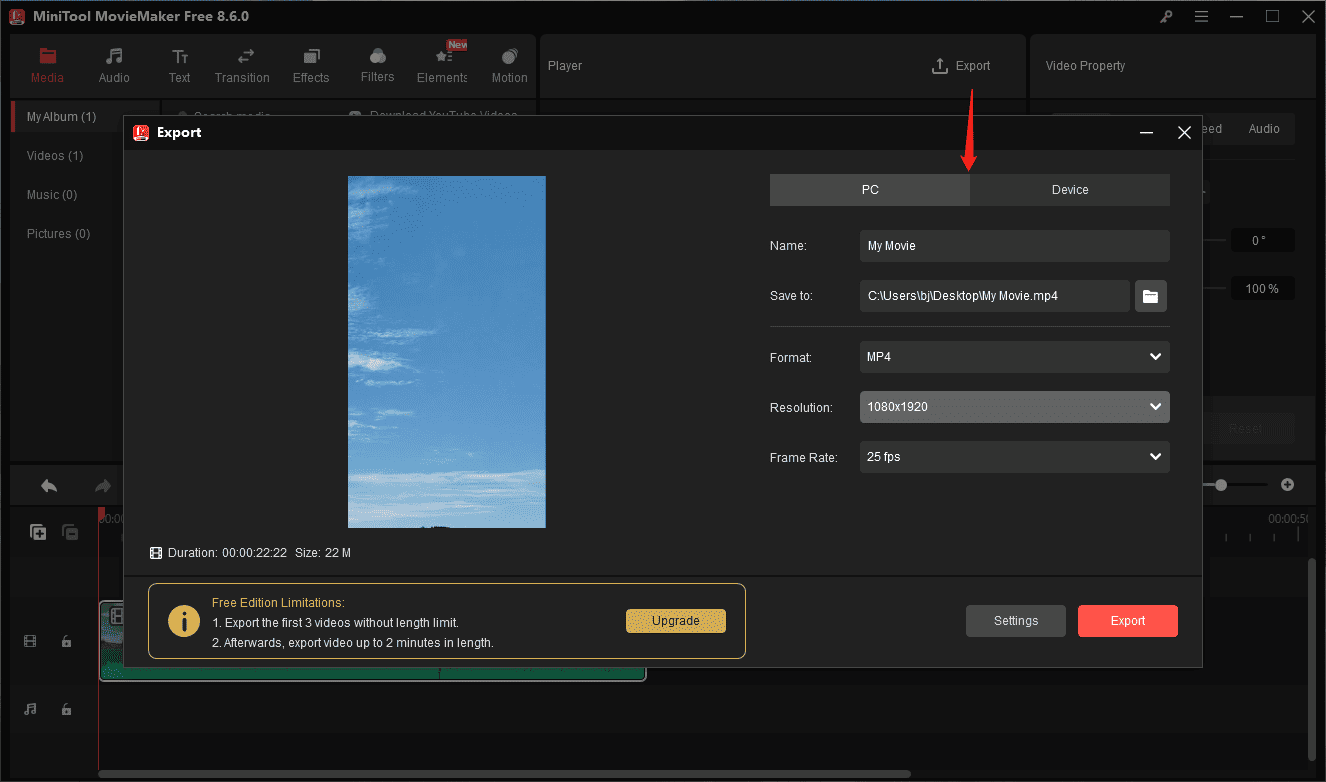
Click Export in the upper-right corner to open the Export window. The output format is set to MP4 by default. I won’t change it because it’s the recommended video format for Facebook. I can also change the resolution and frame rate. Finally, click Export to start processing the video.
Method 2: Use Microsoft Clipchamp
I also use Microsoft Clipchamp to trim video files and for other simple tasks because it’s built into my computer. Of course, it can be used to crop video for Facebook. Here’s my experience.
Step 1: Upload a Video
After running Microsoft Clipchamp, click Create a new video to enter the main layout, and click Import media to upload the target video. Then, add the video to the timeline.
Step 2: Crop the Video
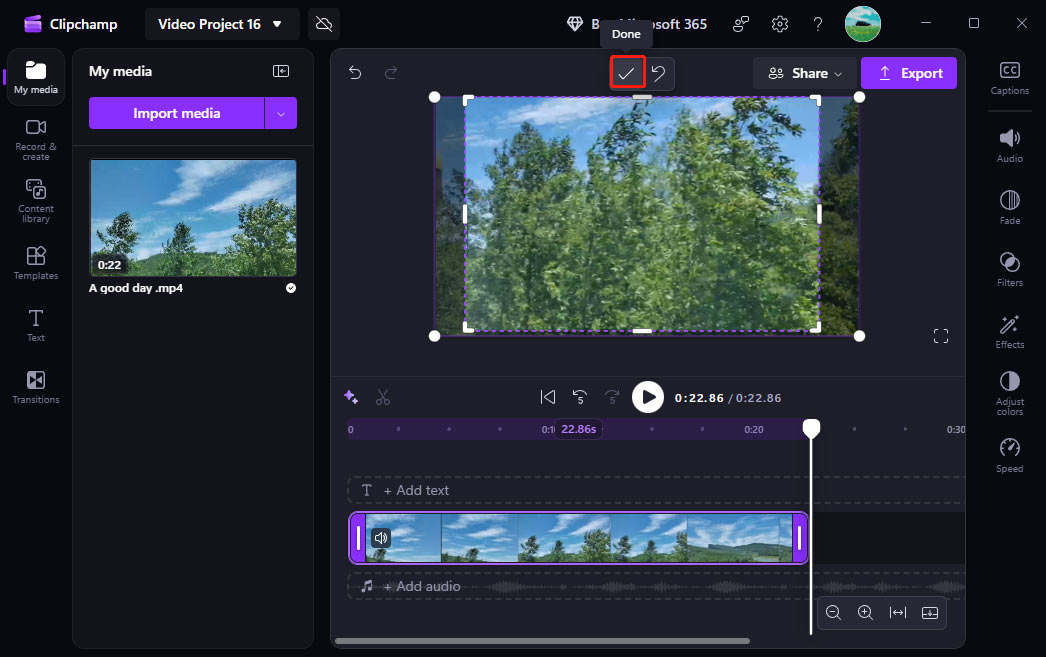
Click the Crop icon on the floating toolbar above the video preview, drag and move the cropping handle to crop the video, and click the Done icon to confirm. Microsoft Clipchamp lets me crop a video freely, but it doesn’t provide preset aspect ratios for cropping, which is not convenient.
Step 3: Adjust the Ratio
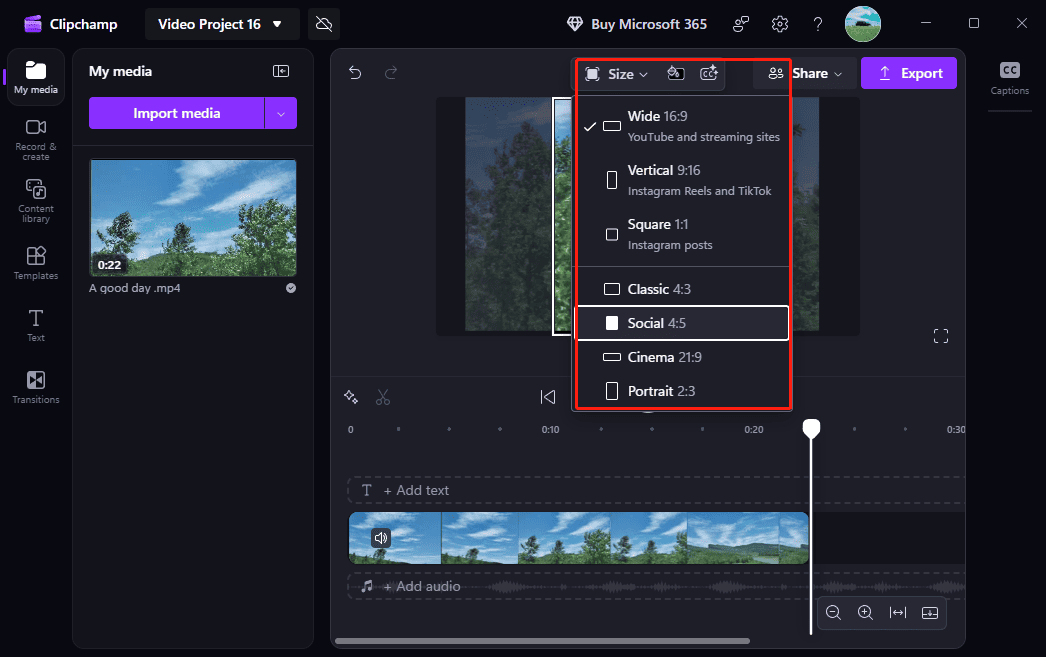
Don’t select the video on the timeline, click Size at the top of the video preview, and click the desired ratio depending on the Facebook video.
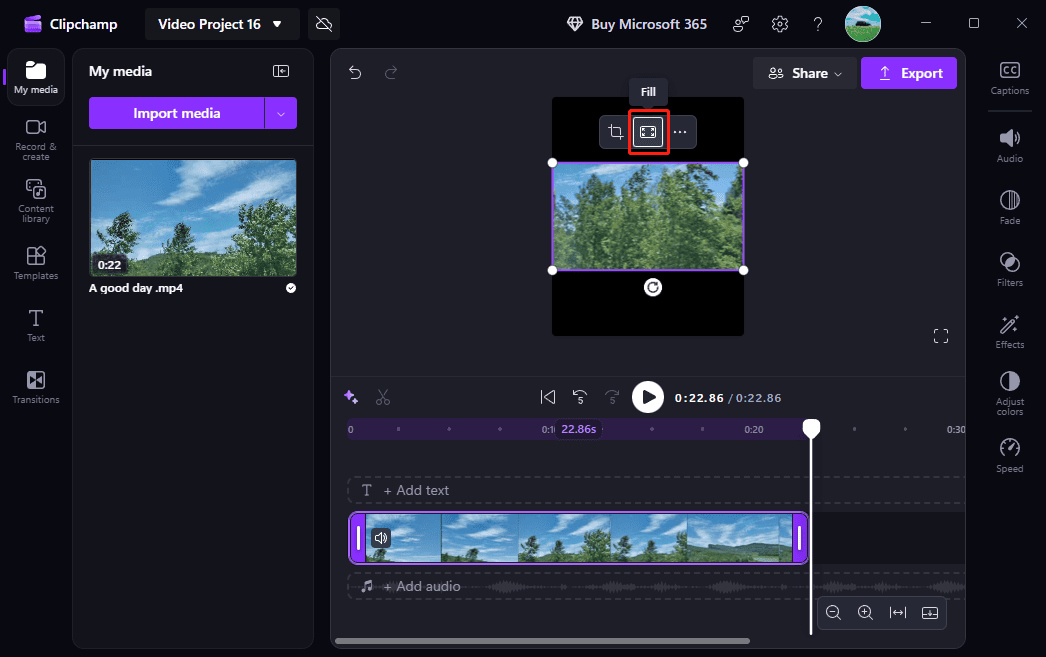
To remove black bars, click the Fit icon next to the Crop icon, and click the icon in the same location whose name changes to Fill icon.
Step 4: Save the Video
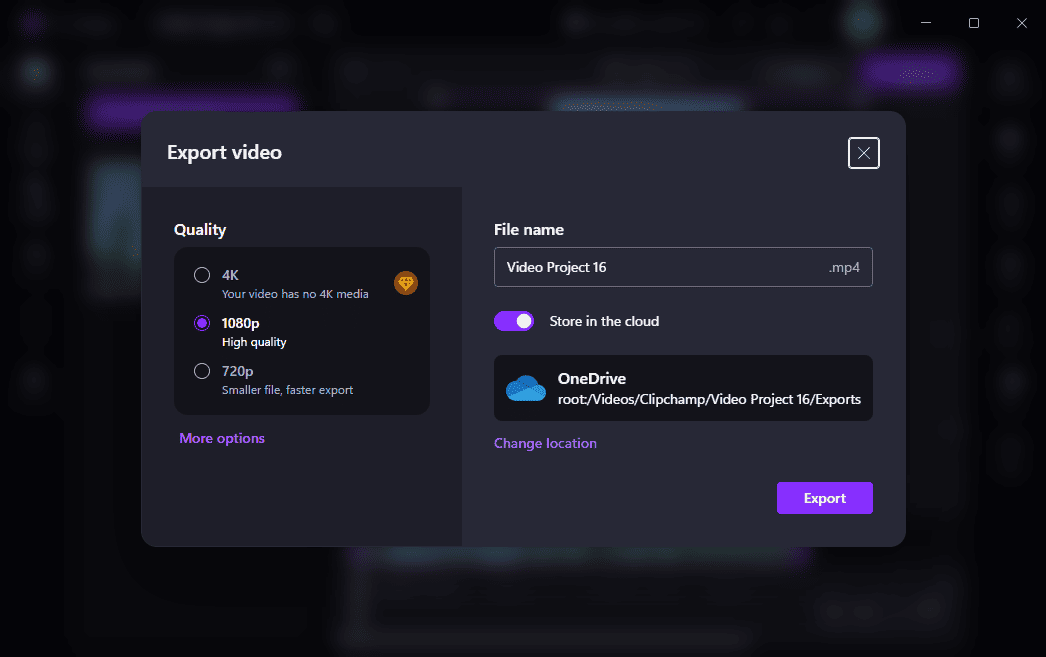
Click the Export button in the upper right corner, select a video resolution, 1080p or 720p, and click Export again to start processing the video.
Conclusion
How to crop a video for Facebook? Personally, this is not a difficult task. MiniTool MovieMaker and Microsoft Clipchamp are excellent tools. With them, everyone can easily crop and enhance videos for Facebook and other platforms.
About The Author

Position: Columnist
Cora is a tech writer specializing in digital media workflows, with over six years of hands-on experience in video post-production, media transcoding, and screen capture. Her writing is always clear and practical. Cora also produces in-depth software reviews for users across skill levels to help them find the right tool and enjoy video editing.
User Comments :