

VideoPad (VideoPad Video Editor) is a video editing software application with a suite of tools. It supports multi-track editing, offers dozens of built-in video transitions and filters, and various audio editing tools.
Although VideoPad is a good video editor, some people may want to explore easier-to-use tools, 100% free alternatives, or more advanced choices. Based on my experience, I compiled a list of alternatives to VideoPad for your reference.
Best Alternatives to VideoPad at a Glance
Quick answer:
- MiniTool MovieMaker
- Microsoft Clipchamp
- OpenShot
- Shotcut
- VSDC Free Video Editor
- CapCut
- DaVinci Resolve
Here, I made a concise comparison table of these applications to help you find the desired editing tool quickly.
| Software | Platform | Price | Learning Curve for New Users |
| MiniTool MovieMaker | Windows | Free + paid | Easy |
| Microsoft Clipchamp | Windows/Web | Free + paid | Easy |
| OpenShot | Windows/Mac/Linux | Free | Moderate |
| Shotcut | Windows/Mac/Linux | Free | Moderate |
| VSDC | Windows | Free | Moderate |
| CapCut | Windows/Mac/Web/Mobile | Free + paid | Easy |
| DaVinci Resolve | Windows/Mac/Linux | Free | Difficult |
1. MiniTool MovieMaker
When I first started editing videos, MiniTool MovieMaker was a must on my editing tool list. Its simple interface impressed me. It offers essential tools for turning raw footage into engaging videos.
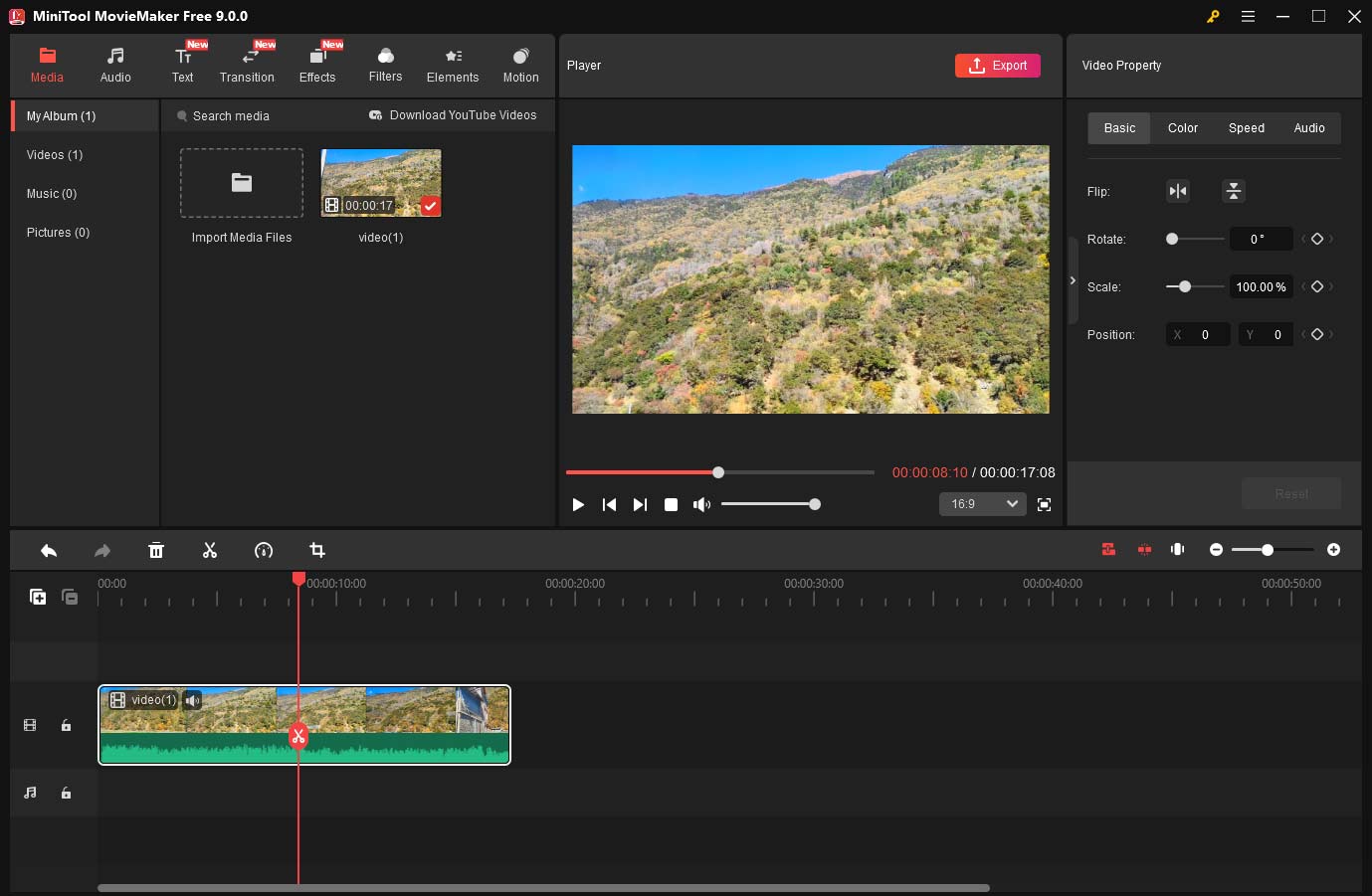
Key features:
- Multi-track timeline for flexible editing and picture-in-picture effects.
- Keyframe controls over scale, rotation, and position of video/image/element.
- Video transitions, filters, animated stickers, overlays, and frames.
- Rich text templates for titles, captions, and credits.
- Speed control and reverse playback effects.
- Crop, rotate, split, and trim video clips.
- Change the aspect ratio to make videos fit social media platforms.
- Export videos in 1080p or 4k resolution.
 MiniTool MovieMaker
-
 Split and trim videos to remove redundance.
- Change video aspect ratio to match screen sizes.
- Add bubble texts, bgm, transitions, and more effects.
- Create PiP or split-screen videos by multitrack editing.
Pros:
- Easy-to-use tools without complex settings.
- Various preset assets for easy creation.
- Drag-and-drop functionality for quick edits.
Cons:
- Only available on Windows.
- Free exports over 2 minutes include a watermark.
You can use MiniTool MovieMaker for free with all its editing, effects, and elements, and even without watermarking.https://www.pcmag.com/reviews/minitool-moviemaker
2. Microsoft Clipchamp
Microsoft Clipchamp is a user-friendly video editor for Windows users, especially beginners who want to create videos with ease. If you want an alternative to VideoPad for a simple editing workflow, it is also a great choice.
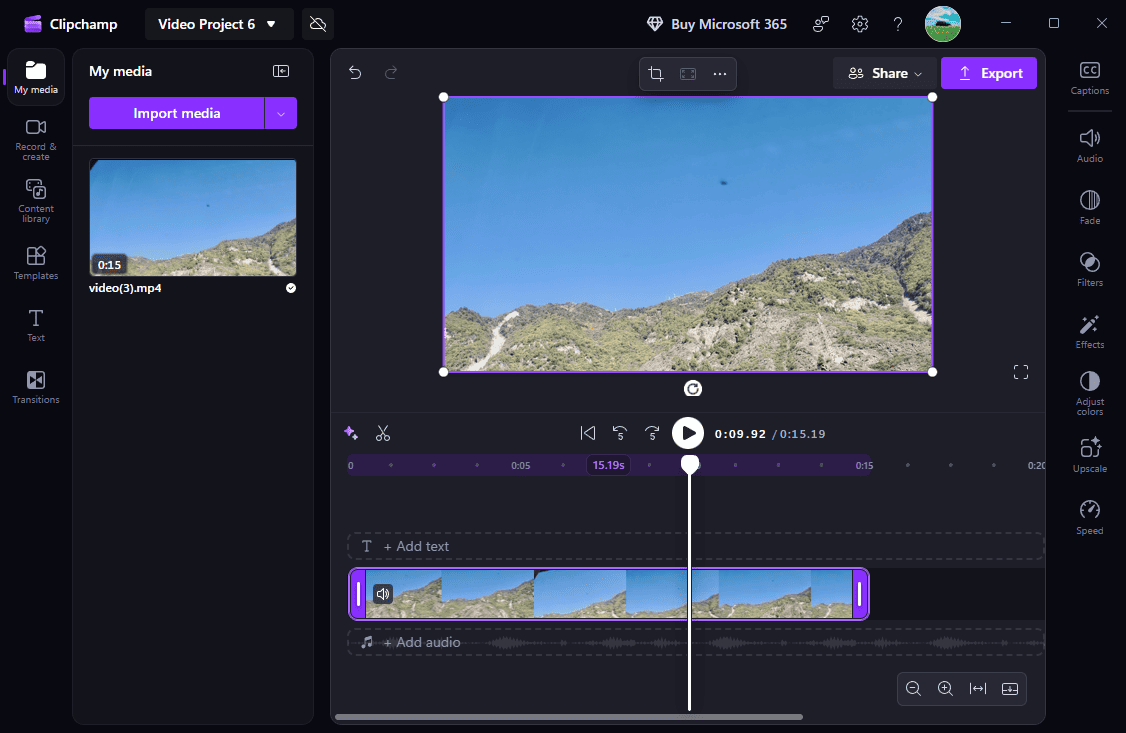
Key features:
- Rich video templates for customization.
- Crop videos without black bars.
- A library of visual assets and audio tracks.
- Transitions, effects, color adjustments, and filters.
- Built-in screen recording and webcam recording.
- AI voiceovers, automatic subtitles.
Pros:
- Pre-installed on Windows 11.
- Directly share videos to YouTube, TikTok, etc.
- Beginner-friendly interface.
Cons:
- 4K export requires a paid plan.
- Not all features are available in the free tier.
Clipchamp succeeds as a simple, mostly template-driven tool, and we like its impressive text-to-speech captioning and voiceover tools.https://www.pcmag.com/reviews/clipchamp
3. OpenShot
As for a 100% free alternative to VideoPad, I recommend OpenShot as the first option. It is a cross-platform, free video editor without watermark. With its straightforward interface and versatile editing features, OpenShot is a capable video editor in my mind.
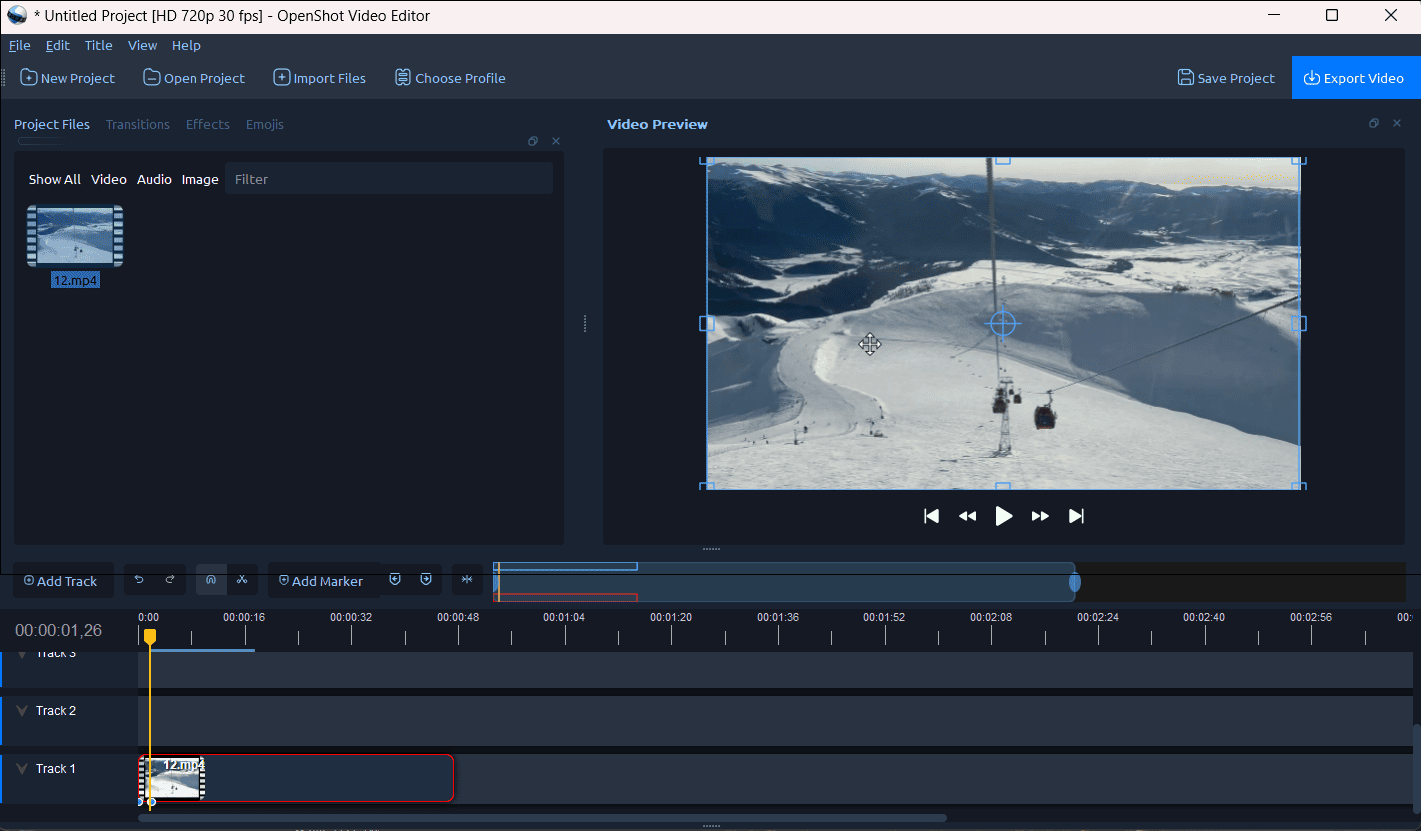
Key features:
- Powerful keyframe animation – animate clip transforms, opacity, volume, effect settings, playback speed, and more.
- Comprehensive color grading tools and scopes.
- Various video effects, such as chroma key, color adjustments, crop, and blur.
- Unlimited tracks and capable timeline editing (trim, slice, resize, snap, zoom, pan.
- Video masks, 400+ transitions, and audio editing.
- 3D animated titles, screen and webcam recording.
Pros:
- Completely free and open-source.
- Cross-platform compatibility.
- Supports numerous video and audio formats.
Cons:
- Occasional crashes when working with complex projects.
This will be an easy-to-use tool for people who don’t know much about video editing, and just want a simple software to get it done.https://www.creativebloq.com/reviews/openshot
4. Shotcut
Shotcut is also a free, open-source video editor with comprehensive editing features. Based on my experience, it is a powerful free VideoPad Video Editor alternative.
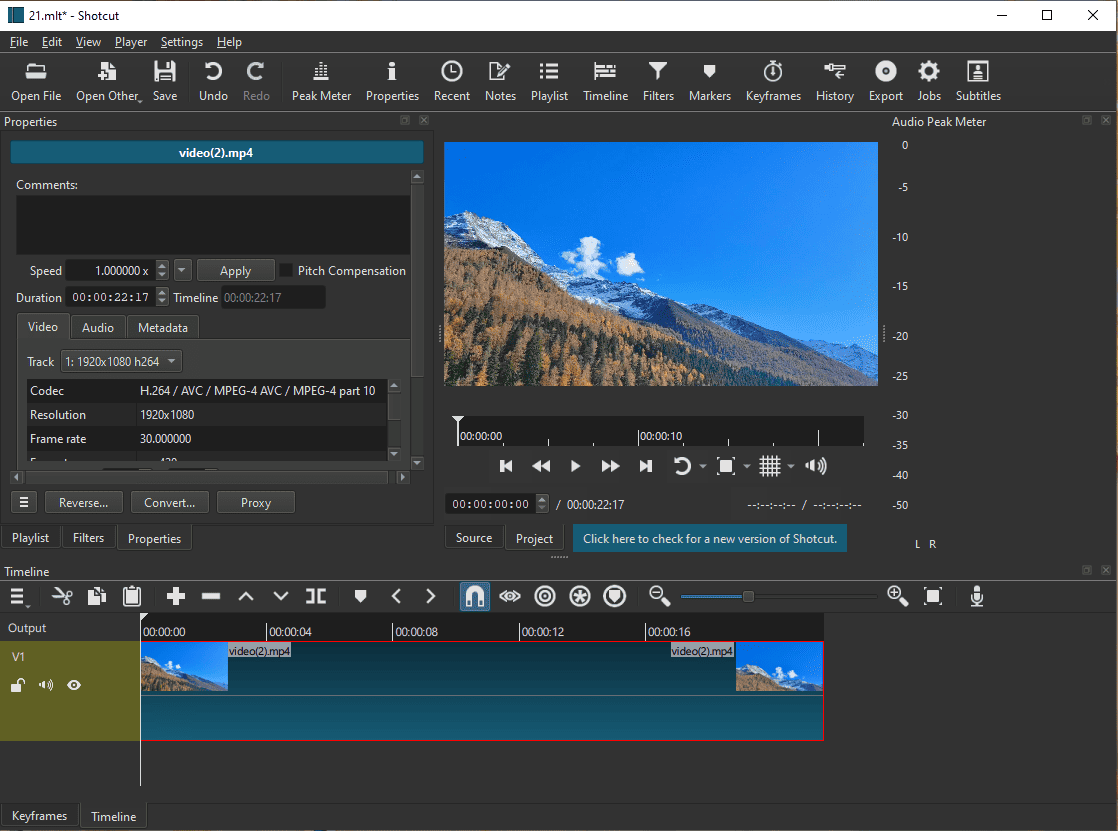
Key features:
- Supports multiple video and audio tracks.
- Offers a wide range of transitions: dissolve, wipe, and others.
- Rich effects and filters: blur, chroma key, glitch, stabilization, and more.
- Powerful color correction and grading, and keyframe animation.
- Supports audio mixing, equalizers, noise reduction, volume control, and fade effects.
- Slow motion, reverse playback, and speed ramping.
- Motion tracking, masking, and subtitle editing.
Pros:
- Free to use with no watermarks.
- 4K and 8K support.
- Proxy mode for smoother playback and editing.
- Wide media format support.
Cons:
- Its interface may be challenging for beginners.
If you’re on the lookout for a feature-rich video editor with no financial outlay, you can do a heck of a lot worse than Shotcut. https://www.techradar.com/reviews/shotcut-2203
5. VSDC Free Video Editor
Personally, VSDC Free is also a free, feature-rich alternative to VideoPad. The software combines basic editing tools with advanced visual effects. So, I think it is a capable tool for handling common tasks, though its interface is not easy to navigate for beginners. At least, that’s how I feel when I just started learning video editing.
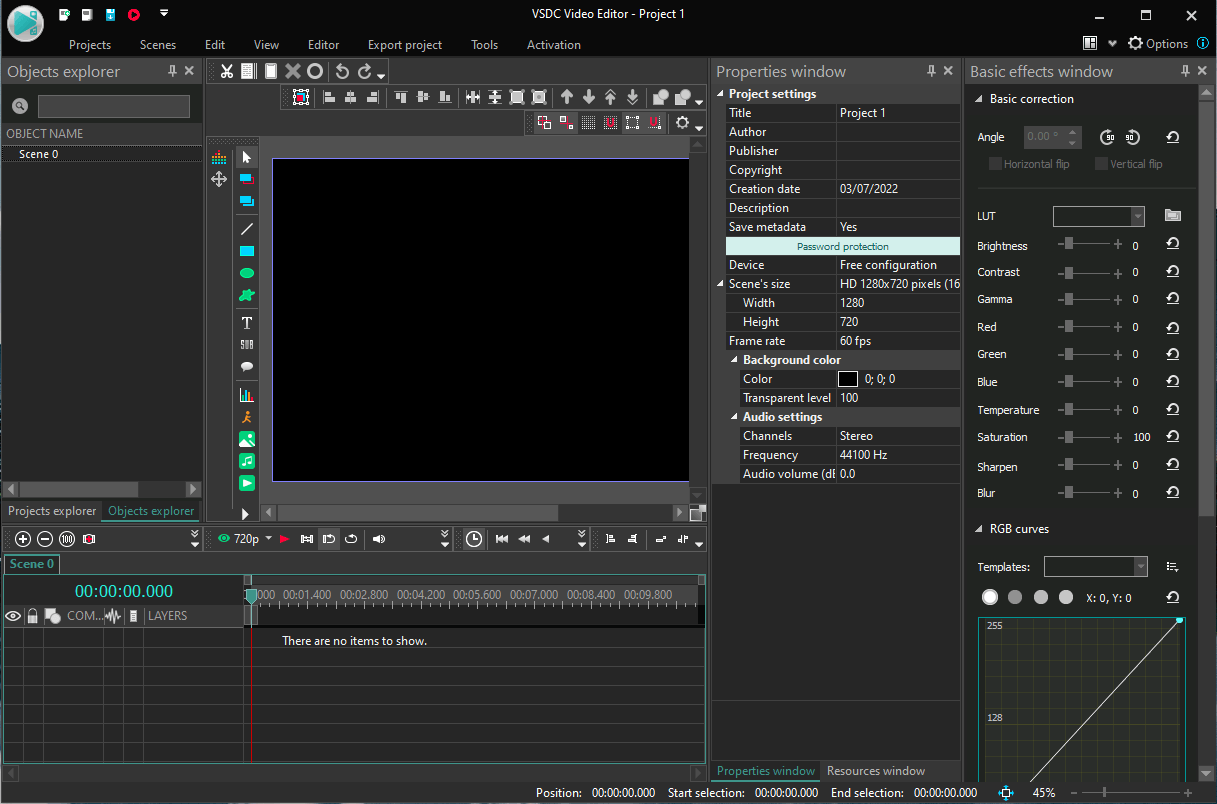
Key features:
- Remove green screen with a powerful chroma key tool.
- A large set of trendy video effects, filters, and transitions.
- 360 video editing, color correction, and blending modes.
- Various output profiles to export videos for different devices.
- Export videos in 4K and 8K.
Pros:
- No watermark on exported videos.
- Supports various video and audio formats.
- High-quality outputs.
Cons:
- Some advanced features in the Pro version.
VSDC is free video editing software that’s easy to understand and use. It comes with various features and tools to simplify video editing for beginners and help them create visually appealing videos.https://www.creativebloq.com/reviews/vsdc
6. CapCut
CapCut is a popular video editor with a user-friendly interface and powerful editing features, including AI-powered tools. Unlike VideoPad’s traditional interface, CapCut offers a modern and intuitive interface to edit videos. If you want a more creative alternative to VideoPad, I think CapCut is a reliable choice.
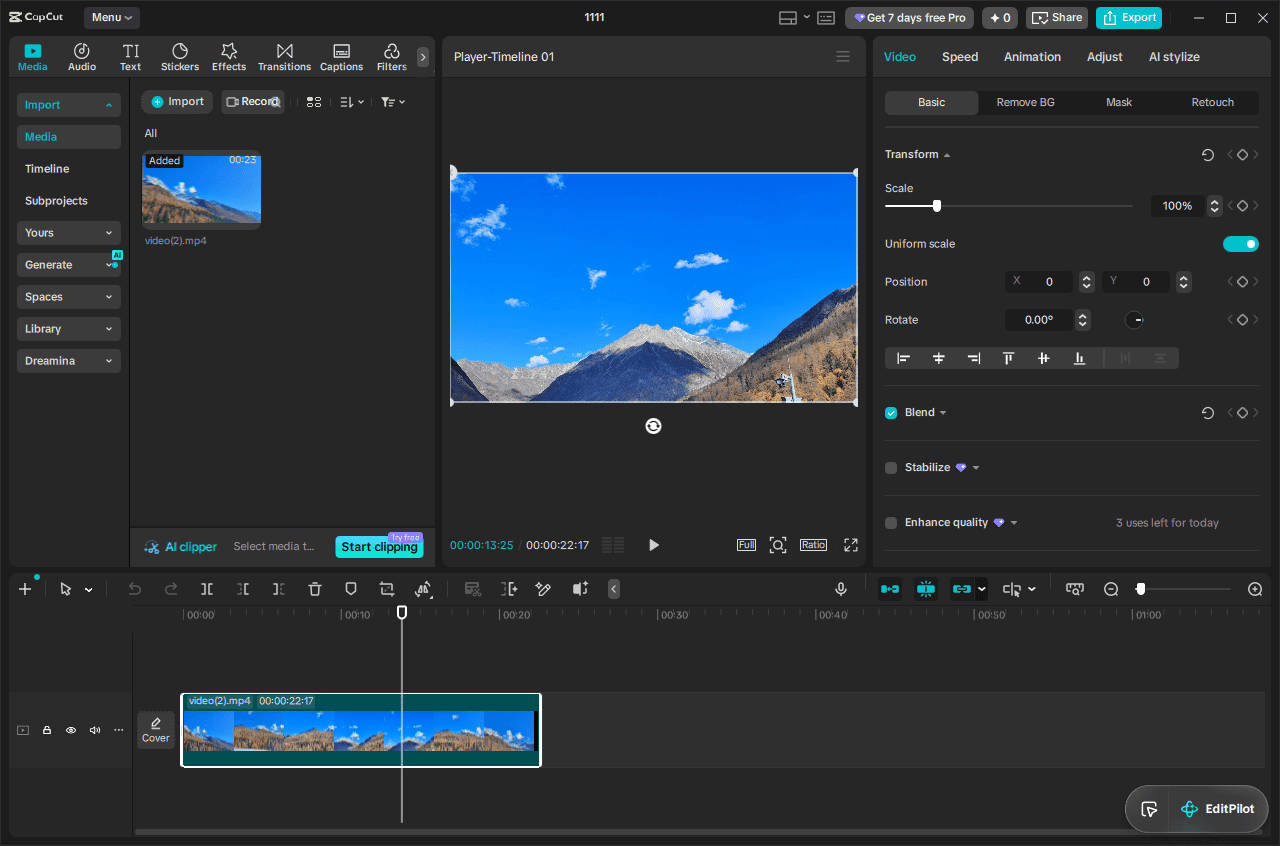
Key features:
- Extensive video templates for vertical videos.
- Multi-track timeline, speed curves, keyframe animation.
- Auto captions, text-to-speech, and background removal.
- Video effects, transitions, filters, music, animated text styles, and stickers.
- Basic color adjustment tools, HSL, curves, and color wheel.
- Audio enhancement, such as loudness normalization and noise reduction.
Pros:
- Modern and intuitive interface.
- Extensive creative resources.
- Various AI-powered tools for quick edits.
Cons:
- Some advanced features and resources require a paid subscription.
CapCut is a competent video editing app with a decent interface across every major platform, all the core editing tools we expect, and good output speed.https://www.pcmag.com/reviews/capcut
7. DaVinci Resolve
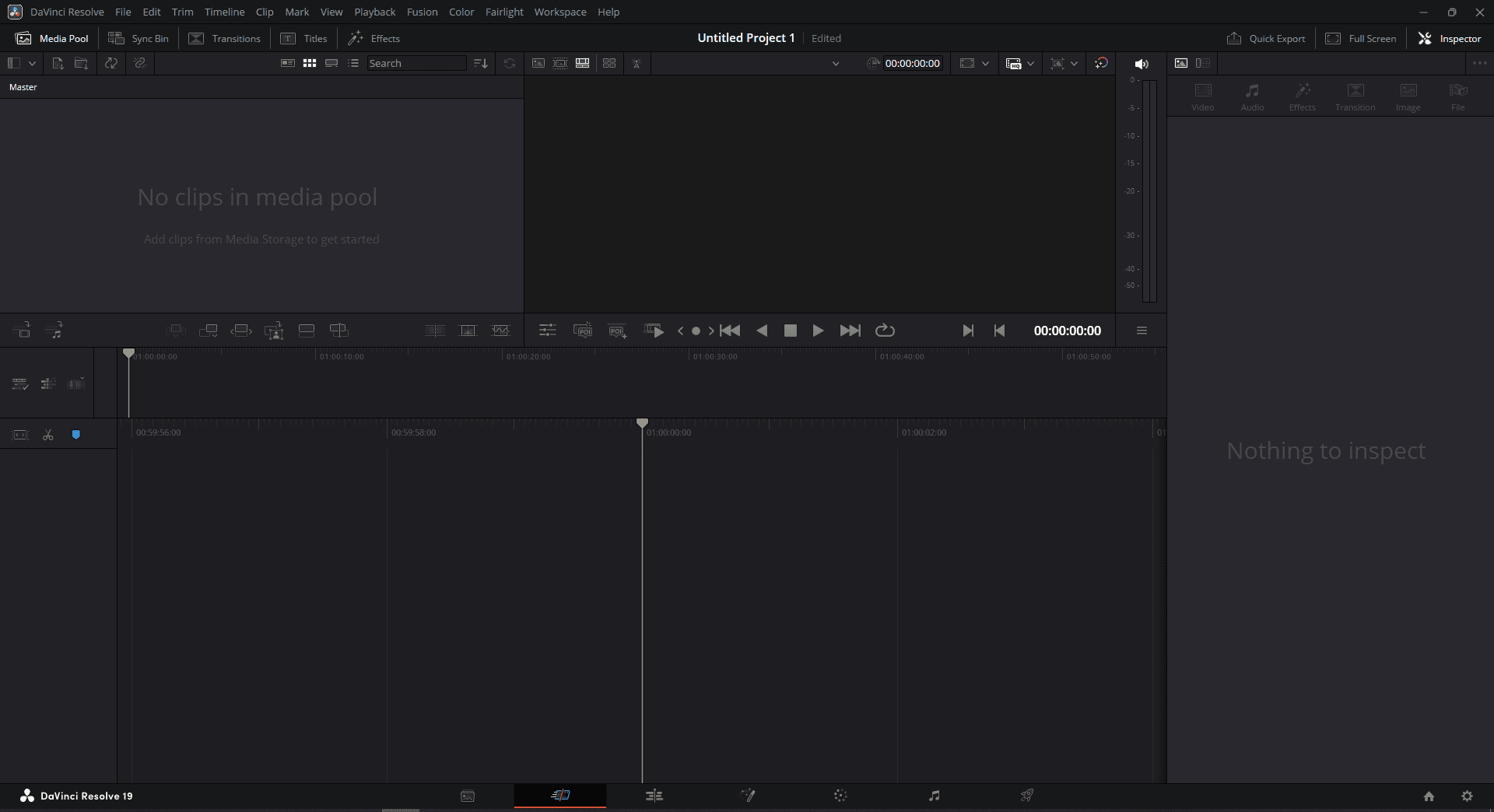
DaVinci Resolve is a professional-grade video editor. It is also an advanced alternative to VideoPad, especially for video enthusiasts who seek a free, robust tool and want to grow into a professional.
Key features:
- Professional color wheels, curves, HDR grading, and color matching tools.
- Animate position, scale, opacity, rotation, and other properties.
- Create animated titles, text effects, and visual effects.
- Edit, mix, enhance, and process audio.
- Create slow-motion, fast-motion, and speed ramping effects.
- Synchronize and switch between multiple camera angles.
- AI face and enhancement tools, such as blemish removal and face reframing.
Pros:
- 7 dedicated working pages for different tasks.
- Free, no watermark.
- Powerful, comprehensive editing tools and effects.
- Superior stability and performance.
- Supports proxy media for smooth editing.
Cons:
- High system requirements.
DaVinci Resolve is an extremely capable professional video editing application with an impressive collection of adjustments and effects. New users should just expect a lengthy acclimation period, though, as its interface and methods differ from the norm.https://www.pcmag.com/reviews/davinci-resolve

Conclusion
Although VideoPad is a great video editor for editing and enhancing videos, you may occasionally want to try an alternative for some reason. This post offers 7 choices: MiniTool MovieMaker, Clipchamp, OpenShot, Shotcut, VSDC, CapCut, and DaVinci Resolve. It also compares their key features, pros, and cons to help you select the desired one.
Finally, if you have any questions while using MiniTool MovieMaker, email [email protected] for help.
People Also Ask
About The Author

Position: Columnist
Cora is a tech writer specializing in digital media workflows, with over six years of hands-on experience in video post-production, media transcoding, and screen capture. Her writing is always clear and practical. Cora also produces in-depth software reviews for users across skill levels to help them find the right tool and enjoy video editing.
User Comments :