

This post guides you through three simple ways to remove frames from GIFs. Explore the best GIF frame removers and delete unwanted or duplicate frames from your animation, thus efficiently reducing file size or enhancing your GIF.
Why Remove Frames from GIFs
GIFs are a common way to express reactions and emotions in social media communication, demonstrate product features in marketing, add visual interest to websites, and create silent video loops for simple tutorials. However, sometimes you need to remove frames from GIFs due to the following reasons.
Content Editing
When editing a GIF, you may often need to delete unnecessary frames at the beginning, middle, or end to control the GIF’s duration and enhance quality. If you only want key moments from a long GIF, it’s also essential to delete other frames from the GIF.
File Size Reduction
If you want to make a GIF smaller, removing frames is also a quick solution. Then the GIF will load quicker on websites and messaging apps and take up less space.
Platform Requirements
You cannot upload or send GIF files that exceed the file size limit for a specific platform or messaging app. In this case, you can remove some frames from the GIF to meet the upload requirements or use a GIF compressor to shrink the file size.
How to Remove Frames from GIFs
It’s easy to remove frames from GIFs using tools like MiniTool MovieMaker, Photoshop, and online GIF editors. Before diving into the steps, please note the following tips to ensure a high-quality result:
- Don’t delete too many frames; the animation will become choppy.
- Don’t delete important frames that decide the narrative flow of the GIF.
- Preserve essential transition frames.
Method 1: Use MiniTool MovieMaker
MiniTool MovieMaker is a free GIF maker and editor. It allows you to make animated GIFs from various video file types and convert GIFs to popular video formats. It also lets you edit GIFs by trimming, splitting, speed adjustment, color correction, cropping, and more.
Here’s how to remove frames from a GIF with MiniTool MovieMaker.
Step 1: Install the GIF Frame Remover
Click the button below to download and install MiniTool MovieMaker on your computer.
MiniTool MovieMakerClick to Download100%Clean & Safe
Step 2: Import Your GIF
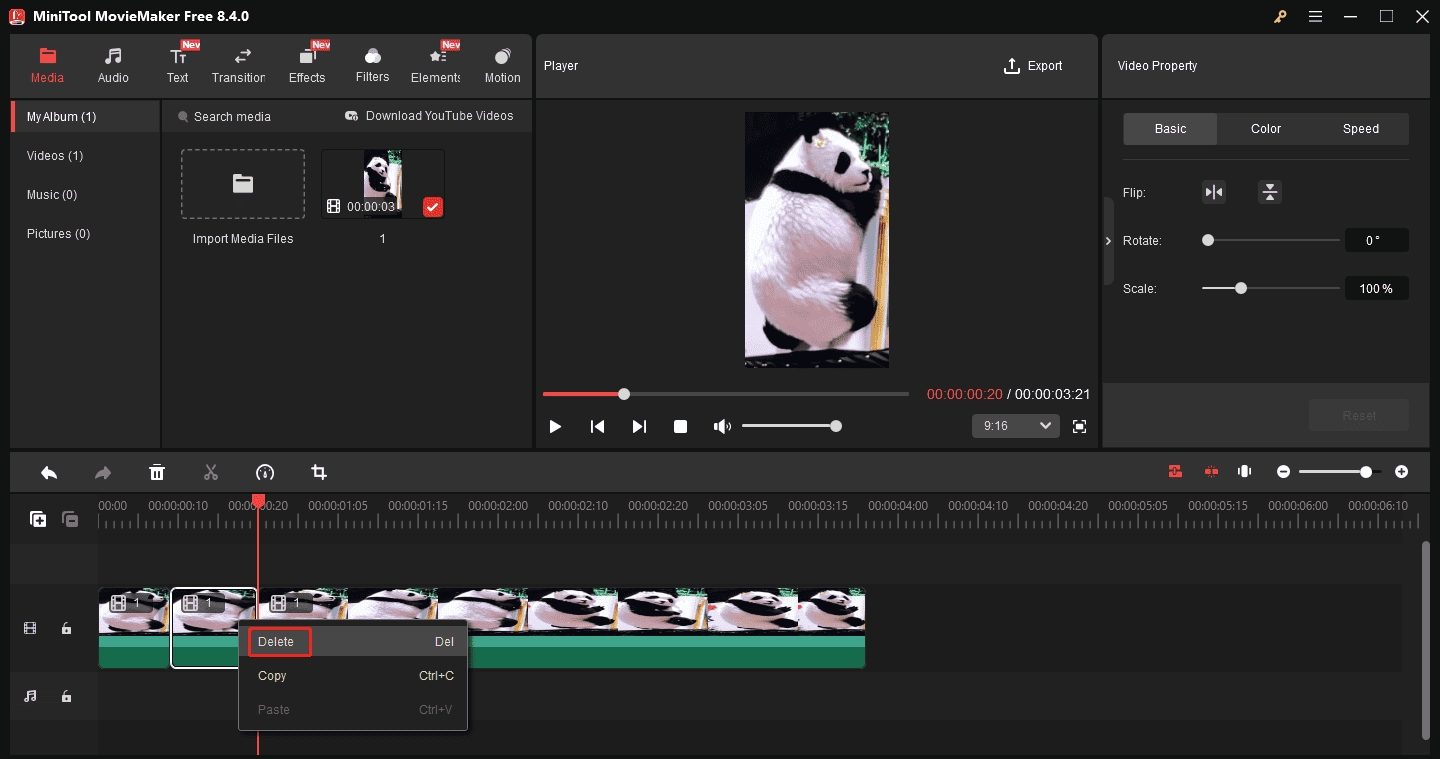
Launch the program and close the pop-up window to enter the main interface. Click Import Meid Files to open the GIF from your PC and drag it to the timeline.
Step 3: Remove Unwanted Frames
Click the Zoom in icon on the right of the timeline toolbar to zoom in on the timeline and easily locate the frames you want to delete. Then, use the Split tool to separate unnecessary frames and delete them.
Step 4: Export the GIF
Click Export in the top-right corner, set the output format to GIF, and click Export to start rendering the result.
Method 2: Use Photoshop
Photoshop is a professional image editing application with comprehensive tools, and it can also edit and create GIFs. If you don’t know how to remove frames from a GIF using Photoshop, follow the steps below.
Step 1: Open Your GIF
After running Photoshop, go to File > Open to select and open your target GIF.
Step 2: Convert the GIF into Frames
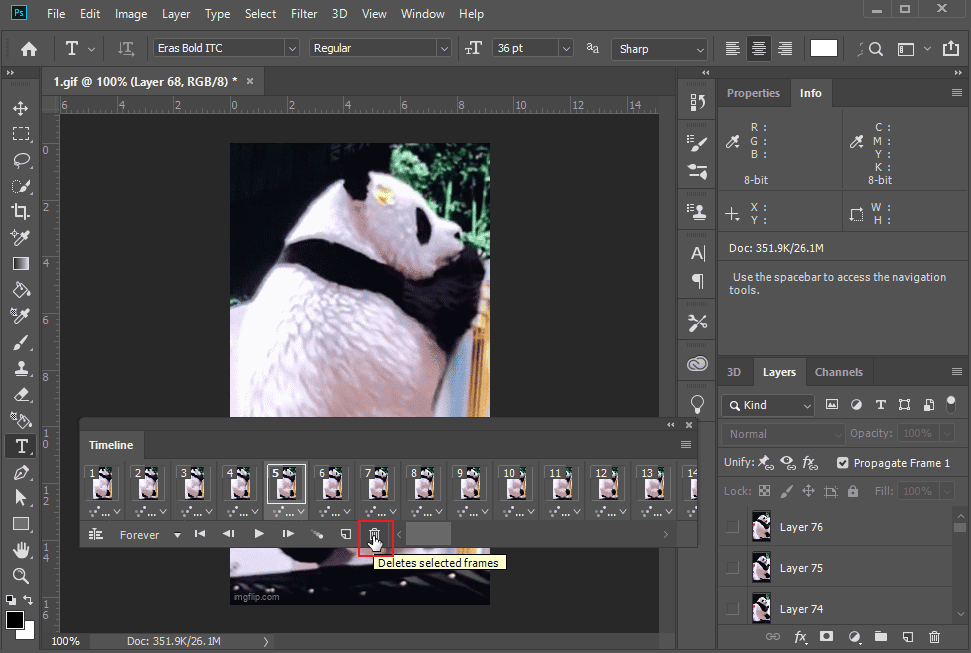
Select Window at the top and choose Timeline from the dropdown to see your animation frames.
Step 3: Delete Unnecessary Frames
Click the specific frame or select multiple frames in the Timeline and click the Delete icon at the bottom of the timeline panel.
Step 4: Save the GIF
Go to File > Export > Save for Web (Legacy) to open export settings. Ensure GIF is set to the output format. Then, click Save to export and save the GIF to your computer.
Method 3: Use Online GIF Tools
As the name suggests, Online GIF Tools is an online GIF editor that provides essential editing tools to help you enhance your animation. This service allows you to convert GIFs to sprite sheets, adjust GIF speed, crop GIFs, make the GIF transparent, remove GIF frames, reverse GIFs, and more.
Follow the steps below to remove frames from a GIF using Online GIF Tools.
Step 1: Access the Online GIF Frames Remover
Go to the Online GIF Tools website (https://onlinegiftools.com/), type “remove frames” in the search box, and select the Remove GIF Frames option. Click the Click to load image button to open your GIF.
Step 2: Delete Frames
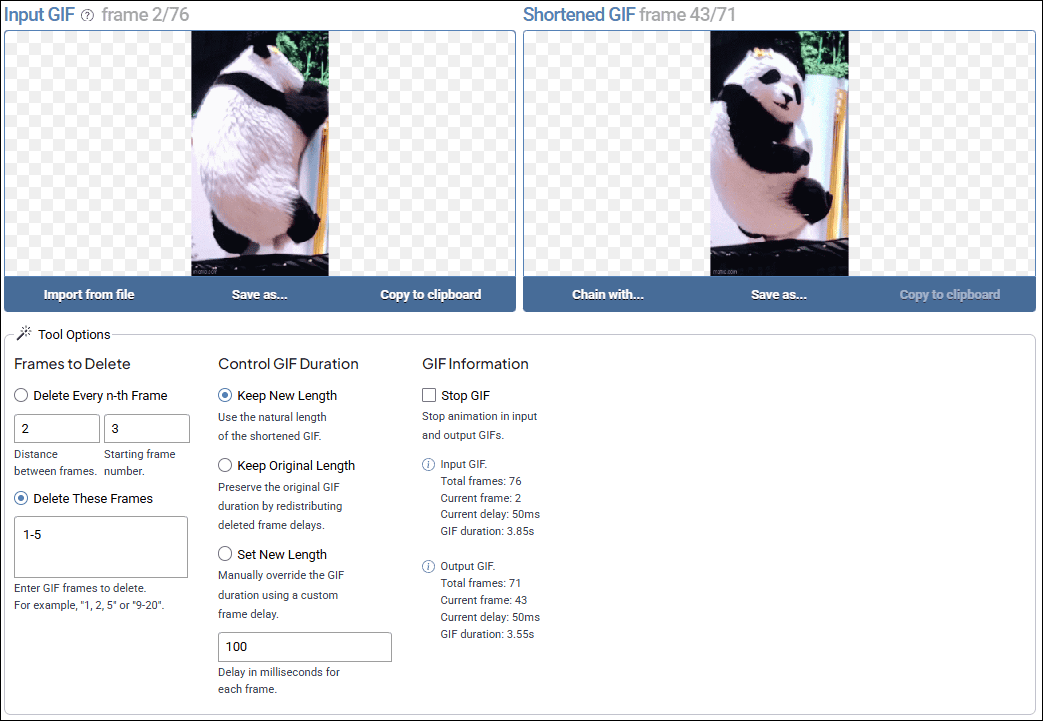
Choose the way you wish to remove frames:
- Delete Every n-th Frame: This mode lets you delete every n-th frame starting from a specific frame. This mode periodically removes equidistant frames.
- Delete These Frames: This mode allows you to enter specific frames that you want to remove.
Step 3: Export the GIF
Click the Save as option at the bottom of the shortened GIF frame dialog and select Download.
Conclusion
This post details three ways to remove frames from GIFs. You can now follow the steps above to delete unwanted frames from your GIF to make it polished and reduce the file size effectively.
About The Author

Position: Columnist
Cora is a tech writer specializing in digital media workflows, with over six years of hands-on experience in video post-production, media transcoding, and screen capture. Her writing is always clear and practical. Cora also produces in-depth software reviews for users across skill levels to help them find the right tool and enjoy video editing.
User Comments :