

Polaroid cameras are among the most popular devices for instant photography, allowing you to see your photos immediately after taking them. Their iconic white borders and vintage-style appearance make Polaroids instantly recognizable and convey a warm and artistic vibe.
However, with the rising cost of Polaroid film and the growth of digital photography, many people now choose to add a Polaroid effect to their digital photos. This post will show you how to make a picture look like a Polaroid using MiniTool MovieMaker and Canva.
How to Make a Picture Look Like a Polaroid
Method 1: Use MiniTool MovieMaker
MiniTool MovieMaker is a versatile editing software that allows you to edit videos, audio, and photos. As a multi-track editor, this application is capable of creating a picture-in-picture effect.
To make a picture look like a Polaroid, MiniTool MovieMaker offers an extensive library that contains frames and filters. The collage frames with white borders mimic the Polaroid film, while the artistic filters can easily give your photos a vintage look.
For a polished and professional result, you can adjust image properties such as contrast, saturation, brightness, and 3D LUT effects. Additionally, you can add playful stickers to make your images more lively.
Here is a step-by-step guide on how to make a picture look like a Polaroid using MiniTool MovieMaker.
Step 1: Download and Install
Click the button below to download MiniTool MovieMaker, and install this software by following the on-screen instructions.
MiniTool MovieMakerClick to Download100%Clean & Safe
Step 2: Import Your Photo
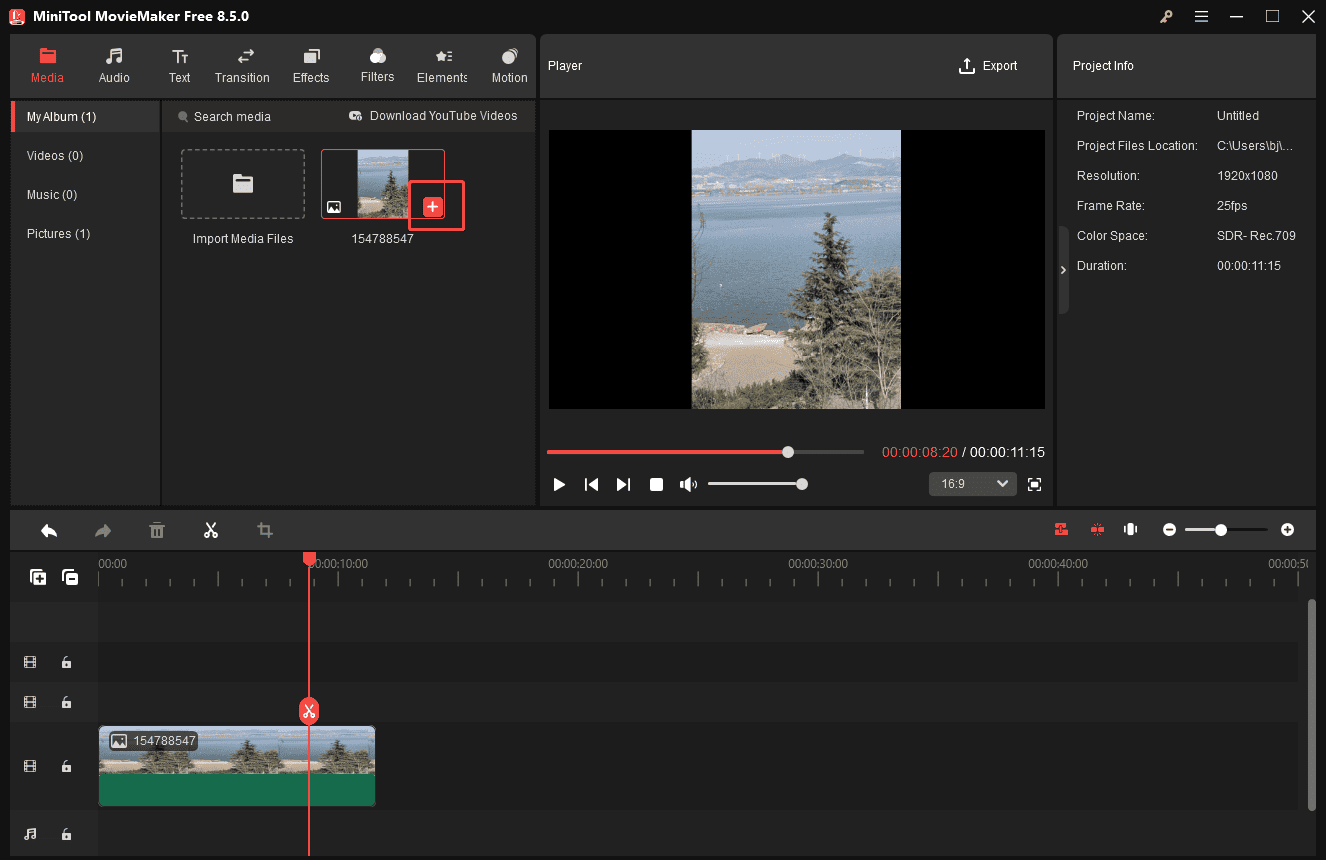
Launch MiniTool MovieMaker and close the pop-up project library window. Click Import Media File to upload your image. Then, click the Plus icon to add the image to the timeline.
Step 3: Add a Filter to the Image
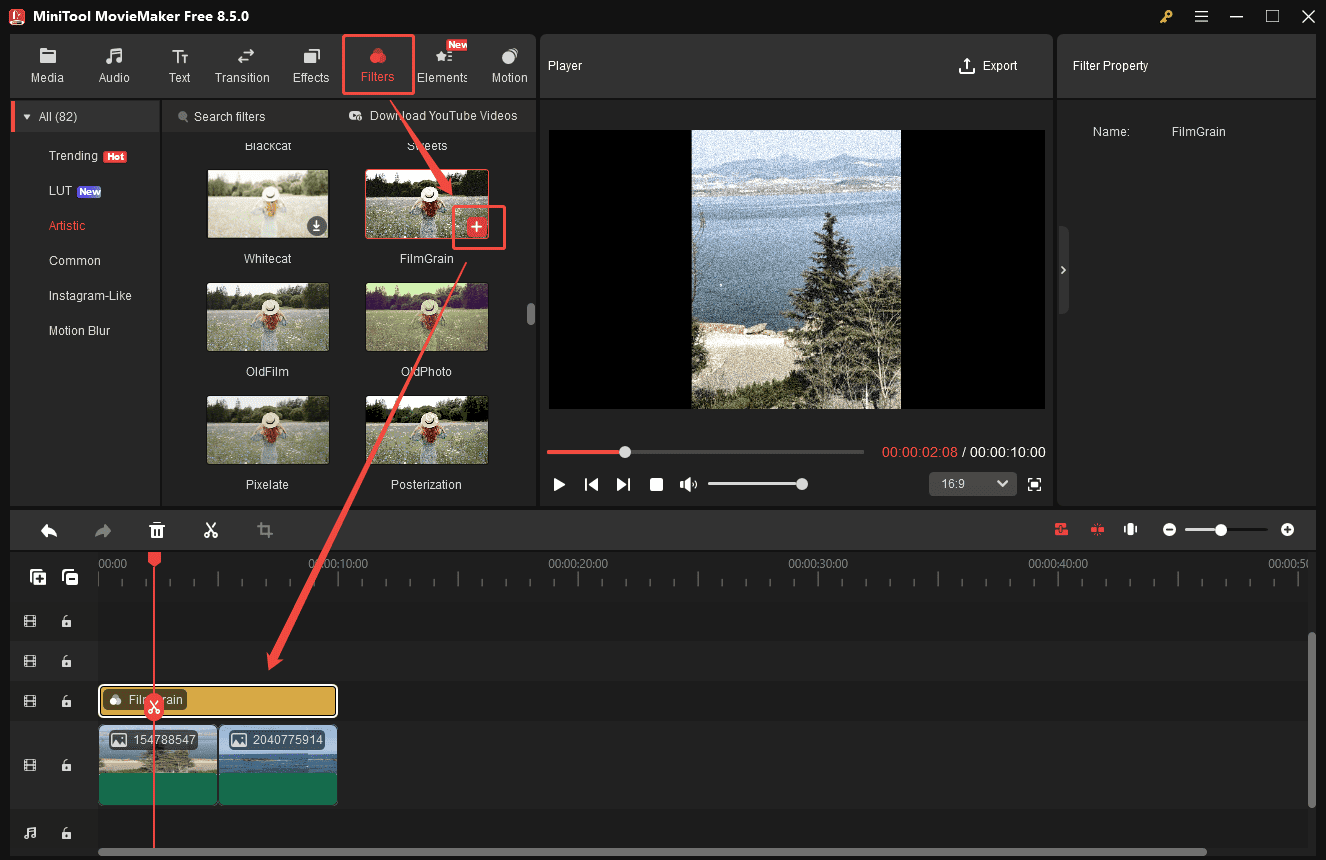
Click Filters and scroll down to find your preferred filter. Click the Download icon and drag it to the timeline. Drag the edge of the filter layer on the timeline to adjust its duration. You can preview the effect in the player window.
Step 4: Add Polaroid Frame
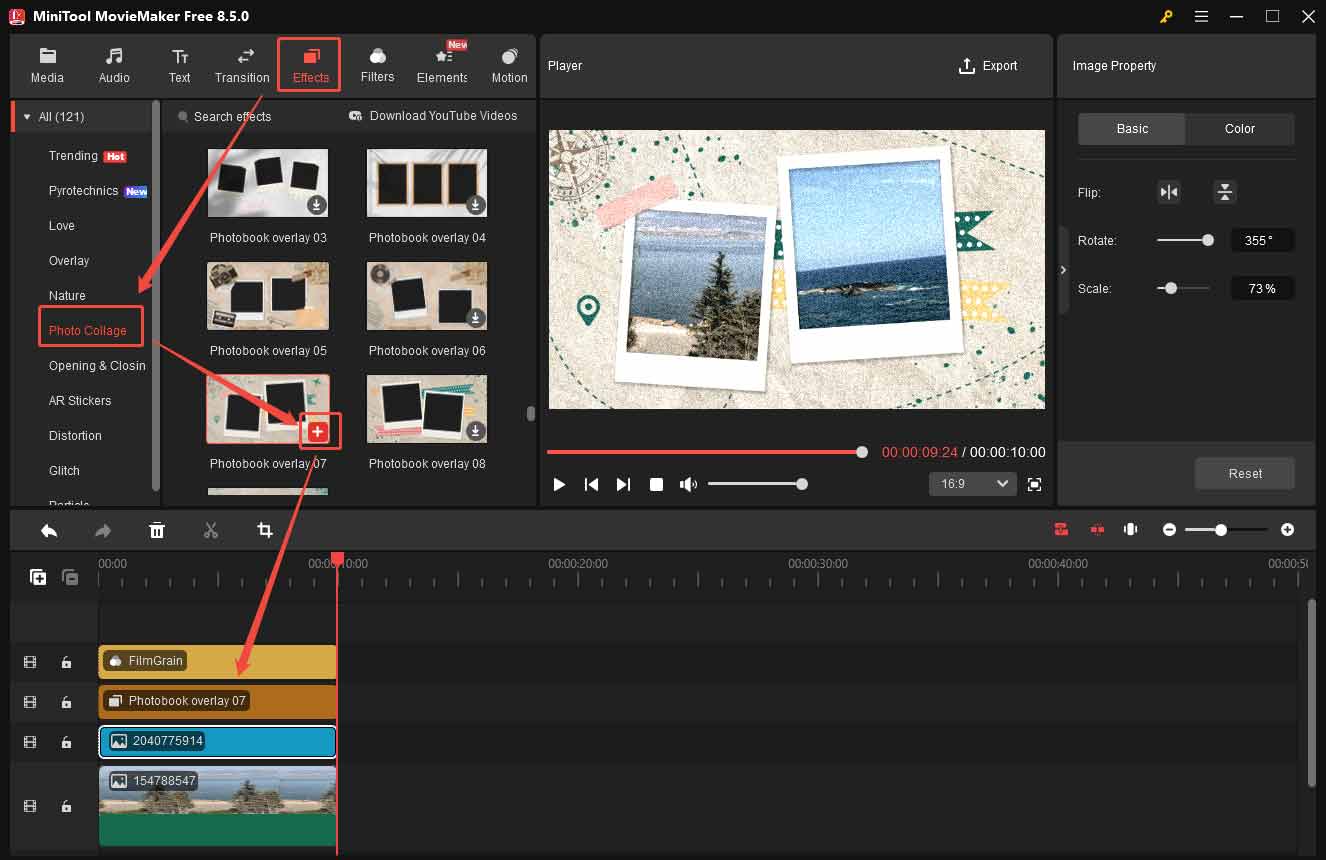
Click Effects at the top of the menu and select Photo Collage. Click the Download icon of your desired frame. Next, drag it to the timeline. Adjust the image to fit the frame precisely by resizing, rotating, or repositioning it directly in the player window.
Step 5: Export the Image
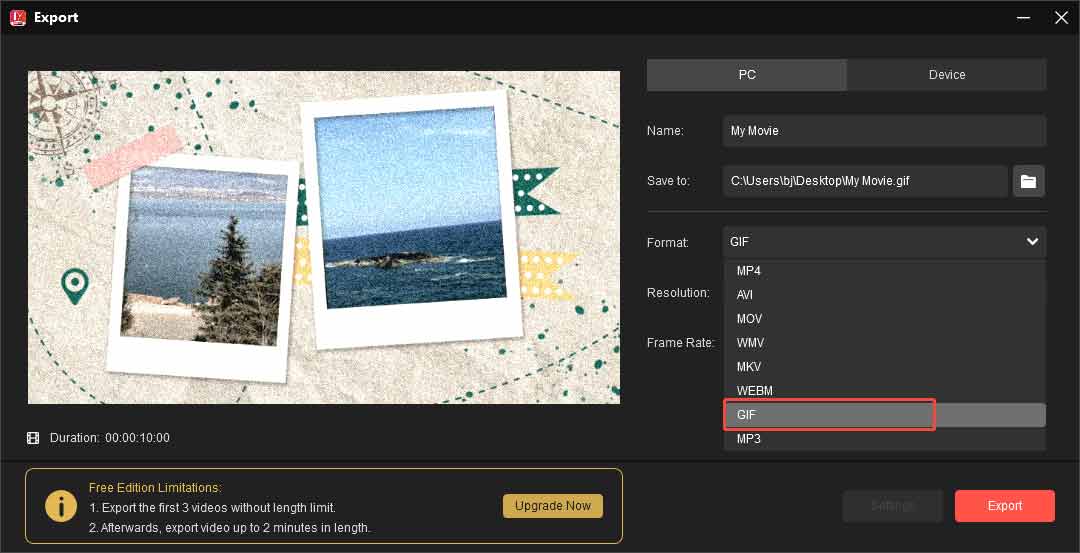
If you are satisfied with the visual effects, click the Export option above the player window. Select the format as GIF and click Export at the bottom of the export window. Then, if you prefer a static image, you need to convert GIF to PNG or other formats as needed.
Method 2: Use Canva
If you prefer a quicker method, the online editor Canva is a great choice. The versatile graphic design and photo editing platform lets users create photo collages, eBook covers, and more. Its simple drag-and-drop interface and various animation options make it especially beginner-friendly for starting design projects.
For a Polaroid effect, Canva provides a wide range of ready-made templates that you can customize with your images and decorations. You can adjust the size, position, and rotation of your photos, change fonts and colors, and even add stickers or other graphics to give your Polaroid-style image a personalized look.
How to make a picture look like a Polaroid online? Here is the detailed guide.
Step 1: Access Canva
Navigate to the official website of Canva (https://www.canva.com/) and sign in with your account. Click Templates in the sidebar and search Polaroid.
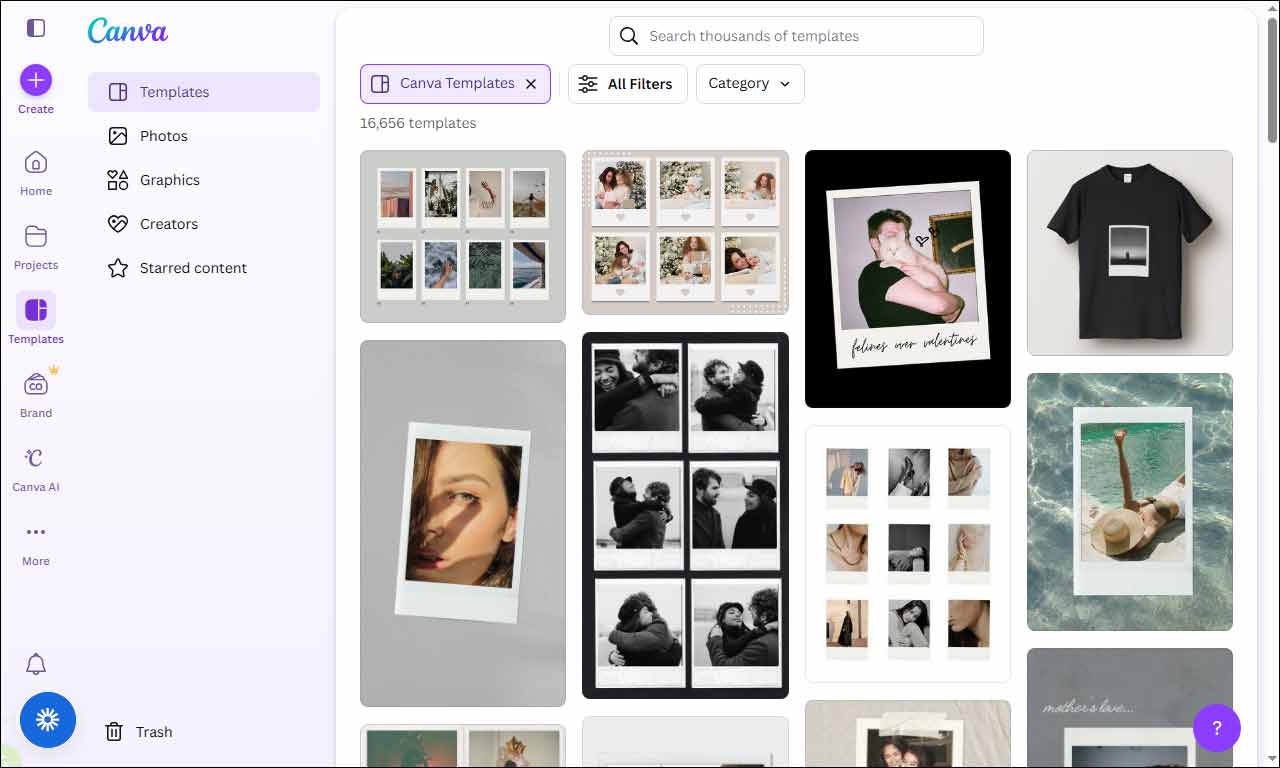
Select a template you like and click Customize this template.
Step 2: Upload Your Image
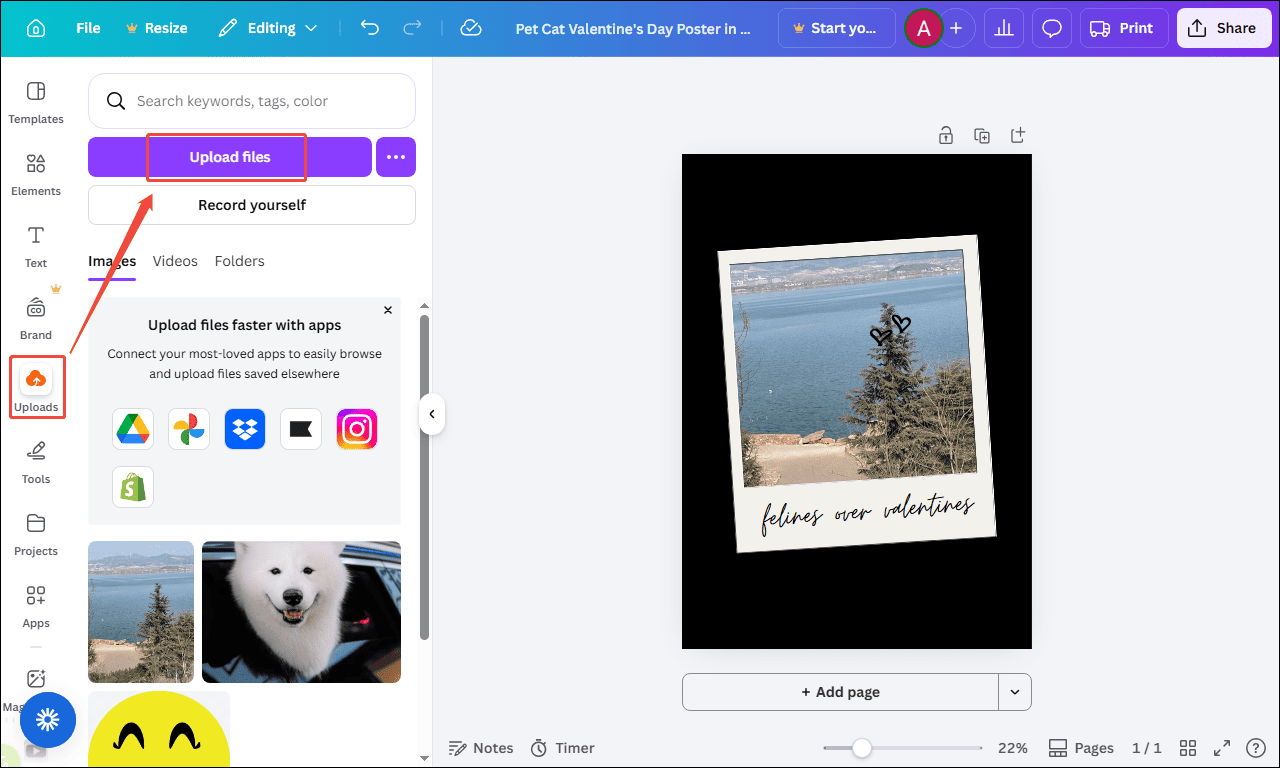
Click Uploads in the sidebar and select the Upload files option to import your image. Then, drag it to the page.
Step 3: Edit the Image
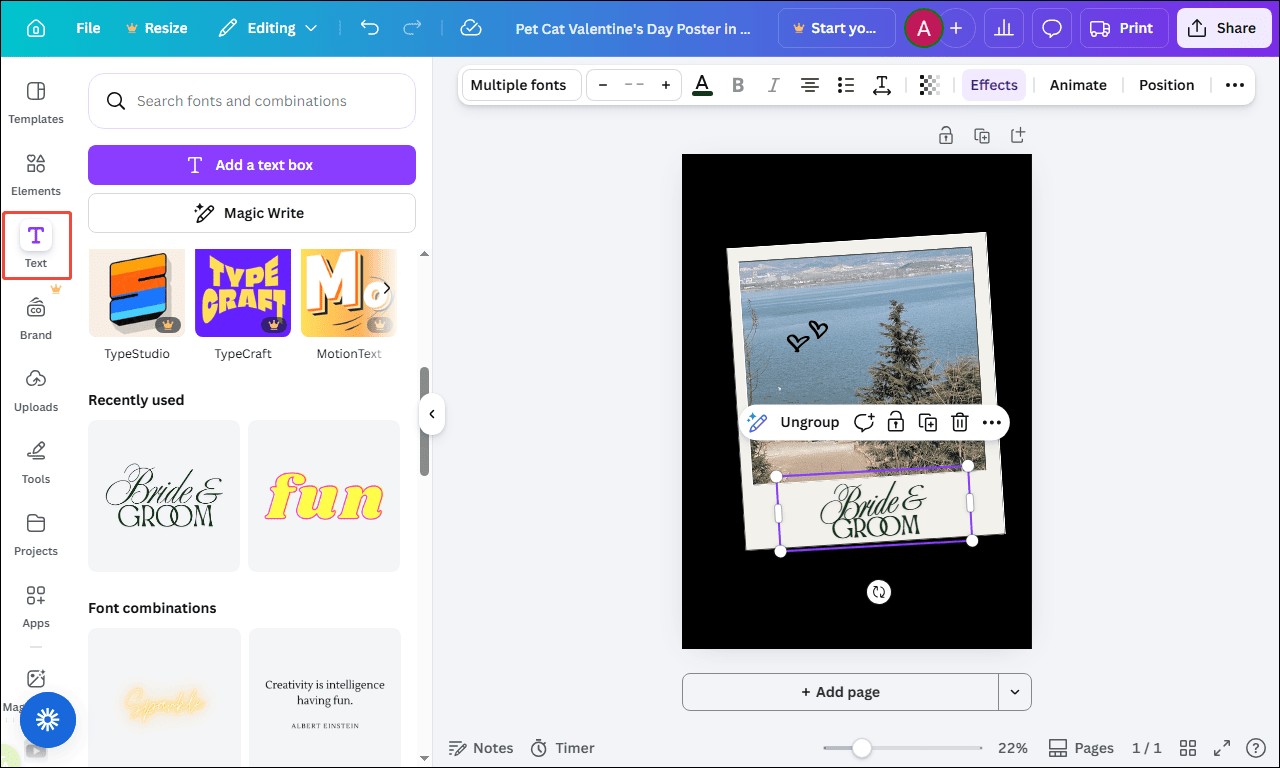
Directly drag the image on the page to adjust its position and rotation. To modify the text style, click Text and choose a desired style. Click it to add it to the page, enter your text, and adjust its position for a polished look.
Step 4: Save Your Image
Click Share in the top right corner and select Download. Then, choose a format and click Download again to save the image to your PC.
Conclusion
This post offers 2 simple methods to make a picture look like a Polaroid. Whether you use MiniTool MovieMaker or Canva, you can easily create stunning and artistic photos. Follow the steps above to make your own Polaroid-style images.
If you have any suggestions or encounter any problems when using MiniTool MovieMaker, please don’t hesitate to contact us via [email protected].
User Comments :