

Pinterest videos have become increasingly popular for sharing creative ideas and attracting attention. This post introduces six of the best Pinterest video editors on Windows, including MiniTool MovieMaker (the best free video editor for beginners), Microsoft Clipchamp, CapCut, Filmora, VEED, and Typito.
Pinterest is a popular social media platform that allows me to discover, save, and organize images and videos, known as pins. It can be seen as a virtual pinboard where users can collect and manage content based on their interests, from DIY projects to recipes.
When I use this platform, I often wonder if there is a Pinterest video editor that can help me create more engaging videos and increase views. After some research and testing, I found six excellent tools for editing videos for Pinterest.
6 Best Pinterest Video Editors at a Glance
- MiniTool MovieMaker
- Microsoft Clipchamp
- CapCut
- Filmora
- VEED
- Typito
Here is a concise comparison table of these Pinterest video editors.
| Tool | Platform | Pricing | Watermark | Native 9:16 Support | Pinterest Templates | Key Strengths |
| MiniTool MovieMaker | Windows | Free + Paid | No | Yes | No | Completely free, no watermark, easy to use |
| Clipchamp | Win / Web | Free + Paid | No | Yes | Yes | System integration, templates available |
| CapCut | Win / Mac / Mobile | Free + Pro | No | Yes | Yes | Rich templates, AI-powered features |
| Filmora | Win / Mac | Paid | Yes, the free trial version | Yes | Yes | Professional controls, extensive assets |
| VEED | Web | Free + Paid | Yes, the free account | Yes | Yes | Online collaboration, subtitle tools |
| Typito | Web | Free + Paid | Yes, the free plan | Yes | Yes | Brand kits, templates |
A reliable Pinterest video editor should not only be beginner-friendly but also offer practical tools such as cutting, text overlays, and aspect ratio adjustments. These tools I found based on ease of use, supported formats, and editing features. Let’s take a closer look at each of them.
1. MiniTool MovieMaker
When I need to edit Pinterest videos on Windows, MiniTool MovieMaker is the first tool that comes to mind, as it is simple to use and offers all the features I need. The interface is clean and intuitive, making it accessible for both beginners and experienced users. It also provides a walkthrough guide for newcomers to navigate the software with ease.
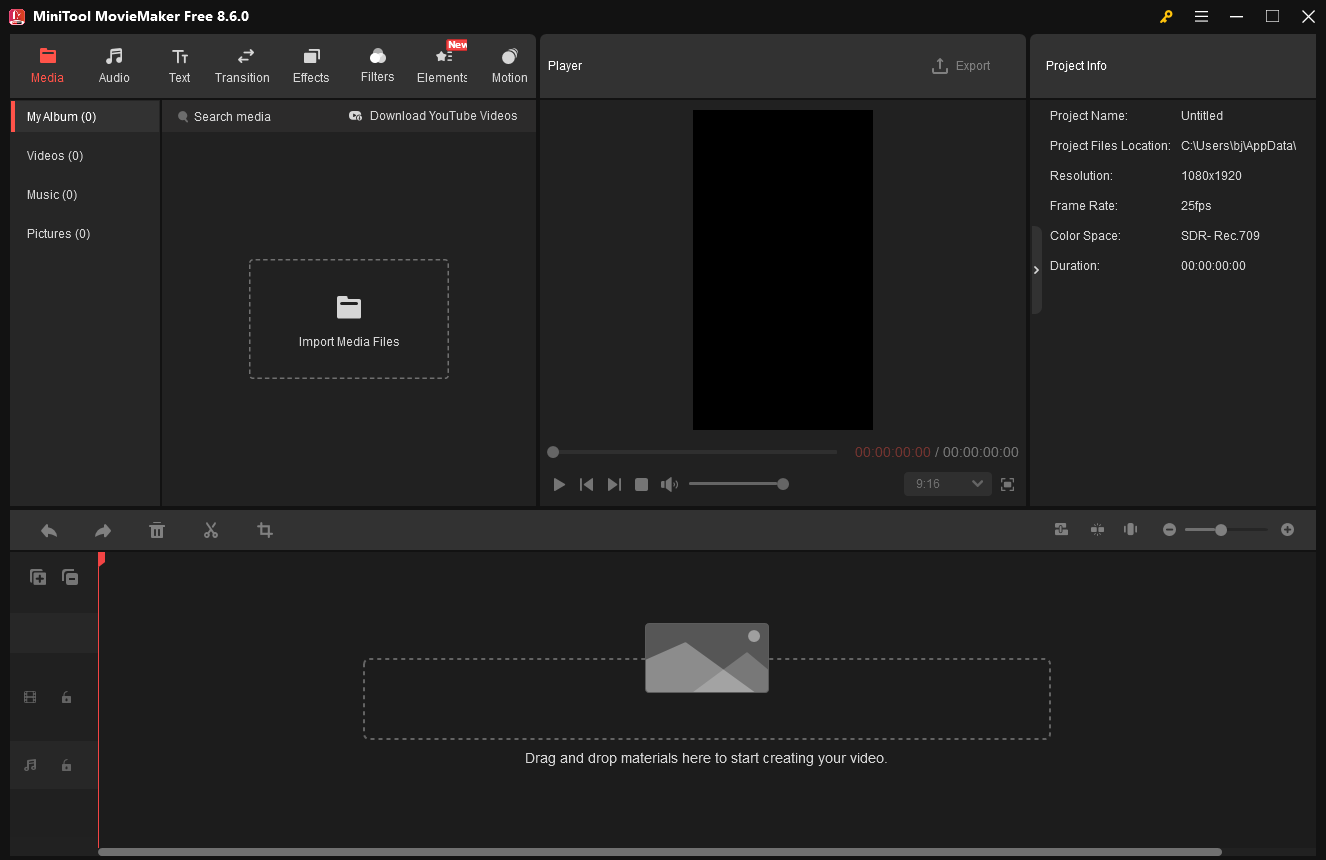
One of its useful features is the ability to customize aspect ratios. I can easily resize videos to fit different platforms, including the 9:16 vertical format recommended for Pinterest. This ensures my videos display properly and look visually appealing. It also provides other ratio options, such as 16:9, 4:3, and 1:1, so I can create content for other platforms, such as YouTube.
In addition, the software offers a comprehensive set of editing tools. For basic editing, it can trim, split, crop, reverse, speed up, slow down, and rotate video. For advanced editing, this software supports creating a picture-in-picture effect, making video collages, and editing 4K footage smoothly.
More than that, the application features an extensive resource library, including various music, filters, transitions, stickers, effects, and motion elements, which allows me to enhance my Pinterest videos with suitable materials. What’s more, with a wide selection of text templates, I can choose an engaging style to highlight key information.
Another reason I like this tool is that it supports a wide range of video formats and enables me to export videos in up to 4K resolution for free, helping me create high-quality Pinterest videos more efficiently. Overall, MiniTool MovieMaker is a practical choice for beginners who want to create Pinterest videos easily on Windows.
Pros:
- Ease of use.
- Flexible aspect ratio options.
- Comprehensive editing tools.
- Rich built-in resources.
- Support high-resolution output.
- No watermark.
Cons:
- Only available on Windows.
MovieMaker by MiniTool is an inexpensive, easy-to-use video editing program. It includes a fair number of effects and gives you easy ways to join your clips, add transitions, and overlay objects and text.https://www.pcmag.com/reviews/minitool-moviemaker
2. Microsoft Clipchamp
Microsoft Clipchamp is a built-in video editor on Windows 11, so I can access it quickly without installation. It is also available in browsers, as it offers a web-based version, giving me the flexibility to work on different devices. Its clean layout makes the editing process straightforward, making it quick to create a simple Pinterest video.
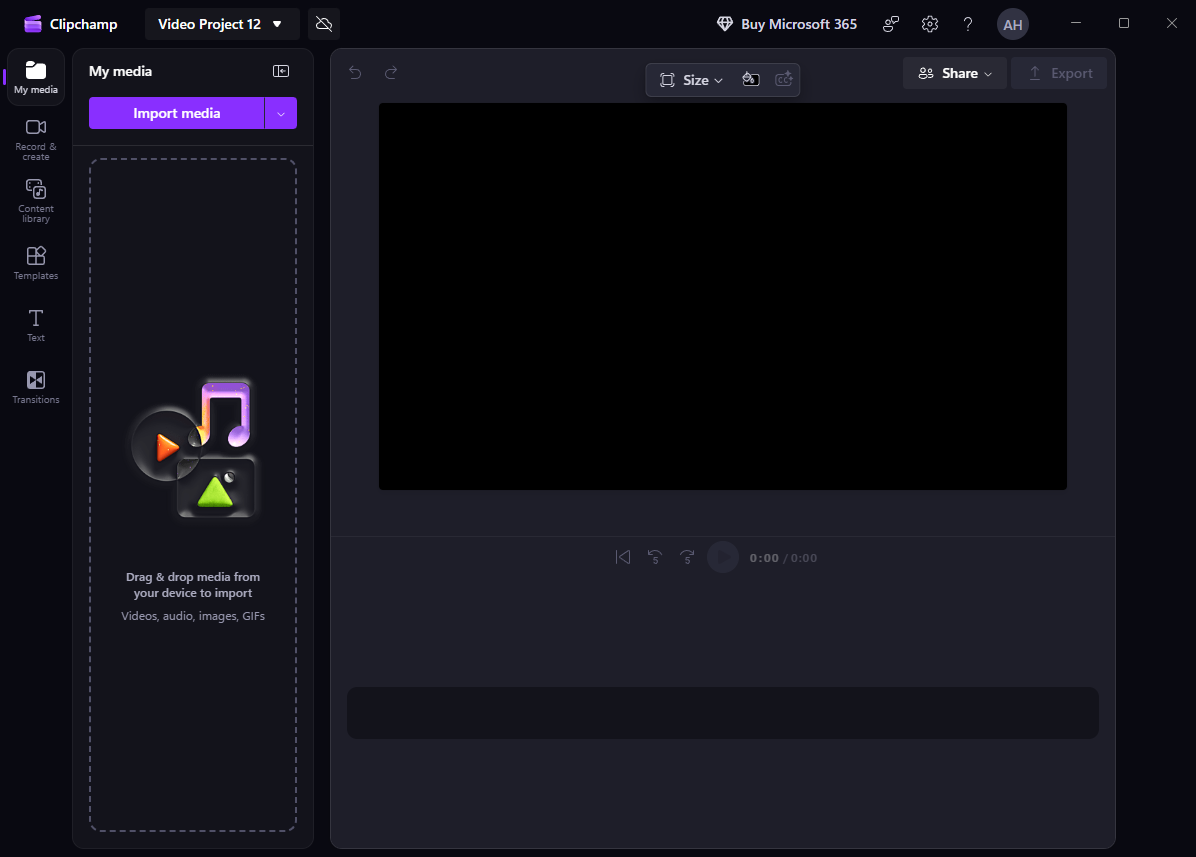
Although there are no templates specifically designed for Pinterest, Clipchamp provides a variety of vertical video templates that I can use. It also allows me to create videos from scratch with its robust editing tools and multiple stock media. I can cut video footage, use royalty-free videos, images, and music, and apply visual effects to enhance the overall look of my Pinterest videos.
When exporting videos, Clipchamp allows me to save projects to the cloud for easy access and further edits. However, there are some limitations in its export settings. The software supports exporting videos at 720p, 1080p, and 4K resolutions, but 4K export requires a paid upgrade.
Pros:
- No installation required on Windows 11.
- Pre-made templates.
- Versatile editing functions.
- Rich built-in assets.
- Cloud storage support.
Cons:
- 4K export requires a paid upgrade.
3. CapCut
CapCut is a popular video editor that works well for creating Pinterest videos, especially when I need more flexible and creative editing options. It offers a wide range of features that make the editing process both efficient and enjoyable.
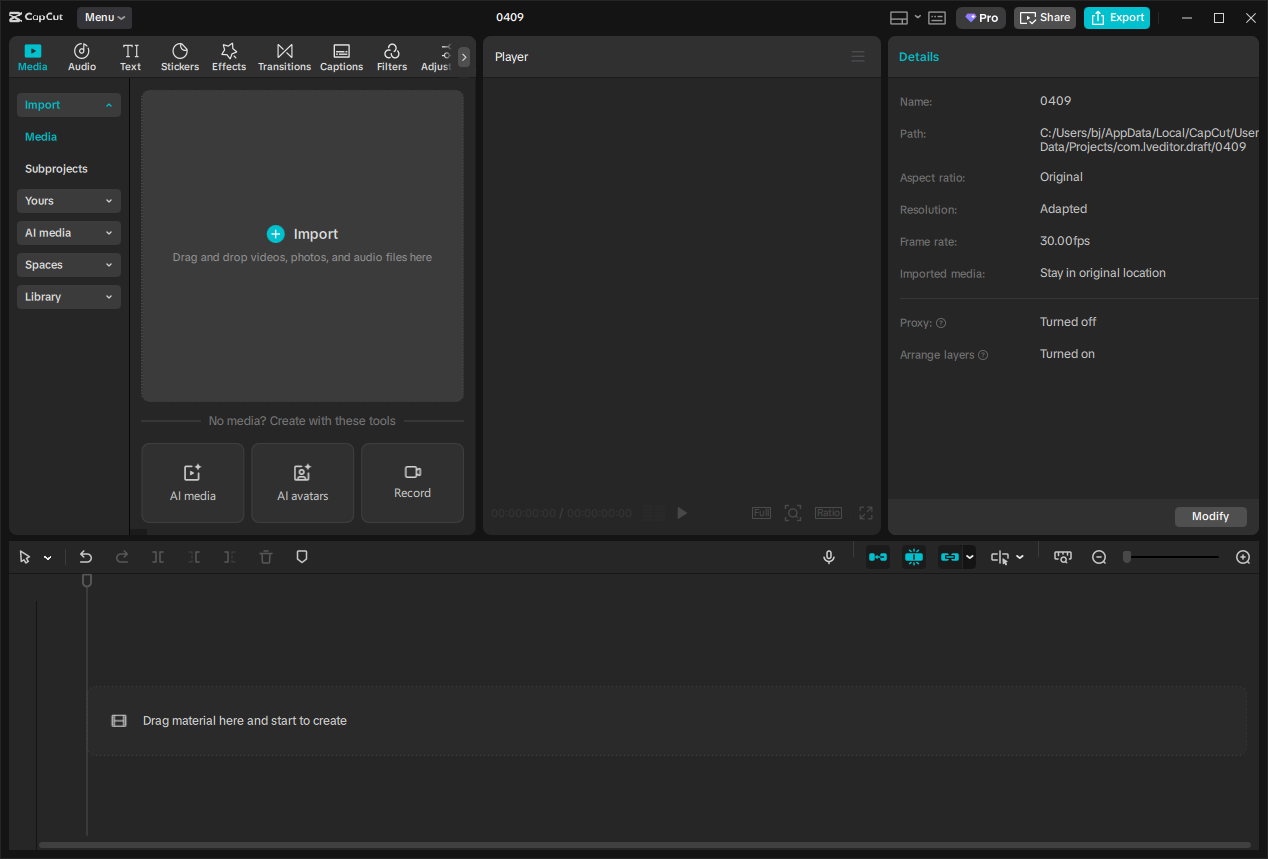
CapCut provides a large collection of pre-designed Pinterest video templates, which helps me get started quickly and save time on planning the layout. These templates are easy to customize, allowing me to adjust styles and content based on my needs. In addition, I can enhance my videos with music, sound effects, or voiceovers directly within the editor, making the final result more engaging.
What makes CapCut stand out is its suite of AI-powered tools. Features like auto reframe, AI relight, and auto color correction help simplify complex editing tasks, improve visual quality, and save a significant amount of time. Finally, it supports high-quality exports, so I can produce clear and professional-looking Pinterest videos.
Pros:
- A collection of templates.
- Powerful editing functions.
- Advanced AI features.
- Support high-quality exports.
Cons:
- Premium assets require a paid subscription.
Clipchamp targets marketers who want to make quick hits on social media using meme-like, template-based designs. But it's fine for basic clip joining, splitting, and trimming, too. You can even add some panache to your productions via some eye-catching effects.https://www.pcmag.com/reviews/clipchamp
4. Filmora
Filmora is a strong choice for creating Pinterest videos when more advanced editing control is needed, especially for fine-tuning visuals and flows. It strikes a good balance between powerful features and usability, making it well-suited for more refined editing tasks.
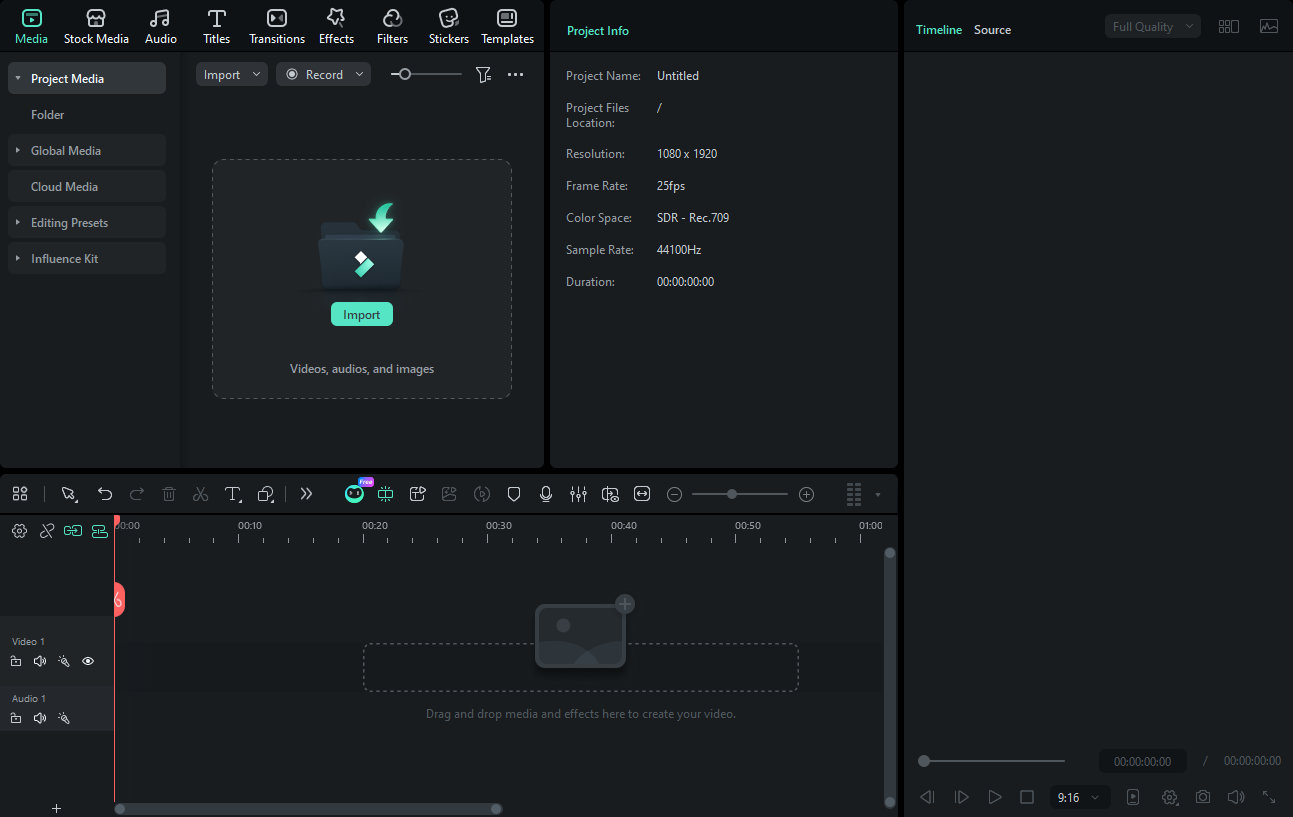
Filmora offers precise editing controls, such as keyframing, allowing me to adjust video details for a more polished result. In addition, it comes with a vast library of creative assets, including video effects, LUTs, and 3D texts. I can choose from a variety of captivating text animations and customize them to make the captions stand out clearly in Pinterest videos.
What I find most useful is its AI-driven workflow. Tools like Smart Short Clips can automatically preserve the key moments from longer footage, which saves me a lot of time when turning content into short Pinterest videos. Auto Reframe is another highlight, as it quickly adapts clips to vertical formats without manual adjustments.
Pros:
- Precise editing controls.
- Generous asset library.
- Advanced AI features.
Cons:
- Free version includes a watermark.
Wondershare Filmora provides all the standard effects, overlays, transitions, and trimming tools we expect from enthusiast-level video editing software, but it's increasingly focused on developing fresh AI tools, most of which prove worthwhile.https://www.pcmag.com/reviews/wondershare-filmora
5. VEED
VEED is an online Pinterest video maker that focuses on speed and convenience, making it a practical choice when I want to create Pinterest videos directly in a browser. Without installing any software, I can quickly upload clips and start editing from any device.
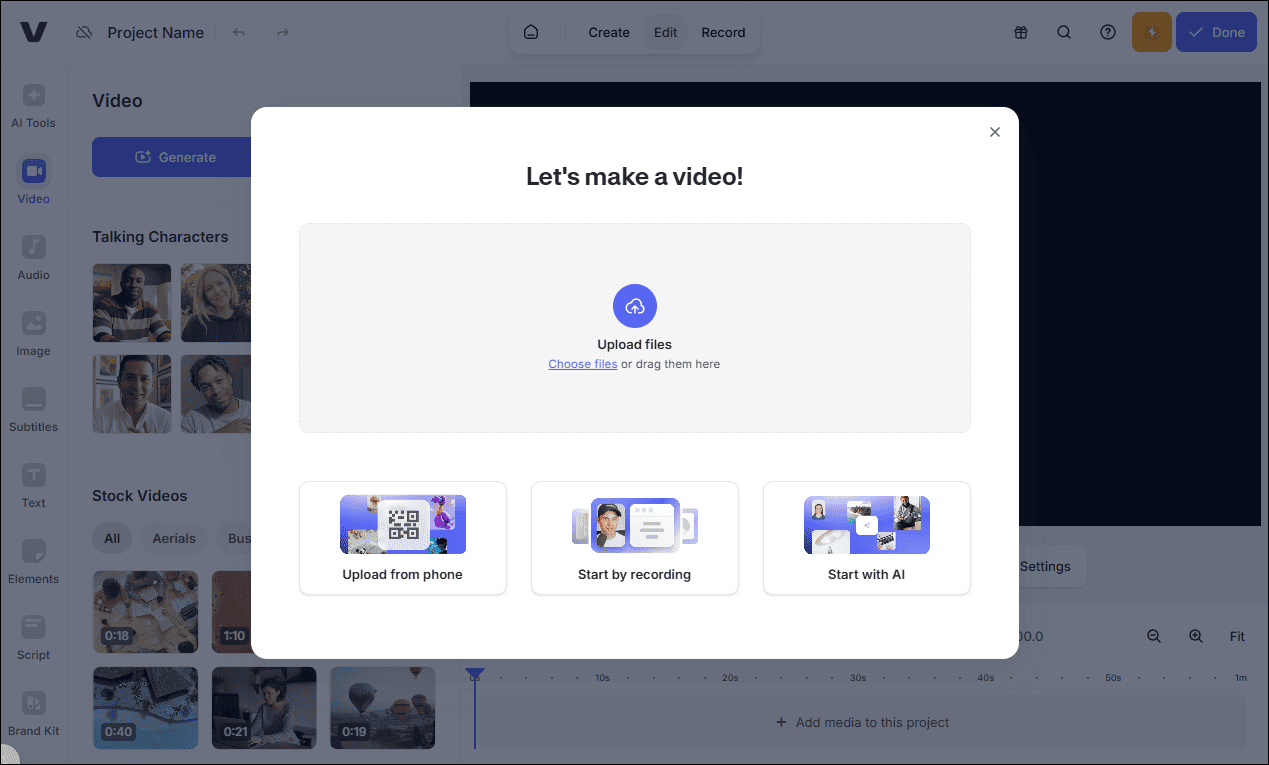
To edit a Pinterest video, I can adjust the aspect ratio and resize the footage to fit the vertical format. This platform also lets me add text overlays, animations, music, and even logos to maintain a consistent visual style. In addition, VEED offers color grading tools capable of adjusting brightness, contrast, and color tones, helping my Pinterest videos look more professional and visually consistent.
VEED also includes features that help expand reach. For example, I can generate subtitles or translations to make my videos accessible to a wider audience. Another notable advantage is its collaboration capability. Multiple users can work on the same project, which is helpful for team-based content creation.
Pros:
- Browser-based editing.
- Robust editing functions.
- Supports team collaboration.
Cons:
- The free version adds a watermark.
- HD and 4K output require a paid subscription.
A good thing is that there is no upload file size limit, along with unlimited access to auto subtitles and various subtitle styles.https://www.techradar.com/reviews/veed-review
6. Typito
Typito is an online Pinterest video maker designed for fast and professional video creation, without requiring prior editing experience or software installation. Its drag-and-drop interface and intuitive editing tools let me start creating videos immediately, making the process both quick and accessible.
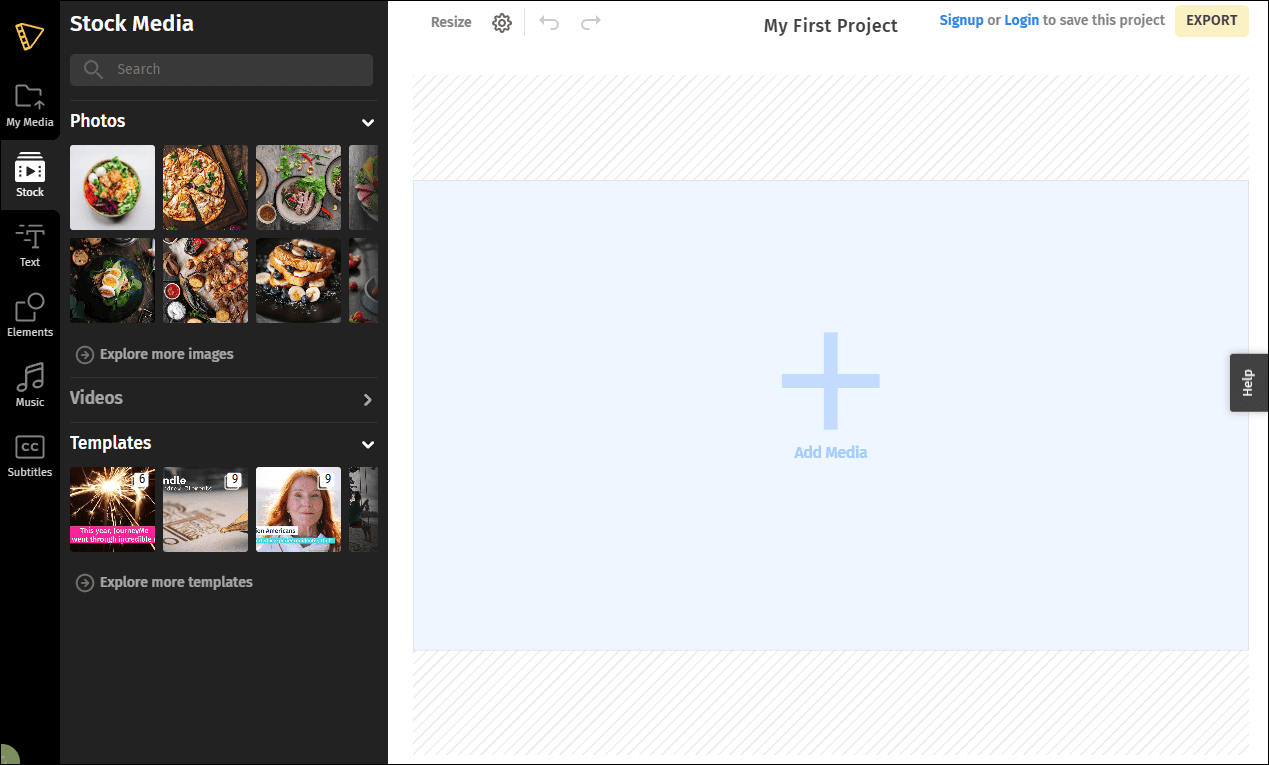
A major advantage of Typito is its large library of editable Pinterest templates. I can select a template that suits my style and customize it with my own logo, brand colors, and fonts. This not only helps my pins stand out but also strengthens brand recognition. The templates save time while still allowing for creative flexibility, so I can produce eye-catching content efficiently.
In addition, Typito offers tons of high-quality stock photos, videos, and music. I can turn images into short, engaging videos, add stylish text overlays, and include background music to make my Pinterest content more attractive and professional. Additionally, Typito supports basic collaboration and provides a simple export process, making it suitable for both individual creators and small teams.
Pros:
- Easy drag-and-drop interface.
- Ready-to-use Pinterest-theme templates.
- Access to stock photos, videos, and music.
Cons:
- Some templates and assets require a paid subscription.
After exploring the six excellent Pinterest video editors, it’s also necessary to review some basic specifications for Pinterest videos.
How to Edit a Pinterest Video
Fast Track Steps:
- Install the Pinterest video editor on your PC.
- Launch the software and set the aspect ratio to 9:16.
- Start a new project and import your video.
- Insert text and trim the video.
- Export the video.
1: Download and Install the Pinterest Video Editor
Make sure the versatile video editor is installed.
MiniTool MovieMakerClick to Download100%Clean & Safe
2: Select 9:16 as the Aspect Ratio
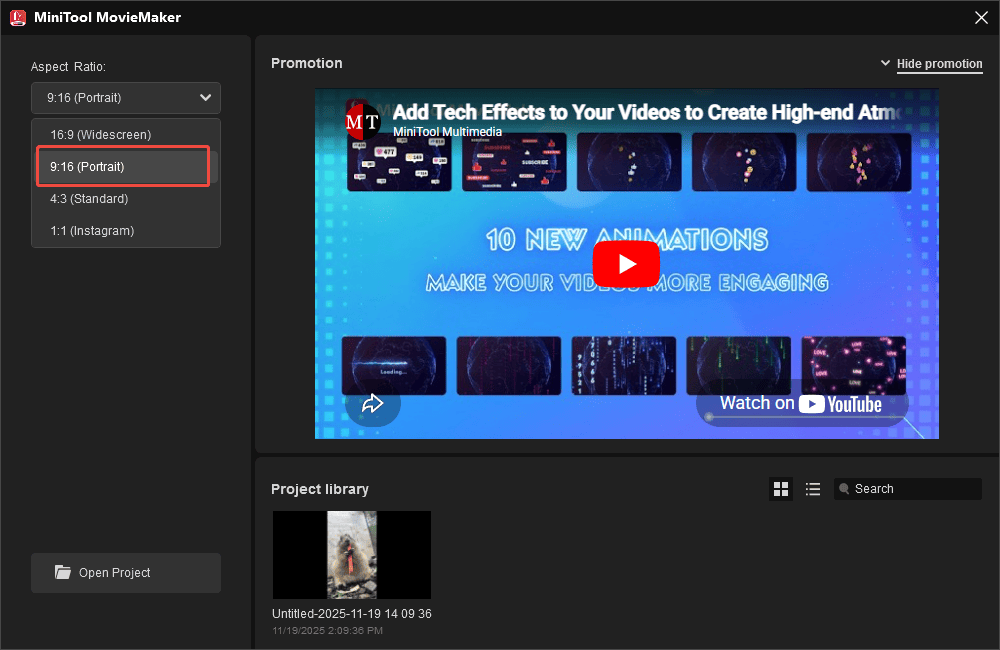
Open the application and expand the Aspect Ratio dropdown list in the pop-up project library window. Choose 9:16(Portrait) and click New Project to access the editing interface.
Then, click Import Media Files to upload the video. Directly drag it to the timeline.
3: Cut the Video Footage
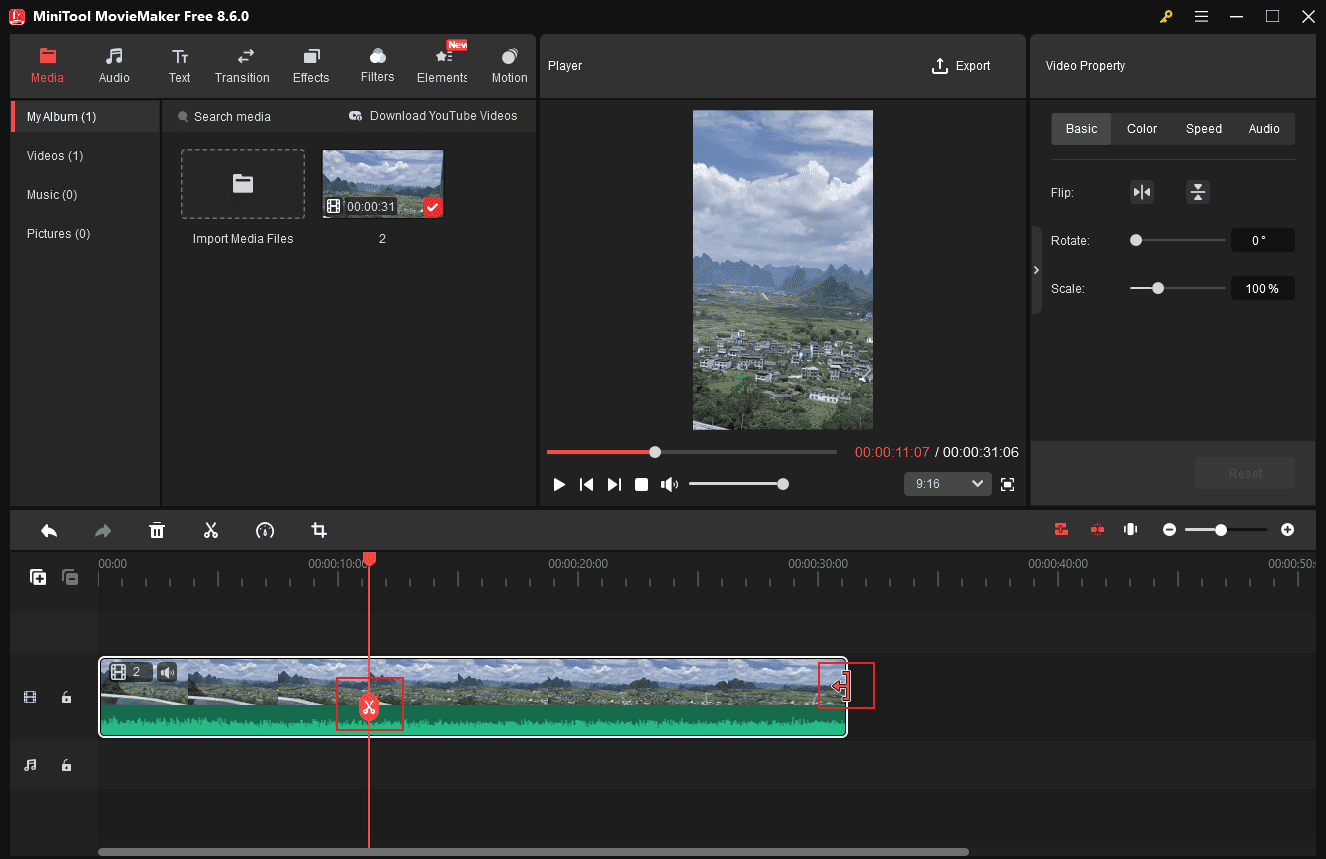
This software provides trimming and splitting tools to cut video. To trim a clip, drag its edges inward to remove unwanted parts. To split a clip, move the playhead to the desired position and click the Split icon. Then, select the unwanted segment and delete it from the timeline.
4: Add Text Overlays
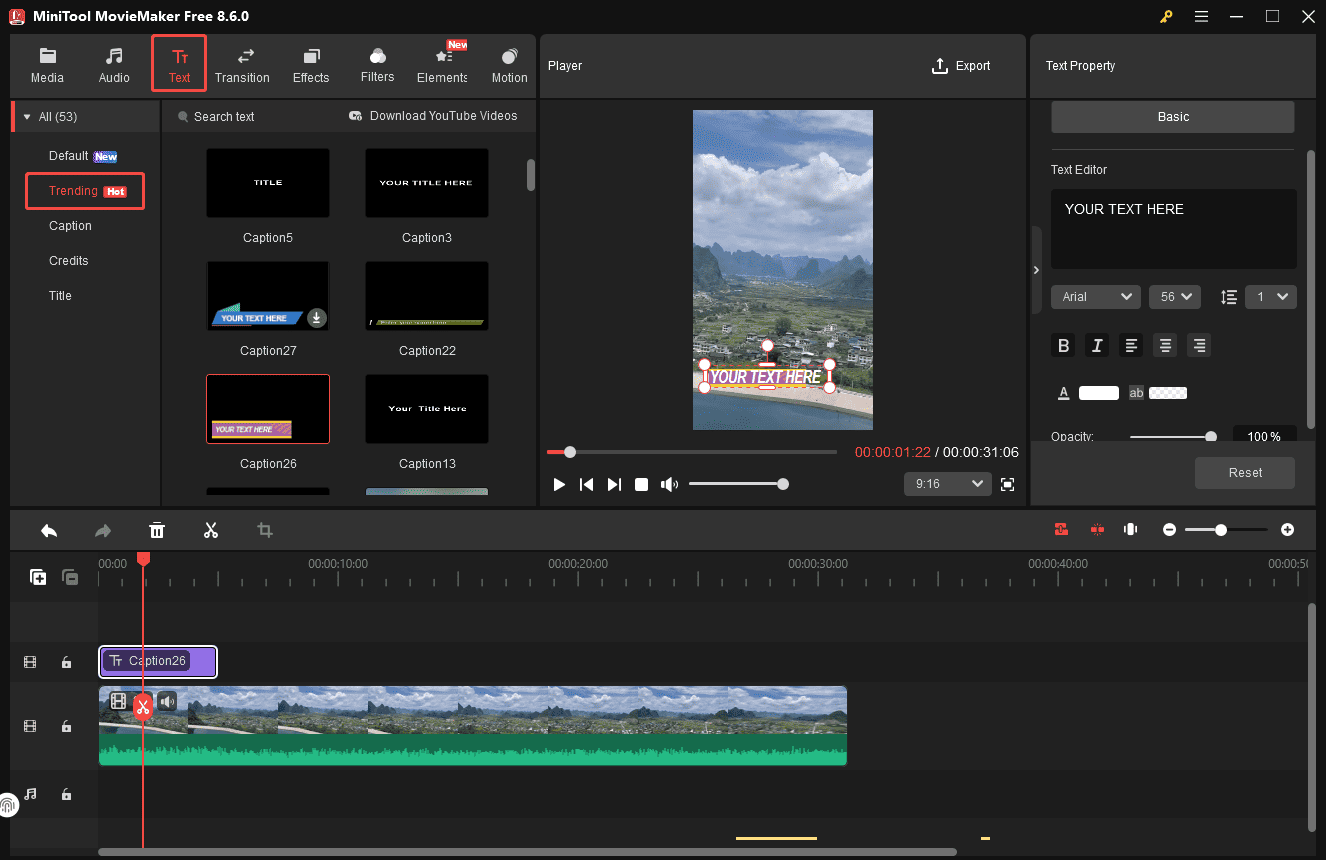
Click Text and pick a desired template. Download it and drag it to the timeline. Type the text and customize its font, color, size, and other styles in the right Text Property panel.
5: Export the Video
Once editing is complete, click Export above the player window. In the Export window, rename the Pinterest video, select a save location, and adjust the resolution, frame rate, and bitrate. Click Export at the bottom to save the video to the computer.
Key Elements of a Successful Pinterest Video
To create a successful Pinterest video, I focus on several key elements that can improve both visual appeal and overall performance.
First, the aspect ratio plays a key role. Pinterest typically recommends a vertical format, such as 2:3 or 9:16, because it fits better on mobile screens and attracts more attention while scrolling. Second, video length should be kept concise. Short videos are more likely to hold viewers’ attention, so I usually keep my Pinterest videos between 6 and 15 seconds, depending on the content.
In addition, using high-quality visuals and clear text overlays can make the video more engaging. Since some users watch videos without sound, adding captions or on-screen text helps convey the message effectively.
Finally, choosing the right format and resolution is also important. Common formats, such as MP4 or MOV, with a clear resolution (e.g., 1080 × 1920), can ensure better compatibility and playback quality.
Conclusion
To sum up, this post recommends six robust Pinterest video editors, including desktop software and online tools. Each of the editors covered in this post offers unique advantages.
If you have any suggestions or encounter any problems when using MiniTool MovieMaker, send an email to [email protected] for help.
People Also Ask
2. Log in to your Pinterest account.
3. Click Create in the top-left corner and choose Create Pin.
4. Drag and drop your video file or click to browse to upload your target video.
5. Select a thumbnail or cover image frame from your video.
6. Add a title and description.
7. Choose an existing board or create a new one to save the video.
8. Click Publish or Create to post the video.
2. Select a template and open it for customization.
3. Delete sample videos and upload your footage.
4. Trim the video length or crop its size.
5. Add text, logos, and stickers to the video.
6. Download the video to your device.
About The Author

Position: Columnist
Cora is a tech writer specializing in digital media workflows, with over six years of hands-on experience in video post-production, media transcoding, and screen capture. Her writing is always clear and practical. Cora also produces in-depth software reviews for users across skill levels to help them find the right tool and enjoy video editing.
User Comments :