

Nowadays, more people prefer customizing ringtones by cutting their favorite music clips. This post shows you how to cut music for ringtones using 3 effective methods, including the online MP3 Cutter, Clideo, and the best video editor- MiniTool MovieMaker.
A customized ringtone is one of the easiest ways to add a personal touch to your phone. Whether it is your favorite song or a meaningful melody, turning it into a ringtone makes every call more enjoyable. If you are still looking for a simple way to trim the best part of music into your ringtone, you’ve come to the right place. This post will explain how to cut music for ringtones using 3 effective methods.
There are two primary options for cutting music into ringtones on a PC. If you only need a quick trim, online audio trimmers like MP3 Cutter and Clideo are the most convenient choices. However, for more complex or professional editing tasks, MiniTool MovieMaker is highly recommended for its robust features and streamlined workflow.
How to Cut Music for Ringtones on Windows: MiniTool MovieMaker
In this section, we will show you how to cut music for ringtones on Windows. We will take the versatile free video editor MiniTool MovieMaker as an example.
MiniTool MovieMaker supports a wide range of audio formats, including MP3, M4A, M4R, WAV, FLAC, AAC, AMR, APE, MMF, and WV, and it allows you to export audio in MP3 format as well. Thanks to this broad format compatibility and its precise cutting tools, MiniTool MovieMaker functions not only as a video cutter but also as an efficient ringtone maker, enabling you to trim and customize audio clips with ease.
MiniTool MovieMaker not only lets you organize and rearrange music clips by cutting them, but also lets you add fade-in/out effects to the music and adjust the volume for a smoother listening experience. To make the ringtone more engaging to grab your attention instantly, it is a good idea to reverse music, change the speed, or loop music. Moreover, as a multi-track editor, MiniTool MovieMaker allows you to add additional sound effects to enhance and mix the original music.
Here are the detailed steps on how to cut music for ringtones on PC using MiniTool MovieMaker.
Step 1: Download and Install
Click the button below to download MiniTool MovieMaker. Then, follow the on-screen instructions to complete the installation.
MiniTool MovieMakerClick to Download100%Clean & Safe
Step 2: Import Your Music
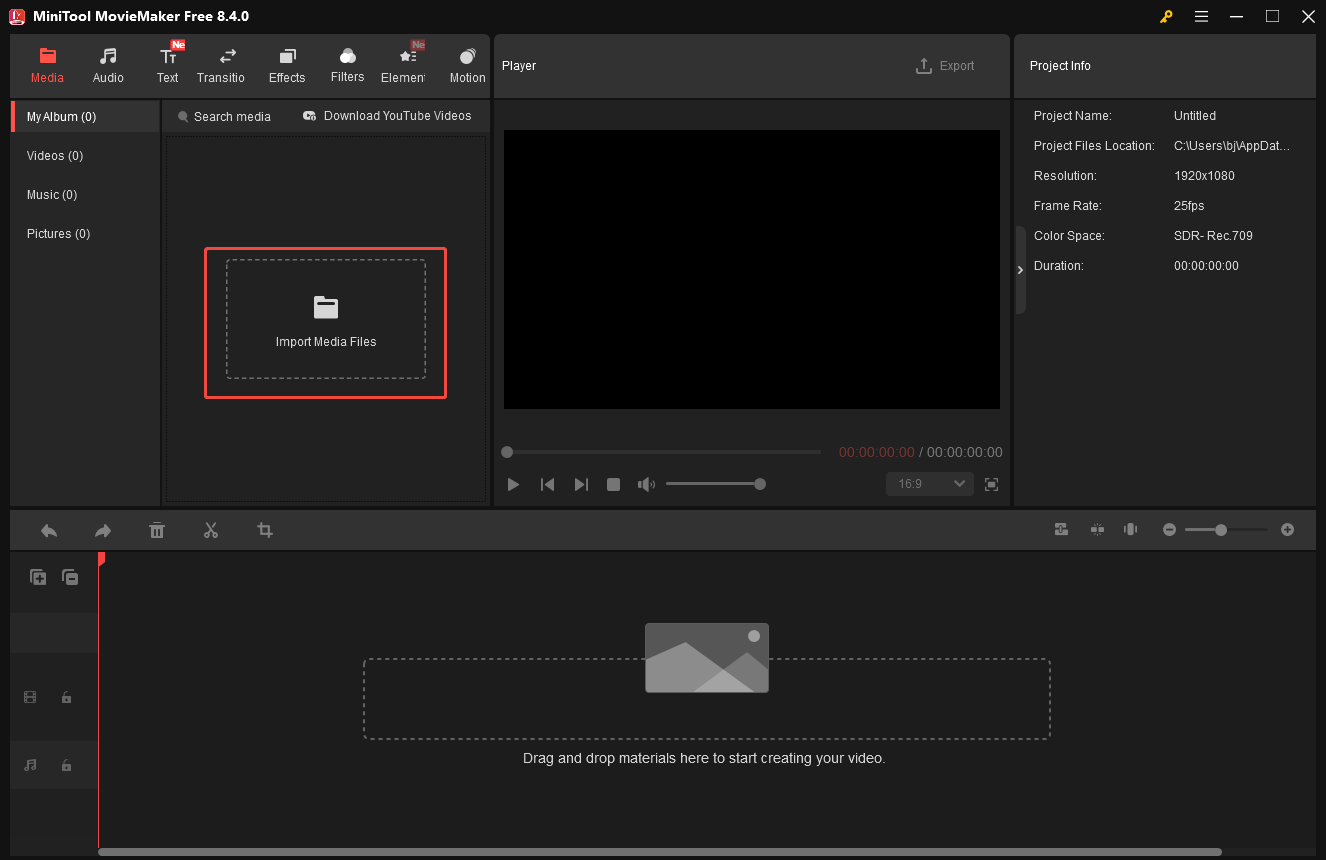
Launch MiniTool MovieMaker. Close the pop-up project window to enter the main editing interface. Then, click Import Media Files to upload your music files. Next, click the Plus icon in the right corner of the music to add it to the timeline.
Step 3: Cut the Music
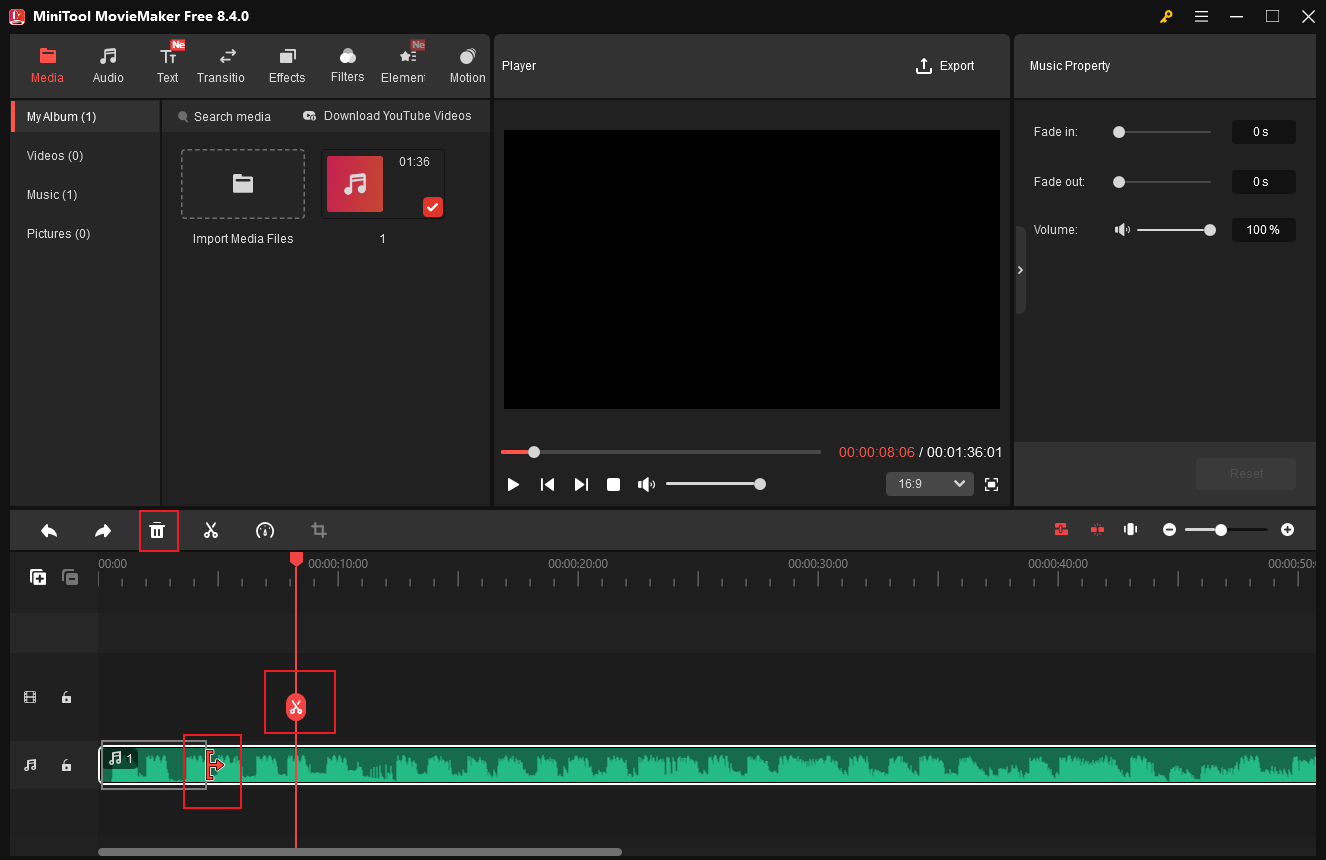
To shorten the music and highlight the climactic section, it is necessary to split and trim the music file.
Hover your mouse cursor over the edge of the music until the Trim icon appears. Then, drag it inwards to delete the unwanted part. To cut more precisely, move the playhead to the unwanted point and click Scissors to separate the clip from the original file. Select the unwanted clip and click the Delete icon to remove it from the timeline.
Step 4: Edit the Music
There are several tools available for editing the music.
1. Adjust the Music Property
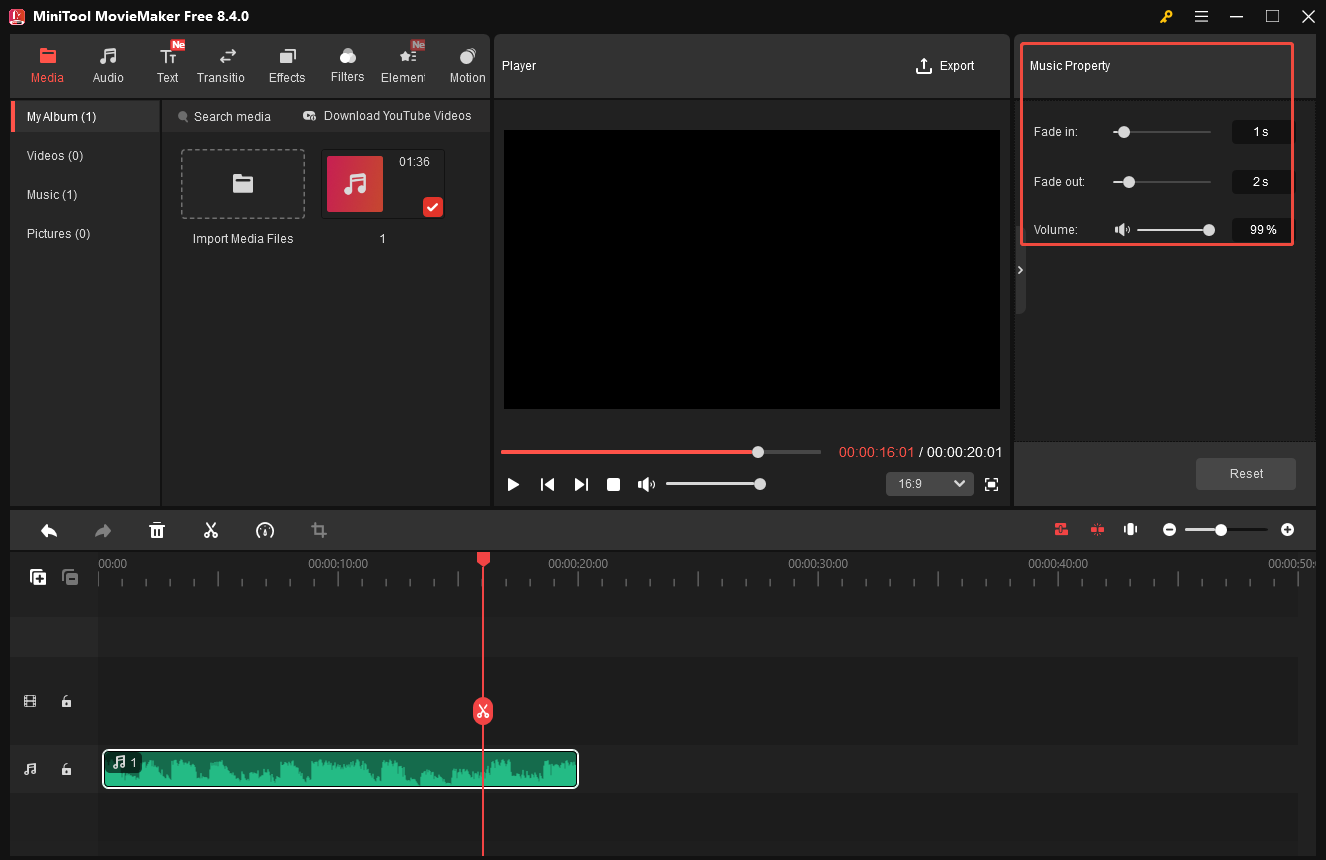
Select the music clip and move the Fade-in/out slider on the right music property panel. Also, drag the Volume slider or enter a precise value to change the volume.
2. Reverse and Loop Music
Select the music clip on the timeline and click the Speed icon. Click Reverse to play the music in reverse. Also, you can adjust the speed of the music by choosing Fast or Slow.
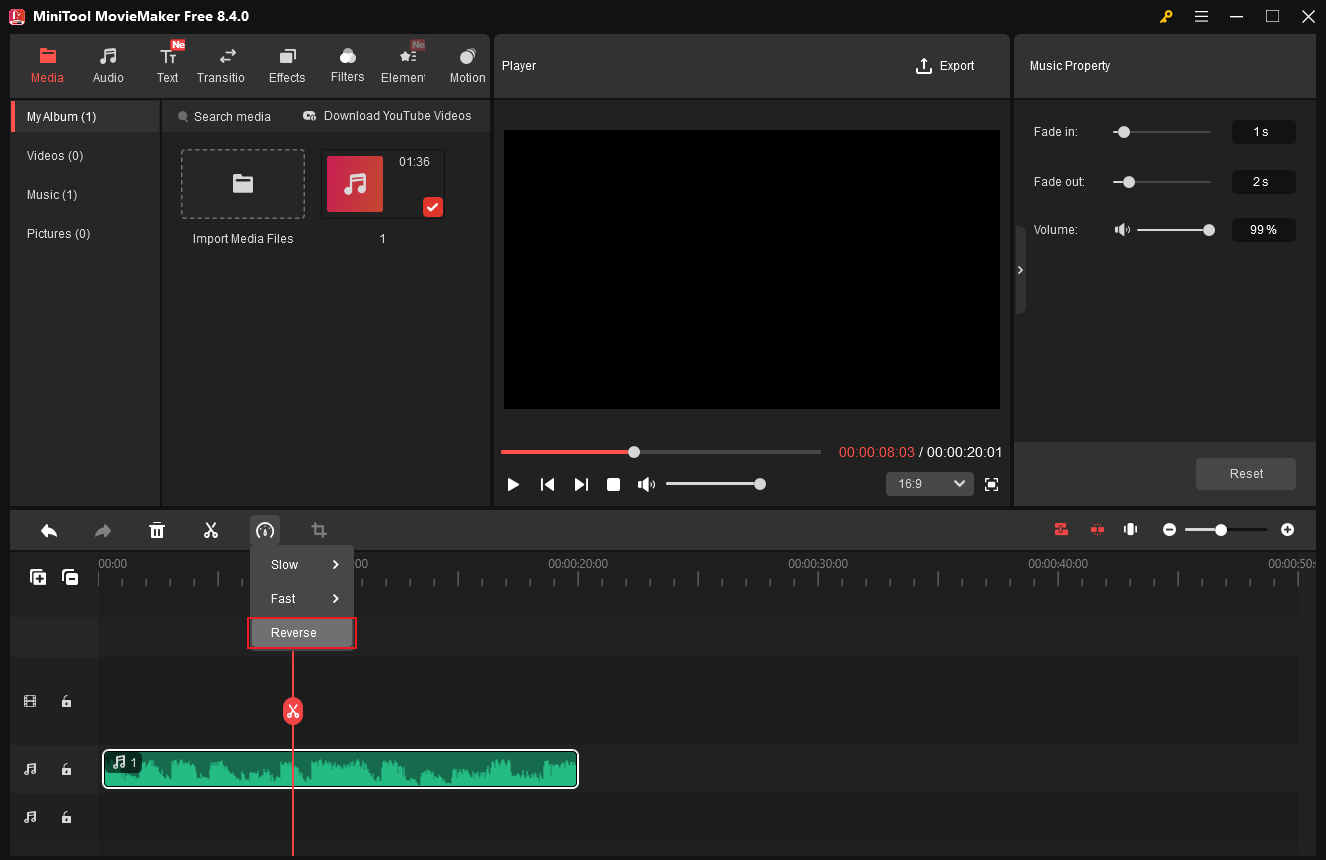
In addition, right-click the desired music clip and select Copy. Then, right-click to select Paste. You can continue to duplicate the music multiple times to extend the loop according to your needs.
3. Add Sound Effects to Music
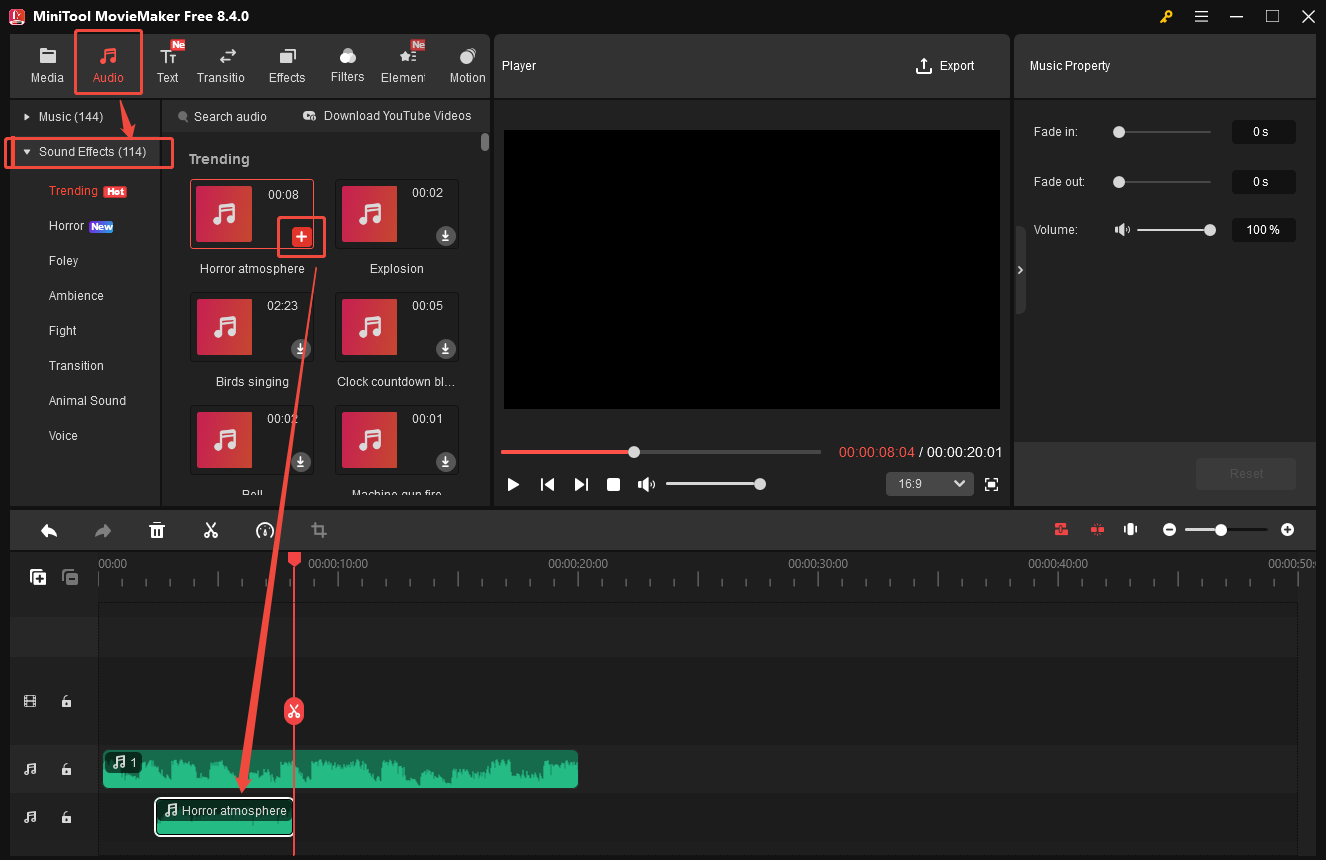
MiniTool MovieMaker offers a rich library that includes a wide range of music and sound effects. Click the Audio tab at the top of the menu. Then, click the Sound Effects category to find the desired one. Click the Download icon to drag it to add to the timeline. Also, you can split and trim the sound effect.
Step 5: Export the Final Music
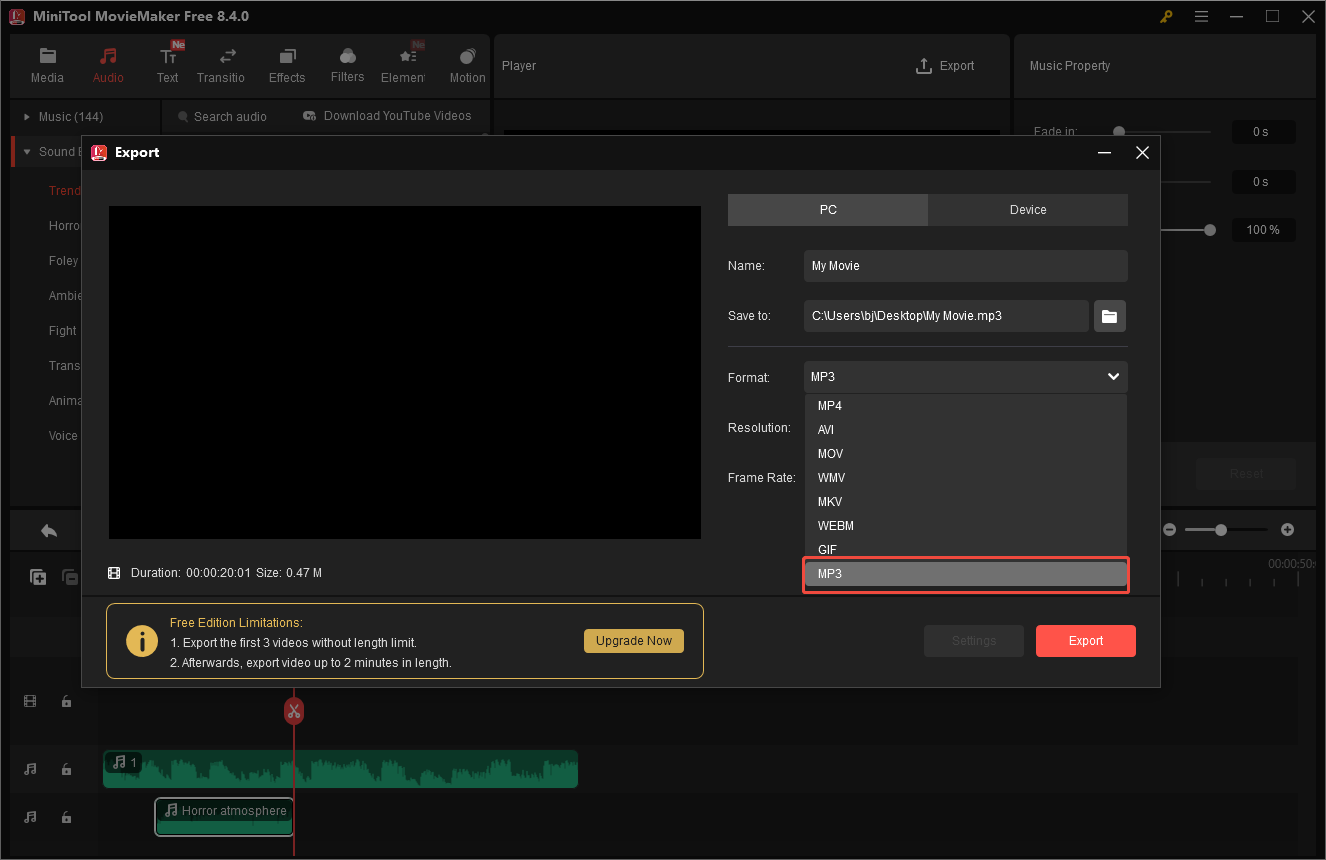
Click the Export icon at the top of the menu and select the Format to MP3. Then, click Export at the bottom of the export setting window to save it to your computer. You can transfer it to your phone to set it as a ringtone. Now you know how to cut music for ringtones with MiniTool MovieMaker.
How to Cut Music for Ringtones Online
Next, for people who seek fast edits, we provide two options to help you cut music for ringtones online.
Method 1: MP3 Cutter
MP3 Cutter is a free ringtone maker online, which is fast and simple to use and requires no software download. It offers an easy and intuitive interface, meaning users with all levels of experience can seamlessly cut and edit music. Besides, it supports more than 300 different formats. It also enables users to add fade-in/out effects and extract sound from video. The most important thing is that the whole process of cutting is easy and requires no special skills. Besides,
Method 2: Clideo
Clideo is another excellent option to cut music for ringtones. This online audio and video trimmer supports almost all mainstream formats, allowing you to trim your audio with ease. Whether you’re a beginner or an experienced editor, Clideo enables you to produce clean, high-quality ringtone clips in just a few clicks. Its intuitive interface and fast processing make it a practical choice for quick audio adjustments without installing any software.
Conclusion
Cutting music for ringtones is easier than you might think. This post presents three useful ringtone makers and provides step-by-step instructions on how to cut music for ringtones on PC with MiniTool MovieMaker. Whether you prefer a quick online ringtone maker or a more advanced Windows-based editor, you can choose the option that suits your needs and create a customized ringtone in minutes.
Hope this article can be helpful. Besides, if you have any suggestions or problems when using MiniTool MovieMaker, please do not hesitate to contact us at [email protected].
User Comments :