

Making a stunning Easter video is a great way to add an engaging touch to the holiday celebration. This post introduces the 6 best Easter video makers, including desktop software (MiniTool MovieMaker, Microsoft Clipchamp, and CapCut) and online platforms (Animaker, FlexClip, and Renderforest). To help you better learn how to edit an Easter video, this post also provides a detailed step-by-step guide using the best video editing software, MiniTool MovieMaker.
Easter symbolizes renewal, hope, and new beginnings. Alongside traditional activities like egg hunts and family meals, short videos are now popular for sharing greetings and memories. Creative Easter videos make celebrations more engaging and shareable.
This post lists the 6 best Easter video makers to help you create stunning videos, using MiniTool MovieMaker as an example. It also includes practical tips for making Easter videos.
6 Best Easter Video Makers at a Glance
- MiniTool MovieMaker
- Microsoft Clipchamp
- CapCut
- Animaker
- FlexClip
- Renderforest
| Tool | Platform | Free Version Without Watermark | Easter Stickers/Elements | Holiday Templates | Best For |
| MiniTool MovieMaker | Windows | Yes | Yes | No | Fully free customization on PC |
| Clipchamp | Win / Web | Yes | Yes | No | System integration & quick creation |
| CapCut | Win / Mac / Mobile | Yes | Rich | Rich | Cross-platform with many effects |
| Animaker | Web | No | Rich | Rich | Animation & character-driven videos |
| FlexClip | Web | No | Moderate | Rich | Online template-based editing |
| Renderforest | Web | No | Moderate | Rich (3D) | Professional 3D templates |
Tips for Creating Stunning Easter Videos
Creating a stunning Easter video doesn’t require a big budget. With the right approach, you can turn a simple home video into a polished and professional-looking masterpiece. The following tips will help you achieve better results with ease:
- Choose the right Easter video style
- Make good use of Easter symbols and themes
- Select proper music and sound effects
Best Easter Video Maker on Windows
This part introduces three of the best Easter video makers for Windows, including MiniTool MovieMaker, Microsoft Clipchamp, and Capcut.
Option 1: MiniTool MovieMaker
MiniTool MovieMaker is a free video editor without watermark designed exclusively for Windows users. It offers various editing tools that meet your basic needs. For example, trimming, splitting, cropping, adding audio, and adding elements are all available in this software. With the advantage of multiple tracks, MiniTool MovieMaker supports up to 9 video tracks and 2 audio tracks, making it easy to create advanced picture-in-picture effects.
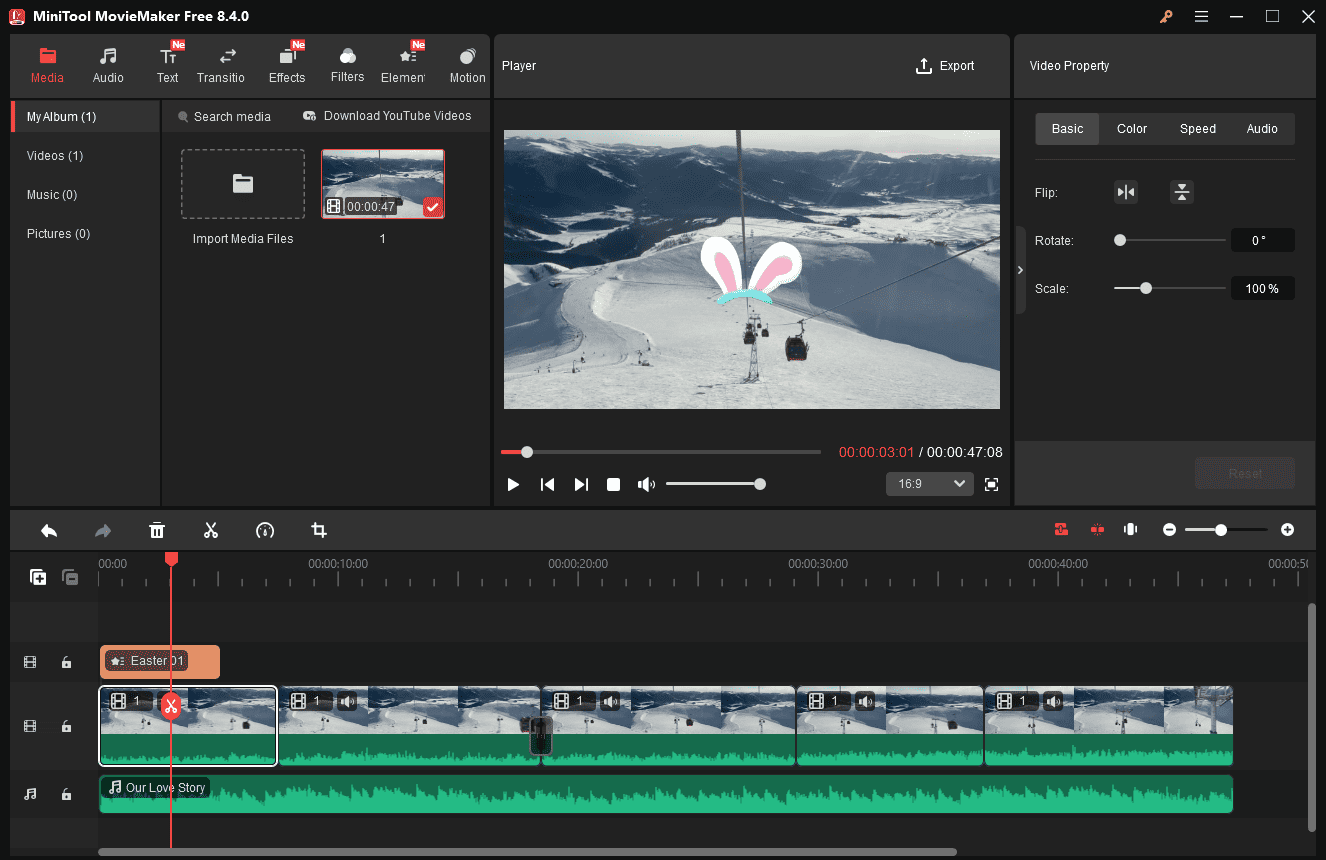
What’s more, MiniTool MovieMaker offers an extensive element library that includes a wide range of stickers, such as Easter eggs, which enhances the visual appeal of your Easter videos. Besides, the fancy text templates it provides also spice up your video and add variety to video styles.
Additionally, the free software allows you to export videos up to 4K resolution. In short, the intuitive and straightforward interface and easy-to-use editing tools make MiniTool MovieMaker an ideal option for beginners to start creating Easter videos.
MiniTool MovieMakerClick to Download100%Clean & Safe
MovieMaker by MiniTool is an inexpensive, easy-to-use video editing program. It includes a fair number of effects and gives you easy ways to join your clips, add transitions, and overlay objects and text.https://www.pcmag.com/reviews/minitool-moviemaker
Option 2: Microsoft Clipchamp
Microsoft Clipchamp comes pre-installed on Windows 11. It also provides a web version available in your browser, which satisfies various device requirements.
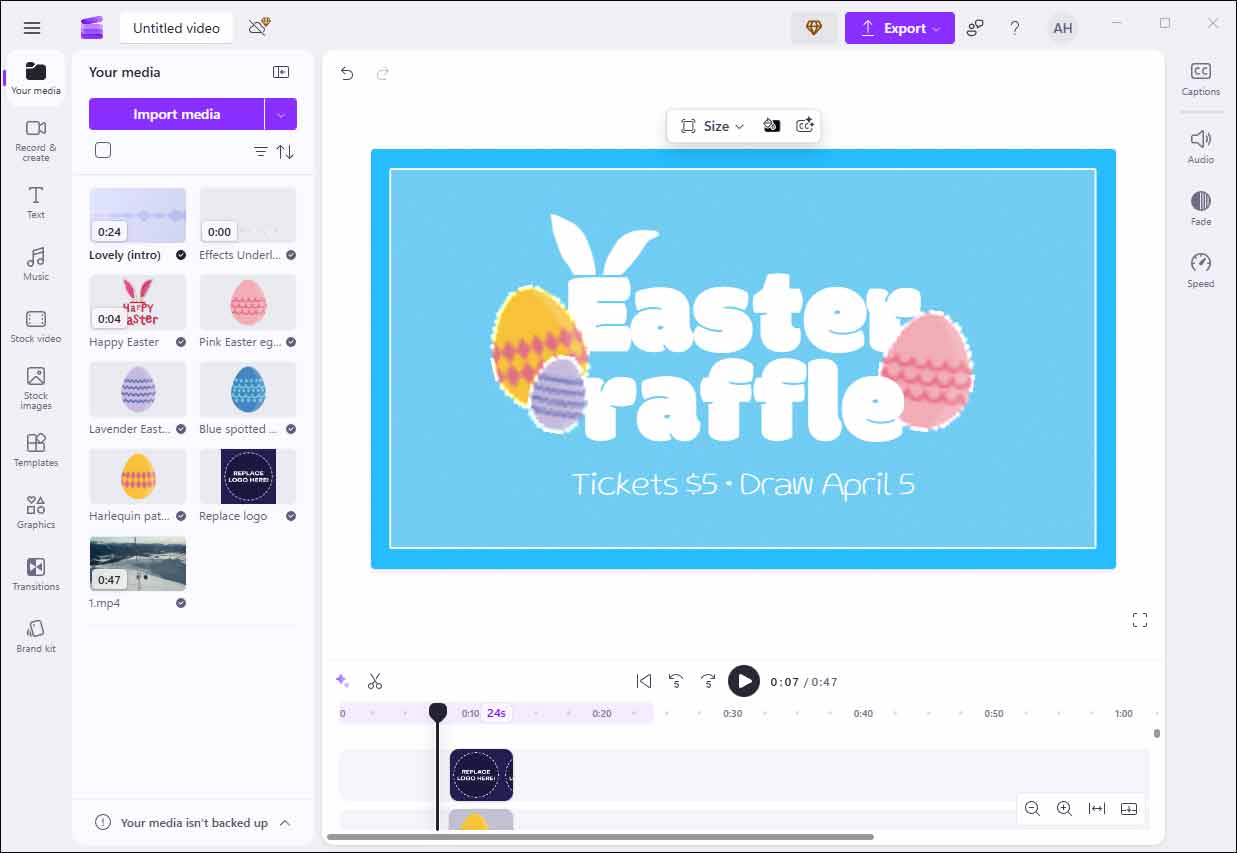
As a versatile video editor, Microsoft Clipchamp comes with a suite of editing features for Easter video. You can easily complete basic editing tasks such as rotating, flipping, and scaling videos. Besides, with the abundant resources it offers, you can add content such as beauty filters, attractive transitions, and gentle background music to make the video more engaging. Moreover, the built-in AI caption generation can significantly improve the editing efficiency.
Additionally, Clipchamp offers a rich collection of templates that can unleash your creativity and save editing time, helping you create an outgoing video with ease. All in all, the clean interface and abundant resources make Microsoft Clipchamp well worth trying.
Clipchamp, the default video editing software for Windows 10 and Windows 11, is surprisingly capable for both personal and professional use. It includes all the basic tools you need to produce video projects, some fun effects, and helpful templates for social media posts.https://www.pcmag.com/reviews/clipchamp
Option 3: CapCut
When it comes to creating trendy and professional-looking videos, CapCut stands out thanks to its comprehensive editing tools and powerful AI features.
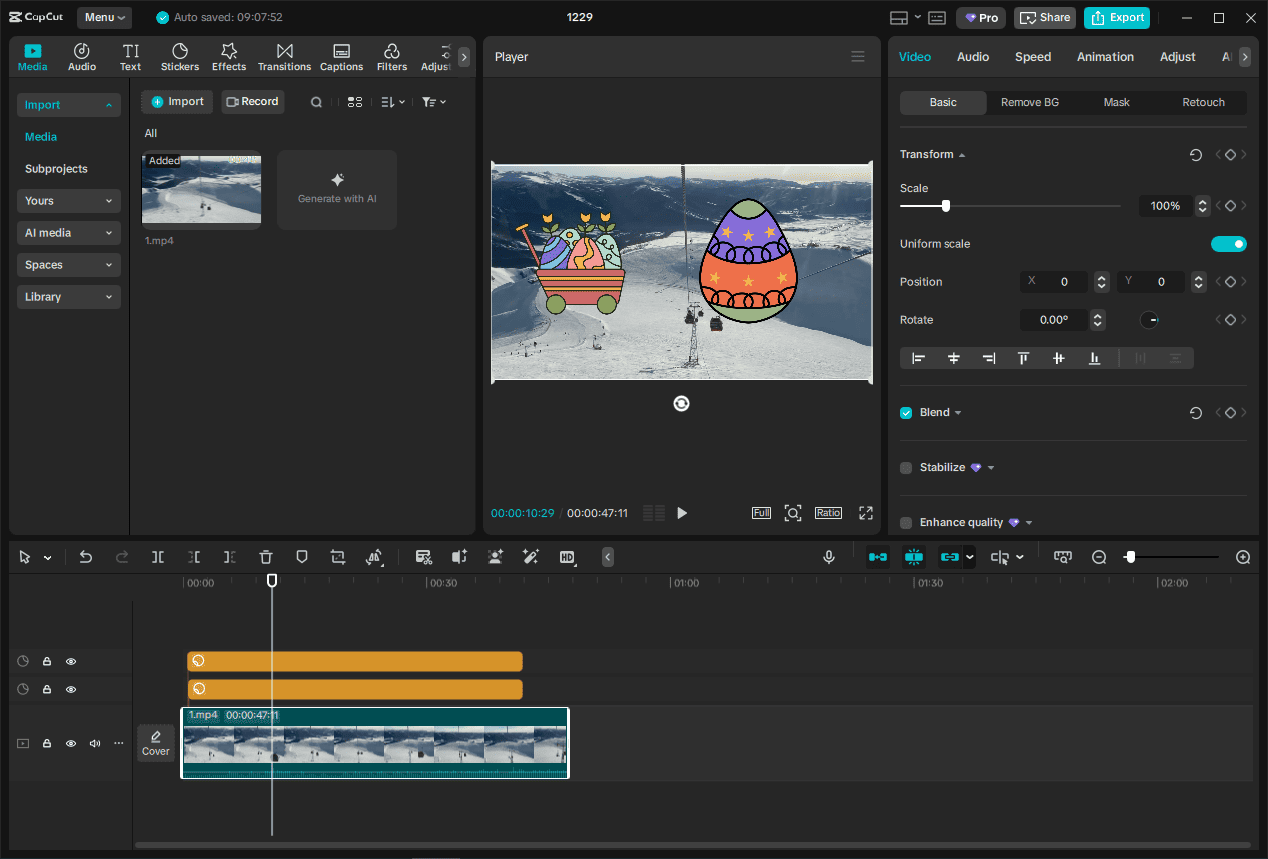
CapCut strikes a balance between robust editing features and ease of use, making it suitable for both beginners and experienced users. It offers keyframe animations that elevate the raw footage with movement and excitement. Moreover, it provides split-screen sections to showcase different aspects of your Easter celebration without the hassle of manual editing.
Furthermore, the AI sticker generator can help generate relevant stickers to match the video theme. And it allows converting text to speech, not only saving time but also enhancing the overall charm of your creations. Without doubt, it is efficient and fun to use CapCut to create Easter videos.
CapCut allows you to edit videos with an intuitive interface while offering advanced capabilities like AI-enhanced effects, automated text-to-speech, multi-track editing, and one-click templates.https://www.zebracat.ai/post/i-tried-capcut
Best Online Easter Video Maker
If your computer doesn’t have enough space for downloading additional software, the online platforms come in handy. The following section picks 3 of the best online Easter video makers, including Animaker, FlexClip, and Renderforest, helping you create polished Easter videos in minutes.
Option 1: Animaker
Animaker is a web-based video creation platform designed for users of all skill levels. It offers a rich library of templates, animated characters, icons, and music, making video production simple and efficient without requiring any editing experience. As a drag-and-drop editor, it enables you to swap out the images, text, and elements in templates to customize the video. You can also create your Easter video from scratch.
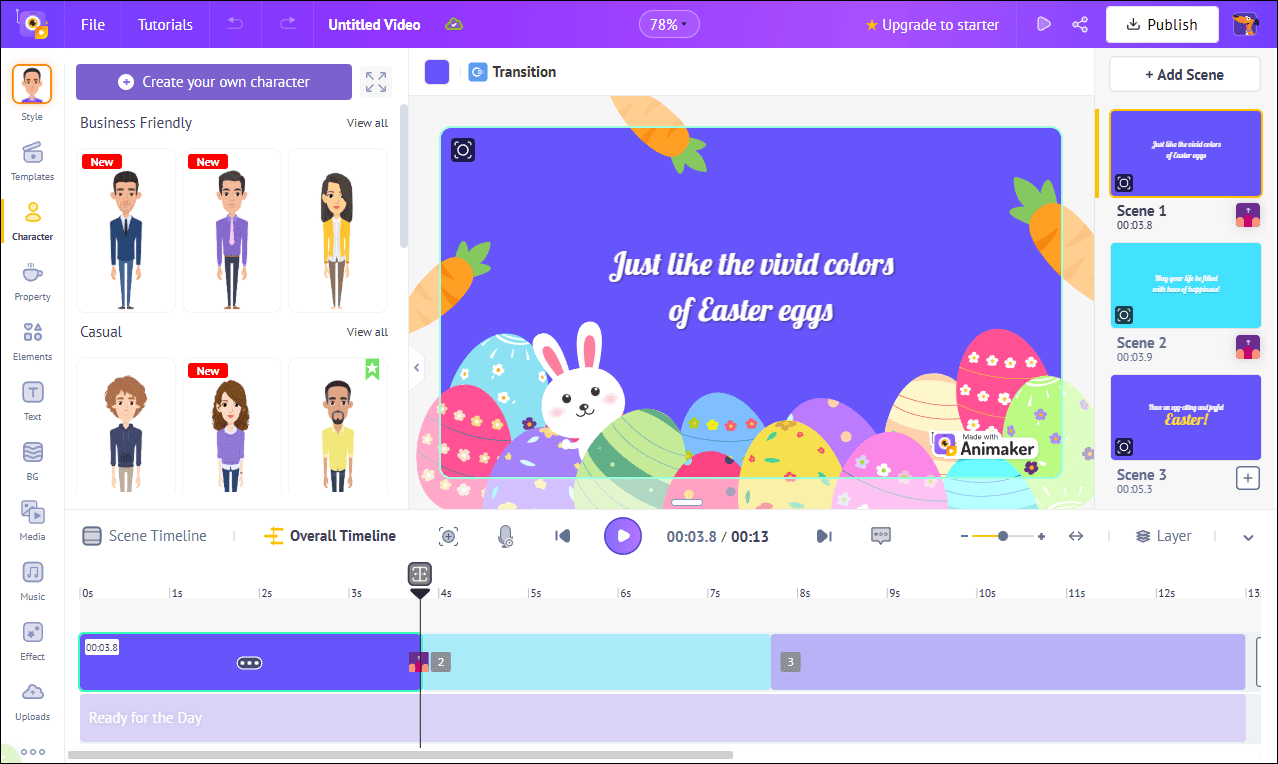
Besides, Animaker integrates AI technology to help you transform your ideas into stunning videos with just a text prompt. It enables you to create whiteboard animations, add charts to videos, convert your text into lifelike voiceovers, and edit GIF videos, making the entire video production process more efficient and creative.
After making your video, you can share it with your loved ones via YouTube, Facebook, Instagram, and many other social media platforms.
Animaker aims to simplify video production, for a more accessible movie-making experience. https://www.techradar.com/reviews/animaker-online-video-maker-review
Option 2: FlexClip
FlexClip is a popular cloud-based video maker for creating all kinds of videos, including Easter videos. With a large collection of up-to-date templates, FlexClip meets the needs of quick and high-quality video editing. In addition, it includes an extensive library of royalty-free media resources, such as images and animated elements, which you can easily apply to customize your video.
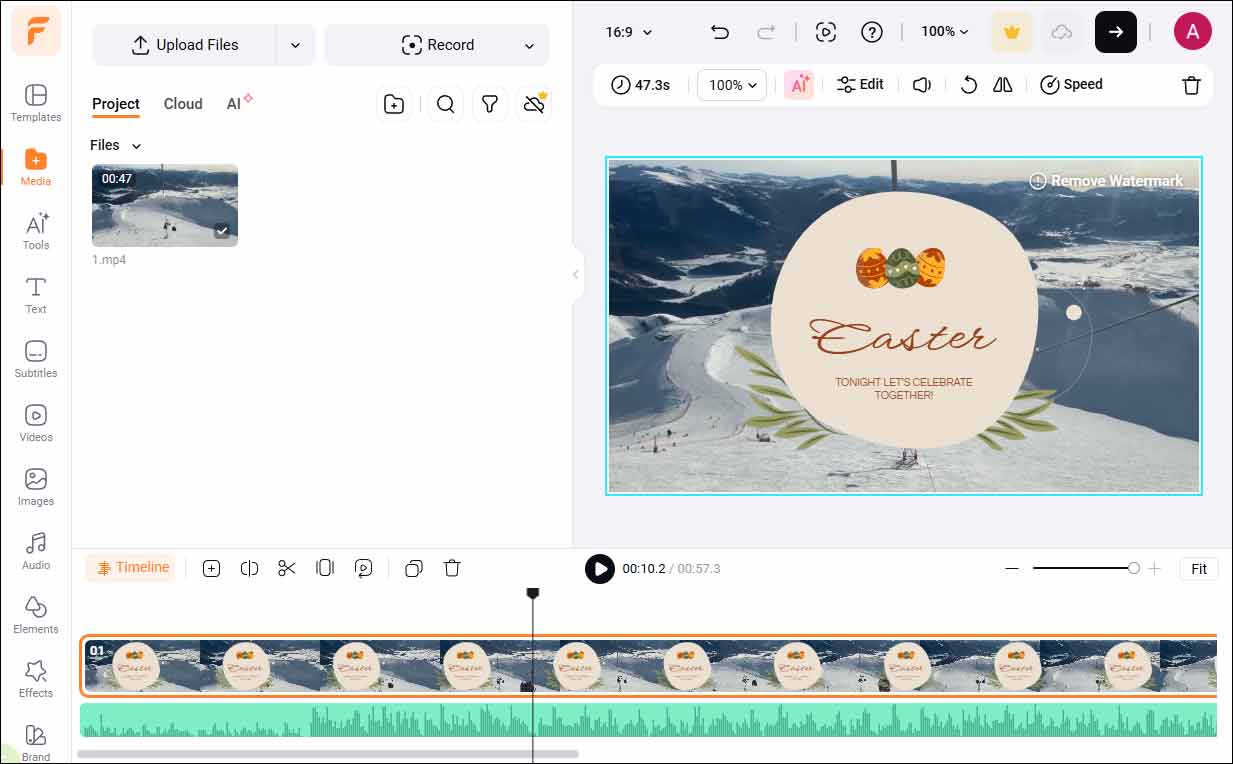
Additionally, the web-based platform allows you to work on your projects across devices and easily share or export your finished videos.
FlexClip is a browser-based AI video editor developed by PearlMountain Limited. No downloads, no installations. You just log in and start editing. Think Canva meets iMovie meets a bunch of AI magic.https://blogrecode.com/flexclip-review-after-making-50-videos-in-30-days/
Option3: Renderforest
Renderforest is an all-in-one video creation and design platform that enables you to produce professional-quality videos, animations, and visual content without advanced technical skills. It provides diverse customizable Easter templates, drag-and-drop editing tools, and support for output resolutions from HD to 4K, allowing you to create videos with minimal effort quickly.
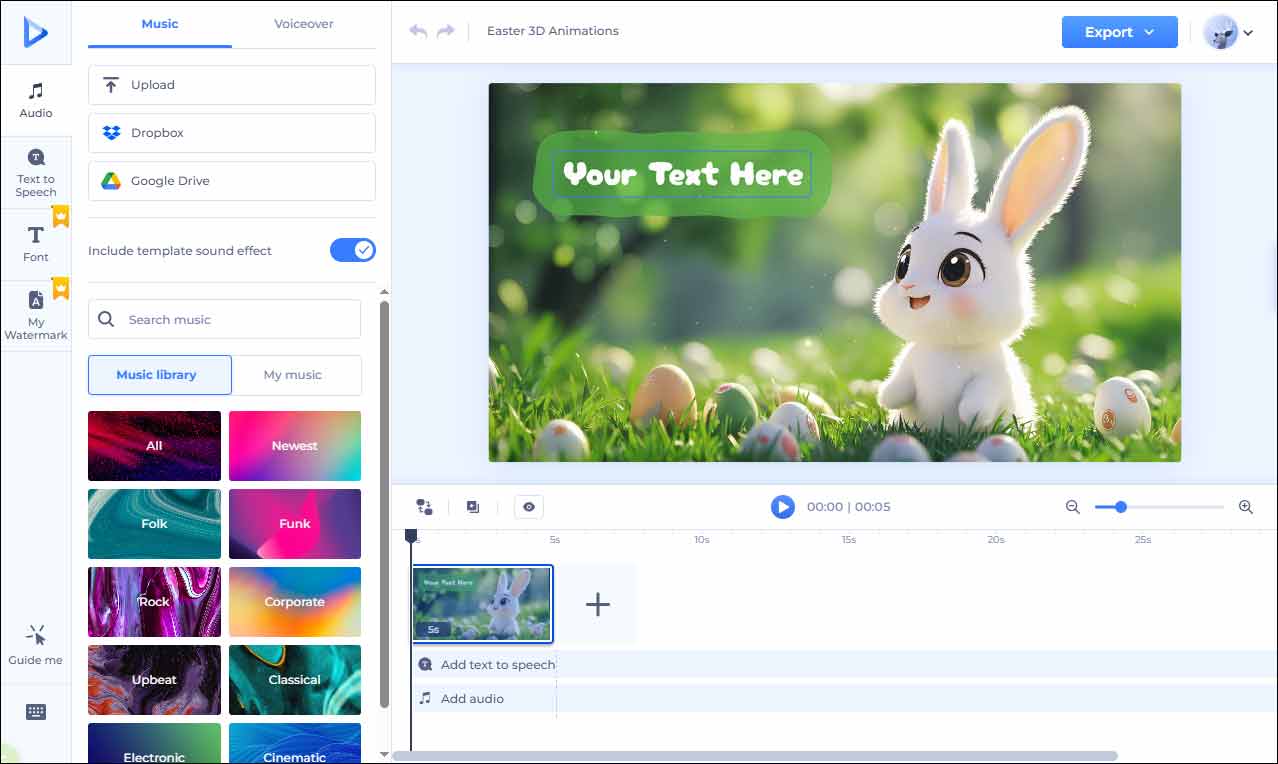
With the abundant templates, you can find 3D animations, intro clips, and greetings to inspire your ideas and make your video more colorful.
How to Edit an Easter Video
Fast Track:
- Download and install MiniTool MovieMaker.
- Import your media files.
- Rotate, flip, change the speed, and adjust the color.
- Trim and split the video.
- Add transitions, elements, text, and music.
- Export the final video.
After exploring the 6 best Easter video makers, it’s time to practice. The following section provides a detailed tutorial on how to edit an Easter video using MiniTool MovieMaker. Follow these simple steps to bring your Easter festivities to life.
1: Install and Download
Click the button below to start downloading MiniTool MovieMaker. Then, follow the on-screen instructions to complete the installation.
MiniTool MovieMakerClick to Download100%Clean & Safe
2: Upload Your Video
Launch MiniTool MovieMaker and close the pop-up project window to enter the main editing interface. Next, click the Import Media Files icon to upload your video.
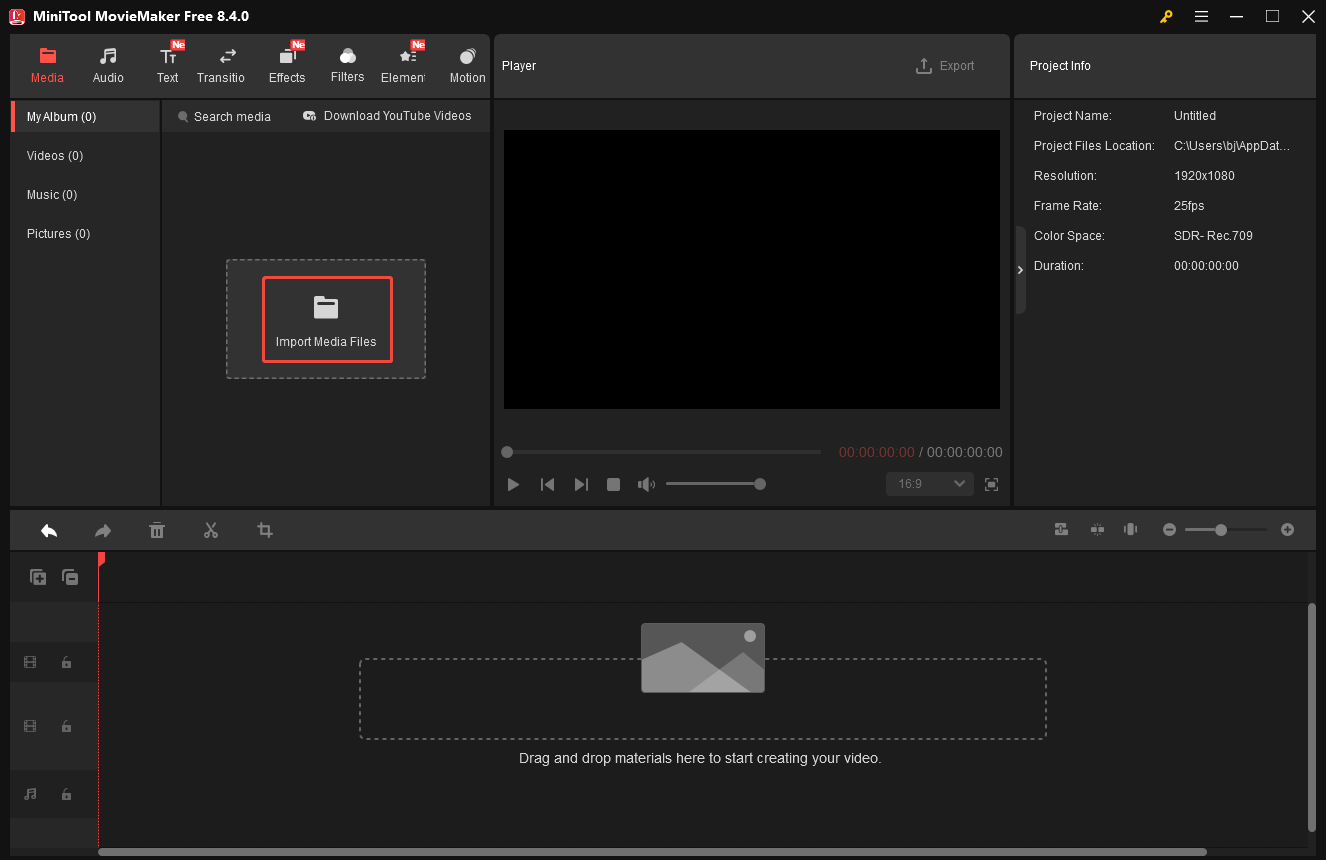
Then, click the Plus icon on the video to add it to the timeline.
3: Adjust Video Property
Select the video to adjust the basic properties in the right panel. You can adjust its size and angle through the Scale and Rotate sliders. Alternatively, you can directly drag and resize it by clicking the video in the player window.
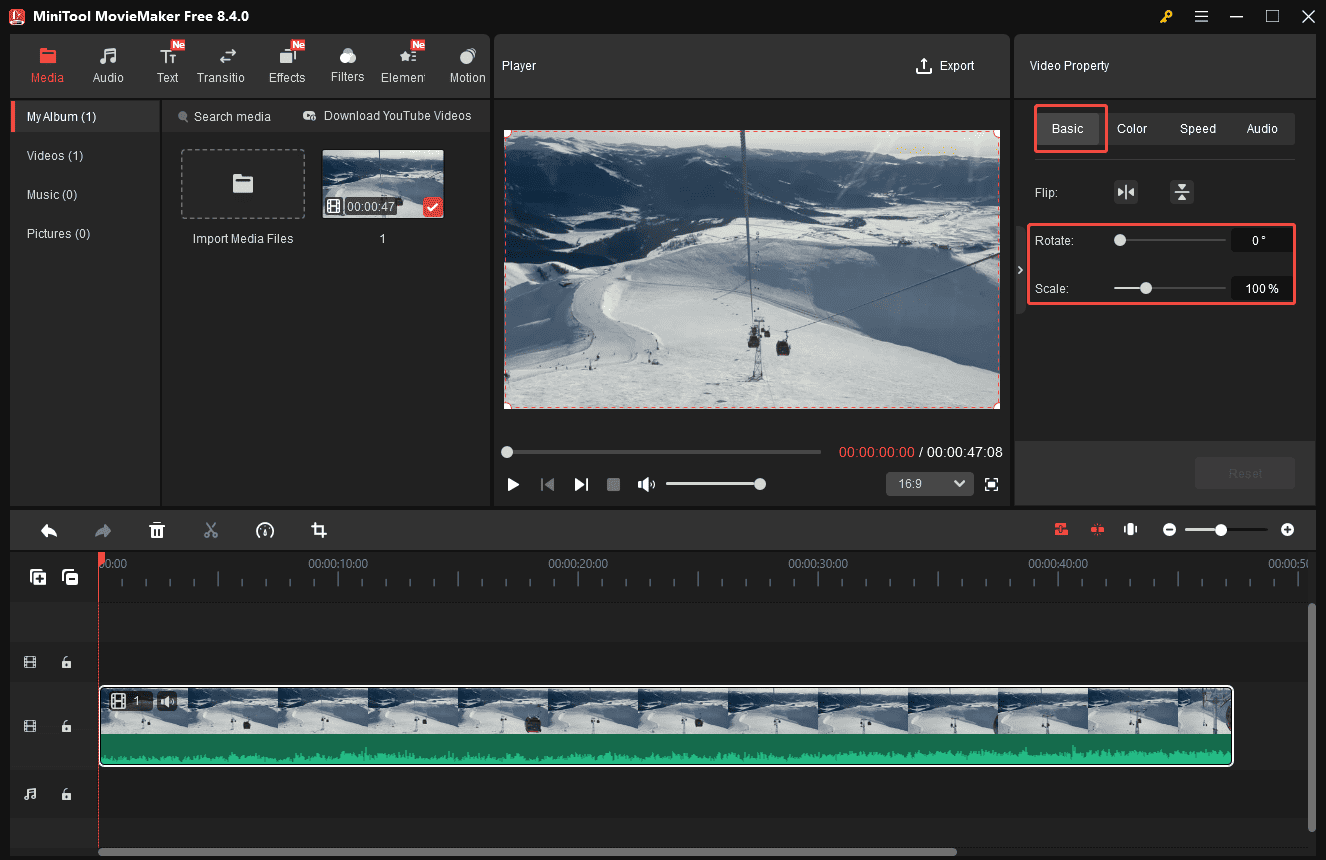
If your video was shot in a dim situation, adjusting its color is a great way to brighten it. Click Color and drag the sliders of Contrast, Saturation, and Brightness to reset the tone. Any changes can be previewed in the player window.
4: Trim and Split the Video
To shorten the video while keeping the essential part, using the trim and split tools is appropriate. Hover your mouse cursor over the edge of the clip until the Trim icon appears. Then, drag it inwards to remove the unwanted part from the timeline.
To delete more precisely, move the playhead to the desired point in the timeline and click Scissors on the timeline toolbar to separate it from the video. Then, click the Delete icon on the timeline toolbar to remove it from the timeline.
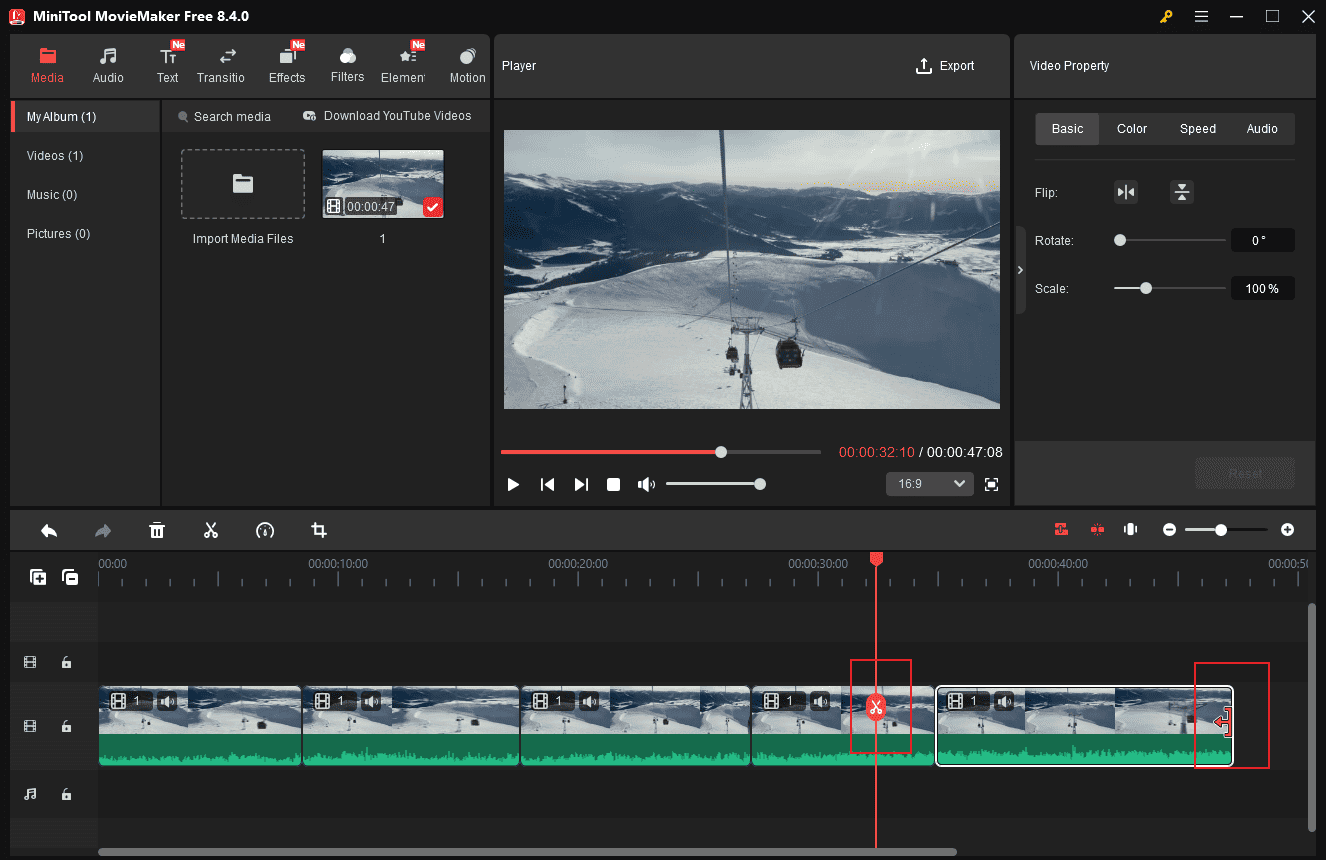
After deleting unnecessary parts, you can rearrange and organize the clip orders.
5: Add Additional Contents to Video
There is plenty of content available to add to your video.
Add Transitions
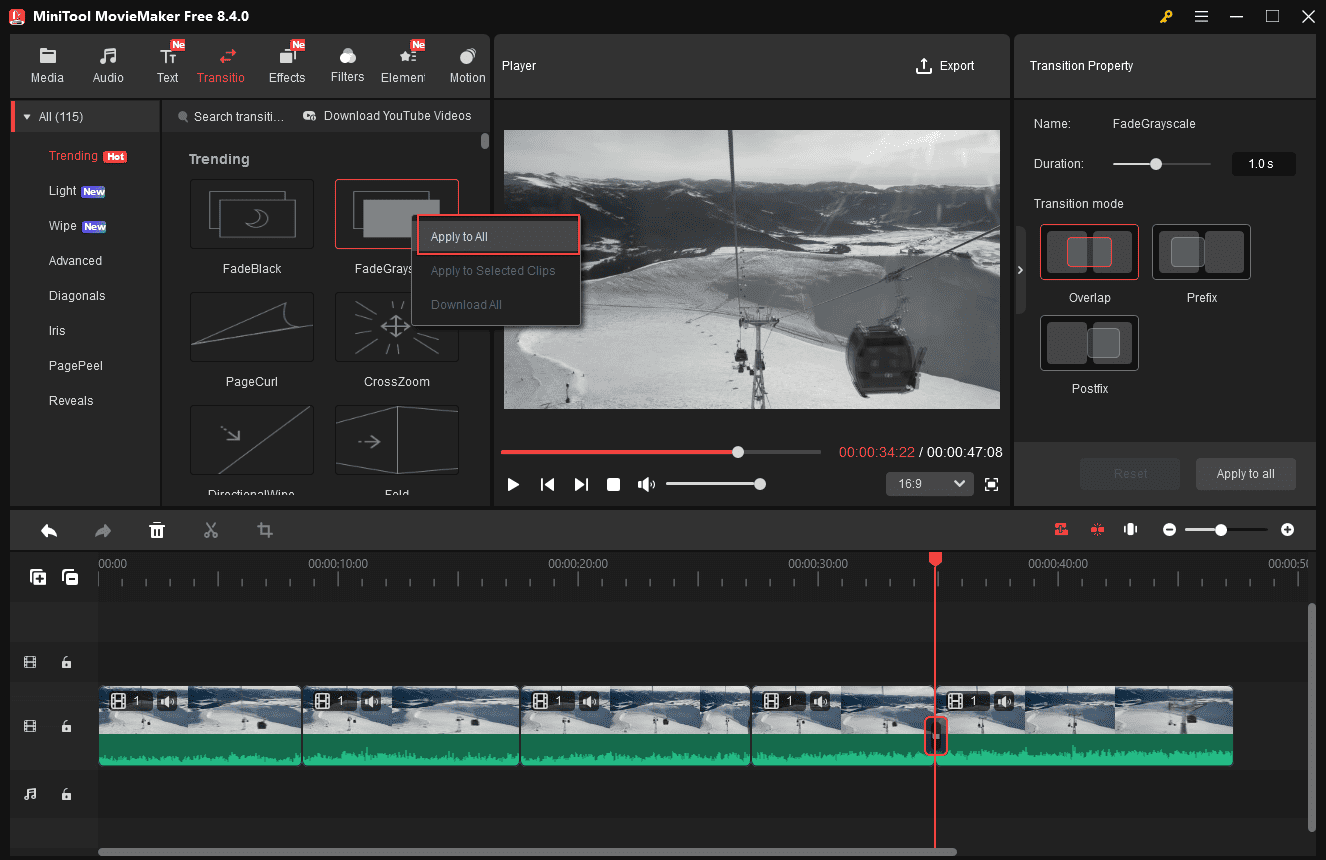
To connect the separated clips, adding a transition can make the entire video more harmonious. Click the Transitions tab at the top of the menu. Hover your cursor over the transition to preview its animation. If you are satisfied with it, click the Plus icon to add it to the timeline. Then, select the transition and adjust it on the right transition property panel. You can adjust its duration and transition mode, including overlap, prefix, and postfix.
If you want to use the same transition for all clips, right-click the preferred transition and select Apply to All.
Add Elements
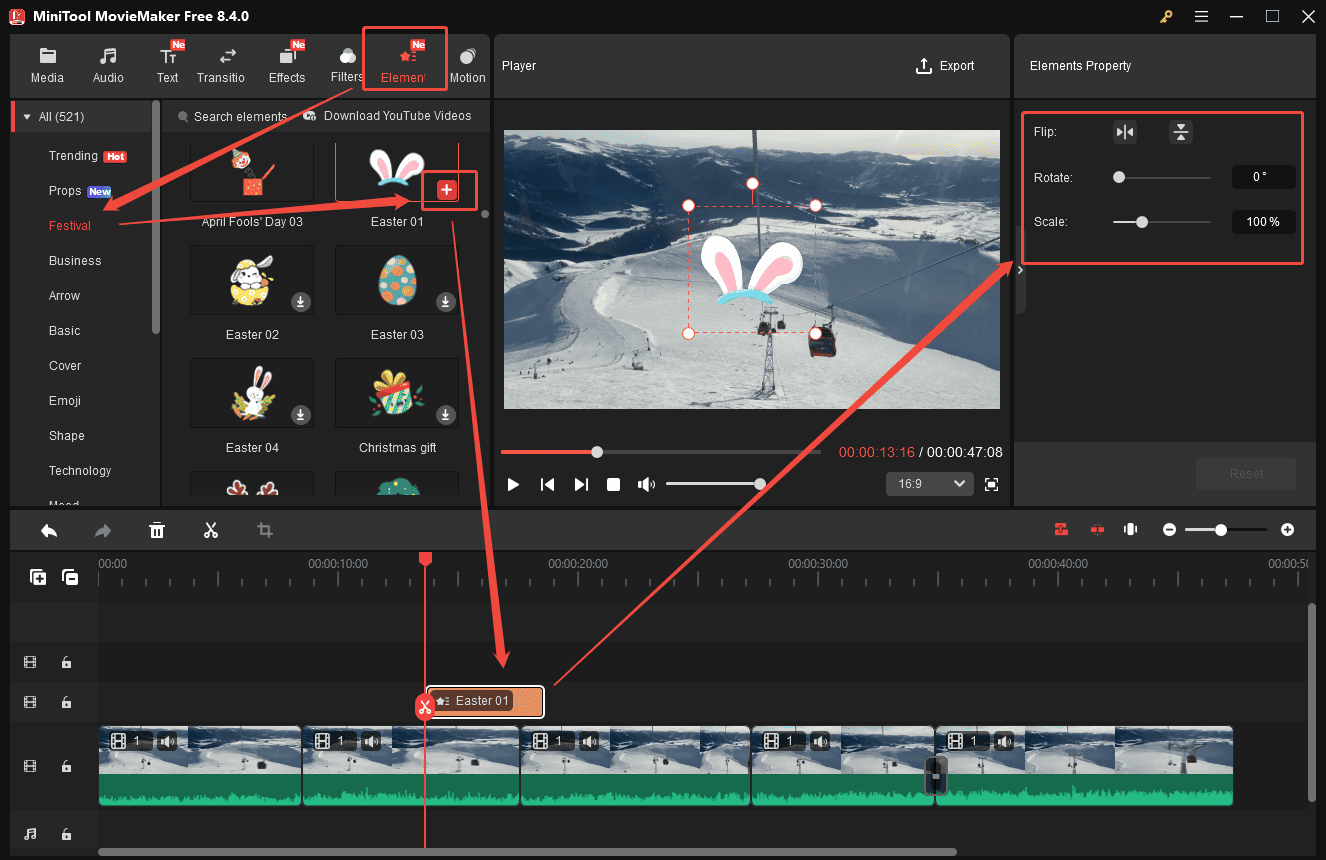
MiniTool MovieMaker includes exclusive Easter stickers. Click the Elements tab at the top of the menu, scroll down to find the Festival category. Or you can enter Easter in the search bar for a precise search. Then, select the Download icon on the desired sticker. Click the Plus icon to add it to the timeline.
To edit the added sticker, you can flip, rotate, and change its size in the right Elements Property panel. You can also directly adjust its size, location, and rotation angle by dragging it in the player windows.
Add Text
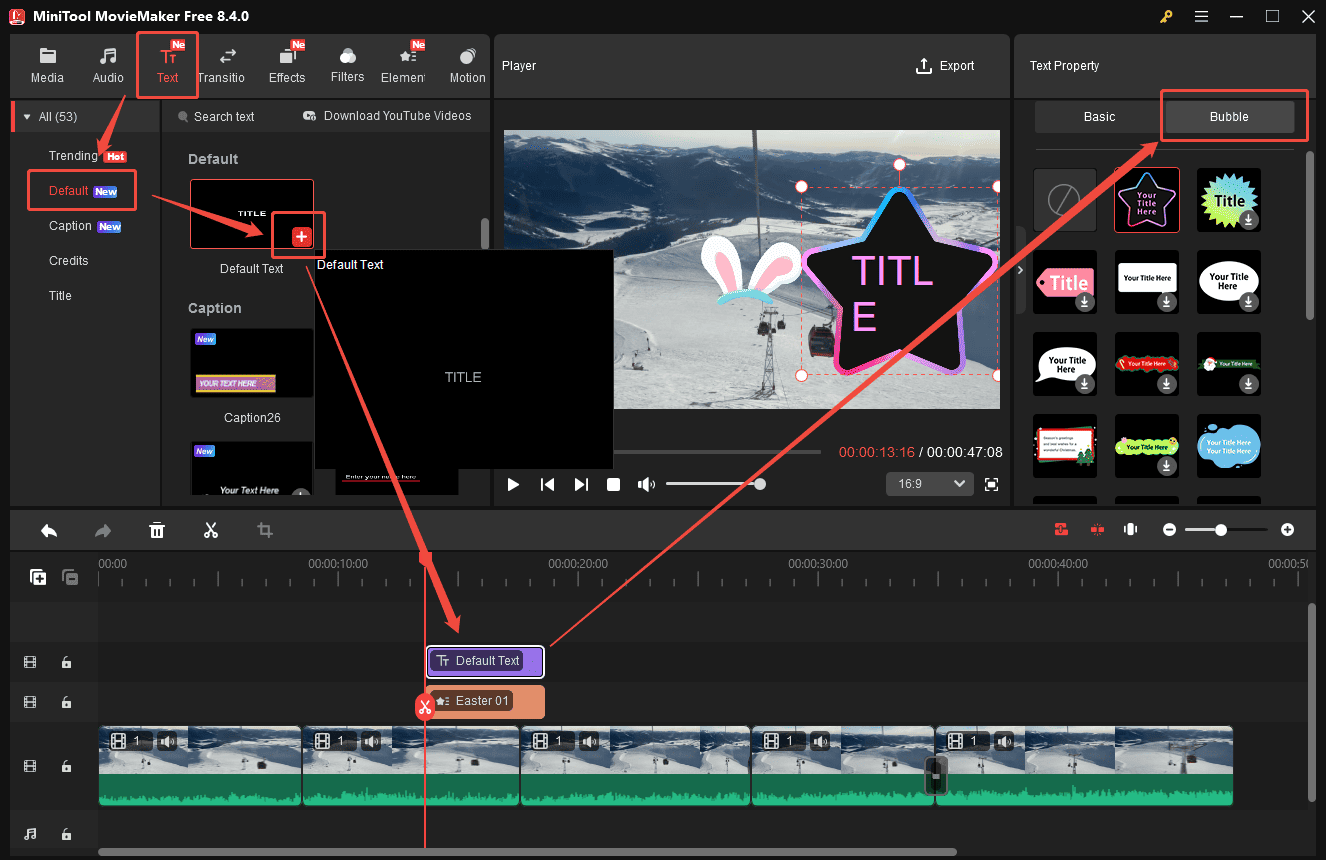
To make the video accessible to everyone, adding text is essential. Click Text and select your preferred text template. Choose appropriate captions, titles, and credits tailored to your needs. Then, select the added text in the timeline and adjust its font, size, line spacing, color, and other properties in the right Text property panel.
MiniTool MovieMaker also offers additional bubble options. Select the Default icon and add it to the timeline. Select the text track and click Bubble in the right panel. Then, you can pick the desired one and customize it.
Add Music
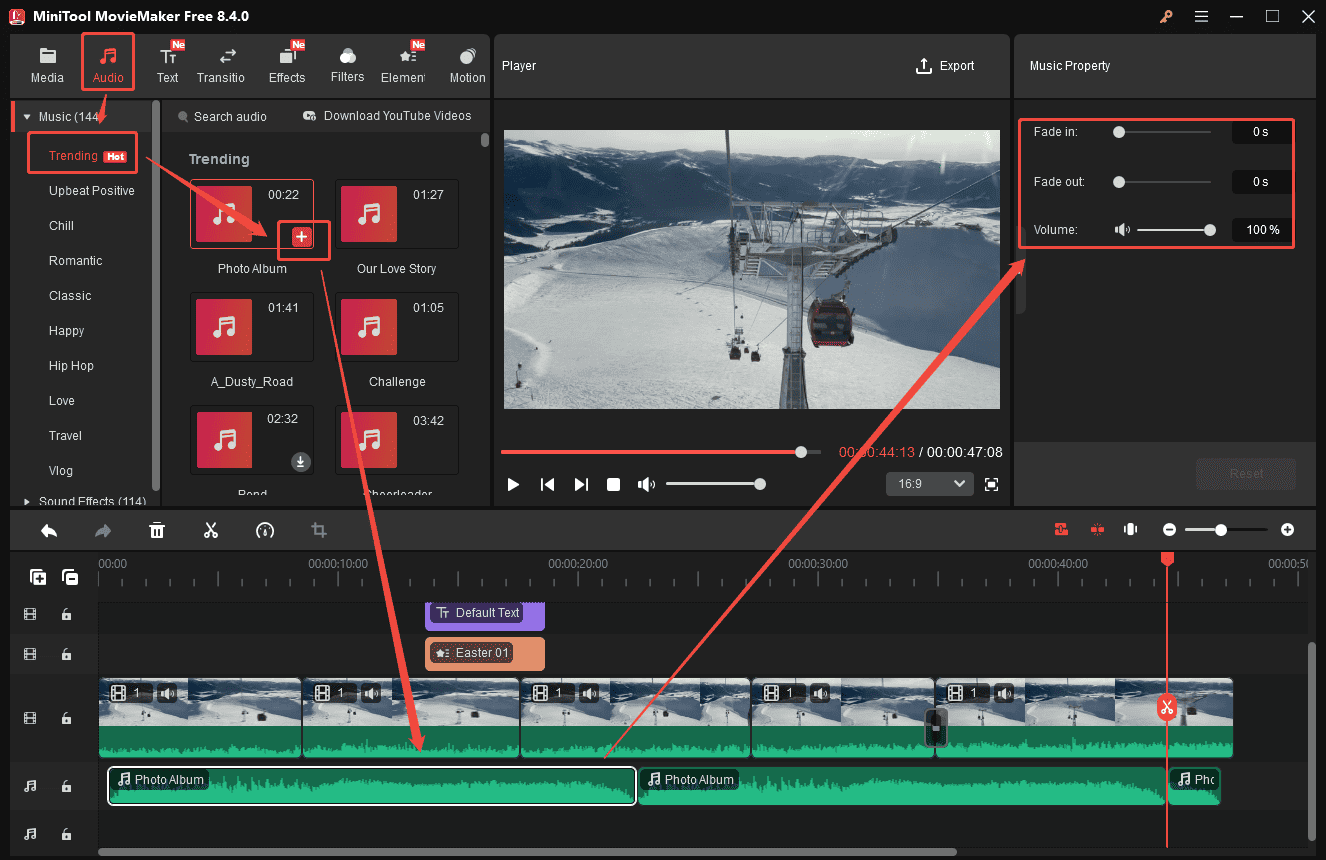
Music is an indispensable part of the video. Click the Audio tab at the top of the menu. Scroll down to find your desired music. Then, click the Plus icon to add it to the timeline. You can also trim and split the audio track in the timeline to match the video duration.
Also, select the audio track in the timeline and drag the volume sliders to lower the music in the right panel. You can also enter an accurate value to add fade-in and fade-out effects to the music.
6: Export the Final Video
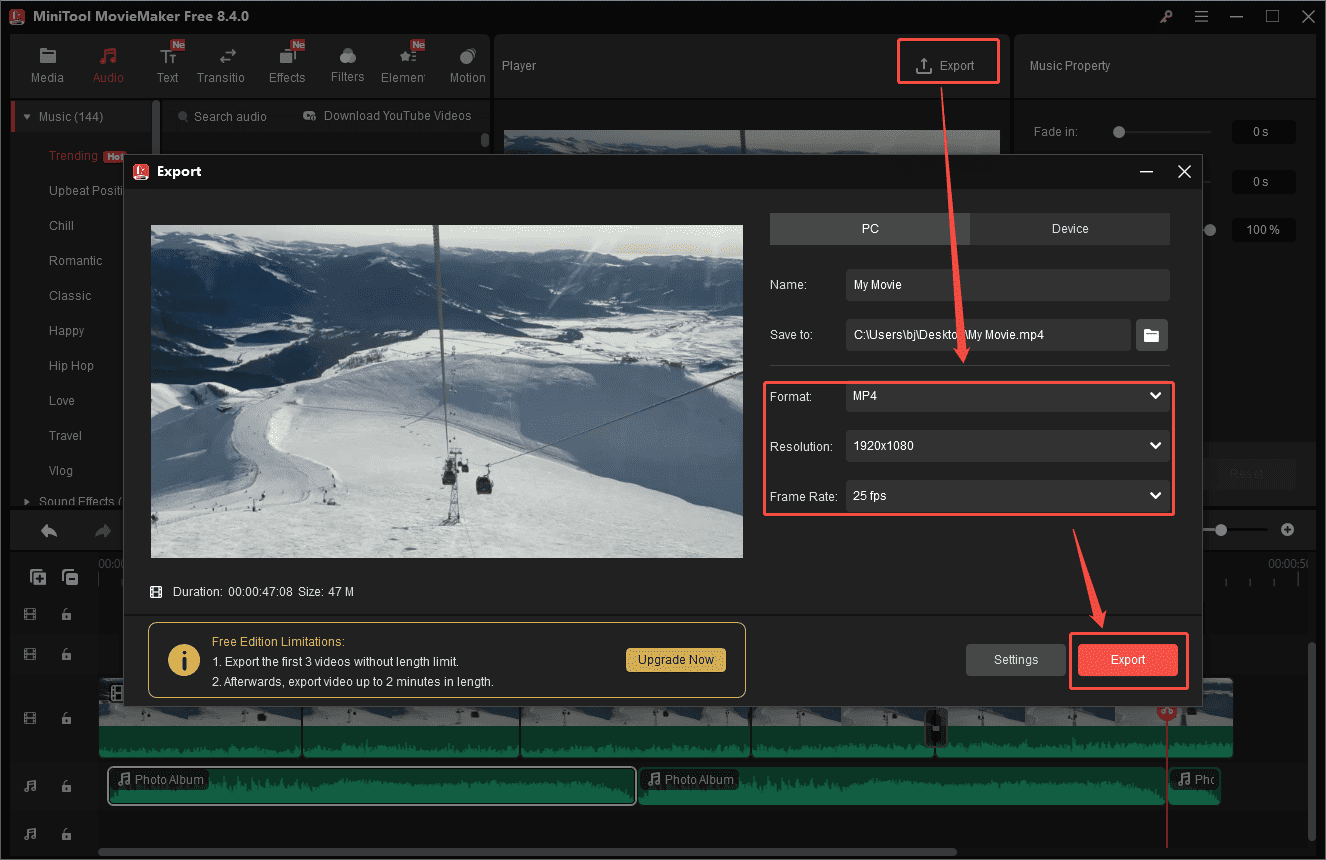
Once the editing is finished, click the Export icon at the top of the menu to enter the export settings window. Here, you can adjust the video format, resolution, and frame rate. After setting, click Export at the bottom of the window to save the video to your computer.
Now you know how to edit an Easter video with MiniTool MovieMaker. The process is simpler than it may seem. You can also explore the other Easter video makers mentioned above to create your own videos using the same steps.
Conclusion
Whether you’re making a joyful Easter greeting video or creating a funny Easter-themed skit, it’s a delightful way to celebrate the holiday. With a powerful Easter video maker, you can effortlessly turn your creative ideas and memorable moments into engaging videos. Give it a try and spread joy with your personalized Easter creations!
Besides, if you have any suggestions or problems when using MiniTool MovieMaker, please do not hesitate to contact us at [email protected].
People Also Ask
Copyright notes: For personal sharing, classic songs are generally acceptable, but if you plan to publish publicly, be cautious about copyright. For commercial use, always use royalty-free music.
Facebook / Regular YouTube: Horizontal 16:9.
About The Author

Position: Columnist
Cora is a tech writer specializing in digital media workflows, with over six years of hands-on experience in video post-production, media transcoding, and screen capture. Her writing is always clear and practical. Cora also produces in-depth software reviews for users across skill levels to help them find the right tool and enjoy video editing.
User Comments :