

This post shares the 3 best April Fools’ Day video editors for Windows and gives a detailed guide on how to make a prank video using the best video editing software - MiniTool MovieMaker. Let’s see it together.
April Fools’ Day is full of laughter and fun, and creating a prank video is also a popular way to enjoy the day. If you are seeking the best April Fools’ Day video editor, you’ve come to the right place. This article introduces the best April Fools’ Day makers on Windows, including MiniTool MovieMaker, as well as online tools like FlexClip and Promo.com. Let’s have a closer look at them.
Best April Fools’ Day Video Editor on PC: MiniTool MovieMaker
MiniTool MovieMaker stands out for its intuitive interface and comprehensive tools, making it an excellent choice for Windows users to create a prank video. As a versatile video editor, it offers a wide range of features to help you edit your video. You can cut, speed, and rotate video to add an engaging touch. And its elements library also provides fun stickers designed especially for April Fools’ Day.
In addition to basic editing features, MiniTool MovieMaker also delivers advanced editing options. Its multiple-track advantage allows you to create a picture-in-picture effect. With this video editor without watermark, it is easy to make a clean and clear April Fools’ Day video.
MiniTool MovieMakerClick to Download100%Clean & Safe
Online April Fools’ Day Video Editors
If you want to make an April Fools’ Day video without downloading any software, online tools are an excellent choice. Below are two online April Fools’ Day video editors worth trying.
FlexClip
FlexClip is a cloud-based video editing platform designed for creators of all skill levels. With its rich and abundant video templates, you can make and customize your prank video with just a few clicks. Moreover, it provides access to millions of media resources, such as video clips, photos, animated elements, and music, making it convenient to enhance and polish your video.
What’s more, FlexClip integrates advanced AI-powered features such as automatic subtitle generation and background removal, which significantly improve editing efficiency and help you produce professional and captivating videos.
Promo.com
Another powerful online April Fools’ Day video editor is Promo.com. As an all-in-one social video creation and management platform, it focuses on making professional promotional videos and social media videos easily. Similar to FlexClip, Promo.com also offers millions of templates tailored to various themes such as holiday, education, business, and more.
When it comes to making a prank video, Promo.com offers basic editing tools like cutting and trimming. Besides, it provides an extensive music library to help set the right mood. Moreover, it also supports GIF editing, allowing you to add a playful touch to your April Fool’s Day videos.
How to Make an April Fools’ Day Video
To help you better understand how to make an April Fools’ Day video, the following section provides a step-by-step guide using MiniTool MovieMaker as an example.
Step 1: Download and Install
Click the button below to download MiniTool MovieMaker. Follow the on-screen instructions to finish the installation on your computer.
MiniTool MovieMakerClick to Download100%Clean & Safe
Step 2: Import Your Video
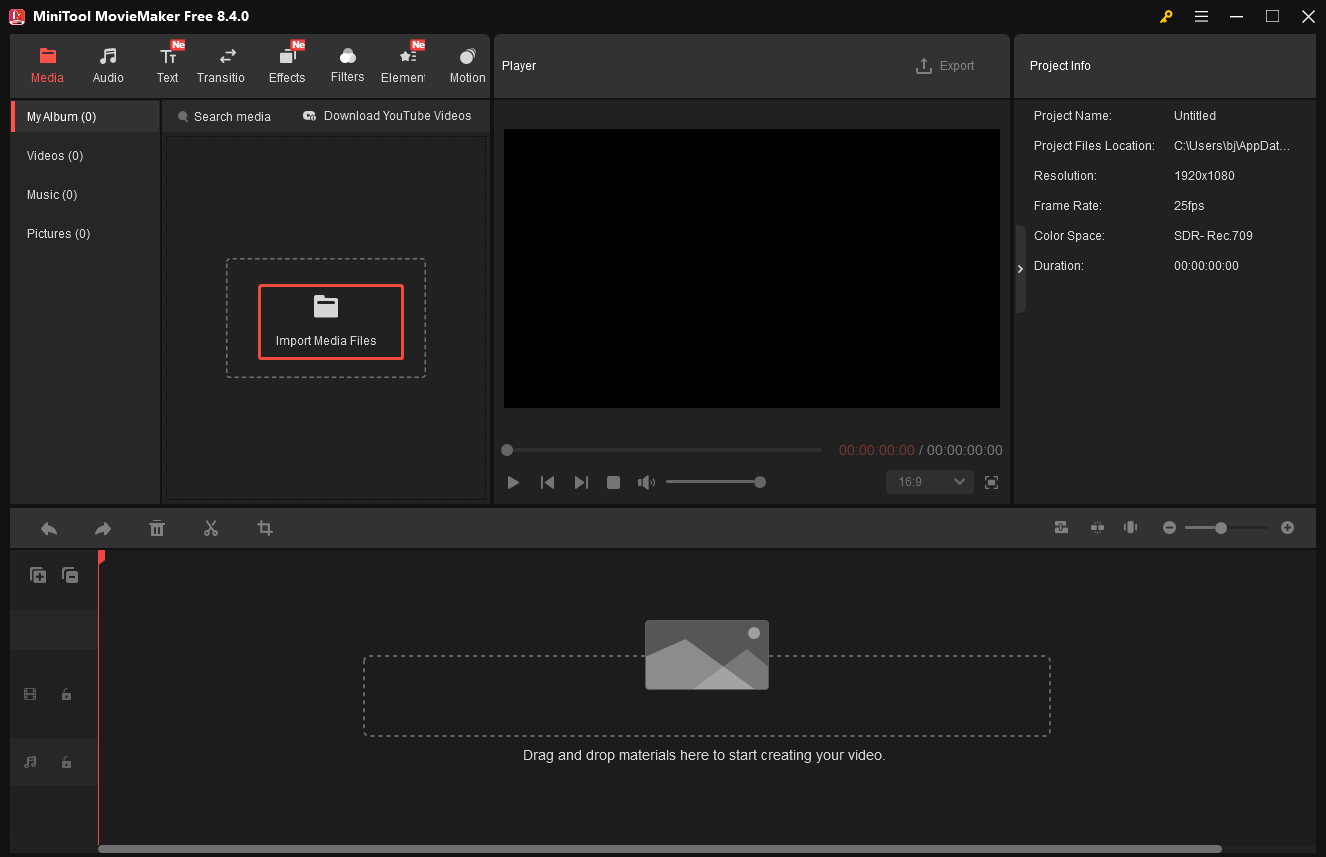
Launch MiniTool MovieMaker and close the pop-up project window to access the main editing interface. Click the Import Media Files option to upload your video from your computer. Next, click the Plus icon on the video to add it to the timeline.
Step 3: Trim and Split Video
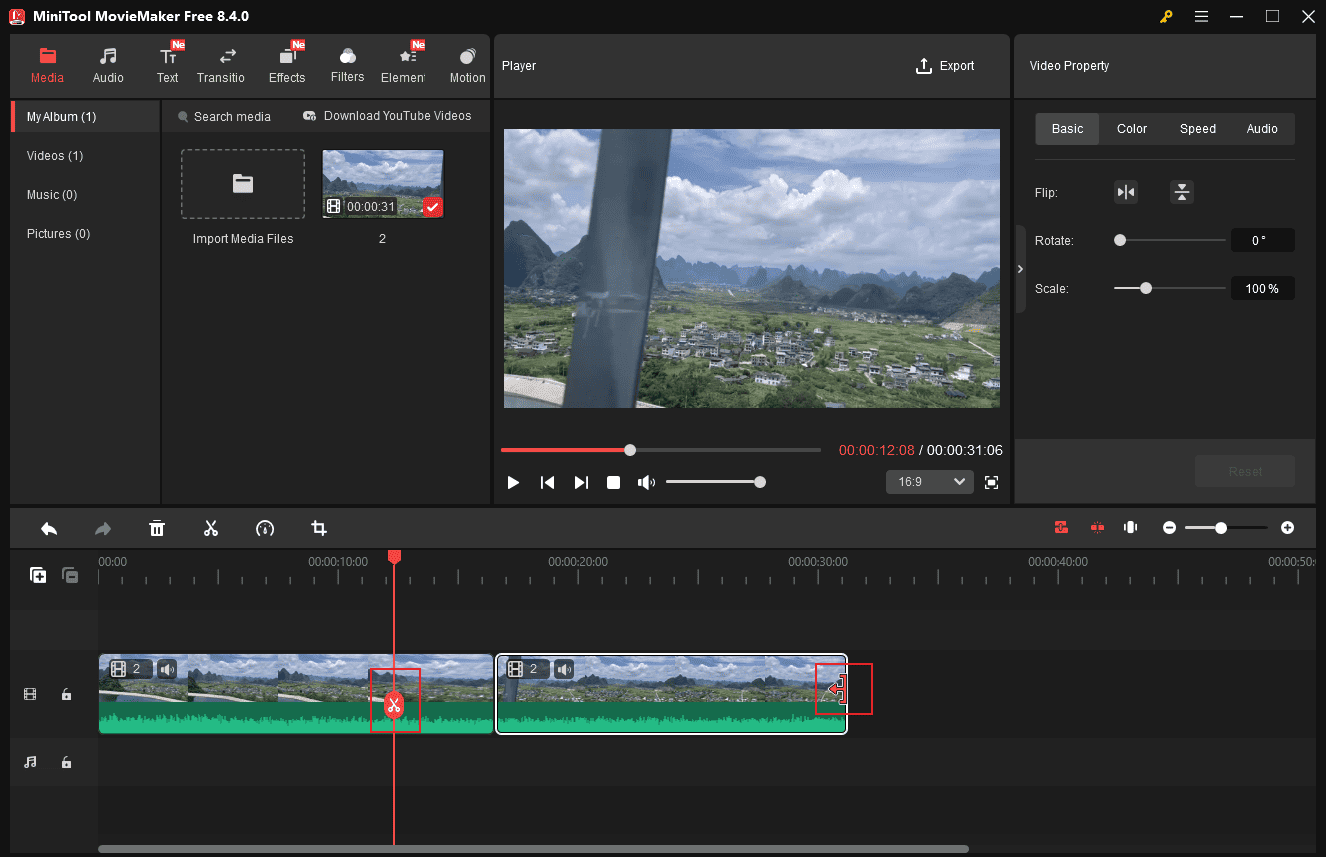
To create a corresponding or contrasting effect, adjusting the clip sequence is essential. The Split tool is ideal for this task. Move the playhead to the desired point and click Scissors to separate the clip from the video. Next, drag the separated segment to the desired location on the timeline.
If you want to remove unwanted parts, the Trim tool is very effective. Hover your cursor over the edge of the video until the Trim icon appears. Then, drag it to the preferred point to cut off unnecessary parts.
Step 4: Speed and Reverse Video
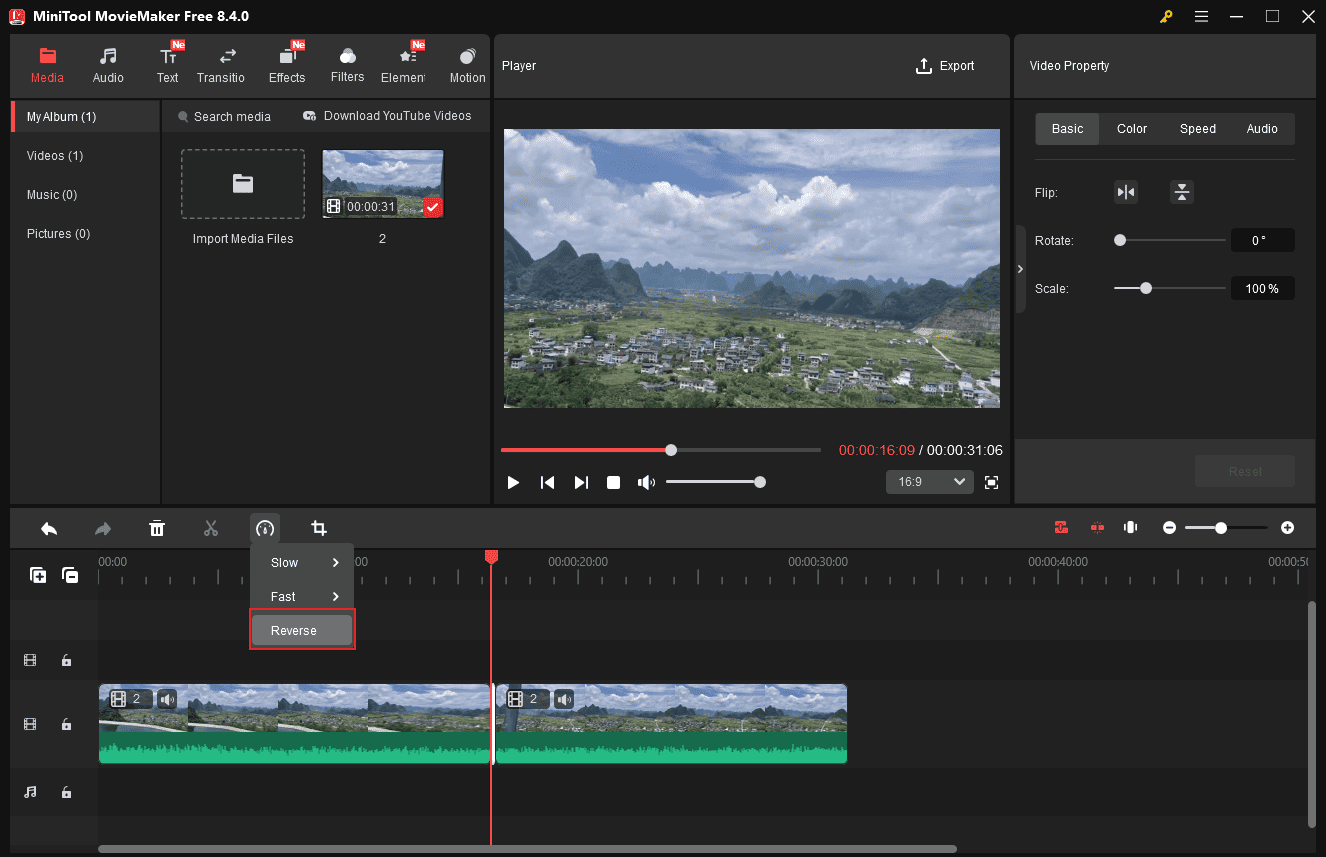
You can also make the video more eye-catching by adjusting the playback speed or playing the video in reverse. Select the video and click the Speed icon on the timeline toolbar. Choose Slow to set video speed to 0.5X, 0.25X, 0.1X, 0.05X, or 0.01X. For speeding up, 2X, 4X,8X, 20X, and 50X options can be applied to the video. You can also click the Reverse option to play the video in reverse.
Step 5: Add Stickers to Video
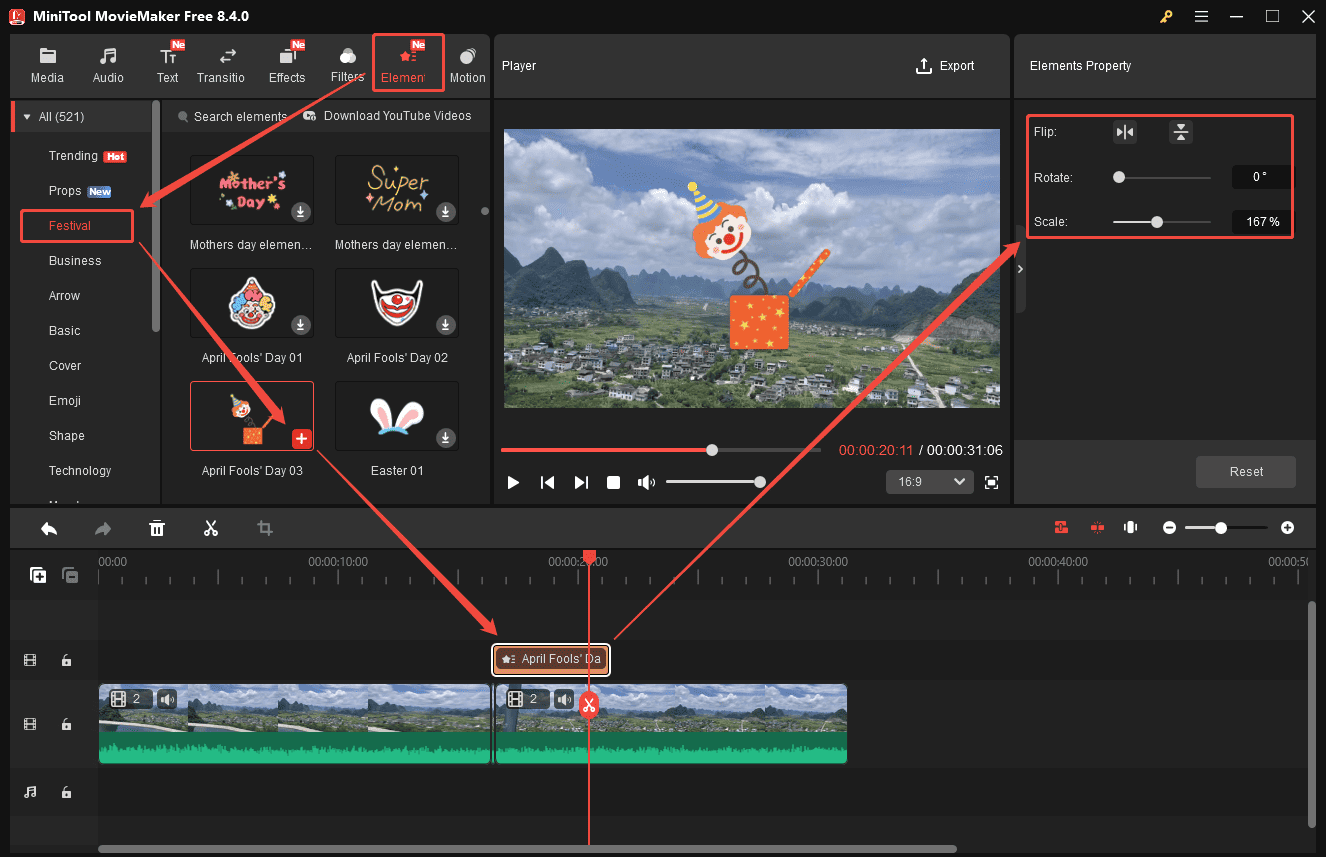
Adding stickers is a unique way to spice up your video. Click Elements at the top of the menu. Scroll down to find the Festival category or directly enter April Fools’ Day in the search bar. Hover your cursor over the sticker to preview its animation. If you are satisfied with it, click the Download icon and drag it to the timeline. Also, you can add other interesting stickers to your video.
Besides, you can directly adjust the sticker’s location and size on the player section.
Step 6: Add Music to Video
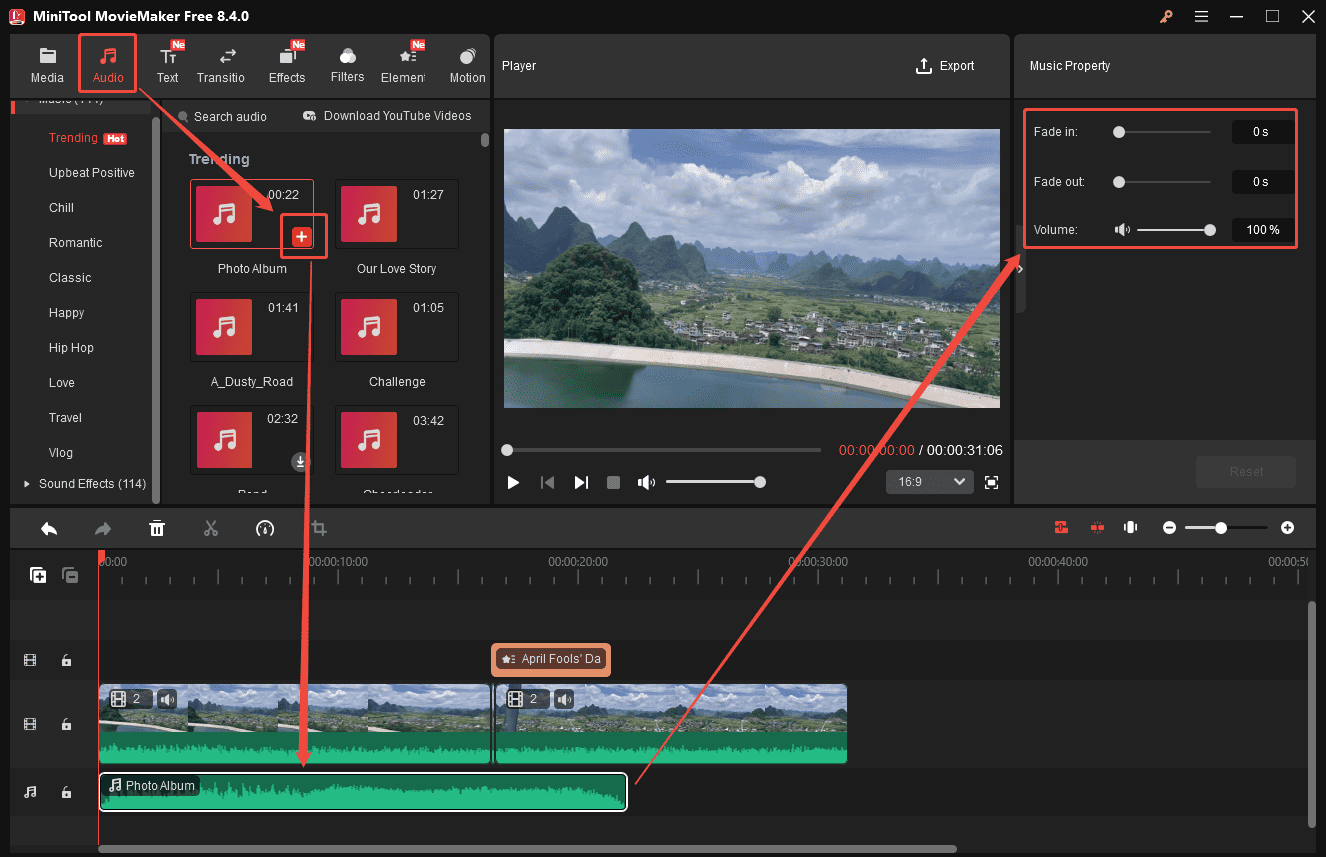
Music plays an integral role in videos. MiniTool MovieMaker provides exclusive music and sound effects. Click the Audio tab at the top of the menu. Find your preferred music and download it first. Next, drag it to the timeline. For a smoother audio experience, you can add fade-in/out effects on the right music property panel.
Step 7: Export the Final Video
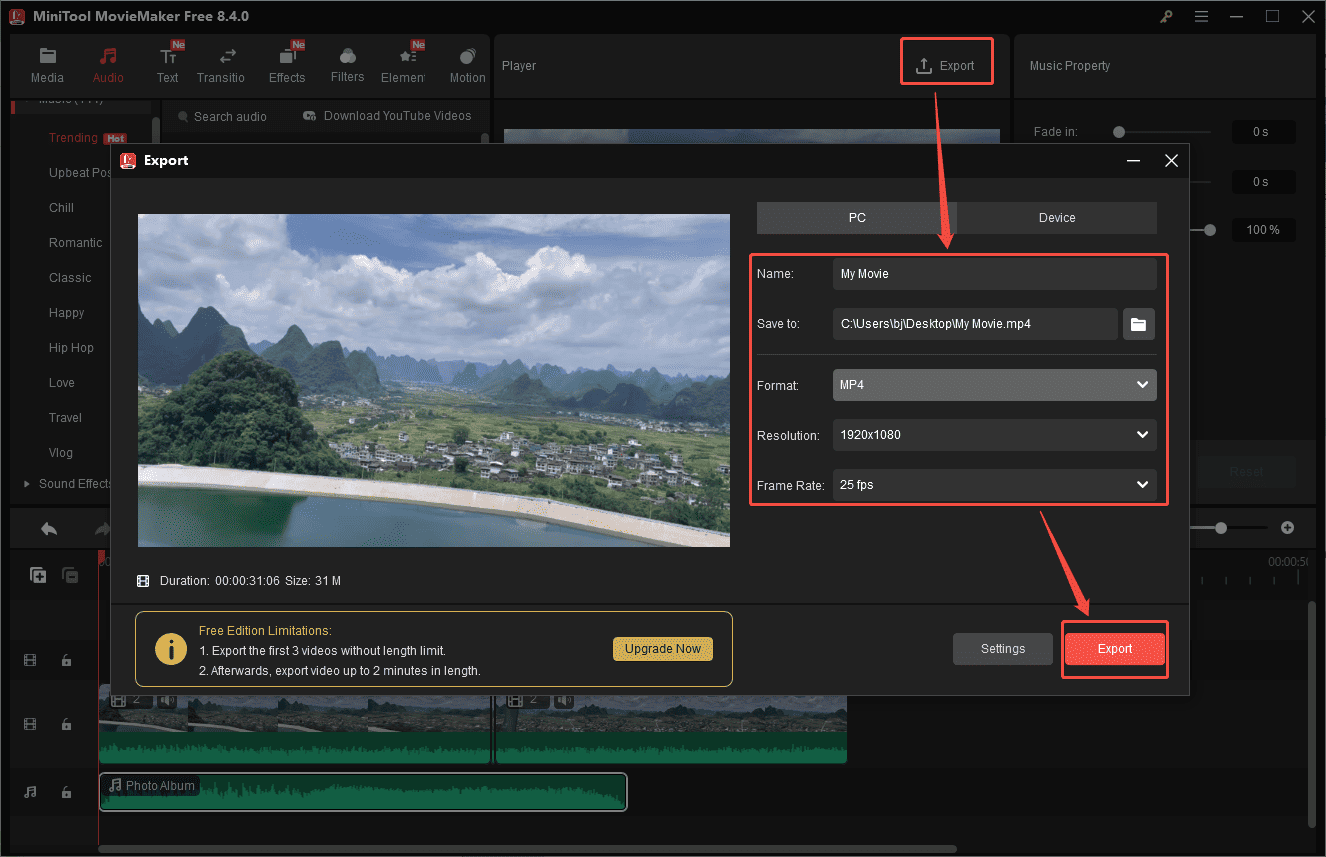
Once everything is done, click the Export icon at the top of the menu to enter the export setting window. Here, you can customize the video name, format, resolution, and frame rate. Next, click Export at the bottom of the window to save the video to your computer.
As you can see, creating and editing April Fools’ Day prank videos with MiniTool MovieMaker is easy and can be a lot of fun!
Conclusion
This post introduces 3 April Fools’ Day video editors to help you create an interesting video with ease. Whether you are planning a prank for friends or a fun trick for adults, these video editors can meet your needs. Try them out to create your own videos and fully enjoy the laughter and fun of April Fools’ Day.
If you have any questions or suggestions while using MiniTool MovieMaker, please do not hesitate to contact us via [email protected].
User Comments :