

This post introduces a free video effects editor - MiniTool MovieMaker, and explains how to apply effects to your video using the video editing software. It also lists common types of video effects.
MiniTool MovieMaker: Best Video Effects Editor for Beginners
If you’re looking for a video effects editor, try MiniTool MovieMaker. It’s a video editor without watermark and is also my favorite editing software. It has a simple interface, and I think this is very friendly to those without editing experience.
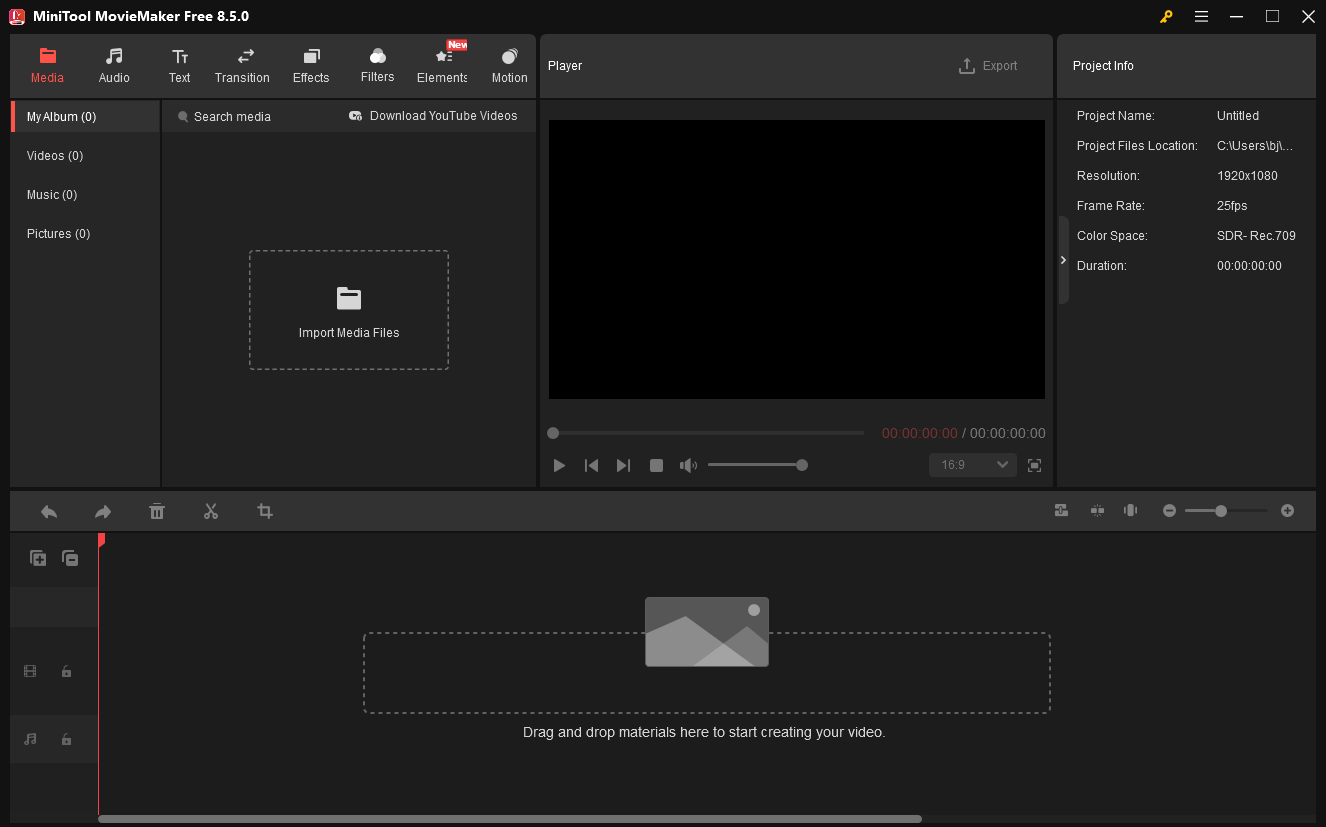
As an excellent video editor with effects, MiniTool MovieMaker provides a huge collection of text templates, transitions, frames, filters, and pan & zoom effects. These resources give me various options to enhance my footage. Also, I love its rich element library of hundreds of stickers.
With MiniTool MovieMaker, I can also quickly change the video playback speed, play a clip in reverse, crop, rotate, flip, split, and trim video files. Best of all, it can export videos up to 4K resolution for free.
How to Add Effects to Video
Fast Track Steps:
- Install the video effects editor on your PC.
- Open the software and import your video.
- Add text, transitions, effects, filters, etc.
- Export the video.
1: Download and Install
Click the button below to download and install the video effects editor on the computer.
MiniTool MovieMakerClick to Download100%Clean & Safe
2: Import the Video
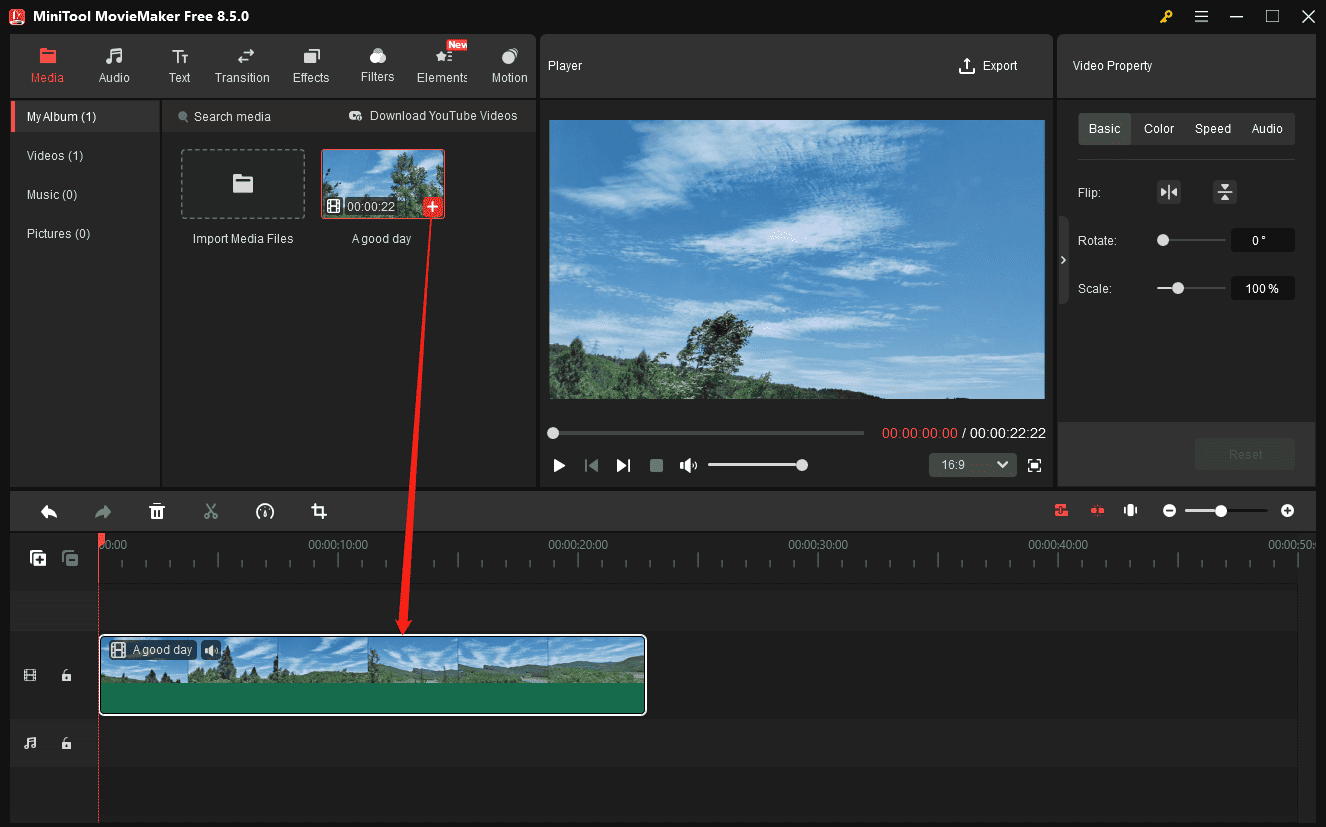
After the installation is finished, launch the software and click New Project to enter the main interface. Open the File Explorer by clicking the Import Media Files area, select the target video, and click Open. Then, click the + icon on the video or drag and drop it from the media library to the timeline to start editing.
3: Enhance Content with Various Effects
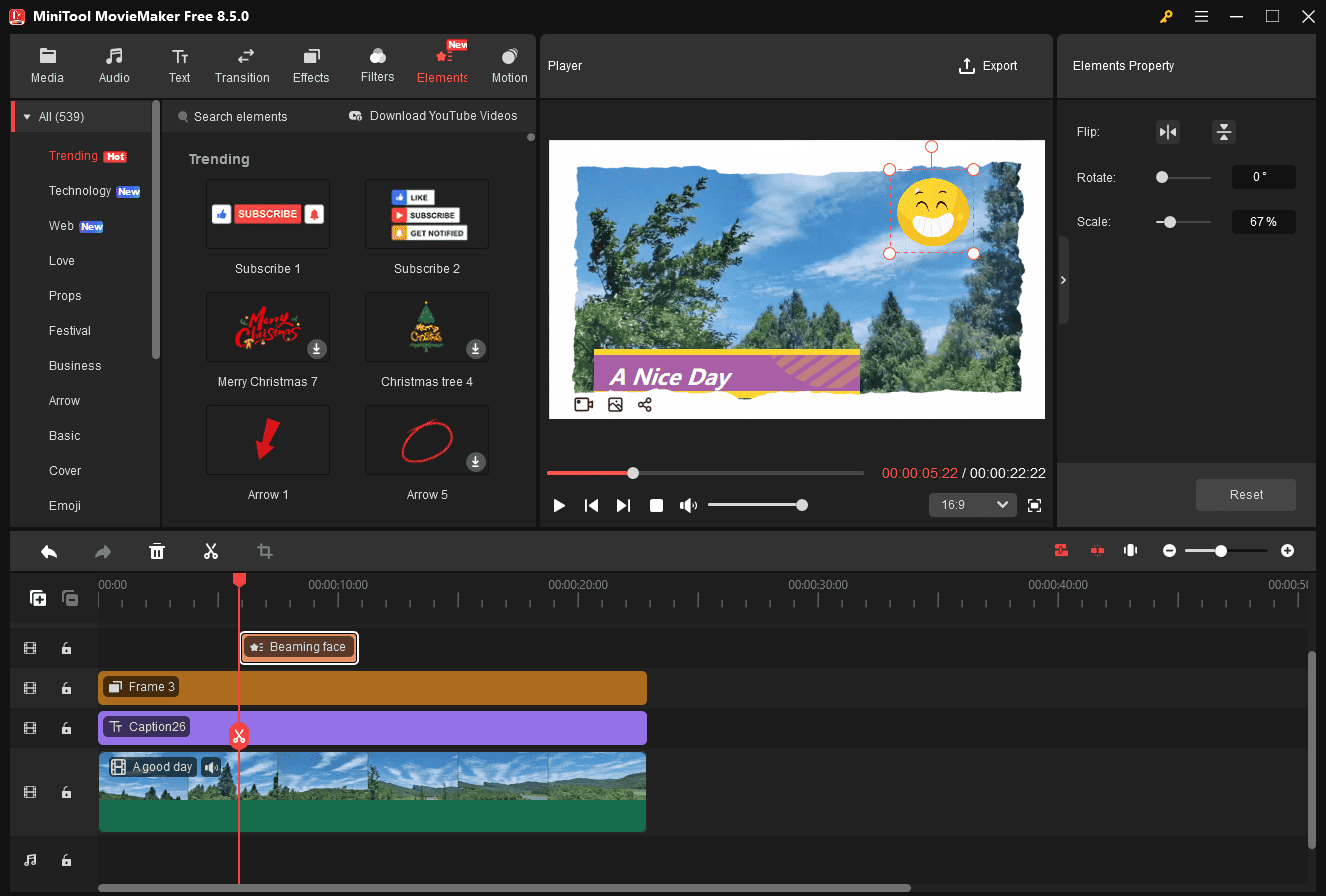
Add text: Go to Text, choose your desired category, add a template to the timeline, and enter and edit your text in the Text Editor on the right.
Add a transition: Click Transitions, find or download a transition effect, and drag it to the gap between the desired two video clips on the timeline.
Create speed effects: Select the video on the timeline, go to the Speed tab on the right Video Property, and drag the Speed slider to speed up or slow down the video.
Correct the clip’s color: Switch to the Color tab in the Video Property, and drag the sliders of Contrast, Saturation, and Brightness.
Add effects/filters/elements/motion: Click the desired menu on the top toolbar, download an effect, and drag it to the timeline.
4: Export the Video
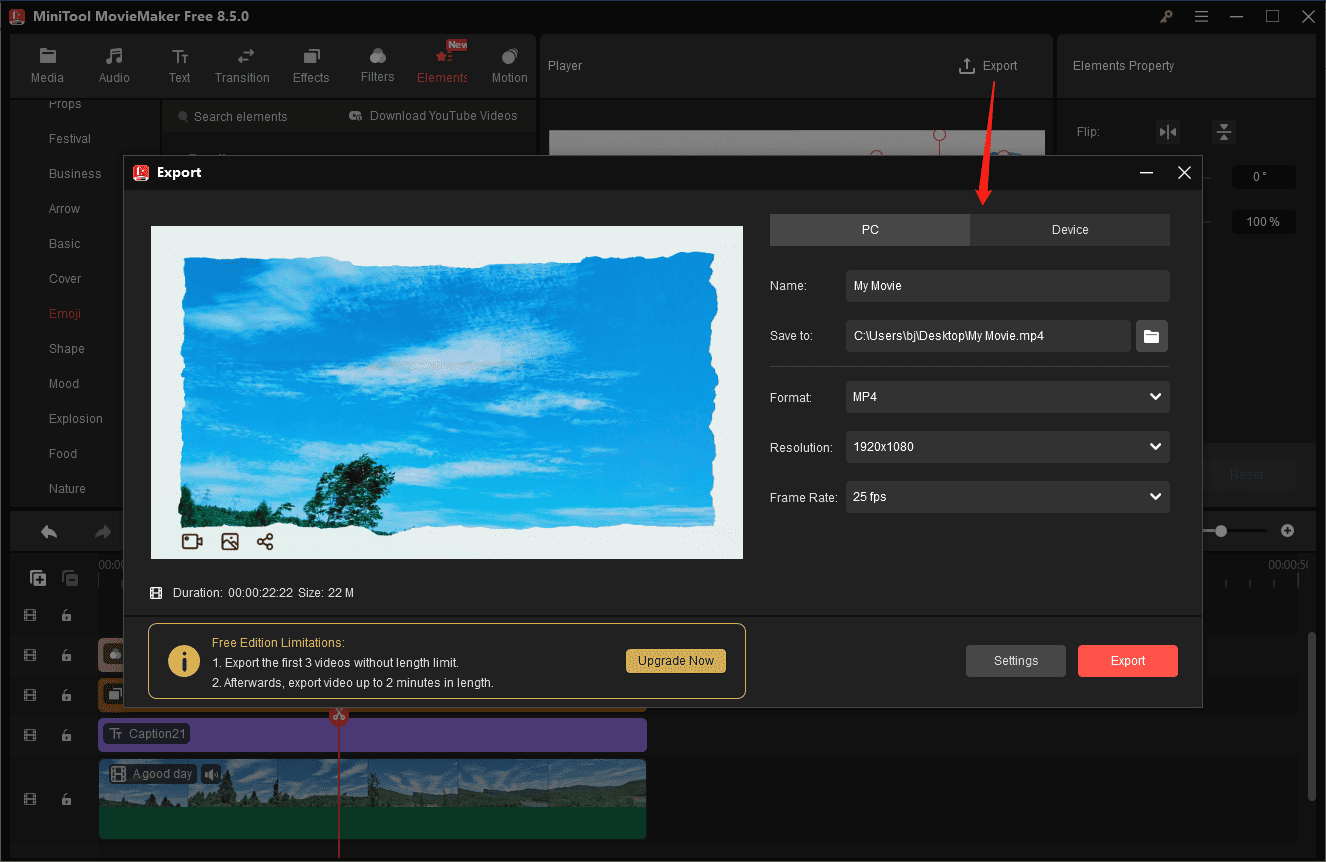
Click Export in the upper-right corner to open the Export window. I was able to select the save location, output format, resolution, frame rate, etc. Finally, click Export at the bottom of the Export window to start rendering the video.
What Are Video Effects & Common Types
As far as I know, the common types of video effects are as follows.
Video Transitions
Transitions are a common editing technique in post-production, used to connect one clip to the next in a video. In addition to simply moving from one scene to the next, transitions also effectively guide the audience’s attention, emphasize changes of time or location, create a specific emotional tone, and make the video more eye-catching.
There are multiple types of transition effects, ranging from simple cuts to creative animations, such as wipes and light leaks. Cross-dissolve is my favorite video transition type, as it can be used to connect shots or indicate the passage of time.
Motion Effects
Motion effects are also an important technique in video editing, primarily designed to animate images, text, and other still visuals, making them look dynamic and more engaging. Besides, they also help change the footage’s position or scale over time to improve visual engagement.
Motion effects can be achieved in different ways. Some editing software provides built-in motion effects like panning and zooming, and some offer keyframe animation to create the effect. Whatever the way you like, motion effects can imitate the camera movements for your still footage. For instance, I often apply a zoom-in effect to still images to make them look move and gradually magnify the central object.
Speed Effects
Manipulating the playback speed of video is another essential editing skill. Speed up a video to create fast-motion or time-lapse effects, and slow down a video to create slow motion, which changes the pacing of the storytelling, highlights key actions, or creates dramatic effects.
In addition to regular speed changes, some editing applications also support speed ramping, allowing users to gradually and smoothly adjust the playback speed of a single video to create dynamic transitions.
Color Correction & Grading
To make videos look as natural as human eyes see and fix light issues, color correction and grading are also significant effects during editing. The first process is generally achieved by adjusting contrast, saturation, exposure, brightness, white balance, and other settings. The second procedure is a more creative step, altering the clip’s colors, mood, and style, and it can be achieved by simply applying color filters, adding LUTs, or using color wheels/curves in professional software like DaVinci Resolve and Adobe Premiere Pro.
If there are color and exposure issues in your footage, then color correction is the first step to fix these issues and make them appear natural. Based on your needs, you can choose to do color grading to give the video a cinematic, artistic look.
Masking & Overlay
Masking is also a crucial editing technique that can hide or modify certain areas of a video by creating a custom shape. This effect enables users to blend two or more videos, create split-screen videos, isolate subjects, and more.
In video editing, an overlay refers to the image, text, video, or graphics layered on top of the main video track. It’s used to create picture-in-picture (PiP) effects, provide key information, spice up your footage, and improve video quality.
Stylistic Filters
Filters are essential tools for enhancing or changing the style or tone of the original footage. Generally speaking, filters are preset digital effects that can be added to a video with one click, such as vintage, VHS, black & white, and beauty filters.
Audio Effects
In video editing, common audio effects include equalization, noise reduction, audio separation, pitch shifting, sound effects, and voice changers, effectively making the audio fit the visual expression to create an immersive viewing experience.
![Video Volume Booster: How to Make a Video Louder [Complete Guide]](https://images.minitool.com/moviemaker.minitool.com/images/uploads/2025/02/video-volume-booster-thumbnail.jpg)
Conclusion
This post briefly introduces the common types of video effects and a reliable video effects editor – MiniTool MovieMaker. You can follow the steps above to enhance your raw footage using the software’s extensive effects.
Finally, if you encounter any difficulties while using MiniTool MovieMaker, please contact our support team at [email protected] for help.
People Also Ask
About The Author

Position: Columnist
Cora is a tech writer specializing in digital media workflows, with over six years of hands-on experience in video post-production, media transcoding, and screen capture. Her writing is always clear and practical. Cora also produces in-depth software reviews for users across skill levels to help them find the right tool and enjoy video editing.
User Comments :