

This post compiles a list of the 5 best video trimmers for Instagram Reels, including Microsoft Photos, MiniTool MovieMaker, Clipchamp, CapCut, and Online Video Cutter. No matter which video editor you choose, you can easily remove unnecessary parts from the beginning and end of a video before posting it on Instagram.
Now, video posts uploaded to the Instagram website are shared as reels. Unlike the Instagram mobile app, the website does not have any editing tools. Therefore, you need to trim a video to keep it concise or remove unwanted content before uploading. That’s why I crafted this post to share some of the best video trimmers for Instagram reels available on desktop.
5 Best Video Trimmers for Instagram Reels at a Glance
- Microsoft Photos
- MiniTool MovieMaker
- MicrosoftClipchamp
- CapCut
- Online Video Cutter
Here is a concise comparison table of these video trimmers for Instagram reels.
| Tool | Microsoft Photos | MiniTool MovieMaker | Microsoft Clipchamp | CapCut | Online Video Cutter |
| Platform | Windows 10/11 (built into the system) | Windows 10/11 | Win 10/11/Web | Win/Mac/Web | Web |
| Price | Free | Free + Ultimate | Free + Pro | Free + Pro | Free |
| Watermark | No | No | No | No | No |
| Frame-by-Frame Accuracy | No | Yes | Yes | Yes | Yes |
1. Microsoft Photos
Microsoft Photos is the default media player that allows people to view photos and videos on Windows 10/11. While the app offers common photo editing tools, such as cropping and color adjustment, it does not have any video editing features other than trimming.
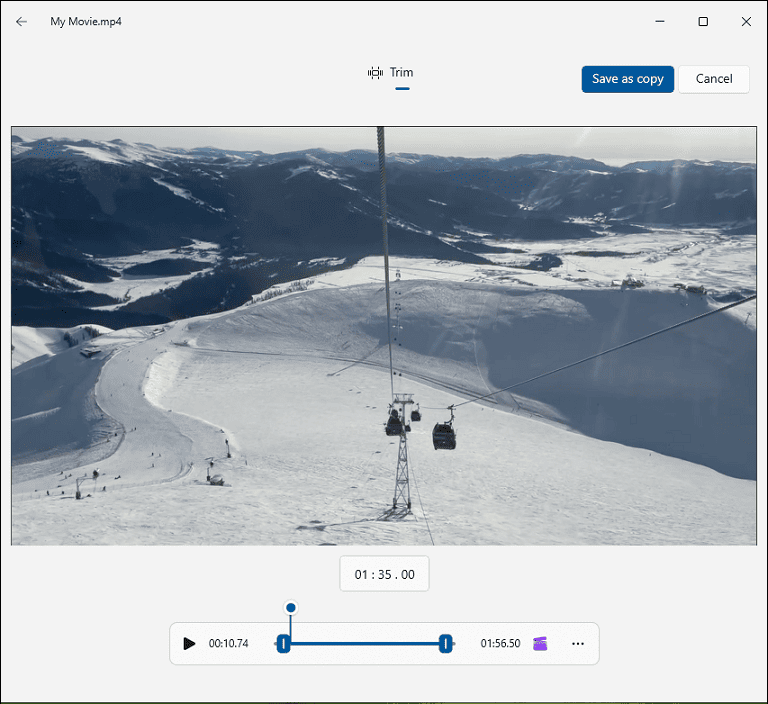
Therefore, when I only need to trim a video for Instagram reels, I select the Photos app. I can quickly access the app without installation. While the Photos app does not have a timeline that can be zoomed in or out, I can drag the handles and observe the timecode to trim a video with precision.
2. MiniTool MovieMaker
MiniTool MovieMaker is a video editor designed for beginners, with a clean interface and essential editing features. Personally, it should be on the list of the best video trimmers for Instagram reels. With the software, I can easily zoom in on the timeline and locate the desired position to trim a video accurately.
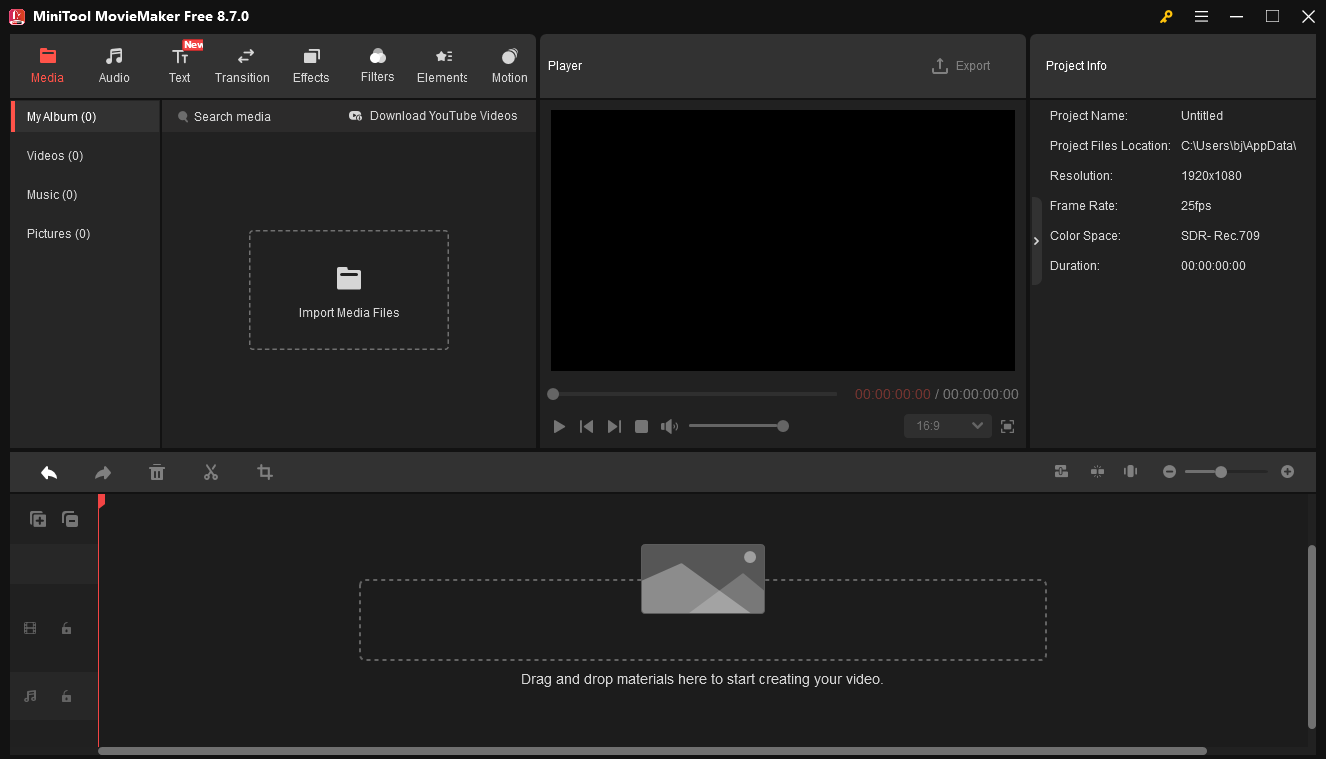
This video editor also supports the 9:16 aspect ratio. Therefore, I can easily convert a landscape video into vertical to make it perfectly fit the recommended format of Instagram reels. Additionally, the program comes with a large library of text templates, transitions, filters, special effects, animated stickers, pan and zoom effects to enhance videos.
Best of all, the software can export video in 1080P and 4K for free, without watermarks.
Trimming is intuitive. You drag the left or right edge of your clip in the timeline to shorten it, or you can use the Split tool to cut it at the cursor location. There’s no chance of having empty space in your video, since the clips always snap together after you make a trim.https://www.pcmag.com/reviews/minitool-moviemaker
3. Microsoft Clipchamp
Microsoft Clipchamp is also one of the best apps to trim videos for Instagram reels. Since the application is built into Windows 11, it’s convenient to launch the software and make some quick edits.
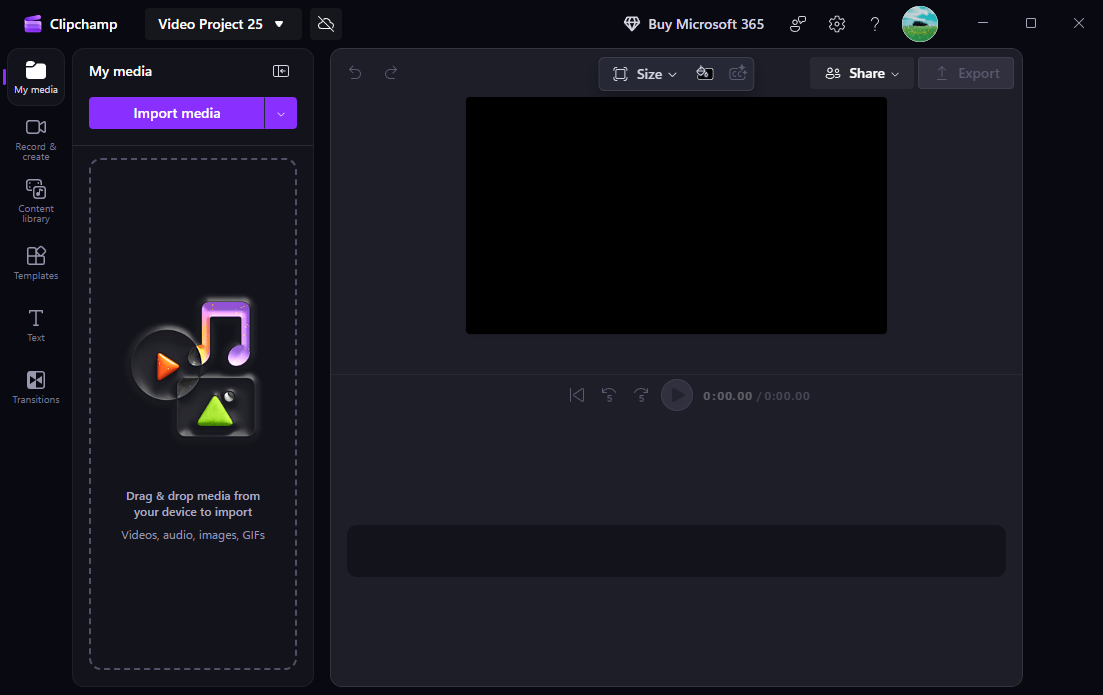
Unlike complicated professional suites, Clipchamp offers a clean, intuitive interface that lets me trim clips down to the exact second with a simple drag-and-drop slider. What’s more, it provides various effects and filters for video enhancements.
Similar to Canva, Clipchamp targets marketers who want to make quick hits on social media using meme-like, template-based designs. But it's fine for basic clip joining, splitting, and trimming, too. https://www.pcmag.com/reviews/clipchamp
4. CapCut
CapCut is also considered one of the best video trimmer apps for Instagram reels. It offers a precision trimmer that is both powerful and impossibly easy to use. Simply drag the handles, release the mouse, and the unwanted segments at either end disappear instantly.
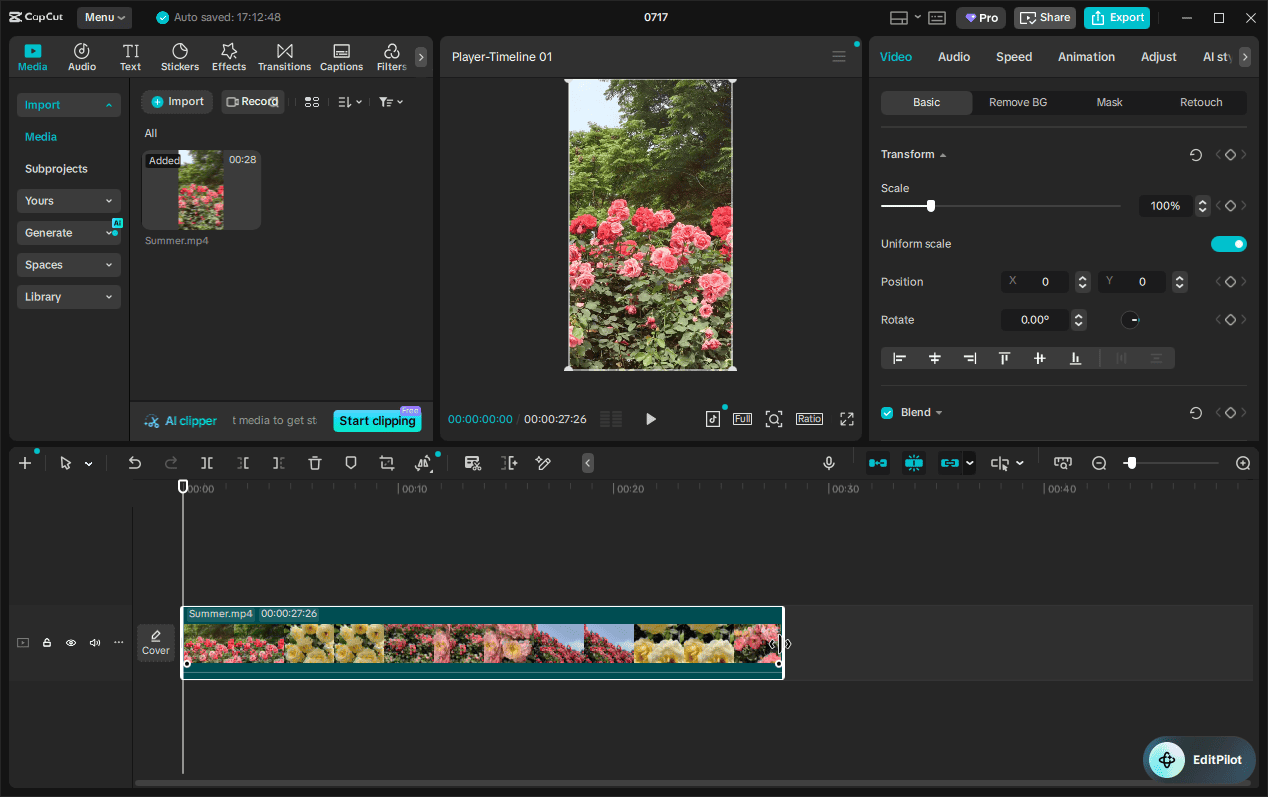
Actually, CapCut is far more than just a video trimmer. It boasts an extensive library of trending effects, stickers, transitions, auto-captions, and viral soundtracks that sync perfectly with your cuts. Its comprehensive editing tools and keyframe animation ensure professional-grade control over the clips.
CapCut’s full editing suite has expected tools for cropping and trimming clips, adding text, and adjusting brightness and saturation.https://www.pcmag.com/reviews/capcut
5. Online Video Cutter
If you’re seeking an online video trimmer for Instagram reels, I recommend Online Video Cutter by 123Apps. Featuring a drag-and-drop interface, this tool lets me easily adjust the start and end of a video.
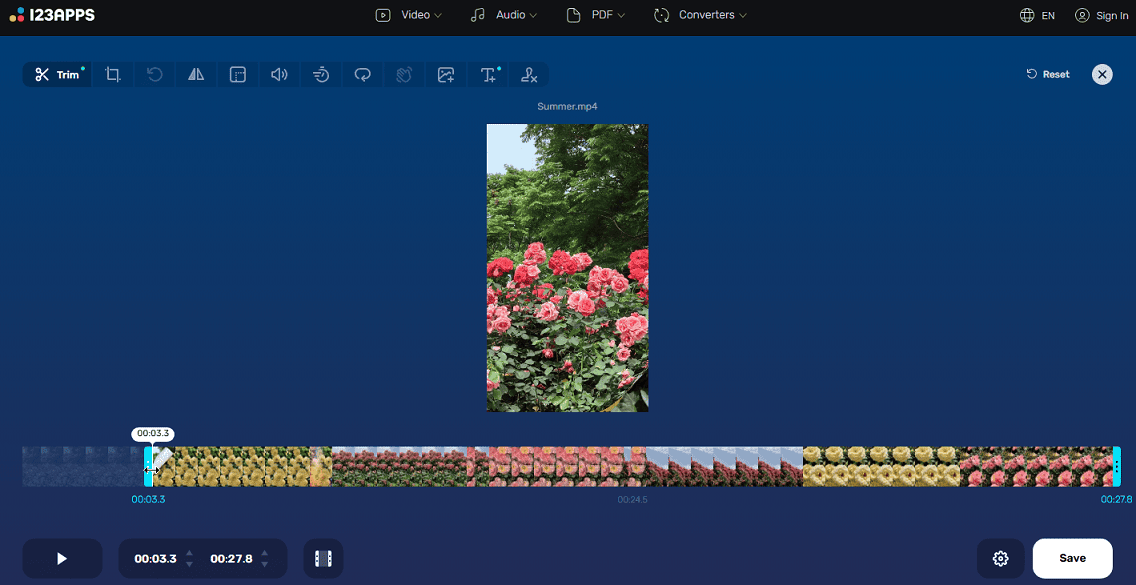
Additionally, this service can crop, rotate, and flip videos, adjust the volume level, change playback speed, reduce shakiness, and add text overlays to videos. It requires no registration and does not leave a watermark on the final result.
How to Trim a Video for Instagram Reels
Fast Track Steps:
- Download and install MiniTool MovieMaker.
- Import the target video.
- Trim the video.
- Split the video and delete the unwanted part in the middle.
- Export the video.
1. Download the video trimmer
Click the button below to download the software and install it on the computer.
MiniTool MovieMakerClick to Download100%Clean & Safe
2. Import a video
After opening the program, click New Project to start a new project and enter the main interface. From the left side, click Import Media Files to upload a video and add it to the timeline.
3. Trim the video
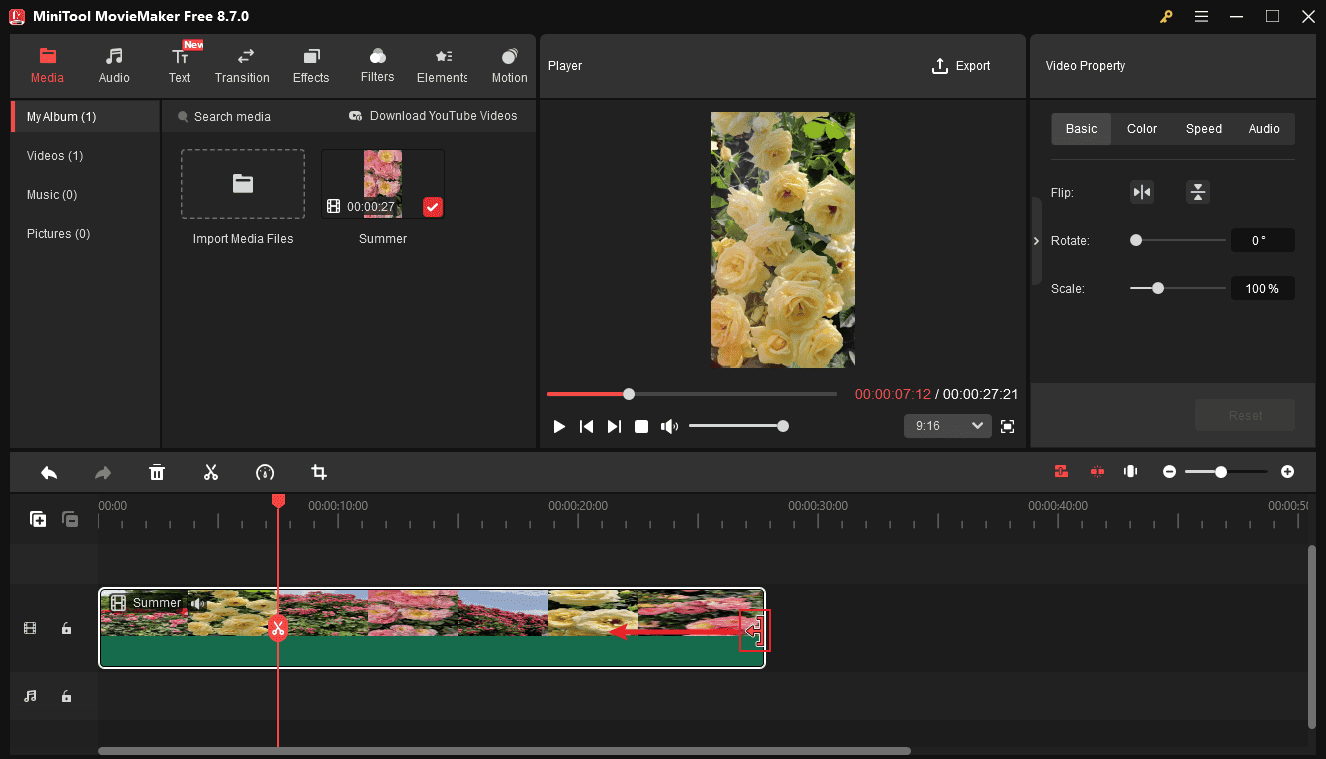
Hover over the beginning or end of the video until the Trim icon appears, and drag the icon inward to adjust the start or end point of the clip you want to save. When you release the mouse, the selected segment at the beginning or end of the video will be automatically removed.
4. Split the video
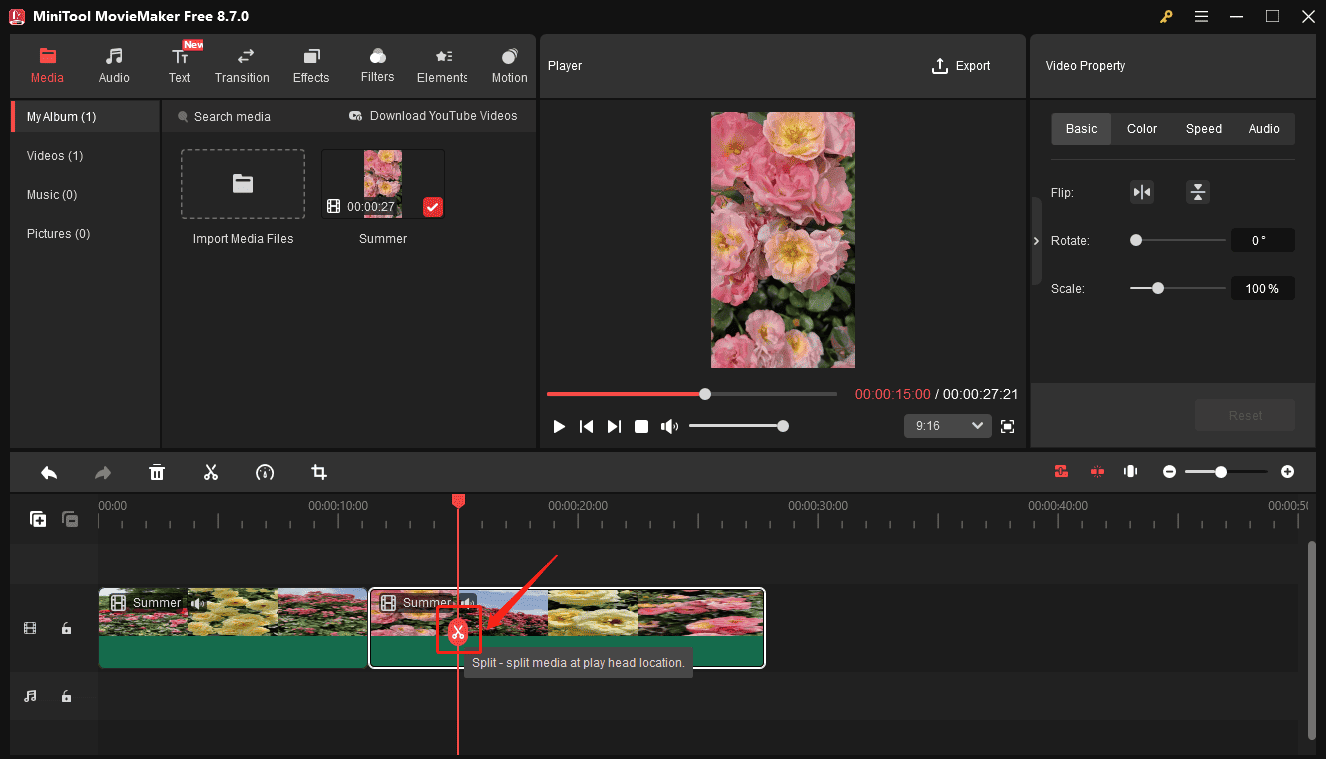
If you need to delete a middle section, separate it from the entire video first. Move the playhead to the start of the clip you want to delete, and click the Split icon. Drag the playhead to the end of the clip and click Split again. Right-click the target clip and choose Delete.
5. Export the video
Click Export in the upper-right corner. From the Export window, select the output folder, resolution, and frame rate. Finally, click Export again to start rendering the video.
Conclusion
With the 5 best video trimmers for Instagram reels, it’s easy to shorten a video or remove mistakes, thus effectively improving the viewing experience and making the video more engaging.
Finally, if you have problems while using MiniTool MovieMaker, send an email to [email protected] for help.
People Also Ask
About The Author

Position: Columnist
Cora is a tech writer specializing in digital media workflows, with over six years of hands-on experience in video post-production, media transcoding, and screen capture. Her writing is always clear and practical. Cora also produces in-depth software reviews for users across skill levels to help them find the right tool and enjoy video editing.
User Comments :