

This post introduces the five best award video makers, including MiniTool MovieMaker, CapCut, Filmora, VEED, and Renderforest. It also guides you through how to edit an award video with the best video editing software, MiniTool MovieMaker.
Creating an award video is an impactful way to turn recognition into an unforgettable celebration. Compared with traditional approaches, such as simply reading names from cards or slides, videos make a more engaging and memorable experience. To make the video creation easier and more efficient, this post compiles a list of the best award video makers.
To begin with, it is crucial to know the key elements that make an award video visually appealing and impactful.
Essential Elements of an Award Video
A compelling award video blends storytelling, emotion, and visual celebration. Key elements include:
- High-Quality Visuals: Clear photos, HD clips, graphics, and smooth animations ensure a polished, engaging look.
- Compelling Narrative: A clear story covering the nominee’s background, achievements, and challenges, supported by voiceover for emotional depth.
- Music & Sound Effects:Engaging tracks and well-placed effects set the tone and heighten key moments.
- Text Animation: Stylish, timed animations spotlight award titles and recipient names, adding a dynamic, professional feel.
- Decorative Stickers: Themed icons (trophies, confetti, ribbons) enhance festivity without clutter.
Next, we’ll explore 5 excellent award video makers with powerful editing tools.
Top 5 Award Video Makers
This part recommends five of the best award video makers, including:
- MiniTool MovieMaker
- CapCut
- Filmora
- VEED
- Renderforest
Here is the comparison chart.
| Award Video Maker | MiniTool MovieMaker | CapCut | Filmora | VEED | Renderforest |
| Platform | Windows | Win/Mac/Mobile | Win/Mac | Web-based | Web-based |
| Price | Free + Ultimate | Free + Pro | Free +Paid | Free +Paid | Free +Paid |
| Watermark | No | No | The free trial version leaves a watermark. | The free plan has a watermark. | The free plan has a watermark. |
| Celebration Assets | Yes | Yes | Yes | Yes | Yes |
| Text Animations | Yes | Yes | Yes | Yes | Yes |
| Skill Level | Beginner | Beginner–Intermediate | Intermediate | Beginner | Beginner |
MiniTool MovieMaker
MiniTool MovieMaker is a free download video editor suitable for beginners who want to create award videos. It is completely free of ads, bundles, and watermarks, allowing users to focus on video editing without distractions.
MiniTool MovieMakerClick to Download100%Clean & Safe

For award video creation, the software offers a wide range of editing tools, from basic to advanced features. You can easily crop, trim, and cut video, as well as create overlay effects such as text, images, and videos to enrich the content. Moreover, it includes an extensive library of transition effects that connect separate clips smoothly, along with attractive opening and closing effects to make the award video more engaging.
This video editor boasts broad format capabilities and can import the most popular video formats, including MP4, MOV, AVI, WMV, MKV, WEBM, and so on. It also allows users to export videos in 4K resolution for free. All in all, MiniTool MovieMaker is an excellent award video maker that meets most editing needs for beginners.
MovieMaker by MiniTool is an inexpensive, easy-to-use video editing program. It includes a fair number of effects and gives you easy ways to join your clips, add transitions, and overlay objects and text.https://www.pcmag.com/reviews/minitool-moviemaker
CapCut
CapCut is a versatile video editing software that strikes a balance between ease of use and comprehensive editing tools. Its intuitive and user-friendly interface ensures a smooth start for both beginners and experienced users in video creation.
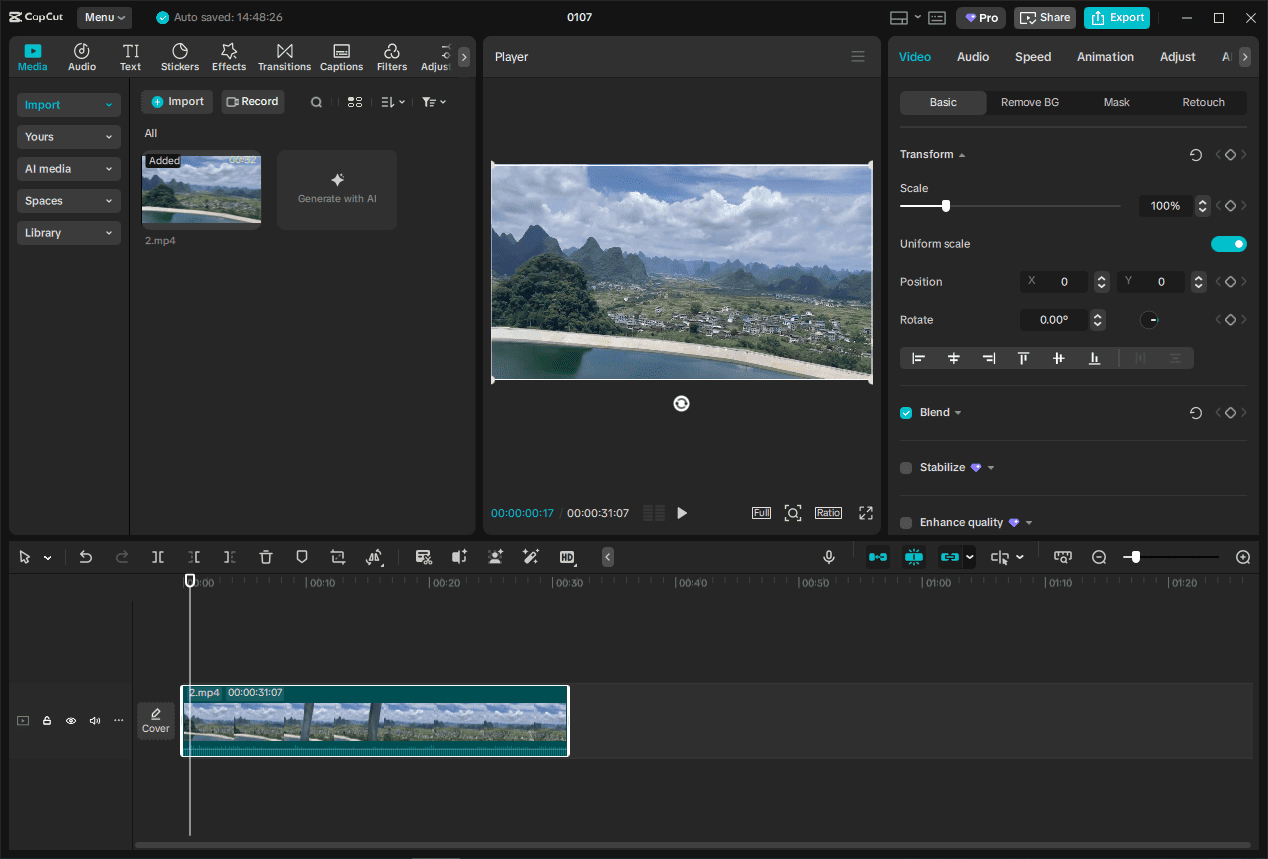
When it comes to making an award video, CapCut is equipped with a suite of advanced editing features. For example, you can easily create videos from text. It also offers other efficient tools, such as generating voice from text to speed up the editing process.
If you are seeking quick and professional edits, CapCut provides a huge variety of templates, including award ceremony videos. You can select a desired template and customize it to add personal touches.
CapCut allows you to edit videos with an intuitive interface while offering advanced capabilities like AI-enhanced effects, automated text-to-speech, multi-track editing, and one-click templates.https://www.zebracat.ai/post/i-tried-capcut
Filmora
Filmora is an excellent award video maker thanks to its various ready-made templates and built-in AI tools. After selecting your desired award video template, you can fine-tune clips and elements to tailor them to your needs. To spice up the video, Filmora offers a rich collection of celebratory stickers such as confetti bursts, trophy icons, and animated spotlights.
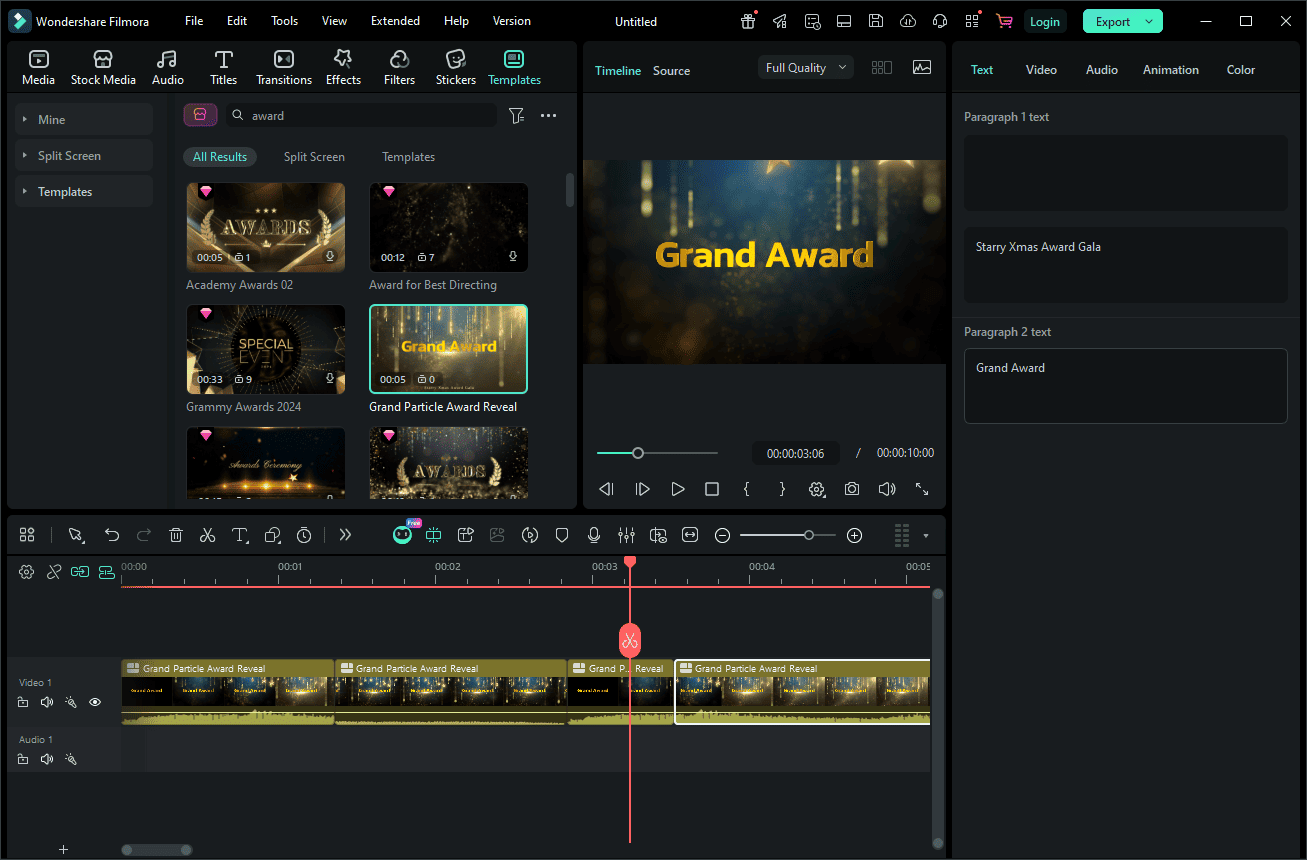
What’s more, Filmora’s built-in AI tools empower you to easily convert text to speech and generate new background music based on your video, which further streamlines the editing process. In addition, Filmora supports adding and editing GIFs, making the award video more dynamic and engaging. In conclusion, Filmora can simplify your editing process and help you create polished results without starting from scratch.
Wondershare's Filmora video editing software offers a wealth of AI tools, fast rendering speeds, and a clear interface for a reasonable price.https://www.pcmag.com/reviews/wondershare-filmora
VEED
VEED is also one of the best award video makers for its ease of use and an incredibly clean interface. As a web-based editing platform, VEED lets you start creating award videos without download requirements, making it a perfect choice for users with limited storage space.
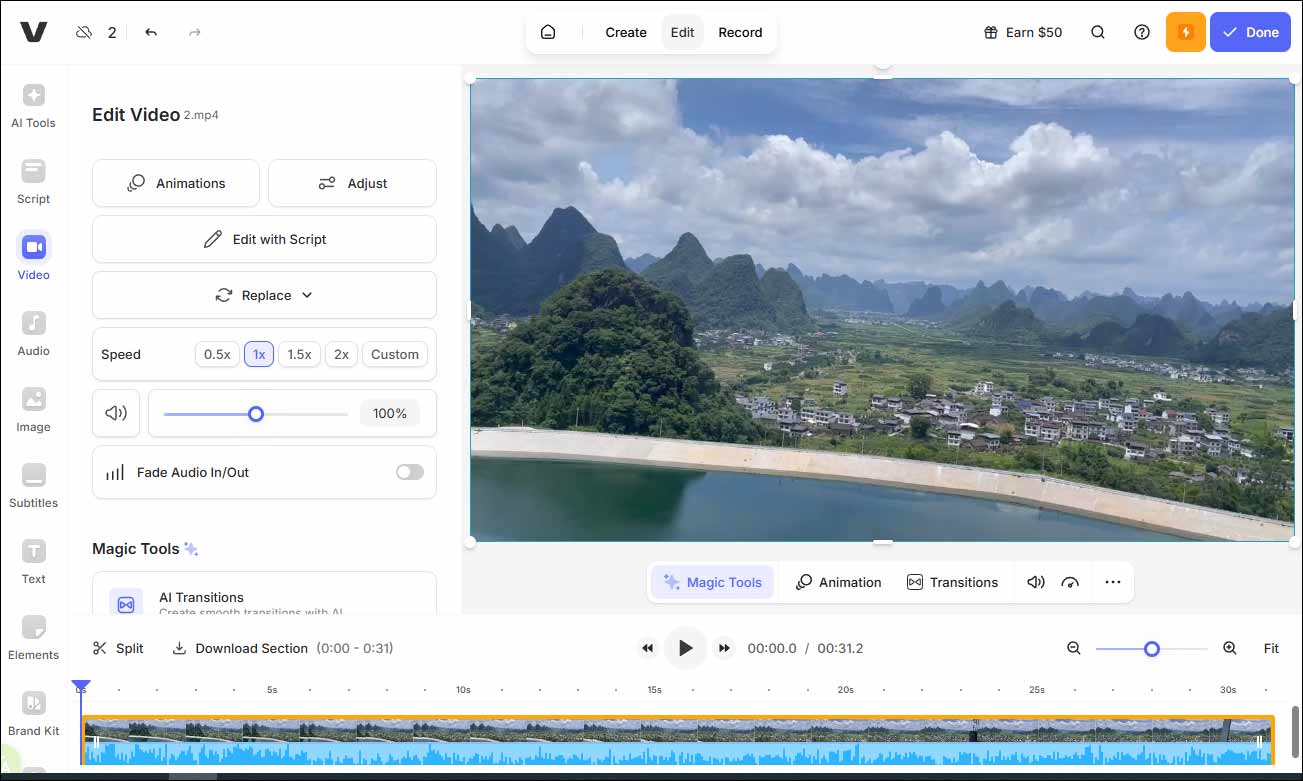
In terms of making an award video, VEED enables you to cut, trim, and rotate video. Moreover, it provides an AI cutting tool that automatically removes and replaces your background to boost your editing efficiency. VEED also offers a massive library of customizable templates and royalty-free media assets, including music and stock videos, allowing you to create professional-looking award videos with ease.
You have access to millions of stock media files, are offered very capable tools, an elegant and easy to use interface, a good number of flexible templates, and a generous free account.https://www.techradar.com/reviews/veed-review
Renderforest
Renderforest is another online editing platform with a wide range of templates. The up-to-date, ready-made templates make it easy to create a professional award video without advanced video editing skills. You can customize the background colors, change text fonts, and even add your own watermark to personalize the video.
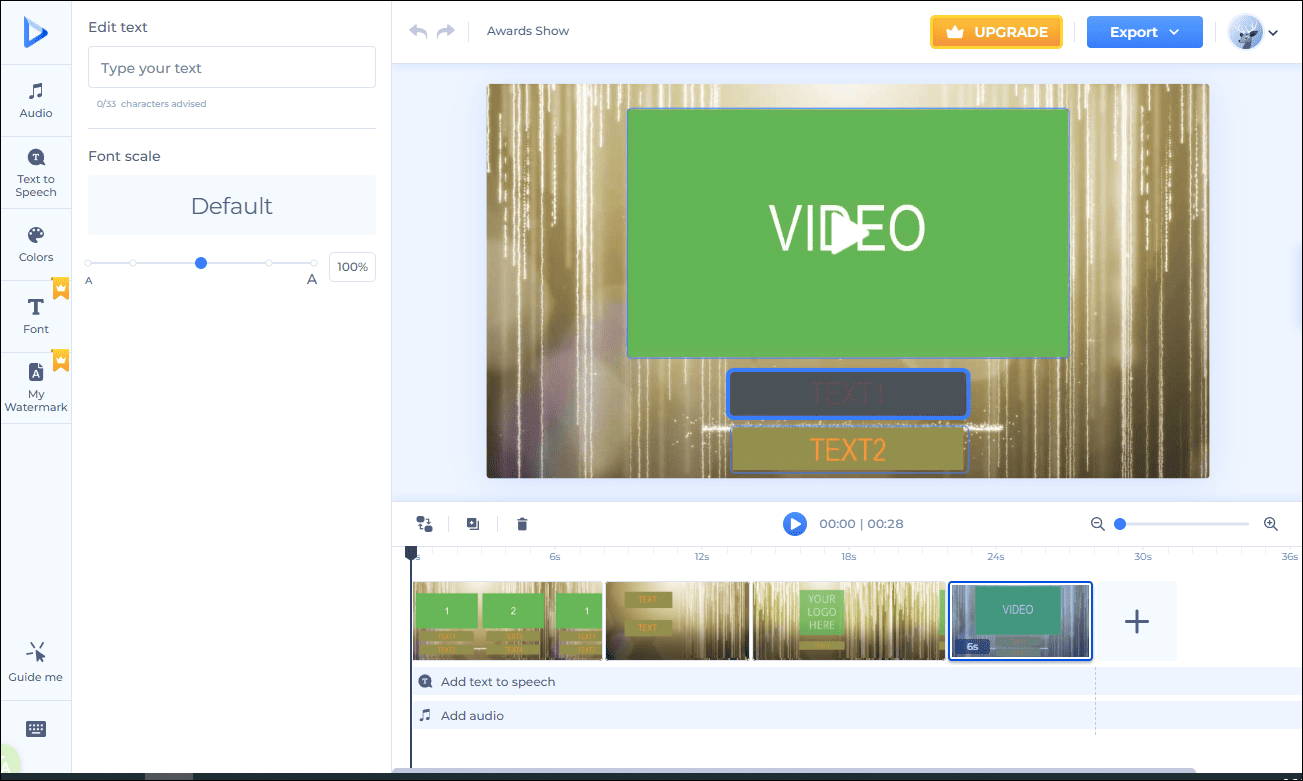
Besides, Renderforest allows you to make an award video from scratch. With a collection of royalty-free music, you can easily drag and drop your desired one to enhance the emotional impact of your award video. Powered by AI, Renderforest also provides various advanced tools, such as converting text to an image and voiceover options, which greatly unleash your creativity.
Now you have been acquainted with several award video editing tools. But how to edit an award video? The following section guides you through a step-by-step tutorial using MiniTool MovieMaker as an example.
How to Edit an Award Video
Fast Track:
- Install MiniTool MovieMaker.
- Open the software and add your footage.
- Rotate, flip, or scale the video/image.
- Trim and split the video.
- Add transitions, effects, text, and music.
- Export the video.
1. Download and Install
Click the button below to download MiniTool MovieMaker. Then, complete the installation according to the on-screen instructions.
MiniTool MovieMakerClick to Download100%Clean & Safe
2. Import Your Media
Launch MiniTool MovieMaker and close the pop-up project window to enter the main editing interface. Then, click the Import Media Files option to upload your videos, images, and audio.

Add the Plus icon one by one or press Shift to click them and drag them to the timeline.
3. Edit the Media Properties
You can set the media properties first to make sure all of them look harmonious. For images, you can adjust their duration, flip, rotation, scale, and color in the right image property panel. Most of them can be customized through sliders, and you can preview the changed effect in the player window.
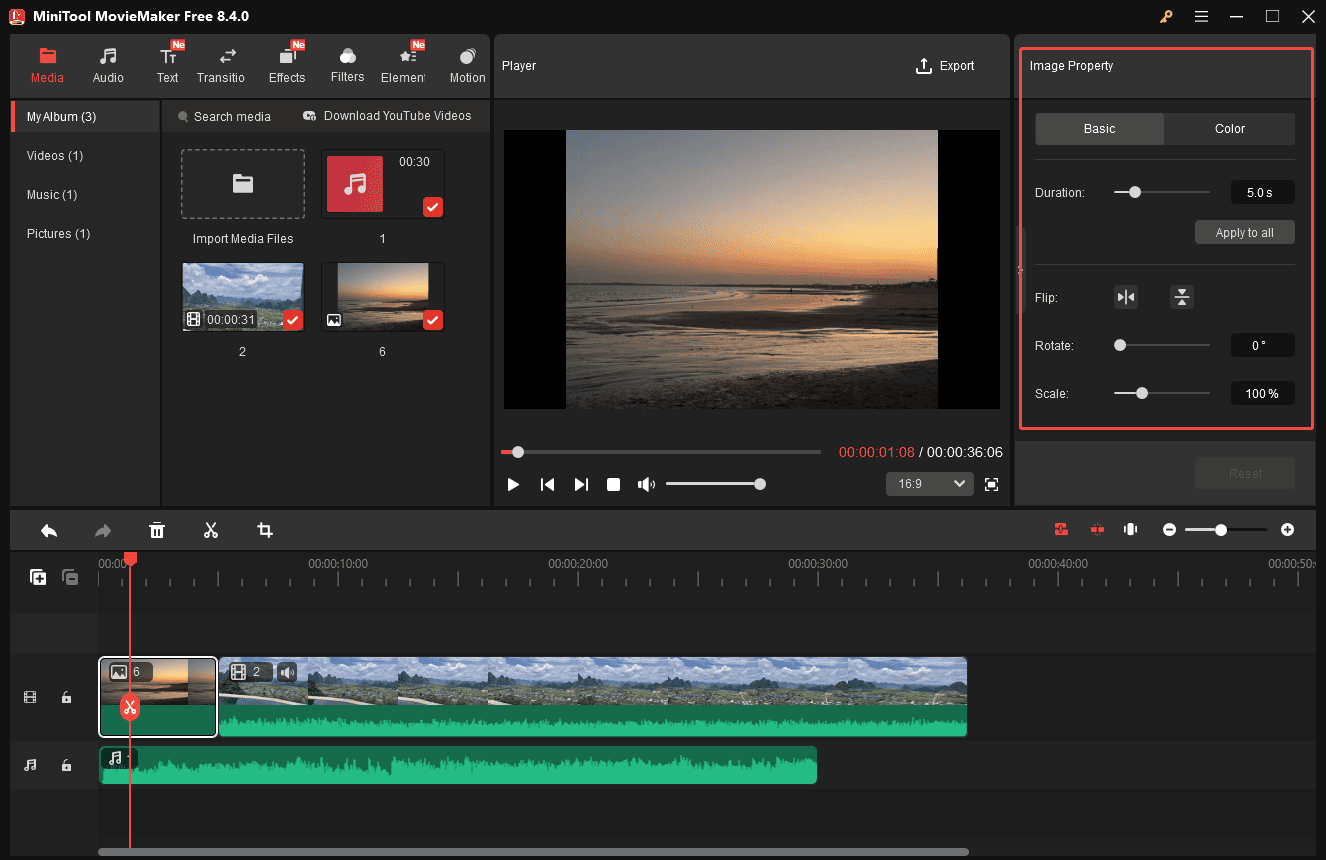
As for videos, in addition to basic editing functions similar to those for images, you can adjust playback speed, including speeding up or slowing down clips, to match the pace of the music. You can also click the Mute icon on the video track to remove the audio.
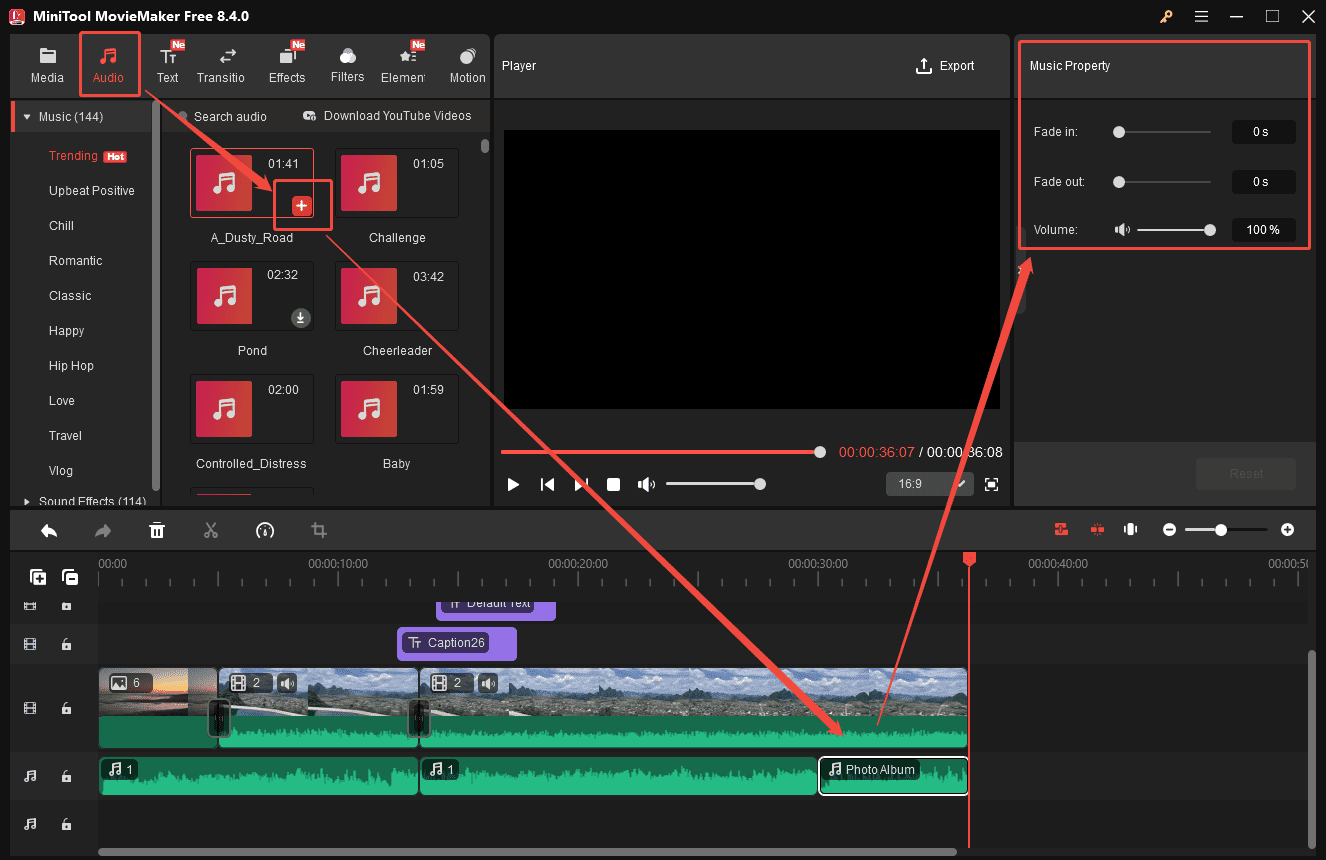
For audio editing, you can use the trim and split tools to edit audio clips with ease. Simply select the audio track on the timeline and adjust the sliders or enter precise values in the right music property panel to add fade-in and fade-out effects, making the audio sound smoother and more natural. You can also adjust the volume slider to emphasize important information.
4. Trim and Split Media
In order to rearrange and organize your award video clips, trimming and splitting tools are essential. Move the playhead to the desired point and click Scissors on the timeline bar to separate the clip from the video. Then, you can drag and drop it on the timeline to rearrange its sequence.
To cut the unnecessary parts, hover your mouse cursor over the edge of the clip until the Trim icon appears. Then, drag it inwards to remove the unwanted part from the timeline.

5. Add Transitions
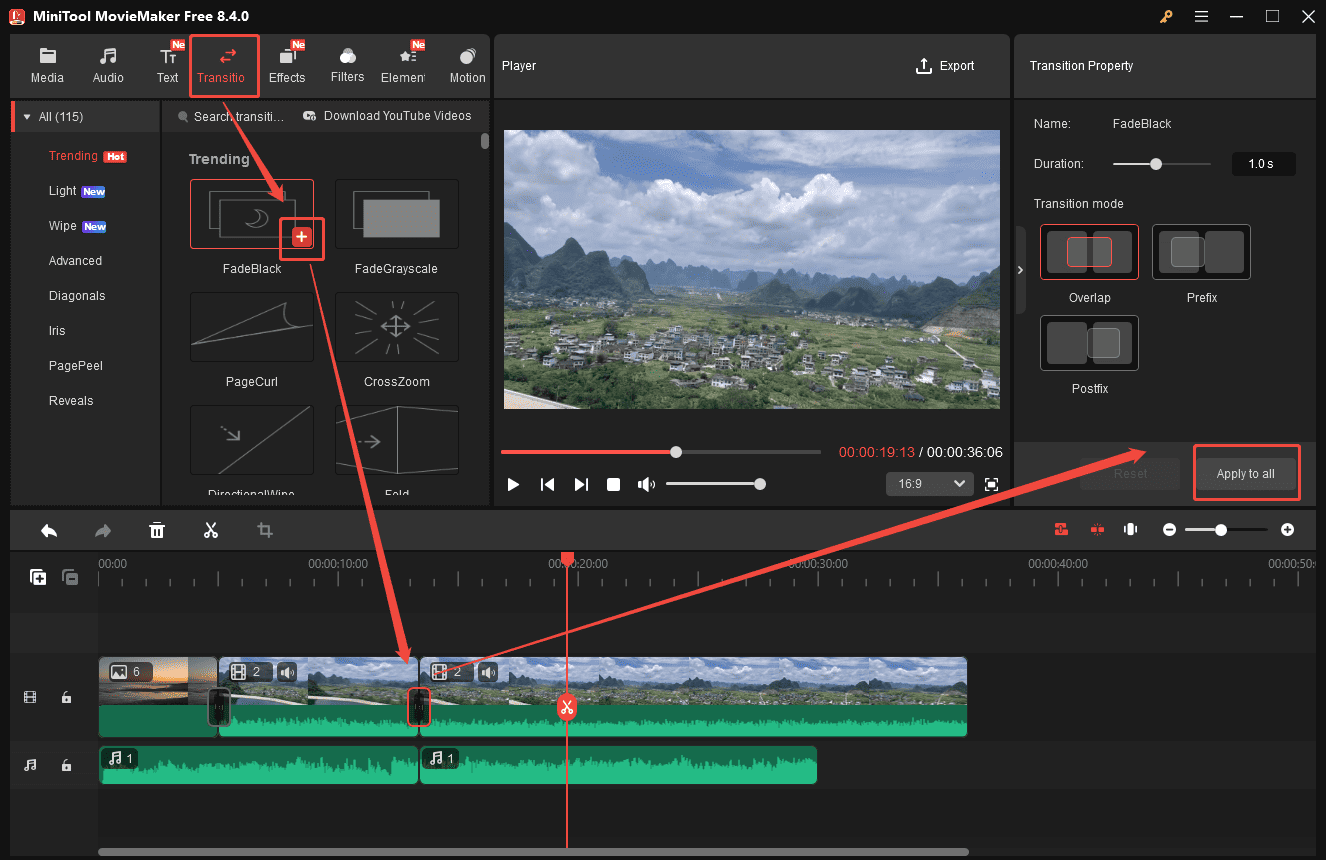
It is crucial to connect the separate clips seamlessly. Click Transitions at the top of the menu. You can hover your cursor over the interested transition template to preview its animation. If it meets your expectations, click the Plus icon to add it to your clips. Alternatively, you can right-click the desired transition and select Apply to All to connect all clips.
Select the transition in the timeline and set its duration in the right transition property panel. The maximum duration is two seconds. MiniTool MovieMaker also includes overlap, prefix, and postfix transition modes. Choose a proper mode and click Apply to all to save it.
6. Add Opening and Closing Effects
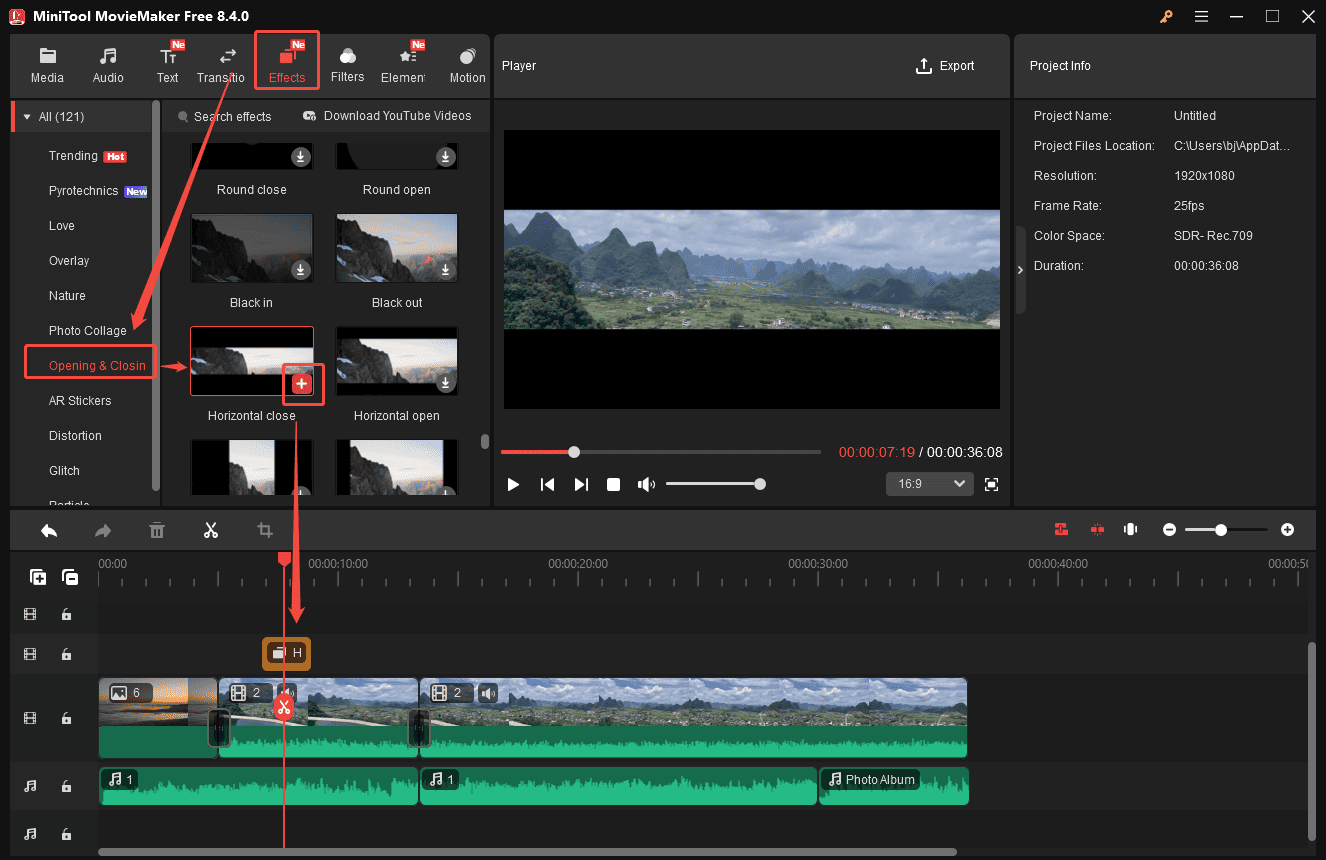
Adding opening effects is a practical way to make the video more attractive. Click Effects and scroll down to the Opening & Closing category. Then, select the desired effect and click the Plus icon to add it to the timeline. You can directly drag the edge of the effect layer on the timeline to set its duration. Also, you can see the final effects in the player window. Likewise, you can add a closing effect to the video to leave a strong impression.
7. Add Text
Text is an integral part of an award video, as it highlights key details such as award titles and recipient names. MiniTool MovieMaker offers a wide selection of text templates and bubbles to enhance visual presentation.
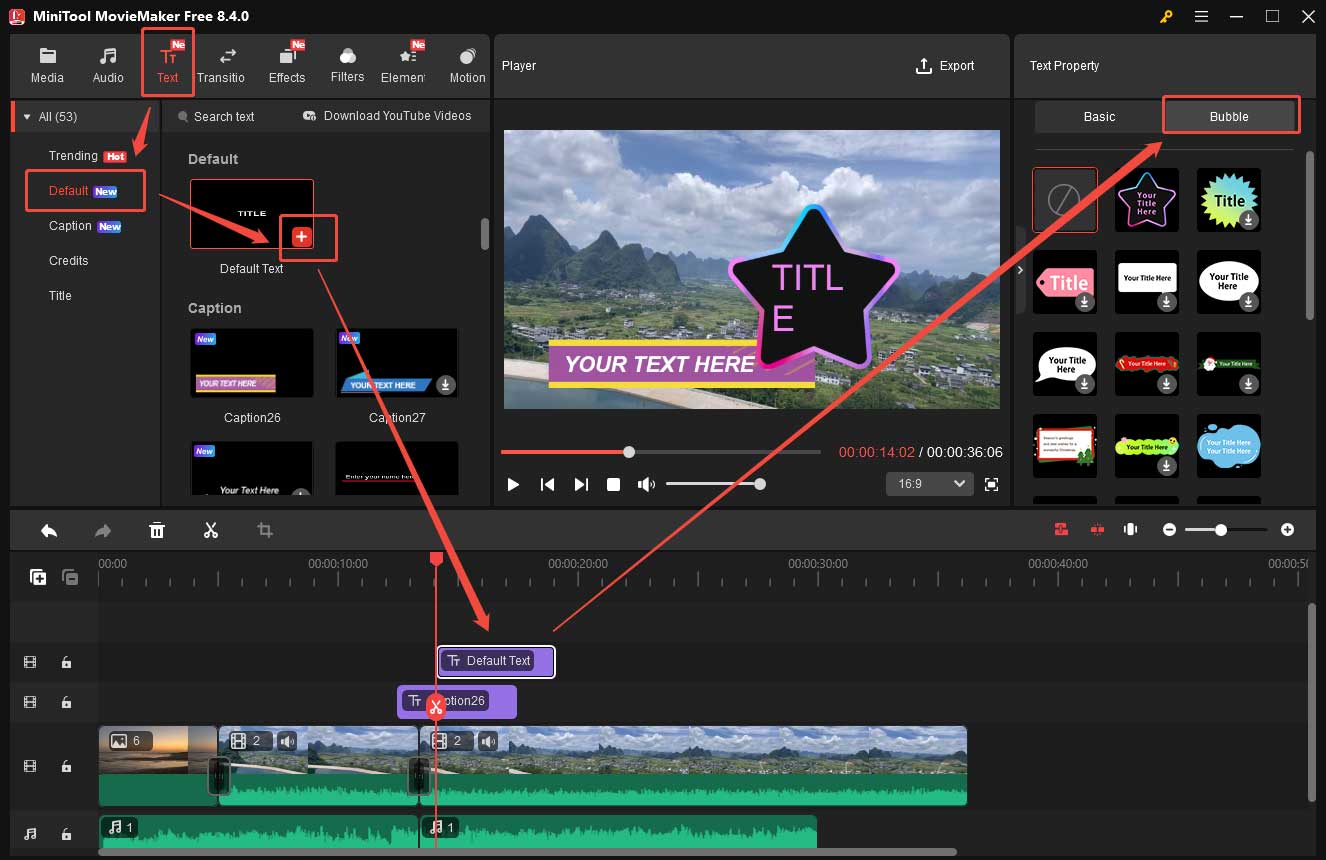
Click the Text tab and pick your desired one. Select the Download icon and drag it to the timeline. Drag the edges of the text track on the timeline to adjust its duration. You can also input the target text and customize text styles, including font, color, size, and more, in the right text property panel. Drag the text on the player window to change its position.
You can also add a fancy bubble to the text. Click the Default category and click the Plus icon to add the text track to the timeline. Then, select the Bubble option in the right text property. Choose a desired one and click it to apply to the video.
8. Add Music
Music is also a vital part of an award video. Click Audio at the top of the menu to access MiniTool MovieMaker’s extensive library of music and sound effects. You can find various categories, such as chill, classical, and happy music, as well as transition sound effects. Select the music you like and click the Download icon. Then, click the Plus icon or drag the audio directly to the timeline.
9. Export the Video
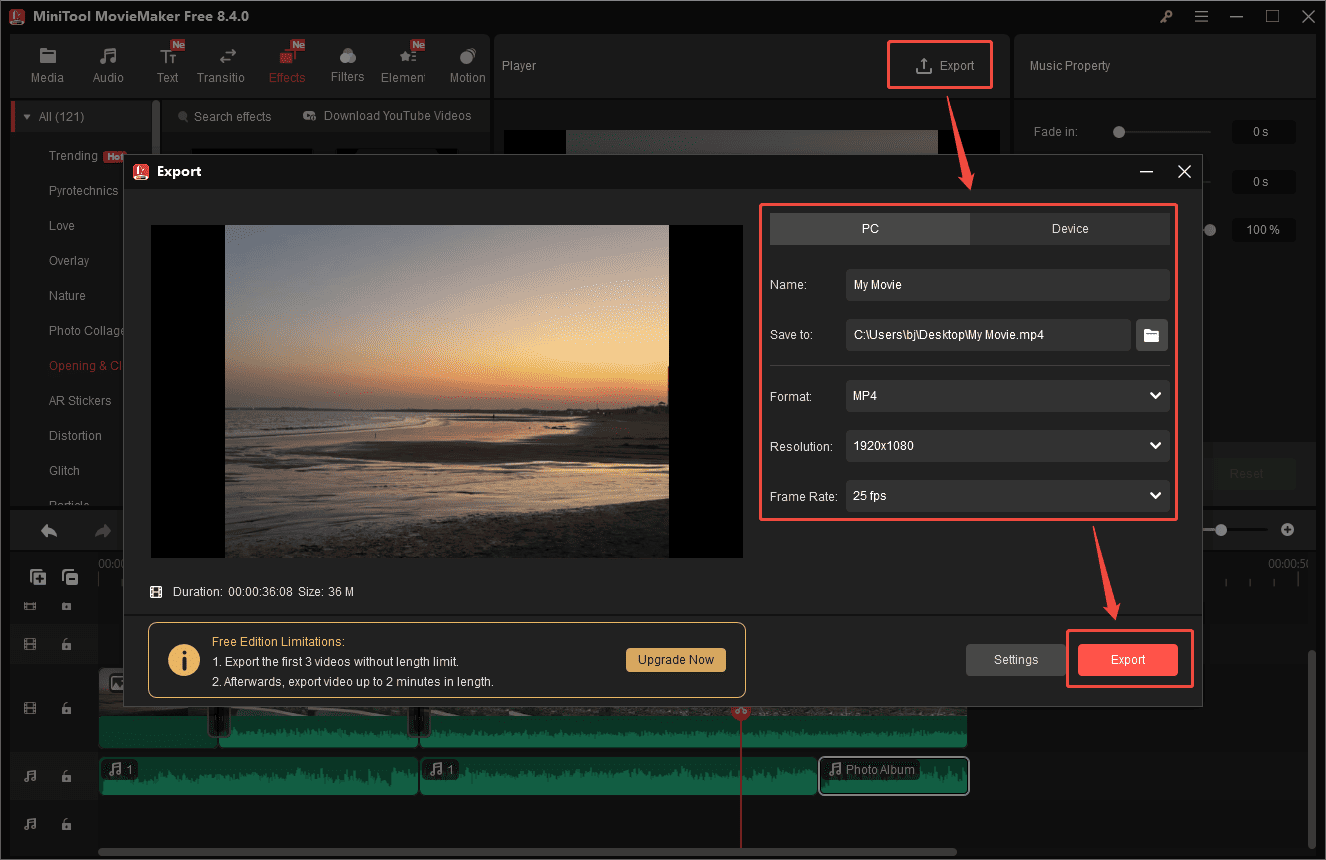
Once editing is finished, click the Export option at the top of the menu to access the export settings window. You can customize the video name, format, resolution, and frame rate. After setting, click Export at the bottom of the window to save it to your computer.
Now you have learned how to edit an award video using MiniTool MovieMaker, and the process is much easier than you might think. You can also try other video editors with pre-made award video templates, which can further speed up your editing process.
Conclusion
Whether you are looking to make an employee recognition video or sports and competition highlights, creating an award video is a practical way to celebrate achievements. With the powerful award video makers mentioned above, you can make a visually appealing video. Select the one that best suits your needs and give it a try!
You can contact us via [email protected] if you have any problems or suggestions when using MiniTool MovieMaker.
People Also Ask
Multiple awards: About 30 seconds per award, with a total duration of no more than 5 minutes.
Apply text animations like fade in + zoom or typewriter effect.
Slightly lower the background music volume or add a brief pause when the name appears to draw focus.
Add spotlight or sparkle effects around the name.
About The Author

Position: Columnist
Cora is a tech writer specializing in digital media workflows, with over six years of hands-on experience in video post-production, media transcoding, and screen capture. Her writing is always clear and practical. Cora also produces in-depth software reviews for users across skill levels to help them find the right tool and enjoy video editing.
User Comments :