

TIFF (Tagged Image File Format) is often my go-to choice for professional printing and photography because it supports lossless compression and preserves high-resolution image quality. In contrast, BMP (Bitmap), developed by Microsoft, stores image data without compression, which results in high image quality but also larger file sizes.
When I need to work with older software or perform simple image processing tasks on Windows, I sometimes convert TIFF to BMP. This conversion can improve compatibility with legacy applications and make images easier to handle in certain workflows. It also keeps the image uncompressed, which is helpful when I want to maintain full image quality during editing.
How to Convert TIFF to BMP
This section introduces three practical TIFF to BMP converters, including Convertio, Clideo, and Photoshop, for easy image format conversion. Let’s take a closer look at each of them.
Method 1: Use Convertio
Convertio is a web-based file conversion platform that supports converting various file types, including videos, images, audio, archives, and more. From my experience, it is a good option for beginners because of its intuitive interface. I can simply upload a file, choose the output format, and complete the conversion in just a few clicks.
However, if I don’t sign up, the maximum file size is limited to 100 MB. Below are the steps I follow to convert TIFF to BMP online using Convertio.
Step 1: Access Convertio
Visit the official website of Convertio (https://convertio.co/) in the browser.
Step 2: Upload the TIFF Image
Click Choose Files to upload the TIFF image. Convertio also allows me to import files from Dropbox and Google Drive.
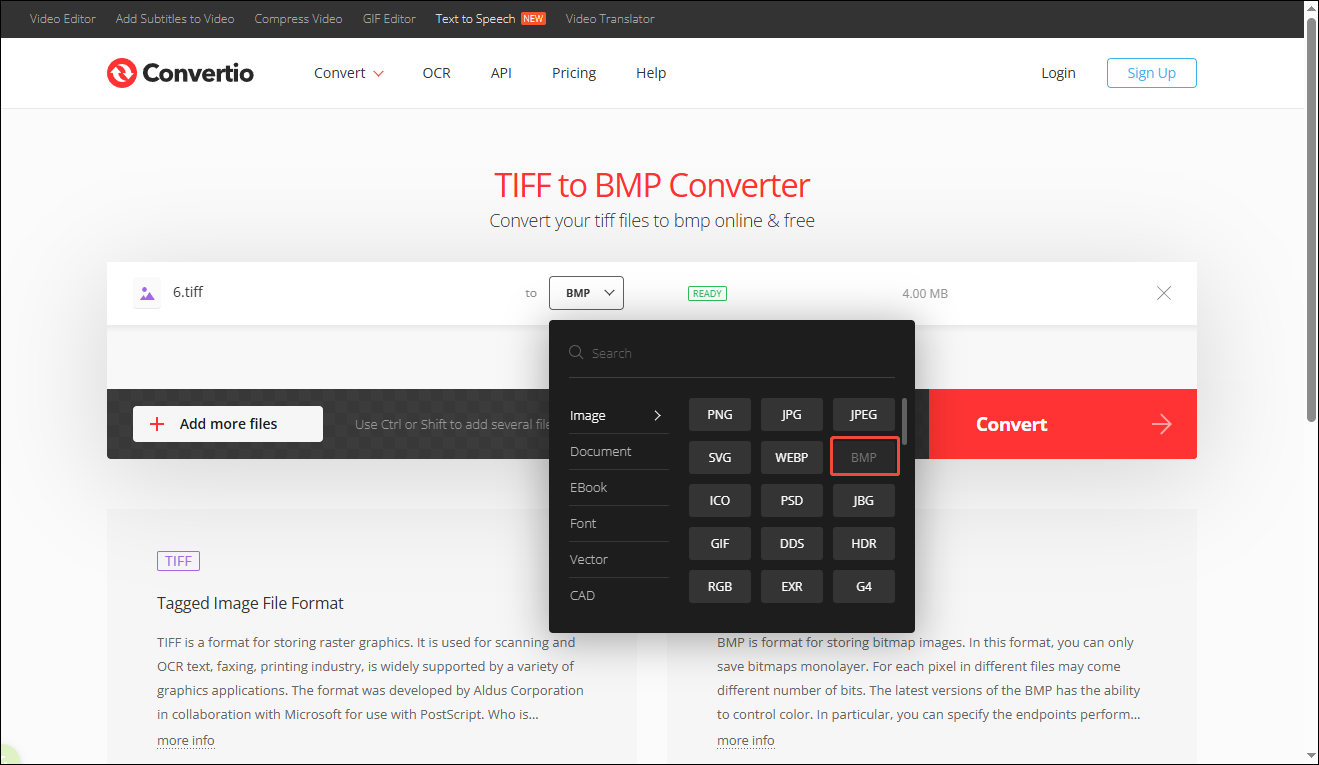
Step 3: Choose BMP as the Output Format
Click the format box to select BMP as the output format. To convert multiple images, click Add more files to upload additional files. Then, click Convert to start the process, which usually takes only a few seconds.
Step 4: Download the Converted Image
Once the conversion is complete, click Download to save the BMP image to the computer.
Method 2: Use Clideo
Clideo is an all-in-one online platform that balances ease of use and versatility. I often use it for media editing tasks, such as cropping images and cutting videos. In addition to these features, it also provides a convenient tool for converting TIFF to BMP. The entire process is quick and straightforward.
How to convert TIFF to BMP online using Clideo? Here is the detailed guide.
Step 1: Open the TIFF to BMP Tool
Visit the TIFF to BMP tool in Clideo(https://clideo.com/tiff-to-bmp). Click Get started to enter the page.
Step 2: Upload the Image
Click Choose file to import the TIFF image.
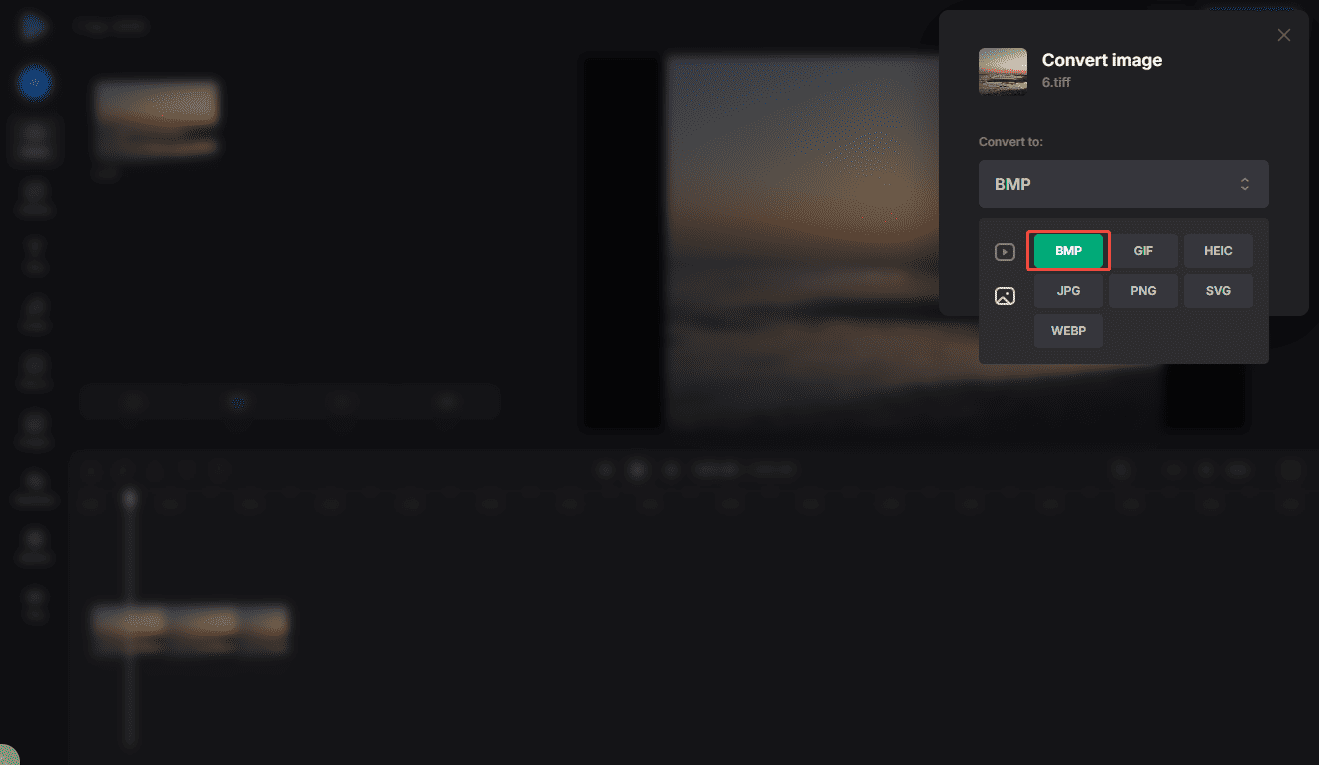
Step 3: Start the Conversion
Make sure the output format is set to BMP. Then, click Convert to start the process.
Step 4: Download the BMP image
After the conversion is done, click Download to save the image to the computer.
Method 3: Use Photoshop
Photoshop is a leading graphic editing software that allows me to make professional edits, such as adding lighting effects. It supports a wide range of image formats, including JPEG, PNG, TIFF, and GIF, which makes it a reliable option for converting TIFF to BMP. I can open a TIFF image and save it as a BMP file on my computer.
To convert TIFF to BMP using Photoshop, I follow these steps:
Step 1: Import the TIFF Image
Open Photoshop and click Open to import the TIFF image.
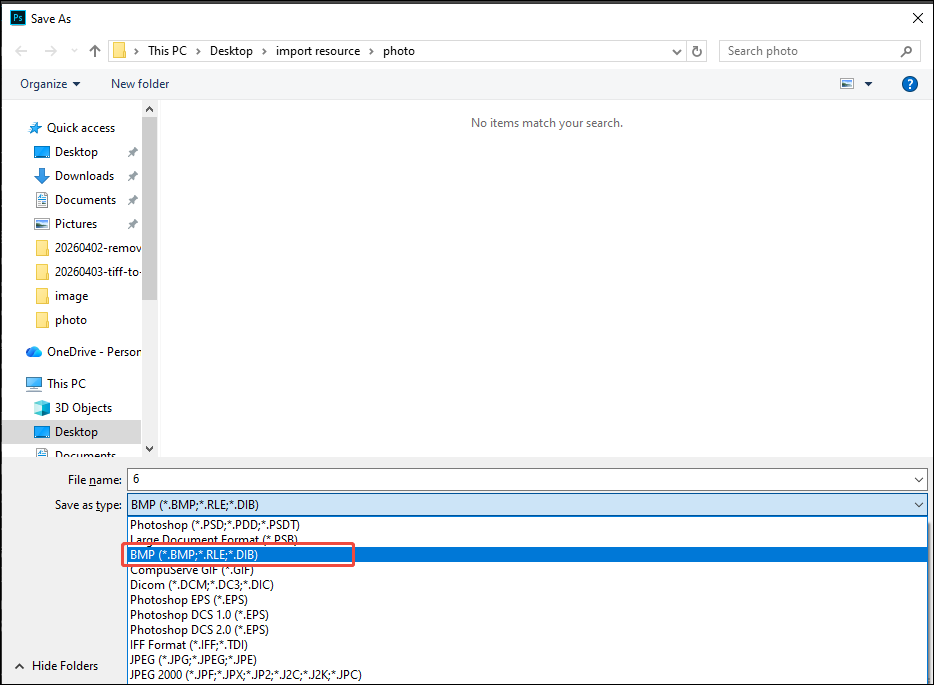
Step 2: Save the Image as BMP
Click File and select Save as. In the Save as window, click the Save as type dropdown list and choose BMP. Then, click Save to export the image to the computer.
Bonus: Video Converter Software
In addition to image conversion, I sometimes need to handle video format conversions as well. In this case, MiniTool Video Converter is a practical option I often consider.
MiniTool Video ConverterClick to Download100%Clean & Safe
It supports a wide range of video formats, including MP4, MOV, MKV, and more, which makes it suitable for different conversion needs. With its simple interface, I can quickly convert videos and improve my overall workflow efficiency.
Conclusion
In this post, I explored three practical ways to convert TIFF to BMP on Windows, including Convertio, Clideo, and Photoshop. Choose the tool that best fits your taste and try it.
User Comments :