

When working with images, I often find that unwanted borders, especially white edges, can make the image look less clean and professional. Fortunately, there are several simple ways to remove border from images on Windows and improve their overall appearance. This post will walk through three easy and quick methods, including using Online PNG Tools, Small PNG Tools, and Photoshop.
How to Remove Border from Images
In this section, I’ll outline each method in detail and show step-by-step instructions.
Method 1: Use Online PNG Tools
When I need a quick and hassle-free way to remove borders from an image, I often use Online PNG Tools. As a web-based tool, it lets me trim unwanted edges directly in the browser without installing any software. Thanks to its clean and intuitive interface, I can complete the process in just a few clicks.
In addition, Online PNG Tools is part of the Online Tools family, an all-in-one platform that also supports other quick edits, such as converting WebP to TIFF and making image corners round. Here’s how I remove border from images step by step:
Step 1: Open the Remove PNG Border Tool
Go to the Remove PNG Border page on Online PNG Tools (https://onlinepngtools.com/remove-png-border) in the browser.
Step 2: Upload the Image
Hit Click to load an image to upload the photo that needs to be edited.
Step 3: Remove Border from Image
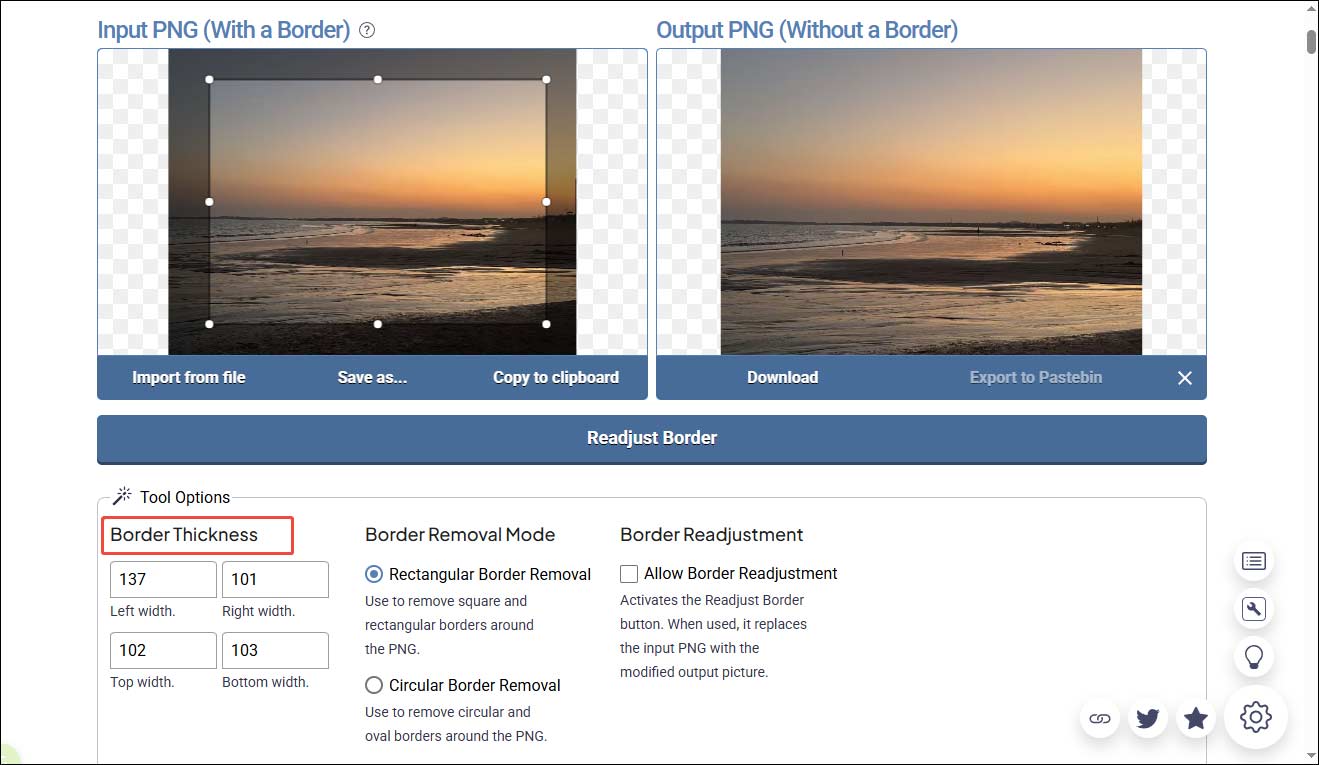
Choose an appropriate border removal mode, such as Rectangular Border Removal or Circular Border Removal. Then, adjust the selection area by resizing or repositioning it, or customize the border thickness as needed. The result will be displayed in real time on the right panel.
Step 4: Download the Image
Once everything is ready, click Save as and select Download to save the edited image to the computer.
![Detailed Guide on How to Make Image Corners Round [3 Ways]](https://images.minitool.com/moviemaker.minitool.com/images/uploads/2026/03/make-image-corners-round-thumbnail.png)
Method 2: Use Small PNG Tools
Small PNG Tools is another tool I use to remove border from images online. Compared with other online tools, Small PNG Tools focuses more on simplicity. I don’t need to deal with complicated settings. Just upload the image, and the tool will automatically detect and trim unnecessary borders, which saves me time when handling simple edits.
However, there is a limit that free users can use this tool up to 10 times per day for personal projects only. How to remove border from images online using this tool? Below are the steps I follow:
Step 1: Open Small PNG Tools
Go to the border removal page of Small PNG Tools (https://www.smallpngtools.com/remove-border-from-png.php) in my browser.
Step 2: Upload the Image
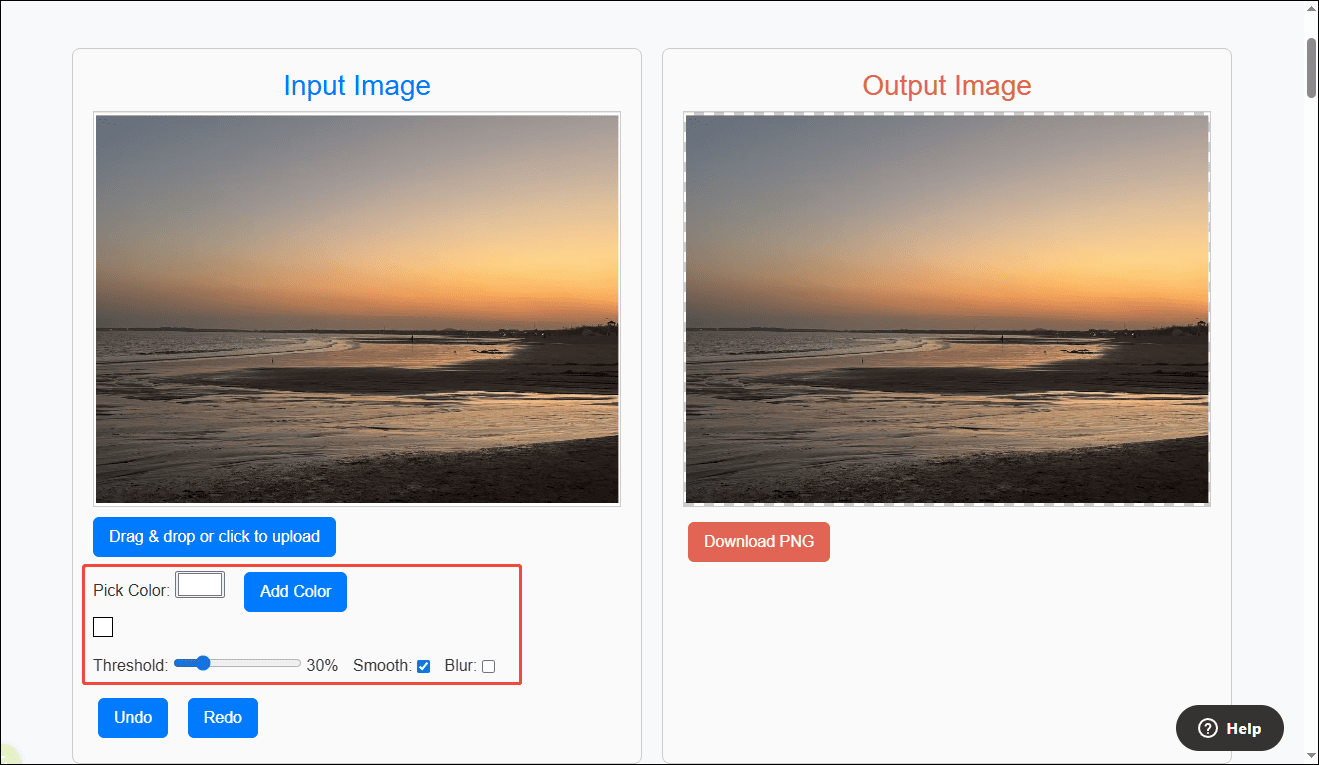
Drag and drop the image to the input image panel.
Step 3: Remove the Border Automatically
Once the image is uploaded, the tool will automatically process it and remove the unwanted borders. If the detection isn’t accurate, pick a custom border color using the color picker. Also, I can move the Threshold slider to include similar color ranges.
Step 4: Download the Image
After the processing is complete, download the final image directly to my computer.
Method 3: Use Photoshop
For more precise control when removing borders from an image, I prefer using Adobe Photoshop. Unlike online tools, it provides advanced editing features that allow me to manually select and remove borders with higher accuracy, especially when dealing with complex backgrounds or uneven edges.
Additionally, this professional software offers other features, including creating reflections and converting images to grayscale. Here is a step-by-step guide on how to remove border from images using Photoshop.
Step 1: Open the Image in Photoshop
Launch Adobe Photoshop and click Open to import the image I want to edit.
Step 2: Crop the Image
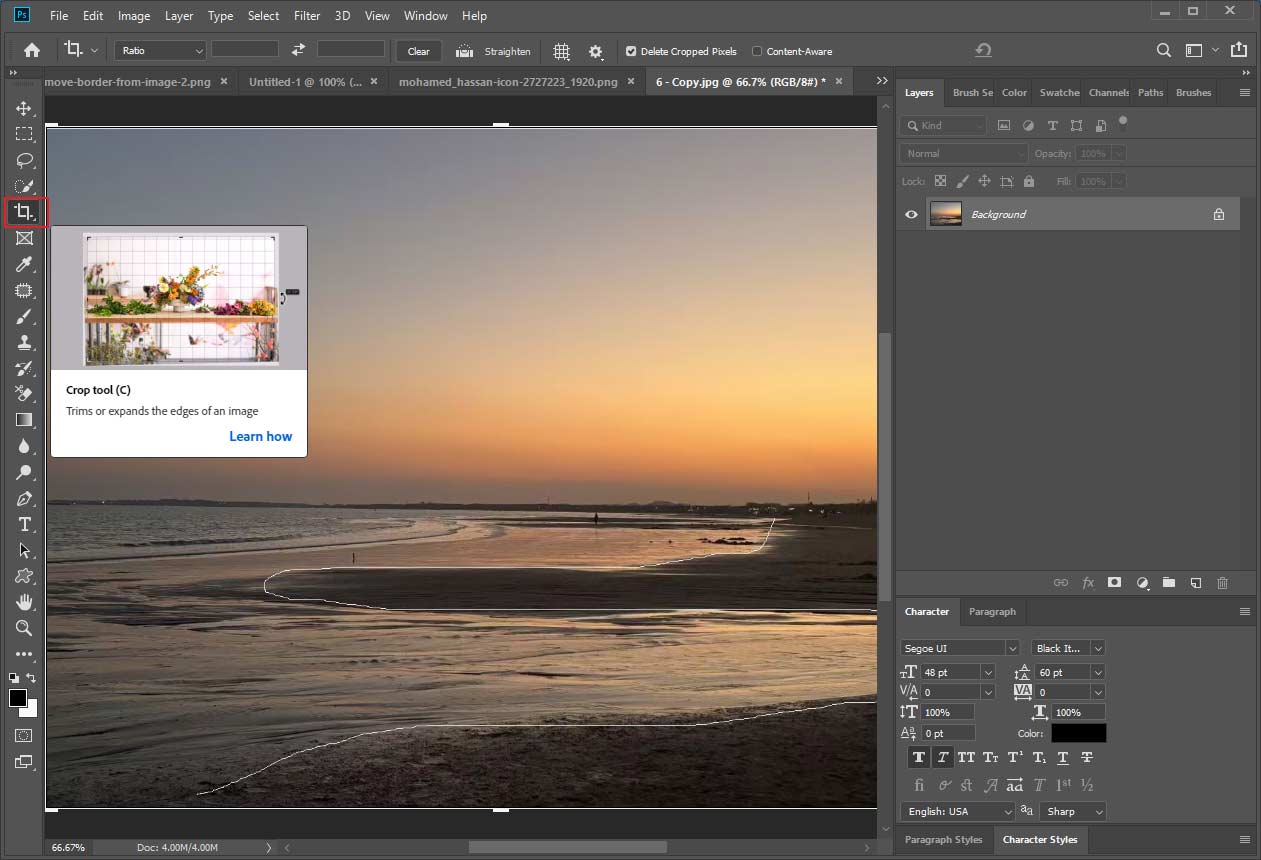
Select the Crop tool icon in the left toolbar. Then drag the edges of the bounding box to adjust the area to keep. The unwanted borders will be removed automatically as the image is cropped.
Step 3: Save the Image
Click File and choose Save As to export the edited image to my computer.
Conclusion
In this post, I explored three easy ways to remove border from images on Windows, including Online PNG Tools, Small PNG Tools, and Adobe Photoshop. If I want a quick and simple solution, online tools work well without requiring any installation. When I need more precise control or deal with complex images, Photoshop offers the most flexibility.
Choose the tool that best fits your taste and give it a try!
User Comments :