

Rounded corners in images have become increasingly popular because they create a modern and visually appealing look. Compared with sharp square edges, I find that rounded corners can make images appear softer and more approachable, especially in user interfaces, social media posts, and thumbnails.
Using online tools is one of the easiest ways to achieve this effect. This post shows three practical methods to make image corners round online, enhancing the overall look of the images quickly.
How to Make Image Corners Round
I have tested three popular online tools, including PineTools, ImageOnline.co, and CocoShot. Below are the detailed steps and my experience using each of them.
Method 1: Use PineTools
PineTools is a versatile online tool that I can access directly in a browser without creating an account. When I first opened the site, its clean and intuitive interface left a strong impression on me, making it easy to get started even as a beginner. I can also adjust various image settings flexibly based on my needs.
In addition, PineTools allows me to share the rounded image directly to social media platforms like Facebook, Twitter, and Reddit, which is quite convenient. What’s more, it offers a variety of other useful tools, such as a grayscale image converter, image merger, and QR code generator. Overall, I find it a simple and efficient tool to make image corners round. Now, I’ll walk through the steps to get started.
Step 1: Open PineTools
Go to the PineTools round corners image tool (https://pinetools.com/round-corners-image) in the browser.
Step 2: Upload the Image
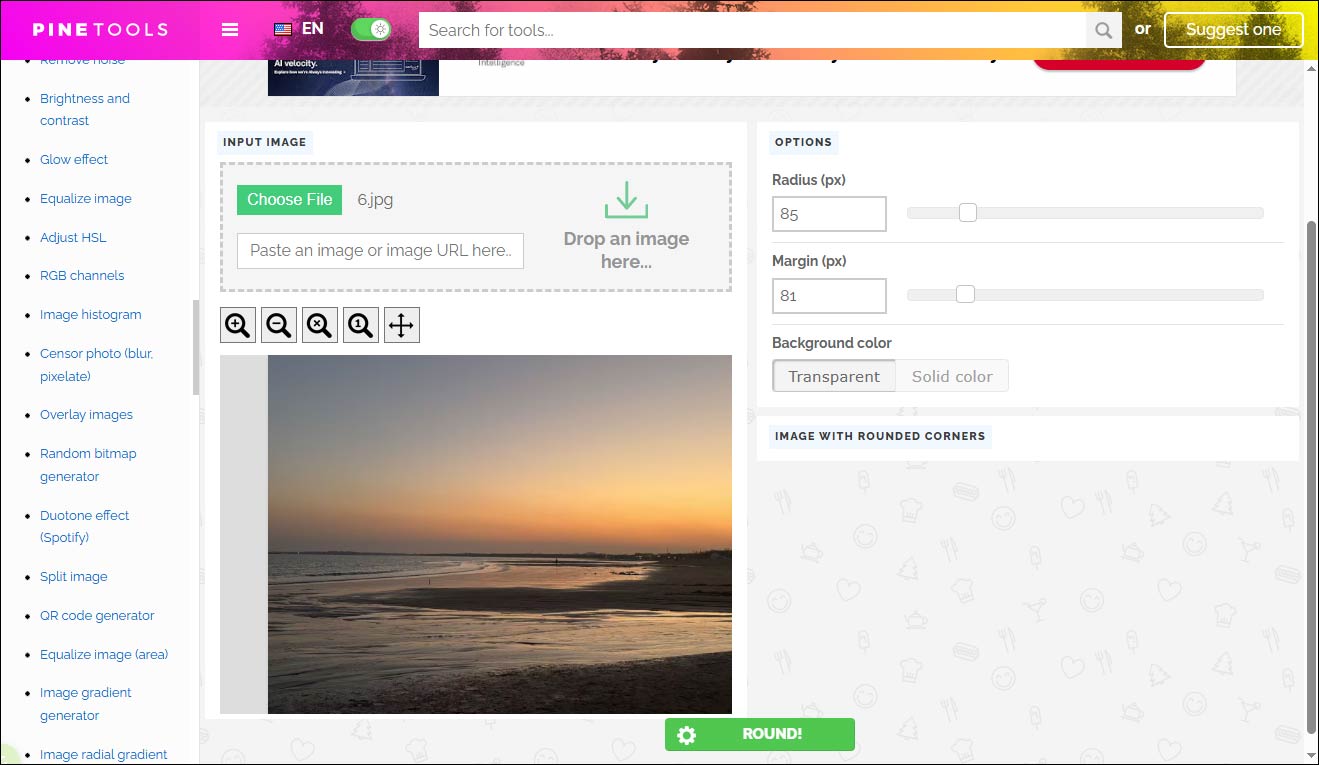
Click Choose File in the INPUT IMAGE section to upload my image. I can also paste, drag and drop an image, or enter an image URL to import it.
Step 3: Customize the Options
After uploading, I can adjust the settings in the right panel by moving the sliders. The Radius controls how rounded the corners are, while the Margin determines the space between the image and its edges. I can also choose whether to use a transparent background or a solid color for the corners.
Step 4: Download the Image
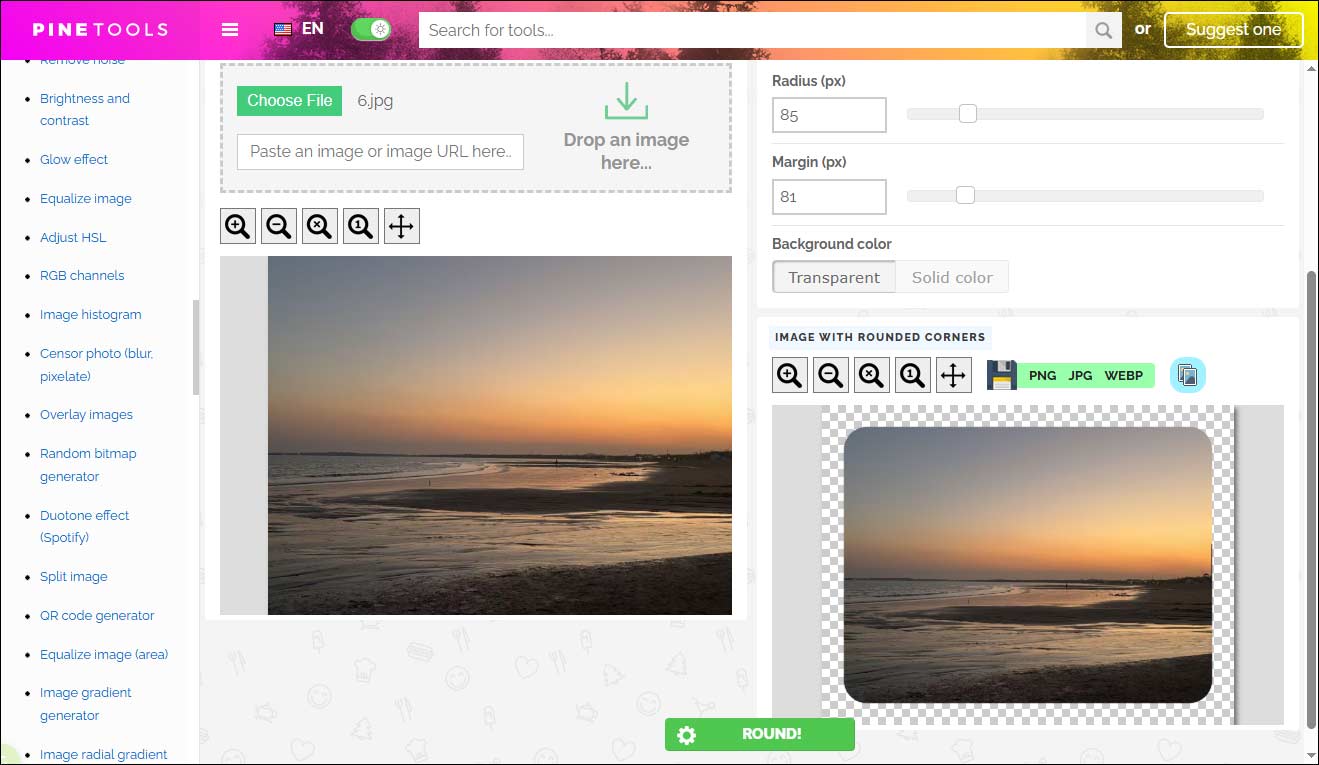
Once everything is set, I click the green Round button at the bottom of the page. I can preview the result on the right side. Then, I can download the image in PNG, JPG, or WEBP format, or copy it directly to my clipboard for quick use.
Method 2: Use ImageOnline.co
The second tool I recommend is ImageOnline.co. It is a free online tool without ads, watermarks, or bundles. What I like about this platform is that it provides a preview example and a simple demo, which makes it easier for beginners to understand how it works.
ImageOnline.co supports a wide range of image formats, including JPG, JPEG, PNG, WEBP, and BMP. In addition, it offers other useful tools, such as an audio splitter and a GIF-to-MP4 converter. Overall, I find it a beginner-friendly tool worth trying.
How to make image corners round online? Here are the detailed steps.
Step 1: Open the Round Corner Tool
Search for the ImageOnline.co round corner tool (https://round-corner.imageonline.co/) and open it in the browser.
Step 2: Upload the Image
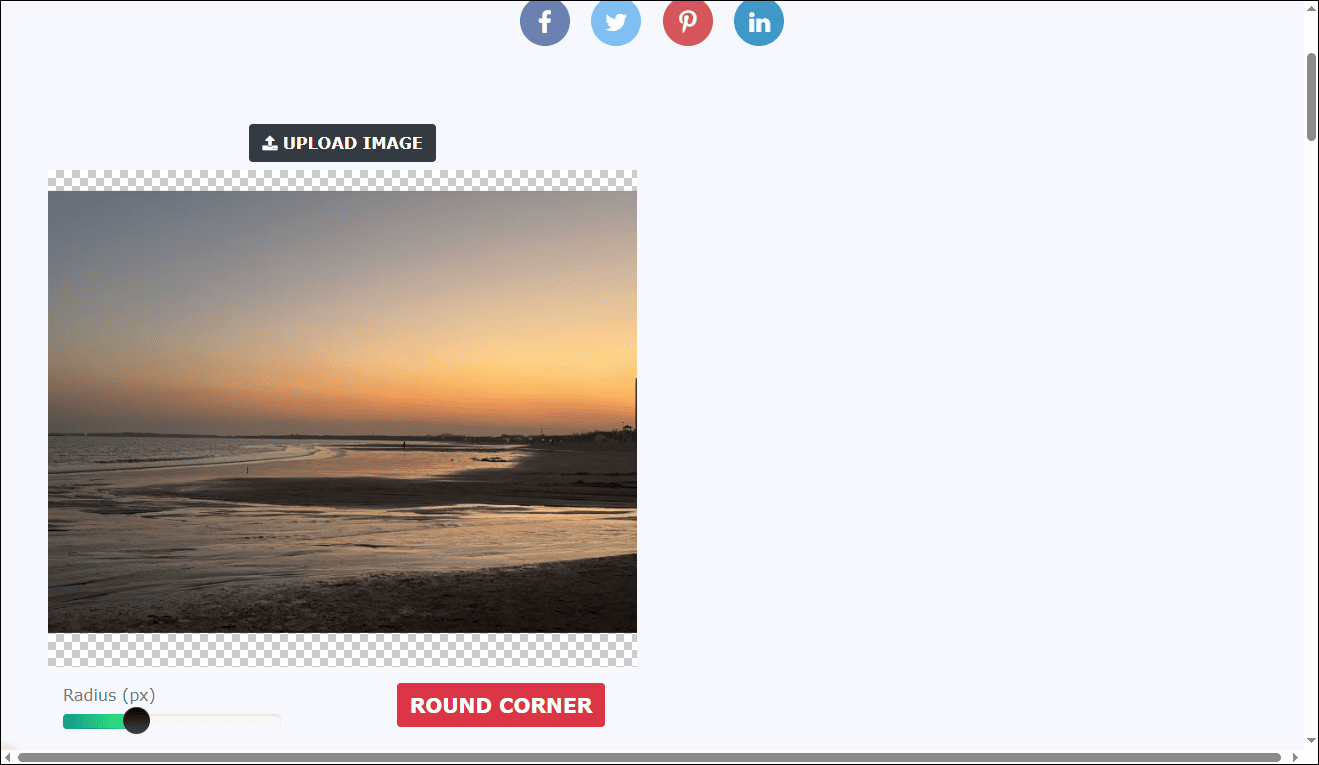
Click UPLOAD IMAGE to import an image from the computer.
Step 3: Adjust the Radius
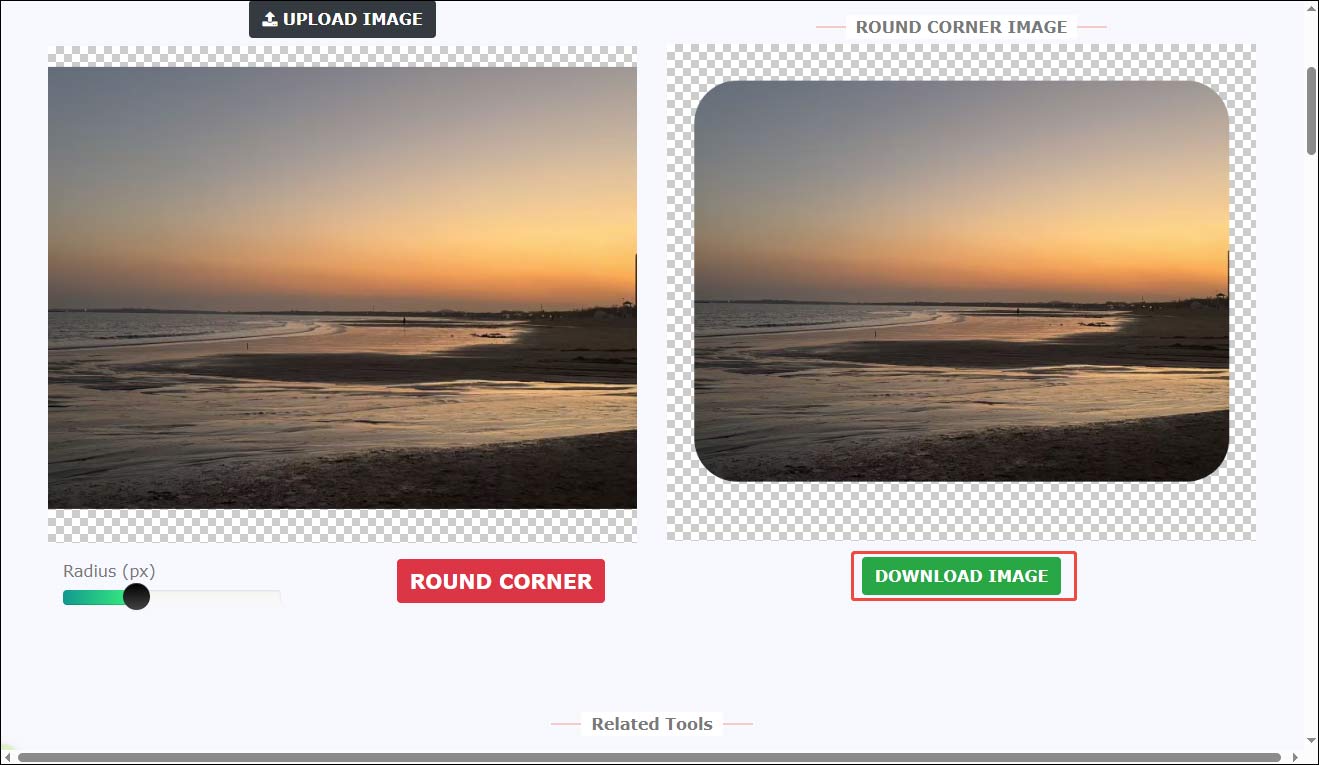
Drag the Radius (px) slider to control how rounded the corners are. Then, click the red ROUND CORNER button to apply the effect. The processed image will appear on the right side.
I can also zoom in or out using the mouse wheel and adjust the image position within the transparent background if needed.
Step 4: Download the Image
Once everything looks good, I click DOWNLOAD IMAGE to save the result to my computer.
Method 3: Use CocoShot
CocoShot is another easy-to-use tool that helps me make image corners round online. With its straightforward interface and clear instructions, I can quickly create visually appealing images even with little experience.
CocoShot also provides flexible radius settings to control how rounded the corners are. In addition, I can download the image in multiple formats, including PNG, JPG, WEBP, and BMP. The platform also offers other useful features, such as image cropping, rotation, and pixelation effects. Overall, I find it a simple and practical option for quick edits.
Here are the steps I follow.
Step 1: Open the Round Corner Tool
Go to the CocoShot round corners feature (https://cocoshot.net/image-tools/round-corners-on-image/)in the browser.
Step 2: Upload the Image
Click Load to upload my image. I can also paste an image or enter an image URL to import it.
Step 3: Adjust the Settings
Drag the Corner Radius slider or enter a specific value to control the roundness of the corners. Then, click Apply Rounded Corners to process the image.
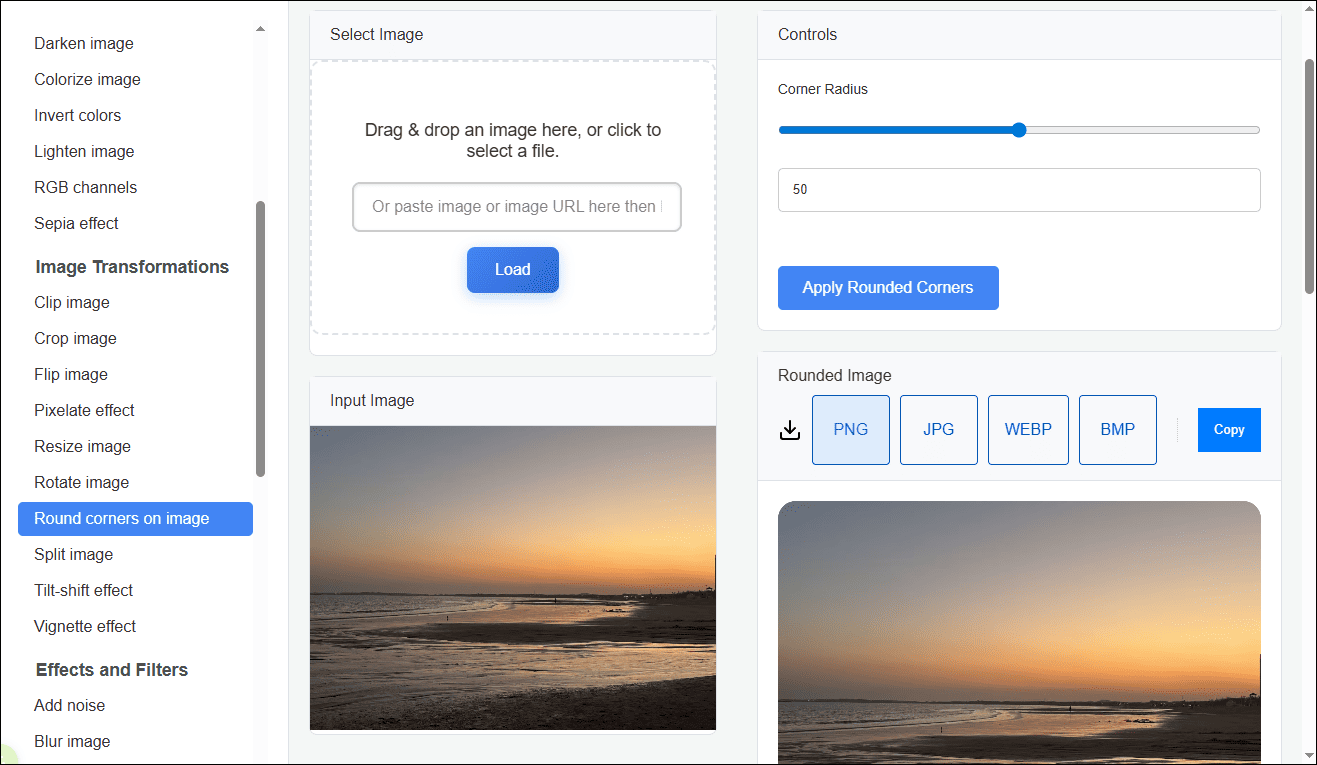
Step 4: Download the Image
The processed image will appear on the right side. I can select the desired format and download it to my computer.
![Discover the Best Bulk Image Resizer You Can’t Miss [5 Options]](https://images.minitool.com/moviemaker.minitool.com/images/uploads/2026/01/bulk-image-resizer-thumbnail.png)
Conclusion
This post demonstrates how to make image corners round online using three easy-to-use tools. Each option is simple and beginner-friendly. Choose the tool that best fits your needs and get started right away.
User Comments :