

Whether you want to repeat a soundtrack, create seamless background music, or build your own audio loop for podcasts, this comprehensive guide will show you how to loop audio with MiniTool MovieMaker, Audacity, and Clideo, helping you produce a smooth audio file.
Looping audio is an effective way to create smooth and seamless music. This post will introduce 3 effective audio loopers and walk you through step-by-step instructions on how to loop audio using each tool, helping you turn short audio clips into continuous loops with ease.
Firstly, let’s delve into how to loop audio on Windows.
How to Loop Audio on Windows: 2 Tools
The two best audio editing software for looping audio are MiniTool MovieMaker and Audacity.
Method 1: Loop Audio Using MiniTool MovieMaker
MiniTool MovieMaker is well-known as a versatile video editor designed for Windows users. Besides, it also supports a wide range of audio formats, including MP3, M4A, M4R, WAV, FLAC, AAC, AMR, APE, MMF, and WV, and allows you to export audio in MP3 format. As a result, it also serves as a simple audio editor with basic features. Besides basic functions like trim, split, loop, and reverse audio, it also supports advanced editing features, including replacing audio from the original video and so on.
Here is how to loop audio using MiniTool MovieMaker.
Step 1: Download and Install
Click the button below to download MiniTool MovieMaker. Then, follow the on-screen instructions to finish the installation.
MiniTool MovieMakerClick to Download100%Clean & Safe
Step 2: Import Audio
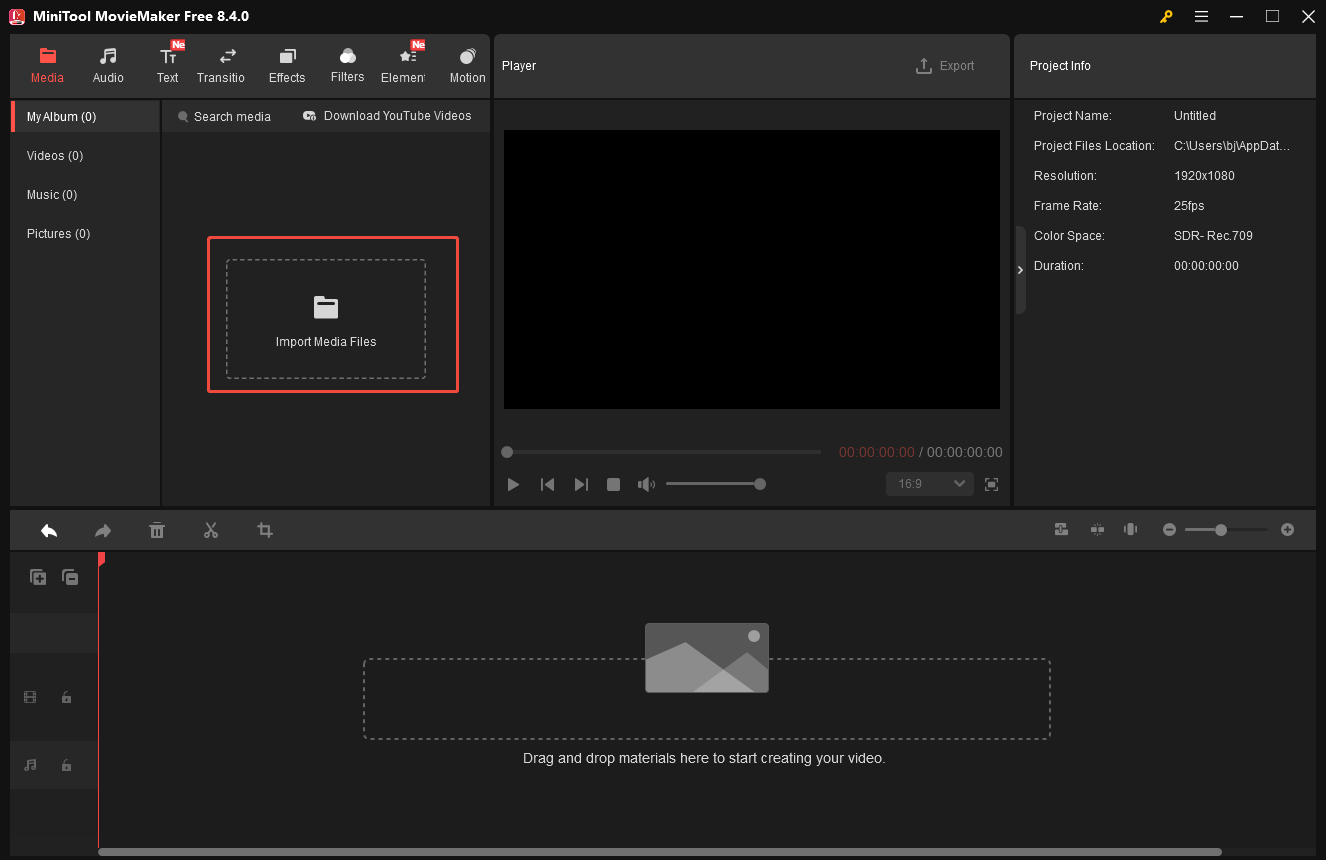
Open MiniTool MovieMaker and close the pop-up project window. Click Import Media Files to upload your audio. Next, click the Plus icon to add it to the timeline.
Step 3: Loop Audio
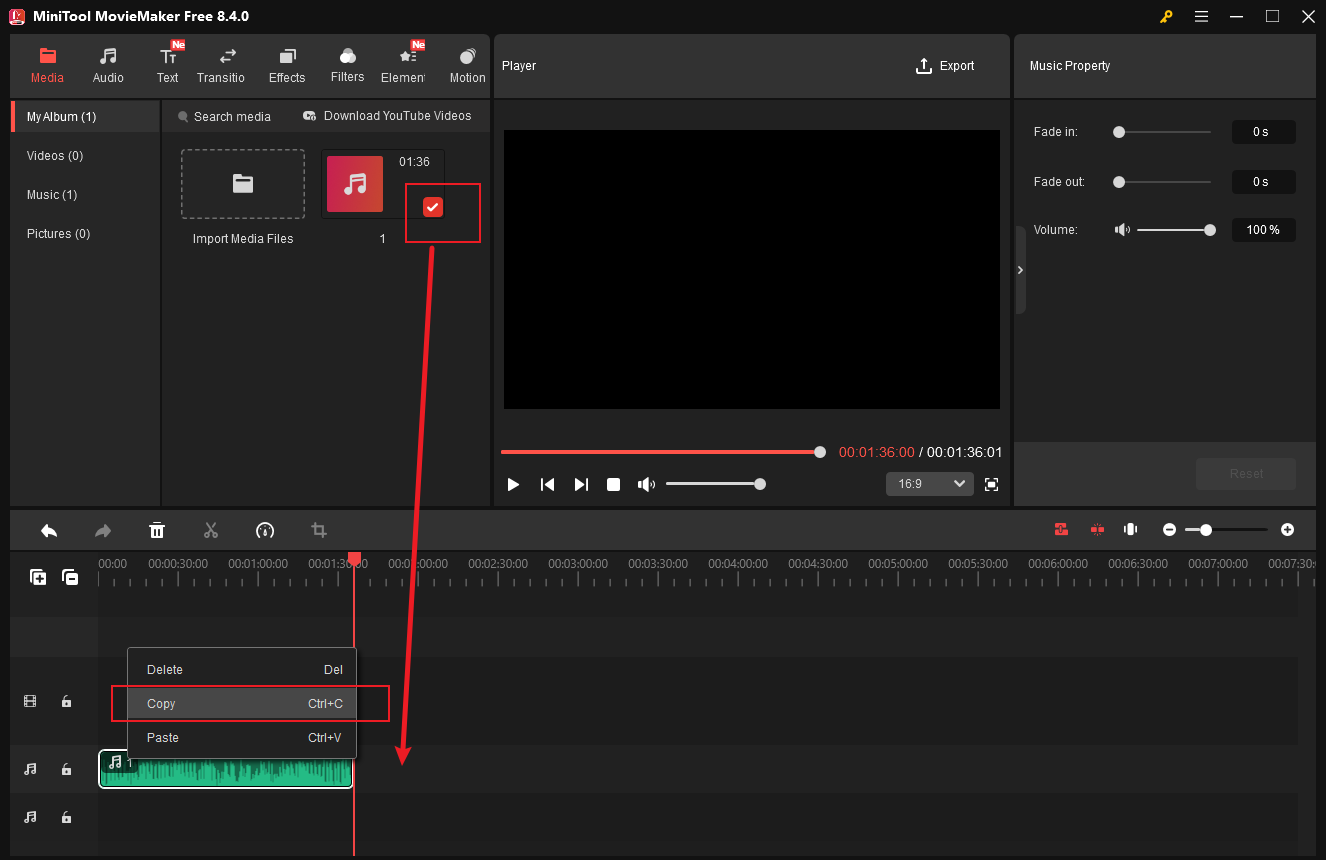
There are three methods available for looping audio in MiniTool MovieMaker. Move the playhead to the end of the audio track in the timeline. Firstly, you can click the Plus icon of the imported audio repeatedly to add it multiple times. Secondly, directly dragging the audio onto the timeline as many times as needed is also a great option. Moreover, right-click the audio in the timeline to select Copy. Then, right-click the section after the audio track and select Paste to repeat the audio.
Step 4: Export Audio
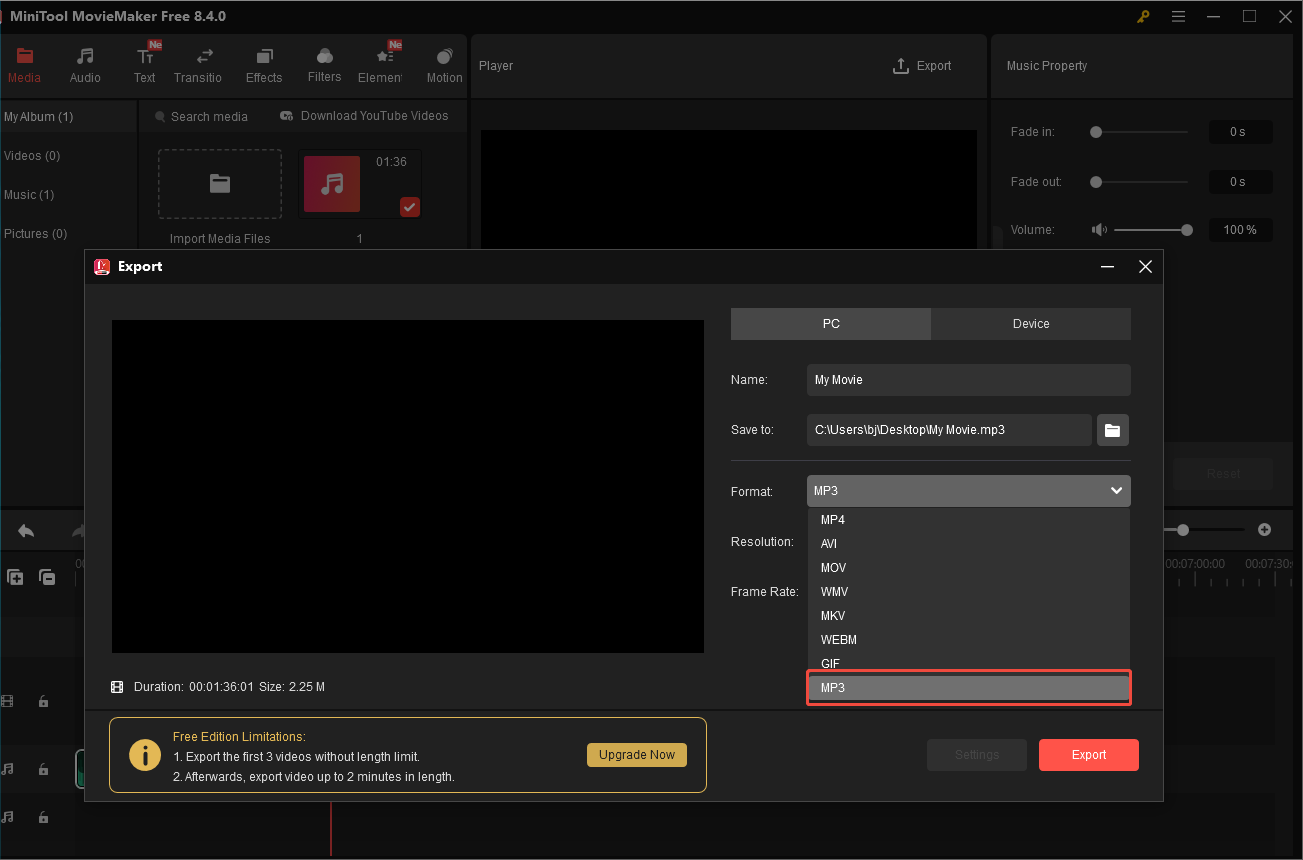
Click the Export icon at the top of the menu and select the Format as MP3 in the export window. Then, click Export at the bottom of the window to save the final audio to your computer.
Method 2: Loop Audio Using Audacity
Audacity is a free and open-source audio editor and recorder. It supports operating on Windows, macOS, and Linux systems and allows you to import all major audio formats. Its intuitive interface makes it accessible to beginners, and the comprehensive tools cover the needs of more advanced users, including mixing audio, reducing noise, and adding additional effects.
Here is how to loop audio using Audacity.
Step 1: Download and Install
Search for the software in the Microsoft Store and download it.
Step 2: Import Audio
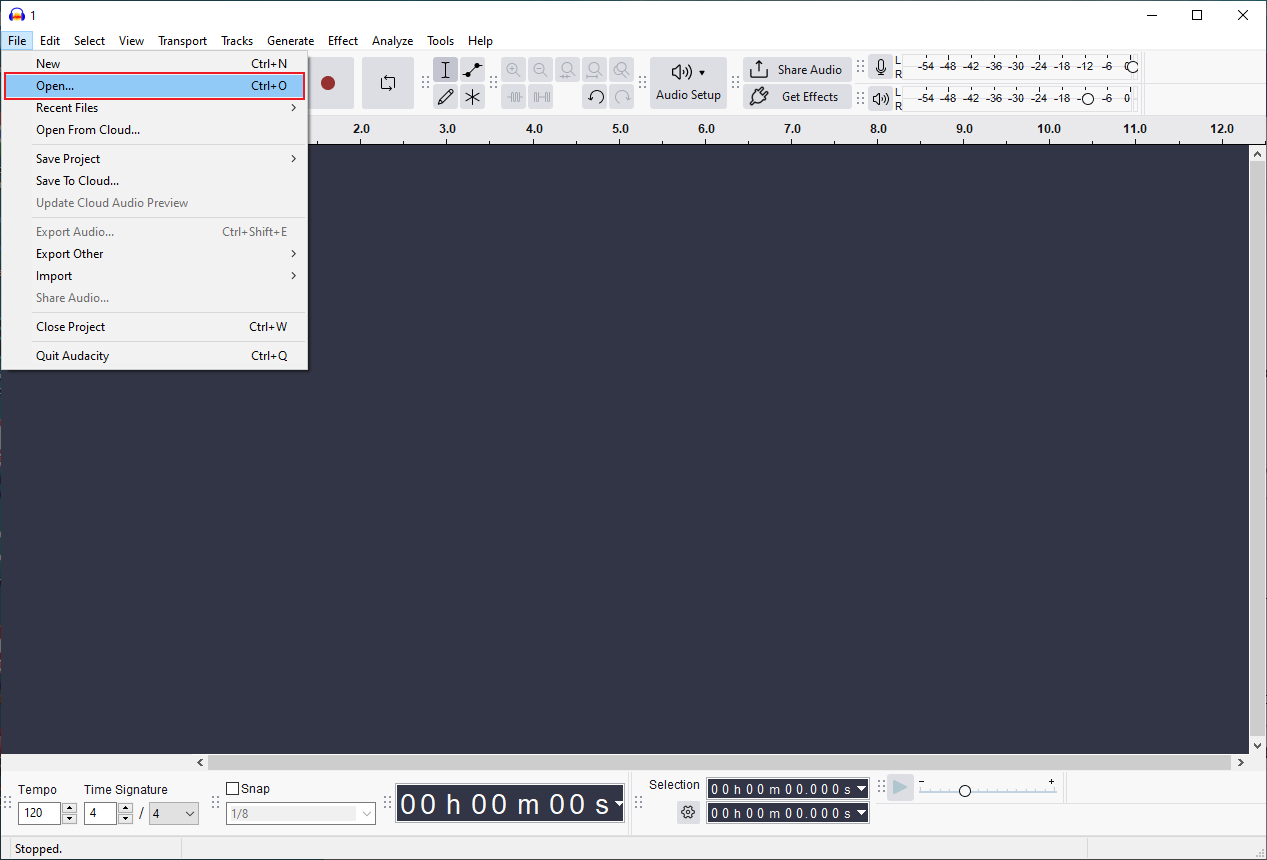
Launch Audacity and close the pop-up window. Click the File tab at the top of the menu to select Open… to import your audio.
Step 3: Loop Audio
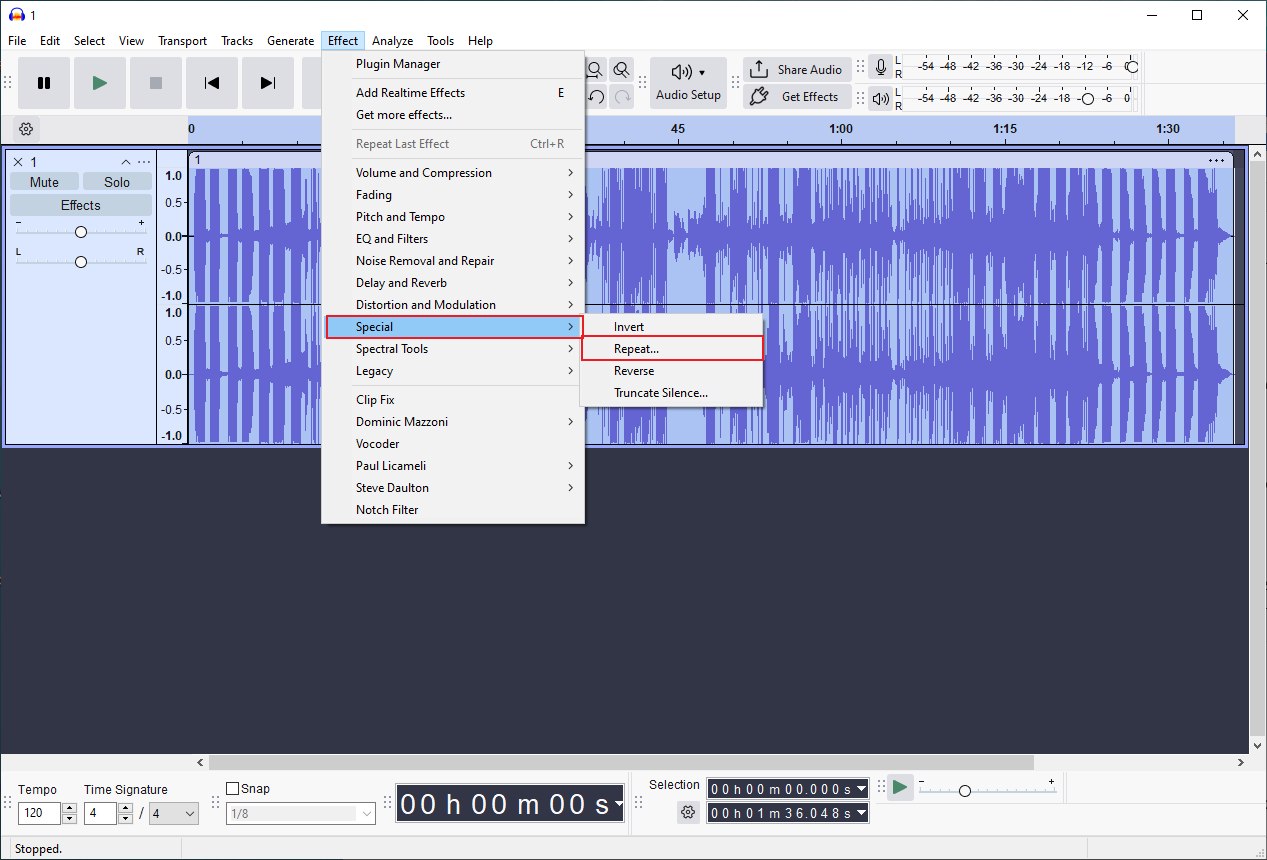
Select the audio and click Effect at the top of the menu. Then, select the Special tab to click Repeat.
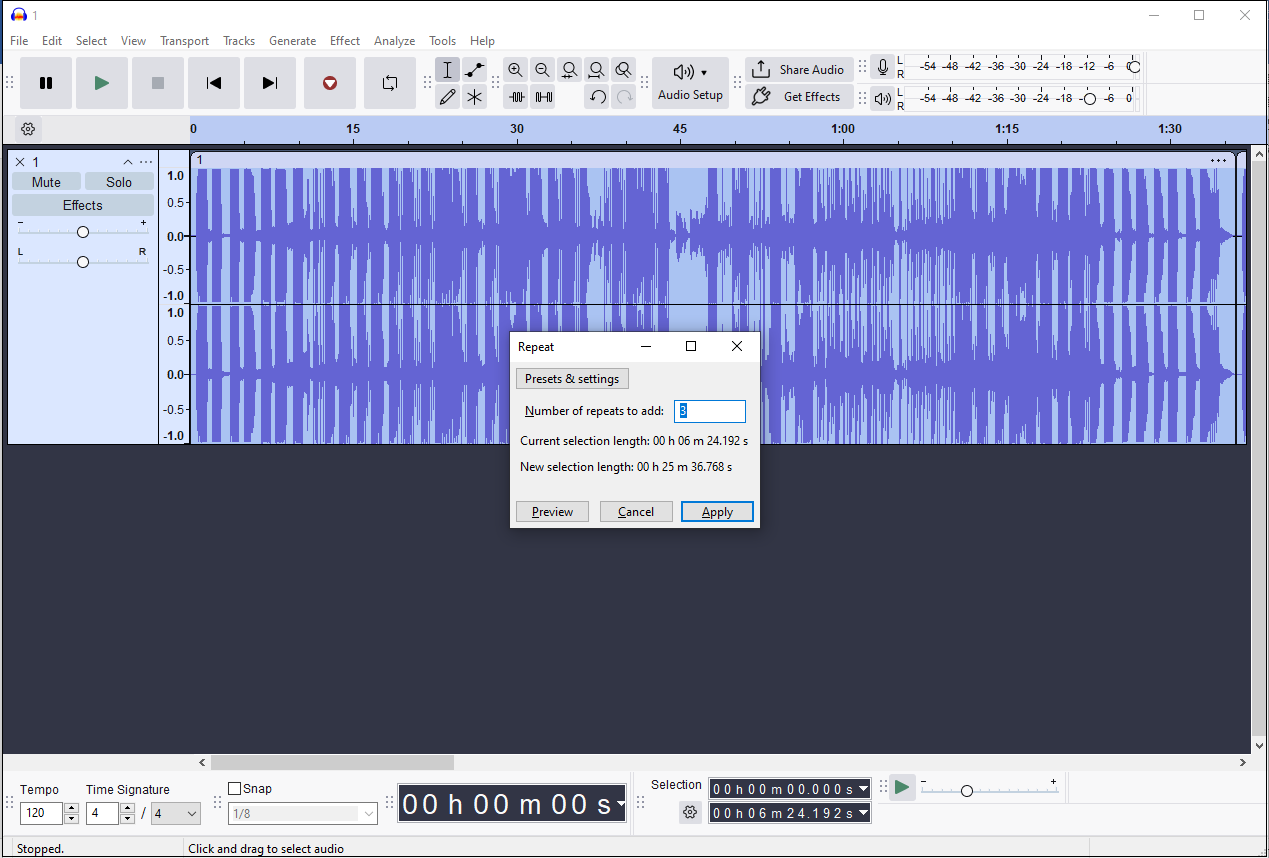
You can enter the precise number of repeats to make the audio loop. Then, click the Apply button to preview the audio.
Step 4: Export Audio
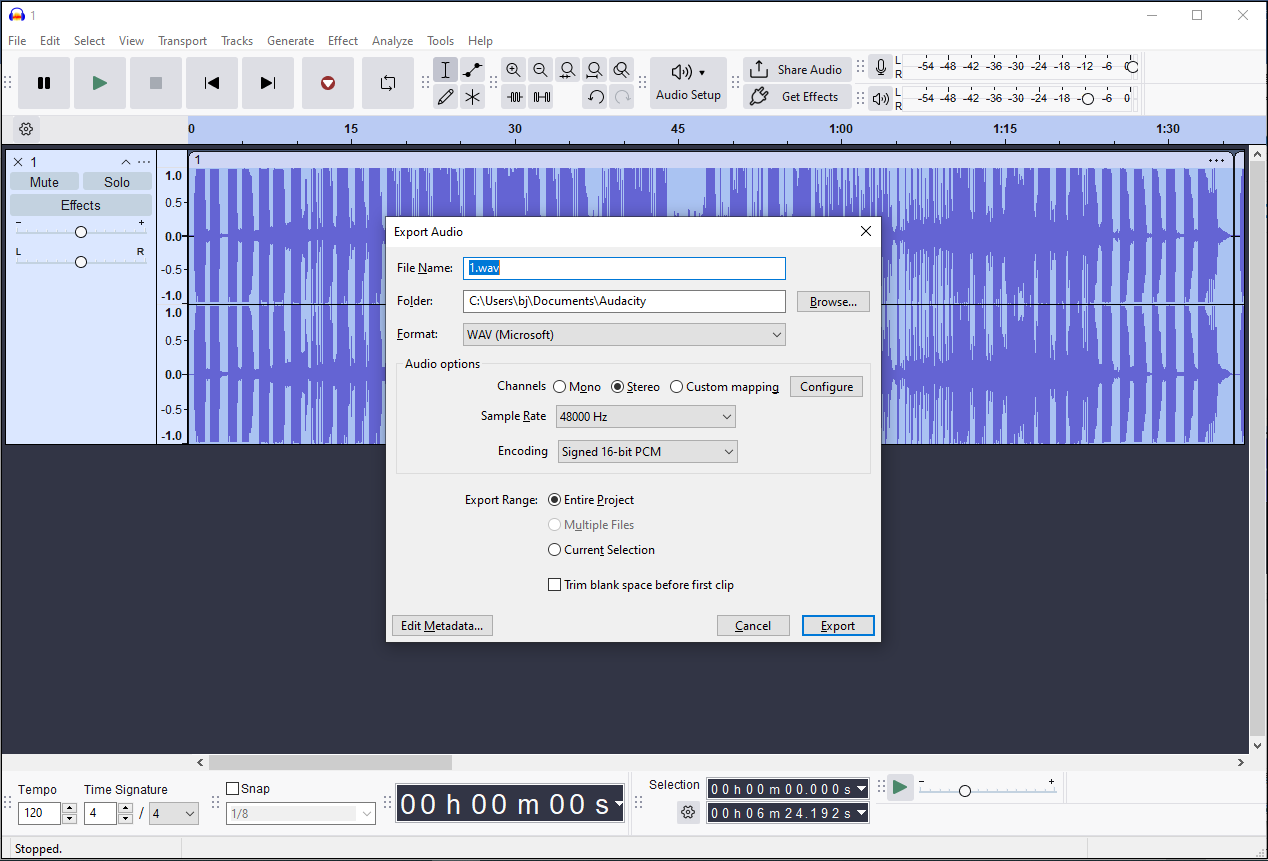
Click File and select Export Audio…. Select the Export to computer option and customize the file name, format, sample rate, and encoding. Then, click Export to save the final audio to your computer.
How to Loop Audio Using Online
If you are looking for a quick online audio looper, Clideo is a great option. It is a versatile platform that offers a wide range of editing features, letting you make audio loops, merge audio, convert text to speech, and more. Besides, it is fast and simple to use and requires no software download. And the easy-to-use interface means users with all levels of experience can seamlessly loop audio.
How to loop audio in Clideo? Here is the detailed guide.
Step 1: Navigate the Official Website
Head to the official website of Clideo’s loop audio tool (https://clideo.com/merge-audio) in your browser.
Step 2: Import Audio
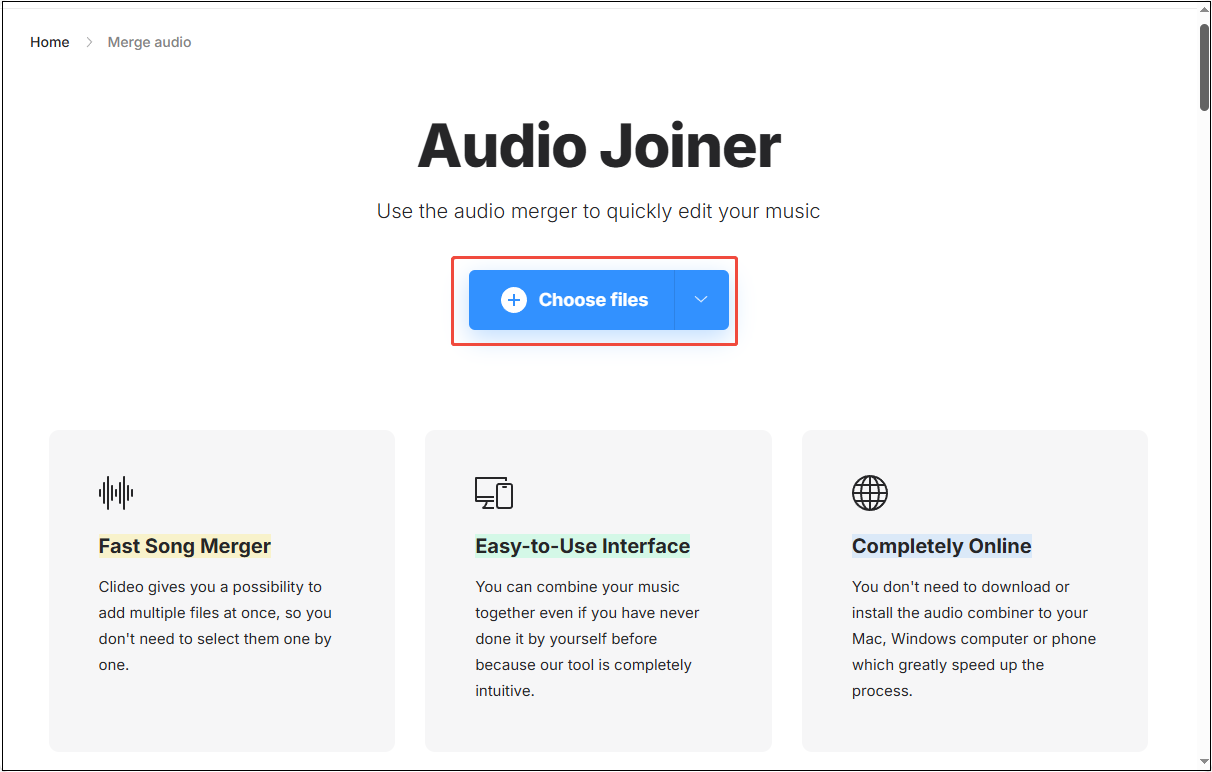
Click the Choose file icon to upload your audio file.
Step 3: Loop Audio
Click the Add more files option in the right panel. Use it to loop your audio by duplicating the clip until it reaches your desired duration. Besides, you can also click the Format option to select the desired output format.
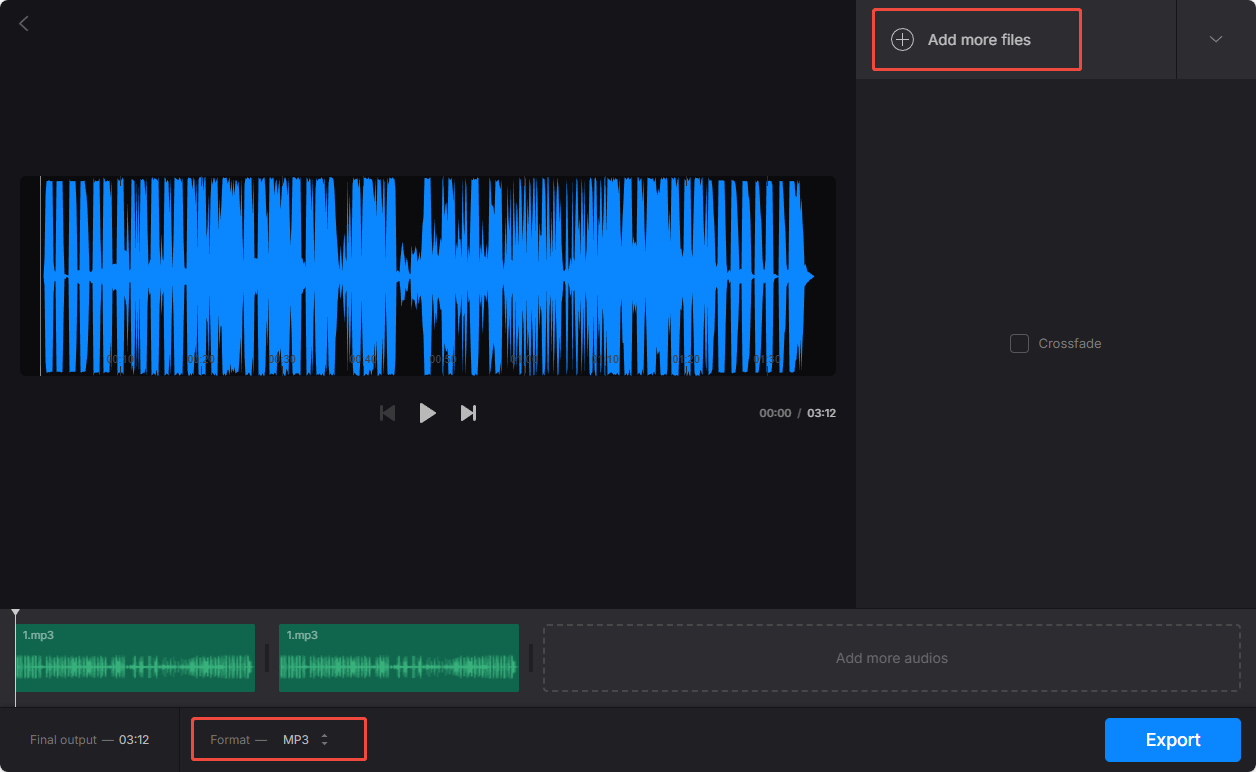
Step 4: Export the Final Audio
Once everything is ready, click Export to save the final audio to your computer.
Conclusion
It is a practical way to loop audio to meet your multiple needs. This post shares 3 useful audio loopers to improve your workflow and efficiency. Select the one tool that best fits your preference and apply it. Hope you find this guide helpful.
User Comments :