

A well-crafted infomercial video can generate significant sales. Producing an infomercial video is a relatively complex process. Firstly, let’s have a general understanding of infomercial videos.
What Is an Infomercial Video
An infomercial video is an extended television commercial that combines informational content with sales pitches to promote products or services. Its main goal is to inform prospective clients and encourage them to visit a website or call a toll-free number to make purchases right away.
Infomercial videos typically run 30 minutes or longer, allowing for detailed, persuasive product demonstrations, though shorter versions also exist. They market products by providing comprehensive details, highlighting features, and illustrating how the product solves problems.
Moreover, the goal of infomercial videos, a type of direct response television advertising, is to elicit quick sales or questions. They place a strong emphasis on direct calls to action, giving viewers phone numbers or internet addresses to enable them to place orders right away. Furthermore, in order to gain the audience’s trust and persuade them, infomercial videos usually include product demos, endorsements, and client testimonials.
If you’re curious about the production process of infomercial videos, you’ve come to the right place. In the following content, I’ll display some main steps of creating an infomercial video.

How to Make an Infomercial Video
To create infomercial videos, here are some main steps you can take.
Step 1. Write a Script
First of all, you need to decide on the style of the video. Make sure the video vibe matches your products. Next, skillfully incorporate user reviews and recommendations to enhance the product’s credibility. These reviews and recommendations should be authentic and credible. Authentic reviews from real consumers who have used your product can influence potential buyers to buy.
In addition, remember to include a strong call to action in your script. Make your infomercial video compelling so viewers feel they can’t miss out. Moreover, craft compelling ad copy for your product, highlighting its details, unique features, and reasons to trust it.
Step 2. Shoot Videos
You can choose to broadcast an infomercial video live; this approach is more challenging and requires a professional host. Alternatively, you can record product videos in advance for later broadcast. These videos must be clear, allowing viewers to see product details clearly, which helps boost purchase rates. Here are some recommendations for professional cameras.
- Canon EOS R5
- Canon EOS R6
- Canon EOS R7
- Sony FX3
- Fujifilm X-H2S
- …
Step 3. Edit Videos
After you have all the necessary raw videos, better delete some redundant clips and make the video next-level. MiniTool MovieMaker can help you with that. It is a feature-rich and free video editor that supports advanced editing functions, like multi-track editing, high-resolution editing, audio overlap, photo collage, video text overlay, etc.
In addition, this application offers basic editing functions, like trimming, cropping, splitting, reversing, rotating, flipping, and more. It has a resource library that includes various transitions, filters, stickers, etc.
Here’s a quick guide on how to edit videos using MiniTool MovieMaker:
1. Download and Install MiniTool MovieMaker
Click the download button below to download and install this program.
MiniTool MovieMakerClick to Download100%Clean & Safe
2. Import Your Video
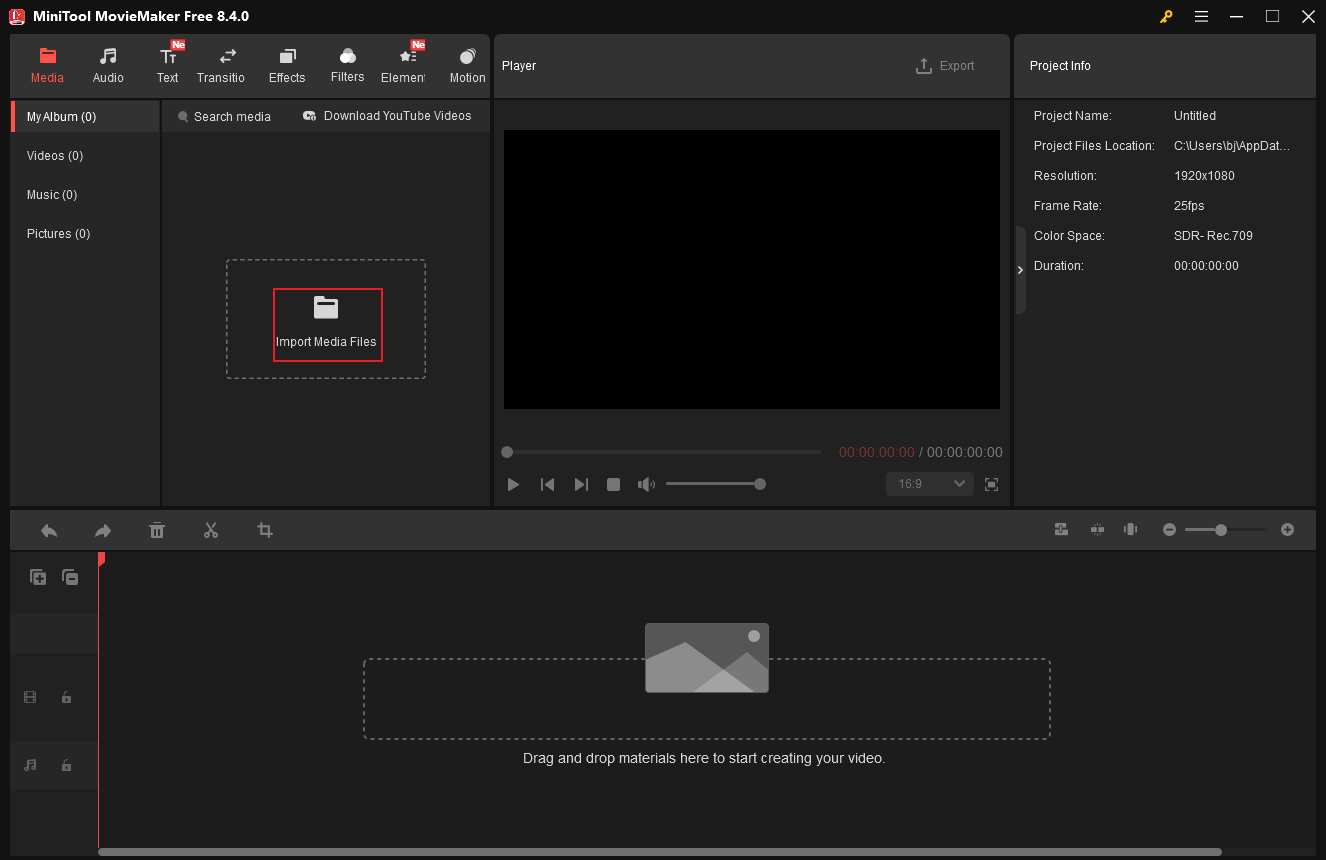
Launch this program and click New Project to enter the editing page. Click Import Media Files to add your video.
3. Edit Video
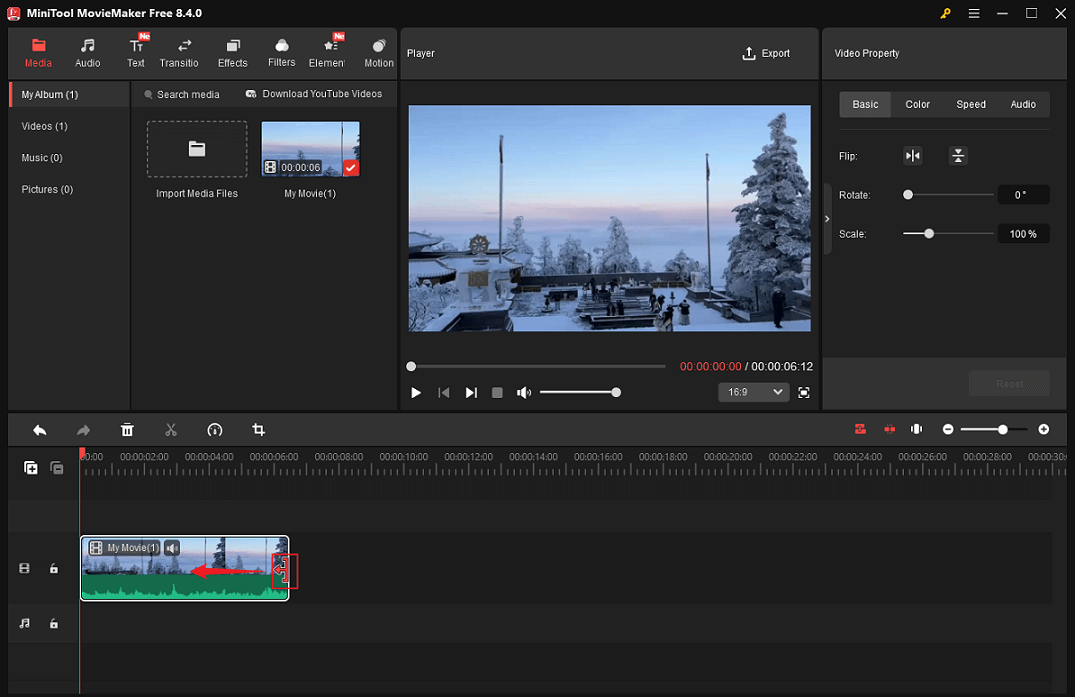
Drag the added video to the timeline.
Trim the Video
Move the mouse cursor over the edges of the video layer until the Trim icon appears; drag it inwards to remove the unwanted video part.
Crop the Video
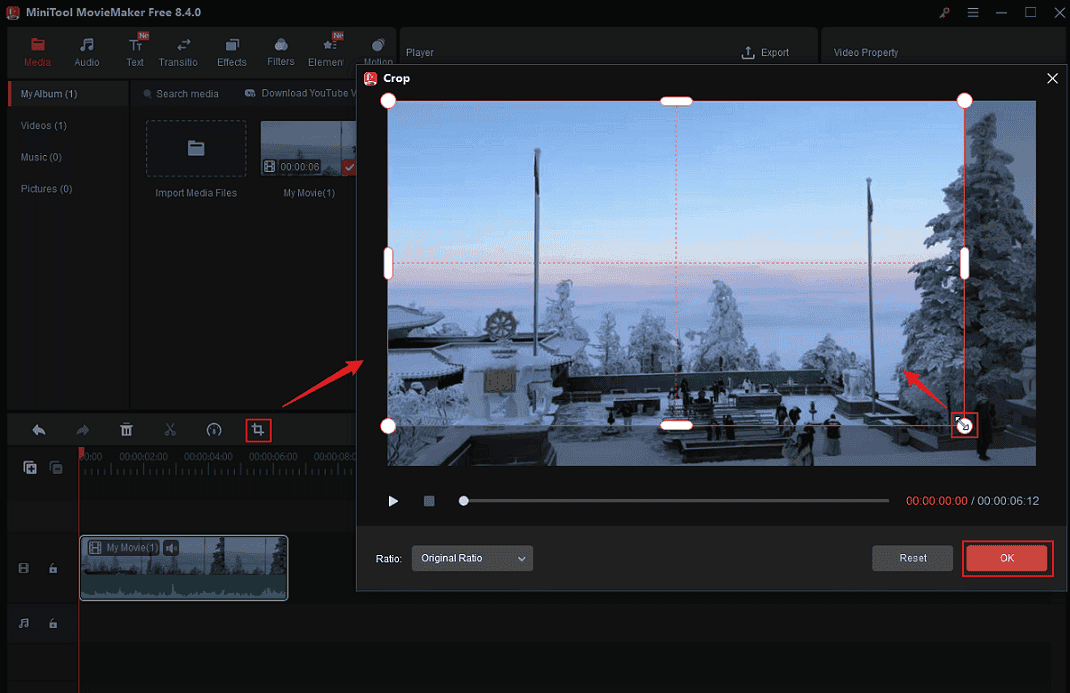
Click the Crop icon in the toolbar above the timeline. In the Crop window, drag one of the video corners inwards to crop the video. Then, click OK.
Text and Sticker Overlay
In the top menu, you can enter the Text or Elements section to add text or stickers to the video. Also, you can add other materials, like transitions, music, etc.
4. Export the Video
Click the Export button at the top right of the Player window. In the Export window, set some settings for the video and click Export. When the exporting process completes, click Find Target to locate the video.
That’s it!

In Summary
This post explains what an infomercial video is and offers guides on how to create an infomercial video. After obtaining all the raw videos, use MiniTool MovieMaker to make the video more appealing. Hope this article can help you a lot.
User Comments :