

As the industry-leading image editing software, Photoshop provides nearly all the editing tools and effects that you might need to add a professional touch to your photos. Now, when it comes to image upscaling, while various AI tools are available, many people still want to know how to upscale an image in Photoshop.
Therefore, this post will guide you through three different ways to upscale images in Photoshop, including the latest AI features and traditional practices.
What Is Image Upscaling
Before learning how to upscale images in Photoshop, let’s understand what image upscaling is.
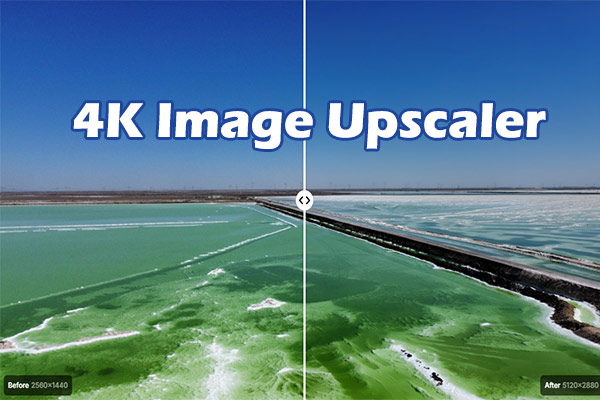
Generally speaking, image upscaling is the process of increasing the resolution while maintaining or enhancing the quality. Traditional scaling is mainly achieved by stretching existing pixels, which can easily lead to blurring or pixelation.
Now, advanced AI has completely changed how images are upscaled. AI-driven upscaling can reconstruct missing details, add new pixels, and add sharpness to ensure high-resolution and more polished images.
If you need to enhance low-resolution photos, enlarge images for print, or improve the clarity of old photos, image upscaling is a useful technique.
How to Upscale an Image in Photoshop
This section explains three solutions for image upscaling in Photoshop.
Method 1: Use Generative Upscale
Generative Upscale in Photoshop is an AI-powered tool that uses Adobe Firefly to upscale images by adding detail, sharpening edges, and improving resolution. This method also helps you make blurry or pixilated images clearer and restore old photos.
To use this feature to enlarge images, you should use the latest version of Photoshop.
How to upscale an image in Photoshop using Generative Upscale? Here are the steps.
Step 1: Open the Target Photo
After running Photoshop, click File > Open to open a low-resolution image from your computer.
Step 2: Upscale the Image
Select Image in the top menu and choose Generative Upscale from the dropdown list. Then, choose an output scale (2x or 4x) and change parameters as needed.
Next, select the AI model to upscale the image. If you need to restore low-resolution images, choose Firefly Upscaler, which can enlarge images up to 6144 pixels × 6144 pixels. Choose Topaz Gigapixel to upscale photos while preserving the existing detail. If you want to add new, creative detail to the image while upscaling, Topaz Bloom is a perfect choice.
Finally, click Upscale to create the upscaled image.
Step 3: Save the Image
Click File > Save as and choose your preferred format to save the upscaled image.
Method 2: Manually Adjust the Image Size
If the powerful Generative Upscale feature is not available to your Photoshop version, or you want more control, you can manually upscale the image by increasing its size.
Step 1: Enable the Image Size dialog
After opening your target photo, select Image and Image Size.
Step 2: Resample the Image
In the Image Size dialog, enter your desired width and height or type a resolution. Make sure the Resample option is checked.
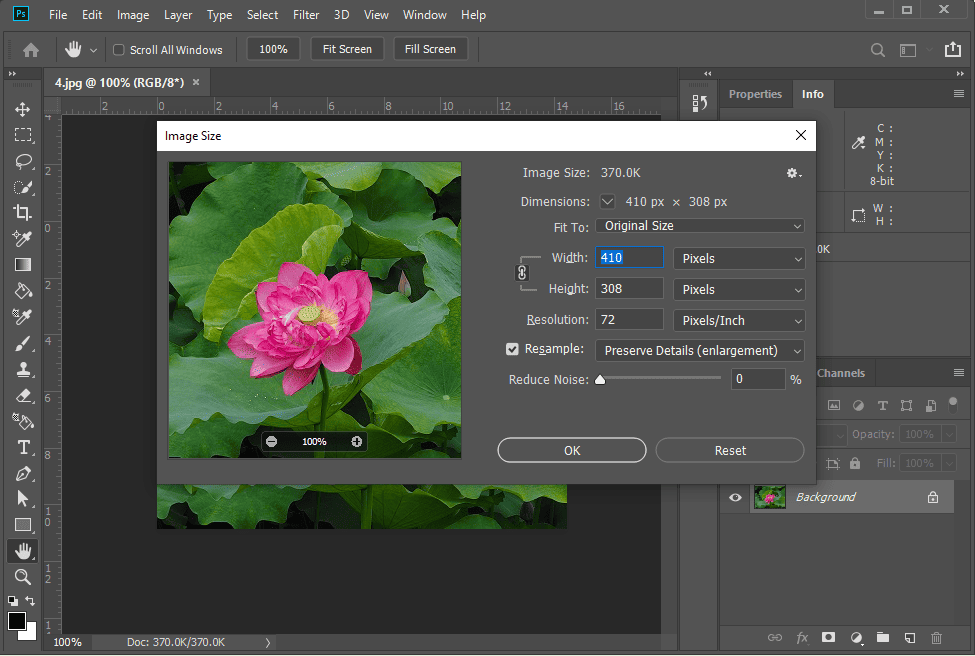
Next, expand the Resample menu and choose a method like Preserve Details 2.0 or Preserve Details (Enlargement) from the dropdown. Finally, click OK to upscale the image.
Also, you can experiment with other resampling methods until you get the best result. Compared with Generative Upscale in Photoshop, the image size adjustment has limited AI support. In other words, it won’t add new pixels or details to the upscaled image. If you don’t choose the appropriate resampling method, the resulting image may appear blurry.
Method 3: Use Super Resolution
Additionally, you can use the Super Resolution feature to upscale images effectively. This feature was originally designed for RAW files, but it also supports common image formats, such as PNG, JPEG, and TIFF.
Here’s how to upscale in Photoshop with the Super Resolution feature.
Step 1: Open an Image
If you need to upscale a RAW image, select File > Open, and Photoshop will automatically launch Camera Raw. To open other image file types, you need to load images from Adobe Bridge into Photoshop for the next step.
In Photoshop, click File > Browse in Bridge to open your raster image. Then, right-click the image and select Open in Camera Raw.
Step 2: Apply Super Resolution
In Photoshop’s Camera Raw dialog, right-click the image and choose Enhance from the dropdown list. In the Enhance Preview window, check the Super Resolution option, and click Enhance to begin the AI upscaling process.
Once done, Photoshop will save the upscaled image in the DNG format.
Conclusion
How to upscale an image in Photoshop? This post covers three effective techniques. You can follow the steps above to enhance your low-resolution photos.
About The Author

Position: Columnist
Cora is a tech writer specializing in digital media workflows, with over six years of hands-on experience in video post-production, media transcoding, and screen capture. Her writing is always clear and practical. Cora also produces in-depth software reviews for users across skill levels to help them find the right tool and enjoy video editing.
User Comments :