

Slow motion is a filmmaking effect where time appears to be moving more slowly than normal. It’s achieved by recording footage at a higher frame rate than the playback frame rate. It’s also a popular video editing technique to transform ordinary footage into creative videos. This post will guide you through three effective methods to convert video to slow motion online.
Why Convert Video to Slow Motion
Before exploring these online slow motion video makers, let’s learn the benefits of this conversion.
Enhance Visual Appeal: Slow motion creates a cinematic impact in videos, making actions feel more epic and dramatic, which efficiently increases the appeal of ordinary footage.
Highlight Details: Slow motion is widely used to emphasize key moments in a video, so viewers can clearly see normally missed actions in fast movements, such as sports highlights and explosions.
Add Drama and Emotion: By viewing details that can be ignored at a normal speed, viewers can be more immersed in the story, thus effectively deepening emotional connection.
Sometimes you might need to turn your video into slow motion, but you don’t want to install software on your PC. Then, online slow motion video editors come in handy.
How to Convert Video to Slow Motion Online
Here are three ways to convert video to slow motion online, with no software installation required.
Method 1: Use CapCut Online
CapCut online video editor offers a variety of tools and AI-powered features to help you create high-quality videos. For instance, it uses AI to analyze your video and add smooth slow motion to the highlights of videos. It also allows you to manually create slow-mo effects by reducing playback speed.
Follow the steps below to convert your video to slow motion.
Step 1: Upload Your Video
Navigate to CapCut.com and sign in with your account. Click Create new to access the main editing page. Then, click Media > Upload > Upload file to select your video.
Step 2: Convert Video to Slow Motion
Once uploaded, drag the video to the timeline to start editing. Click the Speed option on the right sidebar. In the Speed dialog, enable the Smooth slow-mo option. Then CapCut will analyze your video intelligently and identify key moments for applying a slow motion effect.
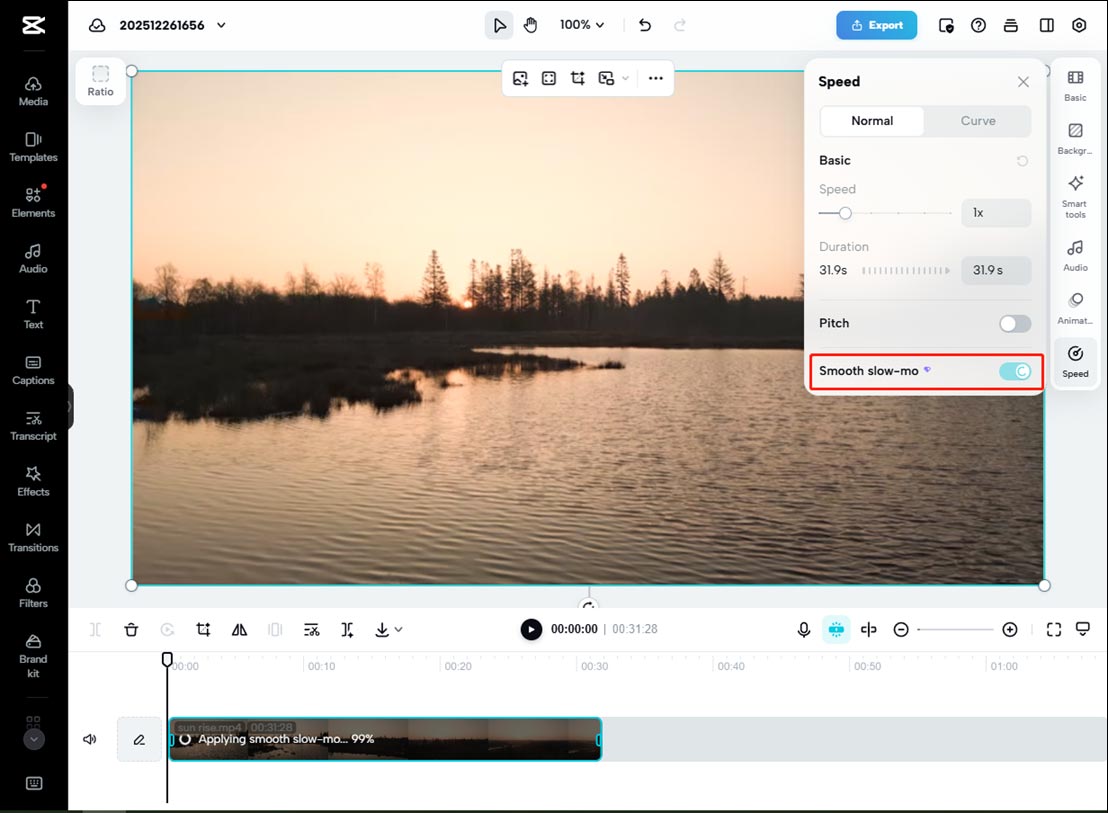
Alternatively, you can use the Split tool to separate the segment in which you want to add a slow-motion effect and then manually slow down the clip. You can also go to the Curve tab and choose an appropriate preset or Custom to turn your video into slow motion.
Step 3: Save Your Slow Motion Video
Click Export, choose Download, customize the settings like resolution, format, and frame rate, and click Export to start rendering your video.
Method 2: Use Kapwing
Kapwing is an online multimedia editing platform designed for creating and editing videos, images, GIFs, and memes. When you need to convert video to slow motion online, Kapwing is also a great option, as it lets you quickly modify the playback speed.
Step 1: Upload Video
Go to Kapwing.com and log in with your account. Click Create new to enter the main editing interface. Select Upload Media in the left panel to upload your video. Then, add the video to the canvas.
Step 2: Slow Down the Video
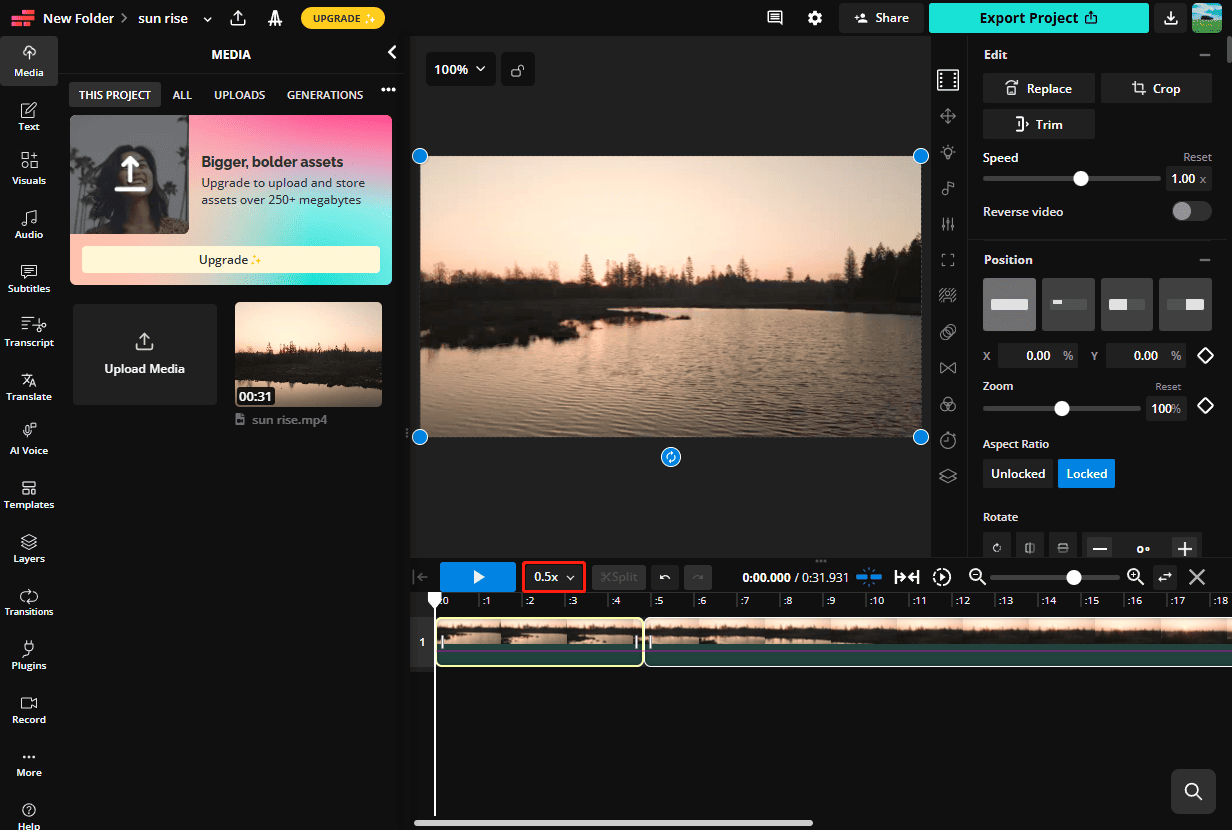
Use the Split tool to extract the key moments of the clip for adding a slow motion effect. Below the video player window, click the arrow next to 1x and choose a speed like 0.5x to decrease the clip.
Step 3: Save the Video
Click the Export Project option in the upper right corner and configure settings to save the video.
Method 3: Canva
Canva is a web-based graphic design platform that allows users of all levels to create professional-looking content, such as videos, posters, posts, presentations, and more. As a simple online video editor, it also supports playback adjustment, precise trimming, color correction, and more.
Here’s how to convert video to slow motion online with Canva.
Step 1: Upload a Video
Visit Canva.com and sign in with your account. Click the Create a design button in the upper right corner and select Video from the list to open the editing page. Click File in the top menu bar and select Import files > Choose files to open your video.
Step 2: Create Slow Motion Effect
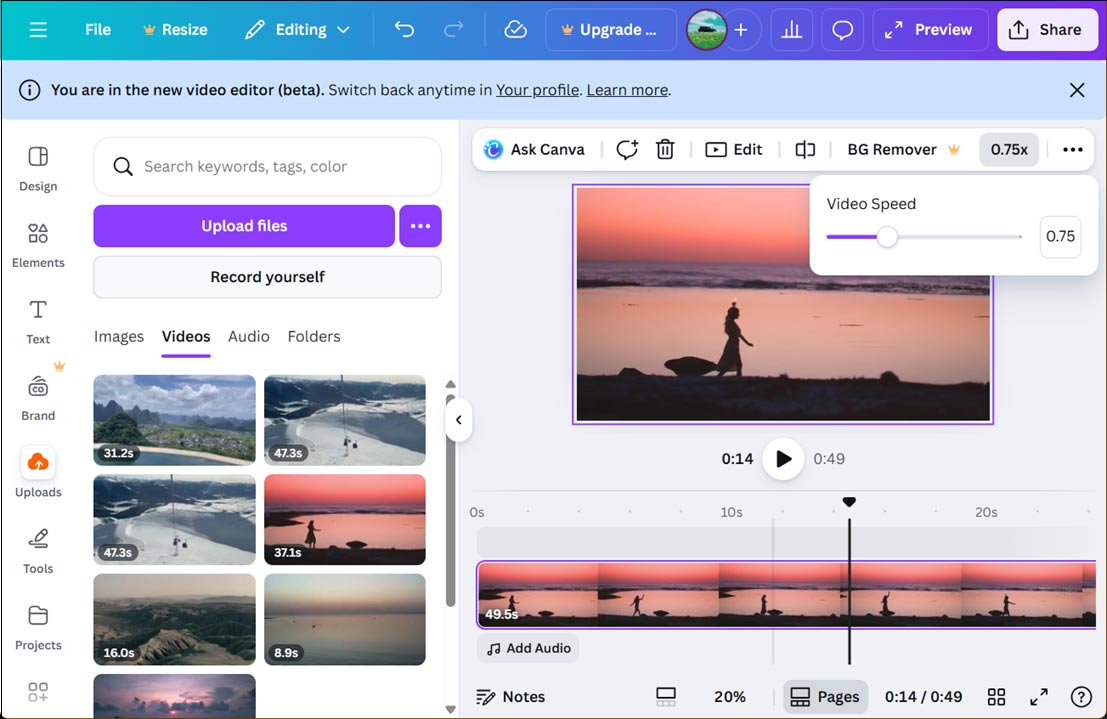
Drag and drop the video to the timeline and click the 1x option above the video player window to enable the video playback settings. Next, drag the Video speed slider to the left to apply a slow motion effect.
Step 3: Export the Video
Click Share > Download > Download, and finally, you’ll get an MP4 file.
Conclusion
This post offers three easy ways to convert video to slow motion online. These converters require nothing more than an internet connection and can create a smooth slow motion effect for your footage.
About The Author

Position: Columnist
Cora is a tech writer specializing in digital media workflows, with over six years of hands-on experience in video post-production, media transcoding, and screen capture. Her writing is always clear and practical. Cora also produces in-depth software reviews for users across skill levels to help them find the right tool and enjoy video editing.
User Comments :