

Fireworks can instantly illuminate any photo, adding festive vibes or dreamy hues. After taking photos of celebrating the New Year, Christmas, birthdays, or other events, I usually add fireworks to them and post them on social media. This kind of touch always makes me receive lots of likes. For your reference, below are three image editors that I always use to add fireworks to photos.
Add Fireworks to a Photo with OpenArt
OpenArt is a reliable online image editing tool that can add fireworks to your photos effortlessly. It is AI-powered. So, you can simply input a prompt to generate hundreds of styles of visual art. Beyond adding fireworks to photos, you can transform images into numerous other styles—such as anime, illustration, oil painting, and cyberpunk.
In addition, OpenArt’s design prioritizes ease of use, with its clean interface and streamlined workflow allowing users to focus on creation rather than complex settings. Today, it is widely used across various fields, helping users transform their ideas into visual realities.
Now, follow the step-by-step guide below to add fireworks to photo:
Step 1. Access Open Art
Go to OpenArt’s official website (visit https://openart.ai/features/add-fireworks-to-photo).
Sep 2. Upload Your Picture
Click the Drop files here option to upload the target picture.
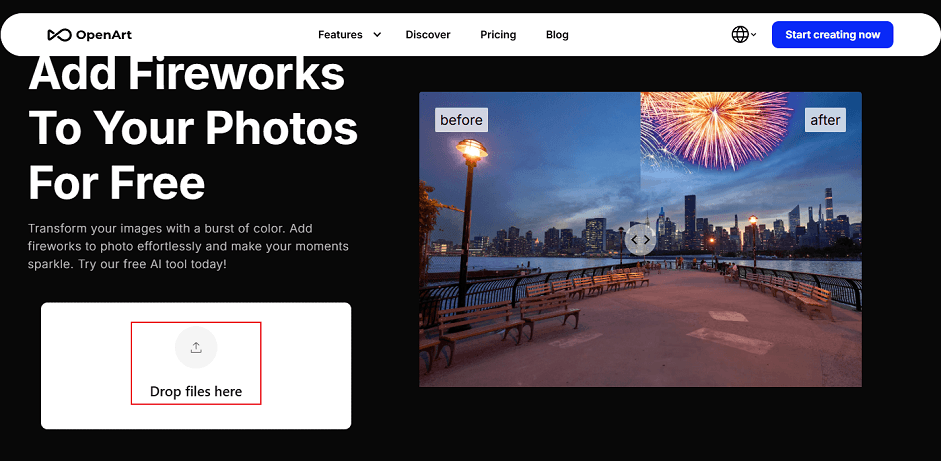
Step 3. Choose the Target Area
Use the brush to highlight the area you want to add fireworks.
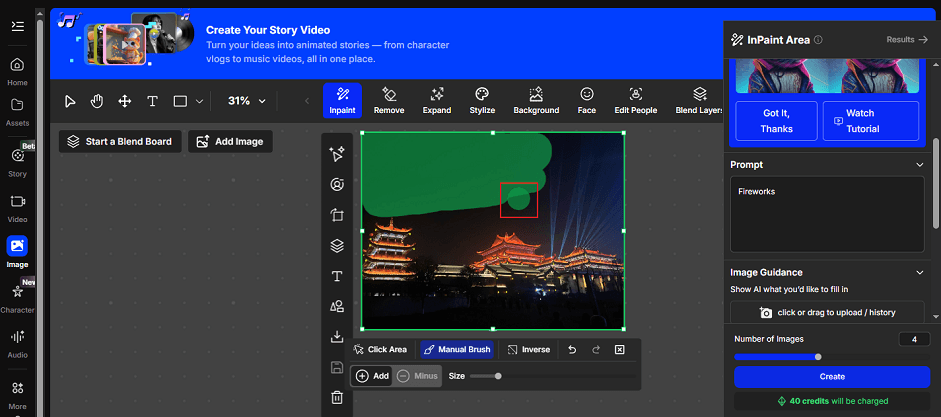
Step 4. Generate the Photo with Fireworks
Click the Create button to add fireworks to the photo.
Step 5. Download the Picture
Click the Download option to save the photo.
![Use Big Head Effect in Your Photo/Video [Step-by-Step Guide]](https://images.minitool.com/moviemaker.minitool.com/images/uploads/2026/02/big-head-effect-thumbnail.png)
Add Fireworks to a Photo with Picsart
Picsart is a global, cross-platform creative platform offering photo cropping, color adjustment, filters, portrait retouching, collage creation, and drawing tools. AI-powered is a hallmark of Picsart. Its AI image generator transforms text prompts into artwork, illustrations, and product visuals.
Along with a huge collection of stickers, fonts, and other resources, Picsart offers thousands of templates for flyers, posters, logos, etc. Its user-friendly interface requires no special skills—just a few taps to effortlessly add fireworks to photo.
Here’s how to add fireworks to a photo using Picsart.
Step 1. Open Picsart
Access Picsart’s official website by visiting https://picsart.com/.
Step 2. Upload Your Photo
Click the Photo icon to import your picture.
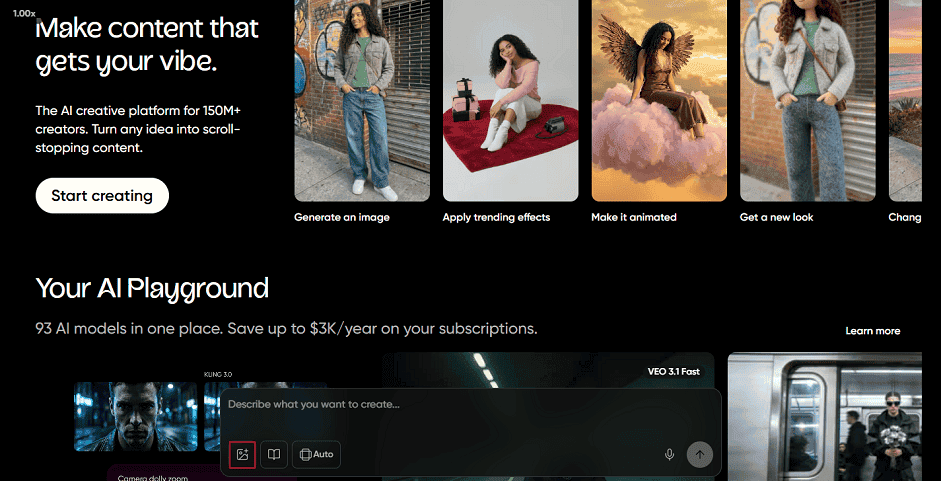
Step 3. Input a Prompt
Type “add fireworks to the picture” into the prompt box.
Step 4. Start Generating the Photo
Click the Create icon to enter a new tab. There, click the up-arrow icon to generate a photo with fireworks.
Step 5. Download the Picture
Click the Download icon to save the picture with fireworks.
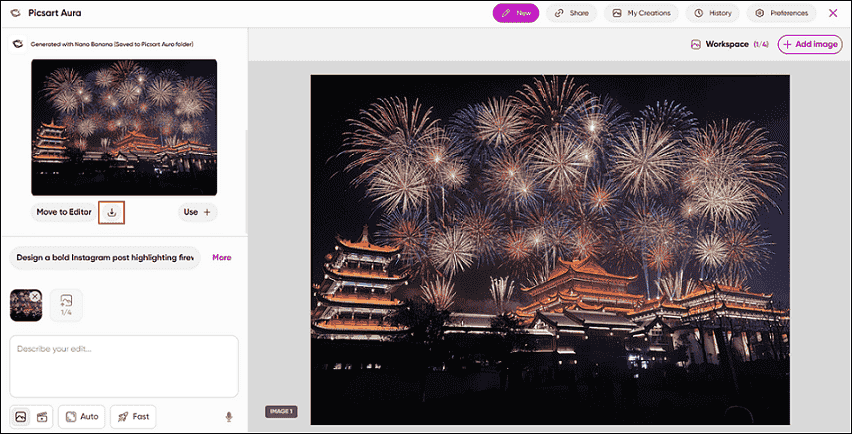
Add Fireworks to a Photo with FlexClip
FlexClip is a powerful online image/video editor – no installation or skills needed. It boasts an extensive resource library offering multiple templates, photos, videos, music tracks, and sound effects, along with thousands of text presets, stickers, and effects.
Plus, FlexClip is powered by AI. Its background remover cleans up your footage with a single click, while the image generator quickly adds fireworks effects to your photos.
Follow the instructions below to infuse your photos with vitality and passion.
Step 1. Go to FlexClip
Access FlexClip’s photo editor by visiting https://www.flexclip.com/ai/photo-editor/.
Step 2. Upload Your Photo
Click the Upload up to 5 images option to import your photo.
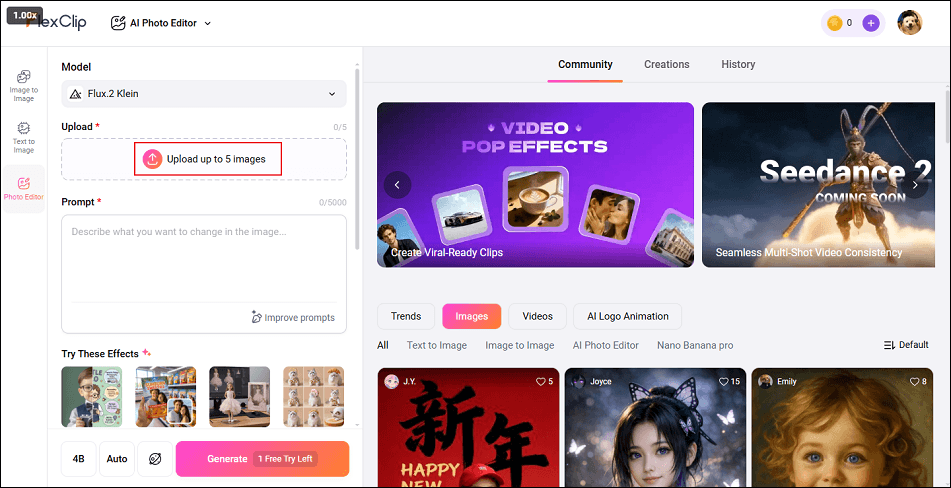
Step 3. Input Prompt
Input “add fireworks to the photo” into the Prompt box.
Step 4. Start Generating Photo
Click the Generate button to add fireworks to your picture.
Step 5. Download the Picture
When the generating process completes, click the Download option to save the photo.
All done!
Final Words
To add fireworks to photo with ease, I recommend three professional image generators. They are all user-friendly and offer a quick method. Feel free to choose the one you prefer and start your journey!
User Comments :