

At festive occasions, scattering streamers is a traditional custom. You can add confetti effects to your videos to create a joyful atmosphere. Not sure where to find confetti effects? Don’t know how to add confetti to video? This is the right place for you! The following content will walk you through the whole process. Read on for more!
Add Confetti to Video with MiniTool MovieMaker
MiniTool MovieMaker is powerful and free video editing software designed for Windows users. It features a straightforward interface, allowing for easy and quick navigation. Plus, this program has an extensive resource library, including a variety of stickers (confetti, birthday-themed, Christmas-themed, etc.), transitions, effects, and more.
Moreover, MiniTool MovieMaker provides comprehensive editing tools. For basic editing, it can crop, trim, reverse, rotate, flip, and change video speed. For advanced editing, MiniTool MovieMaker supports multi-track editing, copy and paste on the timeline, photo collage, high-resolution editing, and more. Now, follow the guides below to add confetti to your video.
1. Download and Install MiniTool MovieMaker
Click the download button below to download and install this program on your computer.
MiniTool MovieMakerClick to Download100%Clean & Safe
2. Import Your Video
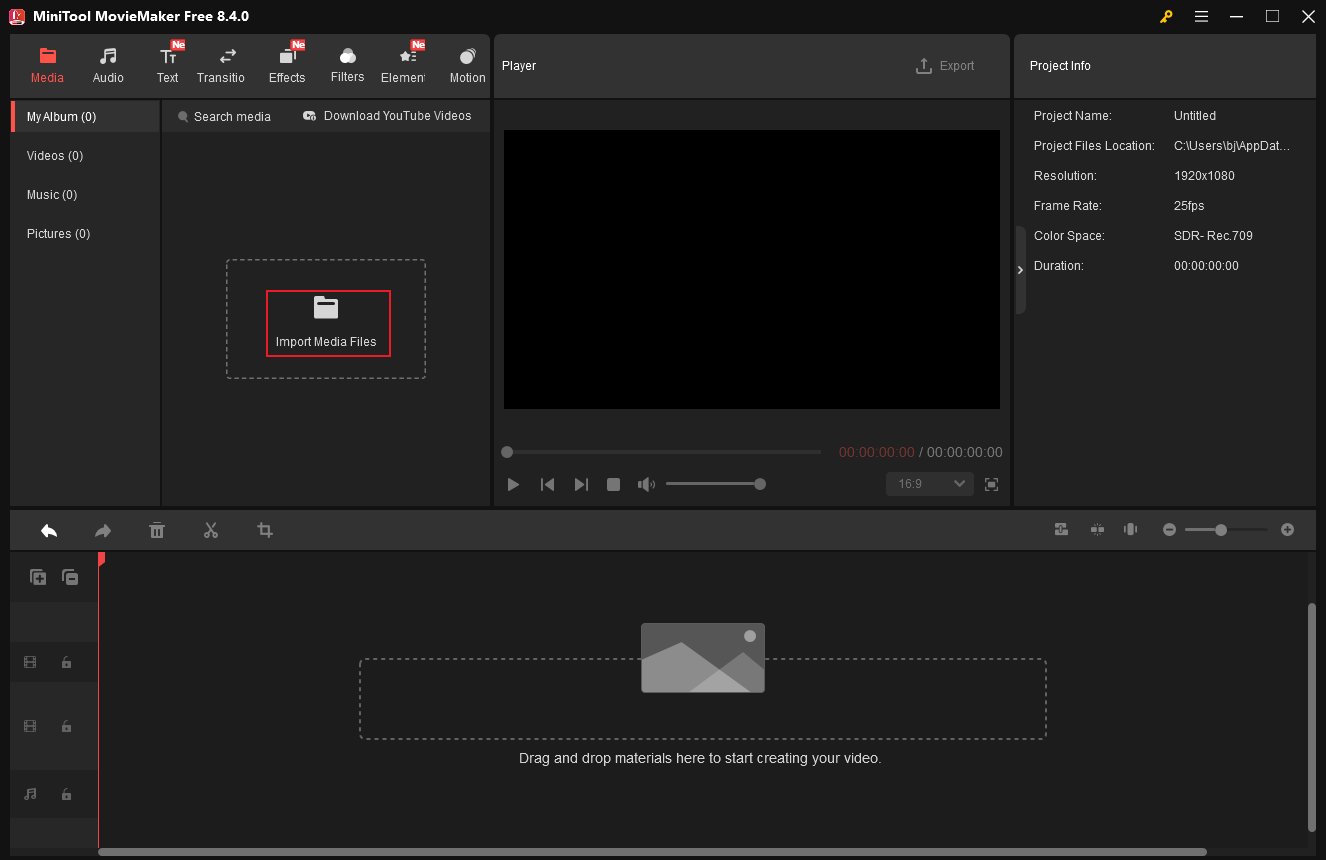
Launch this program and click New Project to enter the editing page. Then, click Import Media Files to add your video.
3. Add Confetti to the Video
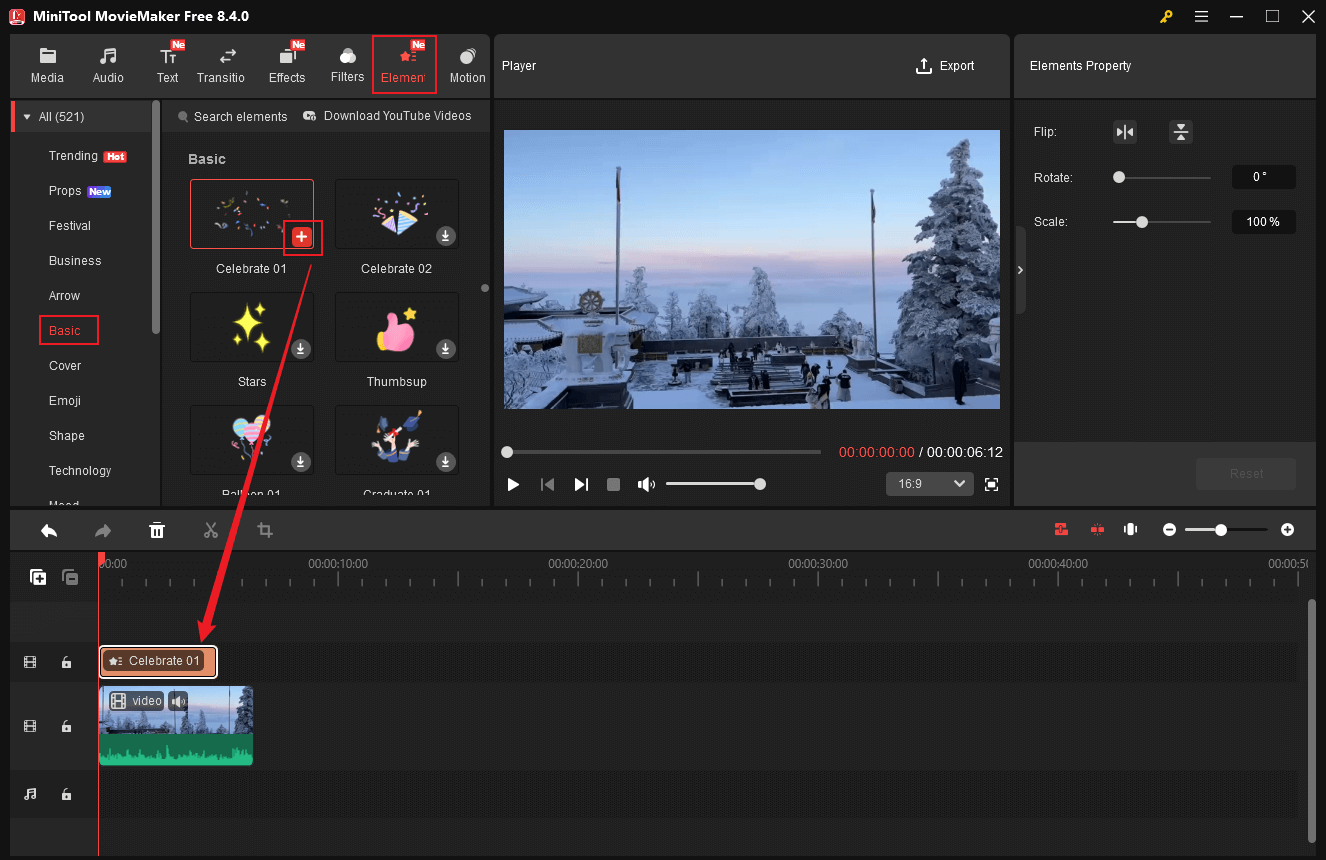
Drag the added video to the timeline. Go to the Elements section, choose the Basic tab, download the Celebrate 01 sticker, and add it to the video.
4. Adjust the Confetti
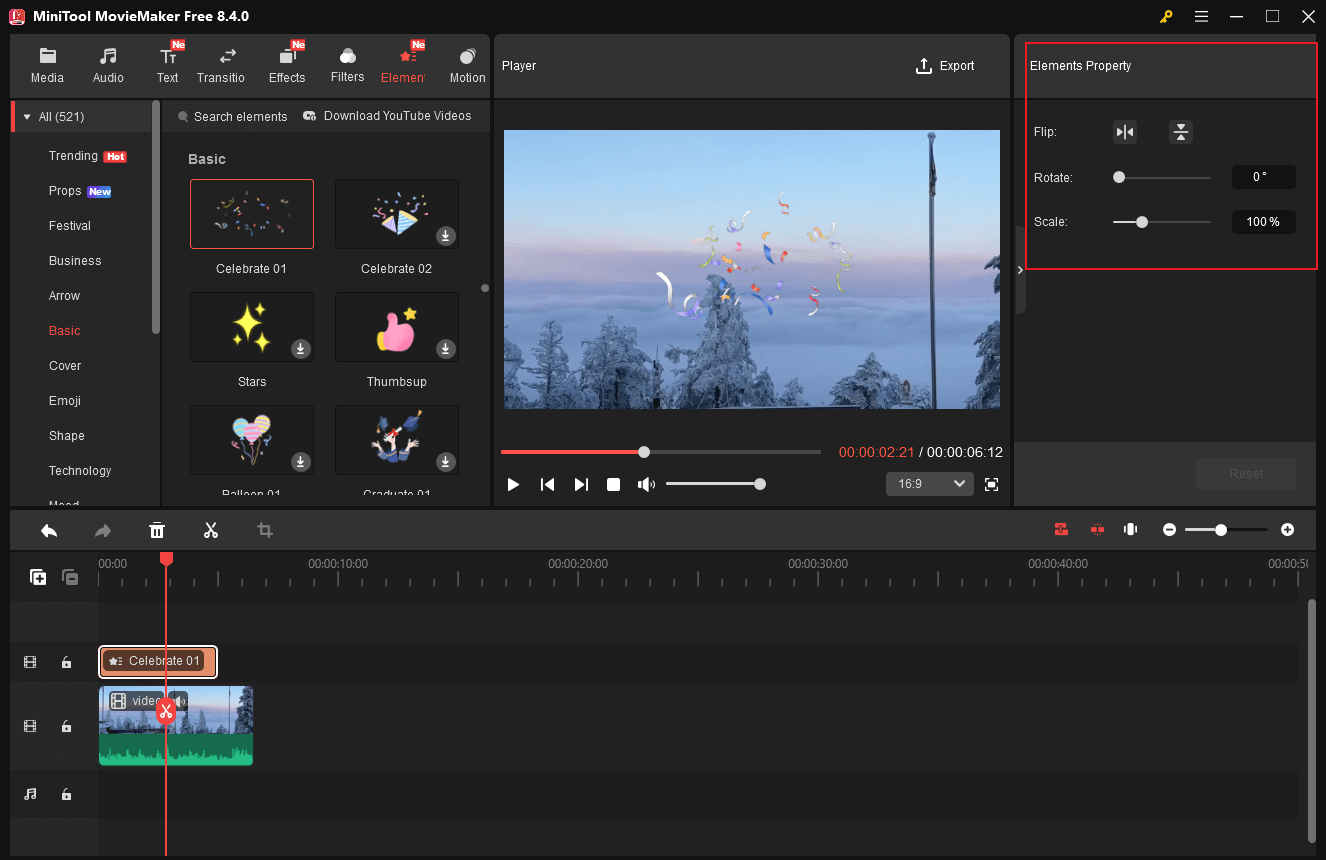
Click the sticker layer on the timeline to activate the Elements Property window. There, you can adjust the sticker by flipping, rotating, and scaling.
5. Export the Video
Click the Export option at the top right to access the Export window. There, you can adjust output settings for the video. Then, click Export to save the video.

Add Confetti to Video with Wondershare Filmora
Wondershare Filmora is a professional and user-friendly video editor that offers various confetti stickers. Besides, it provides various editing tools, allowing you to edit videos by cropping, trimming, rotating, etc. With this program, you can effortlessly add confetti to a video and create a video that matches your style preferences.
How to add confetti to a video using Wondershare Filmora.
1. Download and Install Wondershare Filmora
Go to Wondershare Filmora’s official website to download and install this program. Then, launch it.
2. Import Your Video
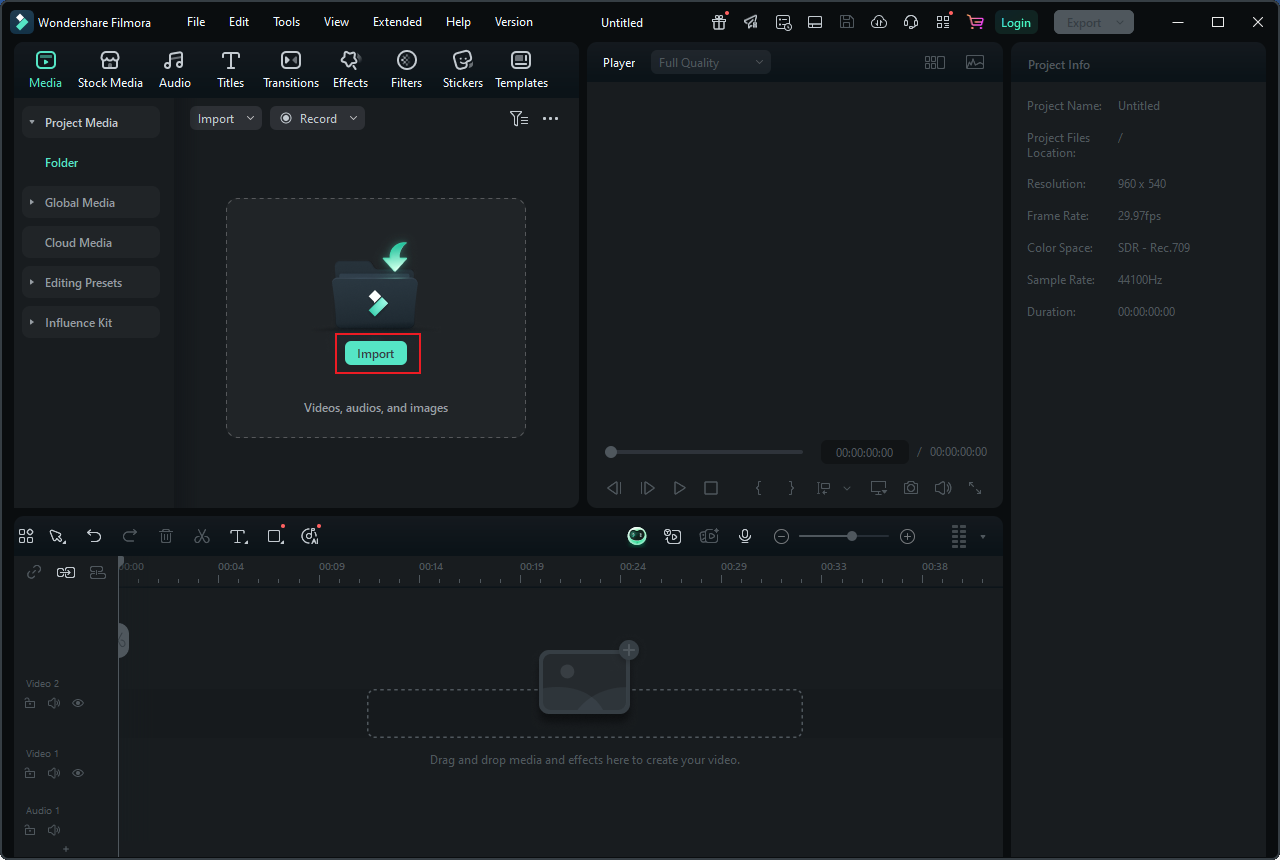
In the main editing page, click the Import option to add your video. Then, drag it to the timeline.
3. Add Confetti to the Video
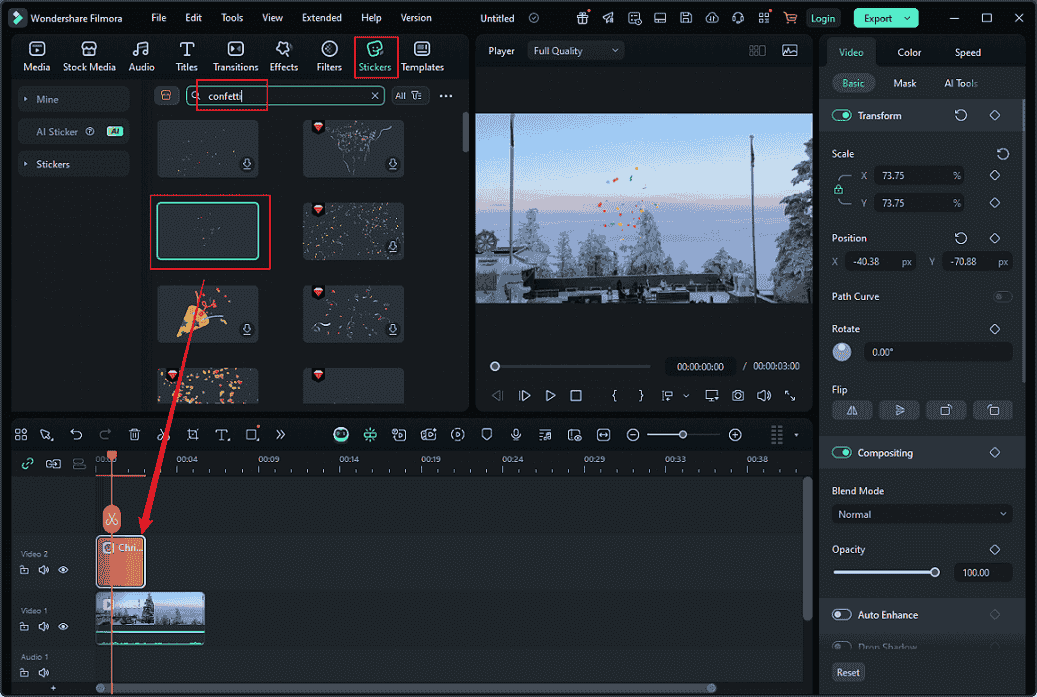
Click the Sticker tab in the top menu, search for confetti in the search box, download the preferred one, and add it to the video.
4. Adjust the Confetti Sticker
In the preview window, highlight the sticker. Hover the mouse cursor on one of the four corners of the sticker until the double arrow appears; drag it to scale the sticker. To adjust the sticker’s position, move the mouse on it until the four-headed arrow appears; drag it to the desired place.
5. Export the Video
Click the Export button at the top right. In the Export window, click Export again to save the video.
Add Confetti to Video with FlexClip
FlexClip is a browser-based and reliable video editor that offers confetti stickers, such as confetti explosions, falling confetti, and confetti cannons, among others, striving to meet your requirements. Additionally, you can add animated text, transitions, filters, color grading, background music, sound effects, and more to customize your video further. Now, follow the guides below to complete your work.
1. Go to FlexClip
Open your browser and visit https://www.flexclip.com/editor/app.
2. Upload Your Video
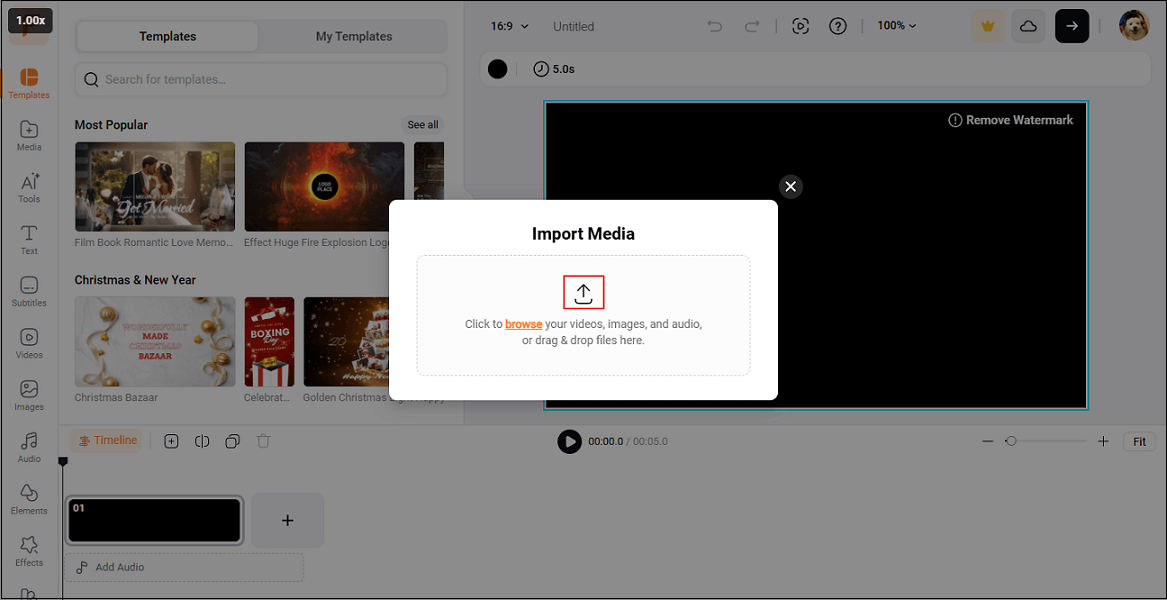
Click the Upload icon to add your video.
3. Add Confetti to the Video
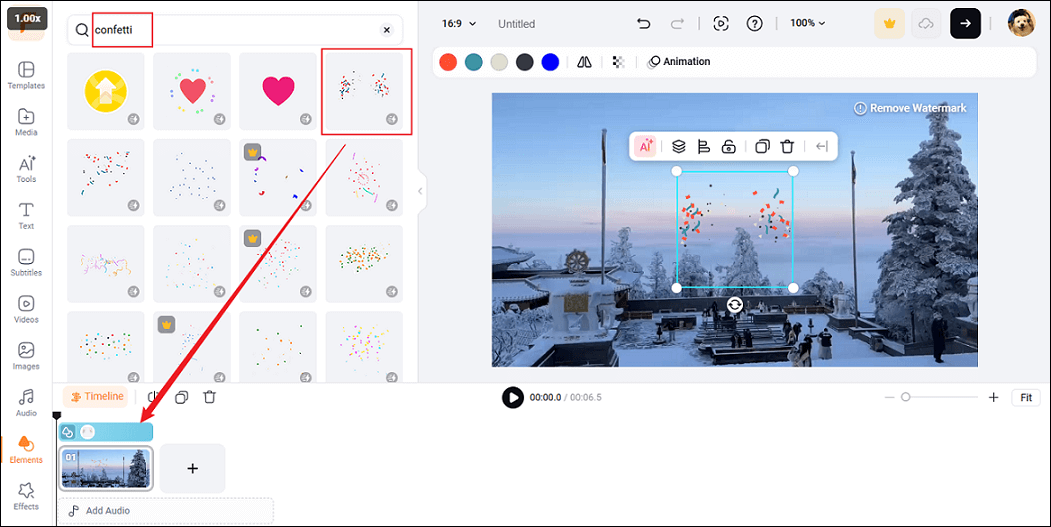
Go to the Elements section and search for confetti in the search box. Then, choose the one you like and add it to the video.
4. Adjust the Confetti
In the preview window, click the sticker, and you can drag it to adjust its position and size.
5. Download the Video
Click the Export button at the top right, configure export settings, and click Export with Watermark to save the video.
![How to Add Pop Up Effects in Video [Text/Stickers/Images]: 3 Ways](https://images.minitool.com/moviemaker.minitool.com/images/uploads/2025/12/pop-up-effects-in-video-thumbnail.png)
In Summary
This post recommends three top-grade video editors to help you add confetti to video with ease. They are all easy to use and offer an efficient solution. Choose the one you prefer and start your creation!
User Comments :