

This post explores six of the best quote video makers, including the free movie maker - MiniTool MovieMaker, Microsoft Clipchamp, CapCut, VEED, Canva, and Placeit, to help create engaging quote videos with ease.
6 Best Quote Video Makers at a Glance
When I watch videos on Instagram Reels, I often come across this type of content: simple yet engaging quotes displayed over beautiful backgrounds. These are known as quote videos. So, how can I make a quote video quickly and in high quality? I tested some applications and found six popular quote video makers for this task.
- MiniTool MovieMaker
- Microsoft Clipchamp
- CapCut
- VEED
- Canva
- Placeit
Here is a concise comparison table of these quote video makers.
| Tool | Platform | Pricing | Watermark | Text Animation Variety | Title Templates | Target Users |
| MiniTool MovieMaker | Windows | Free | No | Rich | Yes | Full customization, watermark-free |
| Clipchamp | Win/Web | Free + Paid | No | Moderate | Yes | Windows 11 users, basic editing |
| CapCut | Cross-platform | Free + Pro | No | Very Rich | Yes | Social media creators, template-driven |
| VEED | Web | Free + Paid | Yes, the free version | Moderate | Yes | Online text/subtitle-driven editing |
| Canva | Web | Free + Paid | No | Rich | Yes | Design-driven, visual style focus |
| Placeit | Web | Free + Paid | Yes, the free plan | Moderate | Yes | Quick templates, minimal operation |
Compared to plain quote posts, quote videos are more eye-catching and easier to consume, making them highly effective for social media content.
To create an engaging quote video, it’s essential to use elements like text effects and music. A reliable quote video maker can help me speed up the workflow and improve efficiency. I tested six popular quote video makers. Let’s take a closer look at each one.
1. MiniTool MovieMaker
MiniTool MovieMaker is an easy-to-use quote video maker designed for Windows users. It offers a clean interface and a variety of built-in editing tools, making it an ideal option for beginners to create high-quality quote videos.
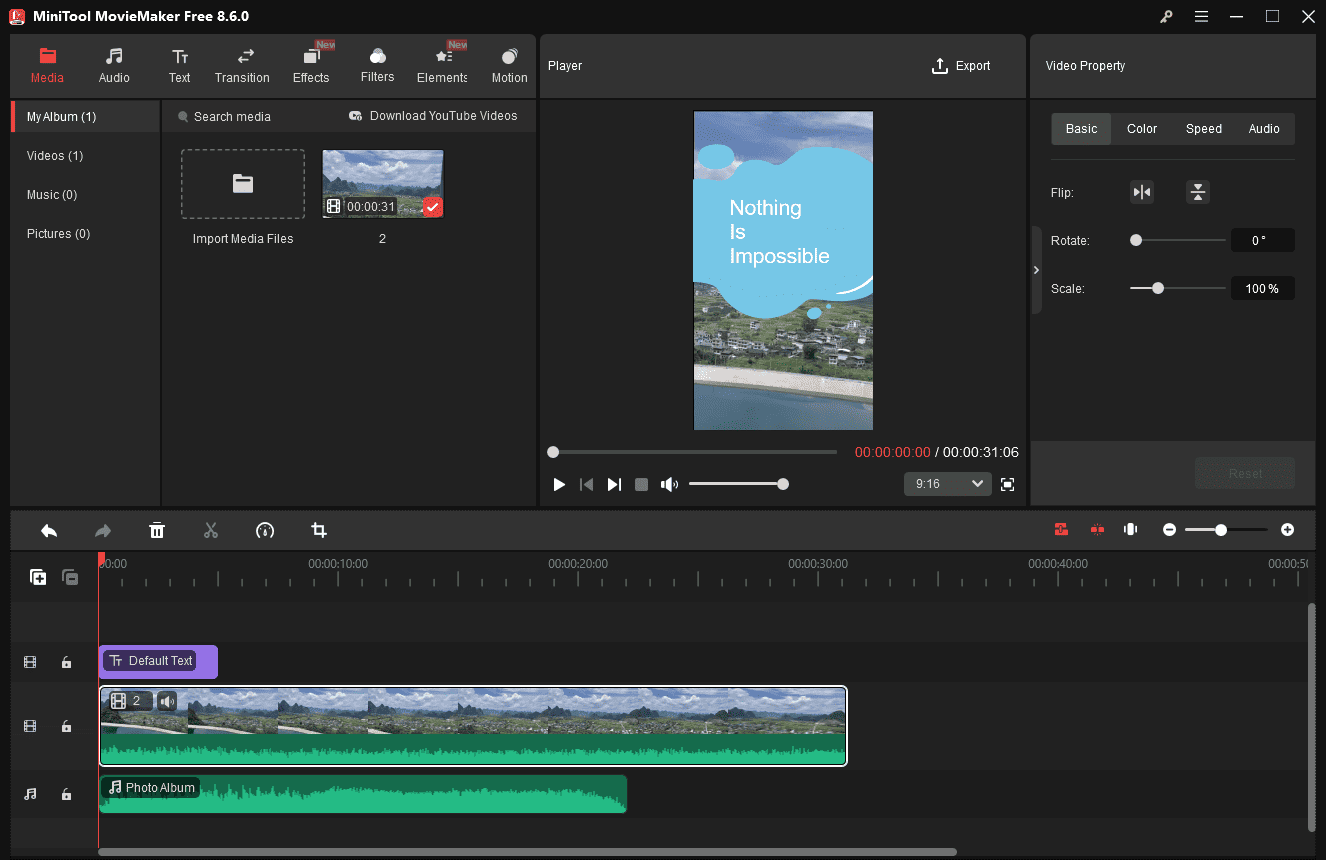
When I use this free video editor to make a quote video, I can easily choose an appropriate aspect ratio based on the platform and then import my media files. As a multi-track video editor, the software supports up to 9 video tracks for video clips, images, animations, and other elements. This allows me to add text overlays and background music to better highlight the quote.
During my editing process, one feature I find especially useful is its wide range of text animation templates. This video editor offers categories like captions, credits, and titles. After selecting a template, I can customize the font, size, spacing, style, opacity, and more. If none of the text templates meet my needs, it also provides default text styles with various built-in bubbles, allowing me to create a more personalized text design.
In addition, this quote video maker includes other advanced editing features, such as 4K video editing and picture-in-picture effects. It also supports exporting high-resolution videos in various formats without watermarks.
Pros:
- Easy-to-use interface, suitable for beginners.
- Provides various text templates.
- Supports music, transitions, and effects.
- Includes advanced features like exporting 4K video without watermarks.
Cons:
- Only available on Windows.
MovieMaker puts a good number of text options at your disposal, grouped by Trending, Caption, Credits, and Title. They’re good-looking, and many are animated.https://www.pcmag.com/reviews/minitool-moviemaker
2. Microsoft Clipchamp
Microsoft Clipchamp is a convenient quote video maker, especially since it comes pre-installed on Windows 11. It is also available in the browser and through the Microsoft Store, making it accessible across different devices. In addition, it includes a wide range of ready-made quote templates, allowing me to create a polished quote video in just a few minutes.
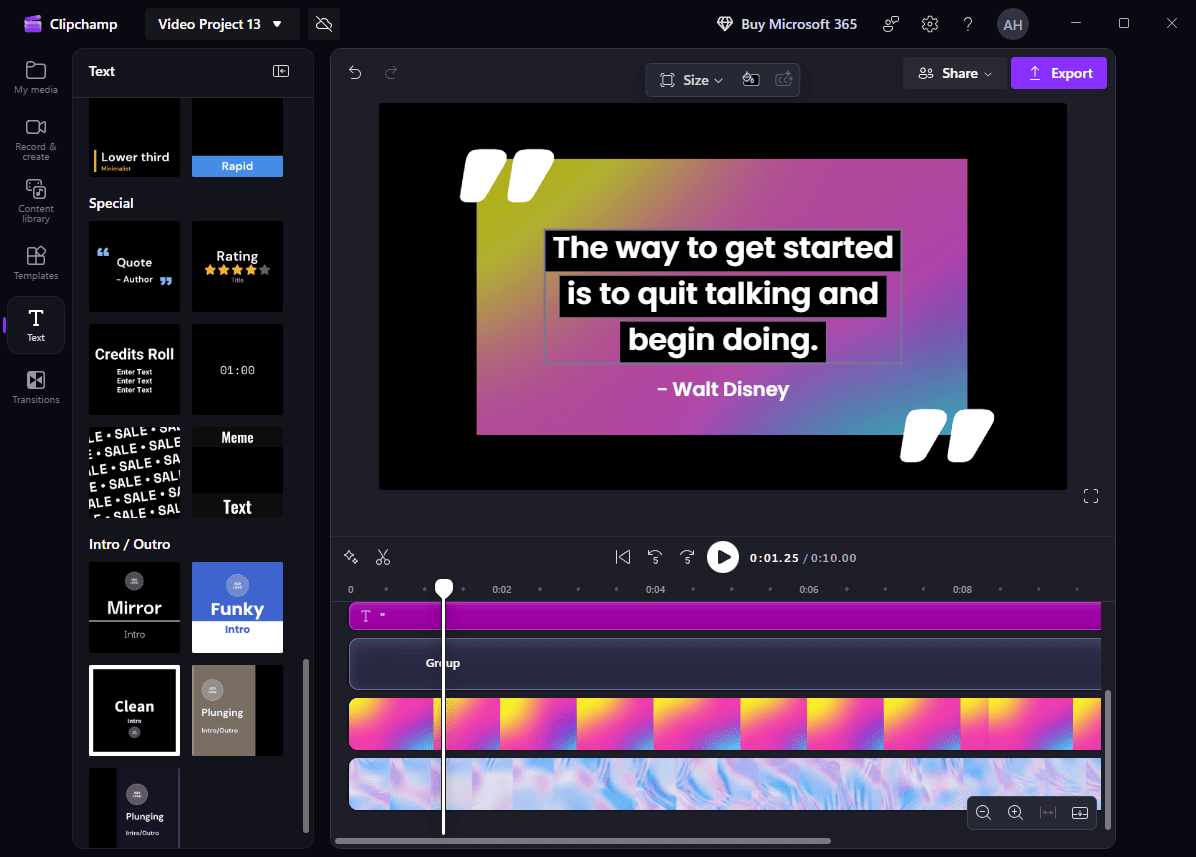
What’s more, Microsoft Clipchamp provides a large content library, including backgrounds, images, videos, annotations, stickers, and music. This means I can also create a quote video from scratch. It also offers dedicated quote text styles that make the video look more professional.
However, when I use Microsoft Clipchamp, I find that it sometimes runs slowly, as it requires a strong internet connection. Apart from that, it supports exporting videos at 720p, 1080p, and 4K resolutions, but 4K export requires a paid upgrade.
Pros:
- No installation required on Windows 11.
- Offers ready-made templates for quick creation.
- Includes diverse stock media.
Cons:
- Requires a strong internet connection.
- 4K export requires a paid upgrade.
Clipchamp has dozens of text overlay styles, many with animation, that it groups into sets for Title, Caption, Two-Line, Special, and Intro/Outro. https://www.pcmag.com/reviews/clipchamp
3. CapCut
CapCut is a powerful and popular quote video maker, especially favored by short video creators. Developed by ByteDance, it is widely used for creating content for platforms like TikTok and Instagram. It is available on desktop, mobile, and browser, making it a flexible option for editing quote videos anytime and anywhere.
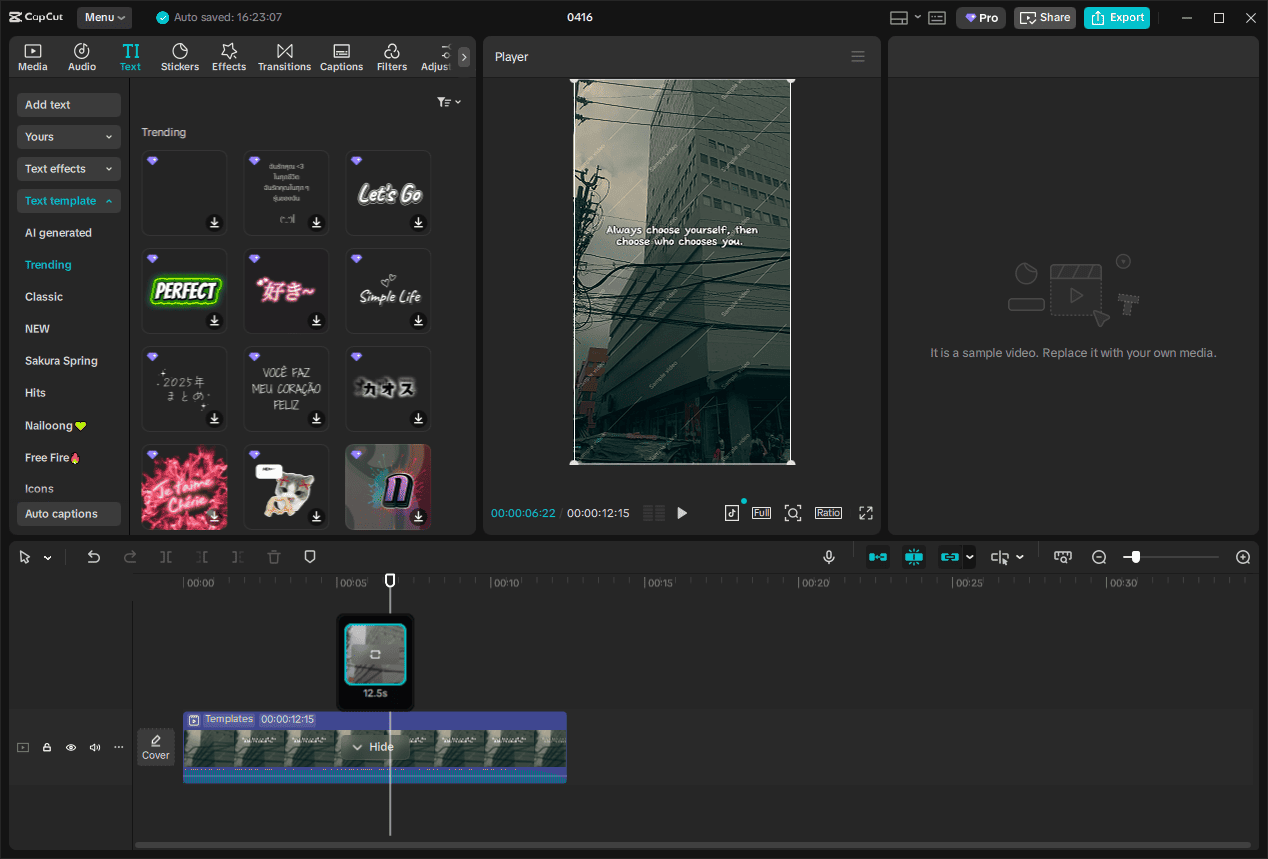
With an extensive library of trendy quote video templates and a comprehensive set of editing tools, CapCut is my go-to choice when I want to share quote messages on social media platforms. Moreover, it allows me to choose a text template and customize its font, size, color, and style. I can even save the design as a preset, making it easy to maintain a consistent and personalized brand style across my videos.
However, while CapCut offers many advanced features for free, some premium effects and assets require a subscription. Overall, it is a versatile and feature-rich quote video maker that is ideal for creating modern and engaging quote videos.
Pros:
- Supports desktop, mobile, and online editing.
- Offers trendy quote video templates for social media.
- Supports customizable text presets for reusable designs
Cons:
- Some advanced features and assets require a paid plan.
- May experience lag or performance issues on low-end devices.
CapCut’s full editing suite has expected tools for cropping and trimming clips, adding text, and adjusting brightness and saturation. All the features from AutoCut, including templates and imported sounds, also carry over.https://www.pcmag.com/reviews/capcut
4. VEED
VEED can also work as an online quote video editor. It includes a wide range of editing tools, ranging from basic to advanced features. I can split, trim, and crop videos to fine-tune the visuals. For more advanced functions, it offers tools like Magic Cut, which can automatically detect and remove silences and pauses in footage.
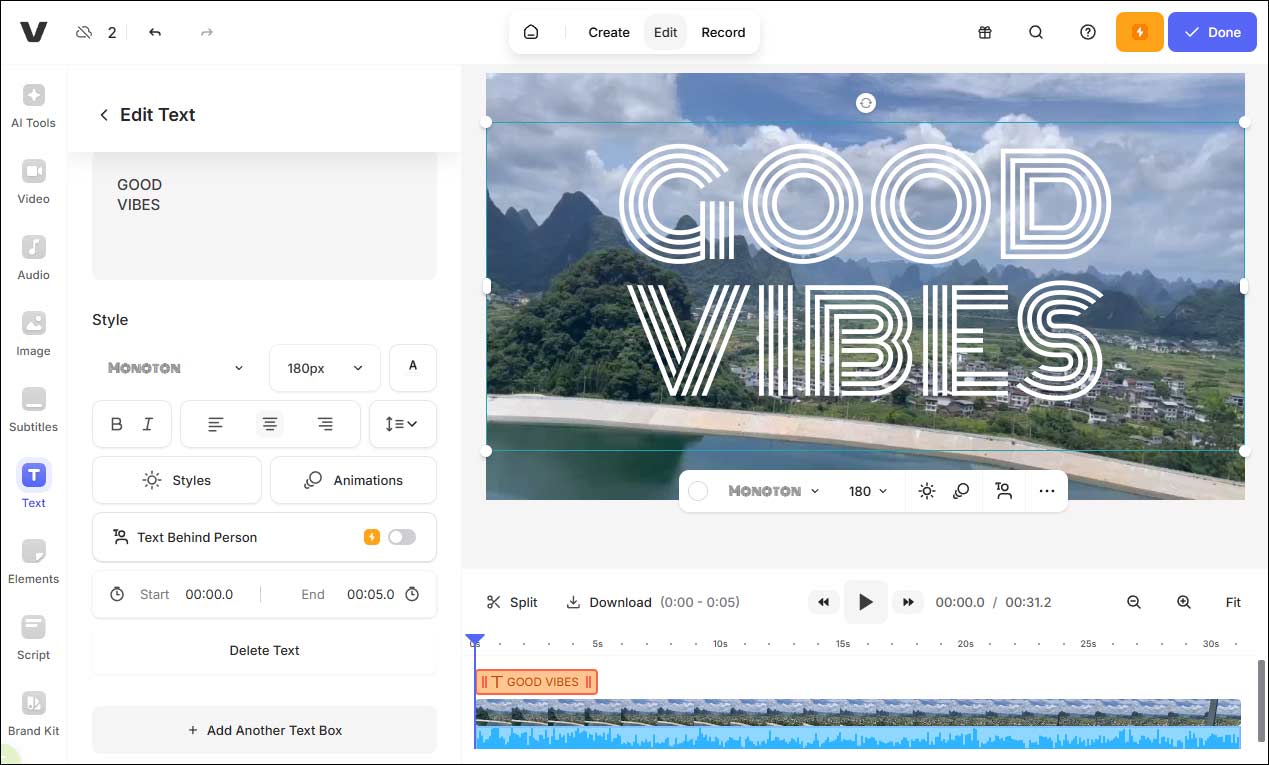
One feature I find especially useful is its subtitle and caption tools. VEED can automatically generate subtitles and lets me edit them with different styles, which is particularly helpful when I want to turn quotes into dynamic, text-focused videos. In addition, its AI-powered features, such as text-to-speech and auto transcription, help me create quote videos more efficiently.
However, some advanced tools and high-quality exports require a paid plan. VEED also adds a watermark to exported videos for free users.
Pros:
- Includes AI features like text-to-speech and auto transcription.
- Supports both basic and advanced video editing.
Cons:
- Adds a watermark to videos in the free version.
- HD and 4K output require a paid subscription.
For instance, you can choose from various templates and video formats, along with the type of character you want in the video. Additionally, there's the option to add captions, choose an AI avatar, or add a voiceover before you generate the video.https://www.techradar.com/reviews/veed-review
5. Canva
Canva is an all-in-one online platform known for its strong image and graphic design capabilities. When it comes to video editing, it also offers powerful and reliable tools for creating quote videos.
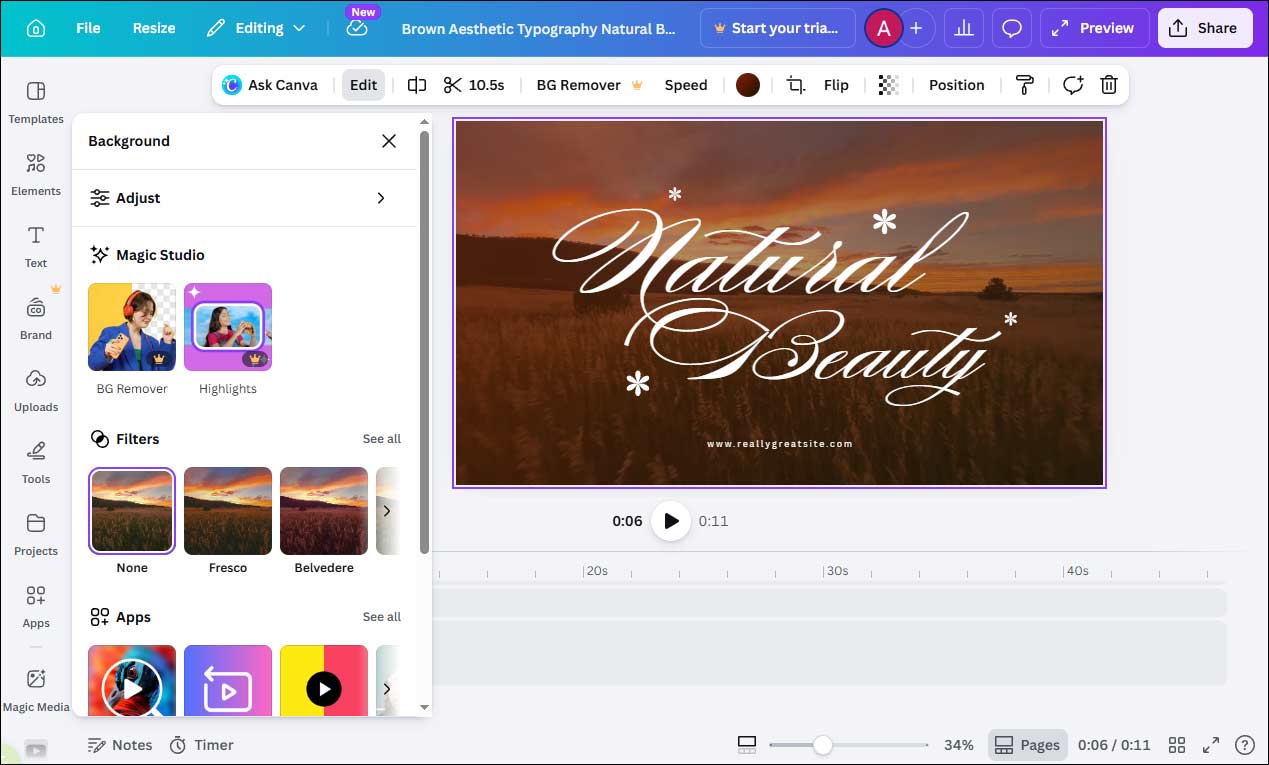
To create a quote video, I can start with a pre-designed template and customize it using a simple drag-and-drop editor. A wide selection of fonts, colors, and animations is available, making it easy to design visually appealing quote videos. I can upload my own footage or use the built-in stock resources, including images, videos, and music, to enhance the overall result.
Another standout feature is its flexible design control. I can easily adjust layouts and apply consistent color schemes to maintain a cohesive visual style. Despite some premium templates and design assets requiring a subscription, Canva remains a beginner-friendly and design-focused quote video editor that is ideal for creating stylish quote videos.
Pros:
- Offers a wide range of ready-made templates.
- Intuitive drag-and-drop editor.
- Strong design tools for text, layouts, and visuals.
Cons:
- Some templates and assets require a paid plan.
- Limited advanced video editing features.
Canva's Visual Suite is a template-based cloud app for creating communication graphics. It enables anyone—regardless of artistic talent or skill—to use simple, drag-and-drop features to create broadly accessible visual contenthttps://www.pcmag.com/reviews/canva
6. Placeit
Placeit is known as one of the largest collections of mockups on the interface. Equipped with diverse pre-made quote video templates, it can also serve as an easy-to-use online quote video maker that focuses on quick content creation.
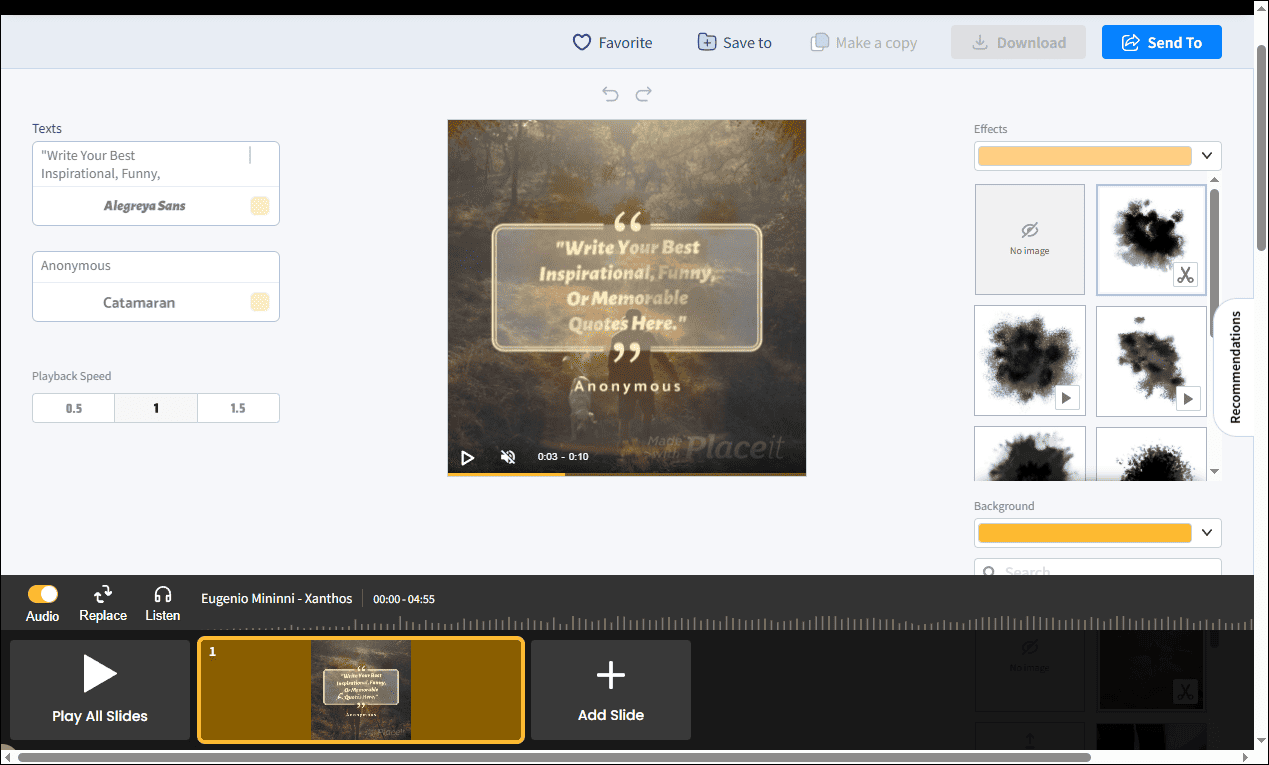
After selecting a template, the editing process is straightforward—simply replace the text, adjust colors and fonts, change the video speed, and preview the result in real time. This streamlined workflow makes it possible to generate a polished quote video within minutes.
I think the whole editing experience with Placeit is very simple. No advanced editing skills are required, and everything is pre-designed, which helps speed up the creation process. This makes Placeit especially suitable for users to create quote videos with minimal effort.
Pros:
- Offers a large number of ready-made templates.
- Extremely easy to use with minimal editing required.
Cons:
- Limited customization options.
- Lacks advanced editing features.
How to Make a Quote Video
Fast Track Steps:
Install a quote video maker.
- Import your video.
- Choose a text template to add your quote.
- Enhance the video with music.
- Save and export the video.
1: Download and Install
Make sure this powerful video editor is installed on the computer.
MiniTool MovieMakerClick to Download100%Clean & Safe
2: Import the Media
Open MiniTool MovieMaker and expand the Aspect Ratio dropdown list in the pop-up project library window. Choose 9:16(Portrait) for Instagram Reel and click New Project to access the editing interface.
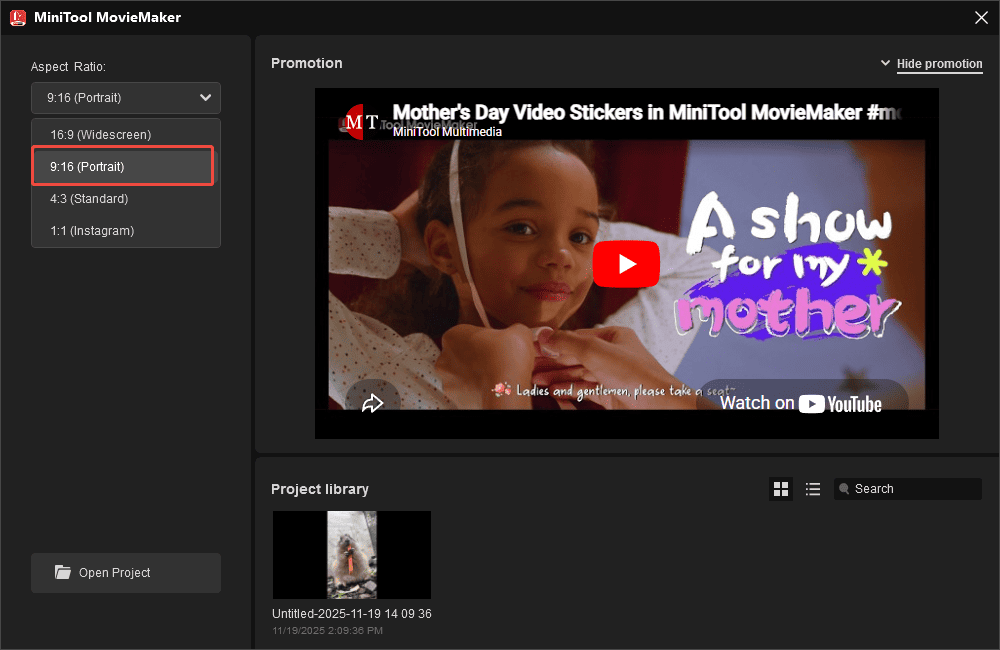
Click Import Media Files to upload the video. Then, click the Plus icon to add it to the timeline.
3: Add Text
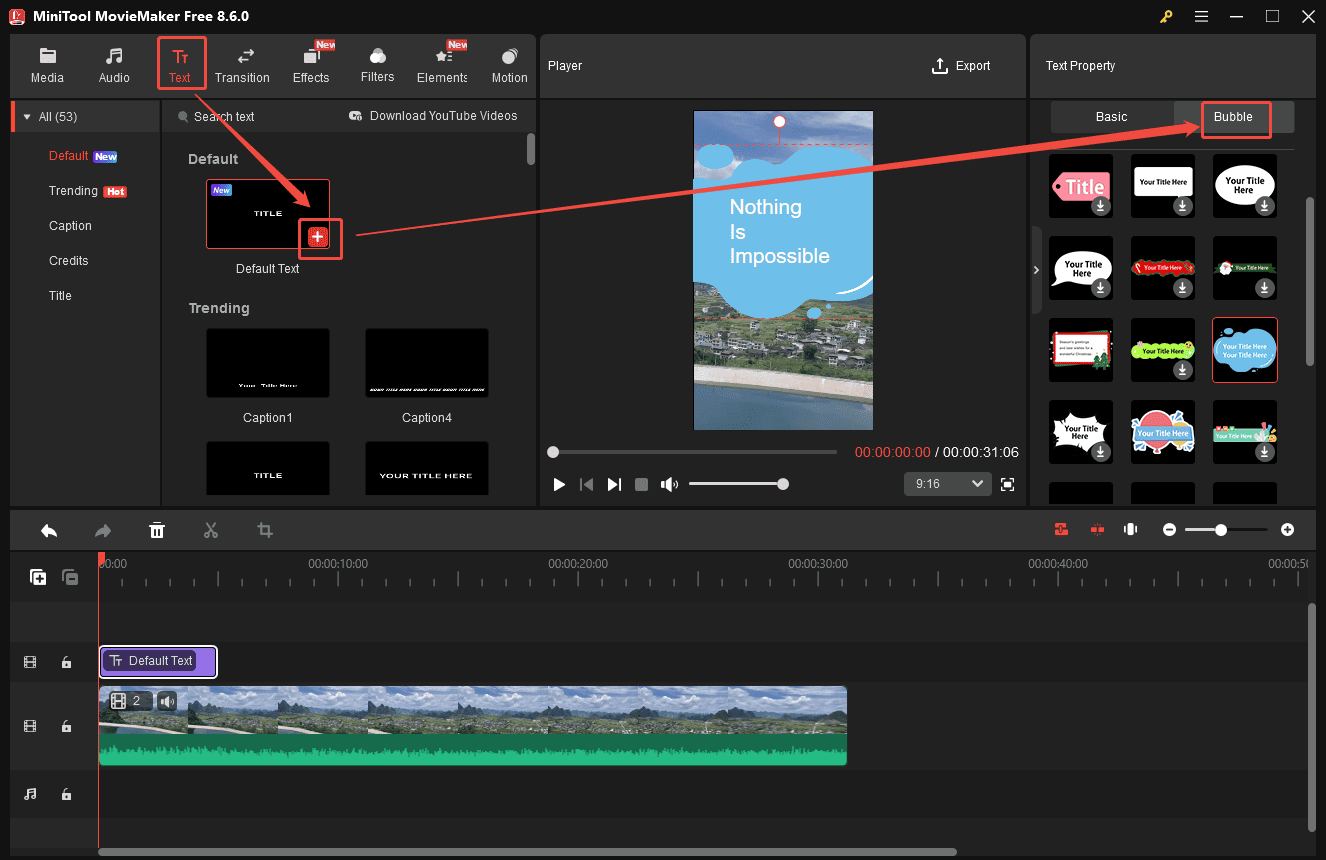
Click the Text tab at the top of the menu and pick a desired one. Click the Download icon and drag it to the timeline. Input the target quote message and customize its styles, including font, color, size, and more, in the right text property panel. Then, drag the edges of the text track on the timeline to adjust its duration.
To add a stylish bubble to the text, select the Default category and add it to the timeline. Next, choose the text track and click the Bubble option in the right text property. Select a proper one and click it to add it to the video. Then, I can enter the quote and adjust its style.
4: Add Music
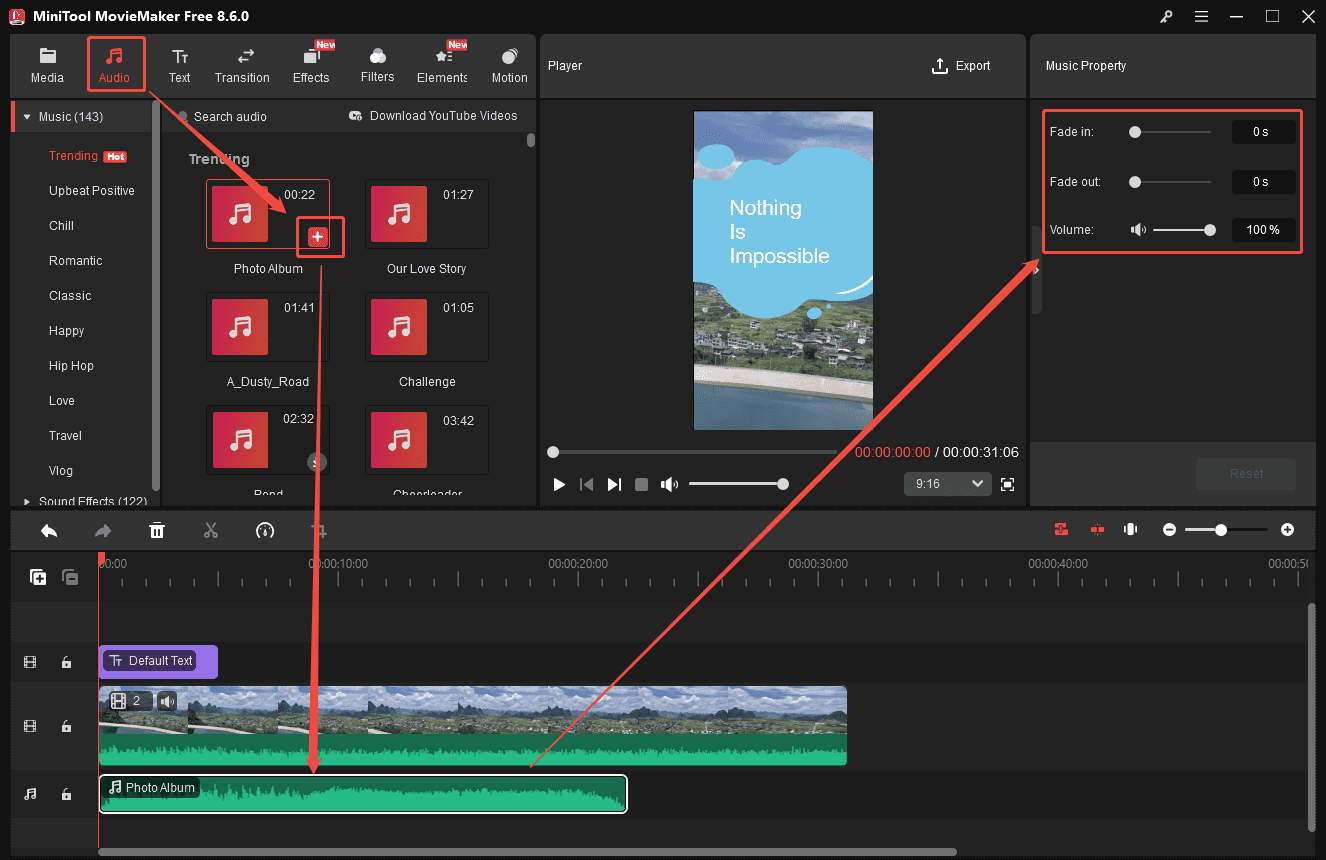
Click Audio to access MiniTool MovieMaker’s extensive library of music and sound effects. Select a proper music and drag it to the timeline. Then, I can add fade-in and fade-out effects and adjust the volume of the music.
5: Export the Quote Video
Click Export and adjust the video format, resolution, and frame rate in the export settings window. Then, click Export at the bottom of the window to save it to the computer.
Tips to Make a Stunning Quote Video
There are some tips I summarized to make the quote video more attractive and engaging.
- Choose a clear and impactful quote: Short and meaningful quotes work best in videos, as they are easier to read and remember. Avoid using long sentences that may overwhelm viewers.
- Use readable fonts and proper contrast: Make sure the text stands out from the background. High contrast between text and visuals improves readability and keeps the audience focused on the message.
- Match music with the mood of the quote: Background music should complement the tone of the quote, whether it is inspirational, emotional, or motivational.
Conclusion
In this post, I explored six of the best quote video makers, including MiniTool MovieMaker, Microsoft Clipchamp, CapCut, VEED, Canva, and Placeit. Each tool comes with its own strengths, making it suitable for different needs and workflows.
If you have any suggestions or encounter any problems when using MiniTool MovieMaker, send an email to [email protected] for help.
People Also Ask
Gradients: add depth and visual interest without clutter
Motion or video backgrounds: eye-catching, but always prioritize text clarity
About The Author

Position: Columnist
Cora is a tech writer specializing in digital media workflows, with over six years of hands-on experience in video post-production, media transcoding, and screen capture. Her writing is always clear and practical. Cora also produces in-depth software reviews for users across skill levels to help them find the right tool and enjoy video editing.
User Comments :