

Quote posters play a unique role in delivering messages and inspiring motions. This post explains how to make a quote poster using QuotesCover, Canva, and Adobe Express, helping you create a stunning quote poster in minutes.
A quote poster is a visual design that combines a short and impactful quote with graphic elements to convey messages and evoke emotions. To help you make a quote poster without hassle, this post shares how to find suitable quotes and three powerful tools.
How to Find Suitable Quotes
Choosing the right quote is the first step in creating an effective quote poster. Here are a few simple and practical ways to find suitable quotes.
Define Your Needs
Before searching for quotes, it is necessary to identify your purpose and audience, as these factors determine the overall tone of the poster. For example, if the poster is intended for an academic article, the quote should come from verified and credible sources. If it is for a casual post, the quote can be fun to attract attention.
Use Reliable Sources
The quotes can come from famous authors, books, or speeches. To save time in searching while ensuring the quotes are well-written and impactful, quote websites come in handy. Platforms such as BrainyQuote, Goodreads, and Wikiquote offer rich collections of quotes organized into different categories and topics, making it easy for users to find suitable content.
Besides, it is essential to choose the right quote poster maker for designing a stunning poster. The following part introduces three powerful tools to make a quote poster with just a few clicks.
How to Make a Quote Poster
This section presents a detailed tutorial on creating a quote poster using QuotesCover, Canva, and Adobe Express. Let’s take a closer look at each of them.
Method 1: QuotesCover
QuotesCover is an easy-to-use platform designed for creating quote images and posters. After you enter the quote text and quote author, it will generate an engaging quote poster. With its intuitive interface and fancy text resources, you can easily customize the text font, color, and style. What’s more, it offers a variety of assets, including stickers, background images, and more, to enhance the poster.
Here is how to make a quote poster using QuotesCover.
Step 1: Navigate to the Official Website
Go to the official website of QuotesCover (https://quotescover.com/) in your browser.
Step 2: Enter the Quote
Enter the quote text and author. If you have not found the appropriate one, click Use our quotes collection to access the quote library to pick your preferred one. Then, select MAKE QUOTES IMAGE to automatically generate a poster.
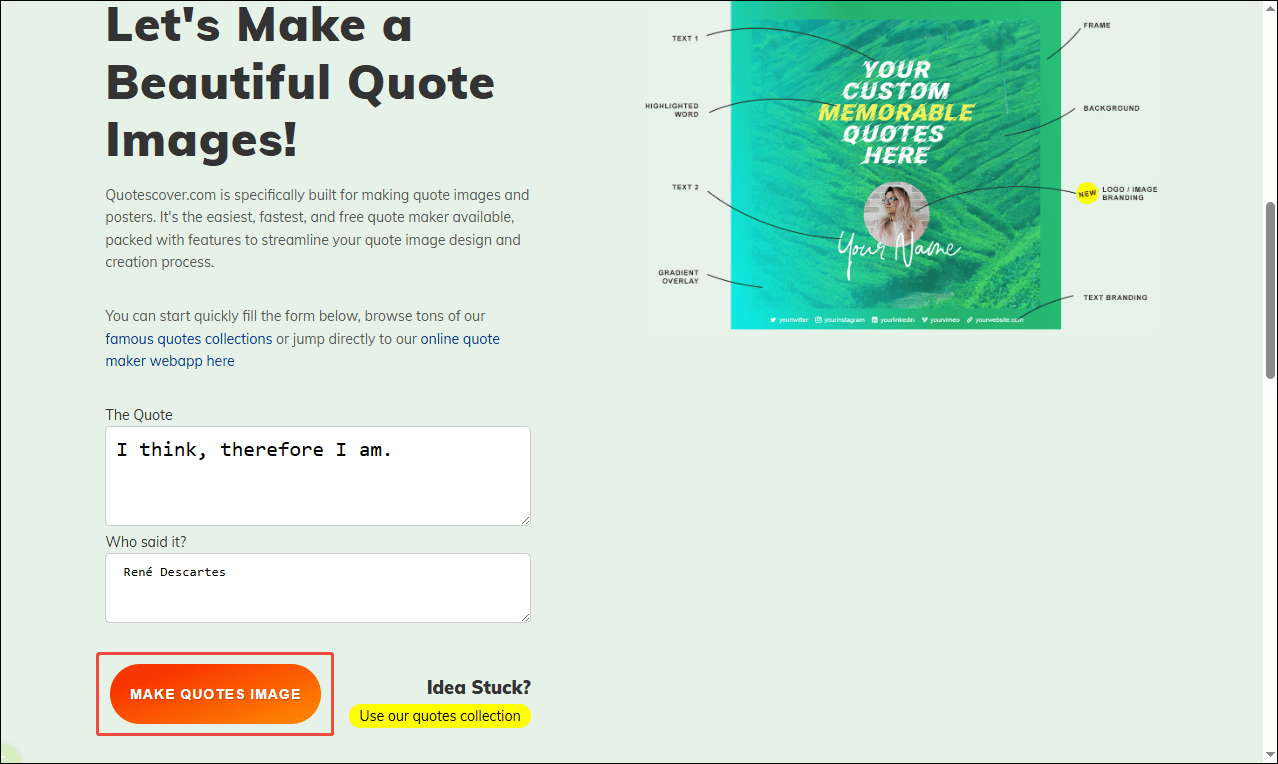
Step 3: Edit the Poster
Click the TEXT icon to adjust the text font, spacing, size, and even quote marks to tailor to your needs. Select BACKGROUND to add a proper effect to alter the background style. You can also click GENERATE BACKGROUND under the poster to change the image. Click STICKERS to add a relevant element to enrich the poster.
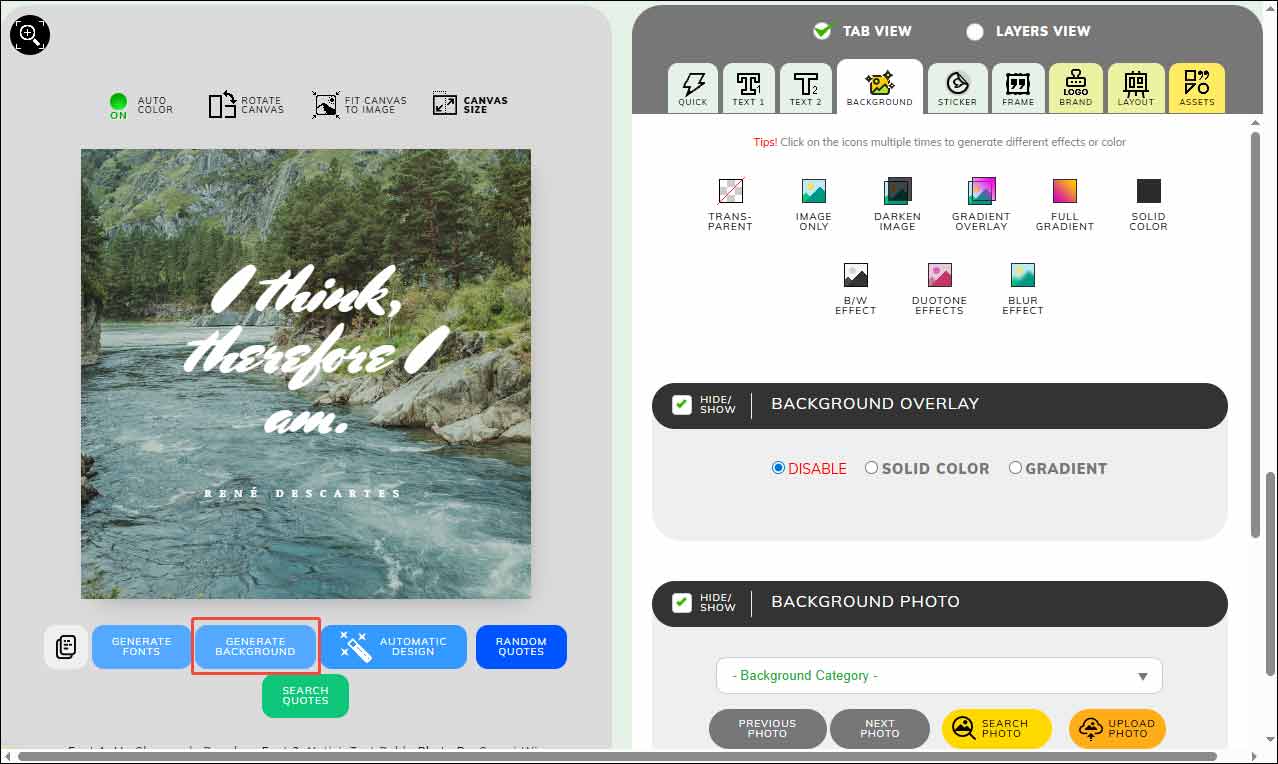
Step 4: Save the Poster
Click the DOWNLOAD icon above the settings panel to save the poster to your computer.
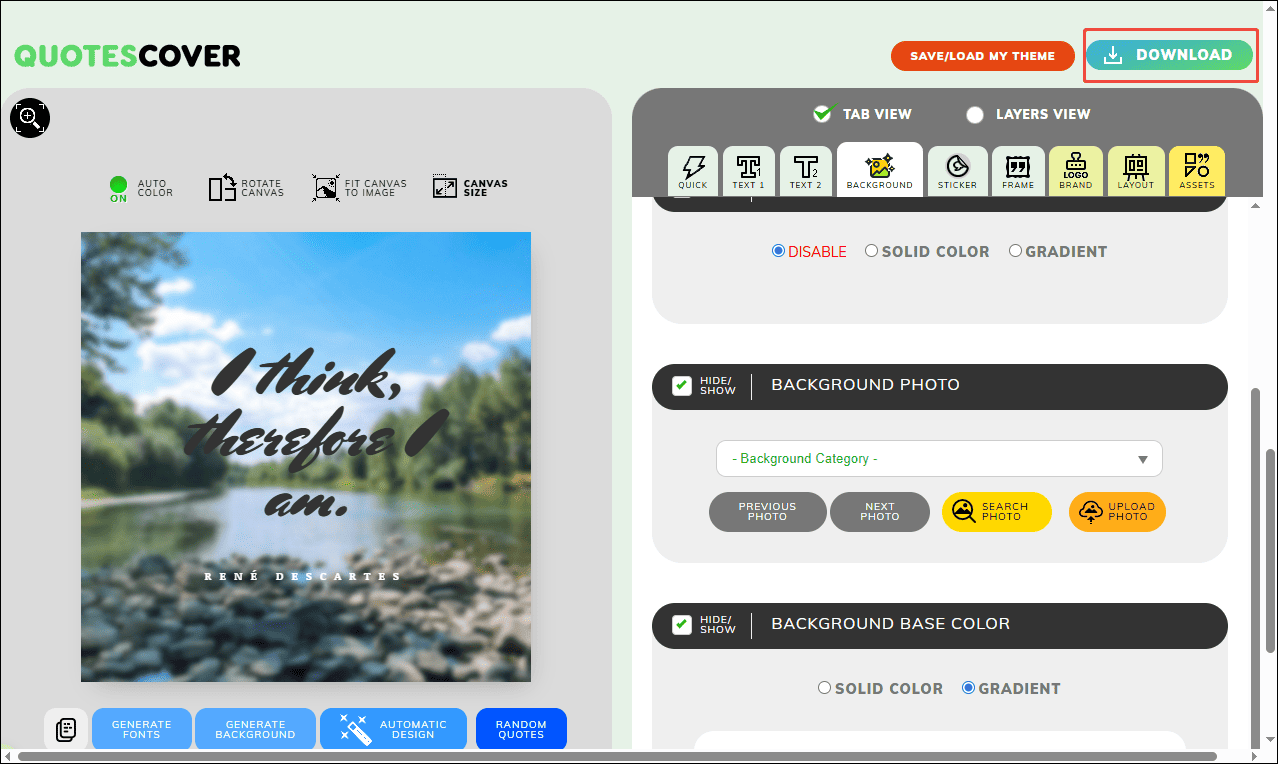
Method 2: Canva
Canva is also an excellent option to make a quote poster. As a versatile graphic design tool, Canva allows you to create social media posts, edit photos and videos, and so on.
With an extensive library of ready-made templates, you can create eye-catching quote posters in minutes. In addition, it provides drag-and-drop design tools that allow you to customize and personalize text, photos, and backgrounds. Besides, the built-in AI generator enables you to discover proper quotes based on the text prompt.
Here are the detailed steps for making a quote poster using Canva.
Step 1: Visit the Official Website
Go to the official website of Canva’s quote poster tool (https://www.canva.com/create/quote-posters/) in your browser.
Step 2: Select a Proper Template
Choose a desired template in the template library.
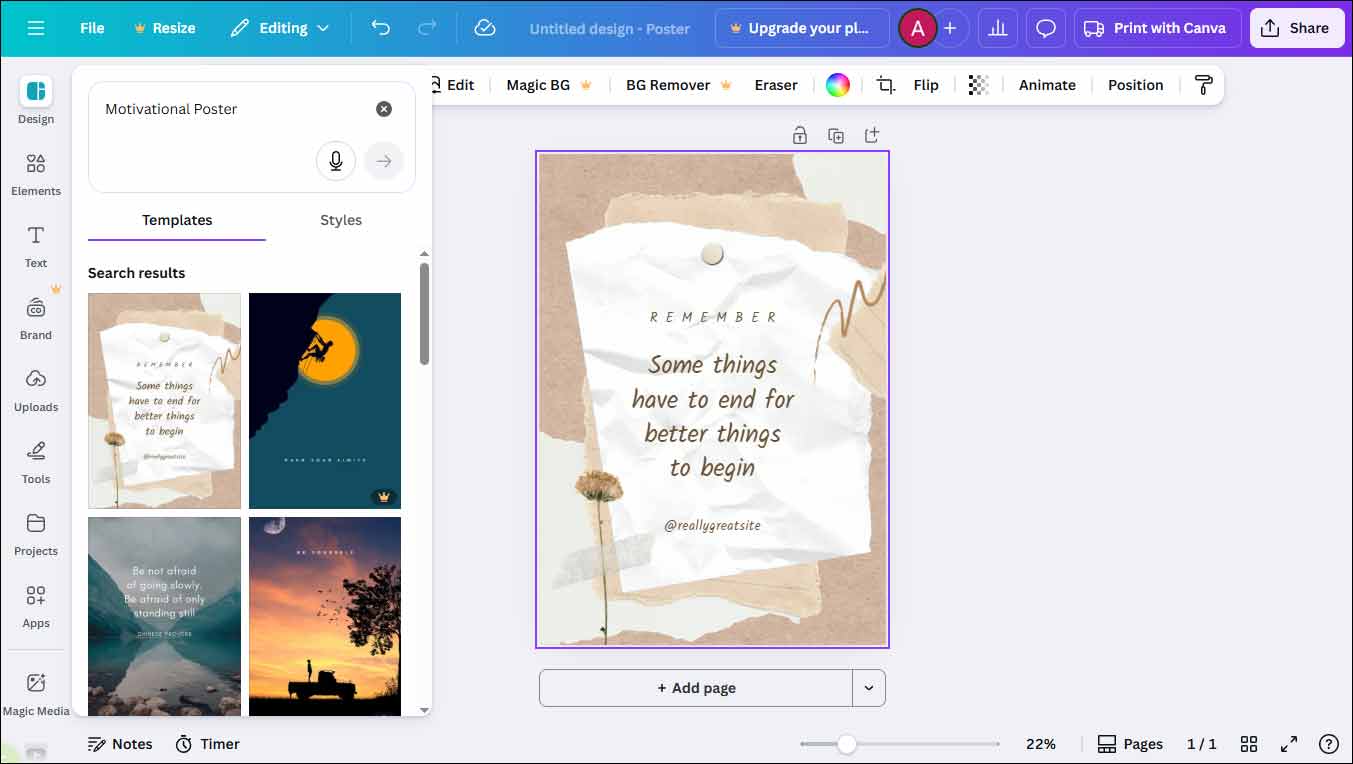
Step 3: Customize the Template
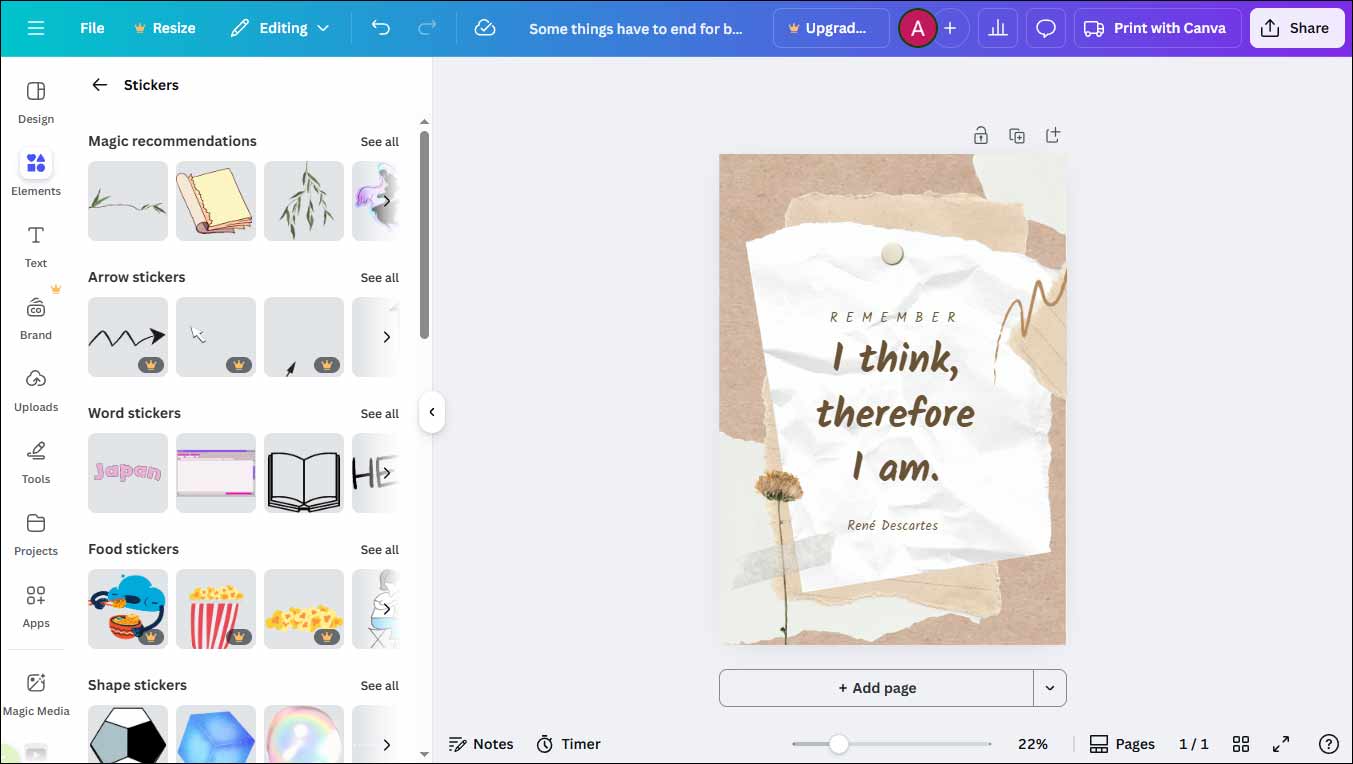
Select text in the template to enter your desired quote to replace it. You can directly drag the text to adjust its size and location in the canvas. Also, you can use bold font style to stand out the quote. Besides, click Elements in the toolbar and select Stickers to add an engaging touch to the poster.
Step 4: Save the Poster
Once editing is finished, click Share and select Download to save the poster to your computer.
Method 3: Adobe Express
Adobe Express is another great quote poster maker. It offers a wide range of sleek and professionally-designed templates. Besides, the powered AI technology allows you to generate images, templates, and text effects from your text prompt.
Step 1: Go to the Official Website
Visit the official website of Adobe Express’s quote poster tool (https://www.adobe.com/express/create/poster/quote) in your browser.
Step 2: Select a Proper Template
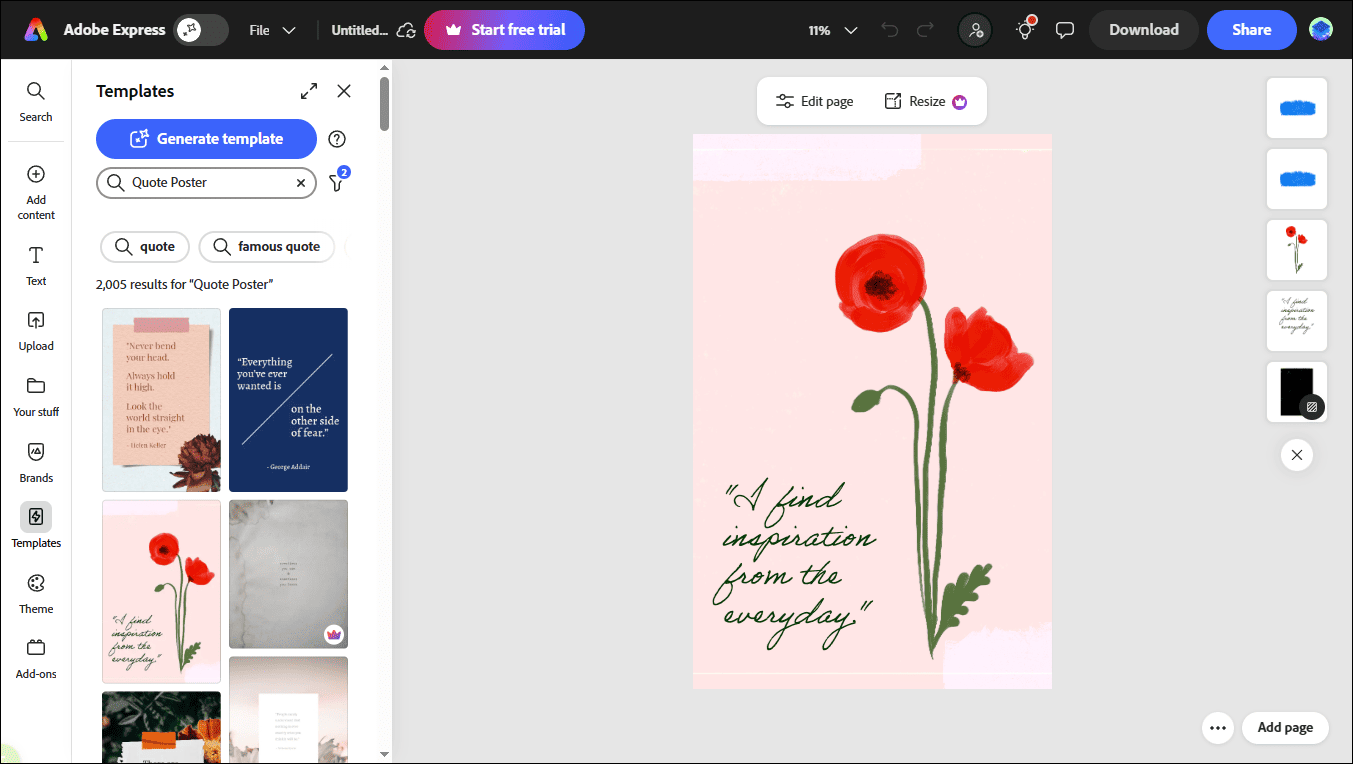
Choose a preferred template in the library.
Step 3: Customize the Poster
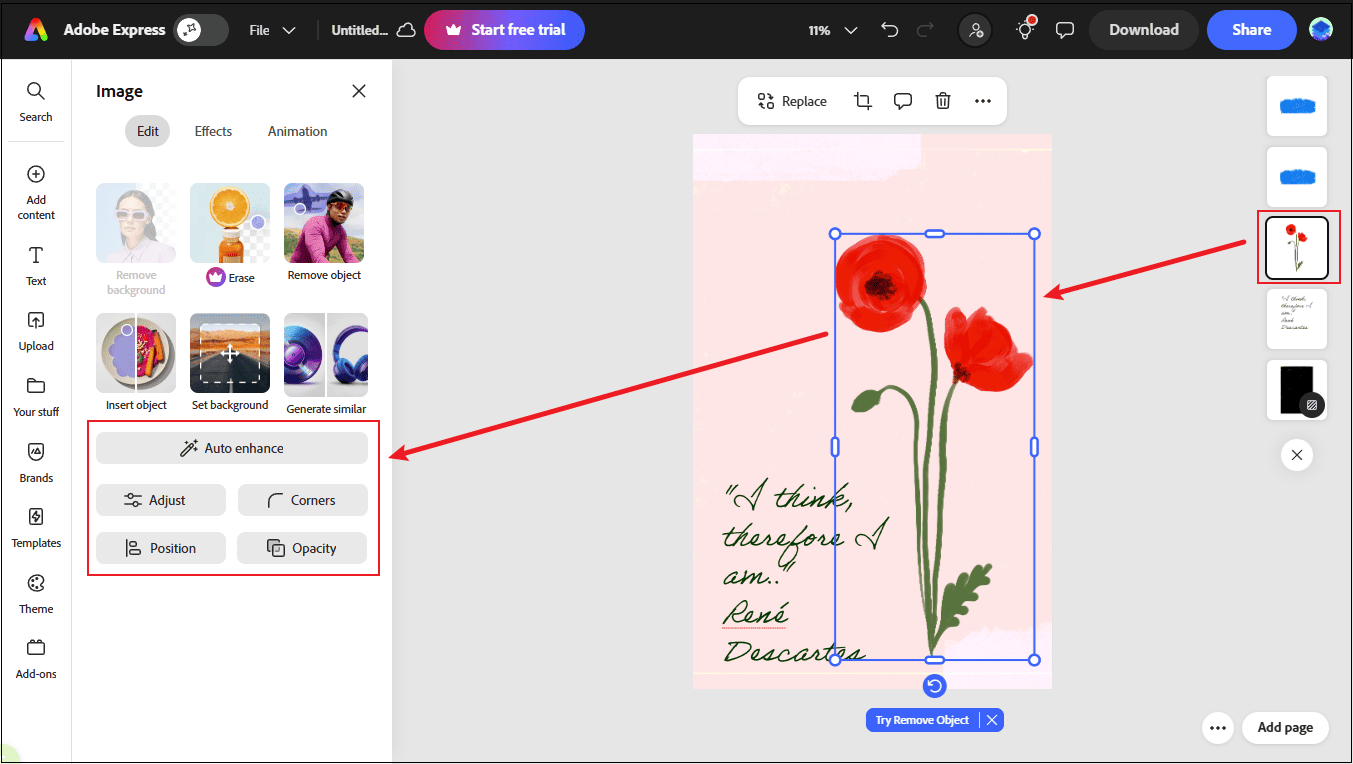
Click text and enter the quote to replace the original words. Click the Background icon on the right side to change its color. Also, you can click other elements on the right side to adjust their size, shape, opacity, and other properties.
Step 4: Save the Poster
Click Download to save the poster to your computer.
Conclusion
This post offers three powerful methods to make a quote poster online. Give them a try and make a stunning quote poster with just a few clicks.
User Comments :