

How to Make an Opening Video Effect
Fast Track Steps:
- Download and install the video editor.
- Open the software and import the desired video clips.
- Apply an opening effect.
- Adjust the duration of the opening effect.
- Export the video.
Method 1: Use MiniTool MovieMaker
It is a Windows video editor with various effects, including various transitions, stylistic filters, motion effects, and visual effects. The software has a dedicated Effects tab with various pre-designed overlays, frames, pyrotechnics, light effects, and multiple opening and closing effects.
Thanks to its built-in effects, I can quickly apply an effect to enhance my footage with several clicks, without complex settings. Best of all, this video effect editor can export videos to 1080P or 4K resolution for free, without watermarks.
How to make an opening video effect in MiniTool MovieMaker? Follow my steps:
1. Install the video editor
Click the button below to download the software. Next, install it on the computer.
MiniTool MovieMakerClick to Download100%Clean & Safe
2. Import video clips
After launching the video editor, click New Project on the pop-up window to enter the main interface. Click Import Media Files on the left to import the desired videos and add them to the timeline to begin editing.
3. Apply the opening effect
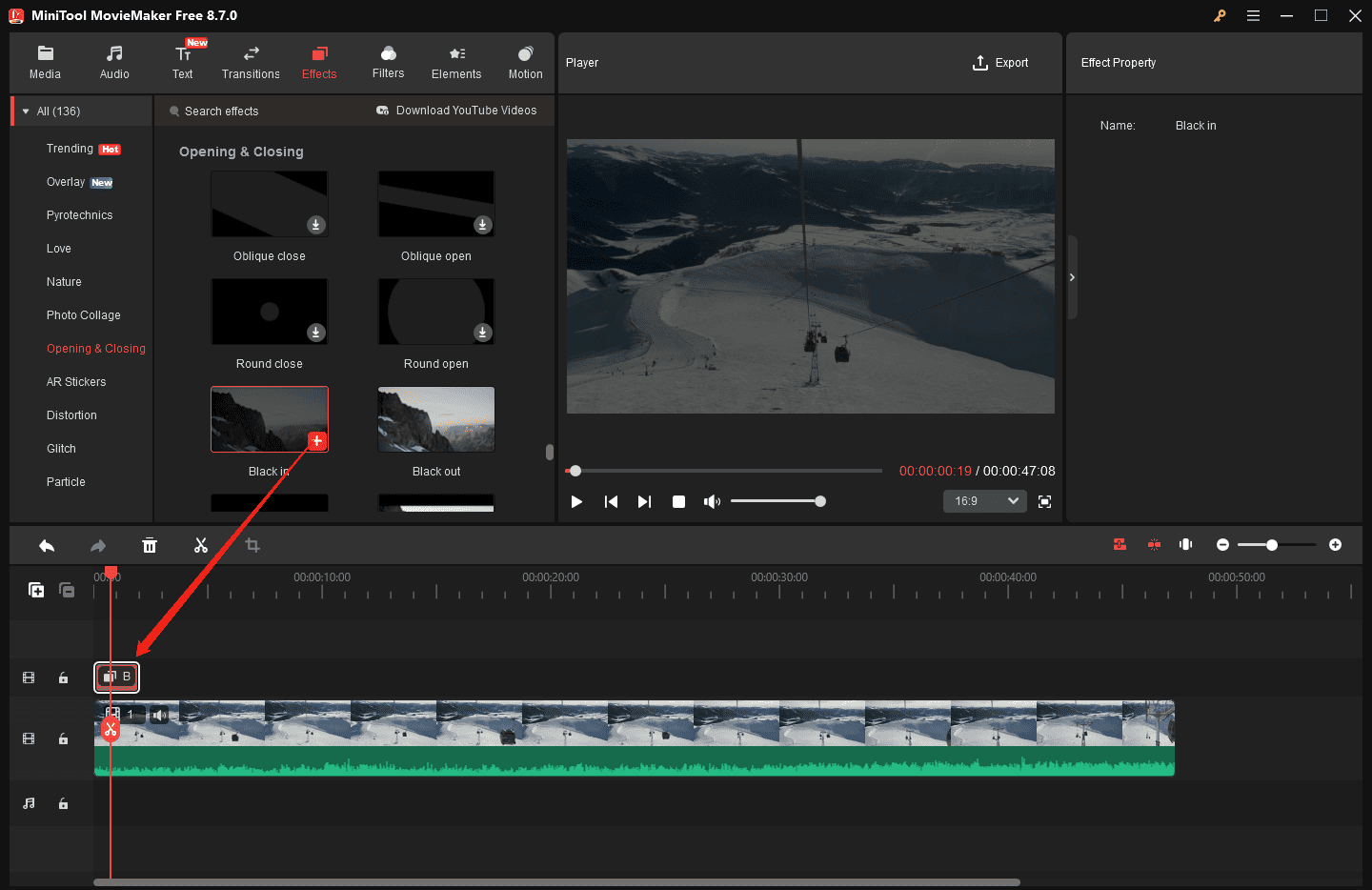
Go to Effects at the top to expand this panel on the left. From here, select Opening & Closing. This tab includes several opening effects (Oblique open, Round open, Black in, Horizontal open, Vertical open, and White in). These effects can be added to the beginning of a video to create a slow-motion, soft fade, telling the audience that the story will begin.
Then, I will hover my mouse over the thumbnail to preview the opening effect. Next, click the download icon to download the desired effect. To add the effect to the start of the video, place the playhead at the very beginning, and click the + icon on the target opening effect.
4. Set the duration of the opening effect
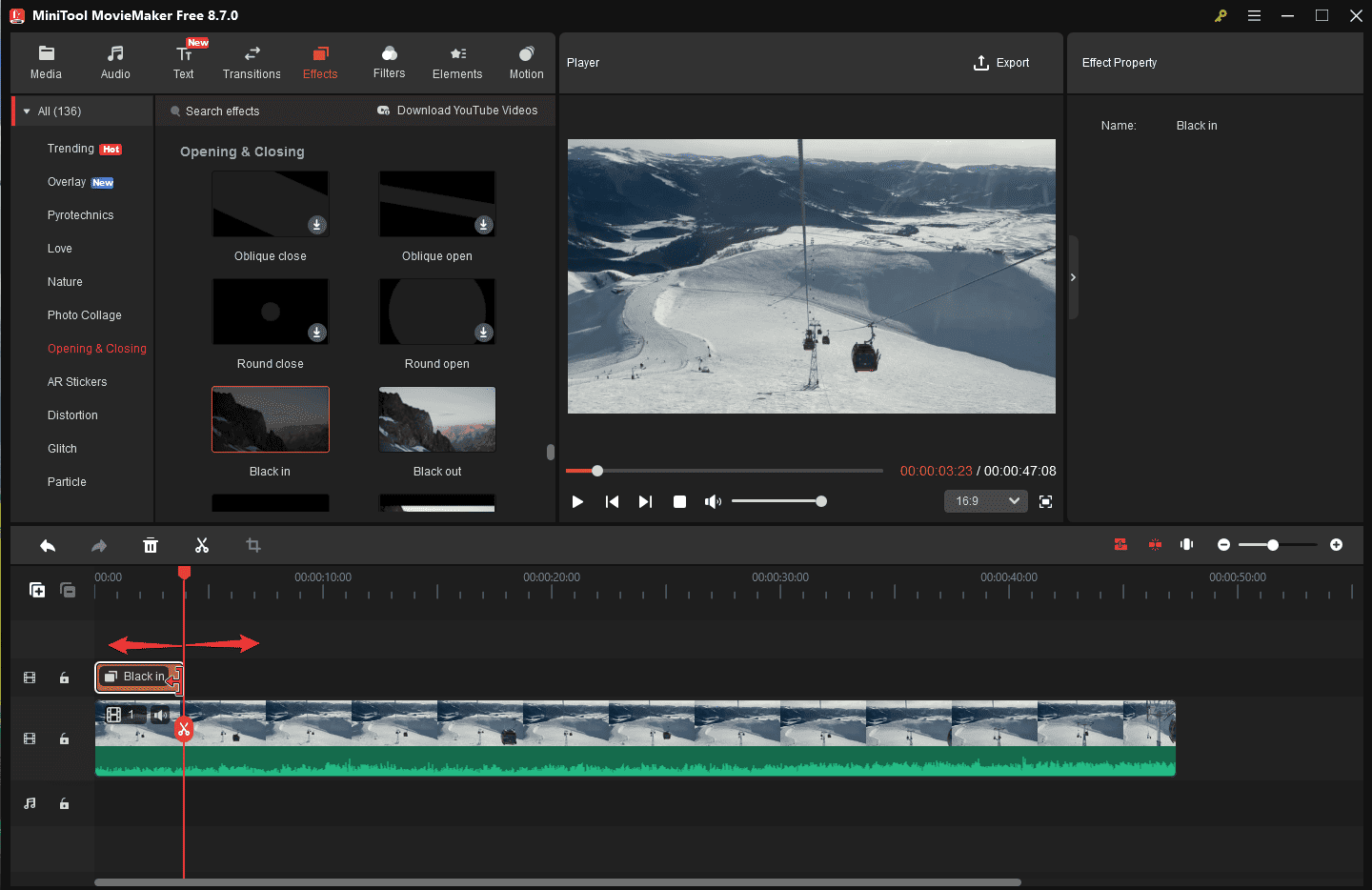
By default, this effect lasts for about 2 seconds. To adjust its duration, I will mouse over the right edge of the effect track on the timeline and drag it to the right or left.
Similarly, the software offers a variety of closing effects, such as fade-to-black or fade-to-white, which can be applied to the end of a video for a seamless, polished finish.
5. Export the video
Click the Export button in the upper-right corner to open the Export window. From here, I can select the output folder, format, resolution, and frame rate. Finally, click Export again to start rendering the video.
MovieMaker by MiniTool is an inexpensive, easy-to-use video editing program. It includes a fair number of effects and gives you easy ways to join your clips, add transitions, and overlay objects and text.https://www.pcmag.com/reviews/minitool-moviemaker
Method 2: Use CapCut
CapCut is a powerful and easy-to-use video editor designed for creators of all levels. It excels in delivering a vast library of dynamic visual effects, from AI-powered auto-captions and background removal to cinematic transitions, glitch effects, and chroma key compositing.
The program features an Effects tab with a huge variety of video effects and body effects to choose from. With several clicks, I can apply an amazing effect to my video. However, some effects require a Pro subscription for access.
Here is how to make an opening video effect using CapCut.
1. Start a new project
After running the software, click Create project at the top to create a new project and open the main interface.
2. Import the video
Under the Import tab, click the Import option or the blank area to add the target video and drag it to the timeline.
3. Apply the opening effect
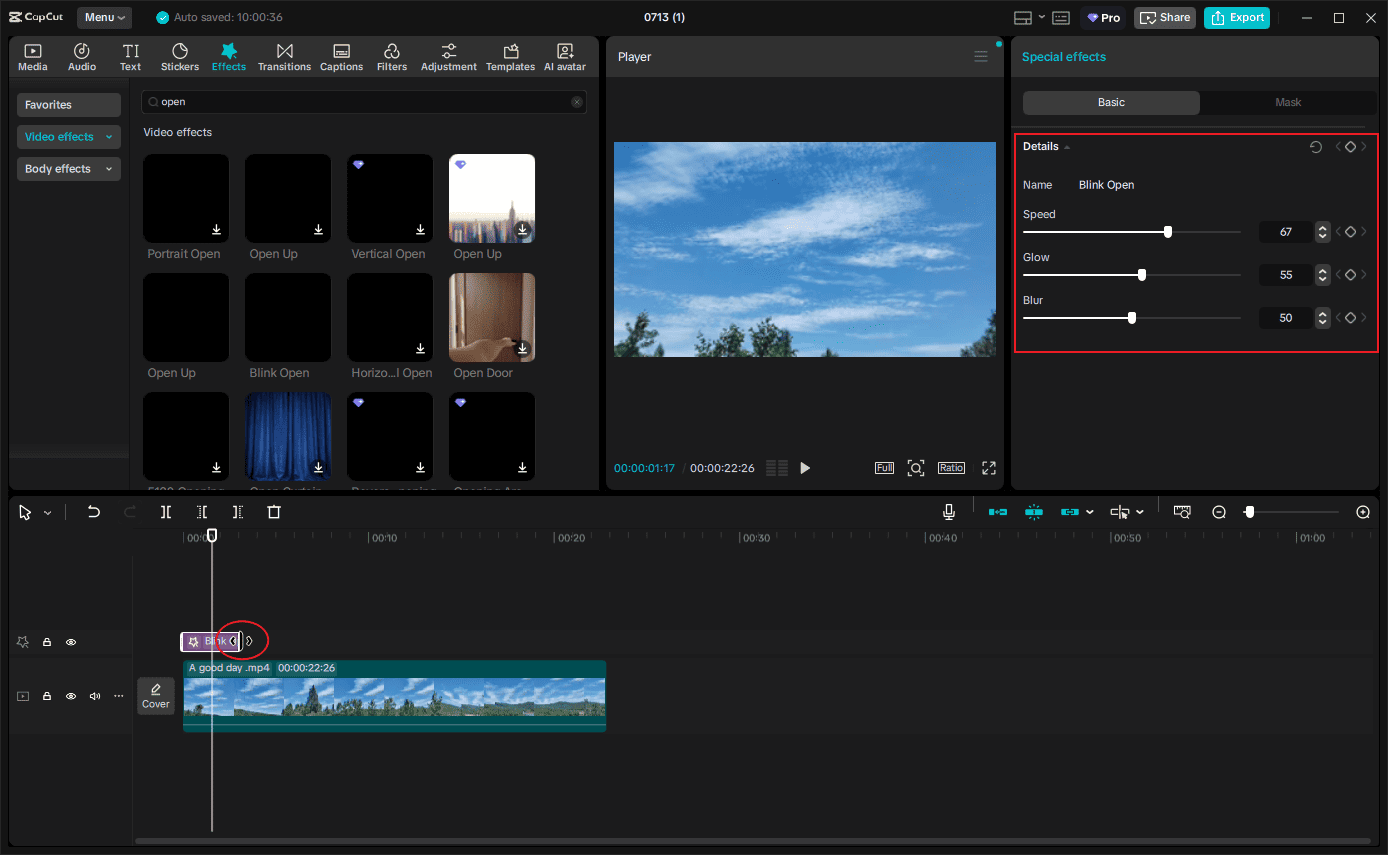
Click Effects at the top to open the effect library and go to the Video Effects tab. Type “open” in the search box and press Enter to find all the available opening effects, such as Horizontal Open, Open Up, Vertical Open, Multi-screen Open, Blink Open, and others.
After downloading the desired opening effect, click the + icon on it to add it to the video.
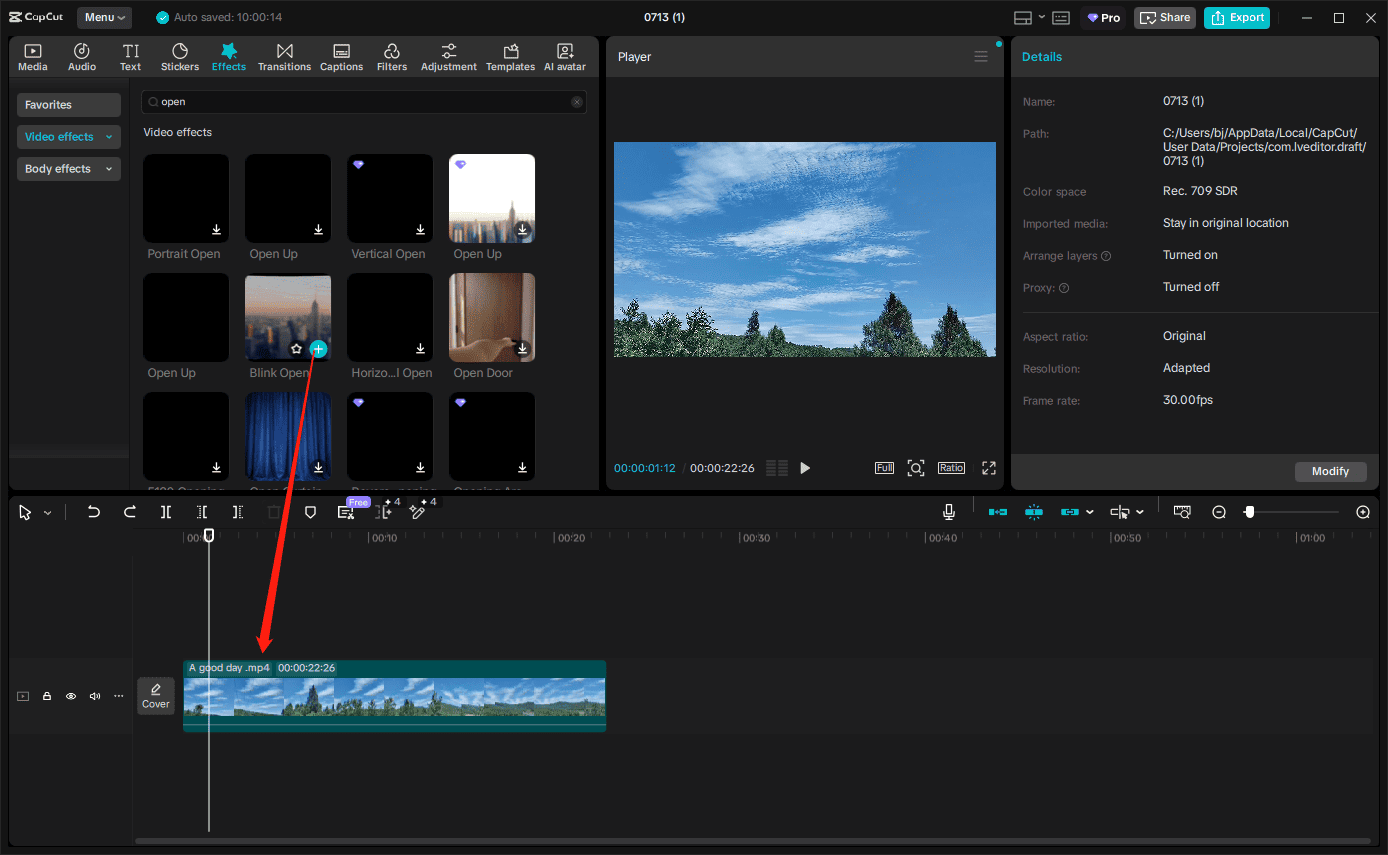
Next, drag either edge of the effect on the timeline to shorten or extend its duration. In the Special Effects section, drag the Speed slider to adjust the speed of this opening effect, or make other settings.
4. Save the video
Click Export in the upper-right corner and select the video resolution, format, codec, frame rate, and bit rate. Click Export again to save the video.
You even get TikTok-style effects, filters, frames, and stickers.https://www.pcmag.com/reviews/capcut
Conclusion
With MiniTool MovieMaker and CapCut, it’s easy to add an opening effect to the video, no skills required. Also, they are packed with other effects to optimize videos effectively. Finally, if you encounter problems while using MiniTool MovieMaker, send an email to [email protected] for help.
People Also Ask
About The Author

Position: Columnist
Cora is a tech writer specializing in digital media workflows, with over six years of hands-on experience in video post-production, media transcoding, and screen capture. Her writing is always clear and practical. Cora also produces in-depth software reviews for users across skill levels to help them find the right tool and enjoy video editing.
User Comments :