

Why Resize Videos?
Resizing a video means changing its dimensions (resolution) by altering its width and height in pixels. This process involves reducing resolution, increasing resolution, and adjusting aspect ratio. It often includes scaling content within a new frame, cropping edges, or adding backgrounds.
When fitting a video for different platforms or devices, it’s often necessary to resize it to ensure compatibility and an optimal viewing experience.
How to Resize Video Online Free Without Watermark
If you need to resize videos occasionally and don’t have enough disk space to install a dedicated application, then an online video resizer is a reliable choice. This post will guide you through three methods to resize video online free without watermarks.
Method 1: CapCut Online
In addition to the powerful desktop and mobile applications, CapCut also offers a comparable online video editor with a suite of tools. If you need to resize a video online, then CapCut online is also a fantastic choice.
Here’s how to resize a video online using CapCut.
Step 1: Upload Your Video
Visit capcut.com and sign in with your account. Under the Video tab, click the Create new option in the upper left corner and choose a canvas to access the main editing page. Click the big plus icon in the middle of the screen to open your video. Then, drag it to the timeline to start editing.
Step 2: Resize the Video
To resize the video by cropping, select the clip on the timeline and click the Crop icon at the top of the floating toolbar. In the Crop window, you can freely crop the video as you like, choose an aspect ratio to crop the video manually, or use the Auto frame feature to intelligently change the aspect ratio and keep the main subject in the frame. Finally, click Apply to save the changes.
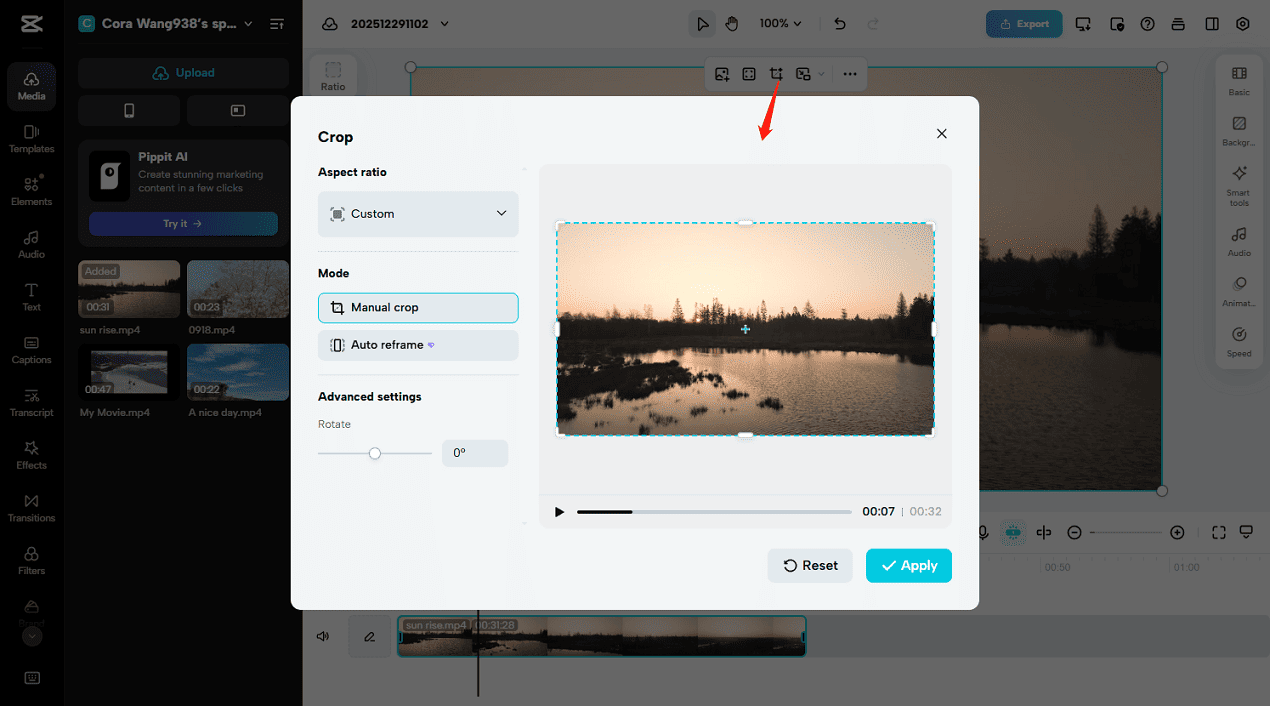
If you want to change the video aspect ratio, click the Ratio option at the top and select a ratio from the dropdown. Then, black bars might appear at the top and bottom of your video. Click the Fill icon to eliminate black bars easily.
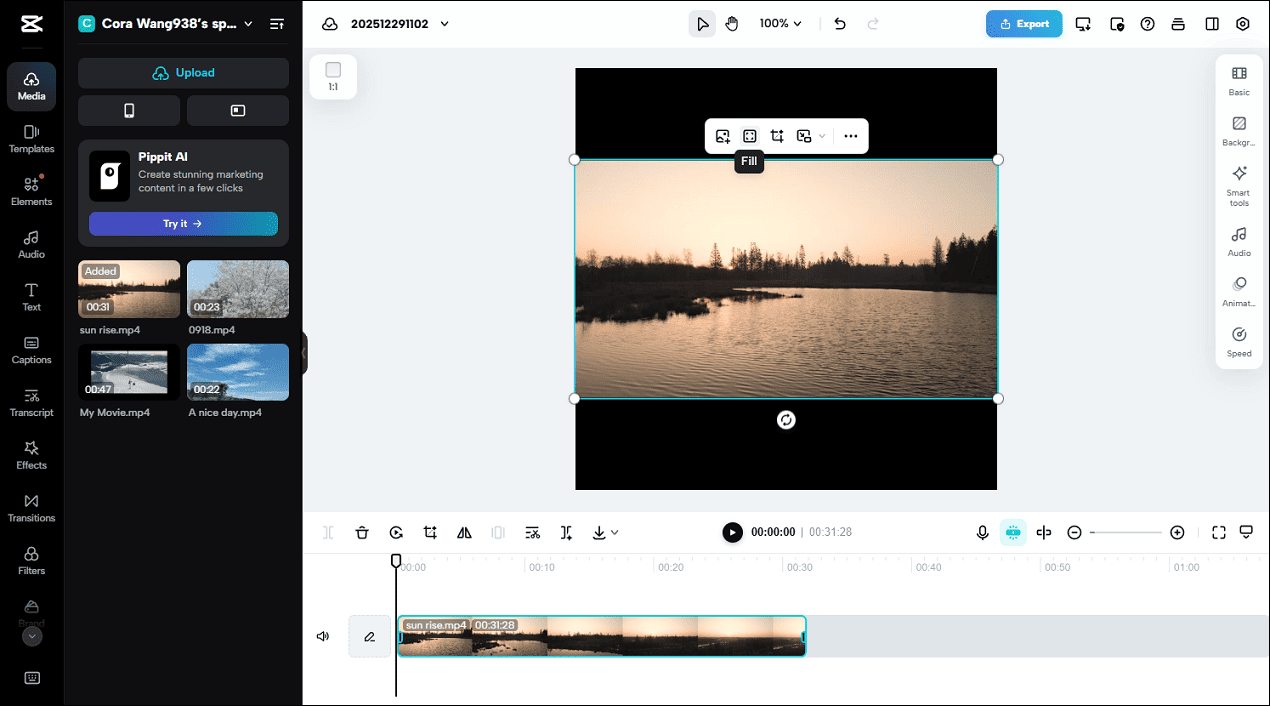
Step 3: Export the Video
Click the Export option, select Download, complete the output settings, and click Export.
If you’re using the CapCut desktop application, you can also resize your video by upscaling it. With a few clicks, you can enlarge your video up to 4K resolution.
Method 2: Clipchamp Online Video Editor
Clipchamp is now part of Microsoft products, but it’s still accessible in web browsers to help content creators create high-quality videos.
How to resize a video online using Clipchamp? Here are the steps.
Step 1: Open the Online Video Resizer
Navigate to clipchamp.com and sign in with your Microsoft account. Then, click the Create a new video button at the top to enter the main interface.
Step 2: Upload a Video
Click the Import media option to open your target video from your computer and drag it to the timeline to start editing.
Step 3: Resize the Video
If you want to adjust the aspect ratio, expand the Size menu at the floating toolbar and select your preferred ratio from the dropdown.
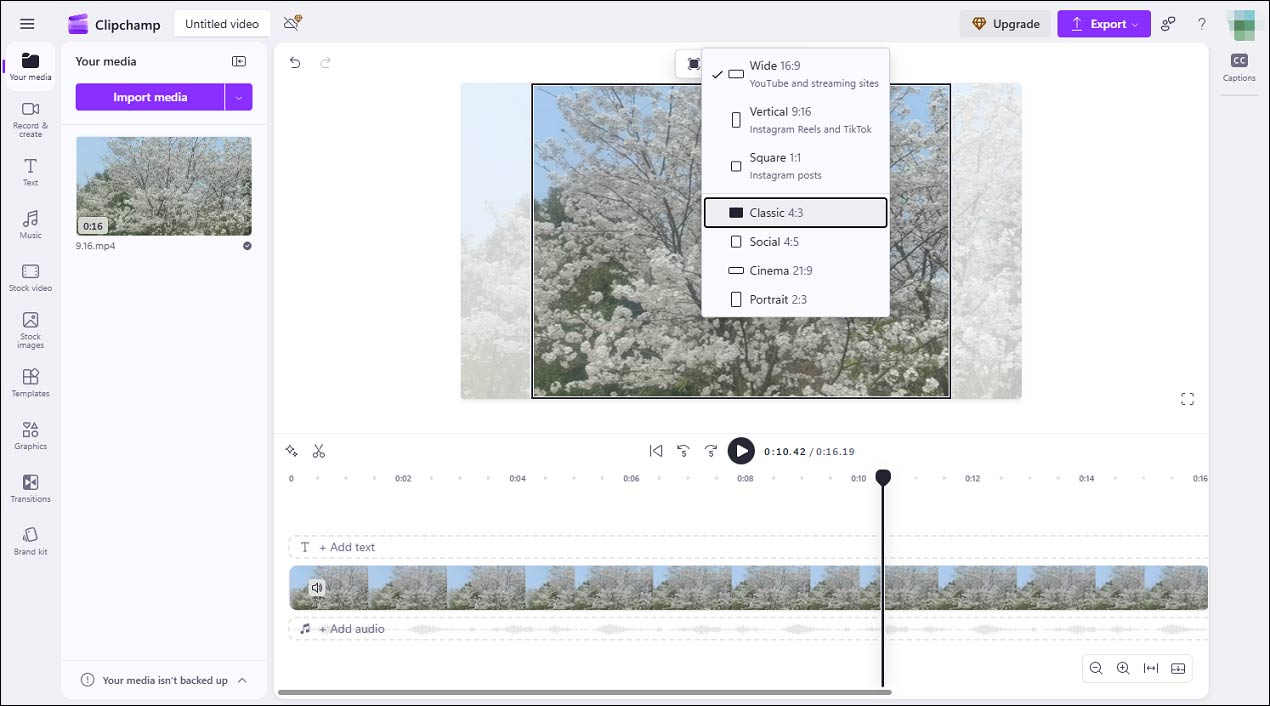
Then black bars might appear on the top and bottom of the resized video. To remove black bars, you can click the Fill icon or manually scale the video within the new frame.
To crop the video to change its dimension, highlight the clip on the timeline, and click the Crop icon. Then, drag the cropping handles to crop the video. Once done, click the Done icon.
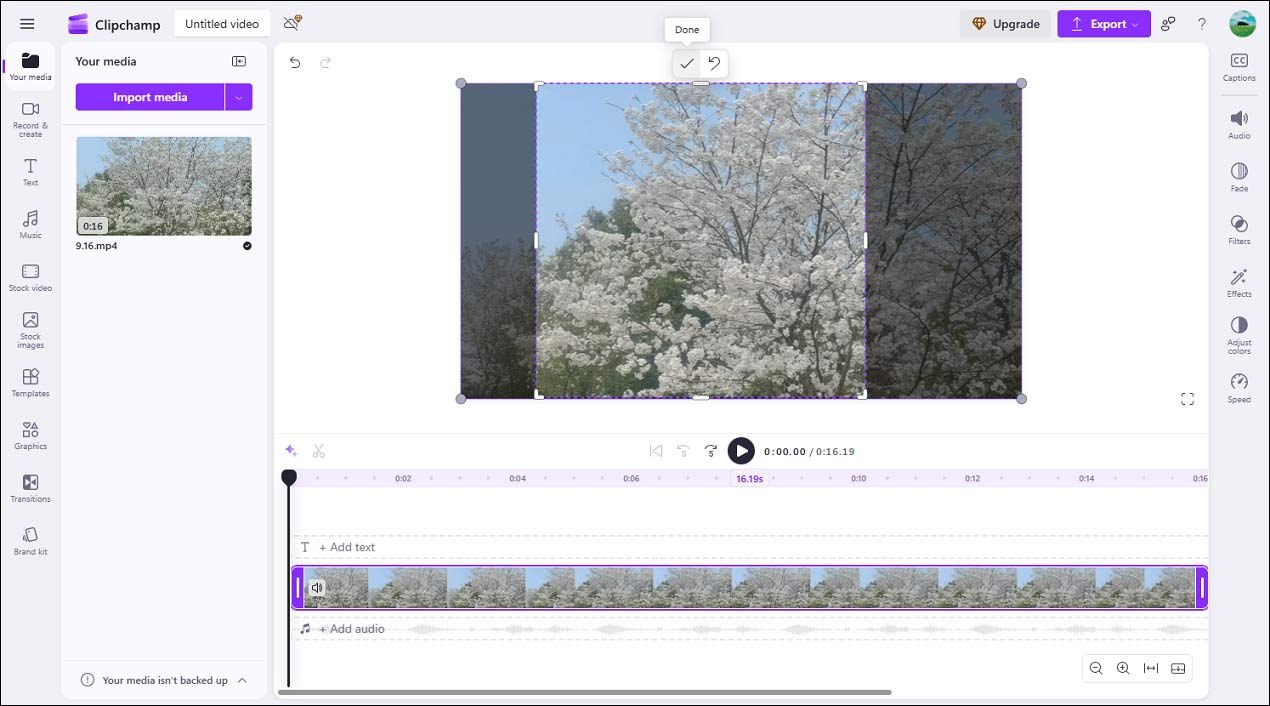
Step 4: Save the Video
Click the Export button and select a resolution to export the video.
Method 3: Online Video Cutter
Online Video Cutter is another free online video resizer that allows you to resize a video by changing the resolution and cropping. This platform also enables you to change the video volume, reduce shakiness, loop videos, remove logs from videos, and more.
Step 1: Upload Your Video
Go to online-video-cutter.com and click Choose File to upload your video.
Step 2: Resize the Video
Once the video is loaded, do one of the following to resize the clip.
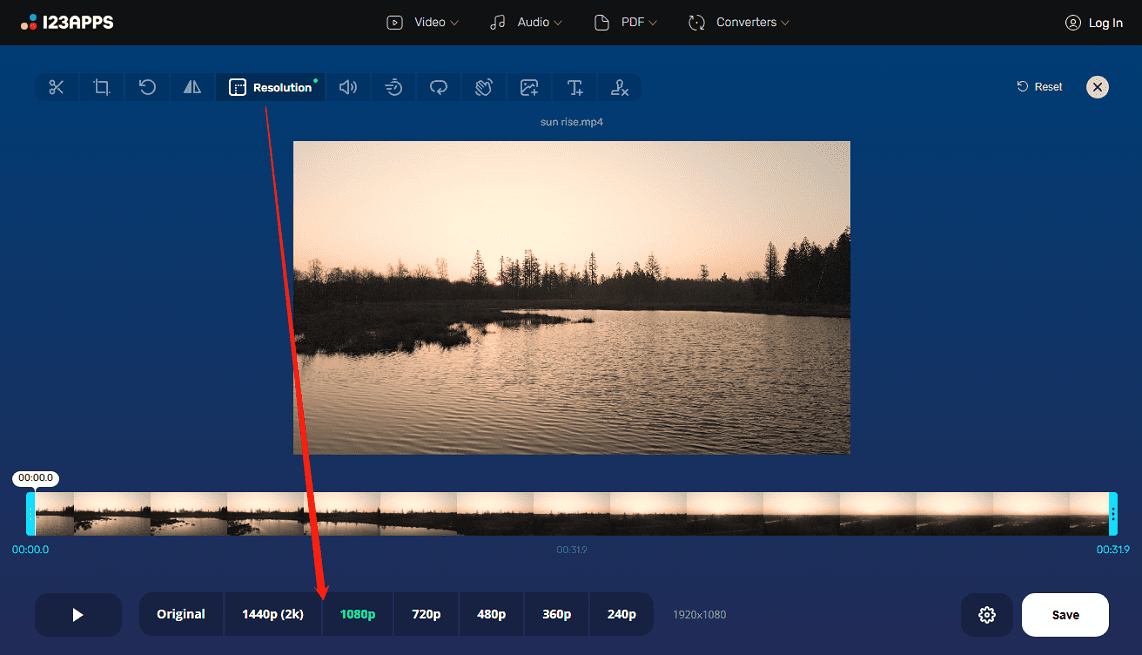
Click the Resolution icon, then choose a resolution at the bottom of the screen, including 1440p, 1080p, 720p, 480p, 360p, or 240p.
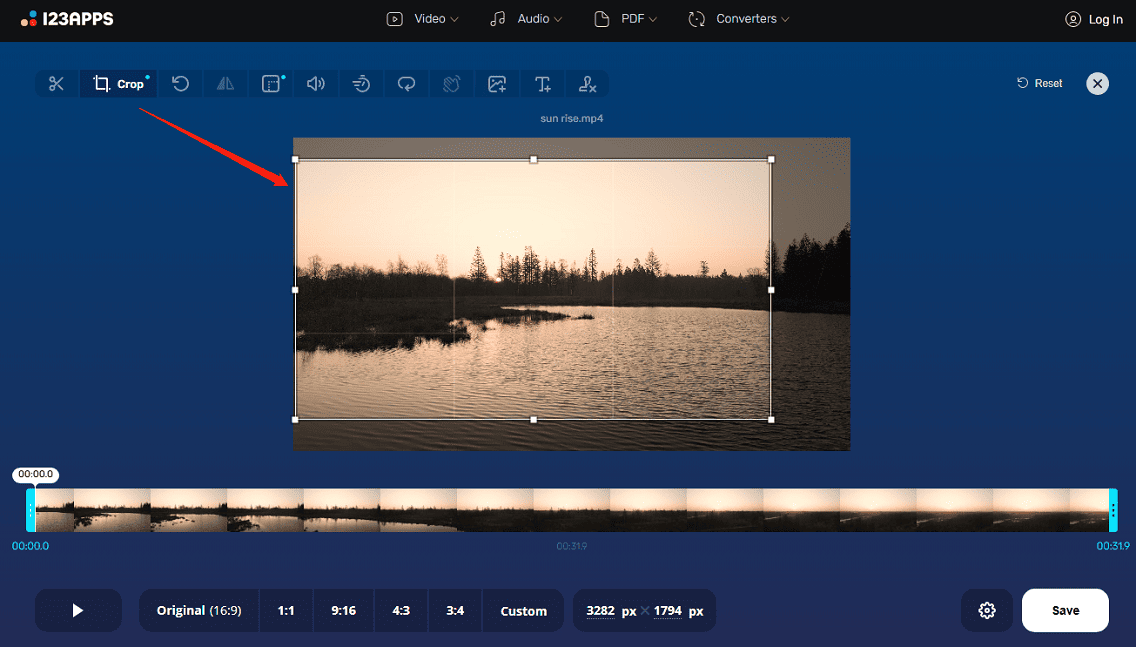
To crop the video, click the Crop icon, and adjust the cropping rectangle to choose the area you want to preserve.
Step 3: Save the Video
Click the Settings icon at the bottom to choose an output format. Then, click Save to export the resized video.
Conclusion
This post explains three simple methods to resize video online free without watermarks. All of these tools are easy to use and ensure clean outputs.
About The Author

Position: Columnist
Cora is a tech writer specializing in digital media workflows, with over six years of hands-on experience in video post-production, media transcoding, and screen capture. Her writing is always clear and practical. Cora also produces in-depth software reviews for users across skill levels to help them find the right tool and enjoy video editing.
User Comments :