

Replacing and enhancing the sky in photos can significantly improve the overall visual impact. This post introduces 3 practical methods to replace sky in photos: BeFunky, SnapEdit, and Evoto, allowing you to elevate your photos with breathtaking results.
The sky plays an essential role in the overall look of the photo. Replacing a monotonous sky with a breathtaking landscape can make a big difference. This post explains why sky replacement matters and provides a practical guide on how to replace sky in photos effectively.
Why Replace Sky in Photos
Due to uncontrollable factors in photography, such as poor lighting, overexposure, and weather conditions, the sky in images sometimes cannot reach the expected quality. To save time and enhance the overall quality of images, the sky replacement tool comes in handy.
What’s more, with the advent of editing technology, sky replacement has become faster and more accessible, allowing users to transform ordinary photos into stunning and striking images with a few clicks. The following section compiles a list of the 3 best methods to help you replace sky in photos with ease.
How to Replace Sky in Photos: 3 Methods
Let’s see the step-by-step guide on how to replace sky in photos online using BeFunky, SnapEdit, and Evoto.
Method 1: BeFunky
As a versatile online photo editor, BeFunky features a wide range of editing tools for both beginners and professionals. When it comes to sky replacement, BeFunky delivers strong performance. With the AI-powered sky replacer, BeFunky allows you to seamlessly replace and edit the sky in images with just a few clicks.
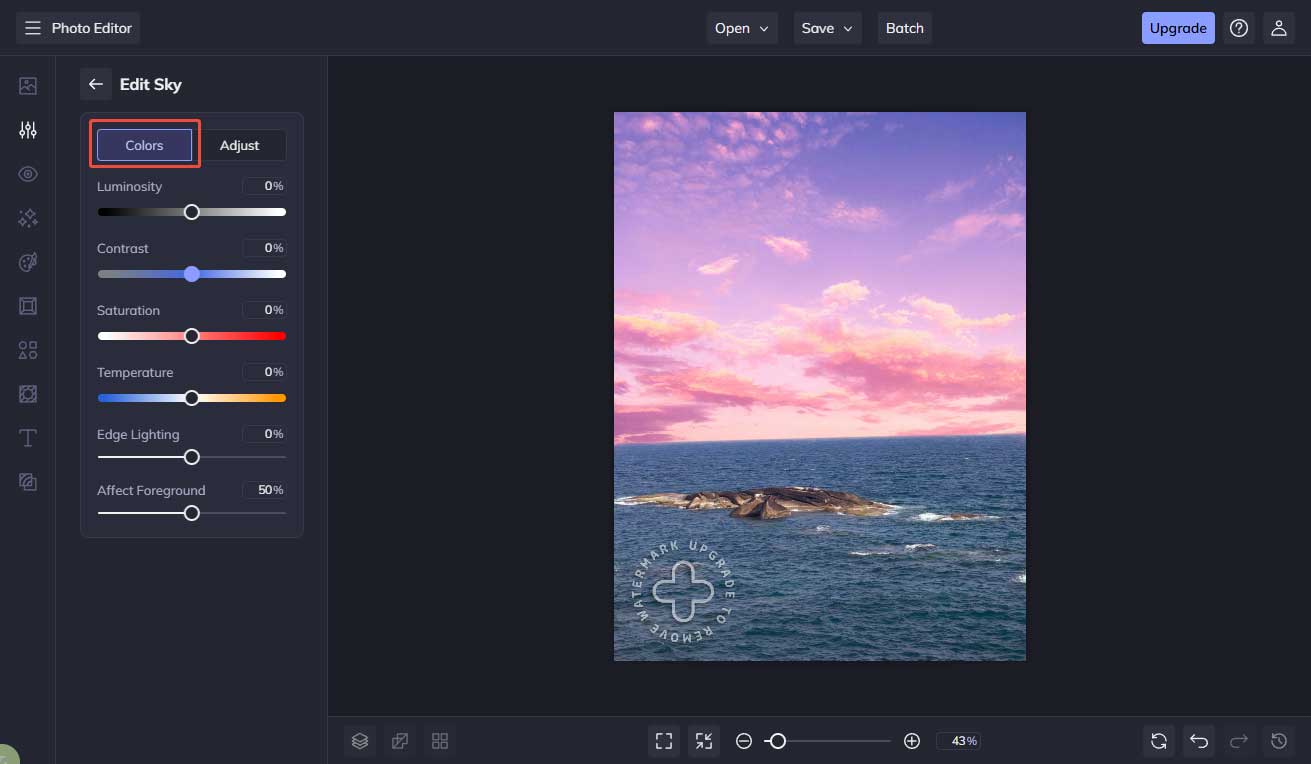
Moreover, to make the images look natural, BeFunky provides additional options to let you customize the contrast, saturation, edge lighting, and other settings, making it easy to edit stunning images.
Here are the detailed steps for sky replacement using BeFunky.
Step 1: Visit the Official Website
Navigate to the official website of BeFunky’s sky replacement tool (https://www.befunky.com/learn/how-to-replace-sky/) in your browser.
Step 2: Import Your Image
Click Get Started to enter the main editing interface. Then, drag the image to the center section to upload.
Step 3: Change Sky
Click the Change Sky option in the left panel and choose Select Sky to pick your desired sky image. Then, click it to replace the sky in the original photo. You can see the preview in the player section. To combine them seamlessly, click the Edit Sky icon to adjust its properties, including luminosity, scale, blur, and more settings.
Step 4: Save the Final Image
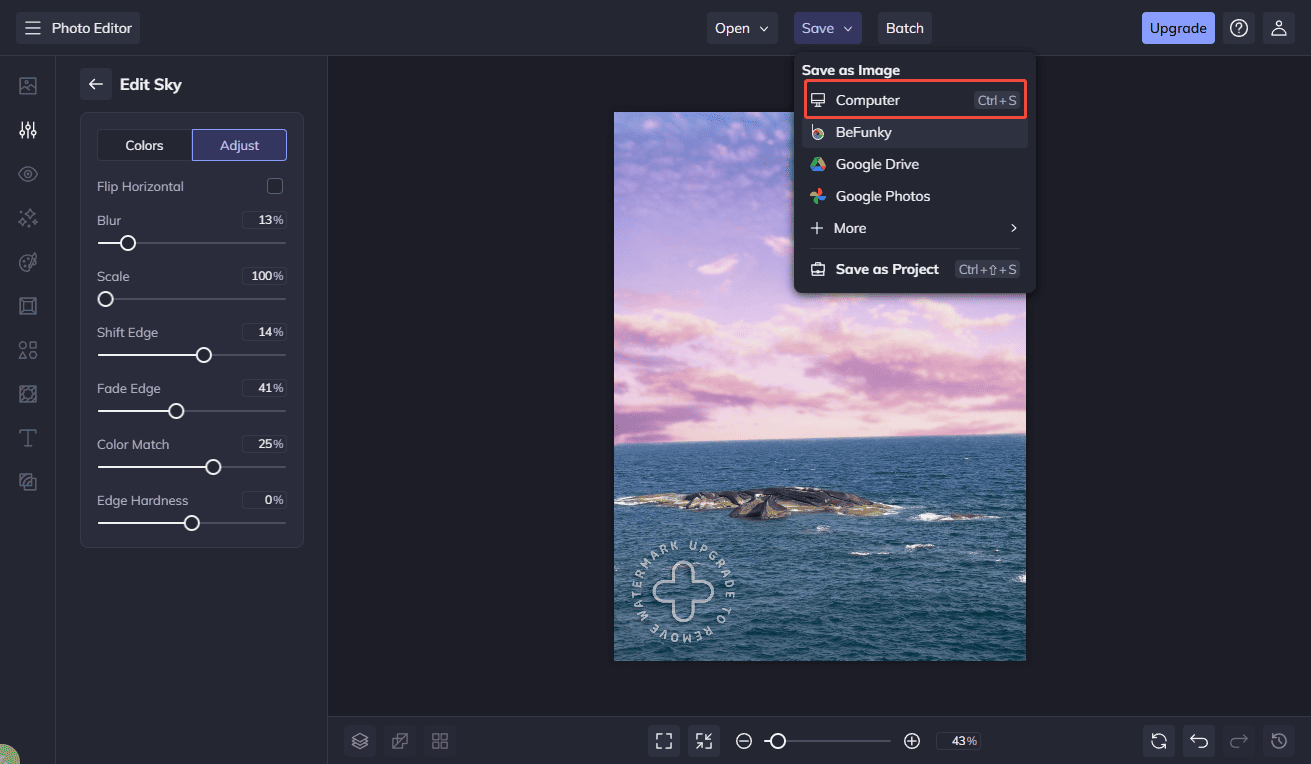
After editing the image, click Save at the top of the menu and choose Computer to save it to your computer.
Method 2: SnapEdit
SnapEdit is another online photo editor available to replace the sky in photos. It enables you to adjust the colors, feels, and gradients of the sky background. What’s more, it is capable of changing the photo’s color to make the edges between images natural and seamless.
Besides sky replacement, SnapEdit offers plenty of AI tools for editing photos. It provides enhancement tools such as AI skin beauty, as well as removal tools like text removal, wireline removal, and background removal.
Here is how to replace sky in photos using SnapEdit.
Step 1: Navigate to the Official Website
Visit the official website of SnapEdit’s change sky tool (https://snapedit.app/change-sky) in your browser.
Step 2: Upload Your Image
Click Upload image to import your image.
Step 3: Change Sky
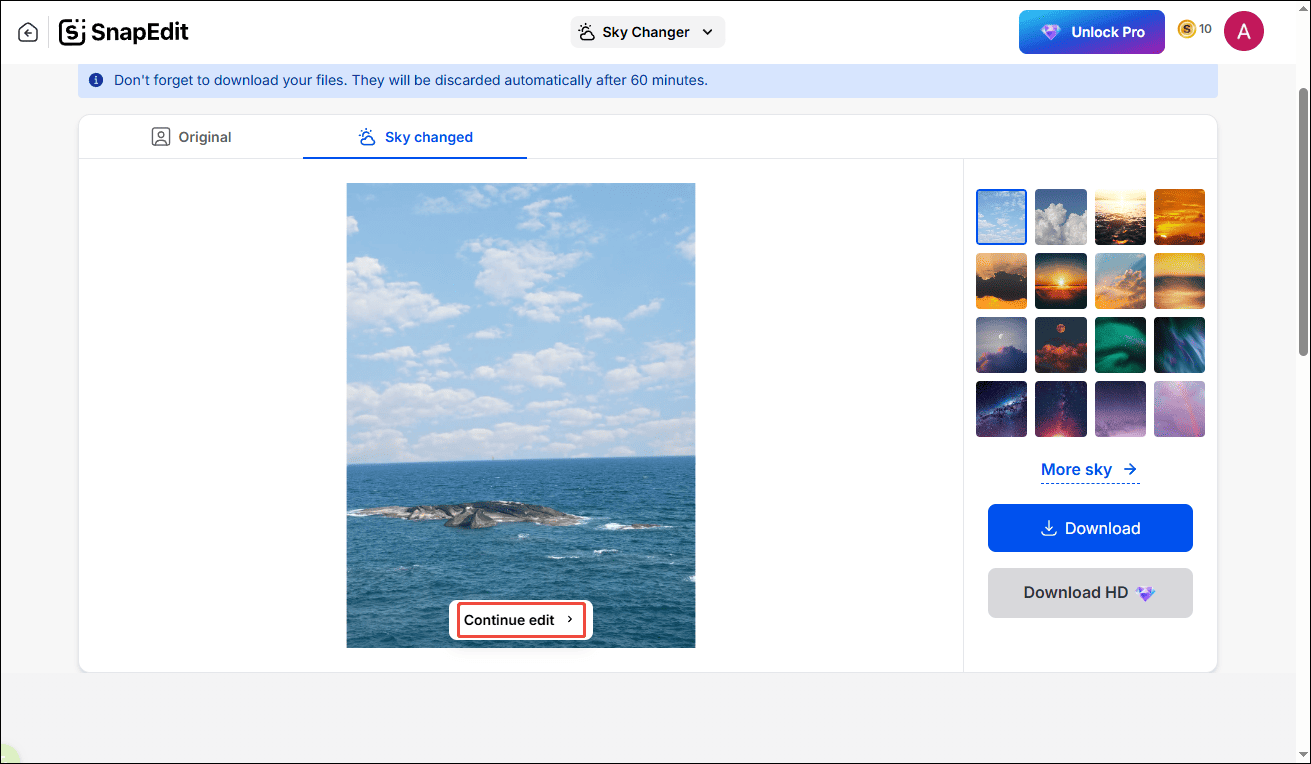
Pick your preferred image from the sky library in the right panel. The sky image will automatically replace the original photo. You can see it in the left window. If you need more editing, you can click Continue Edit.
Step 4: Save the Photo
Once editing is finished, click Download in the right panel to save the photo to your computer.
Method 3: Evoto
Evoto is an AI-powered photo editing tool. It features a suite of editing tools, including photo culling, portrait retouching, background adjustments, and others.
For sky replacement, Evoto can detect the sky in photos automatically and swap it out with a new sky of your choice. It offers various sky images, allowing you change the sky in minutes without hassle.
Step 1: Visit the Official Website
Go to the official website of Evoto’s sky replacement tool (https://www.evoto.ai/features/sky-replacement) in your browser.
Step 2: Import Your Image
Click Upload Image to import your photo.
Step 3: Change Sky
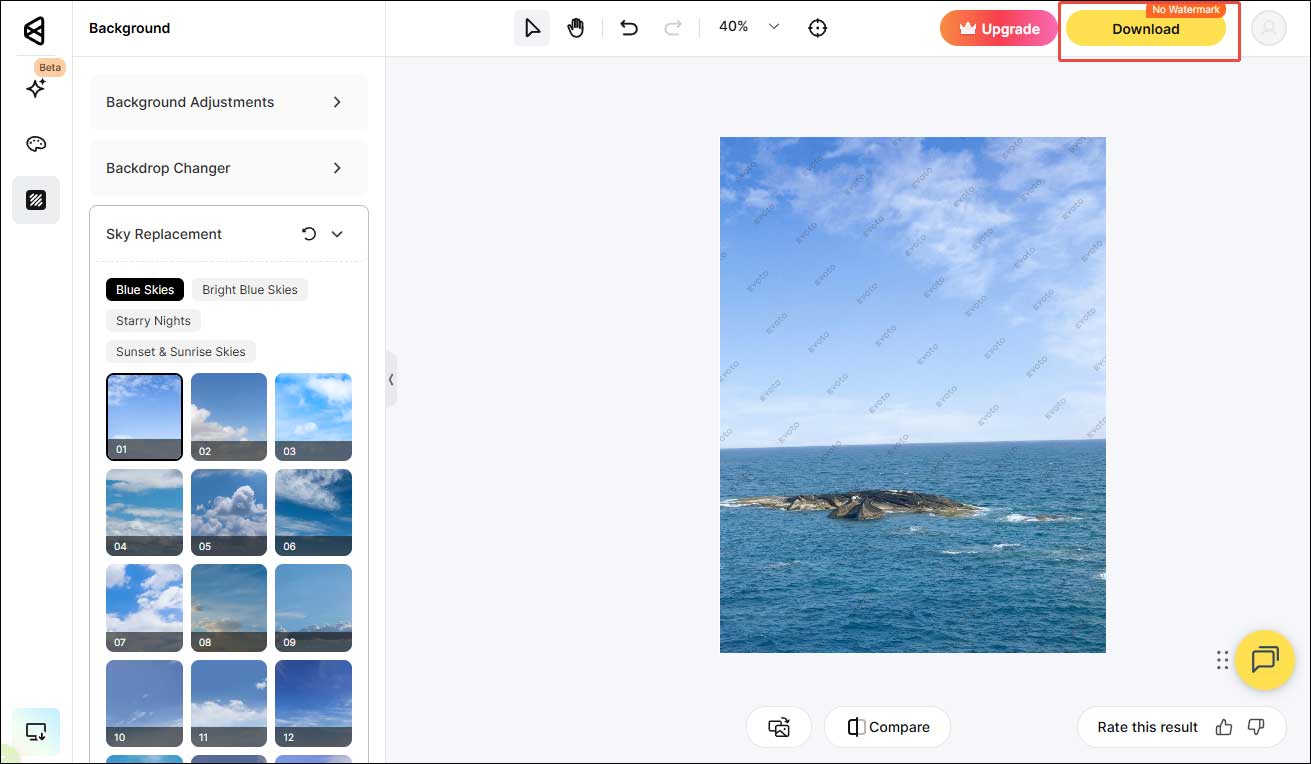
Select your desired sky in the library and click to apply it. You can see the preview in the player window.
Step 4: Save the Image
If you are satisfied with the final image, click Download to save the image to your computer.
Conclusion
This post introduces 3 reliable methods to replace sky in photos. Each of them is easy to use and can transform the dull sky into a stunning one. Select the one that best suits your preference and try it. Hope this article helps you a lot!
User Comments :