

This post provides three robust and quick methods to add a pop art filter to your photos, including using OpenArt, FlexClip, and LightX. It also shows you how to generate a pop art-style picture step by step.
What Is Pop Art
Pop art emerged in the United States and Britain during the 1950s. It employed images from popular culture, such as advertisements and comic books, blurring the boundaries between “highbrow” art and “lowbrow” culture, often utilizing techniques like vivid colors and bold outlines.
Pop art filters transform photos into vibrant, eye-catching works of art through bold colors, simple shapes, and patterns. Photos enhanced with pop art filters radiate energy and artistic flair, making them perfect for social media.
In the following content, I offer three effective and reliable methods to help you convert a photo to pop art with ease. Read on for more.
How to Add a Pop Art Filter to Your Photo
Here are three methods to add a pop art filter to a photo easily on Windows.
Method 1. Use OpenArt
OpenArt is a professional online image editor that effortlessly transforms your photo into pop art. It is powered by AI, enabling you to complete the work in a flash. In addition, except for pop art, OpenArt offers other filters, enhancing and changing the style of your images with ease. Moreover, OpenArt has various editing features, including blending image layers, changing/removing backgrounds, upscaling images, etc. This tool delivers high-quality and stunning results.
Follow the instructions below to add a pop art filter to your picture with OpenArt.
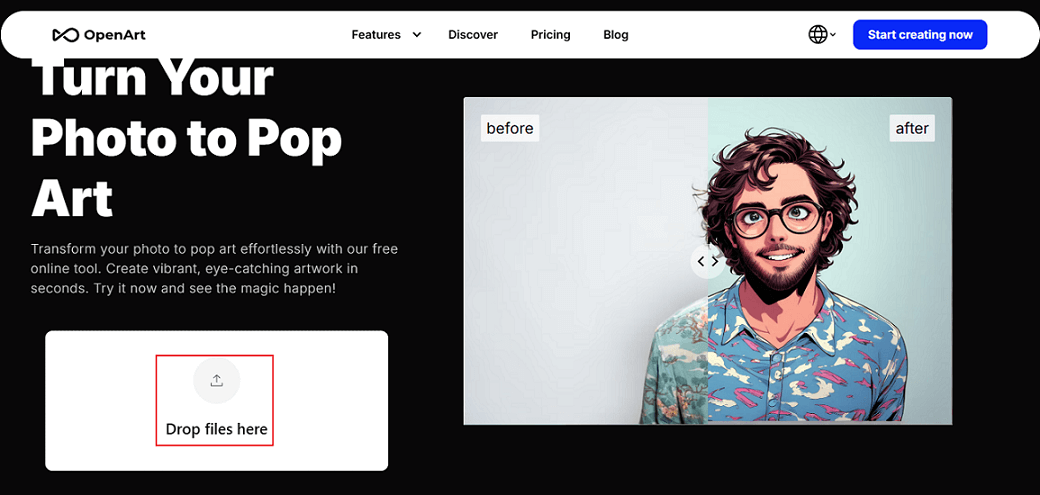
1. Go to OpenArt’s Pop Art Filter
Visit https://openart.ai/features/photo-to-pop-art.
2. Upload Your Picture
Click the Drop files here option to upload your picture.
3. Choose a Pop Art Style
In the style menu, pick the Pop Art option.
4. Start Converting Photo to Pop Art
Click the Create button to transform the picture into pop art.
5. Download the Picture
The generated picture will be listed in the right section. Click the Download icon on the photo to save it.
Method 2. Use FlexClip
FlexClip is an AI-powered online image generator that instantly analyzes your photos and applies pop art filters, transforming them into one-of-a-kind artworks in seconds. In addition, FlexClip’s photo-to-pop-art filter applies advanced technology to analyze a photo’s colors, textures, and composition, generating vibrant, boldly outlined works of art.
More than that, this tool supports multiple image formats, such as JPG and PNG. Whether you want to turn pet photos into fun icons or create eye-catching avatars for social media, FlexClip’s AI tools make the transformation effortless.
Now, you can follow the instructions below to complete the photo to pop art transformation.
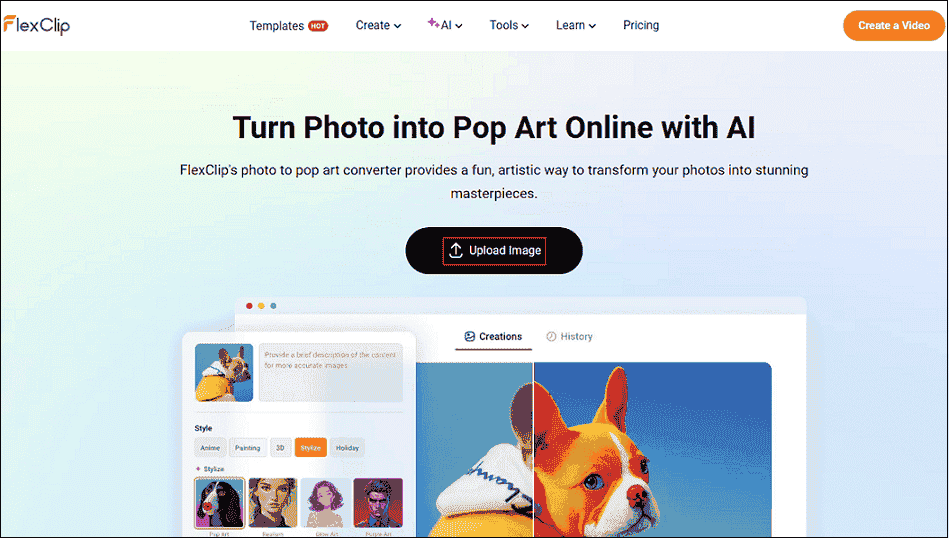
1. Access FlexClip’s Photo to Pop Art Tool
Visit https://www.flexclip.com/tools/photo-to-pop-art/.
2. Upload Your Image
Click the Upload Image button to upload your photo.
3. Choose a Pop Art Filter
Choose the Stylize tab and pick Pop Art.
4. Start Photo Generation
Click the Generate button to transform the picture into a pop art style.
5. Download the Photo
When the generating process completes, click the Download option to save it.
Method 3. Use LightX
LightX is a powerful AI image editor that can transform photos into vibrant, eye-catching pop art masterpieces. Plus, this tool also offers Disney filters, Barbie filters, anime filters, Van Gogh filters, manga filters, etc., transforming your picture into multiple styles with no hassle! Moreover, LightX can do more, like removing backgrounds from photos, removing watermarks from photos, compressing images, correcting color, and more. Follow the step-by-step guides below to add a pop art filter to a photo.
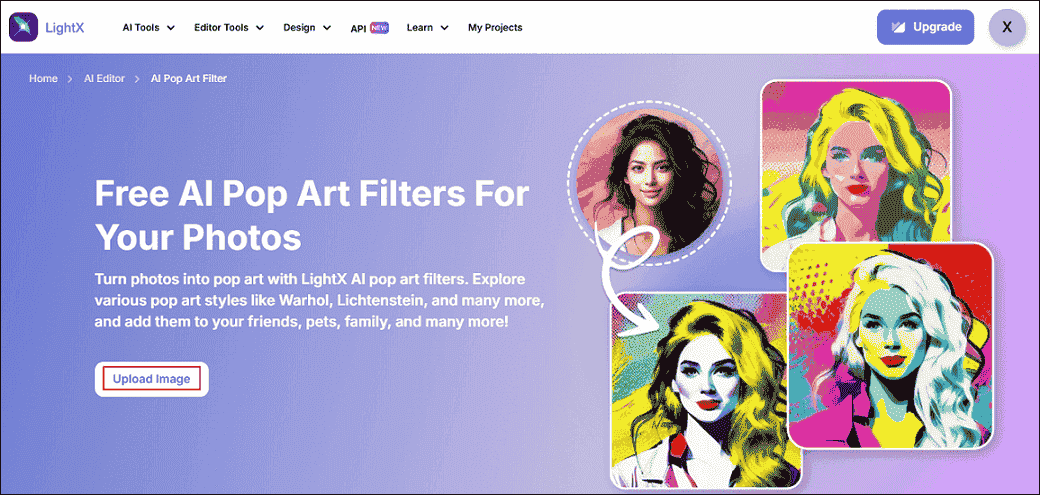
1. Go to LightX’s Pop Art Filter
Visit https://www.lightxeditor.com/photo-editing/ai-pop-art-filter/.
2. Upload Your Picture
Click the Upload Image button to add your photo.
3. Choose a Pop Art Filter
Pick the Pop Art filter in the Filter menu.
4. Generate the Photo
Click the Generate option to turn your photo into a pop art style.
5. Save the Photo
Click the Download icon on the generated photo to save it.
MiniTool MovieMakerClick to Download100%Clean & Safe

In Summary
Applying a pop art filter to your photos can infuse them with a vibrant and lively feel. This article provides three effective and reliable methods to help you transform selfies, pet photos, landscape shots, and more into pop art-style images. Choose your preferred method and start creating!
User Comments :