

What Is Metallic Art
Metallic art photos radiate a dazzling, luminous sheen with pronounced highlights, lending images a three-dimensional, vibrant, and luxurious visual impact. This style is particularly suited for landscapes, portraits, or urban scenes featuring bright whites and rich, saturated colors.
To transform a photo into metallic art, I recommend three reliable tools. Read on.
Convert a Photo to Metallic Art with FlexClip
FlexClip is a professional, browser-based image editor that offers a variety of filters, including metallic, crayon drawing, and pop art effects. It is powered by AI, which analyzes your pictures and converts them to a metallic style in no time.
In addition, FlexClip delivers high-quality outputs that restore image details. It supports multiple image formats, including JPG, PNG, JPEG, GIF, and WEBP. You can convert various images, such as selfies, landscapes, pet pictures, family portraits, etc., to metallic art with ease.
Follow the step-by-step guide below to restyle your pictures with metallic art.
1. Access FlexClip’s Metallic Art Generator
Visit https://www.flexclip.com/tools/photo-to-metallic/.
2. Upload Your Picture
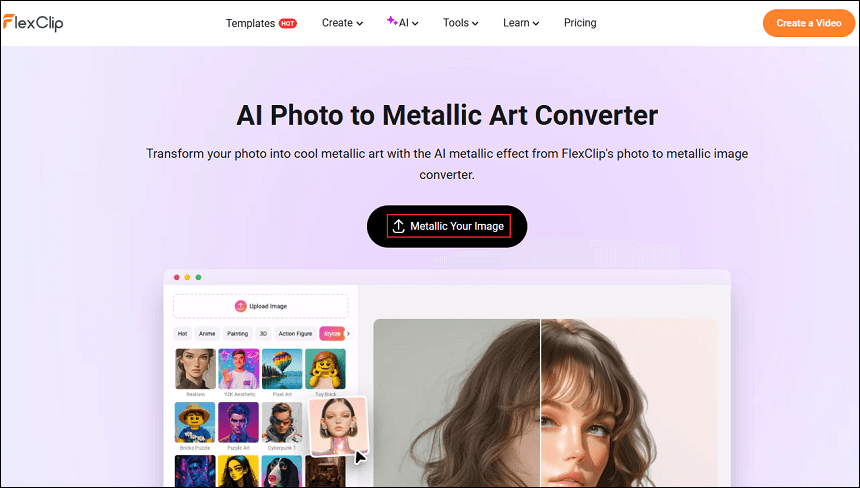
Click the Metallic Your Image option to upload your photo.
3. Generate the Photo into Metallic Art
The metallic style is selected by default. Click the Generate option to start conversion.
4. Download the Photo
When the generating process completes, click the Download option to save the photo.
Convert a Photo to Metallic Art with Imagation
Imagation is also a browser-based application that features a straightforward user interface, allowing you to generate pictures in a metallic style with no hassle. It provides high-resolution outputs, suitable for sharing on social media platforms. Additionally, Imagation is powered by AI, creating stunning pictures even faster and easier. To convert a photo to metallic art, follow the guides below.
1. Go to Imagation’s Photo to Metallic Tool
Visit https://www.imagation.com/tools/photo-to-metallic.
2. Upload Your Photo
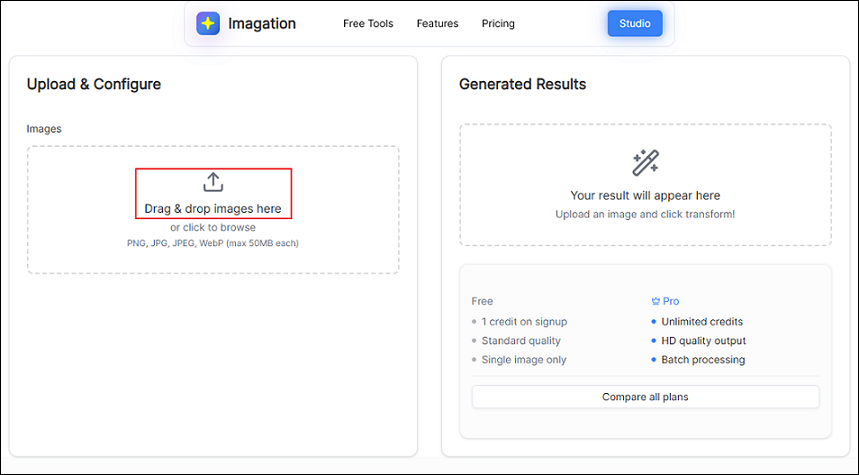
Click the Drag & drop images here option to upload the picture you want to generate into a metallic style.
3. Convert the Photo to Metallic Art
Click the Transform button to start conversion.
4. Save the Picture
The generated photo will be listed in the Generated Results section. Download it to your local folder.
Convert a Photo to Metallic Art with Glima AI
Glima AI, as its name suggests, is an image generator powered by AI. It has an intuitive user interface and offers various image styles, such as pop art, mosaic art, metallic, big head, and more. With just a few clicks, you can get a brand-new image. In addition, Glima AI can enhance and edit images/videos, making every detail of the image crystal clear.
Here’s how to turn a photo into metallic art using Glima AI.
1. Access Glima AI’s Image Style Changer
Visit https://glima.ai/create-image/style-change?style=metallic-objects.
2. Upload Your Picture
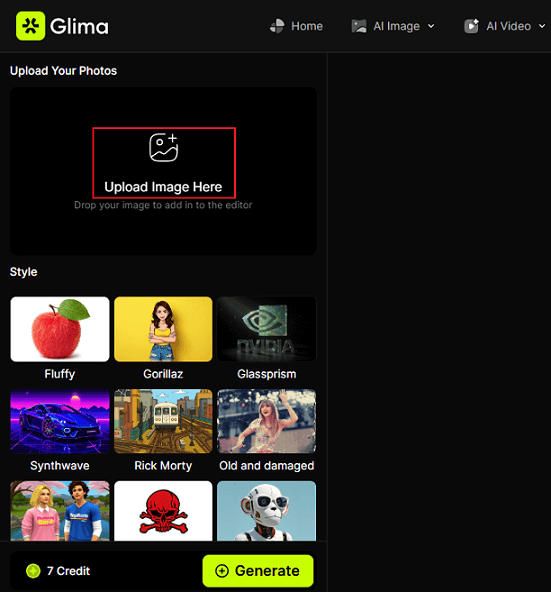
Click the Upload Image Here option to upload your photo.
3. Generate the Photo
The Metallic Objects option is selected by default. Click the Generate button to convert the photo.
4. Download the Photo
Preview the transformed picture and download it. Share it with friends or on social media platforms as you prefer.
Bonus: How to Turn Multiple Photos into a Video
Want to showcase your precious photos in a video? MiniTool MovieMaker can do you a big favor! It is a free video editor that has no ads, bundles, or watermarks, merging your pictures into a high-quality video efficiently. Plus, it can edit GIFs, videos, and audio. During the image-to-video process, you can polish the video with music, stickers, transitions, effects, text overlays, and more, making it more engaging.
Click the download button to give it a try!
MiniTool MovieMakerClick to Download100%Clean & Safe

In Summary
This post provides three robust image generators to help you convert a photo to metallic art. They are all easy to use and offer a quick generating process. Select the one you prefer and start creating your metallic picture!
User Comments :