

A grayscale image converter is a tool that allows me to convert a colored image into shades of gray by removing all color information. Instead of displaying a full range of colors, a grayscale image only contains different intensities of gray, ranging from black to white.
In my experience, using a grayscale image converter is one of the simplest ways to enhance image clarity and create a clean, professional look. By converting colors into grayscale, I can highlight textures, lighting, and key visual elements without distractions. There are three reliable grayscale image converters worth trying.
Grayscale Image Converter 1: Canva
When I need a more flexible online grayscale image converter, I usually turn to Canva. Unlike simple one-click tools, Canva is a full-featured online design platform that allows me not only to convert an image to grayscale but also to fine-tune the final result.
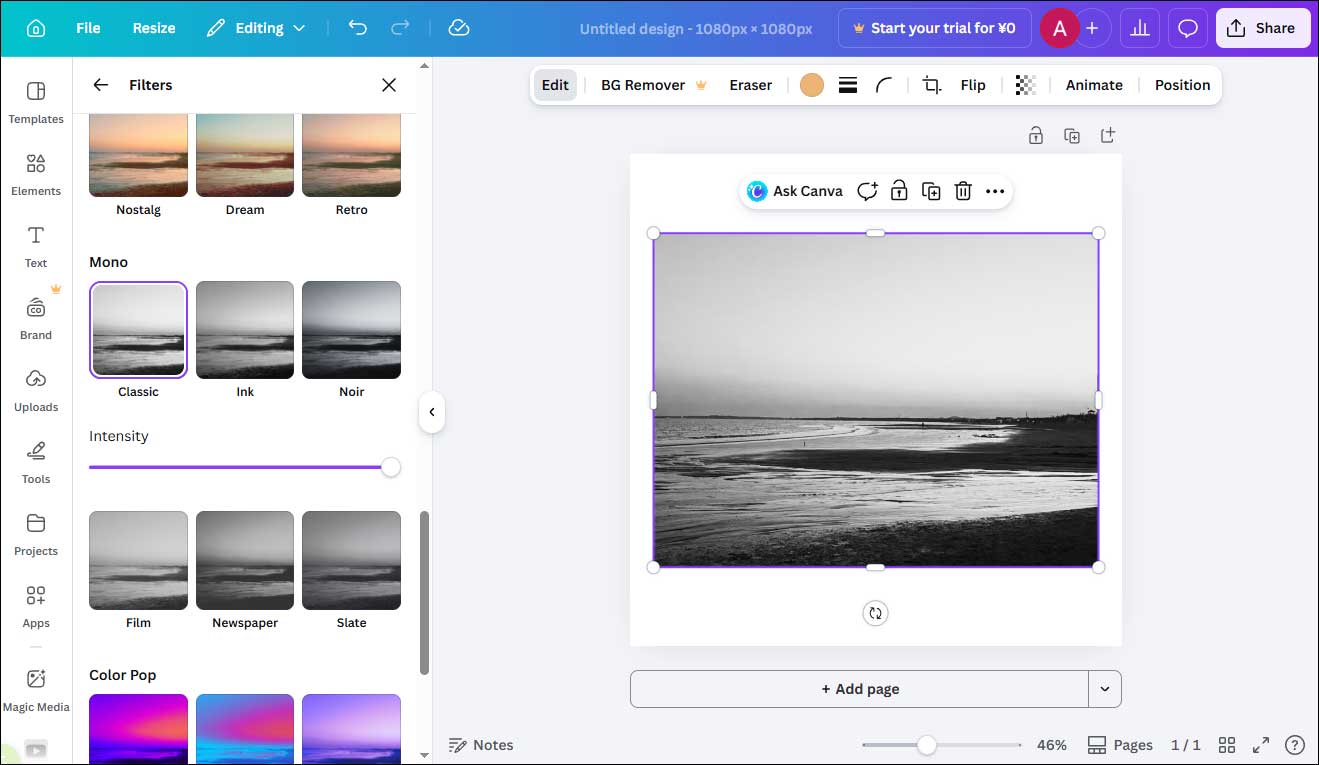
To convert images to grayscale, Canva offers a useful preset filter that enables me instantly to add a nostalgic mood to my photo. Apart from this method, Canva is also equipped with dedicated controls to adjust the brightness, contrast, saturation, and other settings to make images grayscale.
Furthermore, with the drag-and-drop editor and a massive stock image library, Canva can make the image stunning by adding frames, background images, stickers, and more. Overall, Canva is a powerful online grayscale image converter for users who want both simplicity and creative control.
Pros
- Easy to use with a drag-and-drop interface.
- Offers precise control over image adjustments.
- Combines grayscale conversion with design tools.
- Suitable for both beginners and advanced users.
Cons
- Requires an account to use.
- Some advanced features are limited to the paid version.
- Slightly more steps compared to one-click converters.
Grayscale Image Converter 2: PineTools
If I need a fast and straightforward way to convert images to grayscale, PineTools is one of the most convenient options. As an online grayscale image converter, it focuses on simplicity and speed, making it ideal for quick tasks without extra editing steps.
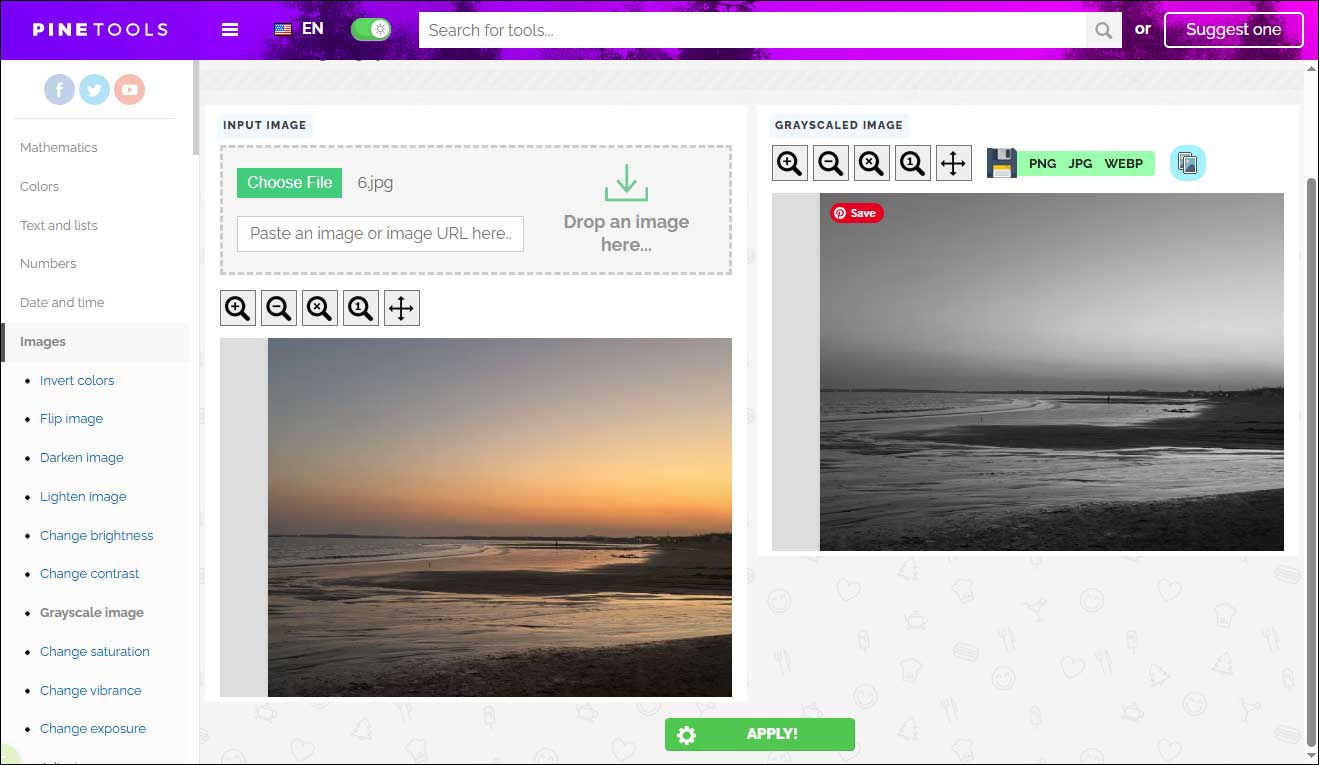
Without signing up, I can use the tool directly in the browser. The interface is very clean and straightforward. After importing my image, the platform will automatically convert it into my desired effect in seconds. This tool supports downloading images in PNG, JPG, and WEBP formats. I can share the images on other social platforms such as Facebook and Twitter directly.
Additionally, PineTools also comes with other individual tools to enhance the image, such as adding noise, applying special filters, blurring images, and more. In a word, PineTools is a reliable online grayscale image converter for users who prioritize speed and simplicity over advanced editing capabilities.
Pros
- Extremely easy to use.
- Fast processing with minimal steps.
- Completely free and accessible online.
Cons
- Limited editing features beyond grayscale conversion.
- No built-in design or enhancement tools.
Grayscale Image Converter 3: Photoshop
For more advanced grayscale image conversion, I often rely on Photoshop. Unlike basic online grayscale image converters, Photoshop provides multiple ways to convert images to grayscale with precise control over tones and details, making it a powerful option for professional editing.
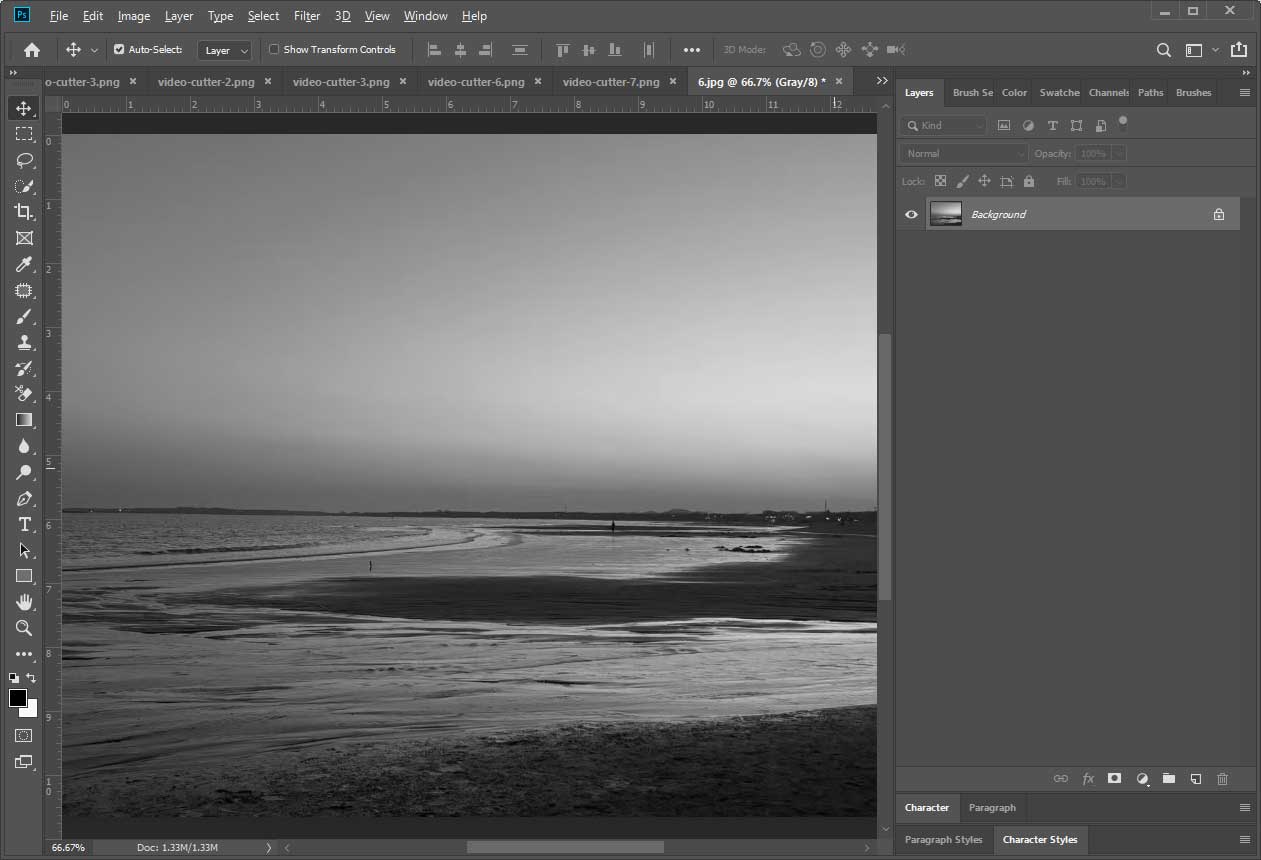
I can convert an image using Grayscale mode, Desaturate, or Black & White adjustment layers. It allows me to adjust individual color channels to fine-tune how colors translate into grayscale. Moreover, with adjustment layers, I can make changes without permanently altering the original image.
Photoshop also provides a variety of advanced features, such as adding a rain effect to photos, turning photos into watercolor, and more. All in all, Photoshop is a powerful grayscale image converter for users who need precision and flexibility, especially in professional or high-quality image editing scenarios.
Pros
- Advanced control over grayscale tones and contrast.
- Multiple conversion techniques for different needs.
- Professional-grade editing capabilities.
- Supports high-resolution images.
Cons
- Requires installation and a paid subscription.
- Steeper learning curve for beginners.
- More time-consuming than online grayscale image converters.
Conclusion
In this post, I explored three effective grayscale image converters, including Canva, PineTools, and Adobe Photoshop. Each tool offers a different way to convert images to grayscale, depending on the level of control and convenience needed. Choose the tool that best fits your needs and start transforming your images with ease.
User Comments :