

This post introduces three practical methods to make a Spotify playlist cover, including Canva, BeFunky, and Spotlistr. With these easy-to-use tools, you can design a polished and professional playlist cover that helps your Spotify playlist stand out.
The playlist cover usually catches people’s attention, much like an album cover. To help you take your Spotify playlists to the next level with polished covers, this post compiles three practical methods to make a Spotify playlist cover.
Before learning the detailed steps, it is essential to understand the reasons for designing a Spotify playlist cover.
Why Make a Spotify Playlist Cover
A Spotify playlist cover serves as the first impression of your playlist, showcasing its theme or mood. It usually reflects the content and makes the playlist style recognizable. Whether you are a music lover, influencer, artist, or brand, making a custom cover can create a consistent visual identity and make your playlist stand out from default or generic covers.
Additionally, the ideal size for Spotify playlist cover is a square with a 1:1 aspect ratio and high resolution, generally 3000 × 3000 pixels in JPG or PNG format. The following section explains how to make a Spotify playlist cover using Canva, BeFunky, and Spotilstr.
How to Make a Spotify Playlist Cover with Canva
Canva is a versatile online editing platform that supports image, video, and presentation creation. When it comes to making a Spotify playlist cover, Canva offers a wide collection of ready-made templates, making it an excellent option for beginners to design a polished cover.
You can find all sorts of playlist cover templates, including simple, aesthetic, and vintage styles, which can be easily customized to unleash your creativity. With the easy-to-use drag-and-drop editor, Canva allows you to easily swap out the text, images, and graphics in the desired template to tailor it to your specific needs.
Here are the detailed steps for designing a Spotify playlist cover using Canva.
Step 1: Go to Canva’s Templates for Playlist Cover
Navigate to the official website of Canva’s playlist cover templates (https://www.canva.com/playlist-covers/templates/) in your browser.
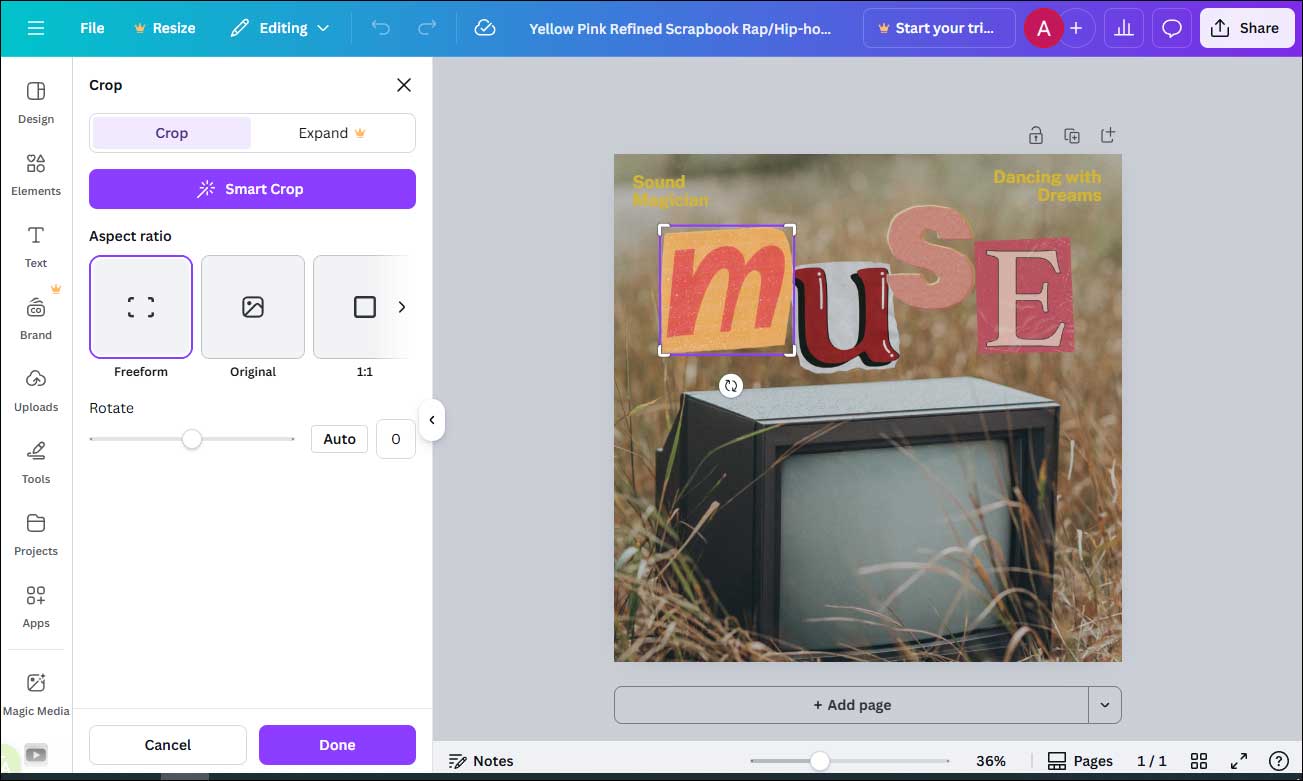
Step 2: Customize the Playlist Cover
Then, you can select your desired template for your Spotify playlist. Click Customize the template to enter the editing interface. Select the text and enter your words to make the title stand out. Then, click the background image to crop the appropriate scenery. If you are not satisfied with the original image, you can upload your image from your computer to replace it.
Step 3: Save the Image
Click Share from the top of the menu and select Download to save the image to your computer.
How to Make a Spotify Playlist Cover with BeFunky
BeFunky is also a powerful Spotify playlist cover maker. With a clean and intuitive interface, BeFunky is equipped with a wide range of resources for creating, such as royalty-free images, creative and bold text styles, and extensive graphics, making it convenient for users to create a Spotify playlist cover from scratch.
How to make a Spotify playlist cover using BeFunky? Follow the guide below.
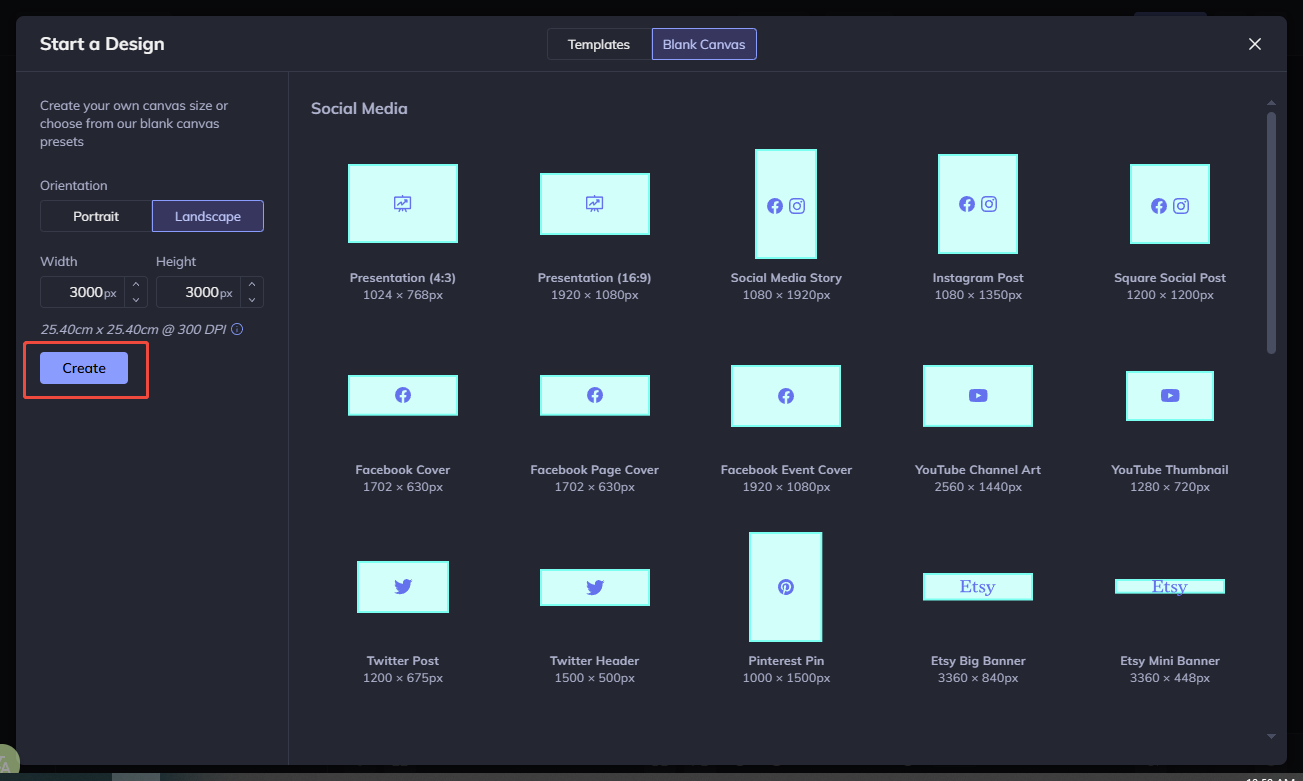
Step 1: Access BeFunky’s Graphic Designer Tool
Visit the official website for BeFunky’s Graphic Designer tool (https://www.befunky.com/create/designer/) in your browser. Click the Blank Canvas option at the top of the menu. Enter 3000 pixels in both the Width and Height boxes and select Create to access the editing interface.
Step 2: Upload and Edit Your Image
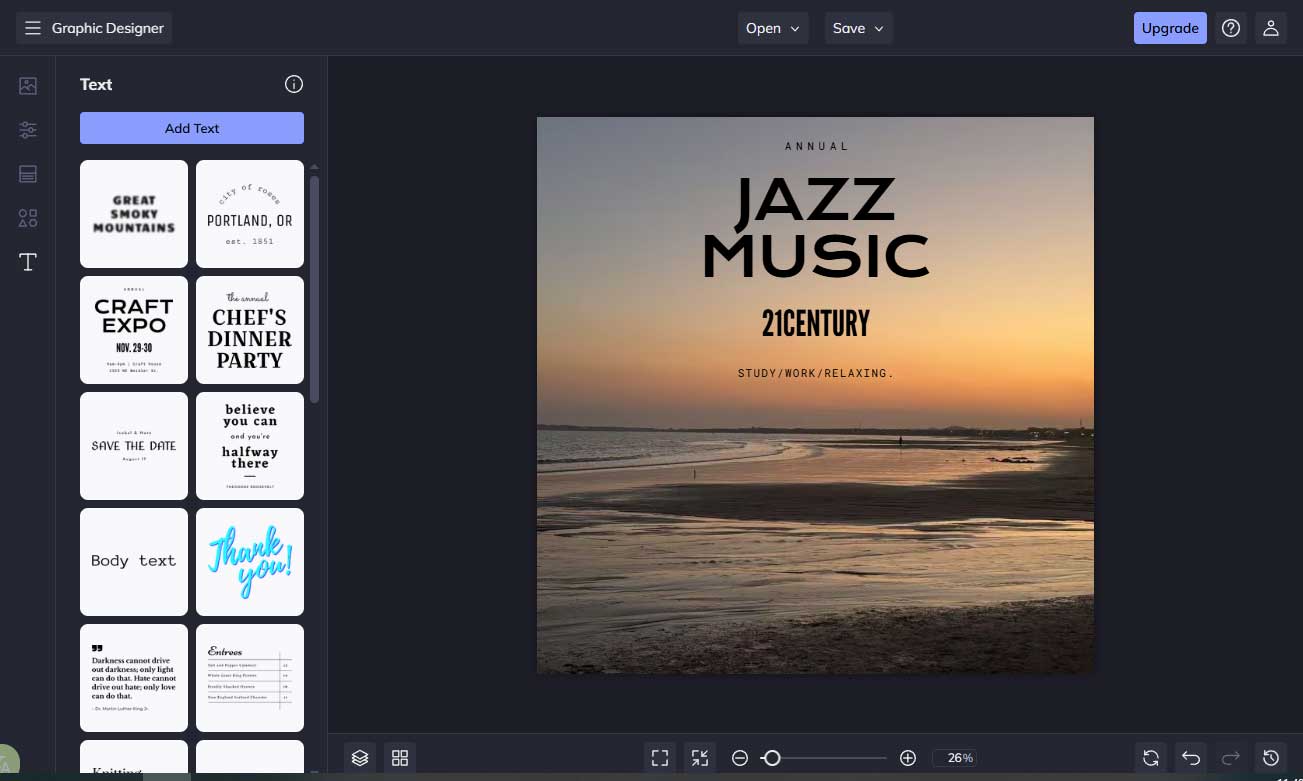
Click Image Manager on the left side of the canvas. Select the Computer button to import your image. Then, drag the image to adjust its position and scale it to change its size. You can also edit the image in the left image properties panel.

Step 3: Add Text to Image
Click the Text tab to select your preferred text template. Enter your words and customize their style, including fonts, sizes, and background, in the left text properties panel.
Step 4: Save the Cover Image
Click the Save option at the top of the menu and select Computer to save it to your computer.
How to Make a Spotify Playlist Cover with Spotlistr
Spotlistr is an online Spotify playlist management tool designed to help users create, organize, and customize playlists efficiently. It allows you to generate playlists based on specific criteria, such as artists, moods, making music discovery faster and more flexible. In addition, Spotlistr also offers a simple playlist cover generator that lets you create Spotify playlist covers quickly without design skills.
Follow the guides below to make a Spotify playlist cover using Spotlistr.
Step 1: Open Spotlistr’s Playlist Cover Maker Tool
Go to the official website of Spotlistr’s playlist cover maker tool (https://www.spotlistr.com/create/cover).
Step 2: Customize the Cover
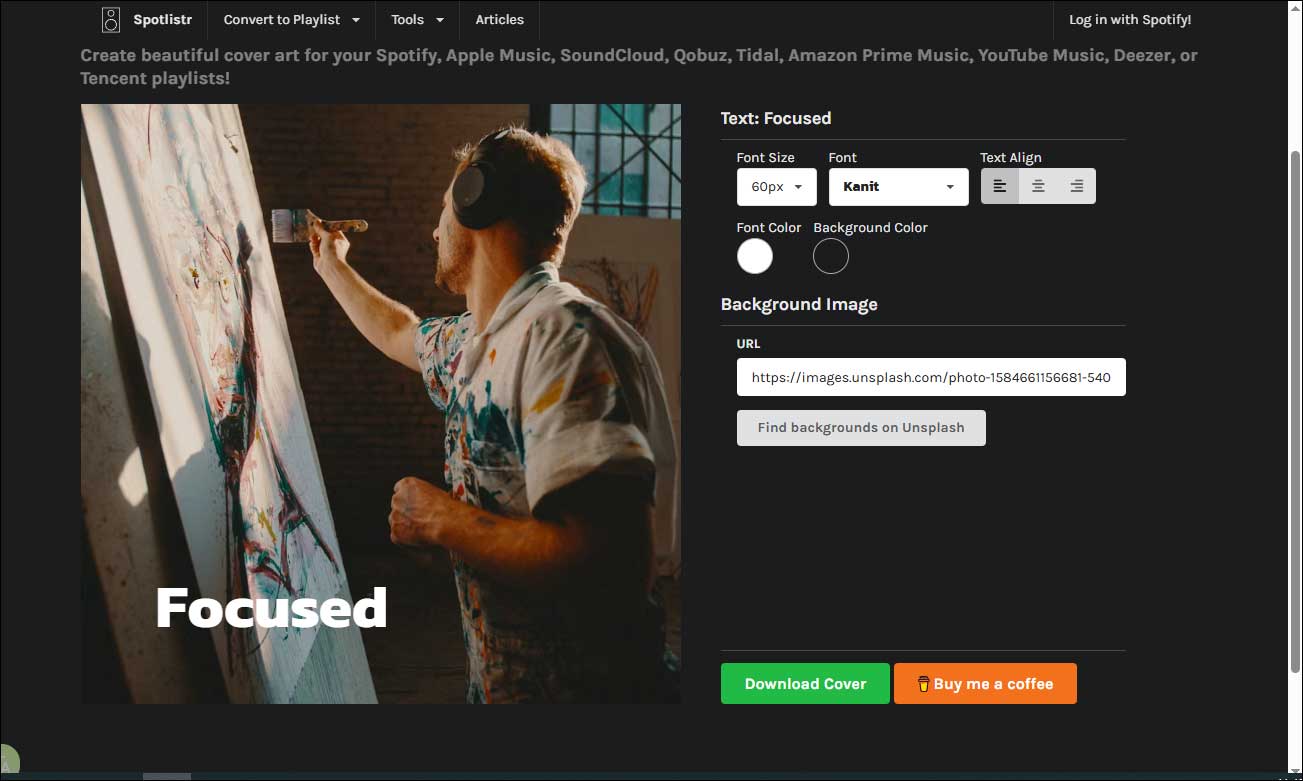
You can customize the cover by adjusting the text size, font, alignment, and color. Besides, if you want to change the background image, click Find background on Unsplash to select your desired one to replace it.
Step 3: Save the Cover
After editing, click Download Cover to save the image to your computer.
Conclusion
This post recommends three reliable ways to make a Spotify playlist cover. Select the one that best suits your preference and create a professional-looking cover!
User Comments :