

This post demonstrates how to make a Facebook cover photo collage with Canva, BeFunky, and Adobe Express, helping you give your Facebook page a more polished and professional look.
A photo collage allows you to display multiple photos in a single cover. You can enhance the visual appeal of your Facebook and strengthen your personal identity by creating an outstanding photo collage. Before delving into the detailed steps on how to make a Facebook cover photo collage, it’s essential to learn the basic information about the Facebook cover photo size.
A typical Facebook cover photo size is 820 x 312 pixels on a desktop. The standard size is 640 × 360 pixels on mobile devices. It is recommended to upload PNG format for images with text or logos, and JPG for photos. The file size should be under 100KB for faster loading.
To help you create an eye-catching collage, this post introduces three powerful Facebook cover photo collage makers to unleash your creativity, including Canva, BeFunky, and Adobe Express. Let’s take a closer look at them one by one.
Make a Facebook Cover Photo Collage Using Canva
Canva is an online design platform that makes it easy to create Facebook cover photo collages without any graphic design experience. It offers a wide range of professional layouts to use. What’s more, it enables you to access an extensive library of over 1 million stock images, graphics, and illustrations, allowing you to create high-quality designs in minutes.
Here is how to make a Facebook cover photo collage using Canva.
Step 1: Navigate to the Official Website
Visit the official website of Canva’s Facebook covers tool (https://www.canva.com/create/facebook-covers/)in your browser.
Step 2: Select Your Desired Layout
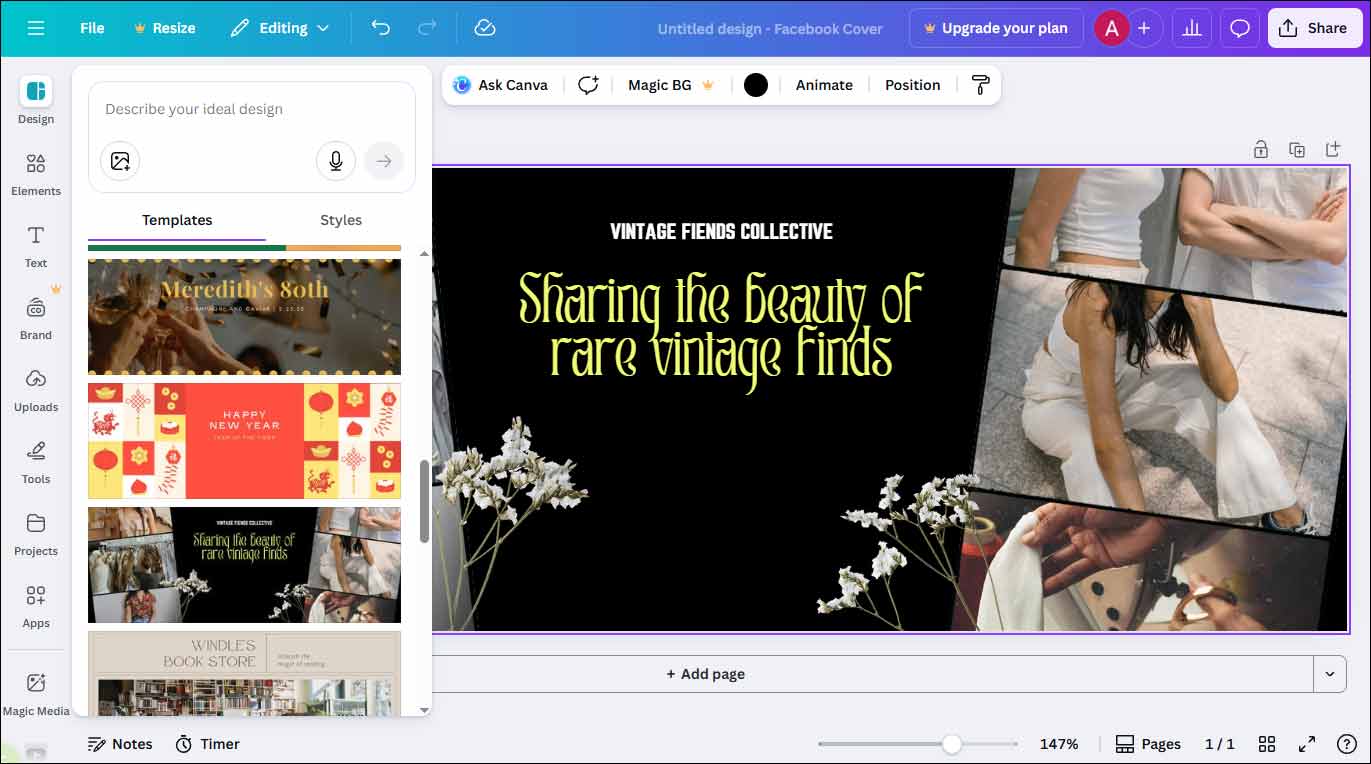
Click Start Designing a Facebook Cover to enter the main editing interface. Then, scroll down to find your preferred layout or template to apply.
Step 3: Customize the Cover
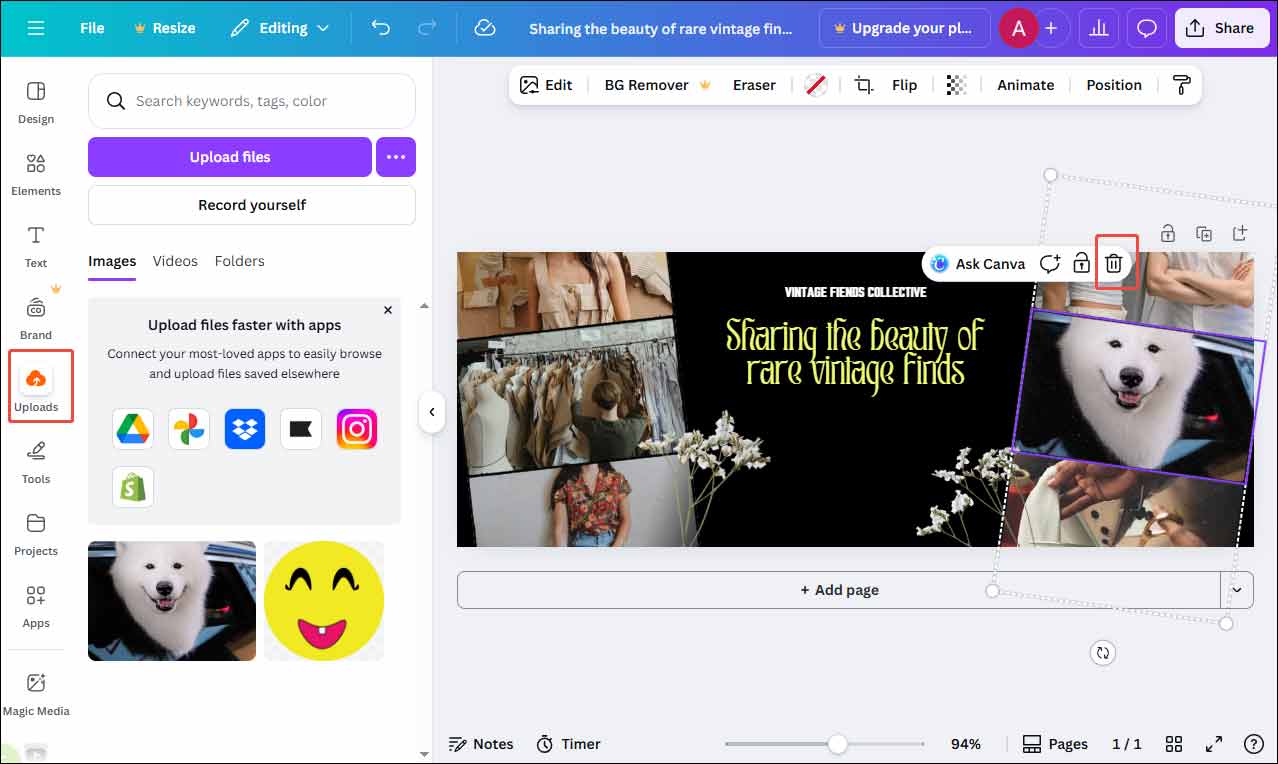
Click the image you want to change and select the Delete icon to remove it. Next, click Upload in the sidebar to import your image. Drag the uploaded image to the canvas. Then, click it and select Edit to add effects, filters, and remove the background to elevate the image. You can also swap out the text, fonts, and colors to tailor to your needs.
Step 4: Export the Cover
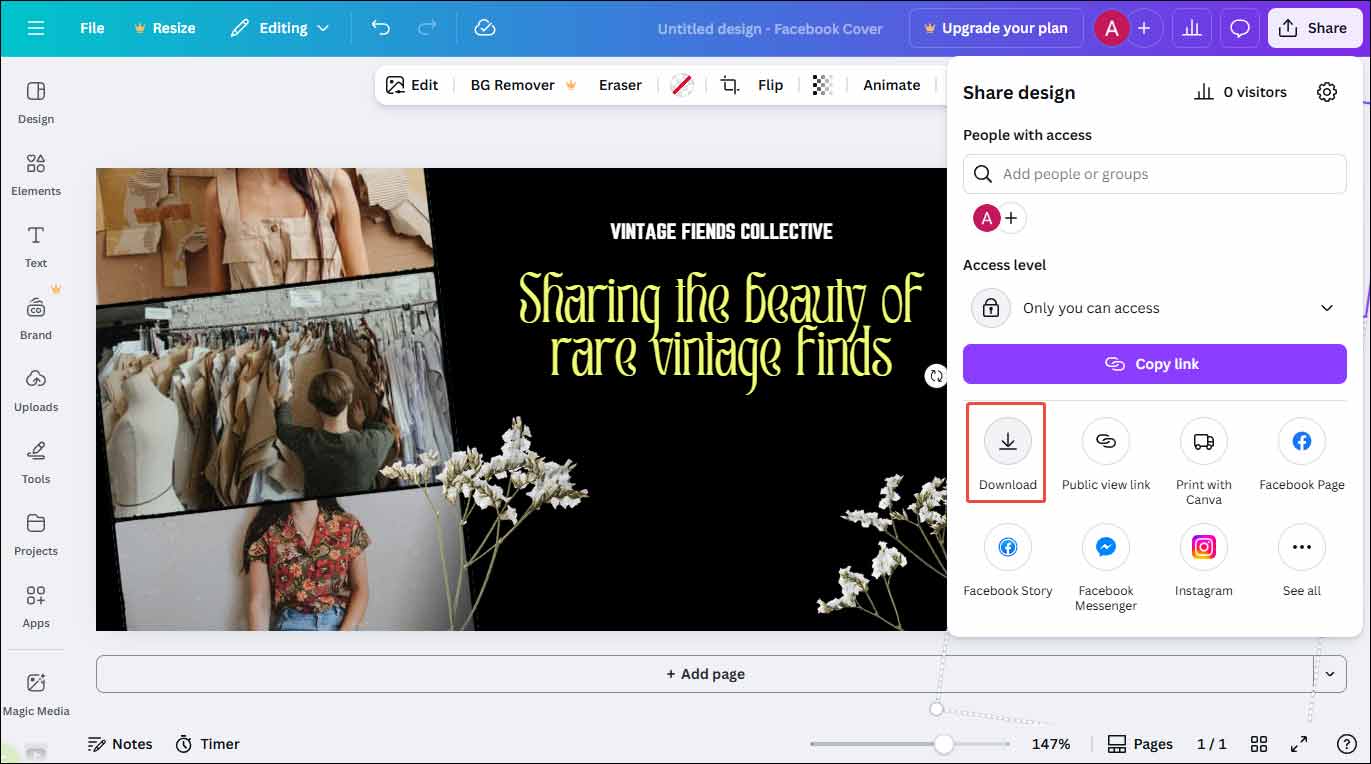
Once editing is finished, click Share at the top of the menu to select Download to save the cover image collage to your computer.
Make a Facebook Cover Photo Collage Using BeFunky
BeFunky is another ideal option to make a Facebook cover photo collage. As a well-known photo editing platform, it delivers comprehensive tools and an intuitive interface. With the abundant up-to-date templates for social media, including Facebook covers, Twitter headers, YouTube thumbnails, and more, you can design a unique image with ease.
To enhance the visual appeal of the Facebook cover, BeFunky allows you to adjust the background color, add decorative elements, and customize the text properties to make the style harmonious.
Here are the detailed steps for making a Facebook cover photo collage using BeFunky.
Step 1: Visit the Official Website
Go to the official website of BeFunky’s Facebook cover photos tool (https://www.befunky.com/features/facebook-cover-photos/) in your browser.
Step 2: Pick a Desired Template
Click Get Started to access the templates library. Select your preferred template to start creation.
Step 3: Customize the Collage
Select the original photo in the template and click Replace to import your image from your computer to replace it. You can also make other adjustments, like adding a color overlay, tint, border, or shadow to the image.
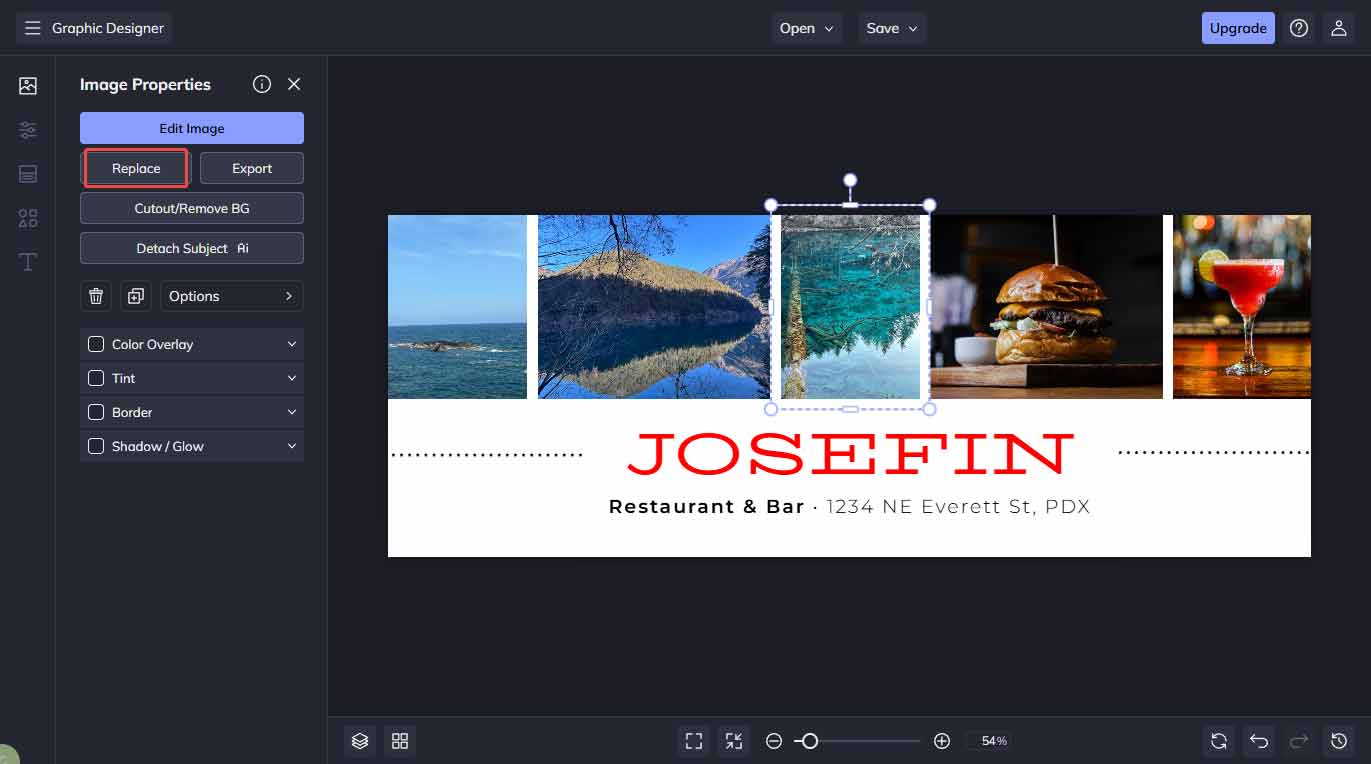
Also, select the text in the template and adjust its properties in the left panel.
Step 4: Save the Final Image
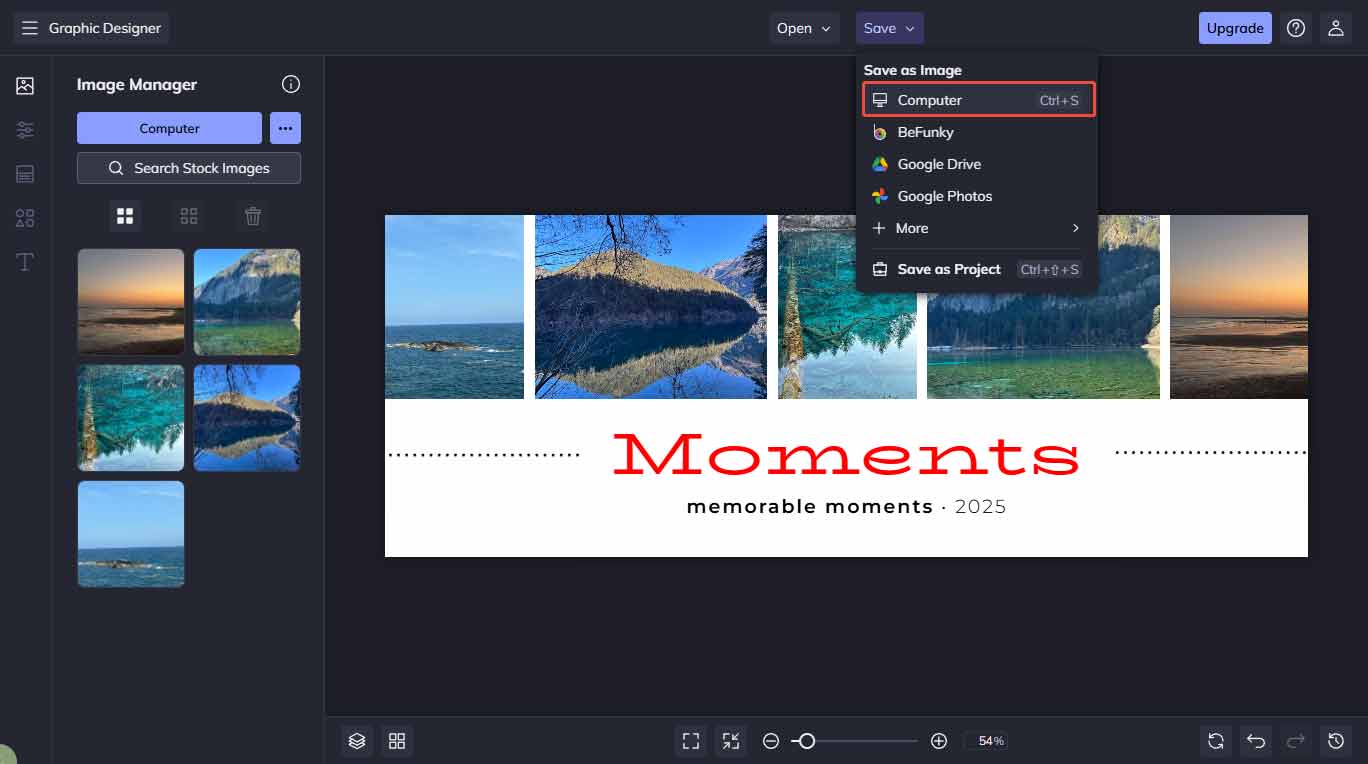
Click Save and select Computer to save the final image to your computer.
Make a Facebook Cover Photo Collage Using Adobe Express
Adobe Express is also an easy-to-use Facebook cover photo collage maker. What makes Adobe Express stand out is that it can generate a unique layout based on your uploaded images. Also, it allows you to apply tons of customizable templates to create a high-quality cover without hassle. What’s more, Adobe Express provides attention-grabbing text effects, such as a title made of chunky blur yarn.
Here is how to make a Facebook cover photo collage using Adobe Express.
Step 1: Go to the Official Website
Visit the official website of Adobe Express (https://www.adobe.com/express/) in your browser. Click the Adobe Express Free icon to use it.
Step 2: Select a Proper Template
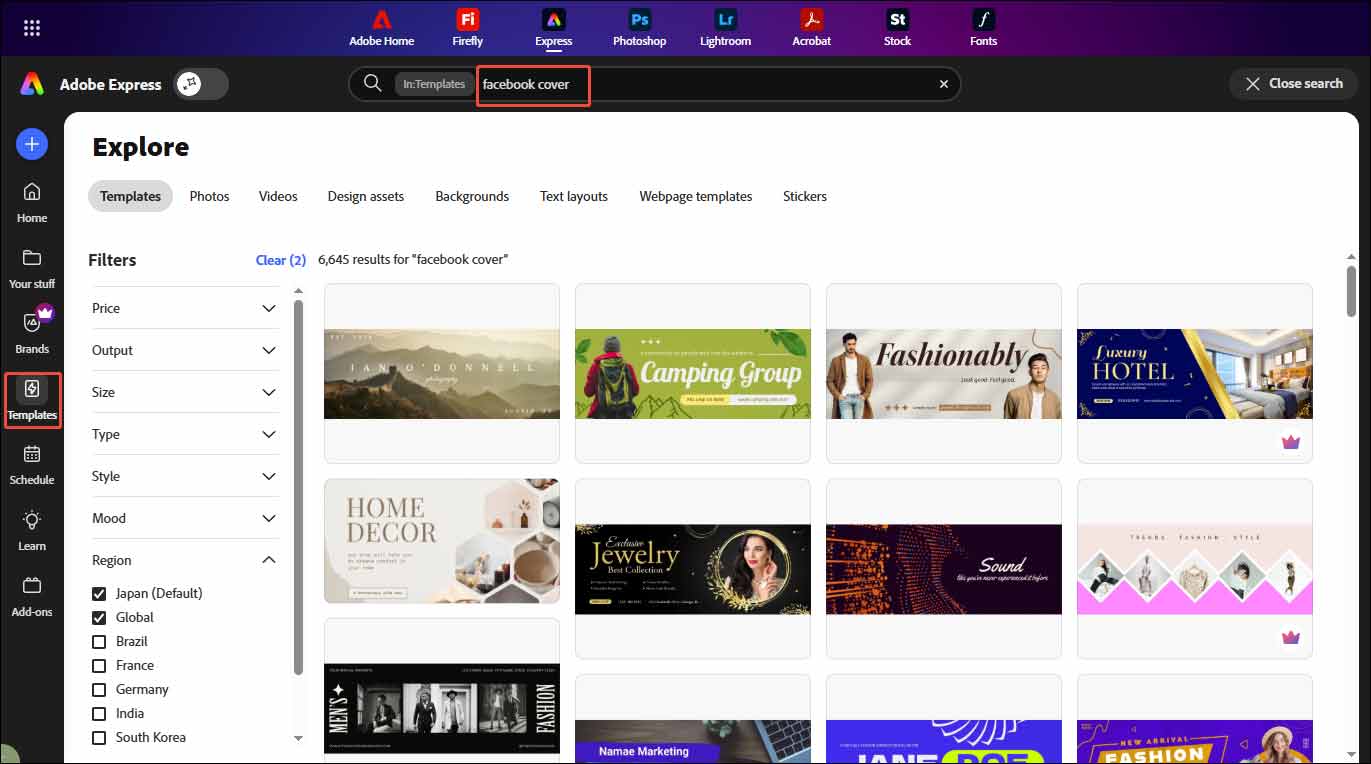
Click Templates on the sidebar and enter Facebook cover to find your desired photo collage template. Click Customize template to adjust it.
Step 3: Customize the Template
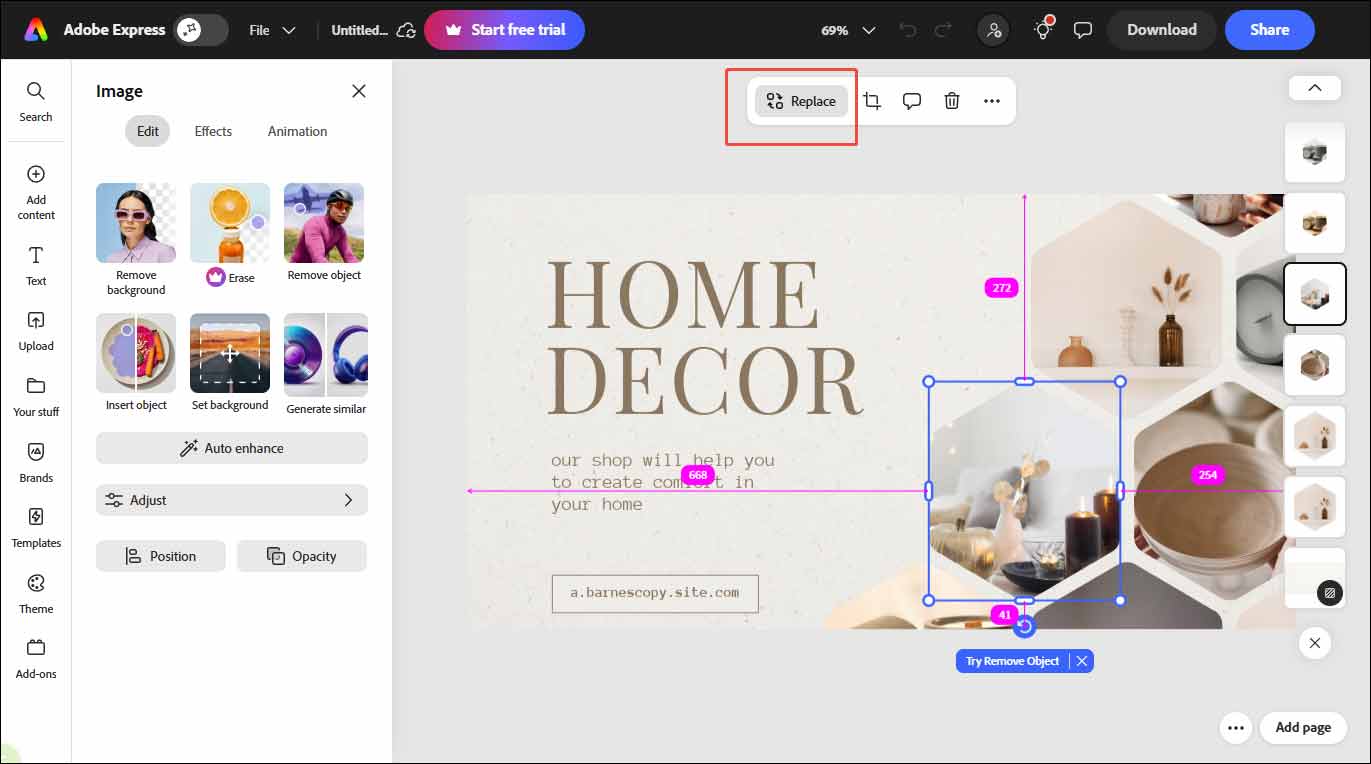
Click the image and click Replace to change it. you can also adjust its properties on the left panel. Select Text and change its fonts, size, and style in the left panels.
Step 4: Export the Final Image
Click the download icon at the top of the menu to save the image to your computer.
Conclusion
This post introduces 3 easy methods to make a Facebook cover photo collage. Select the one platform that best suits your preference and give it a try!
User Comments :