

This post shows you how to edit body shape in videos using the CapCut application. Easily customize your appearance in the footage by adjusting the body shape.
Before posting a video to social media, you might need to edit the face and body shape to enhance appearance, boost confidence, and create a specific aesthetic. How to edit body shape in videos? Here’s a step-by-step guide for you.
How to Edit Body Shape in Video
If you’re searching for a video body editor, you can find some options that are only available on mobile devices. You can hardly find apps to edit body in video on your desktop. The good news is that there’s still a workable video body editor for your computer – CapCut.
A Brief Introduction to CapCut
If you’re a social media content creator, a video enthusiast, a marketer, or a beginner in video editing, you may not be unfamiliar with CapCut, an easy-to-use and powerful video editing application.
As one of the best video editing software, CapCut provides a comprehensive suite of tools and effects for polishing your footage. Whether you want basic editing functions, such as trimming, speed control, cropping, filters, effects, and transitions, or advanced features like keyframe animation, camera tracking, color grading, masking, voice enhancement, and auto captions, the software has you covered.
Moreover, CapCut offers multiple retouching tools for enhancing facial features and body, such as skin smoothing, blemish removal, teeth whitening, and face reshaping. Therefore, if you need a video shape editor for your computer, CapCut is a perfect option.
The software doesn’t offer complex settings to reshape your body in the video. With its AI-powered retouching tools, you can easily adjust the body shape by simply dragging sliders. Additionally, CapCut features a straightforward and user-friendly interface.
Guide to Editing Body Shape Using CapCut
Step 1: Install the video body editor
Visit CapCut’s website or go to the Microsoft Store to download the software. Then, install it on your computer.
Step 2: Import your video
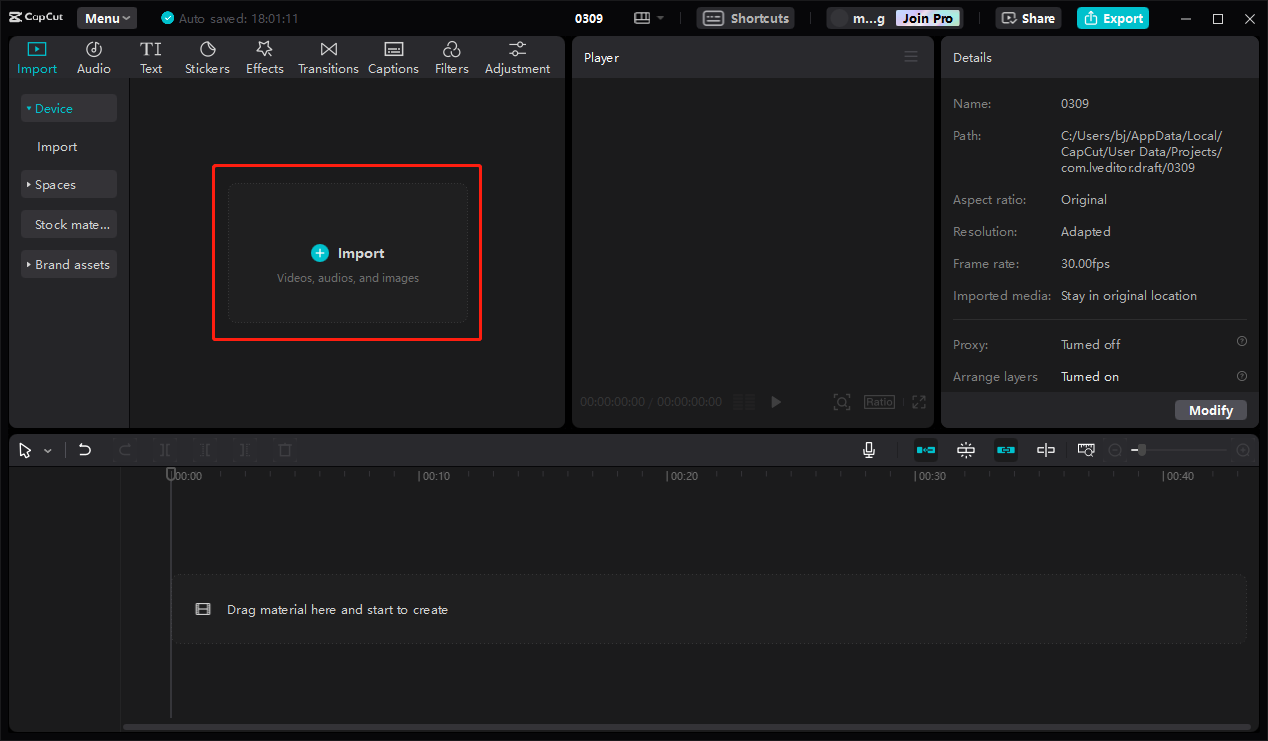
Launch the software and click the + Create project option at the top to start a new project and access the main interface. Click the + Import option to open the File Explorer, locate your target video, and click Open. Then, drag the video to the timeline to start editing.
Step 3: Locate the body editing tools
Select the video on the timeline, then switch from the Basic tab to Retouch on the top right side.
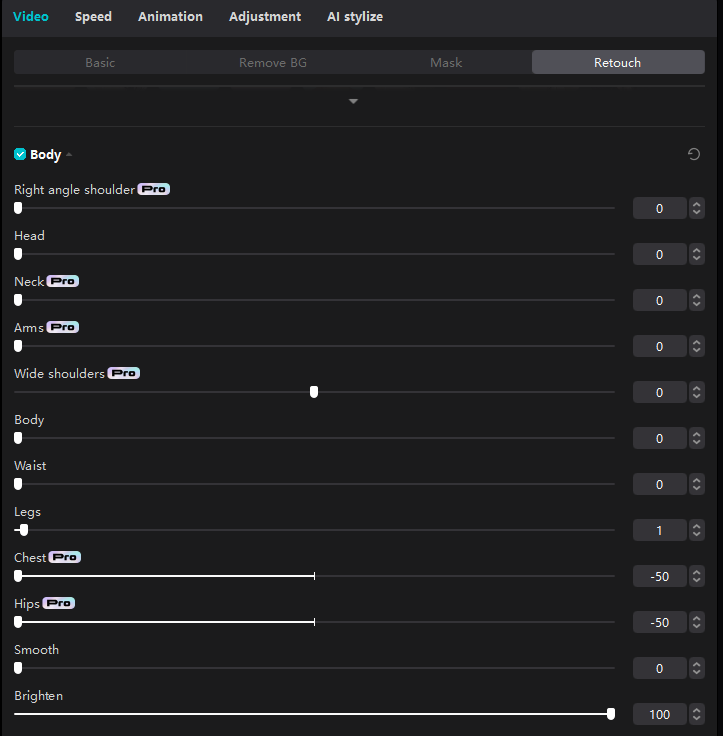
- If you want to adjust your appearance first, check the Retouch option, where you can smooth skin, adjust skin tone, brighten eyes, and more.
- To reshape your face, eyes, nose, eyebrows, and mouth, select the Auto reshape box, and edit each feature individually.
- To apply virtual makeup, such as highlights, eyelashes, and lipstick, check the Makeup option.
- To customize the body shape, scroll down and check the Body option.
Step 4: Edit the body shape
Here is the quick guide to body reshaping tools in CapCut.
- Right angle shoulder: Drag the slider to the right to make the shoulders appear straighter and more upright, helping to create a more confident posture.
- Head: Increase the value to reduce the head size slightly.
- Neck: Move the slider to the right to adjust the length and slimness of the neck.
- Arms: Slime the arms of the person in the video.
- Wide shoulders: Drag the slider to the right to widen the shoulders, and drag it to the left to reduce the width of the shoulders.
- Body: This makes the whole person look slimmer.
- Waist: This creates a slender waistline.
- Chest: Drag the slider to the right or left to make the chest area fuller or create a slimmer bustline.
- Hips: This modifies the width, shape, and curvature of a person’s hip area.
- Smooth: This softens skin texture, reduces blemishes, and diminishes fine lines.
- Brighten: This can achieve a fairer, more luminous complexion.
Step 5: Save the video
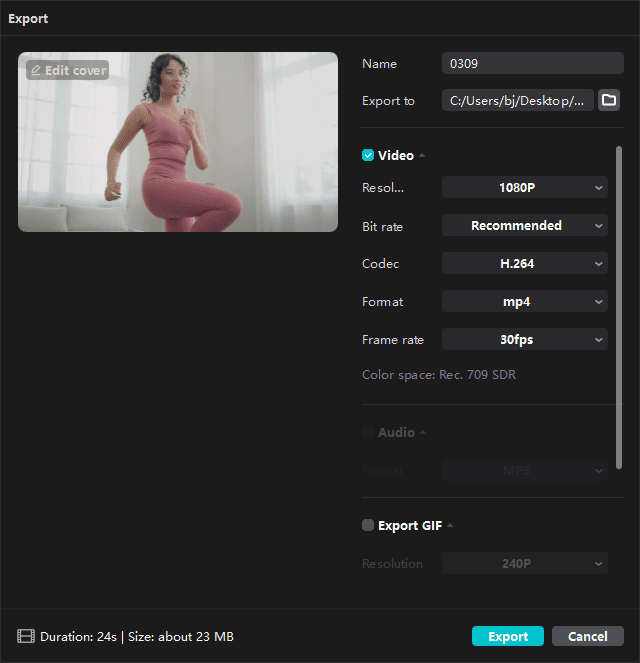
Click Export in the upper-right corner to adjust output settings, such as resolution, bitrate, and format. Finally, click Export at the bottom of the Export window to begin exporting the video.
![[10+ Methods] How to Stop CapCut from Lagging on PC & Mobile](https://images.minitool.com/moviemaker.minitool.com/images/uploads/2024/05/capcut-lagging-thumbnail.jpg)
Conclusion
After checking out this post, I believe you won’t wonder how to edit body shape in videos. CapCut is a powerful and reliable video body editor. You can easily reshape your body in videos using its various tools.
About The Author

Position: Columnist
Cora is a tech writer specializing in digital media workflows, with over six years of hands-on experience in video post-production, media transcoding, and screen capture. Her writing is always clear and practical. Cora also produces in-depth software reviews for users across skill levels to help them find the right tool and enjoy video editing.
User Comments :