

Before we dive into HEIF to PNG conversion, let’s see what these two formats are.
What Is HEIF
HEIF, short for High Efficiency Image File Format, is an efficient modern format used for storing images and image sequences. It can deliver better compression results while maintaining higher quality. In addition, HEIF supports 10-bit color depth and wide color gamut, enabling richer, more lifelike images. It can also store multiple images, depth maps, and videos within a single file.
What is PNG
PNG is a widely used and lossless image file format that can be used for logos, icons, screenshots, images that require a transparent background, and more. It supports varying degrees of transparency and preserves all image details during compression, ensuring crisp and sharp visuals. This makes it particularly well-suited for text and graphic processing.
Converting HEIF to PNG format improves compatibility, allows for transparency, ensures lossless editing quality, and fixes issues with outdated software or devices that cannot identify HEIF files. How to accomplish that? The content below provides three professional tools.
How to Convert HEIF to PNG
Here are three HEIF to PNG converters that can help you complete the conversion task with no effort. Read on for more.
Option 1. FreeConvert
FreeConvert is a popular browser-based file converter that can handle images, videos, audio, documents, and more. It supports a wide range of formats, including HEIF, PNG, JPG, WEBP, SVG, MP4, MOV, MKV, MP3, and more. This online tool features a clean and intuitive user interface, allowing you to effortlessly access every function within it.
Moreover, FreeConvert can serve as a file compressor, compressing videos, audio, images, and documents. It supports multiple platforms, including Windows, Mac, and various mobile devices, allowing you to convert files anytime, anywhere. Most importantly, FreeConvert provides file security guarantees, ensuring that no one except you can access your files.
Now, follow the step-by-step guides below to convert HEIF to PNG.
1. Go to FreeConvert
Go to FreeConvert’s HEIF to PNG converter (https://www.freeconvert.com/heif-to-png).
2. Upload Your Image
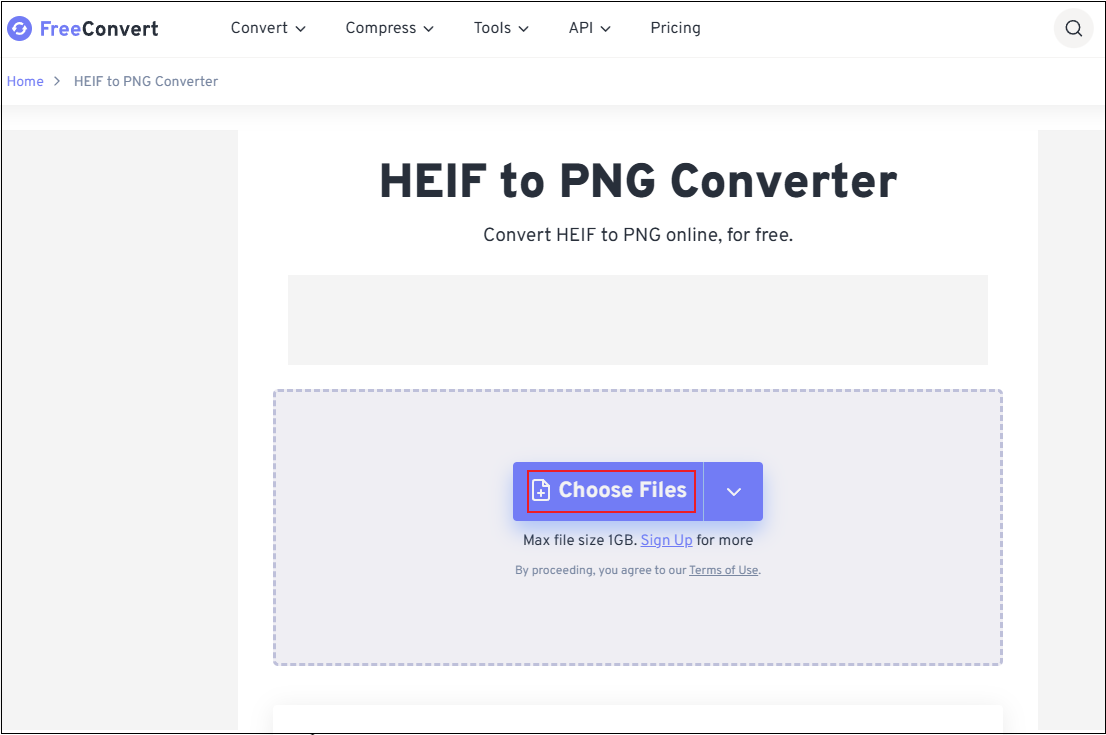
Click the Choose Files button to import the image you want to convert.
3. Adjust Output Settings
The output format is set as PNG by default. You can click the settings icon next to the Output option to access the Advanced Options (Optional) window. There, configure the compression level, image quality, etc., based on your needs. Click Apply to save the changes.
4. Convert HEIF to PNG
Click the Convert option to start the conversion.
5. Download the PNG
When the conversion process completes, click the Download button to save the image to your local folder.
Option 2. CloudConvert
CloudConvert is also an online file converting tool that can convert HEIF to PNG efficiently. It supports more than two hundred formats and high-quality outputs. Additionally, CloudConvert offers various customizable options, like image width and height, quality, etc., tailoring your output files to suit your needs.
Furthermore, CloudConvert can function as an audio converter, video converter, archive converter, ebook converter, document converter, and more, trying its best to meet your requirements.
1. Access CloudConvert’s HEIF to PNG Converter
Visit https://cloudconvert.com/heif-to-png.
2. Upload Your Image File
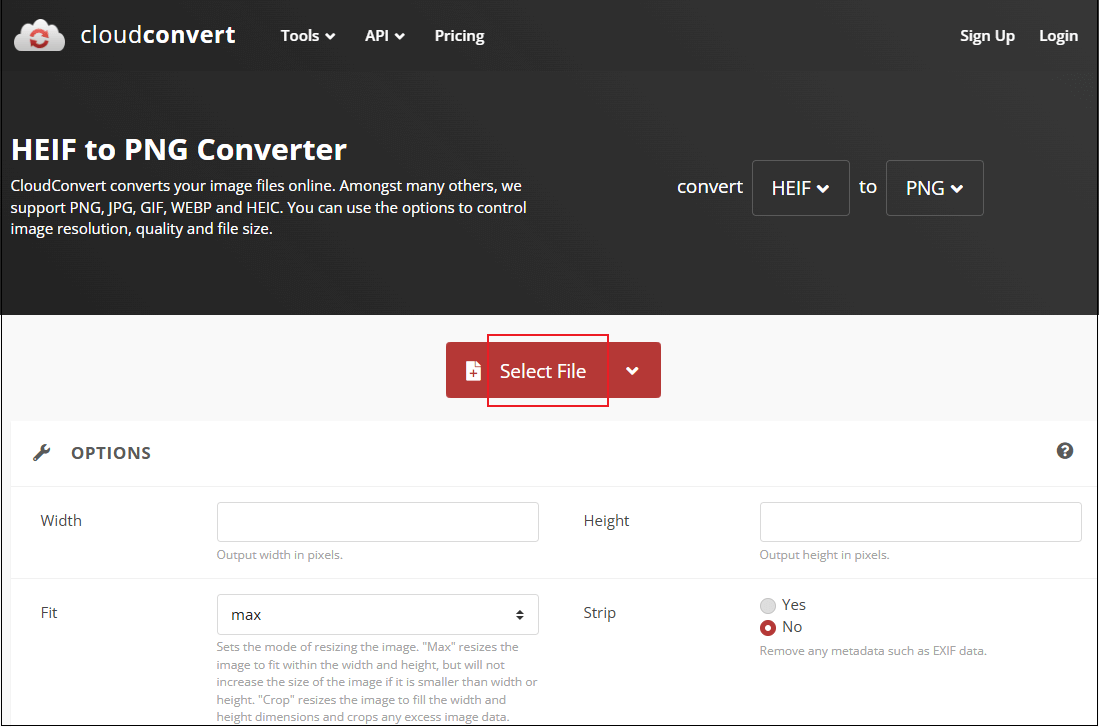
Click the Select File option to import your image.
3. Adjust the Output Image Settings
Click the Tool icon next to the format list to open the Options window. Then, you can adjust settings like quality, width, height, etc. Once done, click Okay.
4. Start Conversion
The output format is set as PNG by default. Click the Convert button to start the conversion.
5. Download the Image
When the conversion is done, click Download to save the image.
Option 3. Fotor
Fotor is an all-in-one and professional online tool that supports a wide range of image conversions, such as HEIF to PNG, JPG to PNG, SVG to JPG, WEBP to JPG, and more. It supports batch conversion, helping you save a lot of unnecessary work and time.
Moreover, Fotor offers various photo editing features, like cropping, overlaying, adding effects, etc. It even comes with AI-powered tools, empowering you to process images in no time.
Here’s how to complete the HEIF to PNG conversion.
1. Go to Fotor’s Image Converter
Visit https://www.fotor.com/convert/heif-to-png/.
2. Upload Your File
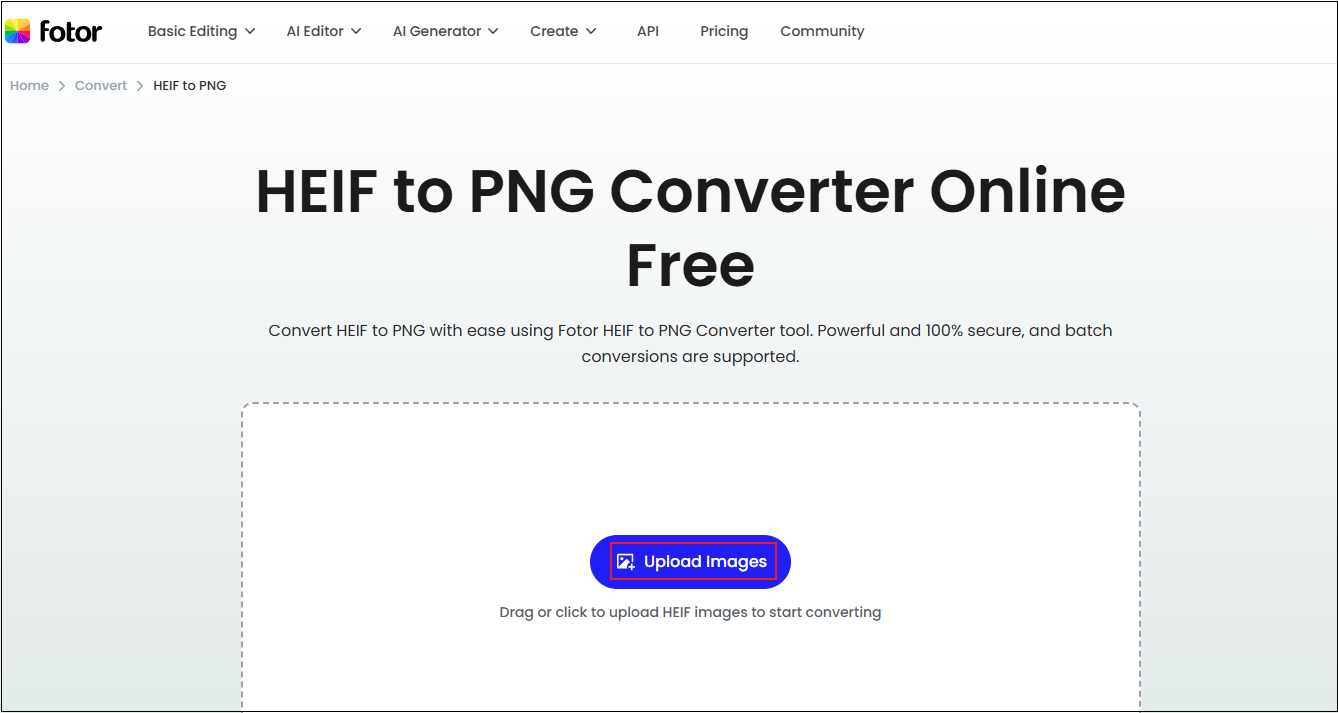
Click the Upload Image button to add your image.
3. Download the Image
The HEIF image will be converted to a PNG image automatically within seconds. Click the Download icon on the converted image to save it.
All finished! With the three tools above, converting HEIF to PNG is easy-peasy!
MiniTool MovieMakerClick to Download100%Clean & Safe
In Summary
This post provides three free and reliable tools to help you convert HEIF to PNG easily and quickly. With them, you don’t have to worry about file privacy leaks and can accomplish your tasks in a flash.
User Comments :