

MPG is a widely used digital video format created by the Moving Picture Experts Group. It can contain high-quality videos, audio, and metadata in a single file. PNG, short for Portable Network Graphic, is a graphic file format that supports lossless data compression. It has a wide compatibility and can process graphics with transparent or semi-transparent backgrounds.
Why Convert MPG to PNG
Converting MPG to PNG allows you to extract individual high-quality static images from video files. This is especially helpful for turning video frames into thumbnails, presentation slides, or advertising photos, and PNG’s lossless compression guarantees that the image quality won’t deteriorate.
Additionally, PNG is ideal for web graphics, charts, and other detail-rich images. Using software to directly convert MPG files into individual PNG images can save a significant amount of time and effort.
How to Convert MPG to PNG
To convert MPG to PNG, I recommend three free and expert file converters. They are all online tools and convenient to access.
Method 1. Use Filestar
Filestar is a highly acclaimed, intuitive file conversion software capable of performing over 30,000 file operations within a single application. With its support for more than 600 file formats, users can convert, merge, divide, compress, and extract a variety of files. The conversion can be performed locally on your computer, effectively safeguarding data privacy and security.
To complete the conversion, follow the tutorials below.
1. Download and Install Filestar
Go to Filestar’s official website to download and install it on your computer.
2. Import Your File
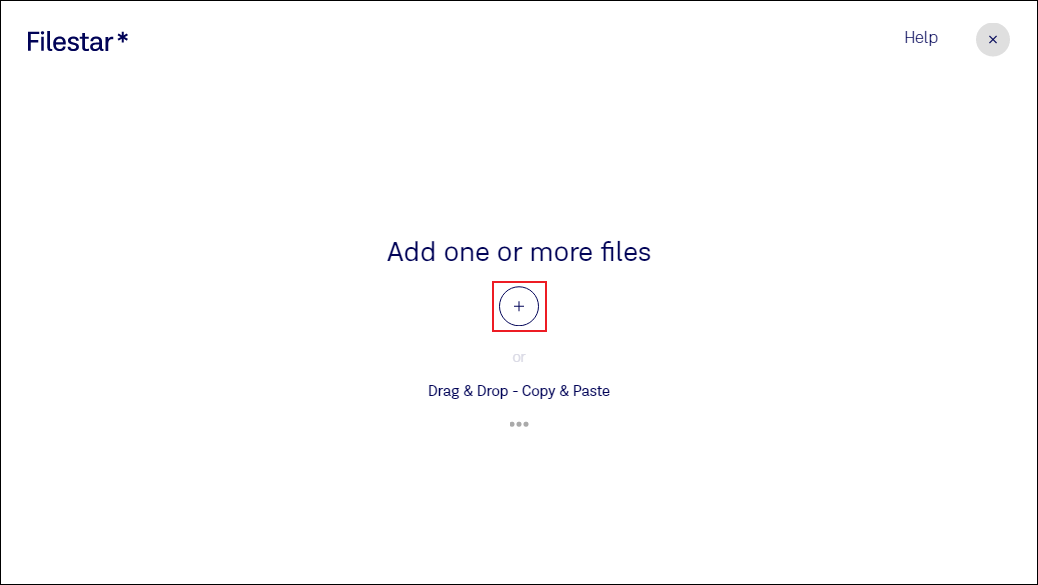
Launch this program to enter its main interface. Click the + button to add your MPG file.
3. Choose the Output Format
Type PNG into the search box and choose the convert to png option.
4. Start the Conversion
Click the Convert button to start the conversion. Once done, save the file to the local folder.
Method 2. Use MConverter
MConverter is an all-in-one online conversion toolkit that provides fast and easy conversions. It works with various platforms, including Windows, macOS, Android, iOS, and others. Additionally, this file converter supports a wide range of file formats and maintains high-quality files. With it, you can complete the conversion task with no effort. Just follow the instructions below.
1. Access MConverter’s MPG to PNG Converter
Visit https://mconverter.eu/convert/mpg/png/.
2. Upload the MPG File
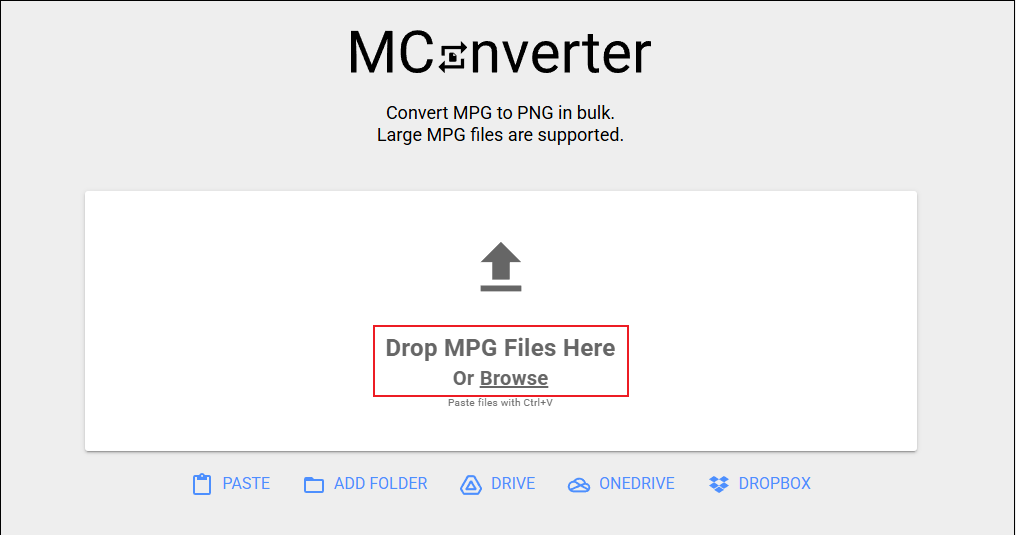
Click the Drop MPG Files Here Or Browse option to add the target file.
3. Start the Conversion
Choose the PNG format in the Image section. Then, the conversion will start instantly.
4. Download the File
Click the DOWNLOAD ALL TO FOLDER option to save all the images to your local folder. If you don’t want to download all the images, just click the download icon next to the target one.
Method 3. Use online-convert.com
Online-convert.com is also a browser-based file converting tool that supports a wide range of formats, including MPG, MP4, MKV, MOV, AVI, PNG, JPG, TIFF, ARW, MP3, and more. Moreover, online-convert.com allows you to change the output image size, apply a color filter, set DPI, etc. Furthermore, this comprehensive tool can serve as an archive converter, document converter, eBook converter, etc.
Now, follow the guides below to finish the conversion task.
1. Go to Online-convert.com’s MPG to PNG Converter
Visit https://image.online-convert.com/convert/mpg-to-png.
2. Upload Your File
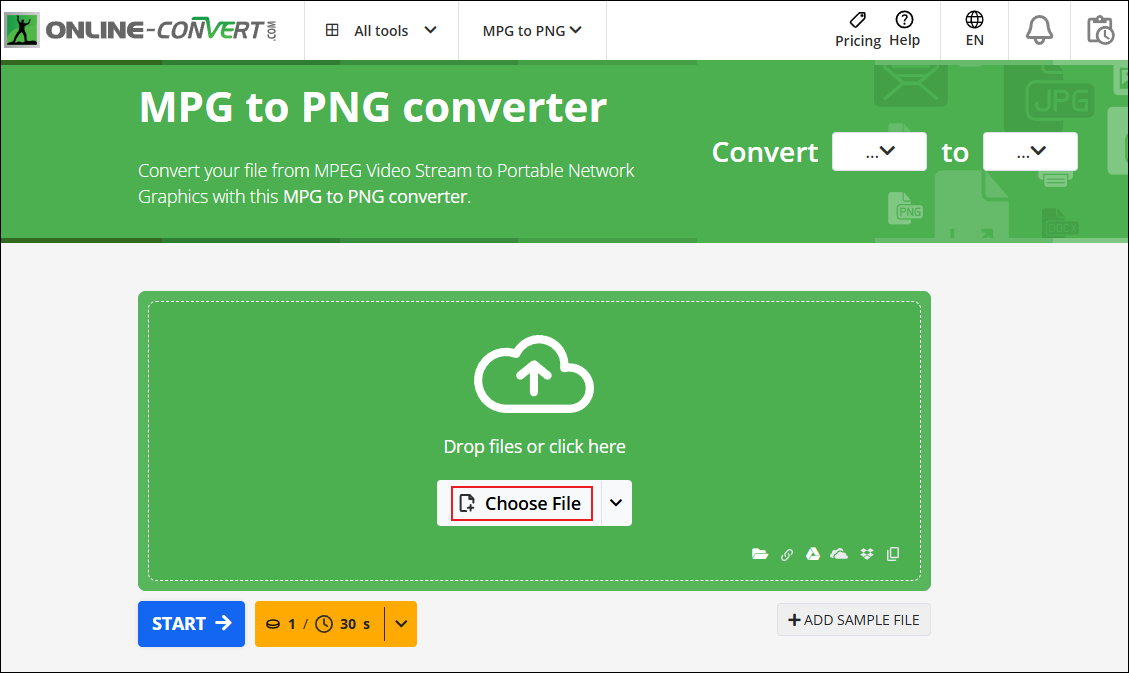
Click the Choose File button to import the file you want to convert.
3. Start Converting MPG to PNG
Click the START button to start the conversion.
4. Download the Converted Files
Check the target images and click Download selected to save them to the local folder.
All done!
MiniTool MovieMakerClick to Download100%Clean & Safe
In Summary
This post provides three free and reliable file converters and guides you through the whole conversion process step by step. With the three tools mentioned above, you can convert MPG to PNG with no effort. Hope this article can do you a big favor!
User Comments :