

What Is BMP
The BMP file format is a raster graphics image file format used to store bitmap digital images, suitable for the Windows system. It was created by Microsoft. This format was designed to enable images to be viewed on devices other than Windows systems without requiring additional image adapters.
BMP is an uncompressed format. So, it is perfect for preserving and displaying high-resolution images. Typically, each pixel in a BMP file holds up to 24 bits of information, enabling the representation of millions of colors. Therefore, BMPs usually have a larger file size than PNGs or JPEGs.
What Is EPS
EPS, also known as Encapsulated PostScript, is a type of vector graphic file. It is a lossless format, making them store images without quality loss. Also, EPS files can be scaled infinitely without losing quality. Therefore, EPS is commonly used to print logos, illustrations, or other images that require high quality. However, because of the complexity of EPS files, their compatibility is not as widespread as other image formats. They can only be opened in certain types of software.

How to Convert BMP to EPS
Here are three effective methods to convert BMP to EPS.
Method 1. Use FreeConvert
FreeConvert is an online free file converting tool that supports a wide range of image formats, such as BMP, EPS, JPG, PNG, GIF, WebP, SVG, ICO, TIFF, RAW, etc. It features an intuitive interface, allowing for effortless navigation. In addition, FreeConvert enables you to customize multiple output settings, like compression level, image quality, and aspect ratio. Now, you can follow the instructions below to complete the conversion.
1. Access FreeConvert
Go to FreeConvert’s official website. (https://www.freeconvert.com/)
2. Upload Your Image
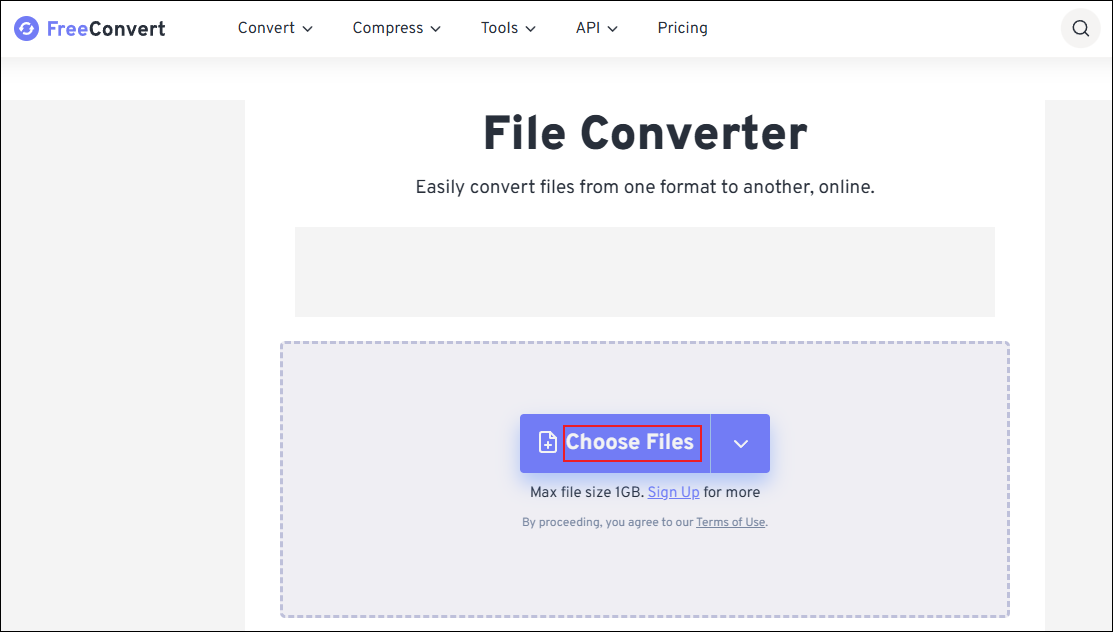
Click the Choose Files option to import the image you want to convert.
3. Choose the Output Format
Expand the Output option and choose EPS.
4. Convert BMP to EPS
Click the Convert button to start the conversion.
5. Download the Image
When the conversion process completes, click the Download option to save the image.
Method 2. Use Convertio
Convertio is also a browser-based BMP to EPS converter that offers a quick conversion. It supports various file types, like images, videos, audio, documents, and more, enabling you to convert between different formats easily. Additionally, Convertio takes your file security very seriously. No one can access your files except you.
Here’s how to convert BMP to EPS using Convertio.
1. Go to Convertio
Access Convertio’s BMP to EPS converter. (https://convertio.co/bmp-eps/)
2. Upload Your File
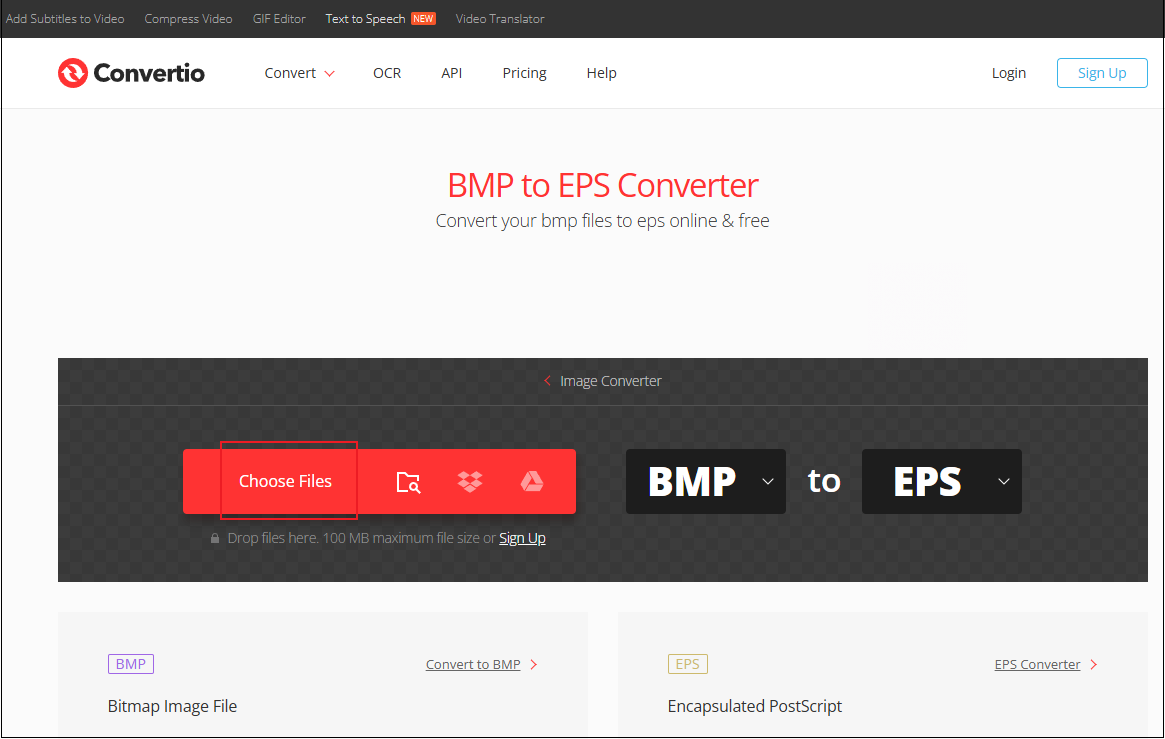
Click the Choose Files option to add the target file.
3. Start Conversion
Click the Convert button to convert BMP to EPS.
4. Download the Converted File
Click the Download button to save the converted file.
Method 3. Use CloudConvert
CloudConvert is an easy-to-use and professional file converter that can be used without installation. It supports more than 200 formats, empowering you to convert images, audio, videos, e-books, and more. Besides, CloudConvert provides high-quality outputs and customizable parameters. Follow the tutorial below to complete the task.
1. Access CloudConvert’s BMP to EPS Converter
Visit https://cloudconvert.com/bmp-to-eps
2. Upload Your Image
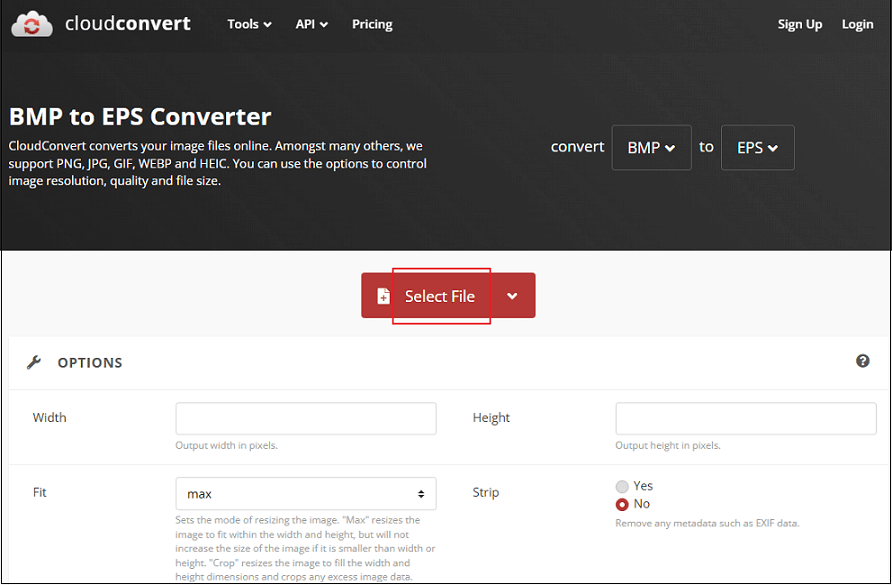
Click the Select File option to import your image file.
3. Start the Conversion
Click the Convert button to start conversion.
4. Download the Converted Image
Click the Download button to save the image to your folder.
That’s all!
MiniTool MovieMakerClick to Download100%Clean & Safe
In Summary
This post provides three easy and free methods to convert BMP to EPS on Windows. With the three tools mentioned above, the conversion task will be a breeze! Hope you find this article helpful.
User Comments :