

What Is RGB
The RGB color model is an additive color model that reproduces a wide range of colors by mixing the three primary colors of light—red, green, and blue—in various ways. The primary purpose of the RGB color model is to facilitate image perception, representation, and display in electronic systems, such as televisions and computers.
Furthermore, RGB is a device-dependent color model, meaning that different devices detect or reproduce the same RGB value differently. Typical RGB devices include color televisions, video cameras, image scanners, digital cameras, television sets of various technologies, computer and mobile phone displays, video projectors, and so on.
What Is CMYK
CMYK is a subtractive color model used in printing, representing Cyan, Magenta, Yellow, and Black. These four inks create millions of colors by overlaying ink dots on white paper, deepening hues by reducing light. One of the primary uses of the CMYK color model is printing. It is the preferred mode for color printing because it enables precise color matching.
One advantage of CMYK is its ability to provide true color matching and maintain color consistency more reliably. For bulk printing, this ensures that colors remain consistent across every printed piece. On the other hand, RGB may exhibit slight color variations, which makes it difficult to guarantee color consistency. Therefore, CMYK is an ideal choice for printing.
How to Transform RGB to CMYK
Here are three methods to convert RGB to CMYK on your PC. Read on.
Method 1. Use Adobe Photoshop
Adobe Photoshop is industry-leading graphic editing software that can transform RGB to CMYK easily and efficiently. Follow the step-by-step instructions below to complete the conversion.
1. Get Adobe Photoshop
Go to Adobe Photoshop to subscribe, download, and install it on your computer. Then, launch this program.
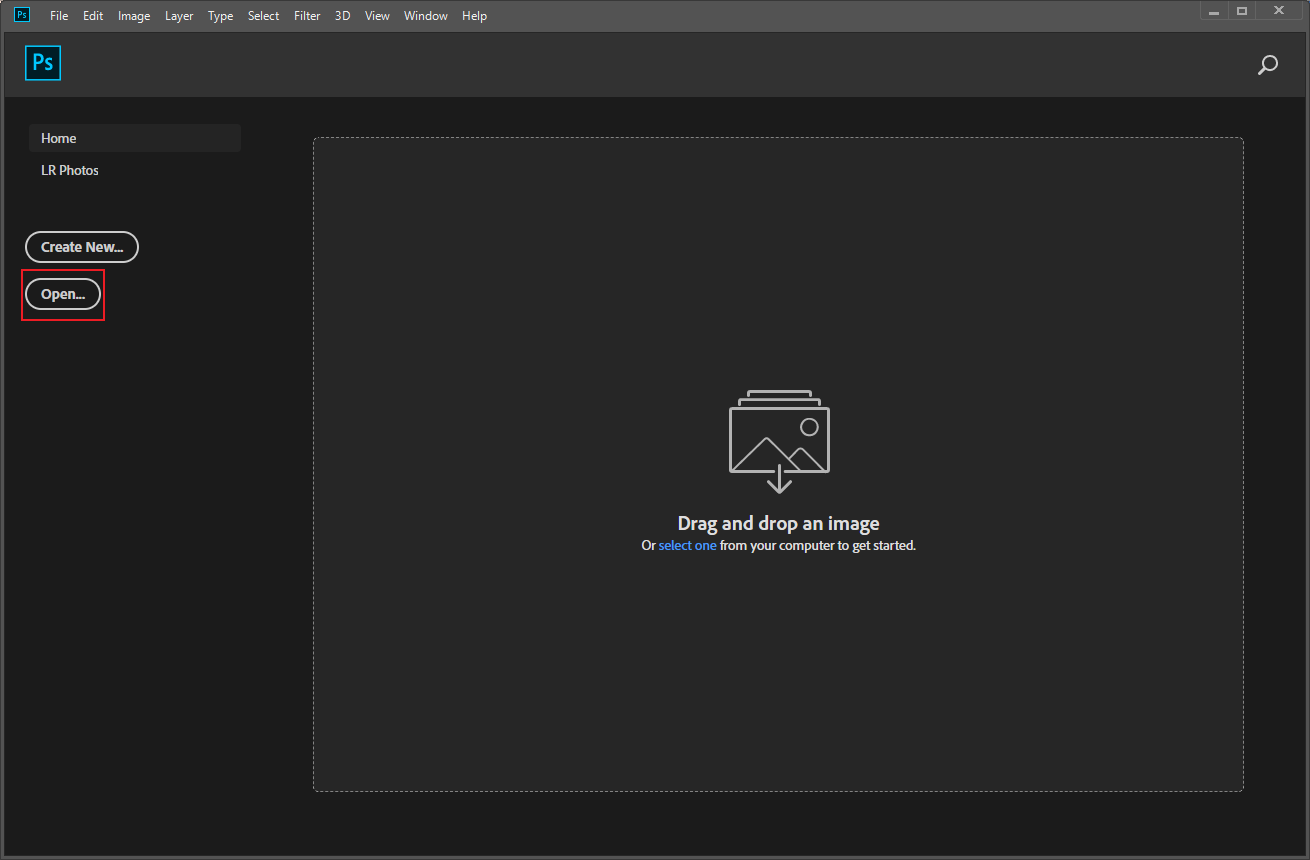
2. Open Your Image
Click the Open… option to import the target image.
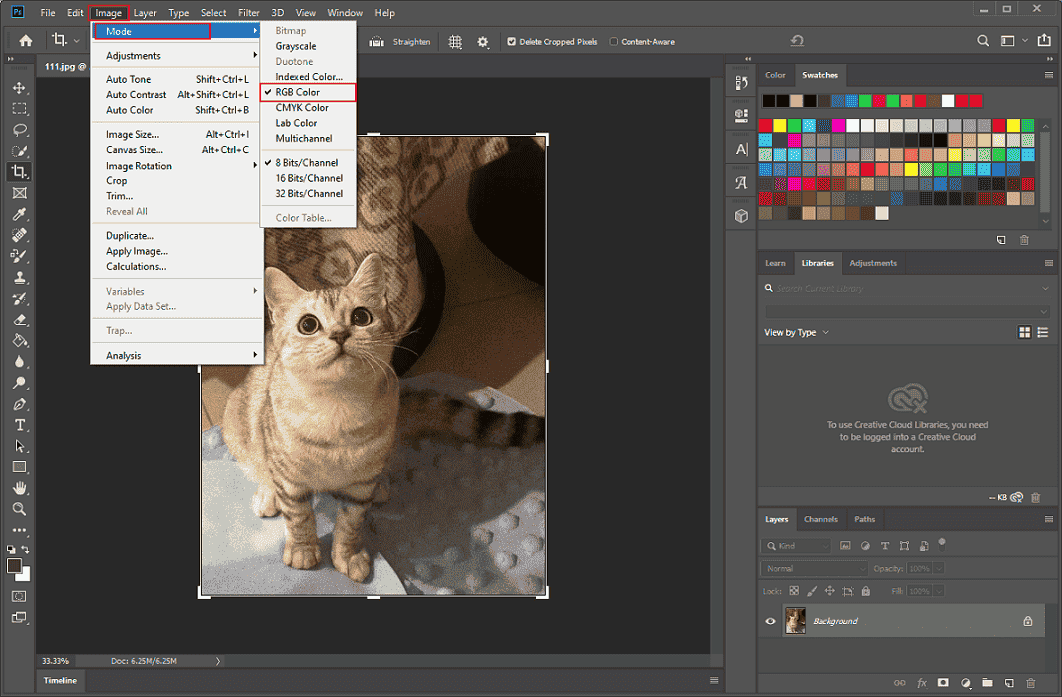
3. Check the Color Mode
Go to the Image tab in the top menu and click Mode to check. As you can see, this picture is in the RGB mode.
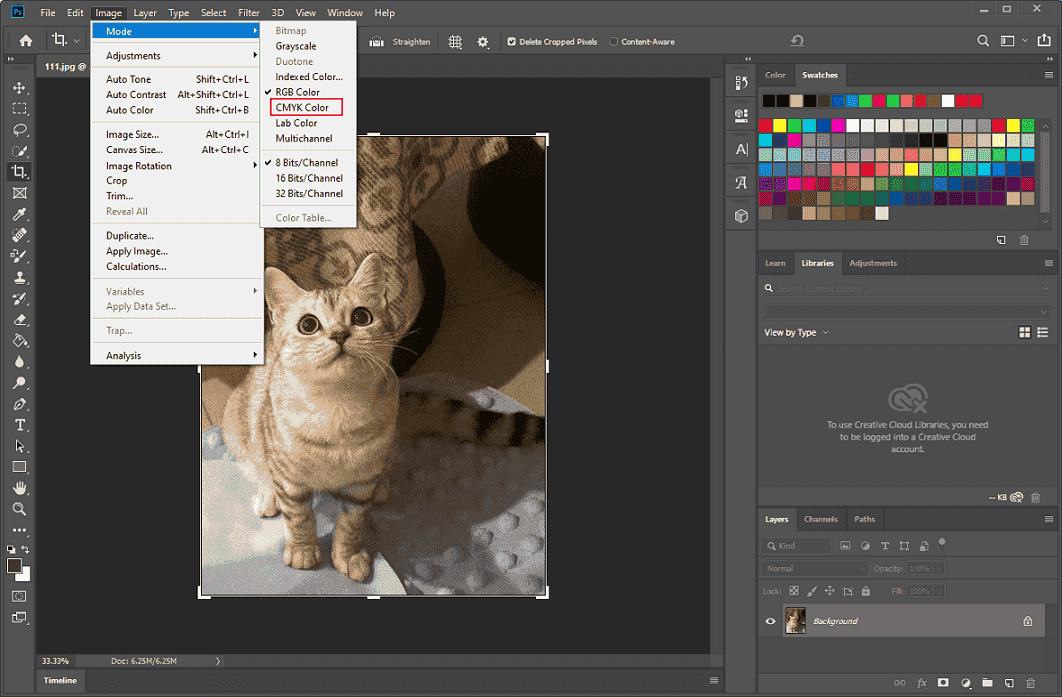
4. Convert RGB to CMYK
Following the previous step, choose the CMYK Color option. Then, click OK in the pop-up window.
5. Save the Image
Click the File option at the top left and click Save As… to save the image.
Method 2. Use Adobe InDesign
Adobe InDesign is also a professional publishing and layout software used for creating magazines, books, business cards, etc. It enables you to use a CMYK profile while exporting PDFs for printing or by modifying connected RGB images in Photoshop and saving them as CMYK.
Here’s a detailed guide:
1. Download and Install Adobe InDesign
Visit InDesign’s official website to download and install it.
2. Open Your Document
Launch InDesign, go to File, and click Open to import your file.
3. Check the Color Mode
Head to Window, choose Color, and click Swatches to access the Swatches panel. If CMYK values display, your image is already in CMYK mode. If there are RGB colors in your document, move to the next step.
4. Transform RGB to CMYK
Convert Individual Colors: In the Swatches panel, double-click the color swatch, expand the Color Mode dropdown list, select CMYK, and adjust the desired values.
Convert All Colors in the Document: Go to Edit and click Convert to Profile. Then, choose a CMYK profile as needed and click OK.
5. Export the File
Go to File, click Export, and select Adobe PDF (Print).
Method 3. Use Canva
Using Canva to convert RGB to CMYK is also an ideal option. You need to select “PDF Print” during the download process and choose the CMYK Color Profile to complete the task. Here’s how.
1. Open your File in Canva Pro
Go to Canva Pro, log in, and open the target file.
2. Convert RGB to CMYK
Choose the File option at the top left and choose Download. Choose PDF Print from the File type dropdown list. Then, choose CMYK from the Color Profile dropdown list.
3. Download the File
After choosing PDF Print and Download, your file will be saved in CMYK color mode.
All done!

In Summary
This post provides three effective methods to convert RGB to CMYK quickly. Choose the preferred one to complete the conversion journey.
User Comments :