

What Is a Gradient Background
A gradient background is a type of background design where colors gradually blend into each other, creating a smooth transition effect. Instead of using a single solid color, a gradient combines two or more colors to produce a more dynamic and visually appealing look.
Gradients can vary in style depending on how the colors transition. The most common types include:
- Linear gradients: Colors change along a straight line, such as from top to bottom or left to right.
- Radial gradients: Colors radiate outward from a central point, forming a circular or elliptical pattern.
- Conic gradients: Colors rotate around a center point, creating a sweeping effect.
Gradient backgrounds are widely used in graphic design, websites, presentations, and social media visuals. I often use them to add depth, highlight content, or create a modern aesthetic without making the design too complex.
How to Make a Gradient Background
This section explains how to make a gradient background using Photoshop, Canva, and Adobe Express.
Method 1: Use Photoshop
Photoshop is one of the most popular graphic design software programs. In terms of gradient background, it provides powerful tools that make it easy to create both simple and complex backgrounds. Here’s how to make a gradient background in Photoshop:
Step 1: Create a New Document
Open Photoshop and click File > New. Set the desired width, height, and resolution for the background. Then click Create to open a blank canvas.
Step 2: Select the Gradient Tool
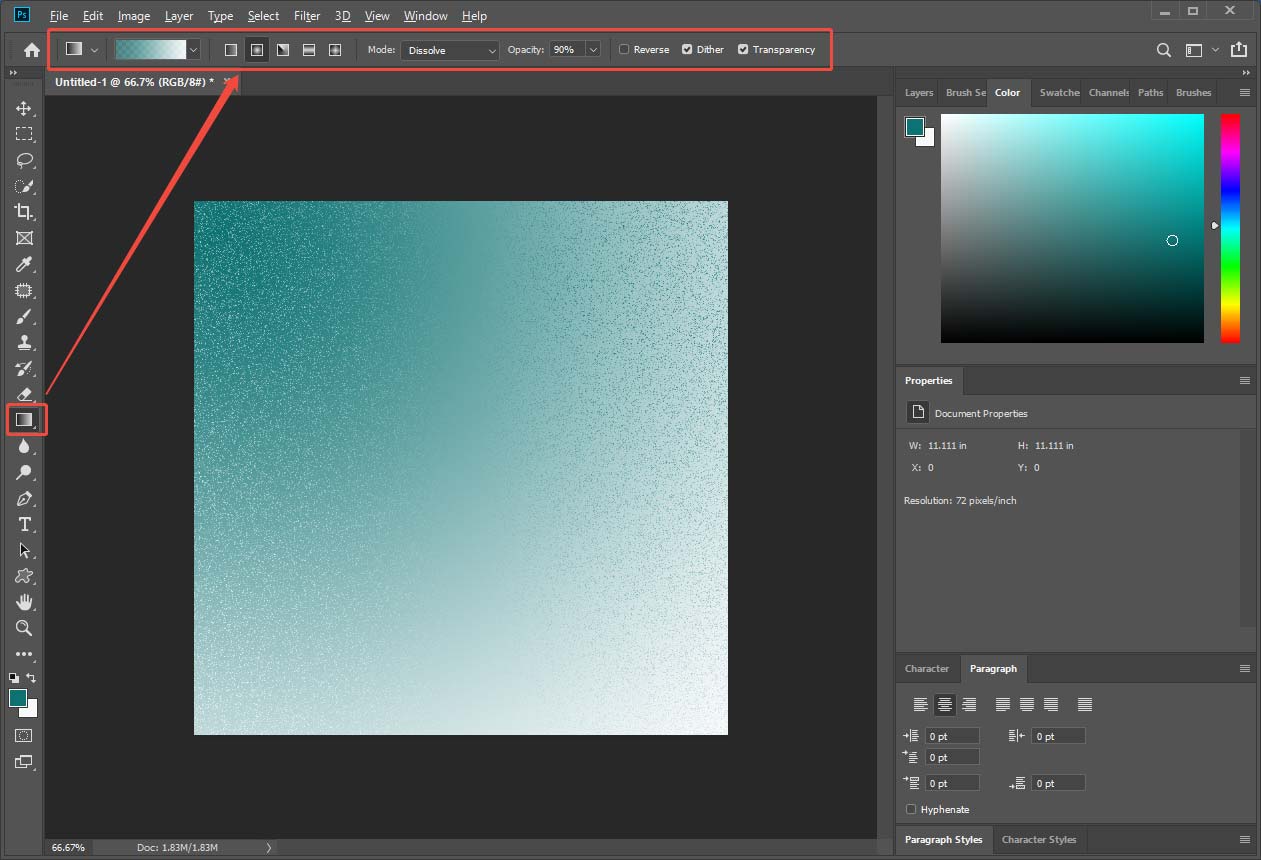
From the toolbar on the left, choose the Gradient Tool or press G. At the top of the screen, choose a preset or click on the color bar on the right panel to create custom color stops. Then, select a gradient style beside the preset from Linear, Radial, Angle, Reflected, or Diamond. Choose a proper mode and adjust the opacity.
Step 3: Apply the Gradient
Click and drag across the canvas to create the gradient. The result can be previewed in real time. Then, go to File > Export > Export As to save the image in formats like JPG or PNG.
![Solved: How to Remove Background in GIMP [A Step-by-Step Guide]](https://images.minitool.com/moviemaker.minitool.com/images/uploads/2026/04/how-to-remove-background-in-gimp-thumbnail.png)
Method 2: Use Canva
For a quicker and more beginner-friendly way to create a gradient background, Canva is a perfect option. It offers ready-made gradient elements and an intuitive interface, making the whole process fast and effortless. Here’s how to make a gradient background in Canva:
Step 1: Open Canva and Create a Design
Go to Canva (https://www.canva.com/) and log in. Click Create and select Custom size. Enter concrete values for width and height or select the suggested social media image size. Click Create new design to access the main editing interface.
Step 2: Search for Gradient Elements
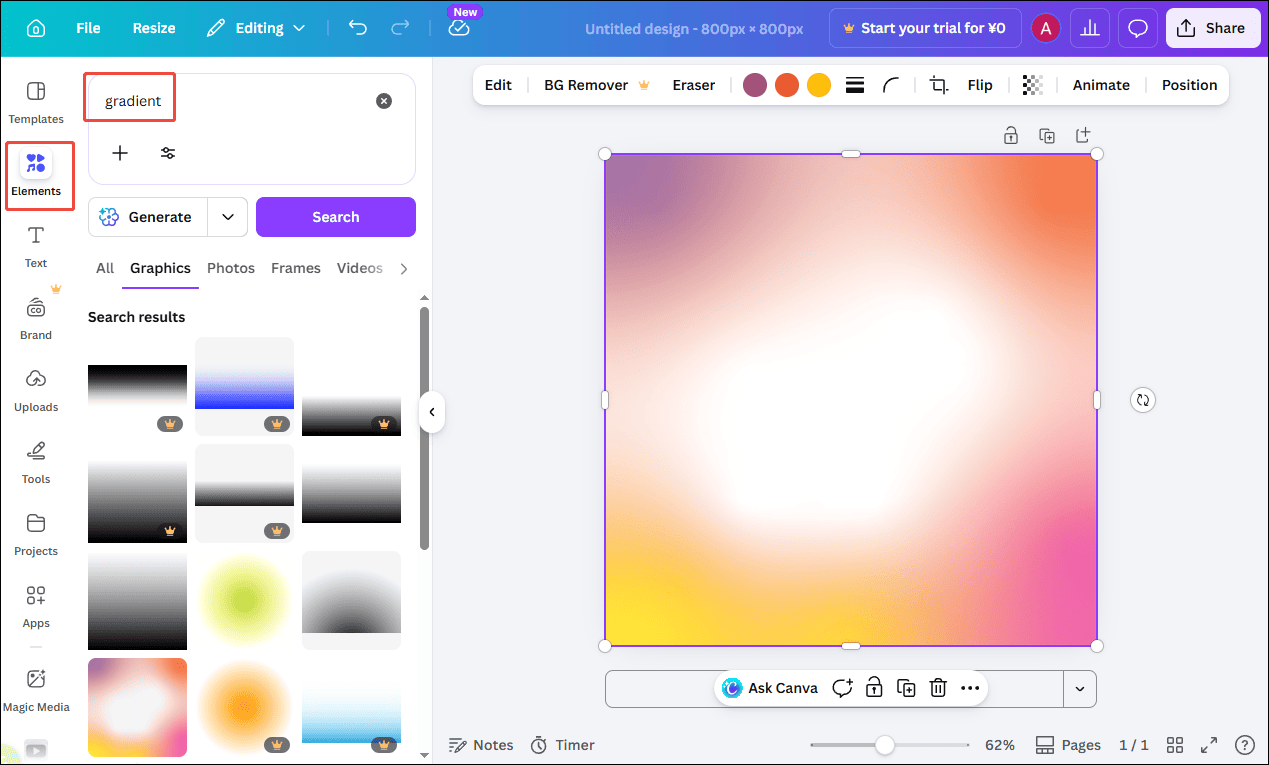
On the left panel, click Elements and type gradient in the search bar. Canva provides a variety of gradient styles, including simple blends and more colorful designs. Select a desired one and add it to the canvas.
Step 3: Edit the Gradient Elements
Drag the corners to resize it until it covers the entire background. I can rotate the gradient, flip it, or adjust transparency to create different visual effects.
Step 4: Download the Image
Click Share, select Download, and choose a format like PNG or JPG. Then, save the gradient background to the computer.
Method 3: Use Adobe Express
Adobe Express is another web-based graphic editing platform. It provides simple controls along with stylish presets, making it easy to create polished gradient backgrounds without advanced editing skills. Here’s how to make a gradient background in Adobe Express.
Step 1: Open Adobe Express
Go to how to make a gradient background page on Adobe Express (https://www.adobe.com/uk/express/discover/how-to/background/gradient) and sign in. Click Start designing with Adobe Express to enter the editing interface.
Step 2: Add a Background
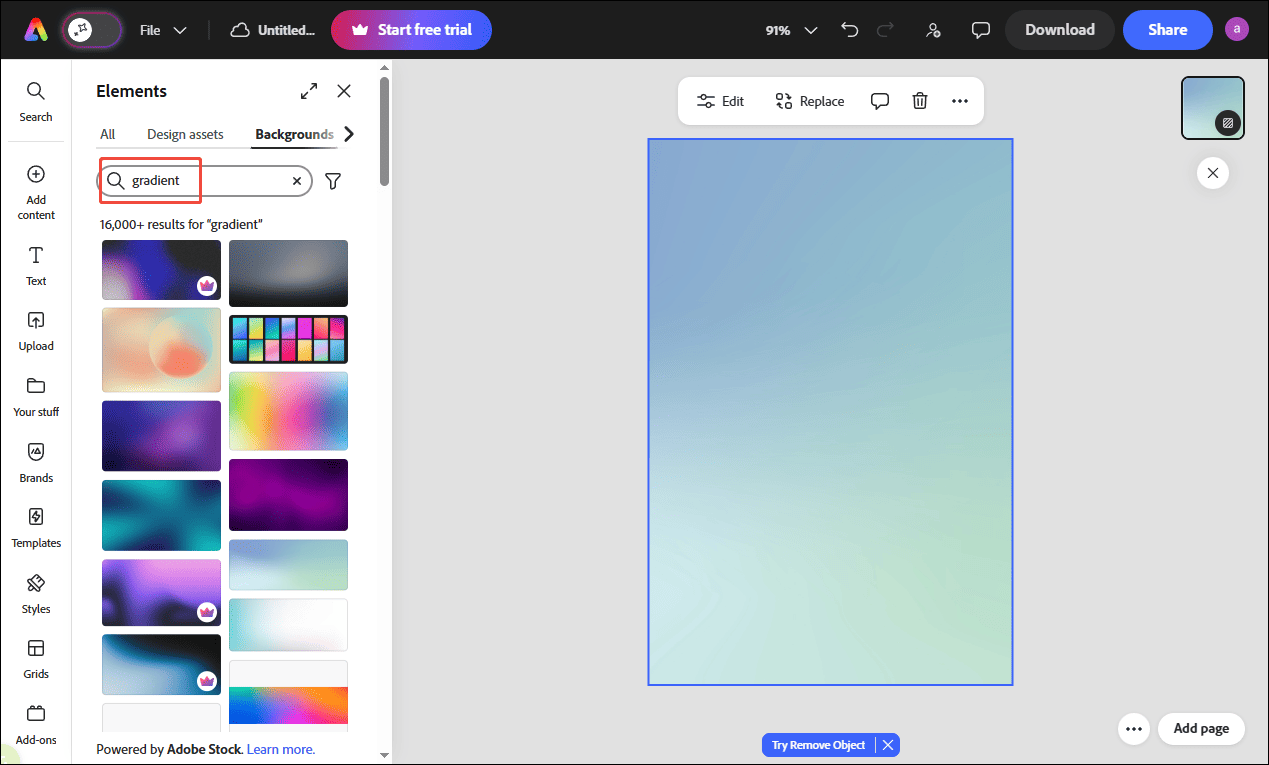
On the left panel, search gradient. Adobe Express offers gradient templates, photos, videos, backgrounds, design assets, and other elements. Click View all to find all available gradient backgrounds. Click a desired one and add it to the canvas.
Step 3: Customize the Gradient
Click on the background to adjust its properties, including contrast, brightness, saturation, and more. If needed, I can add text, shapes, or images on top of the gradient background to enhance the visual effect.
Step 4: Download the Background
Once finished, click Download and choose a format like PNG or JPG to save the image.
Conclusion
Creating a gradient background on Windows is easier than it might seem, especially with the right tools. In this guide, I explored how to make a gradient background using Adobe Photoshop, Canva, and Adobe Express. Choose the tool that best fits your taste and start your creation right now.
User Comments :