

How to combine AIFF files on Windows? This post has curated two excellent AIFF joiners, including Microsoft Clipchamp and Audio Joiner by 123Apps, to combine your audio tracks into a single, seamless file with ease.
AIFF (Audio Interchange File Format) is an uncompressed, lossless audio file format. It’s commonly used to store music recordings and save high-quality audio tracks.
One day, while I was organizing my computer, I came across a folder with a bunch of AIFF audio files. After listening to some of the separate tracks, I wondered how to combine these files to create a continuous playlist, which is also beneficial for easier sharing and better management.
After my test, I found two effective tools for this task. In this post, I’ll demonstrate, based on my experience, how to combine AIFF files using Microsoft Clipchamp, Audacity, and Audio Joiner by 123Apps.
How to Combine AIFF Files
Here are two effective methods to join multiple AIFF files into a single file.
Method 1: Use Microsoft Clipchamp
Microsoft Clipchamp is my favorite video editor, as it comes pre-installed on my Windows 11 computer. Therefore, I can start editing a video without spending time installing it. I’m familiar with the software, and I know it also works as a simple audio editor for quick edits, such as merging and trimming audio tracks, and adjusting volume.
How to combine AIFF files using Microsoft Clipchamp? Follow me.
Step 1: Launch the software
Since I’m running Windows 11, Microsoft Clipchamp is built into the system. Therefore, I can easily open the application from the Start menu. If you’re using Windows 10, go to the Microsoft Store to install the software. After opening the application, sign in with a Microsoft account.
Step 2: Import the AIFF files
Click the Create a new video button at the top of the page to enter the main interface of Microsoft Clipchamp. Next, click Import media in the upper left to upload the target AIFF files from the computer.

Step 3: Combine AIFF files
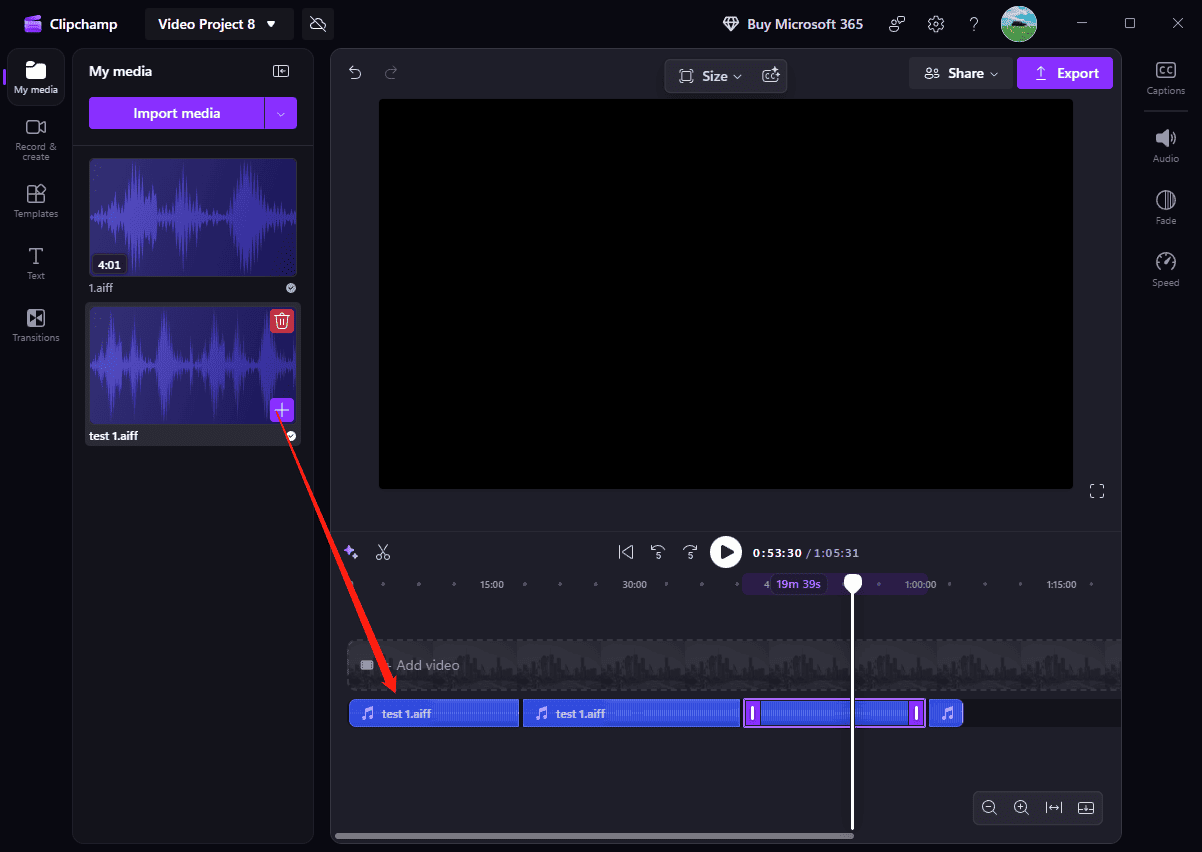
Click the + icon on the clip or drag the added audio file to the timeline. Next, adjust the clips’ order by dragging and dropping them on the timeline.
Step 4: Edit the AIFF files (optional)
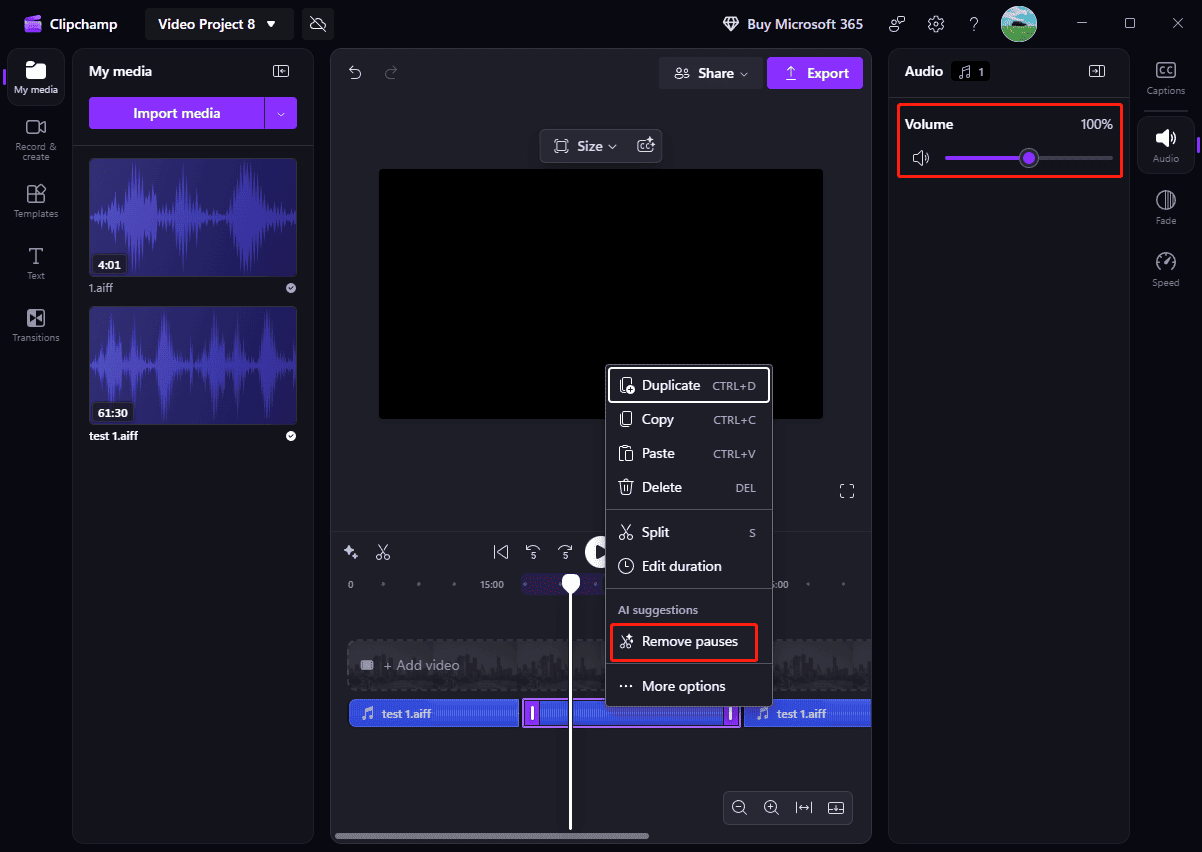
Click the target audio track on the timeline and increase or decrease the volume by moving the Volume slider in the upper right. To remove pauses in the audio, right-click the target clip and select Remove pauses from the dropdown.
Step 5: Export the merged AIFF audio
Click Export in the top right corner, and ensure the Audio-only option is selected on the pop-up. Click Export again to save the combined audio as an M4A file.
Personally, Microsoft Clipchamp is a great tool for merging AIFF audio tracks. First, it’s free to use. Second, the program features an intuitive interface, making it easy to use for those without editing experience.
Method 2: Use Audio Joiner by 123Apps
I also find that online audio tools like Audio Joiner by 123Apps are good for combining AIFF files. First, there is no need to download and install software. Second, it’s free to use, and it doesn’t even require registration. However, it heavily relies on a stable internet connection. When I was experiencing a poor network, it took a long time to upload several large audio files.
How to combine AIFF files using Audio Joiner by 123Apps? Here are the steps.
Step 1: Upload AIFF files
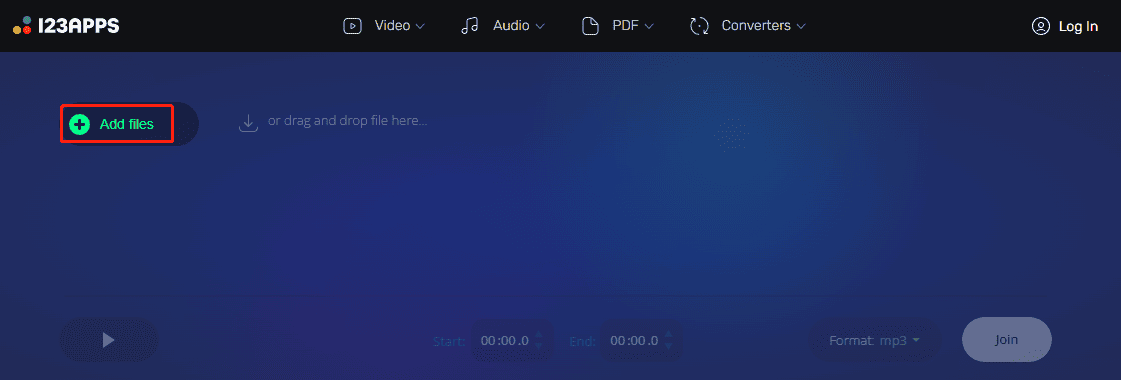
Go to the Audio Joiner website (https://audio-joiner.com/) in the browser. On the left, click Add files to select and upload multiple AIFF audio files from the computer.
Step 2: Edit the AIFF Audio
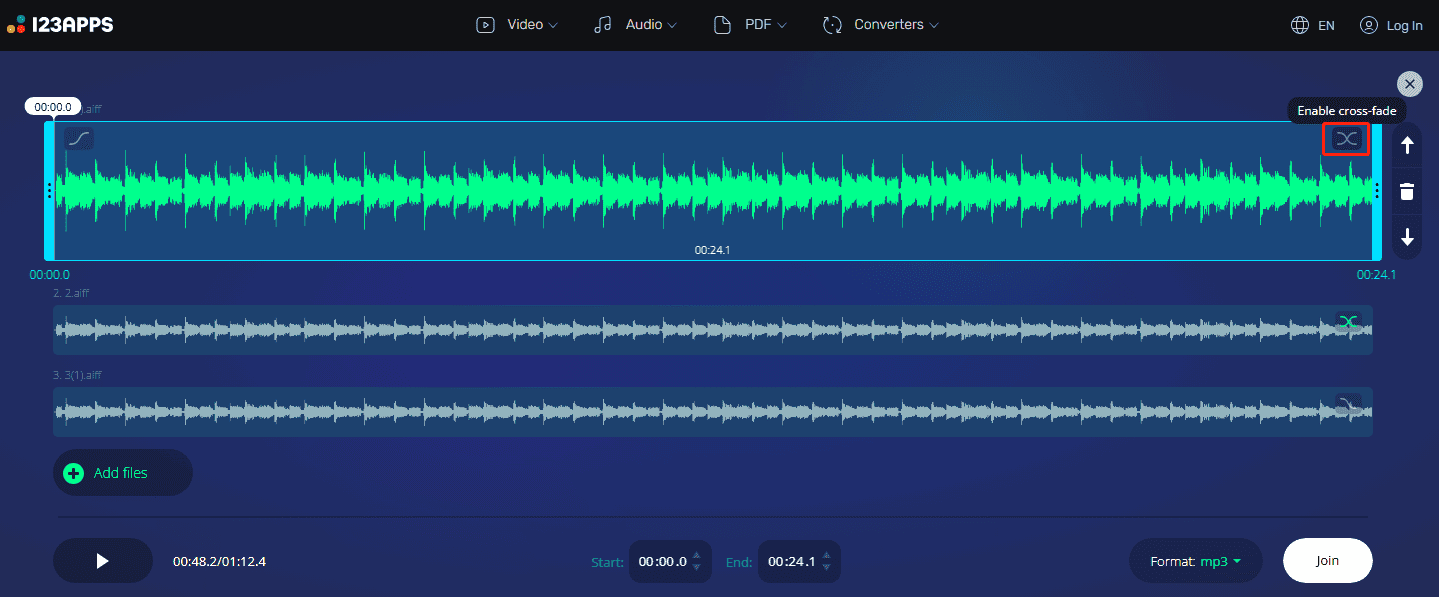
To trim an audio clip, select it and drag either edge inward. To make one song smoothly transition to the next, click the Enable cross-fade icon in the top-right of the clip to apply the crossfade feature.
Step 3: Merge the AIFF files into one
Open the Format dropdown menu and choose a desired output format, such as MP3, M4A, WAV, or FLAC. Then click the Save button, and the platform will start processing your files immediately. Once the process is complete, click Download to save the merged file to the computer.
Whether I join AIFF audio files using Microsoft Clipchamp or the online Audio Joiner by 123Apps, the final audio file is not in the AIFF format. If I still want to save the merged file as an AIFF, there’s still a workaround – convert the audio to AIFF using MiniTool Video Converter, a free audio converter for Windows.
MiniTool Video ConverterClick to Download100%Clean & Safe
Conclusion
Based on my experience, combining AIFF files is not a difficult task. Both desktop applications and online tools allow me to merge multiple audio files into a seamless audio file.
About The Author

Position: Columnist
Cora is a tech writer specializing in digital media workflows, with over six years of hands-on experience in video post-production, media transcoding, and screen capture. Her writing is always clear and practical. Cora also produces in-depth software reviews for users across skill levels to help them find the right tool and enjoy video editing.
User Comments :