

Creating a heart shape photo collage is an intriguing way to showcase the favorite memories. Whether it’s for a special gift, social media post, or personal keepsake, a heart-shaped collage adds a personal and artistic touch. In this post, I’ll share three easy methods to make a stunning heart-shaped photo collage using Canva, Kapwing, and Rapidcollage.com.
How to Create a Heart Shape Photo Collage
Method 1: Use Canva
Canva is a versatile and beginner-friendly design tool that makes creating a heart-shaped photo collage simple and fun. With a wide selection of pre-made heart-shaped collage templates and various stock illustrations and design elements, it is easy to create a high-quality collage in just a few clicks.
Here is the detailed guide I followed to create a heart shape photo collage.
Step 1: Access Canva
First, sign in to Canva (https://www.canva.com/) and click Templates. Then, search for heart-shaped and click the desired template to enter the editing interface.
Step 2: Upload the Images
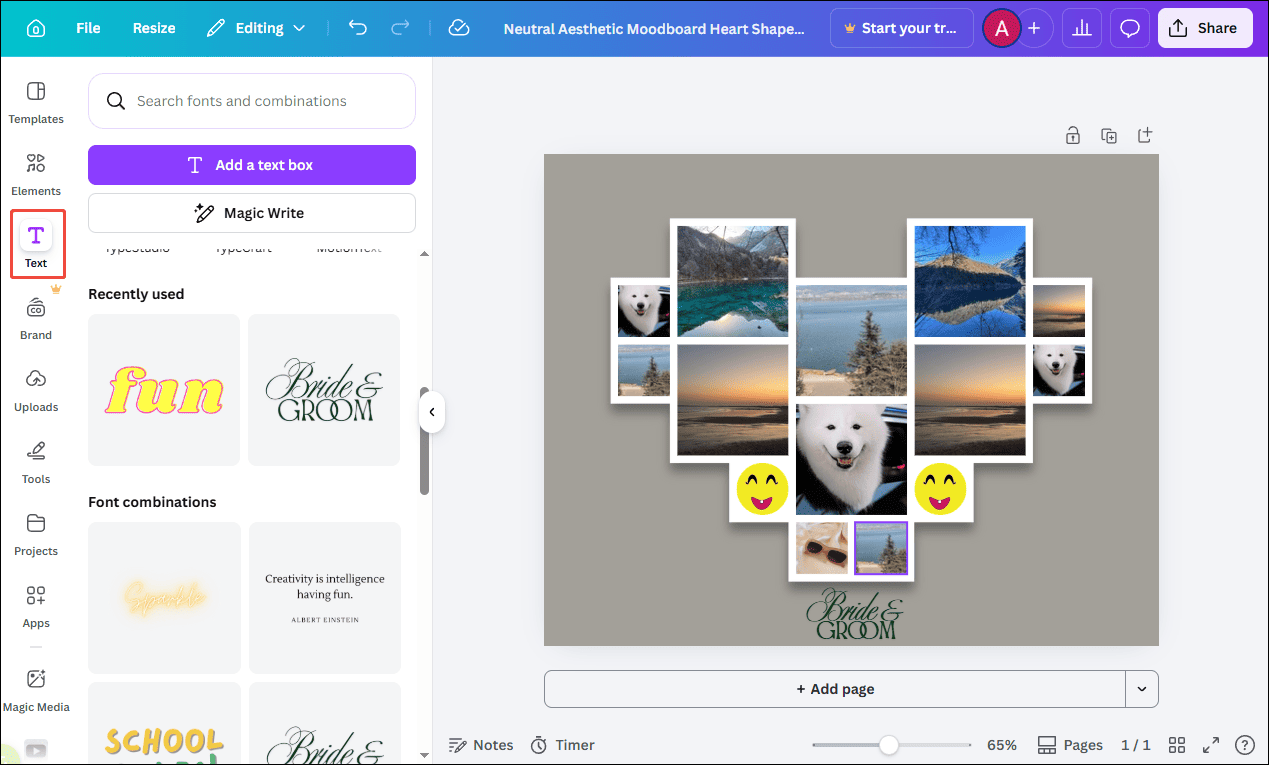
Click Uploads in the left toolbar and select Upload files to import the images. Drag and drop them onto the canvas to replace the original photos.
Step 3: Spice up the Shape Collage
Click Elements in the left toolbar and select decorations to enhance the collage. Click Text and select a stylish font to add an artistic touch to the collage.
Step 4: Save the Heart-Shaped Collage
Once satisfied, click the Share icon and select Download to save the image to the computer.

Method 2: Use Kapwing
Kapwing is an all-in-one platform capable of editing both videos and images. It also offers a large collection of heart shape photo collage templates. Its drag-and-drop interface and flexible editing options make it efficient to design a polished collage without installing any software.
How to create a heart shape photo collage with Kapwing? Here are the detailed steps.
Step 1: Visit Kapwing
Open the heart-shaped template page of Kapwing (https://www.kapwing.com/templates/photo-collage/heart-shaped) in the browser. Select the desired template and click Edit the template.
Step 2: Upload the Images
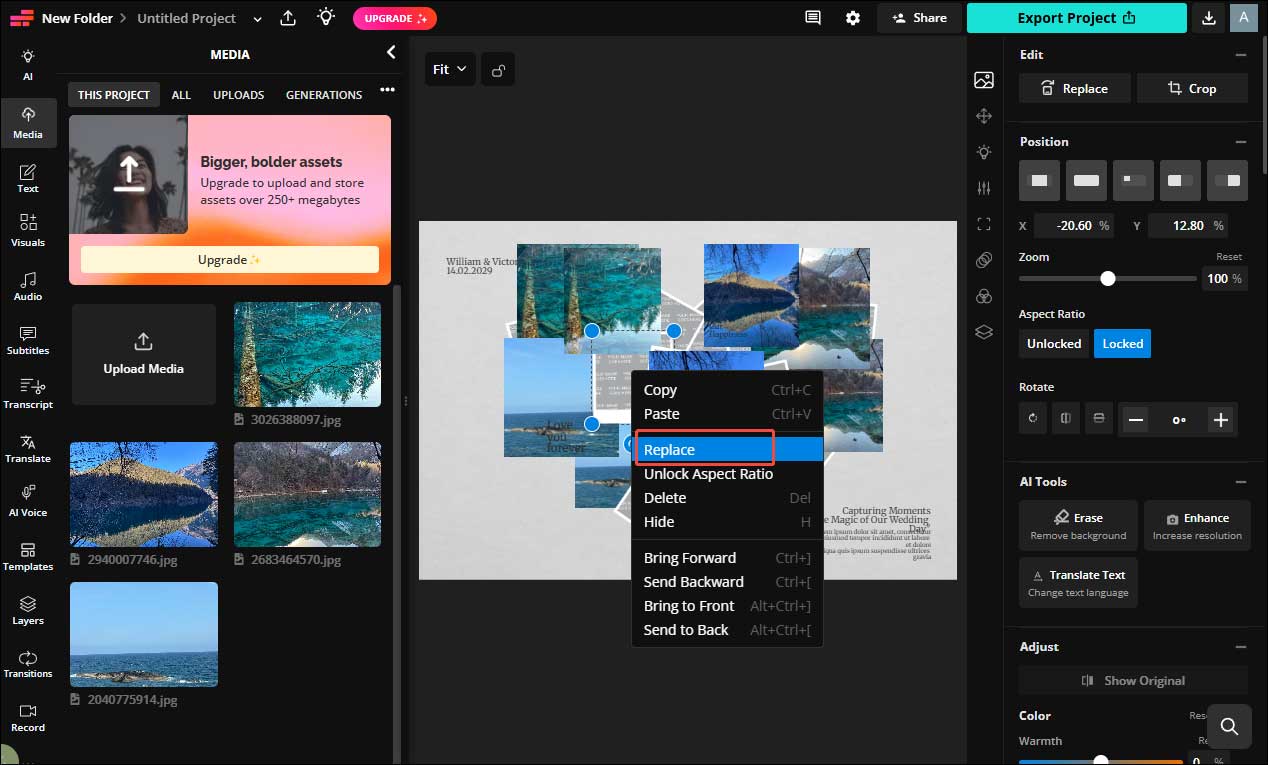
Click Media in the left toolbar and select Upload Media to import the chosen photos. To maintain the original layout, right-click the original photo in the template and select Replace. Next, select the imported photo.
Step 3: Save the Collage
After completing the edits, click Export Project and select Export as JPG to save the collage to the computer. One limitation of the free version of Kapwing is that it adds a watermark to the image.

Method 3: Use Rapidcollage.com
Rapidcollage.com is an online collage maker that allows the creation of heart-shaped photo collages quickly and easily. It offers different themes and shapes, such as numbers or animals, to meet diverse creative needs. Follow the steps below to start creating a heart-shaped collage.
Step 1: Navigate to Rapidcollage.com
Open the Rapidcollage website in a browser and select the Heart Shape Collage template from the template library. Adjust the collage style, text location, and size. Click Use this template and create photo collage.
Step 2: Upload the Images
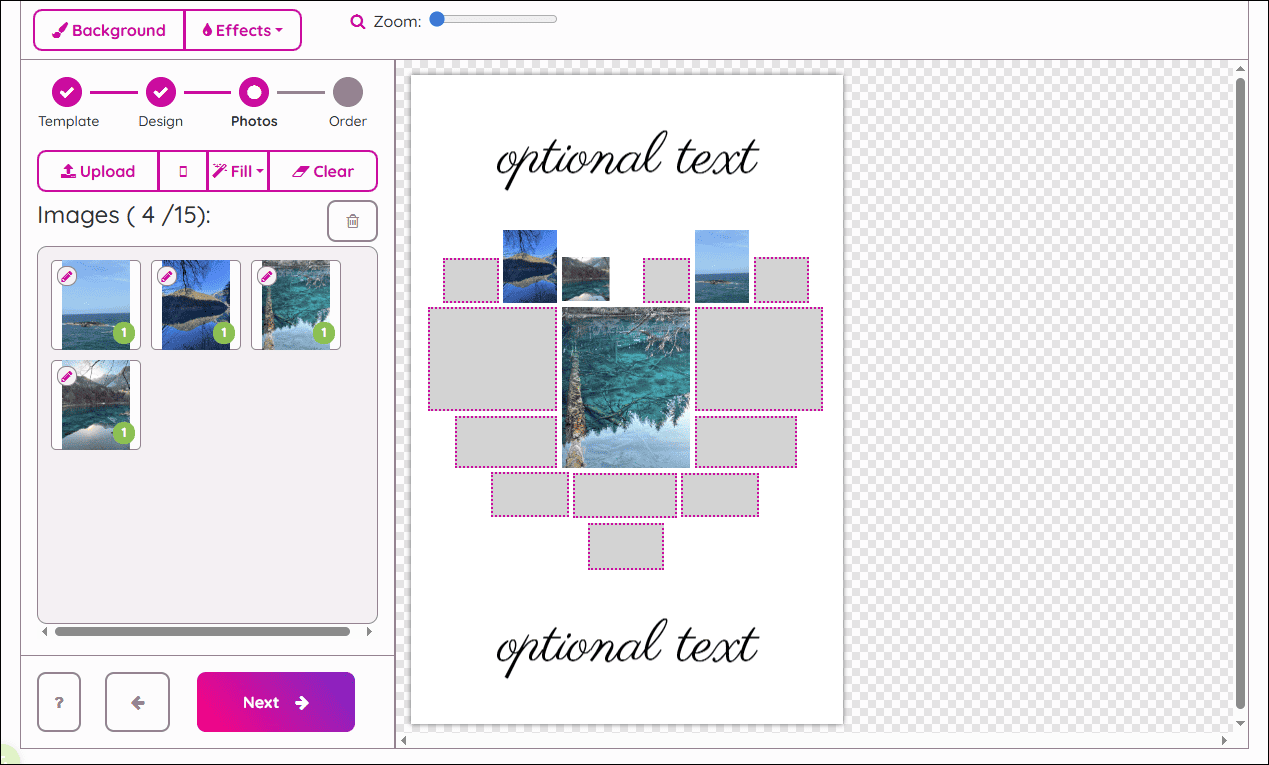
Click the Upload button and select the desired images from the computer. The uploaded images automatically populate the collage layout.
Step 3: Customize the Collage
Rapidcollage.com allows basic customization such as changing backgrounds, borders, and spacing between images. Click Effects at the top of the menu to add an artistic touch to the collage. Click text in the canvas to enter the words.
Step 4: Preview the Collage
Once the collage is complete, a preview is available for online viewing.
Bonus: How to make a video collage
When I want to make my video more advanced, creating a video collage is a great option. MiniTool MovieMaker, a Windows movie maker, offers a variety of video collage frames. Apart from that, it supports other useful editing features, such as 4K video editing and video overlay effects. The button below provides quick access to try it out.
MiniTool MovieMakerClick to Download100%Clean & Safe
Conclusion
This post explains how to create a heart shape photo collage using Canva, Kapwing, and Rapidcollage.com. Select the one you like and start creating!
User Comments :