

What Is BMP
BMP is a raster graphics image format mainly used to store bitmap digital images. It can store two-dimensional digital images with various color depths and include data compression and color profiles. Plus, BMP is an uncompressed format, making it able to display high-quality images.
Microsoft created the BMP format for the Windows system to ensure that digital images have uniform resolution across multiple screens and devices. Now, BMP files are no longer exclusive to Windows platforms. They are also compatible with Mac and Android devices.
What Is ICO
ICO is an image file format developed by Microsoft for computer icons. In Windows systems, all executable files that display icons to users must use icons in the ICO format. Plus, it enables images of various sizes and color depths to be stored in a single file, guaranteeing clear display on all Windows systems. Also, ICO is usually used for website favicons.
Why Convert BMP to ICO
Multiple versions of the same image can be contained within a single ICO file, ensuring a clear display at different zoom levels, whereas separate files must be created for each size with BMP. In addition, BMP files are uncompressed and tend to be large in size, while ICO files contain optimized images, making them more suitable for use as icons.
How to Convert BMP to ICO on Windows
Here are three tools that can accomplish quick BMP to ICO conversion.
Option 1. Convertio
Convertio is a user-friendly and reliable online conversion tool popular for its wide format support. It allows you to convert between multiple file types, such as images, videos, audio, archives, and more. In addition, Convertio has a great performance, empowering you to complete conversion tasks in a flash. To simplify the workflow, you can convert multiple files at the same time.
Here’s how to convert BMP to ICO using Convertio:
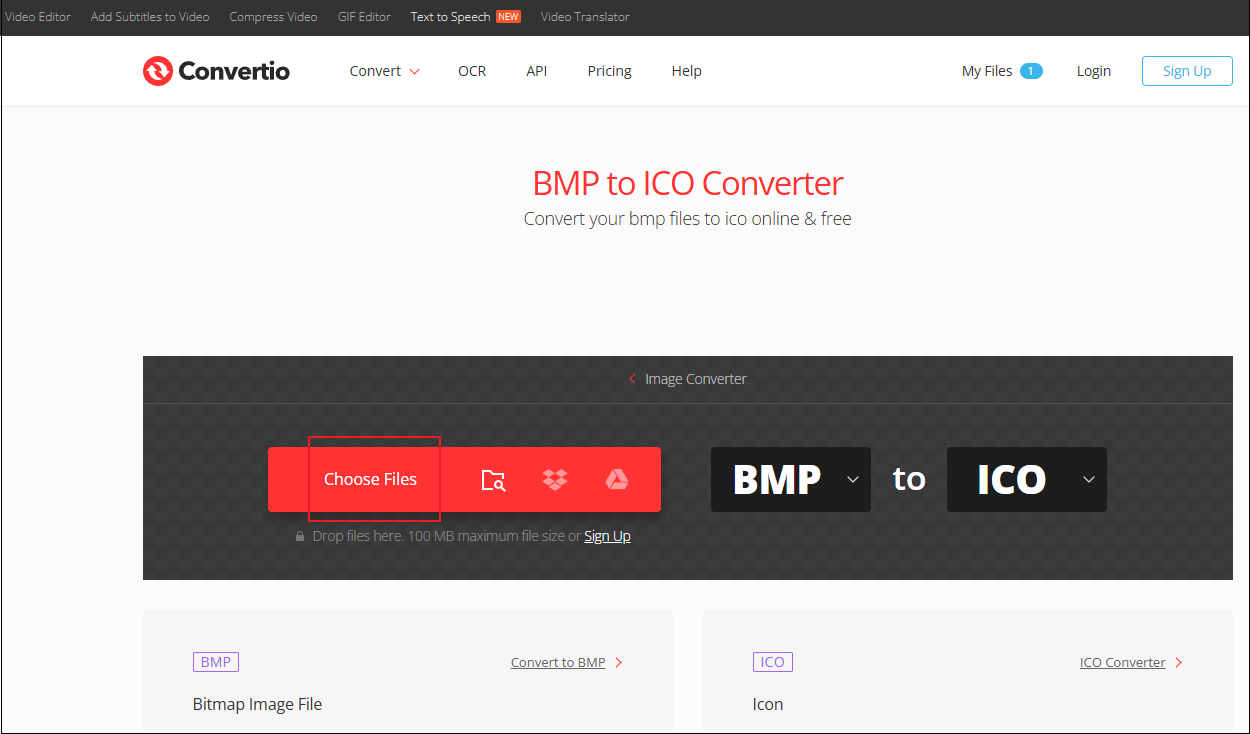
1. Go to Convertio
Access Convertio’s BMP to ICO converter. (https://convertio.co/bmp-ico/)
2. Upload Your File
Click the Choose Files option to add the BMP image.
3. Start Conversion
Click the Convert button to convert BMP to ICO.
4. Download the ICO File
Click the Download button to save the file.
Option 2. FreeConvert
FreeConvert is a professional and browser-based BMP to ICO converter that offers a quick conversion. It supports a wide range of formats, including BMP, ICO, PNG, JPG, SVG, MP4, MOV, AVI, MP3, WAV, and more. Plus, this tool provides high-quality outputs and supports batch conversion. Moreover, FreeConvert offers robust data protection security. Follow the guides below to complete the conversion task.
1. Access FreeConvert
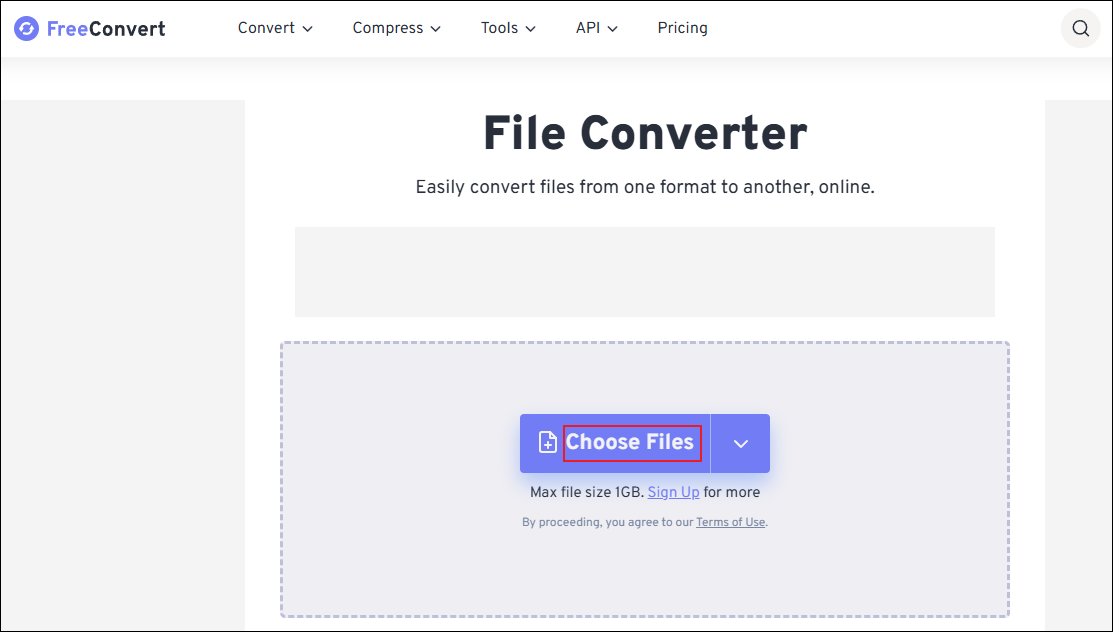
Go to FreeConvert’s official website. (https://www.freeconvert.com/)
2. Upload Your Image
Click the Choose Files option to import the image you want to convert.
3. Choose the Output Format
Open the Output option and choose ICO.
4. Convert BMP to ICO
Click the Convert button to start the conversion.
5. Download the Image
When the conversion process completes, click the Download option to save the ICO image.
Option 3. Zamzar
Zamzar is a cutting-edge and all-in-one file converter that offers a straightforward interface, making it perfect for beginners. Except for converting BMP to ICO, Zamzar can also serve as an audio converter, document converter, video converter, and more. With Zamzar, you can convert BMP to ICO in no time. Just follow the instructions below.
1. Access Zamzar’s BMP to ICO Converter
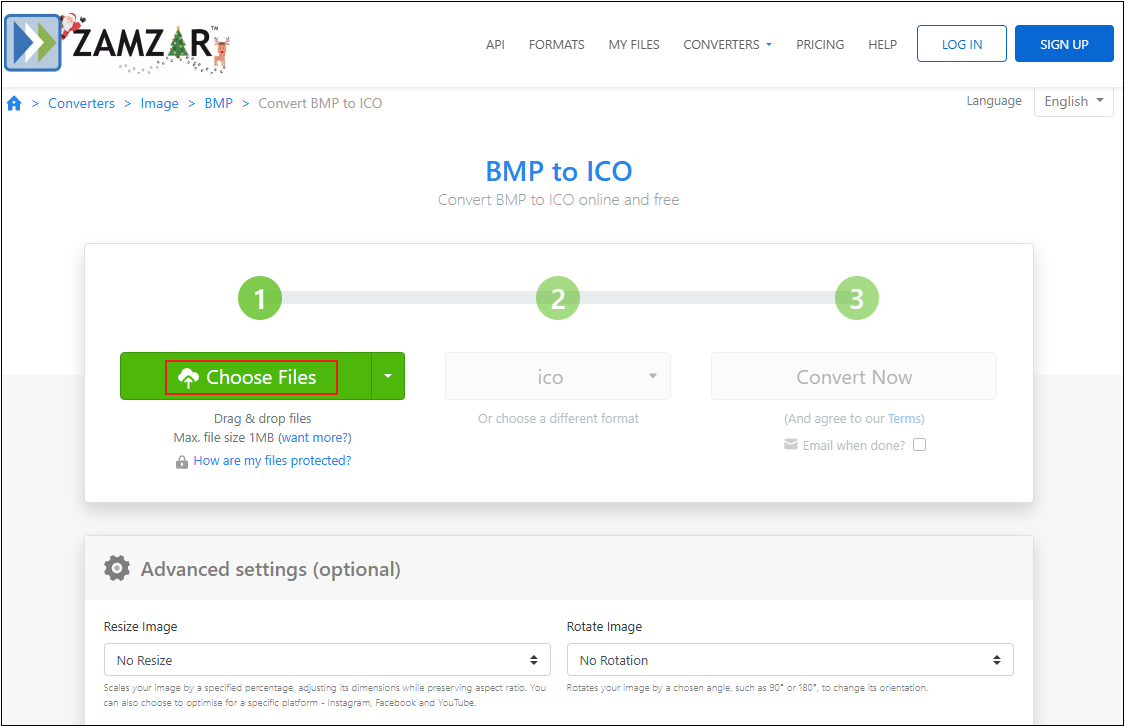
Visit https://www.zamzar.com/convert/bmp-to-ico/
2. Upload Your Image File
Click the Choose Files option to upload the BMP image you want to convert.
3. Adjust Settings for the Output
In the Advanced settings window, resize or rotate the image as you prefer. Then, click Convert to start the conversion.
4. Download the Image
When the conversion task completes, click the Download button to save the ICO image.
MiniTool MovieMakerClick to Download100%Clean & Safe
In Summary
To convert BMP to ICO format, this article provides three reliable professional tools and guides you step-by-step through the conversion process. Feel free to choose the one you prefer. Now, it’s your turn!
User Comments :