

In variety shows, my favorite game is when guests have to tell the song title after listening to its reversed version. When I first saw the game, I wondered how to play a song backwards. After searching on the internet, I found that this is a very simple process. In this post, I’ll show you two quick methods to reverse MP3 audio files.
How to Reverse MP3 on Windows
If you’re looking for an MP3 reverser for Windows, don’t miss MiniTool MovieMaker. While it’s primarily designed as a video maker and editor to help entry-level users create video from images, it still serves as a simple audio editor.
MiniTool MovieMaker can handle common audio formats, such as MP3, M4A, WAV, FLAC, AAC, and M4R. Therefore, you can also reverse other audio file types besides MP3.
How to play MP3 in reverse using MiniTool MovieMaker? Here’s my experience.
Step 1: Download and Install the MP3 Reverser
Click the button below to download the excellent MP3 reverser and install it on the computer.
MiniTool MovieMakerClick to Download100%Clean & Safe
Step 2: Add My MP3 File
After installation, run the software and close the pop-up window to access the main interface. Then, click the Import Media Files button on the upper left to open the File Explorer. Locate the target MP3 file and add it to the media library of MiniTool MovieMaker. Next, click the + icon on the clip to add the MP3 file to the timeline.
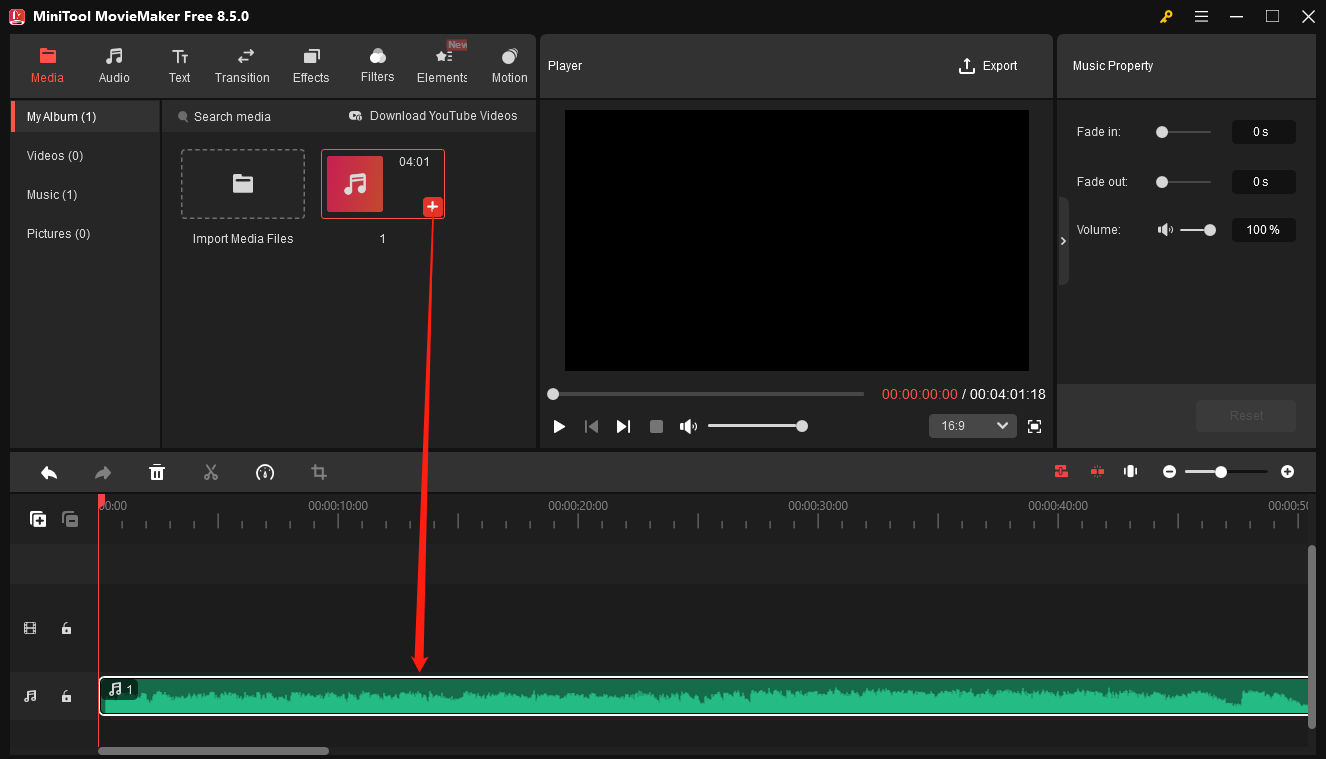
Step 3: Reverse MP3
Select the audio clip on the timeline and click the Speed icon on the above toolbar. From the dropdown, select Reverse to reverse the audio immediately.
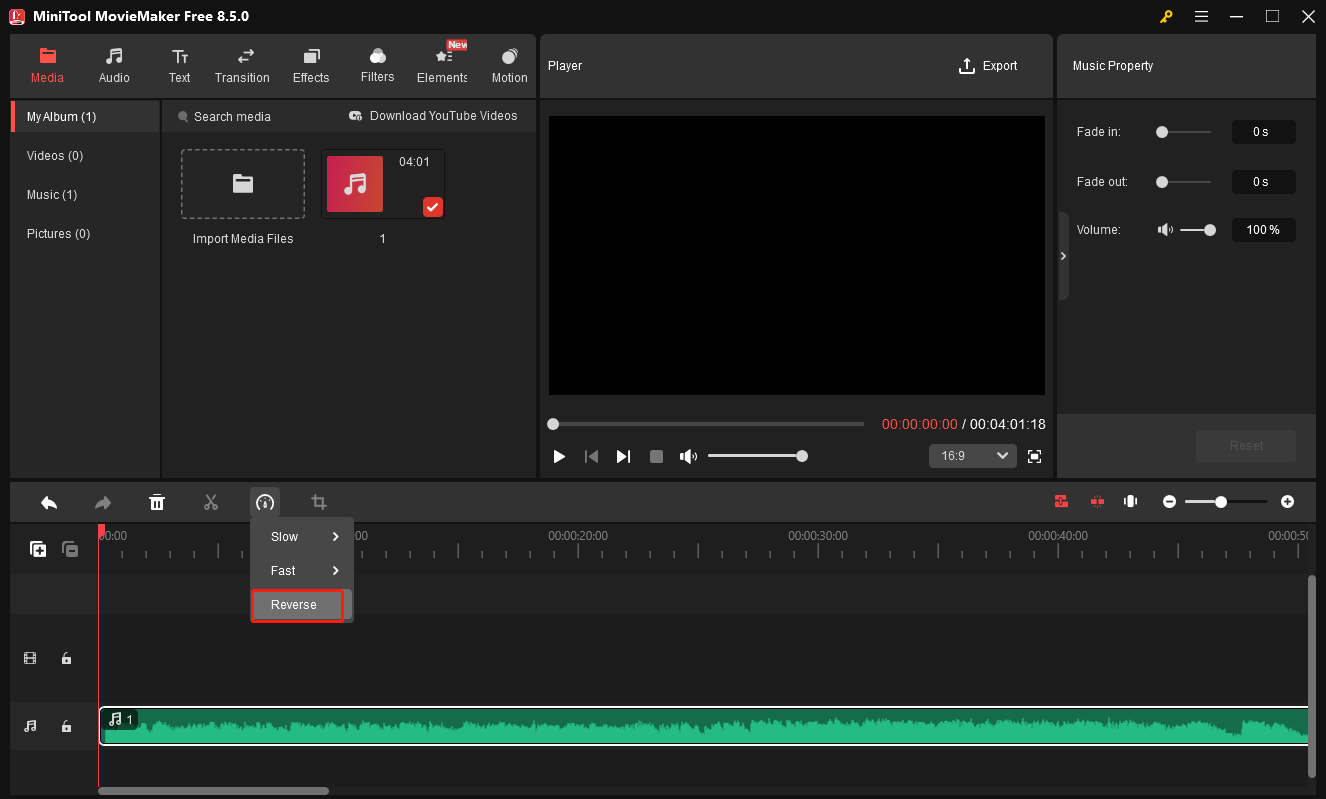
Step 4: Save the Reversed MP3 Audio
Click the Export option in the upper right to open the Export window. Expand the Format menu and choose MP3 from the dropdown list. Give the file a name, choose the output folder, and click Export to begin processing the file.
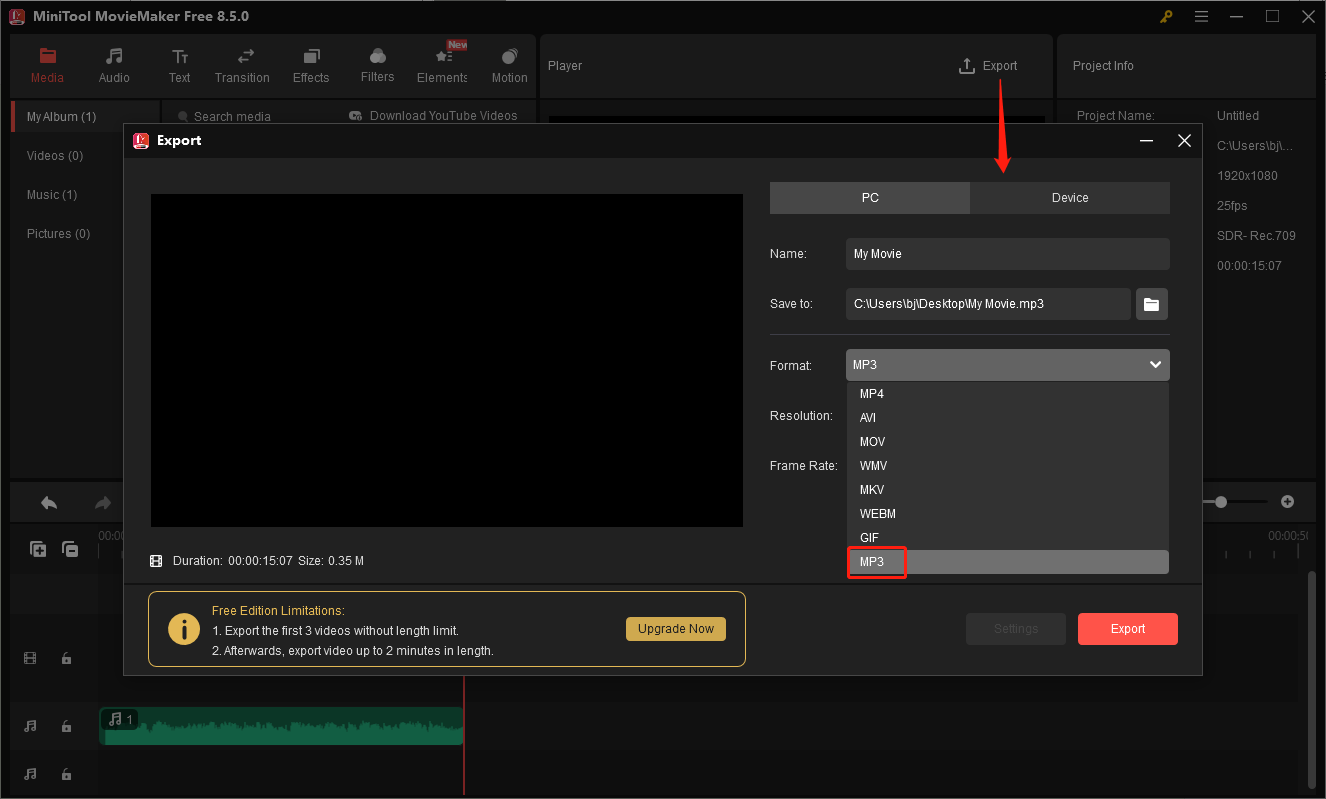
Then, I played the reversed audio for a quick preview. It’s really an unusual feeling. All words are clear, but don’t make sense.
Moreover, I found MiniTool MovieMaker has many essential editing features. It can trim audio to remove unwanted parts from the beginning or end, split a clip into segments, merge multiple audio clips into one, adjust the volume, apply fade-in/out effects, and change the audio speed.
Additionally, I find more features of MiniTool MovieMaker. It lets me add audio to videos. I can choose a song or a sound effect from its built-in audio library, or import audio files saved on my computer. It also allows me to reverse videos to enhance the creative storytelling.
What’s more, MiniTool MovieMaker has a user-friendly interface. I really love the application because it doesn’t require skills or experience, and everyone can get started with the program.
How to Reverse MP3 Online
Sometimes, I’ll switch to an online MP3 reverser if I only need to play an MP3 file in reverse and don’t want other edits. I’ve tried many browser-based tools to reverse MP3 online. Then, a platform called Online MP3 Cutter impressed me. It’s free to use, no sign-up, and doesn’t have a length limit. With a few clicks, you’ll get a reversed version of a song.
Step 1: Visit Online MP3 Cutter
Navigate to the Online MP3 Cutter (https://mp3cut.net/) website.
Step 2: Find the Audio Reverser Tool
Expand the Audio menu and choose Reverse Audio from the dropdown.
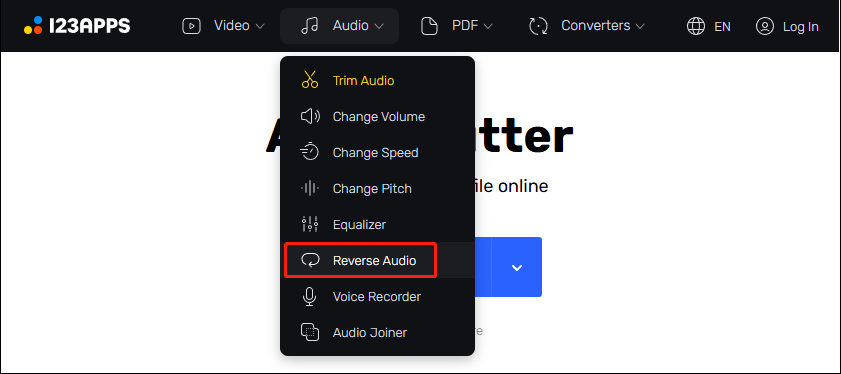
Step 3: Upload the MP3 File
Once the Audio Reverser page opens, click Choose File to select the MP3 file.
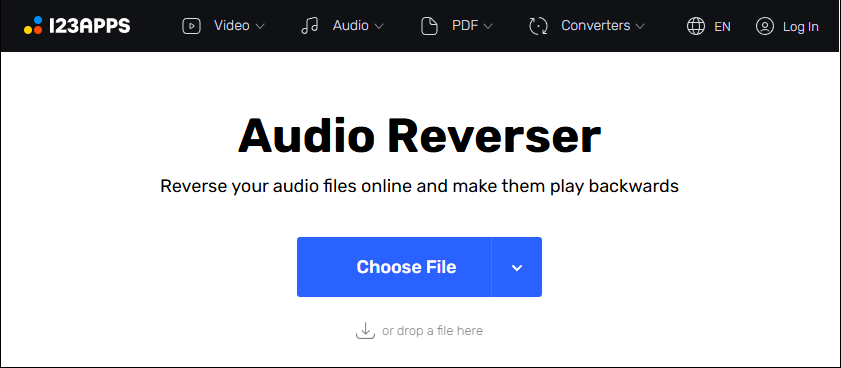
Step 4: Reverse the MP3 Audio
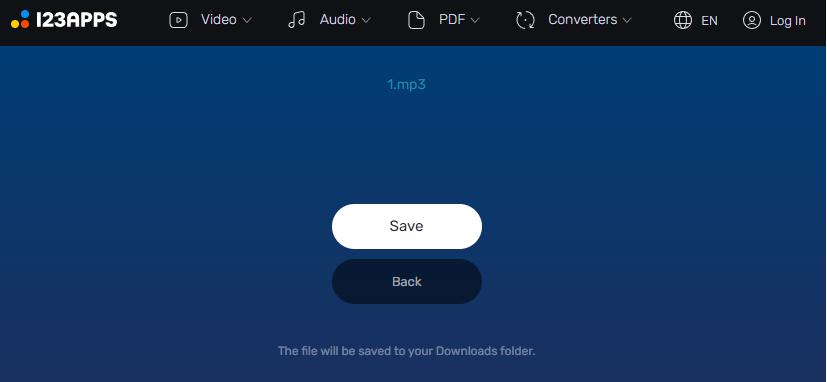
The MP3 file will be automatically reversed when the upload is finished. Click Save to download the reversed MP3 file to the computer.
In addition to reversing audio files, I find that Online Audio Cutter can also trim audio (to cut unwanted parts from either end or the middle section), increase or decrease the volume, adjust the playback speed, change pitch, join multiple audio files, and record voice-overs.
Online Audio Cutter also features an intuitive interface, making it easy to navigate. Unlike desktop applications, browser-based tools heavily rely on a network connection. Therefore, if you’re going to reverse MP3 files using Online Audio Cutter or other tools, make sure you’re connected to a good network.
Conclusion
According to my experience, reversing MP3 is a straightforward process and doesn’t require complex settings. With several clicks, you can play an MP3 file in reverse. Follow the steps above to play your audio backwards. This way, you can play a song guessing game with friends at a party.
Finally, if you encounter any difficulties while using MiniTool MovieMaker, please contact our support team at [email protected] for help.
About The Author

Position: Columnist
Cora is a tech writer specializing in digital media workflows, with over six years of hands-on experience in video post-production, media transcoding, and screen capture. Her writing is always clear and practical. Cora also produces in-depth software reviews for users across skill levels to help them find the right tool and enjoy video editing.
User Comments :